
JUN 03, 2025|10 min read

We are excited to announce the public preview of the capability to export Snowflake Semantic Views as a Tableau Data Source (TDS) file. This new capability allows Tableau users to query Snowflake Semantic Views directly, enabling consistent consumption of the business logic, metrics and dimensions defined in Snowflake without semantic and data movement or duplication. Data teams can now deliver the same results in both of these analytics surfaces.
This is a native capability that generates a Tableau data source (.tds) file from your Semantic View. You can trigger this export by clicking a button directly in the Snowsight UI or by using a simple system function.
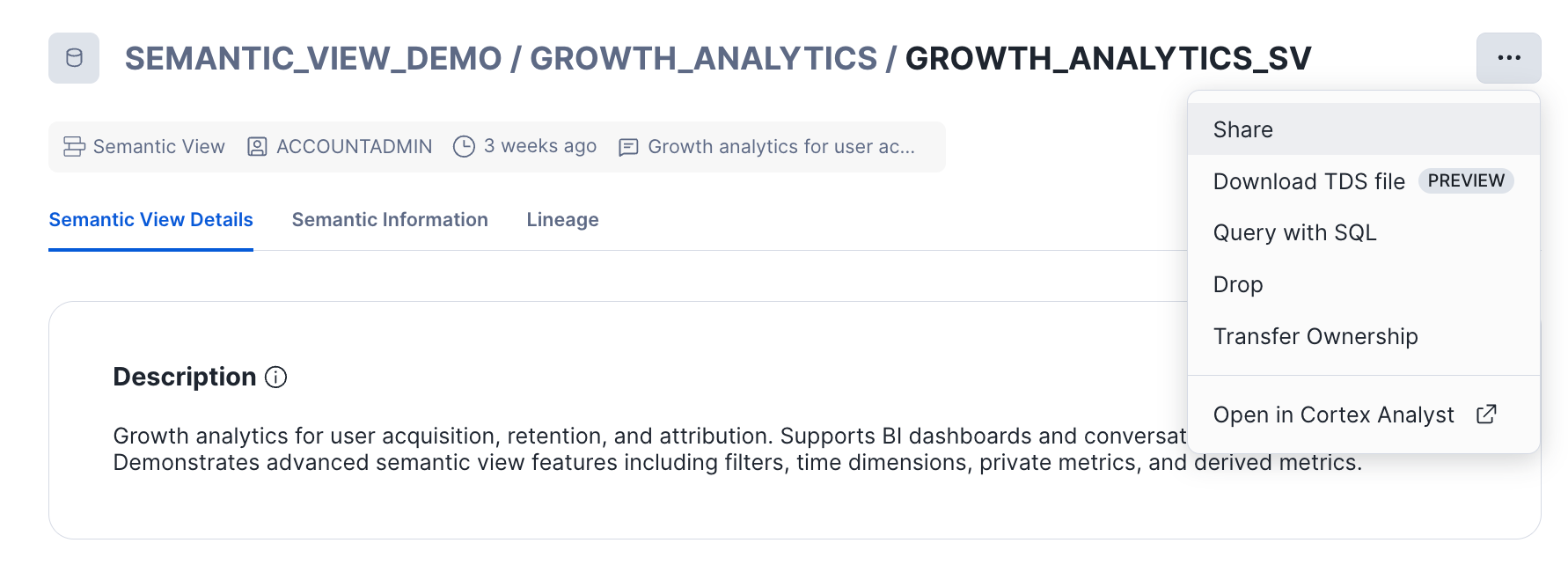
SELECT SYSTEM$EXPORT_TDS_FROM_SEMANTIC_VIEW('sv_name_for_export');Once downloaded, the TDS file acts as a translation layer, instantly configuring the following:
AGG() function in Tableau, enabling all metric calculation logic to be handled by the Semantic View compilation engine.After opening the file in Tableau Desktop or Tableau Online, users can easily gain insights by dragging and dropping measures and dimensions as they normally would.
For this walkthrough, let’s assume we have a Semantic View named GROWTH_ANALYTICS_SV. This view is designed to answer common marketing attribution questions and joins marketing spend, user acquisition and product usage data. The Semantic View captures features such as:
RETURN_ON_AD_SPEND (ROAS), COST_PER_ACQUISITION (CPA) and CONVERSION_RATE.To start analyzing this data in Tableau, we need to generate the connection file. If you are using the Snowsight UI, you can simply navigate to the Semantic View definition and click the "Download TDS file" button to download the file automatically.
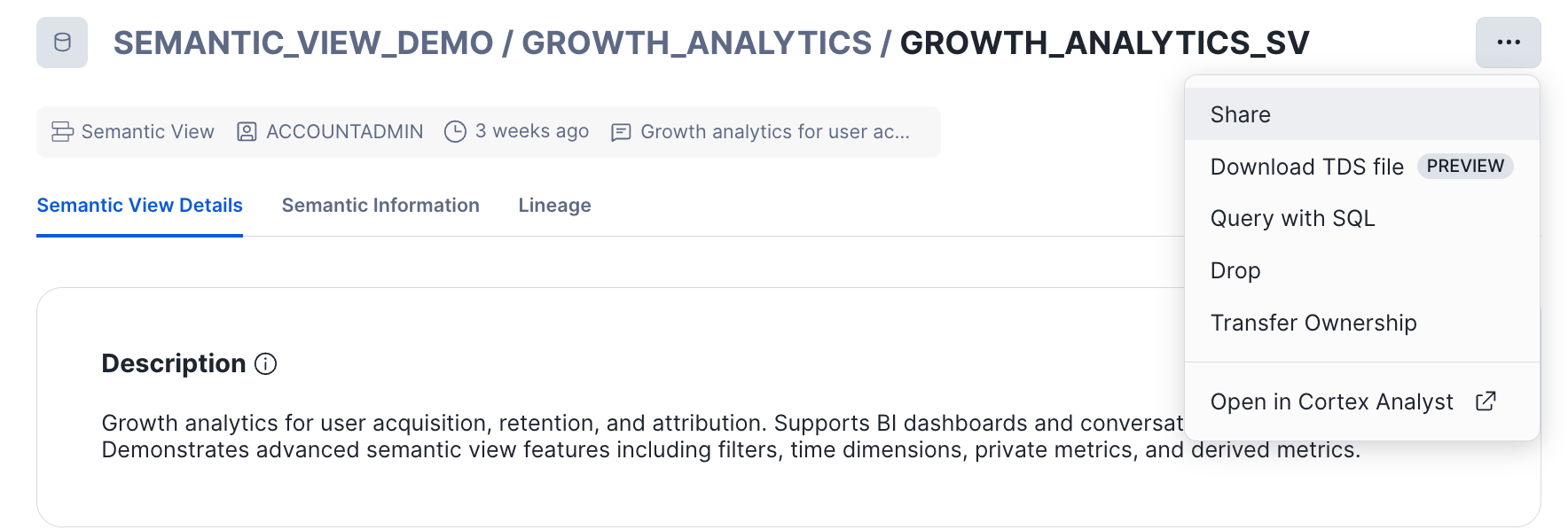
You can also do this using the system function introduced as below:
SELECT SYSTEM$EXPORT_TDS_FROM_SEMANTIC_VIEW('SEMANTIC_VIEW_DEMO.GROWTH_ANALYTICS.GROWTH_ANALYTICS_SV');Once you have the .tds file (for example, GrowthAnalytics.tds), simply double-click it to launch Tableau Desktop. Once connected, you will notice that the left pane is preconfigured and you’ll see a clean, business-ready view of your data with components such as:
Signup Channel and Plan Type ready for slicing (aka dimensions)Return on Ad Spend and Cost Per Acquisition (aka metrics)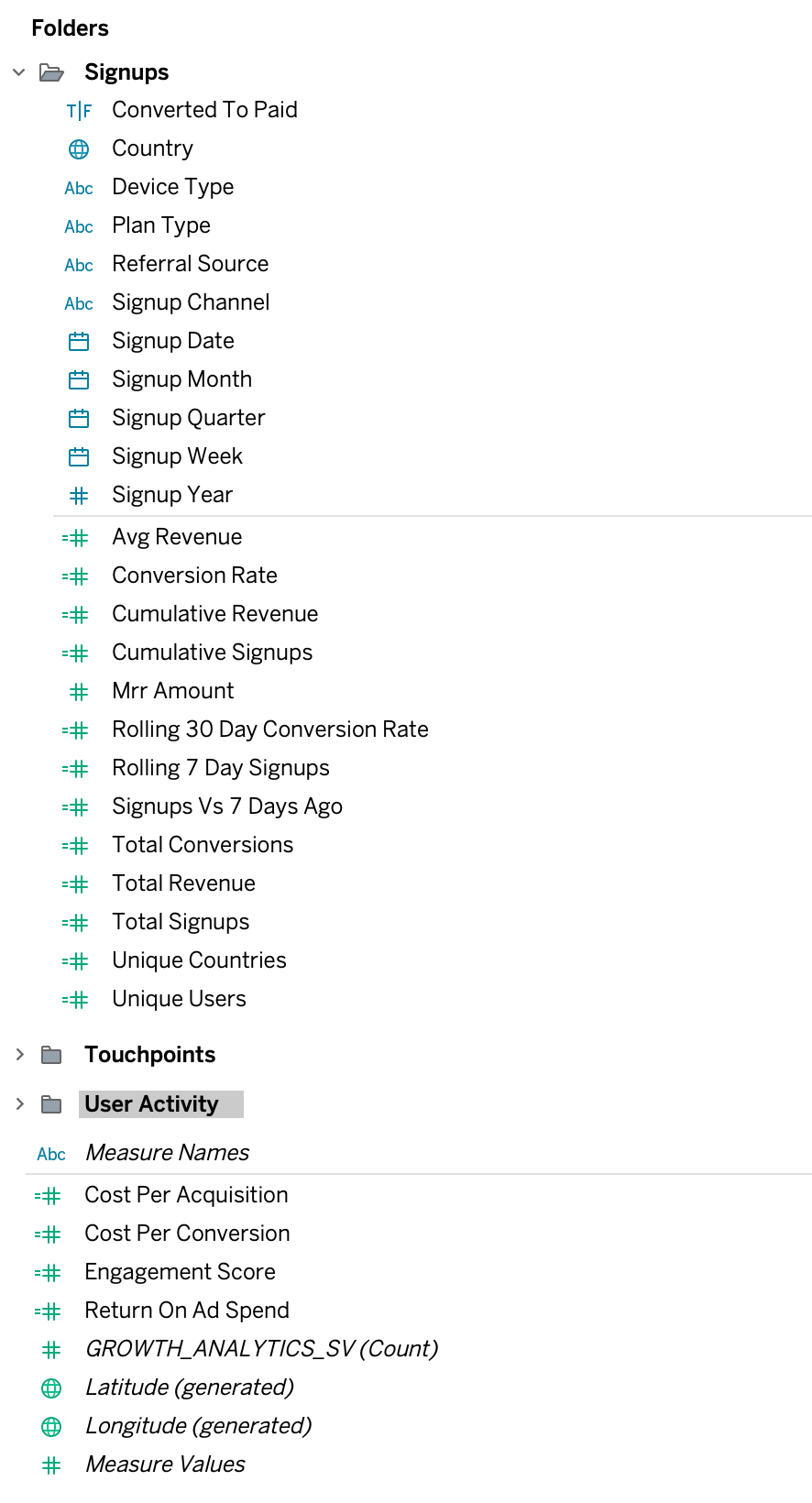
Tableau is now connected live to the Snowflake Semantic View, ensuring that every query generated by your dashboard is executed directly against the data in Snowflake. This helps ensure that you see the same results for both your AI and BI workloads.
You can now drag and drop fields to build visualizations. For instance, dragging Signup Channel to rows and metrics such as Total Ad Spend, Total Revenue and Return on Ad Spend in Columns onto the canvas will generate a query that is pushed down to Snowflake and lets you visualize the return on investment for different marketing channels.
You will notice a key difference here compared to standard Tableau data sources. When you drag a metric from a Semantic View, Tableau automatically wraps it in an AGG() function for example, AGG(RETURN_ON_AD_SPEND)rather than the default SUM() or AVG(). The AGG function forces Tableau to push calculation computation to Snowflake, which helps honor the logic defined in the semantic layer and ensures that calculations are done at the correct grain.
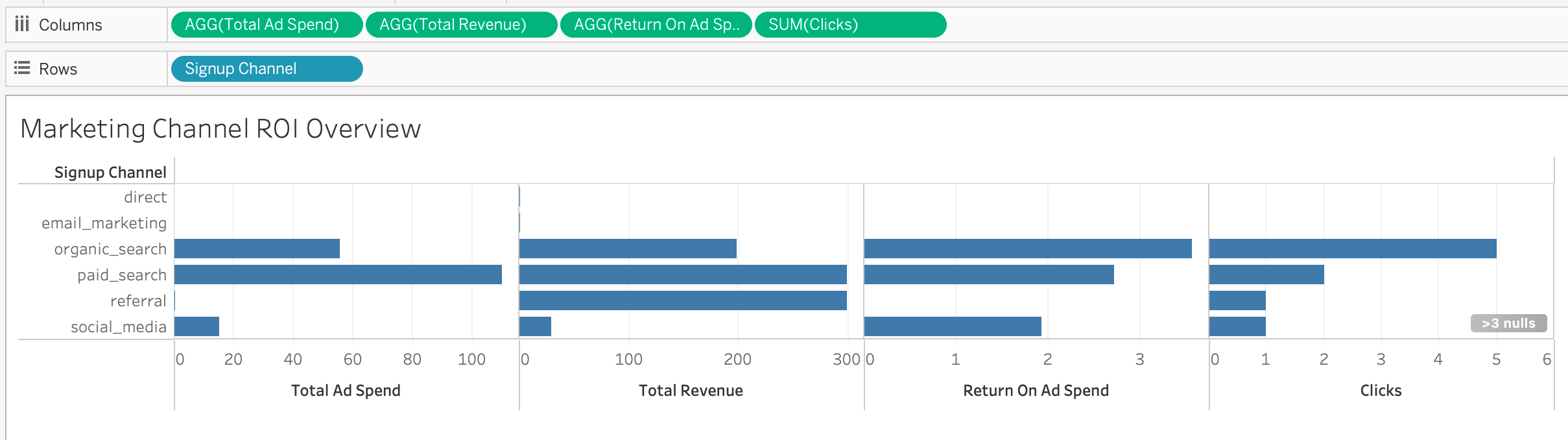
Note that you are also able to also request adhoc metrics (i.e. metrics that you haven’t defined in your semantic view). In the example above, clicks is a fact in Snowflake Semantic View and sum of total number of clicks is an adhoc metric requested.
If you check the query history in Snowflake, you will see Tableau querying the Semantic View directly:
SELECT "GROWTH_ANALYTICS_SV"."SIGNUP_CHANNEL" AS "SIGNUP_CHANNEL",
  SUM("GROWTH_ANALYTICS_SV"."CLICKS") AS "sum:CLICKS:ok",
  (AGG("GROWTH_ANALYTICS_SV"."RETURN_ON_AD_SPEND")) AS "usr:Calculation_516a7fe3d4b248a0a236:ok",
  (AGG("GROWTH_ANALYTICS_SV"."TOTAL_AD_SPEND")) AS "usr:Calculation_5bb8fbac9da4445c87ef:ok",
  (AGG("GROWTH_ANALYTICS_SV"."TOTAL_REVENUE")) AS "usr:Calculation_e0e8254369794625a8e1:ok"
FROM "SEMANTIC_VIEW_DEMO"."GROWTH_ANALYTICS"."GROWTH_ANALYTICS_SV" "GROWTH_ANALYTICS_SV"
GROUP BY 1As you test this feature, here are a few technical details and best practices to keep in mind regarding Tableau’s interactions with Semantic Views:
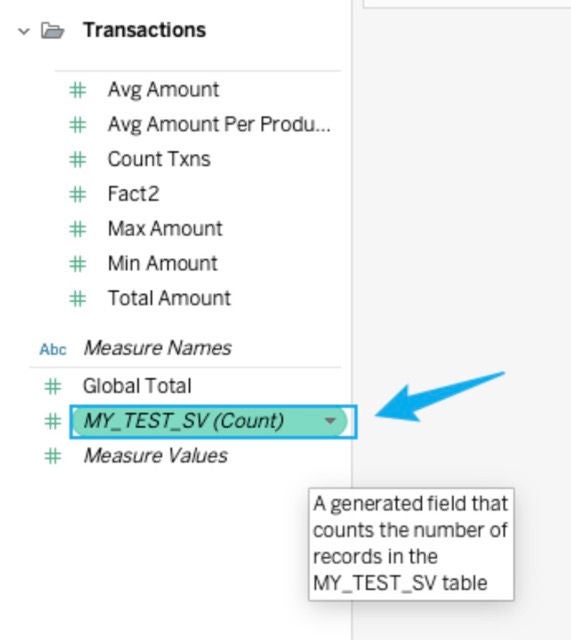
min_name), they will appear as dimensions in Tableau. To use them as measures, you will need to manually convert them to measures in Tableau.COUNT(1) query, which can be dismissed.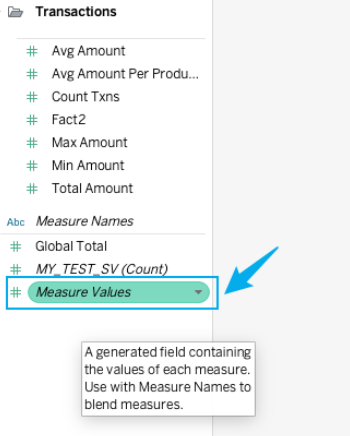
This feature is now available in public preview. Learn more from our documentation, and we encourage you to try this integration!


