Getting Started with Cortex AI Functions
Overview
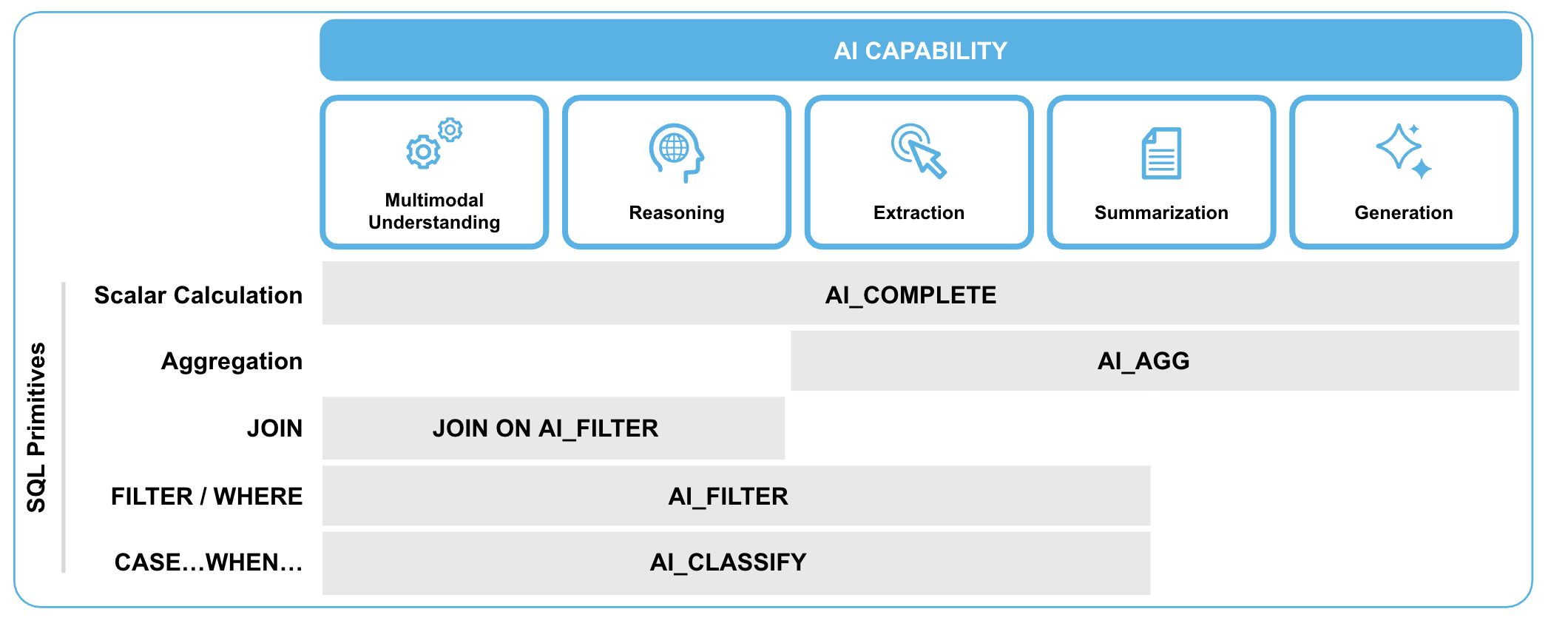
Cortex AI Functions reimagines SQL into an AI query language for multimodal data, bringing powerful AI capabilities directly into Snowflake's SQL engine. It enables users to build scalable AI pipelines across text, images, and audio using familiar SQL commands and with industry-leading LLMs from Google, Open AI, Anthropic, Meta, and more. With native support for multimodal data through a new FILE datatype, Cortex AI Functions seamlessly integrates AI operators with traditional SQL primitives like AI_FILTER and AI_AGGREGATE, allowing analysts to process diverse data types more efficiently and cost-effectively while maintaining enterprise-grade security and governance.
What are Cortex AI Functions?
Cortex AI Functions bridges the traditional divide between structured and unstructured data analysis, eliminating the need for separate tools and specialized skills.
It delivers three key benefits:
- Simplicity through familiar SQL syntax that transforms any analyst into an AI engineer without complex coding
- High-performance processing through deep integration with Snowflake's query engine, offering 30%+ faster query runtime
- Cost efficiency with up to 60% savings compared to traditional AI implementations
By unifying all data types in a single platform with zero setup required, Cortex AI Functions democratizes AI-powered analytics across the enterprise.
Use Cases
Cortex AI Functions benefits organizations across industries dealing with diverse data types including:
- Financial services: Automate corporate action processing by filtering news feeds and joining with internal holdings
- Retail and e-commerce: Detect product quality issues by analyzing customer reviews and identifying concerning patterns
- Healthcare: Accelerate medical research by bridging unstructured clinical notes, transcripts and images with structured patient records
- Legal: Streamline contract analysis and compliance monitoring
- Media: Optimize content and target advertising through multimodal data analysis
Business analysts can extract insights without AI expertise, data engineers can build simpler pipelines, and data scientists can create richer feature sets, all using familiar SQL.
Gemini 3 Pro and Gemini Flash 2.5 Support
Snowflake Cortex AI natively supports Gemini 3 Pro and Gemini Flash 2.5 through Cortex AI Functions, running directly within your Snowflake environment. This means faster access to industry-leading AI, without moving or copying sensitive enterprise data. You can build generative and agentic AI applications directly where your governed data already lives. The result is a simpler architecture, lower cost, and higher trust in agentic AI applications.
The Gemini models are extensible to a variety of use cases, depending on your need:
- Gemini 3 excels at multi-modal reasoning, long-context analysis, advanced tool use and complex agentic workflows. It’s a powerful fit for Snowflake customers building production-grade AI agents that operate securely across structured, unstructured, and multimodal enterprise data. This makes it ideal for customers building enterprise-grade AI agents that must reason deeply over financial records, logs, product data, documents and more, securely at scale. Built on Google’s most intelligent Gemini generation to date, Gemini 3 Pro delivers state-of-the-art reasoning with unprecedented depth and nuance, significantly outperforming previous generations across major reasoning, math, multimodal and factual accuracy benchmarks, giving enterprises higher confidence in their most complex, business-critical use cases.
- Gemini Flash 2.5 is optimized for speed and cost efficiency. It delivers high-quality results across tasks such as summarization, chat, data extraction and captioning, making it ideal for high-volume workloads that demand both performance and value. Perfect for high-volume scenarios such as call summarization, invoice processing and rapid customer service interactions, without slowing down the service.
Cortex AI Functions make it easy to build cost-efficient, scalable AI pipelines across multimodal enterprise data using familiar SQL. This eliminates complex orchestration and reduces operational overhead, enabling analysts and developers to apply natural language instructions directly to governed datasets. When combined with Gemini 3’s advanced reasoning, customers can move beyond basic Q&A to nuanced analysis, planning and decision support that better captures the real-world complexity of their businesses. For example, using AI_COMPLETE function, users can leverage state-of-the-art models like Gemini 3 Pro:
select AI_COMPLETE('gemini-3-pro', prompt('Summarize this issue shown in this screenshot in one concise sentence: {0}', img_file)) as summary from images;
Prerequisites
- Access to a Snowflake account in one of these regions with the ACCOUNTADMIN role. If you do not have access to an account, create a free Snowflake trial account.
What You Will Learn
You'll learn how to use powerful operators of Cortex AI Functions to analyze multimodal data within Snowflake using natural language.
- AI_COMPLETE: Generate AI-powered text completions or descriptions for various inputs including text and images
- AI_TRANSCRIBE: Transcribe audio files
- AI_FILTER: Semantic filtering
- AI_AGG: Aggregate insights across multiple rows
- AI_CLASSIFY: Text and image classification
What You Will Build
Snowflake Notebook that helps you get started with using Cortex AI Functions with multimodal data across test, images, and audio files.
Setup
Step 1. In Snowsight, create a SQL Worksheet and open setup.sql to execute all statements in order from top to bottom.
Step 2. Download sample images files and use Snowsight >> Data >> Add Data >> Load files into a Stage to upload them to DASH_DB.DASH_SCHEMA.DASH_IMAGE_FILES stage created in step 1.
Step 3. Download sample audio files and use Snowsight >> Data >> Add Data >> Load files into a Stage to upload them to DASH_DB.DASH_SCHEMA.DASH_AUDIO_FILES stage created in step 1.
Step 4. In Snowsight, create a SQL Worksheet and open images.sql to execute all statements in order from top to bottom to create IMAGES table.
Step 5. In Snowsight, create a SQL Worksheet and open audio.sql to execute all statements in order from top to bottom to create VOICEMAILS table.
Step 6. Click on cortex_ai_functions.ipynb to download the Notebook from GitHub. (NOTE: Do NOT right-click to download.)
Step 7. In Snowsight:
- On the left hand navigation menu, click on Projects » Notebooks
- On the top right, click on Notebook down arrow and select Import .ipynb file from the dropdown menu
- Select cortex_ai_functions.ipynb file you downloaded in the step above
- In the Create Notebook popup
- For Notebook location, select
DASH_DBandDASH_SCHEMA - For Python environment, select
Run on warehouse - For Query warehouse, select
DASH_WH_S - For Notebook warehouse, select default
SYSTEM$STREAMLIT_NOTEBOOK_WH - Click on Create button
- For Notebook location, select
Step 8. Open Notebook
- Click on Start button on top right
NOTE: At this point, it may take a couple of minutes for the session to start. You will not be able to proceed unless the status changes from Starting to Active.
Run Notebook
PREREQUISITE: Successful completion of steps outlined under Setup.
Here's the code walkthrough of the cortex_ai_functions.ipynb notebook that you downloaded and imported into your Snowflake account.
Once the status changes from Starting to Active, run through all the cells from top to bottom.
Cell Import_Libraries
Import libraries required for running cells in the Notebook.
Cell Multimodal
Identify customer issues across text, image, and audio data using AI_COMPLETE() and AI_TRANSCRIBE() to see how the SQL operators work seamlessly across all modalities.
- Text: Emails
- Images: Screenshots
- Audio: Voicemails
Cell Preview_Data
Notice that native FILE datatype allows for consolidating all data formats into one table.
Cell AI_FILTER
Semantically "JOIN" customer issues with existing solutions using JOIN ... ON AI_FILTER().
Cell AI_AGG
Get aggregated insights across multiple rows using AI_AGG().
Cell AI_CLASSIFY
Classification of labels that can be used in downstream applications using AI_CLASSIFY(). For example, to train ML models.
==================================================================================================
OPTIONAL: Display images in cell results
If you'd like to see images displayed in the Notebook as part of the consolidated data in Preview_Data cell, follow these instructions.
Step 1. In a SQL worksheet, execute the following statement to create a Snowflake managed internal stage to store the sample python files.
 create or replace stage DASH_DB.DASH_SCHEMA.DASH_PY_FILES
    encryption = (TYPE = 'SNOWFLAKE_SSE')
    directory = ( ENABLE = true );
Step 2. Use Snowsight to upload snowbooks_extras.py on stage DASH_DB.DASH_SCHEMA.DASH_PY_FILES.
Step 3. Reopen existing cortex_ai_functions.ipynb Notebook, and on the top right click on Packages >> State Packages and enter @DASH_DB.DASH_SCHEMA.DASH_PY_FILES/snowbooks_extras.py and then click on Import.
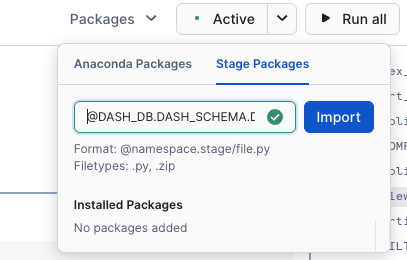
Step 4. If the session is Active, click on it to end the current session. Otherwise, click on Start to start a new session which will also update the packages list and include our custom package snowbooks_extras.
NOTE: At this point, it may take a couple of minutes for the session to start. You will not be able to proceed unless the status changes from Starting to Active.
Step 5. Add import snowbooks_extras to the libraries list under Import_Libraries and run the cell.
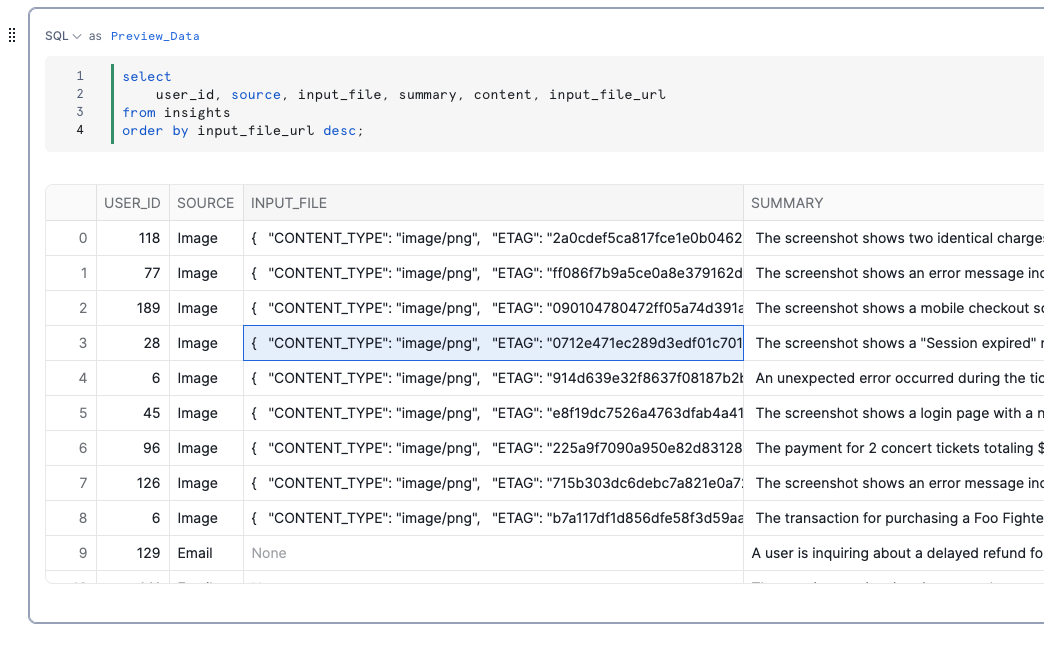
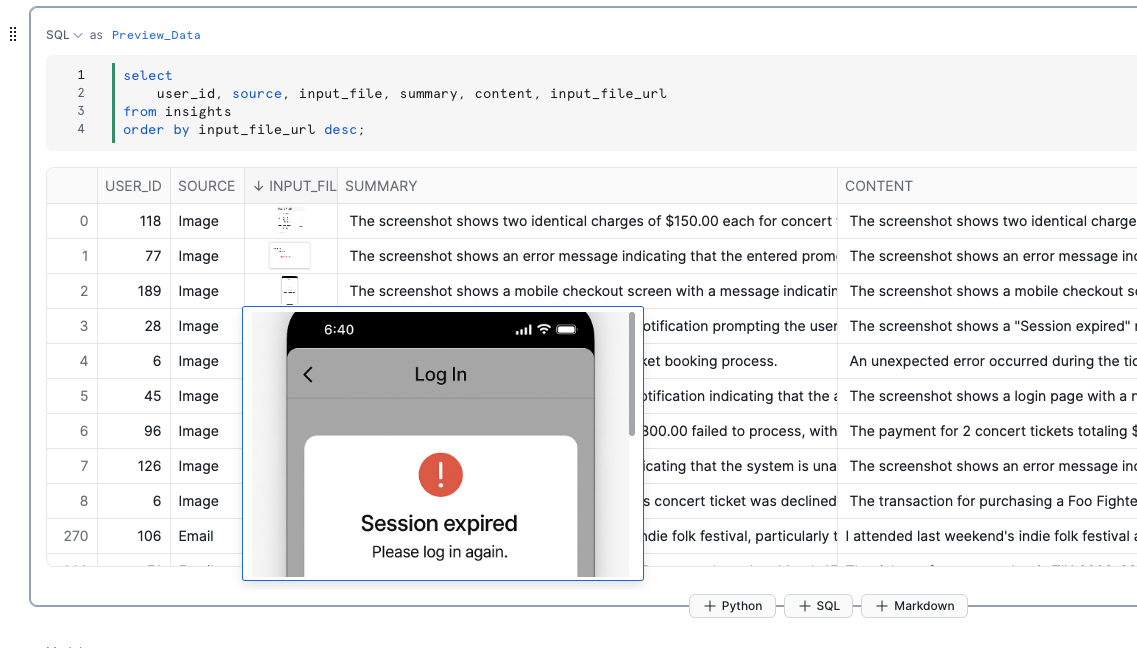
Step 6. Now if you run Preview_Data cell, you will see images displayed in INPUT_FILE column as shown below.
Before importing
snowbooks_extras
After importing
snowbooks_extras-- you will need to click twice (not exactly a double-click though :)) to see the enlarged image as shown.
Conclusion And Resources
Congratulations! You've successfully created a Snowflake Notebook that helps you get started with using Cortex AI Functions with multimodal data.
What You Learned
You've learned how to use powerful operators of Cortex AI Functions to analyze multimodal data within Snowflake using natural language.
- AI_COMPLETE: Generate AI-powered text completions or descriptions for various inputs including text and images
- AI_FILTER: Semantic filtering
- AI_TRANSCRIBE: Transcribe audio files
- AI_AGG: Aggregate insights across multiple rows
- AI_CLASSIFY: Text and image classification
Related Resources
This content is provided as is, and is not maintained on an ongoing basis. It may be out of date with current Snowflake instances

