An Introduction to the Mendix Data Loader
Overview
This Quickstart explains how to ingest data from a Mendix application into Snowflake. In the following steps you will learn how to configure the Mendix Data Loader component, a Snowflake application that is deployed in your Snowflake environment that ingests your Mendix data.
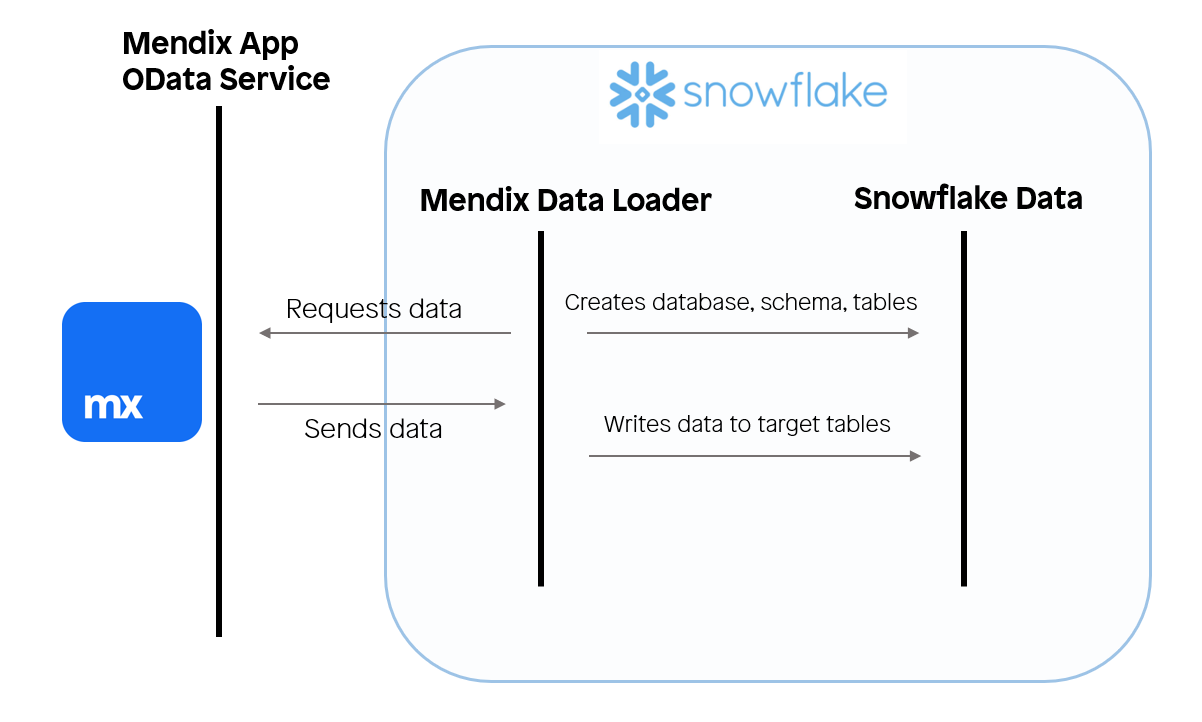
Mendix is a leading low-code application development platform. The Mendix Data Loader automatically retrieves the application's data model and dynamically creates transient target tables in Snowflake to support data ingestion.
The following architecture illustrates how Mendix application data flows into Snowflake using the Mendix Data Loader:
What You'll Learn
- (Optional) How to deploy a Mendix application to a free cloud node
- How to configure and use the Mendix Data Loader to ingest operational Mendix application data into Snowflake
What You'll Build
- (Optional) A Mendix application with a pre-created dataset to extract
- A configured Mendix Data Loader instance that loads Mendix data into Snowflake
Prerequisites
To complete this tutorial, you will need:
- A Mendix account. If you don't have one, sign up here
- Mendix Studio Pro version 10.21.0 or later
- A Snowflake account with Anaconda Packages enabled by an ORGADMIN
For details, see the Snowflake documentation here.
If you do not yet have a Snowflake account, you can register for a free trial. - Access to Snowflake with the ACCOUNTADMIN role
If you do not have this role, you must either:
- Register for a free trial account, or
- Use a role that can create databases, schemas, tables, stages, tasks, user-defined functions, and stored procedures, or
- Use an existing database and schema where you already have permissions to create these objects.
If you already have a Mendix application and only want to connect it to Snowflake, you can skip directly to Step 3 of this guide.
IMPORTANT
Before proceeding, ensure that your Snowflake account has Anaconda packages enabled by an ORGADMIN, as described in the Snowflake documentation
here.
(Optional) Setting Up Your Mendix Application
The following steps are only required if you do not already have a valid OData endpoint. If you already have an existing endpoint that you want to use without deploying a new Mendix application, you can skip ahead to Install the Mendix Data Loader.
Mendix
Mendix stands as a leading low-code platform for developing enterprise-grade applications, offering unmatched speed, flexibility, and scalability. Mendix's seamless integration with Snowflake's enterprise data environment makes it an essential tool for building robust, data-driven applications. The platform's intuitive visual development environment accelerates the creation of complex applications, significantly reducing development time while maintaining high standards of quality and performance.
Furthermore, Mendix offers extensive customization through its rich ecosystem of components, including marketplace offerings that facilitate direct integration with Snowflake. This allows Mendix applications to easily connect, query, and visualize Snowflake data, unlocking deeper insights and driving informed decision-making across the organization.
With Mendix, data engineers can focus on what truly matters - maximizing the power of their data within Snowflake - while relying on a platform that ensures enterprise-level security, compliance, and scalability.
Deploying Your First Mendix Application
Follow the steps below to deploy a sample Mendix application that will be used later in this Quickstart.
-
Depending on your operating system, perform one of the following steps:
- Windows users: Download the latest Snowflake Showcase App for Mendix Studio Pro version 10.21.0 from the Mendix Marketplace, and then execute the file titled
SFShowcase.mpk. A window prompt should appear. - macOS users: Download the latest Snowflake Showcase App for Mendix Studio Pro from the Mendix Marketplace and the latest Mendix Studio Pro version for macOS from here. Once installed, import the app package titled
SFShowcase.mpk.
- Windows users: Download the latest Snowflake Showcase App for Mendix Studio Pro version 10.21.0 from the Mendix Marketplace, and then execute the file titled
-
Create a new folder and select it to unpack the project files. After unpacking, the project should appear in Mendix Studio Pro.
-
Inside Mendix Studio Pro, navigate to Version Control.
-
Click Upload to Version Control Server, and then click OK. A window titled Upload App to Team Server should appear.
-
After the project has been uploaded to version control server, click Publish.

-
After you see the Your application is published notification, click View App to see the login screen for your Mendix application.
-
Optional: To log into your Mendix application and learn more about the Mendix platform in combination with Snowflake implementations, use the username
MxAdminand the password1. -
Save the endpoint of your Mendix application. You'll need it later.
- For example, if your endpoint is
https://sfshowcase101-sandbox.mxapps.io/login.html?profile=Responsive, save the following value:https://sfshowcase101-sandbox.mxapps.io/.
- For example, if your endpoint is
You have successfully deployed the Snowflake Showcase App onto a free cloud sandbox environment.
About This Mendix Application
The application you just downloaded, uploaded to Mendix' version control server and deployed on a free cloud sandbox environment is a free application available on the Mendix Marketplace. Its purpose is to enable, aid and inspire its users on how to tackle integration with Snowflake from the Mendix domain. This application has some pre-installed operational data to showcase the Mendix Data Loader. The pre-installed data is about movies and reviews corresponding to the movies.
Installing the Mendix Data Loader
-
Download the Mendix Data Loader from the Snowflake Marketplace.
-
Once a window displaying Successfully Installed appears, click Close, and then navigate to Data Products -> Apps -> Mendix Data Loader. A documentation page titled Mendix Data Loader should appear.
You have successfully deployed the Mendix Data Loader into your Snowflake environment.
How Will the Mendix Data Loader Interact With the Mendix Application?
The Mendix application has a published OData service that exposes the application data for the entities (class definitions) captioned Movie and Review which are linked to one another through an association. The OData resource for this application can be found along the following path: Showcase_DataLoader -> Resources -> Published OData -> POS_Movies. If you are planning to use your own custom application for this Quickstart, use the exposed OData service that you have set up yourself.
In the OData resource, the General tab contains information about the exposed service and the entities that are exposed in the service. Each entity has an endpoint from where the values can be retrieved after authentication. In the Settings tab, the metadata endpoint contains information about the exposed data structure of the OData resource. Additional endpoints are exposed for each exposed set configured in the General tab.
The Mendix Data Loader retrieves the exposed data structure from the metadata endpoint. After this, the application starts to provision the application with transient target tables. Then the application retrieves the data from the service feed for each exposed entity found in the metadata. The Mendix Data Loader is developed for the extraction and loading of Mendix data, any data transformation and integration should be performed outside the scope of the Mendix Data Loader's objects.
All the exposed data will be ingested into Snowflake. To retrieve a subset of the exposed data you can use the filter query option, for more information refer to OData's Basic Tutorial.
Should any data reside in the specified database and schema from prior ingestion jobs, this data will be lost. For ingestions of multiple sources, we recommend using the same database with a different schema.
Mendix Data Loader Configuration
Starting the Application
Upon starting the application, a documentation page that includes usage instructions is displayed. To start the application, click the MENDIX_DATA_LOADER hyperlink in the header.
Creating Data sources
The home page, titled Data Source Overview, displays all your existing data sources. To create a new one, click the Create button to access the Create New Data Source page. Here, you will provide the following information:
- Name: A unique identifier for your data source within the Mendix Data Loader.
- API endpoint: The URL of your published Mendix OData resource. Use the base endpoint you saved earlier and append the OData path, for example:
{{YOUR_SAVED_ENDPOINT}}/odata/{{ODATA_NAME}}/v3/
Example:https://sfshowcase101-sandbox.mxapps.io/odata/MoviesBasic/v3/ - Use Delta Ingestion: When enabled, only objects that have been created or modified since the previous ingestion run are retrieved. During the first ingestion, all available data is ingested. For this functionality, you need to have the changedDate parameter enabled inside the Mendix endpoint, otherwise the ingestion will fail on consecutive runs.
When you click Save for the first time, a popup will appear requesting permission to grant the application the following privileges:
- CREATE DATABASE: To create the target database where ingested data will be stored.
- EXECUTE TASK: To enable the scheduling of ingestion jobs.
In the modal window, click Grant Privileges to approve the request. Once privileges are granted, press Save again to save your data source. You will then be redirected to its details page.
Configuring Authentication
To set up authentication, navigate to the Authentication Configuration tab and click the Edit button to open the Edit Authentication Config page. To start, there are two options: Basic credential authentication and OAuth. For this Quickstart we will guide you through the basic credentials authentication configuration.
Choose the Basic option in the presented dropdown field and specify the following fields:
- Username: For example,
SFDataLoaderUser(or any user with access to your OData resource). - Password: For example,
MendixSnowflake123(or the corresponding password for the user).
Generate the script and run it in a worksheet with enough permissions to finalize the authentication setup.
Configure the Staging Area
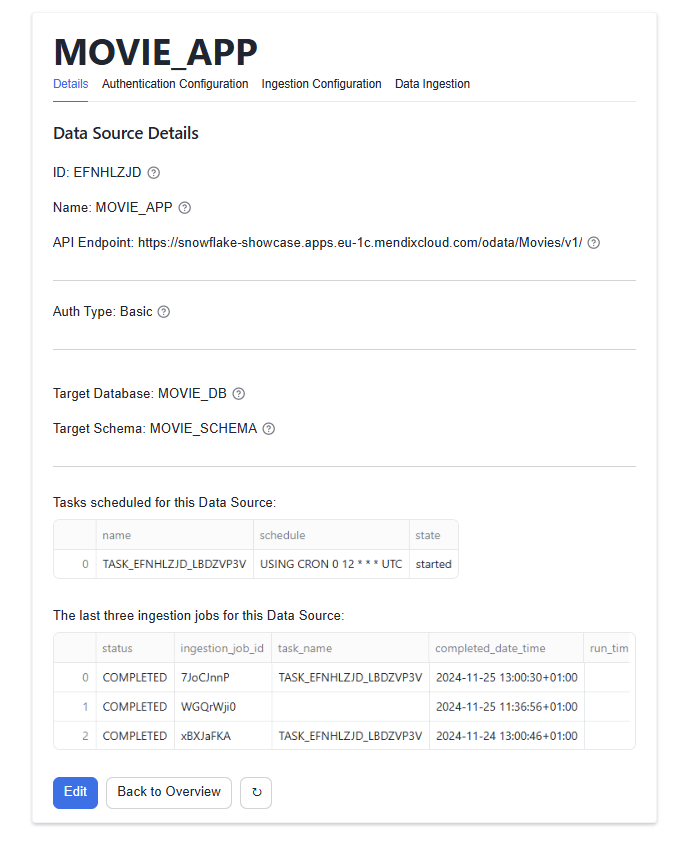
The final step before data ingestion is to configure the staging area. The staging area consists of a target database and target schema where data will temporarily reside before you transport/process it into a database owned by your organization.
Navigate to the Ingestion Configuration tab and click the Create button to setup where in the database you want to set up the staging area.
- Target database name: For example,
MOVIE_DB - Target schema name: For example,
MOVIE_APP
Mendix Data Loader Data Ingestion
Starting a Single Ingestion
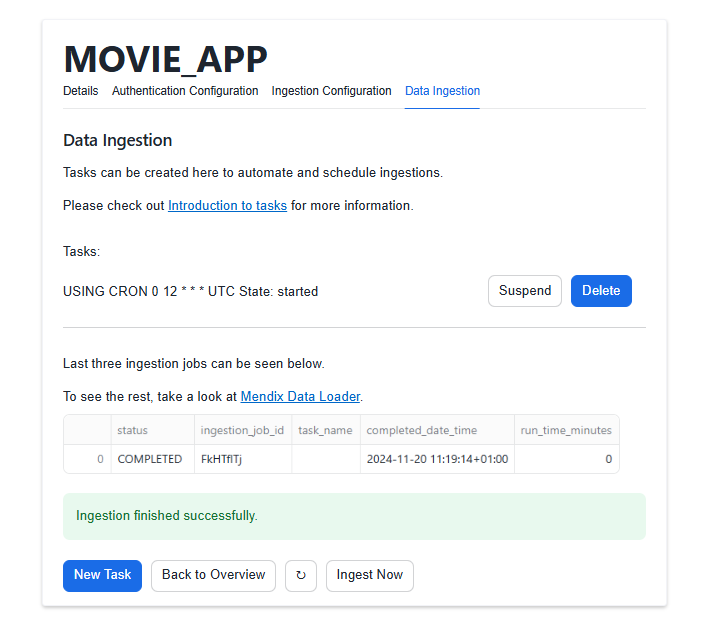
- Navigate to the Data Ingestion tab.
- Click the Ingest Now Button.
When the ingestion has finished, you will see a message informing you if it was successful.
Creating a Task to Schedule Ingestion Jobs
-
Navigate to the Data Ingestion tab.
-
Click New Task to start configuring a task for scheduling ingestion jobs.
-
Fill out the following mandatory fields:
- When should the ingestion task run? : Choose one of the following options:
- Custom CRON expression, If you choose Custom CRON expression then the Custom CRON expression field is also mandatory.
- Every day at 00:00 AM UTC
- Every Monday on 00:00 AM UTC
- Every first day of the month at 00:00 AM UTC
- When should the ingestion task run? : Choose one of the following options:
-
Optionally, fill out any of the following optional fields:
- Time out: This is an optional setting that can be used to change after how much time (in milliseconds) a timeout exception should happen.
- Number of retry attempts : This setting sets how many retries should be performed if an ingestion job fails.
- Suspend task after number of failures : This setting sets the number of times a task is allowed to consecutively fail before suspending the task.
-
Click Schedule Ingestion Task.
The first time you configure a task you will be prompted to grant the USAGE permission on a warehouse you want to use for all tasks created by the Mendix Data Loader. You can view details of the created task on the Data Ingestion tab where you can also view its performed ingestion jobs, suspend or enable the task, and drop the task.
Conclusion And Resources
Congratulations! You've successfully installed Mendix Data Loader app and moved data from Mendix application onto Snowflake.
What You Learned
- How to quickly deploy a Snowflake showcase Mendix app on free cloud
- How to pull data from an existing Mendix application into Snowflake using our Mendix Data Loader Native Application
Related Resources
This content is provided as is, and is not maintained on an ongoing basis. It may be out of date with current Snowflake instances
