DEC 03, 2025|6 min read

In a dynamic organization, it’s critical to be aware of overall consumption patterns for your team or business unit. With many simultaneous users, it can be challenging to rein in unanticipated usage costs.
To simplify this, Snowflake has developed a powerful deep-dive analysis tool to help you understand and investigate consumption anomalies. This tool provides cost alerting and visibility, enabling you to take action when unforeseen consumption occurs to better manage your Snowflake costs.
This tool, which was made available only to account admins in April 2025, is now open to all Snowflake users through three new access roles that reflect common use cases.
We released Anomaly Insights to help businesses better understand their account and organization spending by flagging anomalous spending days (both high and low). With this information, users can deep-dive into their consumption patterns to identify problematic or unexpected spending patterns.
The anomaly algorithm runs daily, analyzing the last 28 days of billing data. It decomposes the time-series data into trend (long‑term movement), and weekly seasonality. For each day, it forecasts the expected usage and flags an anomaly if the actual usage is too far from the expectation. Snowflake calculates anomalies separately in both credits and currency; reserving currency access for admin users only.
The power of Anomaly Insights lies in its ability to explore broadly across the organization while giving you the ability to deep-dive into consumption when necessary.
Let’s say you work for “GeoLab” and you are very sensitive to unexpected consumption costs. As such, you sign up for Anomaly Insights email alerts to notify you whenever an anomaly occurs. One day you receive an email that your account has experienced a spending anomaly. Here’s what you do:
Log in to your GeoLab account, or simply click on the link in the email to take you directly to the Anomalies landing page.
Select your desired time frame and see the historical spending for your account. You notice the spending anomaly that was flagged in the email as well as a few past anomalies.
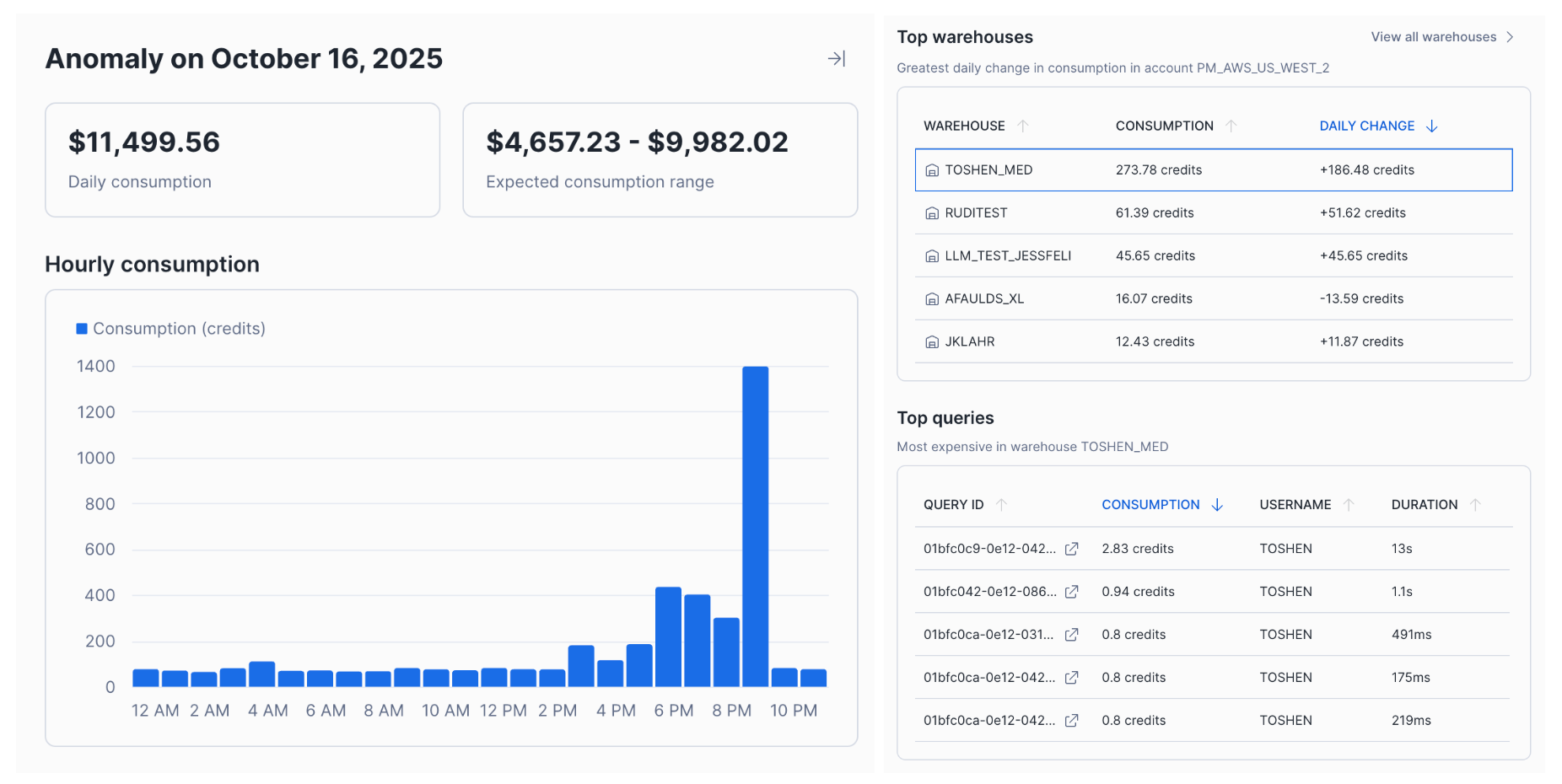
To dive deeper, you then click on a specific anomaly, which pops out a deep-dive side panel.
From here, you can see hour-by-hour spend, top warehouses by consumption and top queries within a selected warehouse.
With this information, you now have a solid understanding of what your consumption anomaly was and what might have caused it. You can use this information to investigate the anomaly further or view other accounts within your organization.
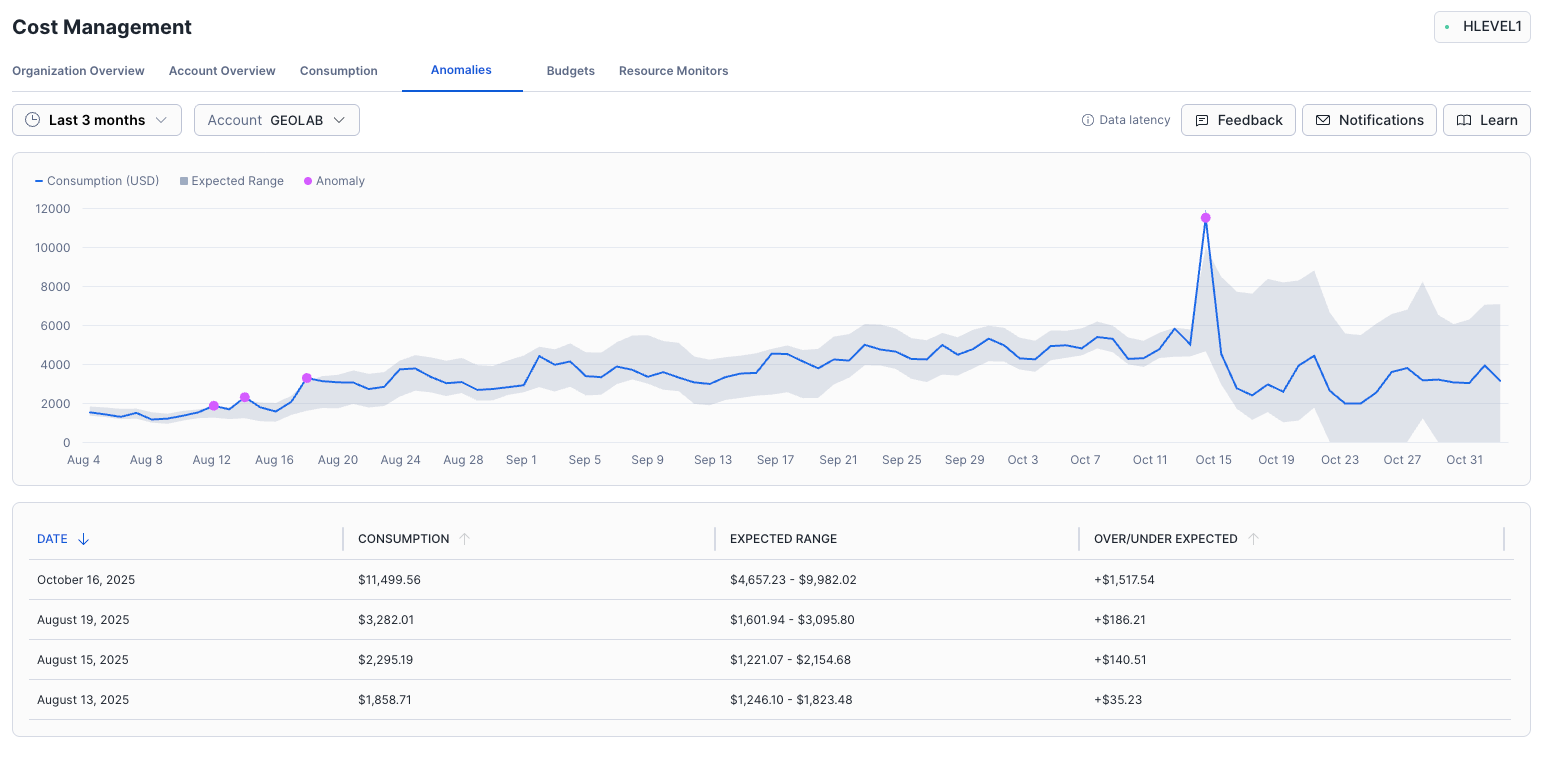
There are likely many different users within your organization, from administrators and data scientists to marketers and business leaders. Each user has a different job to do, and their access rights should reflect that. That’s why we developed a tiered role-based access model for Anomaly Insights. The different roles allow you to grant varying levels of access to Anomaly Insights without having to make every user an account admin.
Anomaly Insights for the entire organization are only available in organization accounts or org admin-enabled accounts. To enable access, grant the application role APP_USAGE_VIEWER and APP_ORGANIZATION_BILLING_VIEWER or ORGANIZATION_BILLING_VIEWER for the org admin and organization accounts, respectively.
USE ROLE ACCOUNTADMIN;
CREATE OR REPLACE ROLE <custom_role>;
GRANT ROLE <custom_role> TO USER <username>;
GRANT APPLICATION ROLE snowflake.app_usage_viewer TO ROLE <custom_role>;
GRANT APPLICATION ROLE snowflake.app_organization_billing_viewer TO ROLE <custom_role>;
USE ROLE <custom_role>; (to view anomalies)If you want to grant a user access to only their own account’s anomalies, you can do the same as above while omitting the ORGANIZATION_BILLING_VIEWER grant.
USE ROLE ACCOUNTADMIN;
CREATE OR REPLACE ROLE <custom_role>;
GRANT ROLE <custom_role> TO USER <username>;
GRANT APPLICATION ROLE snowflake.app_usage_viewer TO ROLE <custom_role>;
USE ROLE <custom_role>; (to view anomalies)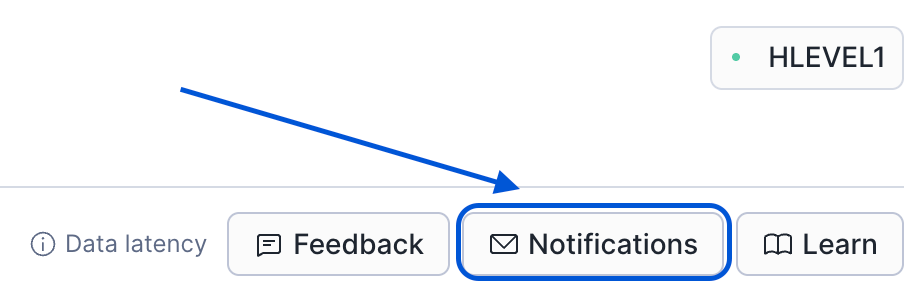
Verified users (how to verify your email) may also sign-up for email notifications to be alerted when an anomaly is detected. To sign-up (or sign-up others), use an APP_USAGE_ADMIN role in place of an APP_USAGE_VIEWER role. This will enable the Notifications button on the Anomalies landing page. The APP_USAGE_ADMIN role has all the same privileges as APP_USAGE_VIEWER except with the additional privilege of being able to modify email lists.
USE ROLE ACCOUNTADMIN;
CREATE OR REPLACE ROLE <custom_role>;
GRANT ROLE <custom_role> TO USER <username>;
GRANT APPLICATION ROLE snowflake.app_usage_admin TO ROLE <custom_role>;
USE ROLE <custom_role>; (to view anomalies)Use the following links to understand more about Anomaly Insights: