Build Snowflake pipelines visually with Pipeline Builder
In Snowflake you have a lot of options for building data transformation and machine learning pipelines. You can use notebooks, Python files, SQL stored procedures, and more. But you'll usually want to run them on a schedule, or have one step kick off the next when it finishes.
You can do that type of pipeline orchestration today with Snowflake Tasks. A Task is a Snowflake object that runs SQL on a schedule or when something triggers it. Tasks can also be chained into a dependency graph, where each Task starts when the Task (or set of Tasks) before it completes.
The catch is that you write those Tasks by hand. Reasoning about how they should interact with each other can get tricky, and it can be hard to troubleshoot the SQL definitions of those Tasks. Also, your pipeline likely has other supporting objects that the Tasks rely on: Code Bundles, Task Graph objects, stored procedures, and so on. To make your pipeline work, you have to manage those other objects on your own. The main alternative to orchestrating pipelines with Snowflake Tasks is an external orchestration tool. That works, but now you're managing two systems: the orchestrator and Snowflake.
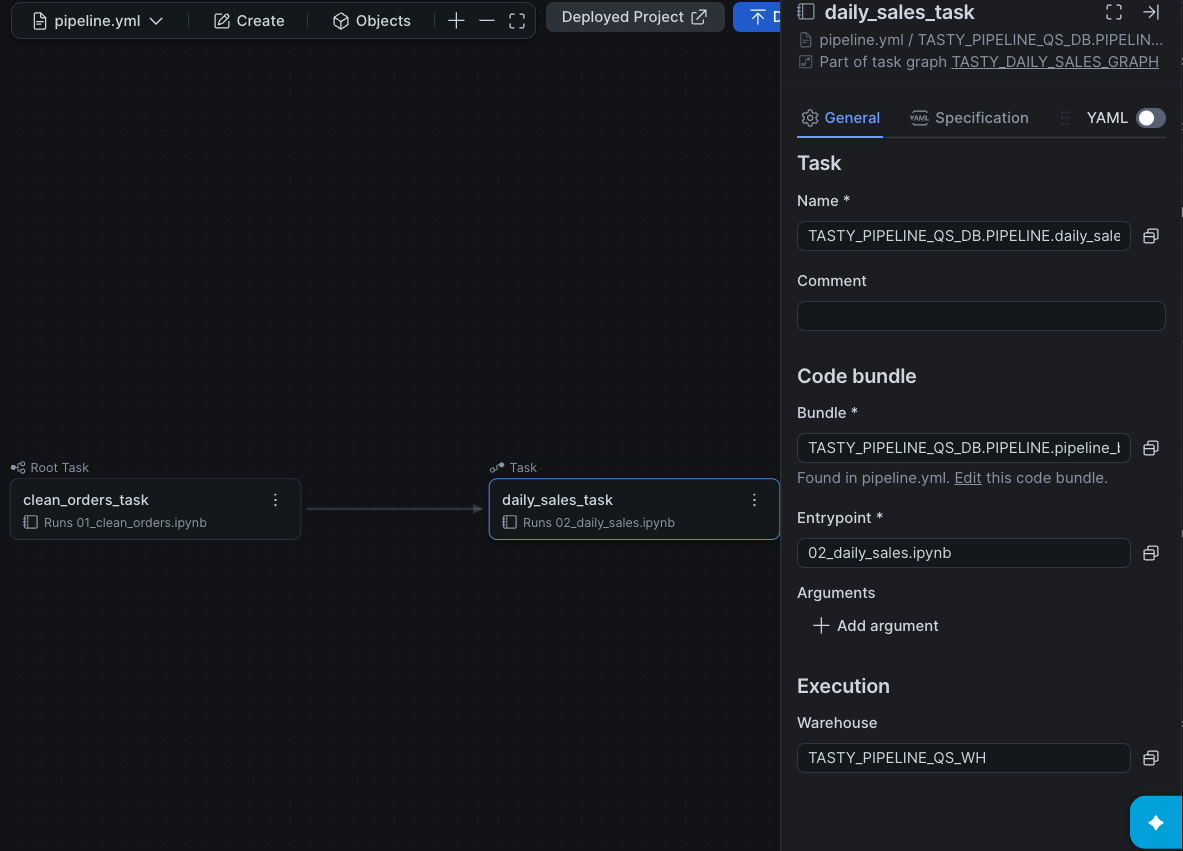
Here's a concrete version of that. Tasty Bytes is a fictional global food truck company. Every morning its data engineering team receives the previous day's raw orders, and analysts expect a clean daily sales-by-truck table to be ready by 6:00 AM. Two notebooks do the work. One cleans the raw orders, and the other builds the daily sales table, and it has to run only after the first one finishes.
RAW.ORDERS ──> clean_orders_task (notebook) ──> STAGING.ORDERS_CLEAN
                     │
                     v
               daily_sales_task (notebook) ──> ANALYTICS.DAILY_TRUCK_SALES
Drawing your pipelines on the Pipeline Builder canvas
Pipeline Builder is a visual designer in Snowflake Workspaces. You drag notebooks onto a canvas, connect them to set the order they run in, and deploy. Pipeline Builder creates the Tasks, the Task Graph, and the Code Bundles that package your code. You don't write CREATE TASK statements by hand.
Pipeline Builder is in preview.
For the example above, the Tasty Bytes data engineering team can now easily drag their notebooks onto the canvas and decide exactly how they want those Tasks to run. Behind the scenes, Pipeline Builder creates the supporting objects for you: a Code Bundle that packages the notebooks, default compute settings, and a Task Graph that holds the connected Tasks and the settings they share.
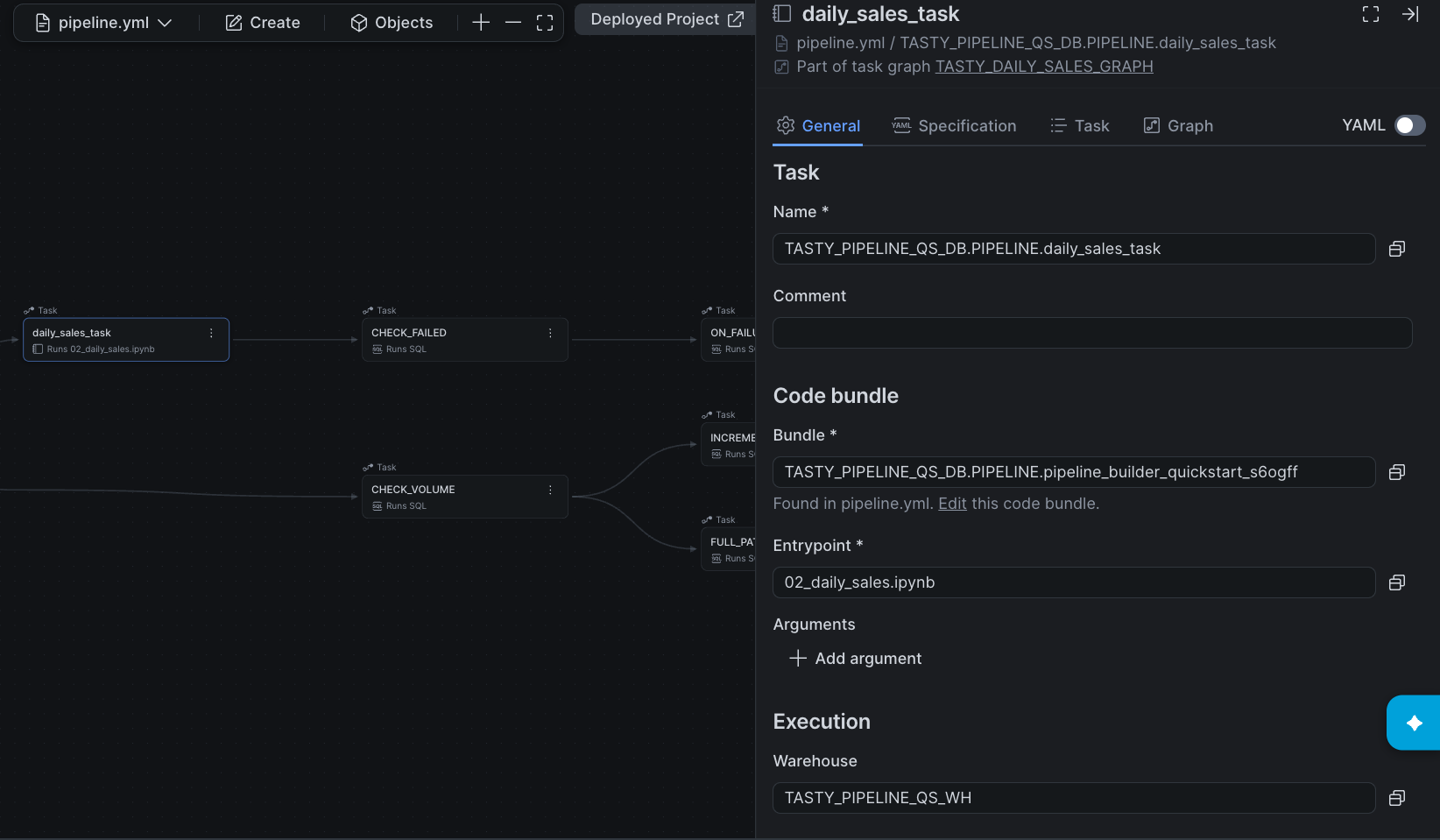
For more complicated pipelines, you can add branching logic and parallel Tasks. In this version of the Tasty Bytes pipeline, a CHECK_VOLUME Task runs in parallel with daily_sales_task and picks either FULL_PATH or INCREMENTAL_PATH based on order volume, and an ON_FAILURE Task runs only if an upstream step fails.
Review the planned changes before deploying
Normally when building a pipeline with a number of related objects, you have to deploy them together all at once or carefully deploy them in a precise order. With Pipeline Builder, you only deploy the objects when you decide that the pipeline looks correct on your canvas. Pipeline Builder gives you a screen to review planned changes and then deploys all of the objects for you.
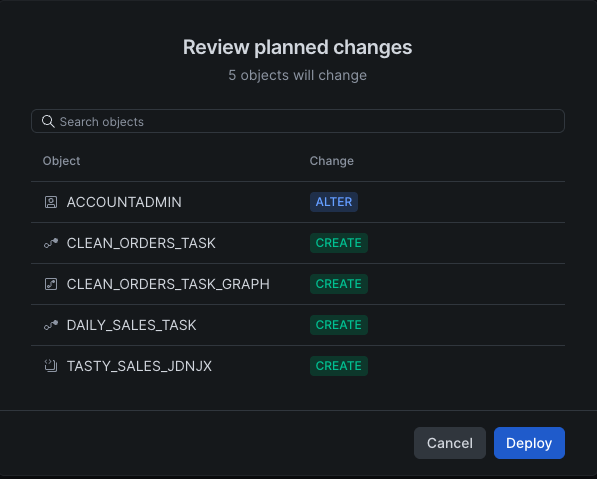
In the future, when you need to make changes, simply return to your Pipeline Builder canvas, make the changes, review them, and deploy once again. Pipeline Builder only deploys the difference between what's currently in the account and what you've decided your pipeline should look like. Pipeline Builder is built on top of DCM Projects, so you can easily deploy to different environments and manage all of the related objects in a single project.
Try Pipeline Builder on your own notebooks
Try it out with the Getting Started with Pipeline Builder Quickstart, which builds the Tasty Bytes pipeline end to end, and the Pipeline Builder documentation.
This content is provided as is, and is not maintained on an ongoing basis. It may be out of date with current Snowflake instances
