Proactively Detect and Resolve Issues with Snowflake Alerts
Snowflake Alerts let you proactively monitor your critical systems, notify yourself, and take appropriate action, so you can stop flying blind and keep building with confidence. Consider this scenario:
Your nightly transformation pipeline starts failing (a bad grant, a dropped table, an upstream schema change), and you don't find out until someone opens a stale dashboard the next morning. You need a notification that names the failing task and links to its execution details, and you need to be notified proactively, so you can manage the right stakeholders and fix the issue faster.
This post shows two end-to-end flows for monitoring task failures: first, create an alert from a template in Snowsight for an existing pipeline, then follow its notification into execution history; second, run a separate SQL demo that creates its own deliberately failing task, sends an email, and cleans up the demo objects. Both use the Task Error Rate template, but the SQL demo uses a lower threshold and a shorter schedule to make it easier to test.
Ready to build? Create a Task Error Rate Alert from the UI, run the end-to-end SQL demo, or read how Alerts work first.
How Alerts work
A Snowflake alert evaluates a SQL condition on a schedule or when new data arrives, then runs an action when the condition returns rows.
The condition is SQL that detects the thing you care about (e.g. Task error events, data anomalies, policy violations). If it returns rows, the alert fires. The action is SQL that runs when the condition fires the alert. In addition to sending a notification (the platform supports Email, PagerDuty, Jira, ServiceNow, and other integrations), the action SQL can insert a row into an incident table, or call a stored procedure that, for example, restarts a failed task and re-runs a downstream refresh.
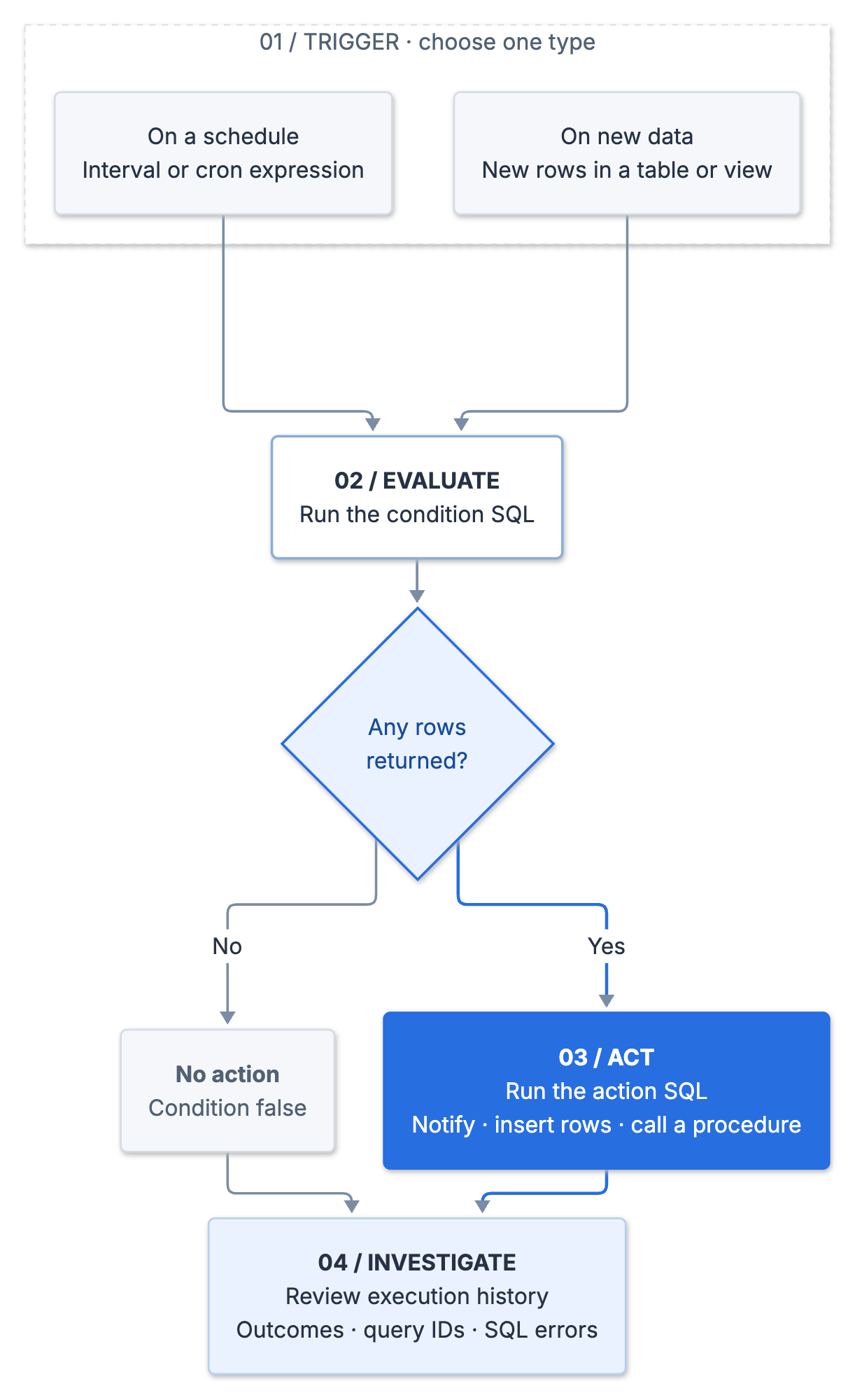
There are two ways an alert decides when to evaluate its condition:
- On a schedule — a cron expression or an interval, evaluating the condition against all the data each time. Use this for rates, thresholds and aggregate health.
- On new data — automatically triggered when new data is detected and evaluating only the rows that have landed since the last run. Use this when you want to react to individual events rather than a metric crossing a line. It requires change tracking on the source table or view, and comes with restrictions on the condition: one table in the
FROMclause, no joins, no CTEs, no stored procedure calls.
For compute, you either specify a warehouse or run the alert serverless, where Snowflake sizes it based on the profile of recent runs. Warehouses are billed per second, with a 60-second minimum each time they start or resume, not for each alert evaluation. Resuming an otherwise suspended warehouse just for a short check incurs that minimum, and leaving it running between checks incurs idle time. If an existing warehouse is already running for other workloads and has spare capacity, a small alert query might add no warehouse compute charge, provided it doesn't extend runtime or require more capacity.
Serverless alerts are billed on compute-hours consumed and avoid managing a warehouse for these checks. Neither option is always cheaper: consider query complexity, evaluation frequency, and existing warehouse utilization. Use a named warehouse when it fits those workloads, or consider a dedicated alerting warehouse when you have enough alerts to keep it usefully occupied.
Get started with monitoring quickly using Alert Templates
Alert templates are prebuilt starting points for common monitoring needs. They supply the condition SQL that detects an issue and the action SQL that sends a notification. You choose a template, configure its parameters and notification destination, and create an alert without writing that SQL from scratch.
The template catalog covers these monitoring needs:
| Product area | What the templates cover |
|---|---|
TASKS | Cumulative task error rate above a threshold |
DYNAMIC_TABLES | Refresh failures, and refreshes blocked by an upstream dependency |
DATA_QUALITY | Expectation violations, and anomalies in data quality metrics |
OPENFLOW | Connector backpressure and queue depth, data staleness, connector health, runtime error rates, table replication failures |
ICEBERG | Auto-refresh status and discovery failures on Apache Iceberg™ catalog-linked databases |
FUNCTIONS | Errors and long-running workloads from Snowpark UDFs |
SNOWPIPE | Pipe errors, rate-limited/throttled pipes, ingestion issues, and other Snowpipe-related failures |
SNOWPIPE STREAMING | Auth failures, error rates, and channel limits exceeded for Snowpipe Streaming workloads |
Note: These templates are available in production as of the publishing of this article. The availability of specific templates is subject to change and there are no guarantees as to the exact set of templates moving forward.
Templates provide out-of-the-box condition and action SQL to help you get started. Whether you create an alert from a template or write that SQL yourself, the result is the same kind of alert, with the same lifecycle management. You can customize the generated SQL as your monitoring needs change.
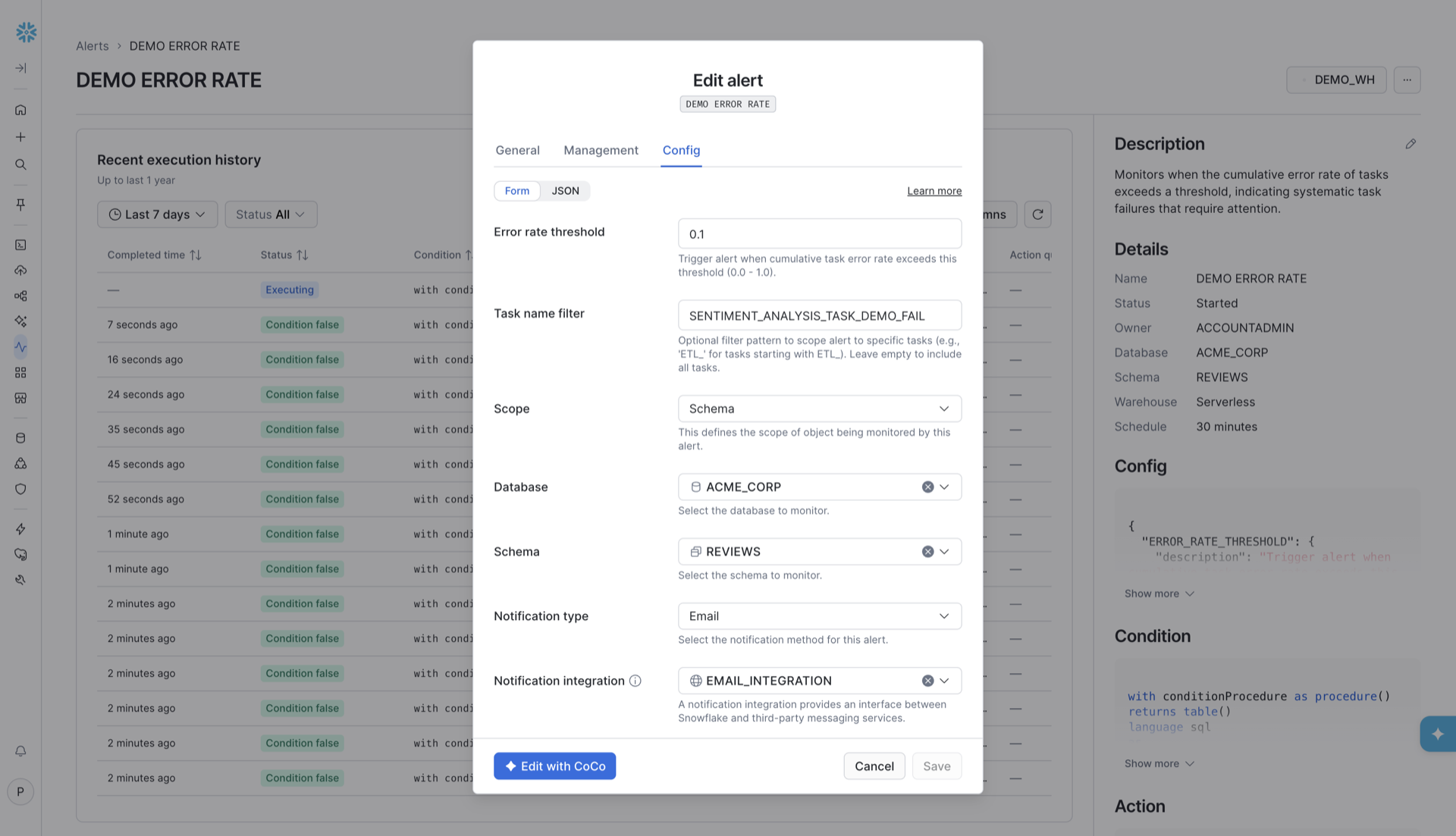
Templates separate alert configuration from the SQL DDL creating the alert. The tunable parameters live in a JSON CONFIG on the alert, and the condition reads them at runtime through SYSTEM$GET_ALERT_CONFIG, with a fallback baked in:
let errorRateThreshold float :=
  coalesce(try_to_double(system$get_alert_config('ERROR_RATE_THRESHOLD.value')), 0.15);
So raising a threshold or changing who gets paged is a config edit, not a rewrite of the detection logic. That separation is what makes an alert something you can hand to a teammate who didn't write it.
To make that edit in Snowsight, open the alert from Monitoring » Alerts, select the … menu in the top right of the alert page, choose Edit, and switch to the Config tab. Each template variable shows up as a form field (or as raw JSON, if you switch to JSON), and Save writes the new values to the alert's CONFIG without touching the condition SQL.
Walkthrough: Create a Task Error Rate Alert from the UI
For the nightly transformation pipeline in the opening example, we'll monitor the Snowflake tasks that run it with an Error Rate alert.
Detect task failures before the morning dashboard check
In the Snowsight UI, use the Error rate alert template from the TASKS group. The goal is to send an email naming the failing task, then follow its link into Snowsight to investigate.
Writing this condition yourself requires you to know how task events land in the event table, how to aggregate failures into a rate over a window, and how to scope that to the tasks you care about. The Task Error Rate template supplies that detection logic; you choose the threshold, scope and notification destination.
The UI walkthrough uses a (configurable) 30-minute evaluation schedule, and the default 15% threshold. It checks whether the error rate for that period exceeds the threshold; it isn't a notification for every individual task failure. To generate failures deliberately and test email delivery, use the SQL demo below, which runs an intentionally failing task with a 1% alert threshold and a five-minute evaluation schedule.
Set up the Task Error Rate alert
Prerequisites:
- Event logging on the tasks you're monitoring. Set
LOG_EVENT_LEVELtoINFOon every task in scope so both successful and failed runs reach the event table. You can set it per task or inherit it from the schema, database, or account. The error rate is failed runs divided by recorded runs; with error-only logging, one failure in 100 runs would appear as 100% rather than 1%. Changing the logging level changes the events available to the calculation, not the configured threshold. See Prerequisites for task alerts. - Privileges.
EXECUTE ALERTon the account, plus eitherEXECUTE MANAGED ALERTon the account for serverless alerts orUSAGEon the warehouse you name. ThenUSAGEandCREATE ALERTon the schema where the alert will live, andUSAGEon its database.EXECUTE ALERTandEXECUTE MANAGED ALERTcan only be granted by an account administrator, so if you're setting this up for a team, that grant is the thing to queue up first. - A notification integration. By default, you can send yourself an email (if your Snowflake email is verified), or you can notify yourself in Snowsight itself. If you want to send to other destinations, you'll need a Notification integration. The platform supports Email, webhook (PagerDuty, Jira, ServiceNow and more), or push to a queue (Amazon SNS, Azure Event Grid, Google Cloud Pub/Sub). Note: an account administrator usually has to create and grant USAGE on an integration for other roles
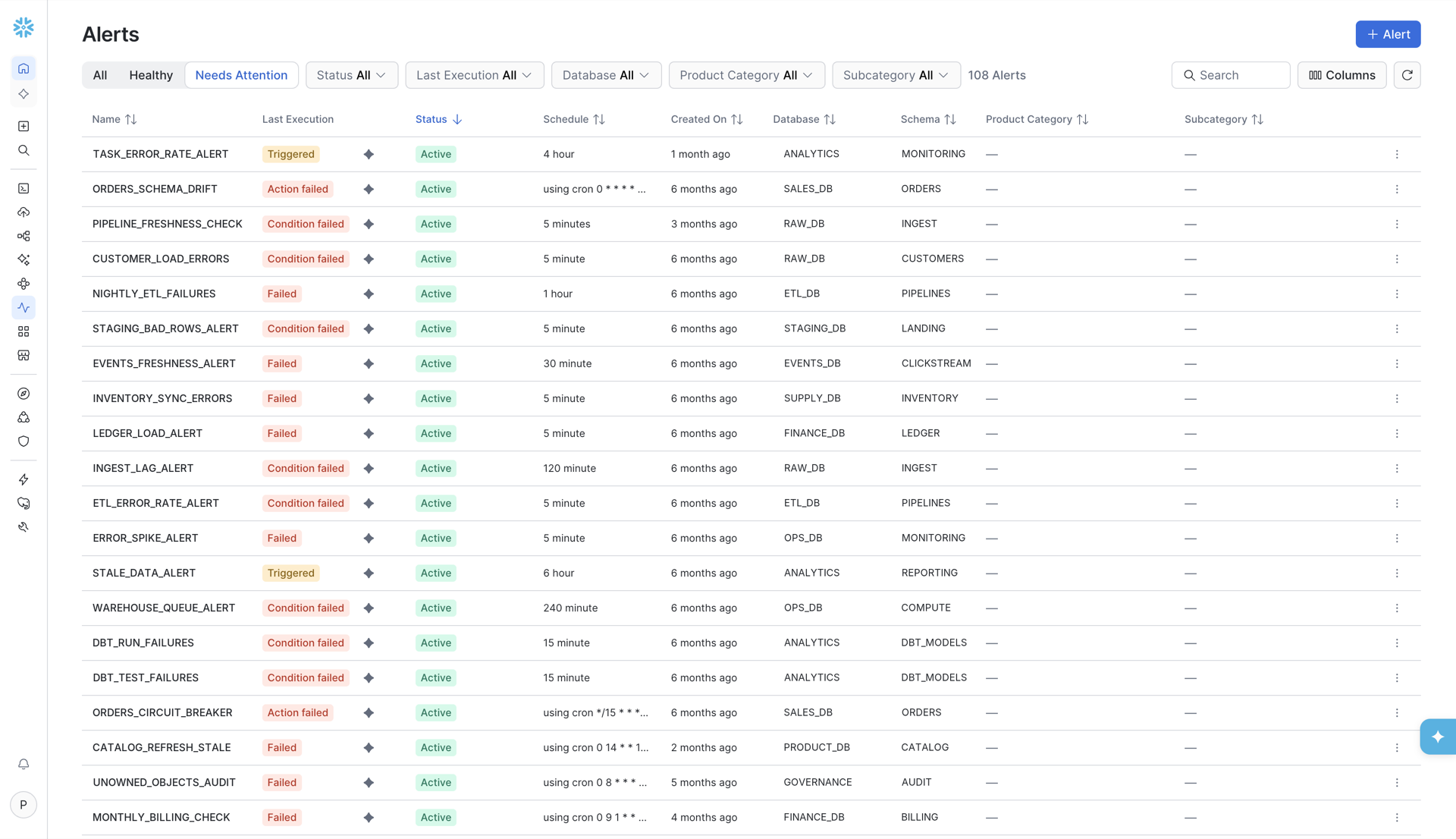
In Snowsight, go to Monitoring » Alerts. The Alerts page lists every alert your role can see. Use the All, Healthy and Needs Attention toggles, or the Status, Last Execution and Database filters, to narrow it down to the alerts whose last run was triggered or failed.
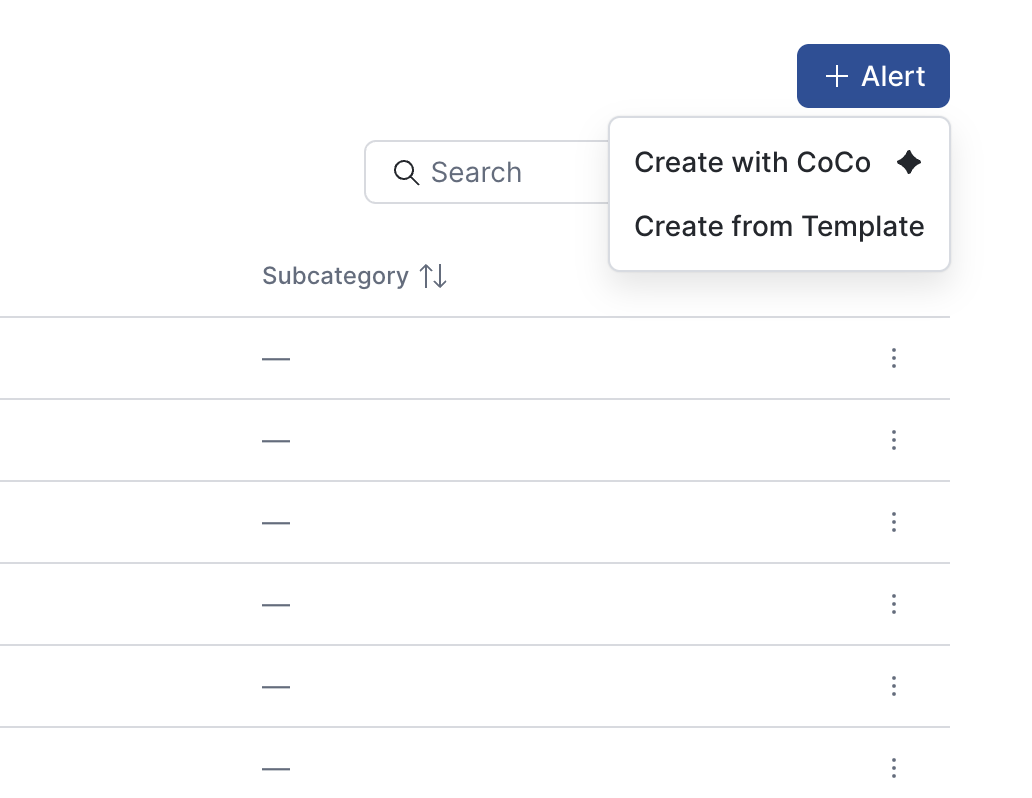
Select + Alert in the top right, and choose Create from Template. (Create with CoCo opens Cortex Code instead, if you'd rather describe the alert in plain language.)
The Create alert wizard has two steps.
Configure template. Open the Alert template dropdown, pick TASKS from the template groups on the left, then Error rate alert on the right.
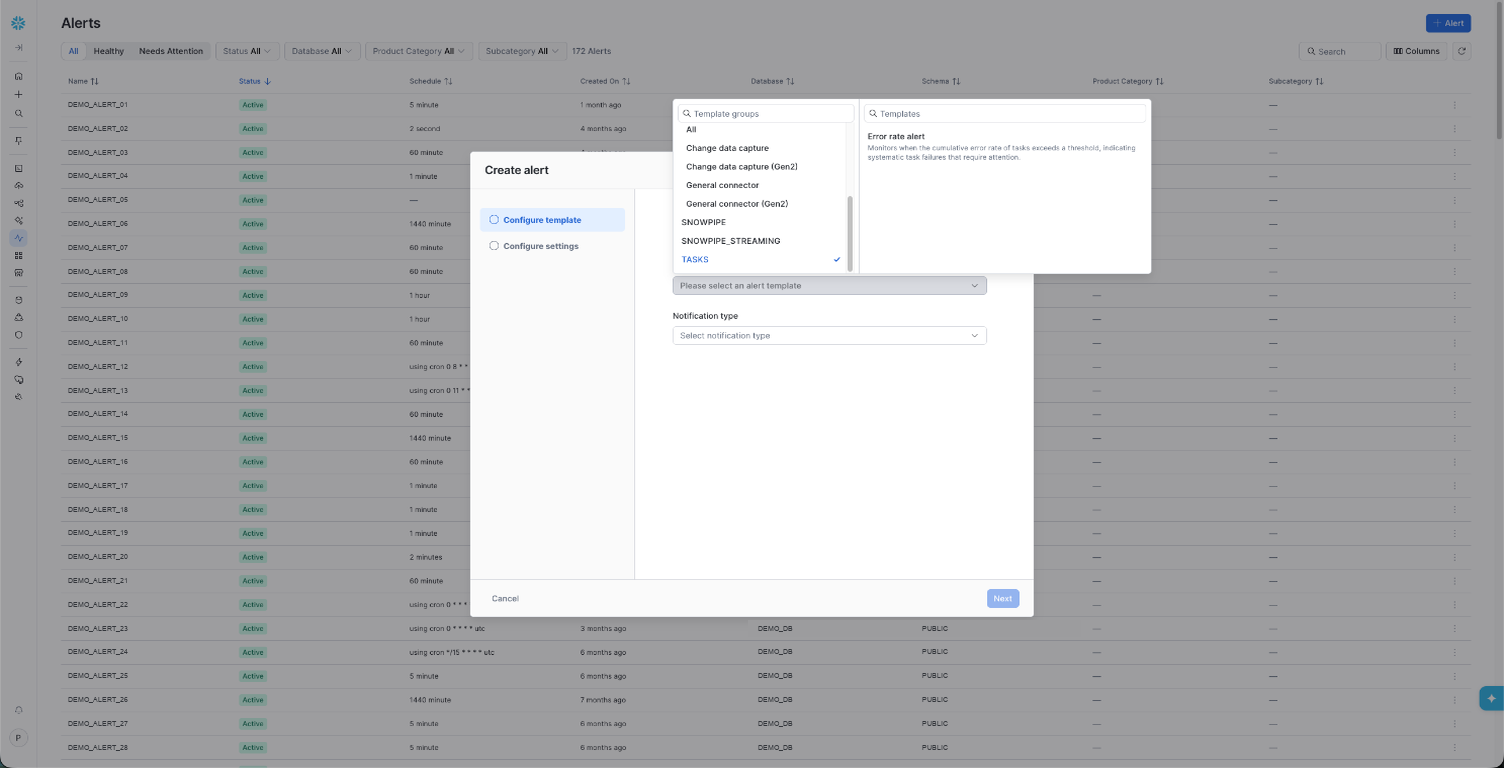
The step then asks for the template's variables:
- Error rate threshold — defaults to
0.15. This alert is looking for systemic failure, not a single blip, and a threshold near zero on a noisy account is how you train a team to ignore alerts. - Task name filter — optional pattern. Leave it empty to cover everything in scope, or set
ETL_to scope to one pipeline family. - Scope — account, database or schema. Start at account level to understand the overall failure rate, then give critical pipelines their own schema-scoped alerts with thresholds and notification recipients suited to each pipeline. Account-wide monitoring can create noise, and frequent successful runs from unrelated tasks can dilute the error rate of a less frequent critical pipeline. If pipelines share a schema, also use the task name filter to narrow the scope.
- Notification type and Notification integration — your integration, plus Email recipients if it's email.
Select Next.
Configure settings. Name the alert, and under Location pick the database and schema it will live in. The description is pre-filled from the template. Expand Advanced options to check the defaults: Compute Type is Serverless, per the reasoning above; Execute is On a schedule, every 30 minutes; and Activate alert upon creation is selected, which you want, because alerts are otherwise created suspended.
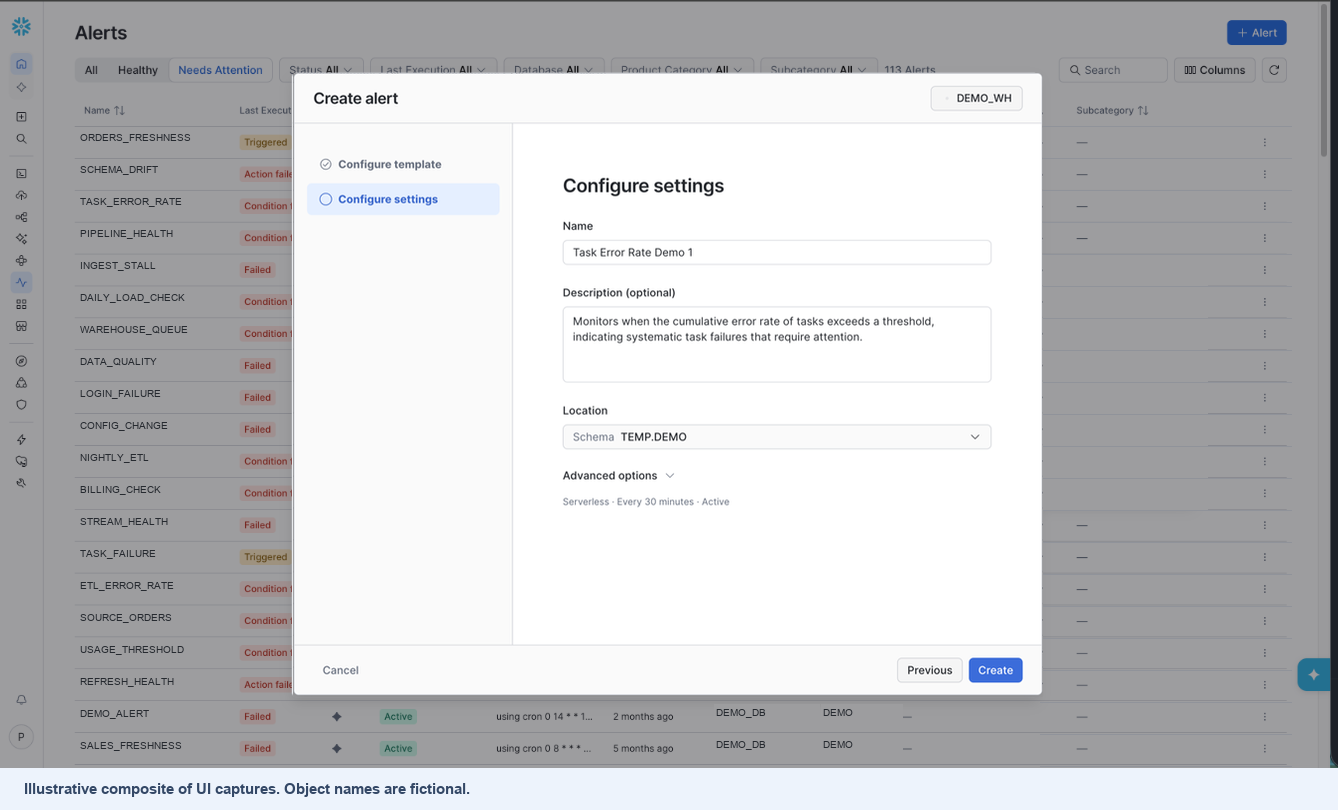
Illustrative composite: the Configure settings dialog from one capture is placed over the updated Alerts list from another, including its Healthy and Needs Attention controls. Object names are fictional.
Select Create, and you're done. The new alert shows up on the Alerts page.
Check the notification and execution history
Without monitoring, a task that fails at 02:00 might remain unnoticed until someone opens the dashboard at 09:00. With this alert, an evaluation that finds the error rate above the threshold runs the email action. The schedule isn't an email-delivery deadline: detection depends on the task events being available and the threshold being met, followed by alert execution and notification delivery.
The next section shows the notification and how to inspect the condition and action results in Snowsight.
The template is also available in SQL. This short example uses the UI walkthrough's 30-minute schedule and 15% threshold; the separate end-to-end SQL demo below includes task setup, verification and cleanup:
CREATE OR REPLACE ALERT my_db.my_schema.task_error_rate_alert
  FROM TEMPLATE TASKS_ERROR_RATE
  SCHEDULE = '30 MINUTE'
  TEMPLATE_PARAMS = '{
    "template_variables": { "ERROR_RATE_THRESHOLD": 0.15 },
    "notification_config": {
      "notification_integration": "my_email_int",
      "email_config": { "toAddress": ["oncall@example.com"] }
    }
  }';
Use SYSTEM$LIST_ALERT_TEMPLATES to see the catalog and SYSTEM$GET_ALERT_TEMPLATE to inspect a template's variables, defaults and allowed values. Snowflake renders the template server-side and validates the bindings at compile time, so an out-of-range threshold or an unknown integration fails before the alert is created rather than at 02:30 some morning. The UI, SQL and Cortex Code all operate over the same object and the same config, which means the wizard is a starting point for your Terraform and CI pipelines, not a parallel path away from them.
What to do once an alert fires
Detection is the easy half. Here's what the Alerts UI gives you when you're the one holding the pager.
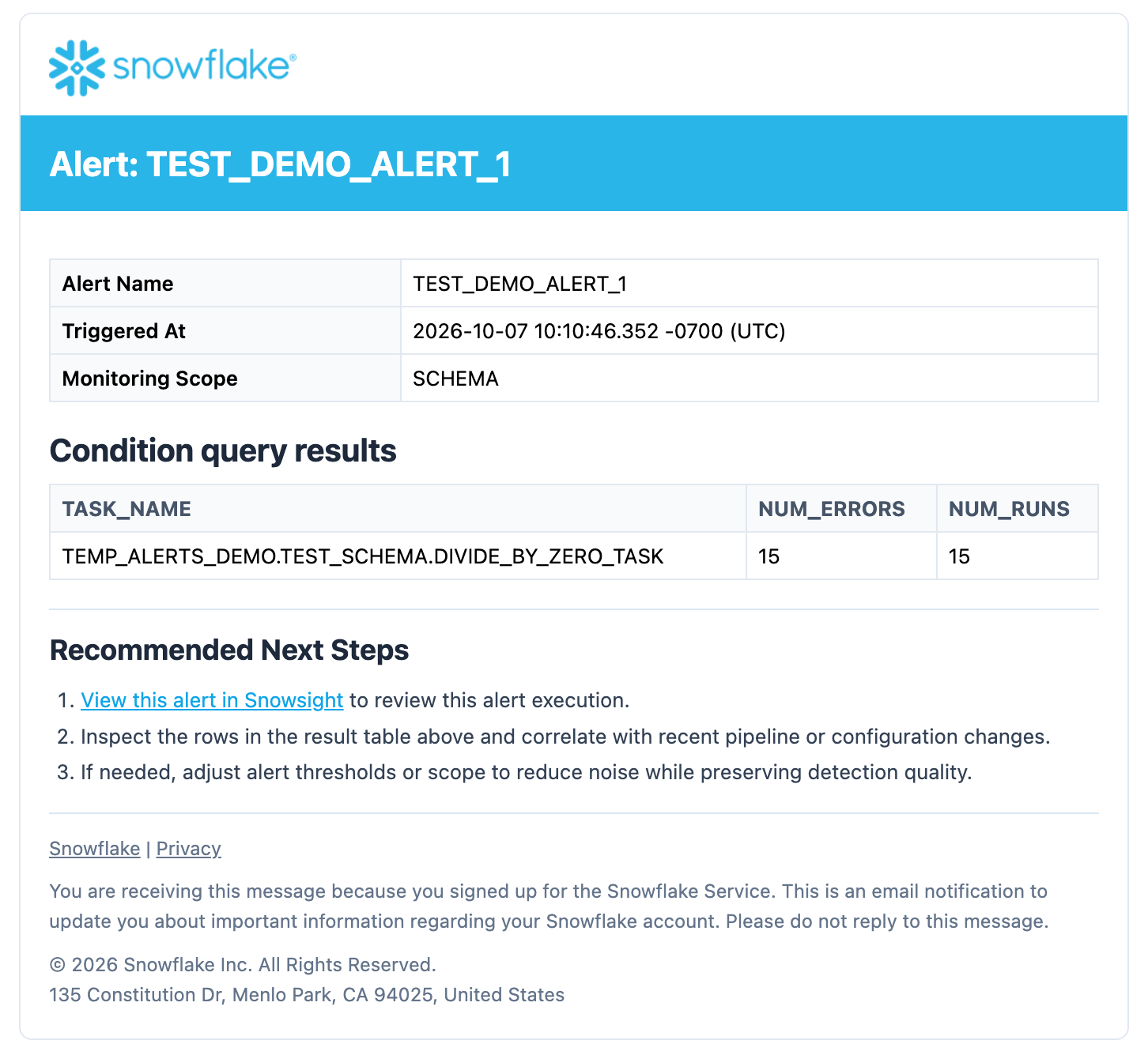
The notification itself. Alerts created from a template don't send you a bare "condition was true" message. The notification payload is already formatted. An email, for example, arrives with the alert name, when it triggered and its monitoring scope, the rows the condition returned laid out as a table (here, the failing task with its error and run counts), and a short list of recommended next steps. The first step is a deep link straight to that alert's page in Snowsight (app.snowflake.com/<org>/<account>/#/alerts/<database>/<schema>/<alert>). You don't have to work out which account, database or alert fired, or go looking for the right page at 02:30. The message already names the problem and links to the next place to look.
The alert detail page. The deep link in the notification lands you here. You can also select an alert's name on the Alerts page to open it. Recent execution history lists recent runs with the status of each: Triggered when the condition was true and the action ran, Condition false when it wasn't. Next to each run are the condition and action SQL and the query IDs for both, and the side panel shows the alert's details, condition and action.
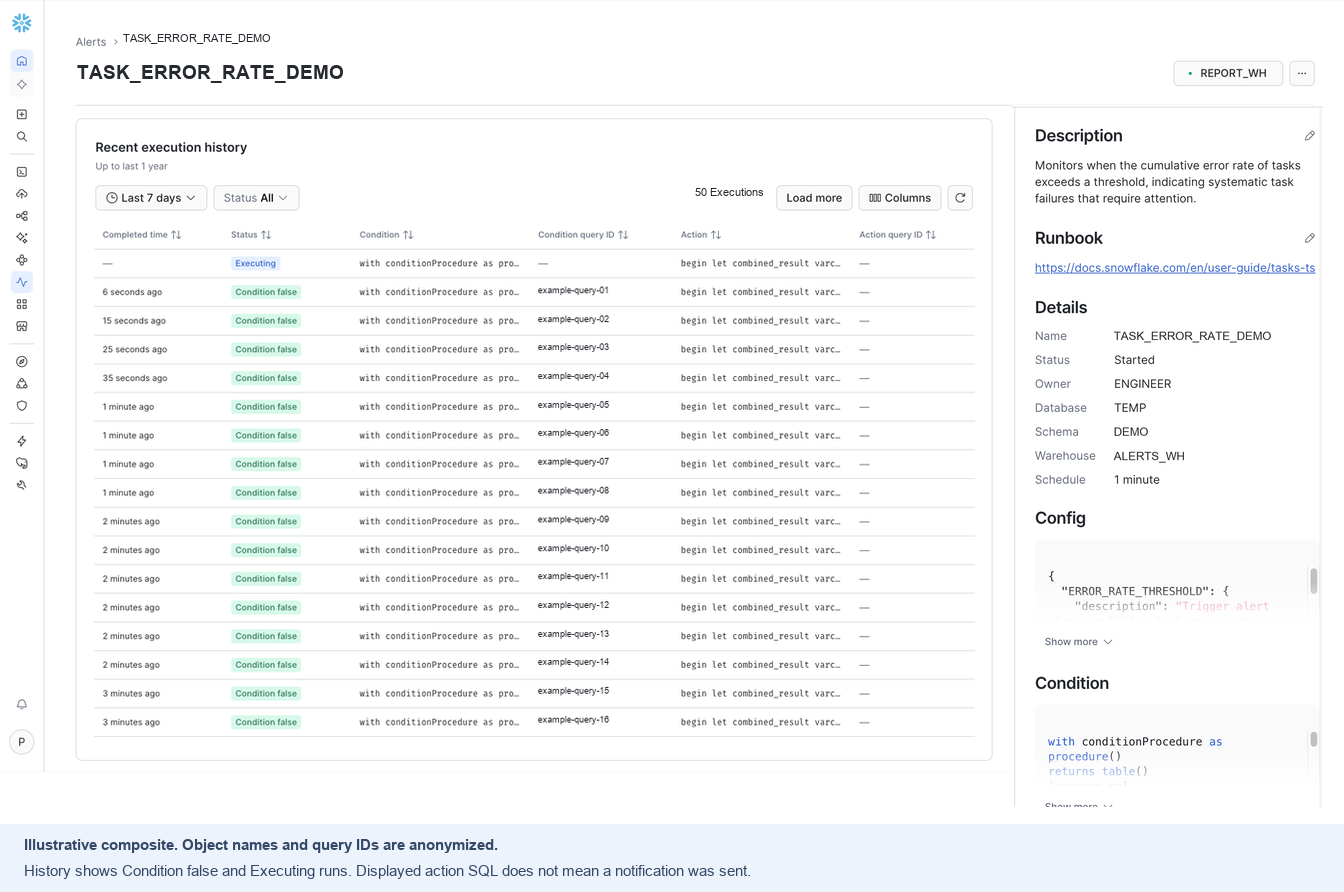
Illustrative composite of supplied UI captures; object names and query IDs are anonymized. The history shows completed Condition false runs and one Executing run. These rows do not show a triggered notification; the action SQL is displayed for inspection.
Select a row to open that execution. The execution page shows its status, duration and start time, a Runbook / Next Steps panel with Deep-dive with Cortex, and the condition query details (status, duration, query ID), the rendered condition SQL and its results.
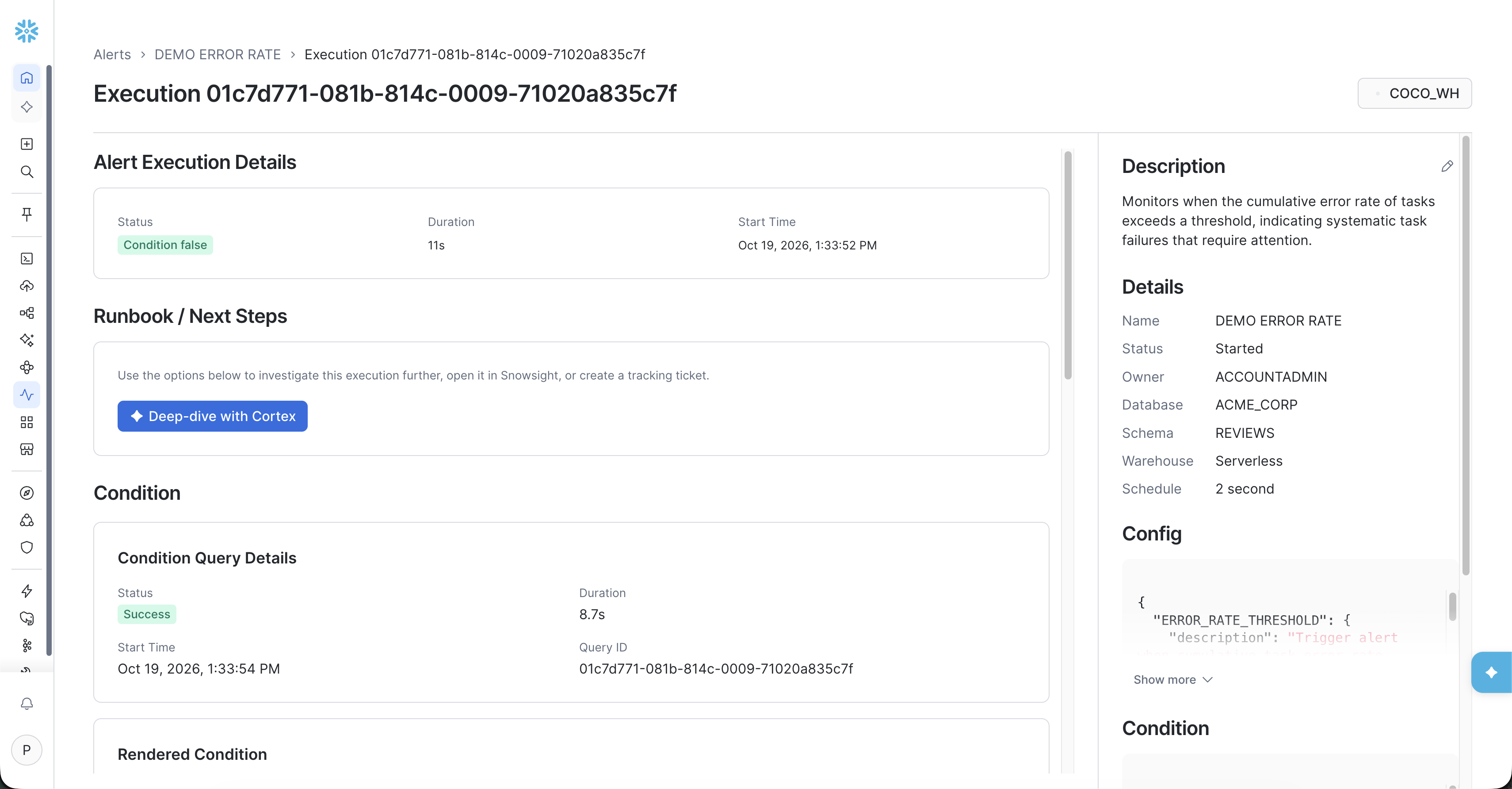
Those query IDs are the debugging surface. Take the condition query ID into ALERT_HISTORY and you get SQL_ERROR_CODE and SQL_ERROR_MESSAGE for that specific execution, which is how you tell apart the outcomes that look identical from the outside: the condition itself errored, the condition evaluated cleanly to false and there was nothing to report, or the condition fired and the action failed to deliver.
Attach a RUNBOOK. It's a free-text field on the alert, up to 2048 characters, and in practice it's a URL to your internal docs. It shows up in SHOW ALERTS, DESCRIBE ALERT and ALERT_HISTORY, so whoever gets paged at 02:30 lands on your instructions instead of a blank page. Several templates ship with a sensible default already populated (the task error rate template points at the task troubleshooting guide), so replace it with yours rather than starting from nothing.
Let Cortex Code do the reconstruction. Select Deep-dive with Cortex on the execution page, or ask Cortex Code directly. The alerts skill in Cortex Code can read the execution history, re-run the condition to see the current state, identify which tasks are contributing to the error rate, and propose remediation steps for you to review. This is the part of the morning you were previously spending by hand: for our nightly task, going from "the error rate crossed 15%" to "these two tasks in this pipeline failed on a permissions error introduced by a grant change yesterday" is a chain of queries that an agent with access to the same history can walk faster than you can.
And keep it quiet when it breaks. There's a real tension in monitoring between catching everything and being worth listening to, and it's resolved by whoever is on call: a system that pages all night is worse than one that's switched off, because it teaches people to ignore it. Set SUSPEND_ALERT_AFTER_NUM_FAILURES and an alert that fails or times out that many times consecutively suspends itself instead of continuing to fire. The counter resets on any successful run, and you can set it at the account, database or schema level so it applies to every alert underneath. SHOW ALERTS reports was_auto_suspended = TRUE so you can tell a self-suspension from someone turning it off.
End-to-end Task Error Rate Alert demo in SQL
This second flow is a separate, self-contained SQL demo, not a continuation of the alert created in the UI walkthrough. It creates its own serverless task that deliberately divides by zero every minute, then creates a Task Error Rate alert scoped to the demo schema. The alert evaluates every five minutes with a deliberately low 1% threshold so you can test the email notification. The final steps inspect task failures, alert runs and notification delivery, then clean up the demo objects.
Note: you will likely need an administrator to run some of these commands, or assume a role with the required privileges.
/* =====================================================================
   DEMO: failing serverless task  ->  Task Error Rate alert  ->  email
   Objects: TEMP_ALERTS_DEMO.TEST_SCHEMA.{DIVIDE_BY_ZERO_TASK, TASK_ERROR_RATE_ALERT}
   Lines tagged [ADMIN] need ACCOUNTADMIN (or a role holding that privilege).

   DEMO DISCLAIMER: These serverless tasks and alerts consume billable compute.
   The task intentionally fails every minute with auto-suspension disabled;
   the alert can send repeated emails until you suspend it. After receiving
   the demo email, suspend both objects and run the applicable cleanup steps.
   Use dedicated demo objects: CREATE OR REPLACE can overwrite existing objects,
   and cleanup drops the named objects. Skip DROP statements for any schema,
   integration or user you reused rather than created for this demo.
   ===================================================================== */

-- 0. Remember the role you will run the demo with (owns the task + alert)
SET demo_role = CURRENT_ROLE();

/* ---------------------------------------------------------------------
   1. [ADMIN] One-time privileges. Skip if your role already has them.
   --------------------------------------------------------------------- */
-- USE ROLE ACCOUNTADMIN;
-- GRANT CREATE DATABASE ON ACCOUNT TO ROLE IDENTIFIER($demo_role);              -- only if the DB doesn't exist yet
-- GRANT EXECUTE TASK ON ACCOUNT TO ROLE IDENTIFIER($demo_role);                 -- run any task
-- GRANT EXECUTE MANAGED TASK ON ACCOUNT TO ROLE IDENTIFIER($demo_role);         -- SERVERLESS tasks
-- GRANT EXECUTE ALERT ON ACCOUNT TO ROLE IDENTIFIER($demo_role);                -- run any alert
-- GRANT EXECUTE MANAGED ALERT ON ACCOUNT TO ROLE IDENTIFIER($demo_role);        -- SERVERLESS alerts
-- GRANT CREATE USER ON ACCOUNT TO ROLE IDENTIFIER($demo_role);                  -- step 3 (or use USERADMIN)
-- GRANT CREATE NOTIFICATION INTEGRATION ON ACCOUNT TO ROLE IDENTIFIER($demo_role); -- step 4
-- GRANT IMPORTED PRIVILEGES ON DATABASE SNOWFLAKE TO ROLE IDENTIFIER($demo_role);  -- lets the alert read the event table / telemetry
-- USE ROLE IDENTIFIER($demo_role);

/* ---------------------------------------------------------------------
   2. Database + schema
   --------------------------------------------------------------------- */
CREATE DATABASE IF NOT EXISTS TEMP_ALERTS_DEMO;
CREATE SCHEMA   IF NOT EXISTS TEMP_ALERTS_DEMO.TEST_SCHEMA;
-- (needs CREATE TASK + CREATE ALERT on the schema; the creator/owner role has them)

/* ---------------------------------------------------------------------
   3. Service user carrying the email address, then verify it
      [ADMIN] needs CREATE USER (USERADMIN has it). A service user cannot
      log in to Snowsight, so the admin triggers verification.
      Skip this step if a user in the account already has a verified
      email
   --------------------------------------------------------------------- */
-- USE ROLE USERADMIN;
-- CREATE USER IF NOT EXISTS ALERTS_QA_SVC_USER
--   TYPE = SERVICE
--   EMAIL = '<YOUR_TEST_EMAIL_HERE>'
--   COMMENT = 'Service user used to validate email notifications in QA';

-- Sends the verification email. Open it and click the link before step 4.
-- SELECT SYSTEM$START_USER_EMAIL_VERIFICATION('ALERTS_QA_SVC_USER');

-- Check the result (look at the email / verification fields):
-- DESC USER ALERTS_QA_SVC_USER;
-- USE ROLE IDENTIFIER($demo_role);

/* ---------------------------------------------------------------------
   4. [ADMIN] Email notification integration.
      Needs CREATE NOTIFICATION INTEGRATION (ACCOUNTADMIN by default).
      Fails if any ALLOWED_RECIPIENTS address is not verified yet.
   --------------------------------------------------------------------- */
-- USE ROLE ACCOUNTADMIN;
CREATE NOTIFICATION INTEGRATION IF NOT EXISTS QA_EMAIL_INT
  TYPE = EMAIL
  ENABLED = TRUE
  ALLOWED_RECIPIENTS = ('<YOUR_VERIFIED_EMAIL_HERE>');

-- Let the demo role use it:
GRANT USAGE ON INTEGRATION QA_EMAIL_INT TO ROLE IDENTIFIER($demo_role);
USE ROLE IDENTIFIER($demo_role);

/* ---------------------------------------------------------------------
   5. Serverless task: every 1 minute, always fails with divide-by-zero
      No WAREHOUSE clause = serverless. SUSPEND_TASK_AFTER_NUM_FAILURES = 0
      keeps it failing forever instead of auto-suspending.
   --------------------------------------------------------------------- */
CREATE OR REPLACE TASK TEMP_ALERTS_DEMO.TEST_SCHEMA.DIVIDE_BY_ZERO_TASK
  SCHEDULE = '1 MINUTE'
  SUSPEND_TASK_AFTER_NUM_FAILURES = 0
AS
  SELECT 1 / 0;

-- Record both successful and failed task runs for the error-rate calculation.
-- Set this before resuming the task; the template reads the event table.
ALTER TASK TEMP_ALERTS_DEMO.TEST_SCHEMA.DIVIDE_BY_ZERO_TASK SET LOG_EVENT_LEVEL = INFO;

ALTER TASK TEMP_ALERTS_DEMO.TEST_SCHEMA.DIVIDE_BY_ZERO_TASK RESUME;
EXECUTE TASK TEMP_ALERTS_DEMO.TEST_SCHEMA.DIVIDE_BY_ZERO_TASK;   -- optional: don't wait for the first minute

/* ---------------------------------------------------------------------
   6. Inspect the template (read-only, no warehouse needed)
   --------------------------------------------------------------------- */
SELECT SYSTEM$LIST_ALERT_TEMPLATES('TASKS');
SELECT SYSTEM$GET_ALERT_TEMPLATE('TASKS_ERROR_RATE');

/* ---------------------------------------------------------------------
   7. Create the alert from the TASKS_ERROR_RATE template
      - Use a deliberately low 1% threshold (0.01) to demonstrate triggering
        the alert and receiving an email, not as a production recommendation.
      - Serverless (no WAREHOUSE), scoped to just this demo schema
      - FROM TEMPLATE must come right after the alert name
      - CONFIG and IF/THEN are NOT allowed with FROM TEMPLATE
      - SCOPE_DATABASE / SCOPE_SCHEMA are free text and not validated:
        a typo creates the alert but it never fires
      - Requires an account event table (admin: ALTER ACCOUNT SET EVENT_TABLE = <db.schema.table>)
   --------------------------------------------------------------------- */
CREATE OR REPLACE ALERT TEMP_ALERTS_DEMO.TEST_SCHEMA.TASK_ERROR_RATE_ALERT
  FROM TEMPLATE TASKS_ERROR_RATE
  SCHEDULE = '5 MINUTE'
  COMMENT = 'Demo: Task Error Rate template scoped to TEMP_ALERTS_DEMO.TEST_SCHEMA'
  TEMPLATE_PARAMS = '{
    "template_variables": {
      "ERROR_RATE_THRESHOLD": 0.01,
      "TASK_NAME_FILTER": "",
      "SCOPE_ACTIVE": "SCHEMA",
      "SCOPE_DATABASE": "TEMP_ALERTS_DEMO",
      "SCOPE_SCHEMA": "TEST_SCHEMA",
      "NOTIFICATION_MODE": "EMAIL",
      "EMAIL_NOTIFICATION_INTEGRATION": "QA_EMAIL_INT"
    },
    "notification_config": {
      "notification_integration": "QA_EMAIL_INT",
      "email_config": { "toAddress": [ "<YOUR_VERIFIED_EMAIL_HERE>" ] }
    }
  }';

-- Alerts are created SUSPENDED
ALTER ALERT TEMP_ALERTS_DEMO.TEST_SCHEMA.TASK_ERROR_RATE_ALERT RESUME;

-- Force an evaluation now instead of waiting for the schedule
EXECUTE ALERT TEMP_ALERTS_DEMO.TEST_SCHEMA.TASK_ERROR_RATE_ALERT;

/* ---------------------------------------------------------------------
   8. Verify
   --------------------------------------------------------------------- */
-- 8a. Task failures (expect "Division by zero")
SELECT name, state, scheduled_time, error_code, error_message
FROM TABLE(SNOWFLAKE.INFORMATION_SCHEMA.TASK_HISTORY(
  TASK_NAME => 'DIVIDE_BY_ZERO_TASK',
  SCHEDULED_TIME_RANGE_START => DATEADD('hour', -1, CURRENT_TIMESTAMP()),
  SCHEDULED_TIME_RANGE_END   => CURRENT_TIMESTAMP(),
  RESULT_LIMIT => 10000))
WHERE database_name = 'TEMP_ALERTS_DEMO' AND schema_name = 'TEST_SCHEMA'
ORDER BY scheduled_time DESC;

-- 8b. Alert runs: CONDITION_FALSE -> TRIGGERED once the error rate is above 1%
SELECT name, state, scheduled_time, sql_error_code, sql_error_message
FROM TABLE(TEMP_ALERTS_DEMO.INFORMATION_SCHEMA.ALERT_HISTORY(
  ALERT_NAME => 'TASK_ERROR_RATE_ALERT',
  SCHEDULED_TIME_RANGE_START => DATEADD('hour', -1, CURRENT_TIMESTAMP())))
ORDER BY scheduled_time DESC;

-- 8c. Email delivery (if the alert says TRIGGERED but no email arrived)
SELECT *
FROM TABLE(INFORMATION_SCHEMA.NOTIFICATION_HISTORY(
  INTEGRATION_NAME => 'QA_EMAIL_INT',
  START_TIME => DATEADD('hour', -1, CURRENT_TIMESTAMP())))
ORDER BY created DESC;

/* ---------------------------------------------------------------------
   9. Cleanup
   --------------------------------------------------------------------- */
ALTER ALERT TEMP_ALERTS_DEMO.TEST_SCHEMA.TASK_ERROR_RATE_ALERT SUSPEND;
ALTER TASK  TEMP_ALERTS_DEMO.TEST_SCHEMA.DIVIDE_BY_ZERO_TASK  SUSPEND;
DROP ALERT  TEMP_ALERTS_DEMO.TEST_SCHEMA.TASK_ERROR_RATE_ALERT;
DROP TASK   TEMP_ALERTS_DEMO.TEST_SCHEMA.DIVIDE_BY_ZERO_TASK;
DROP SCHEMA TEMP_ALERTS_DEMO.TEST_SCHEMA;
--ADMIN
DROP NOTIFICATION INTEGRATION QA_EMAIL_INT;
--
DROP USER ALERTS_QA_SVC_USER;
Docs for the Alerts UI and alert templates
The Alerts UI is generally available now, under Monitoring » Alerts in Snowsight.
- Alerts in Snowsight — the Alerts UI, the template catalog, and the prerequisites for each product area
- Setting up alerts based on data in Snowflake — the condition and action model, scheduling, compute and cost, privileges,
CONFIGandRUNBOOK
We'd love to hear which failure modes you're catching, and which templates you wish existed.
This content is provided as is, and is not maintained on an ongoing basis. It may be out of date with current Snowflake instances
