Oct 27, 2026/8 min readData Engineering
Introducing Automated Snowpipe Setup: Build Ingestion Pipelines with CoCo in One Prompt

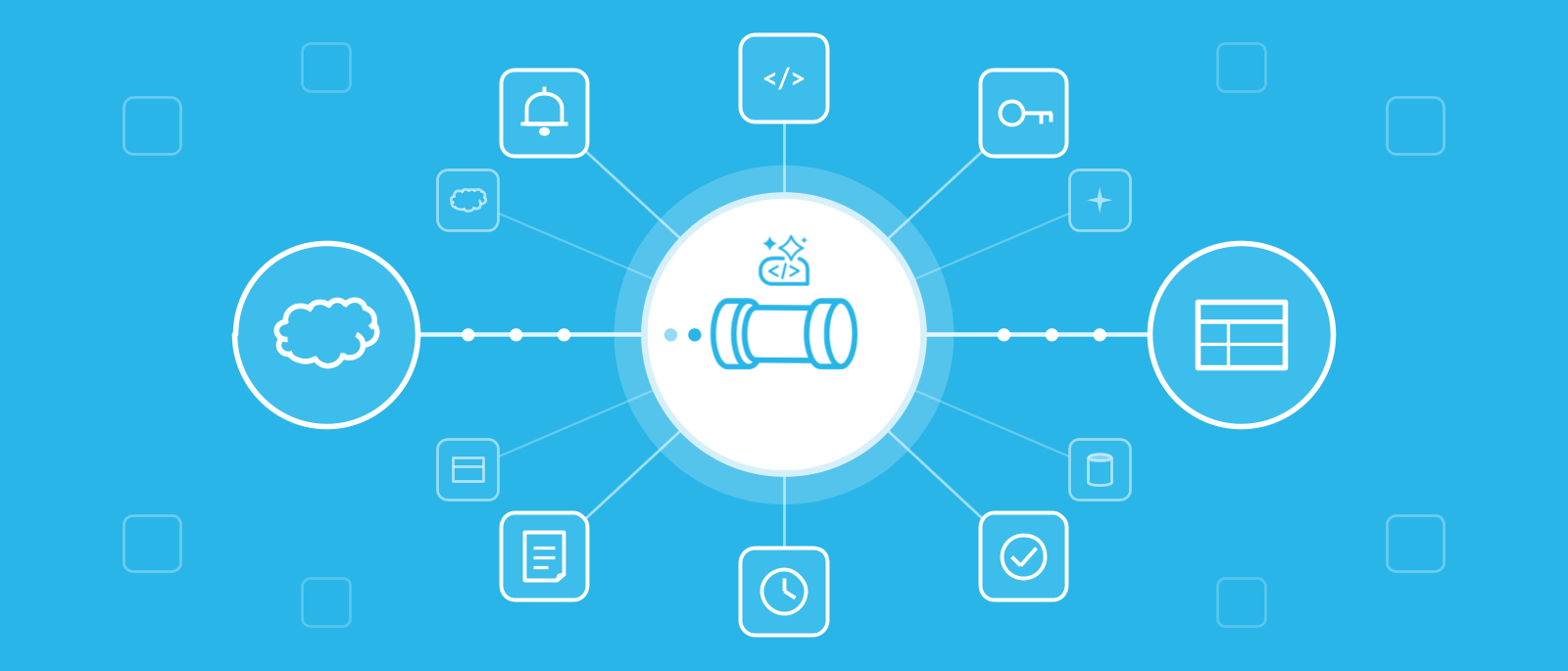
Today, we’re announcing the general availability of automated Snowpipe setup with Snowflake CoCo, enabling teams to go from raw files arriving in cloud storage to a continuously loading standard Snowflake table or Snowflake-managed Apache Iceberg™ table in a single natural-language conversation. CoCo automatically samples the files, infers the schema, builds the pipeline and confirms that the data loads as expected, so a new source doesn’t have to wait in a data engineering queue. To learn more or get started, visit automated Snowpipe setup documentation.
Organizations increasingly need their AI applications and agents to act on new data as soon as it’s generated, yet every new source still has to be connected before anyone can use it. Consider a mobile team shipping a new application. The first few days of usage data often matter most. They show whether people find the new features and what to fix before the next build. The data starts arriving right away, as clickstream files that land in an Amazon S3 bucket every few minutes. The same clock runs for a security team tracing an incident through application logs, a manufacturer watching sensor data from a new production line or a finance team onboarding a partner’s daily exports. Each of these feeds ends up as files in cloud storage, and its value depends on how soon someone can query it.
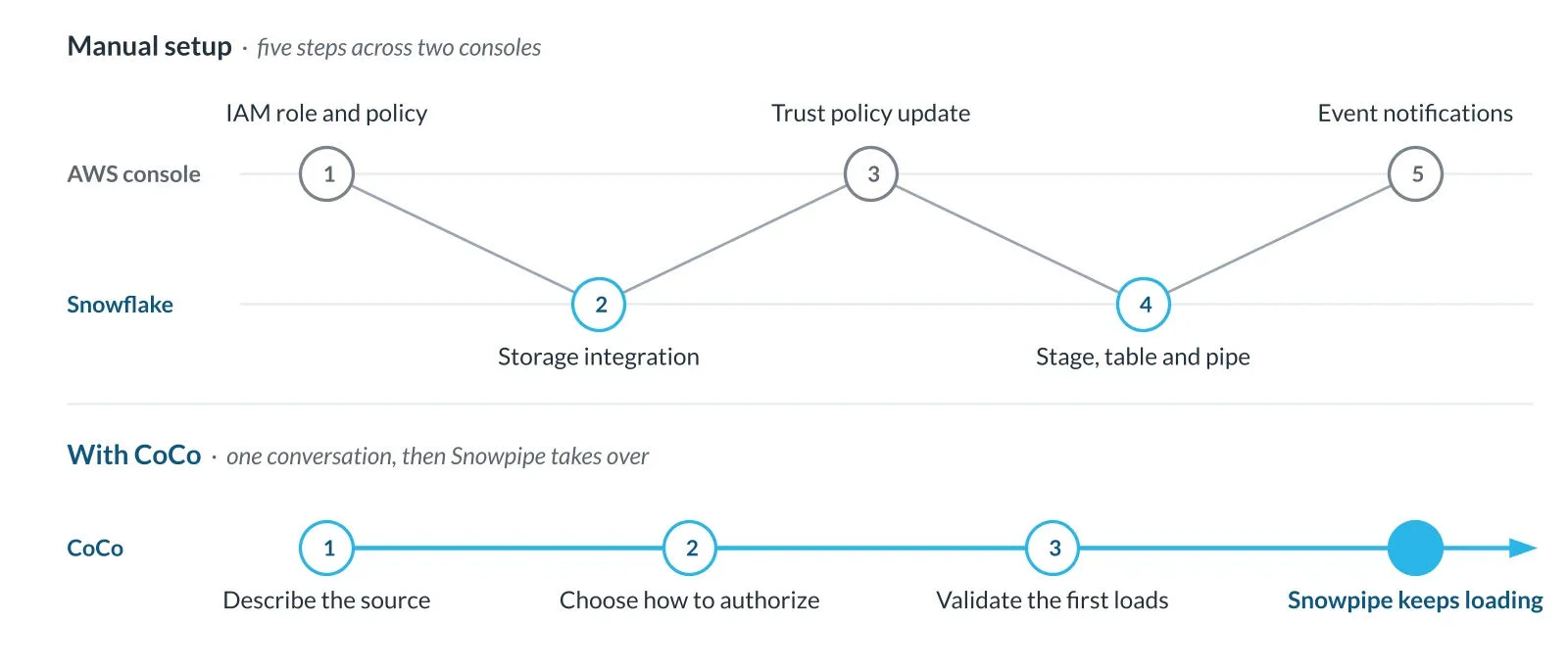
Snowpipe, Snowflake’s continuous loading service, was built for this kind of data. It typically picks up each new file within minutes of arrival in cloud storage, on serverless compute that Snowflake manages. What usually slows teams down is the work that needs to be done before the first load. Someone has to inspect the files to choose format options, then create the storage integration, stage, table and pipe. The cloud team also has to set up an IAM role, trust policy and the event notifications that tell Snowpipe when a file arrives. Until those steps are done, the days that matter most pass with the data sitting in a bucket no one can query.
Automated Snowpipe setup, available in Snowsight, CoCo Desktop and CoCo CLI, lets anyone with the right permissions connect a new source directly, without waiting for a data engineer. By default, CoCo asks for your explicit approval before making changes, and once setup is complete, Snowpipe keeps the data flowing long after the CoCo session has ended.
“AI agents are changing how teams work with their data, but every project still starts with connecting new data. With Snowflake CoCo and Snowpipe, we’re handling the hard parts of bringing each new source online, freeing teams to turn more of their ideas into working applications that stay current as new files arrive. Our partnership with AWS makes this even simpler for customers on Amazon S3.”
Saptarshi Mukherjee
Senior Director of Product Management, Snowflake
With this launch, you can:
- Start from a cloud storage path: Point CoCo at files in Amazon S3, Azure Blob Storage or Google Cloud Storage, and it detects the format and proposes a schema.
- Let Snowflake handle the AWS setup: Approve one time-limited AWS IAM temporary delegation request, and Snowflake creates the storage role, trust policy and bucket notifications, with no AWS access keys to share.
- Keep your infrastructure as code on any cloud: CoCo writes Terraform for the complete pipeline, including Iceberg tables, ready for your team’s usual review.
- Land data in open Apache Iceberg tables: Choose an Iceberg table, and Snowflake and any Iceberg-compatible engine can read the same data.
- Confirm that the pipeline works: CoCo checks that files are reaching the table and flags any load errors.
“Snowflake customers on AWS want to move faster with their Amazon S3 data without loosening control over access. By using AWS IAM temporary delegation, Snowflake CoCo lets customers approve limited, time-bound access in the AWS Console while Snowflake handles the Snowpipe setup. It’s a strong example of how AWS and Snowflake work together to help our customers spend less time on setup and more time putting their data to work.”
Chris Spandikow
Director of Engineering, AWS
Point CoCo at a cloud storage path
The mobile team starts with one sentence:
Continuously ingest data from s3://my-bucket/clickstream/In Snowsight, the team can also start from Ingestion » Add Data by selecting Set up Snowpipe with CoCo. Either way, CoCo asks where the data should land and which of four setup options fits your team: temporary access on Amazon S3, Terraform for the complete pipeline, your existing cloud access or Snowflake objects plus cloud setup files.
Next, it samples the files to detect the format, such as CSV, JSON, Parquet, Avro, ORC or XML, and propose column names and data types.
CoCo reuses compatible storage integrations, stages and file formats. If a pipe already covers the same files, CoCo flags it and waits for your call, so you don’t load data twice. Every statement runs under your active Snowflake role, and by default, CoCo shows the SQL and asks for your approval before creating or changing any Snowflake objects.
Files that landed before the pipe existed aren’t left behind: CoCo offers to load the last seven days right away and can run a one-time load for anything older. If the app starts sending new fields, CoCo can turn on schema evolution so they become new columns, asking first on an existing table.
Let Snowflake automate cloud setup on AWS
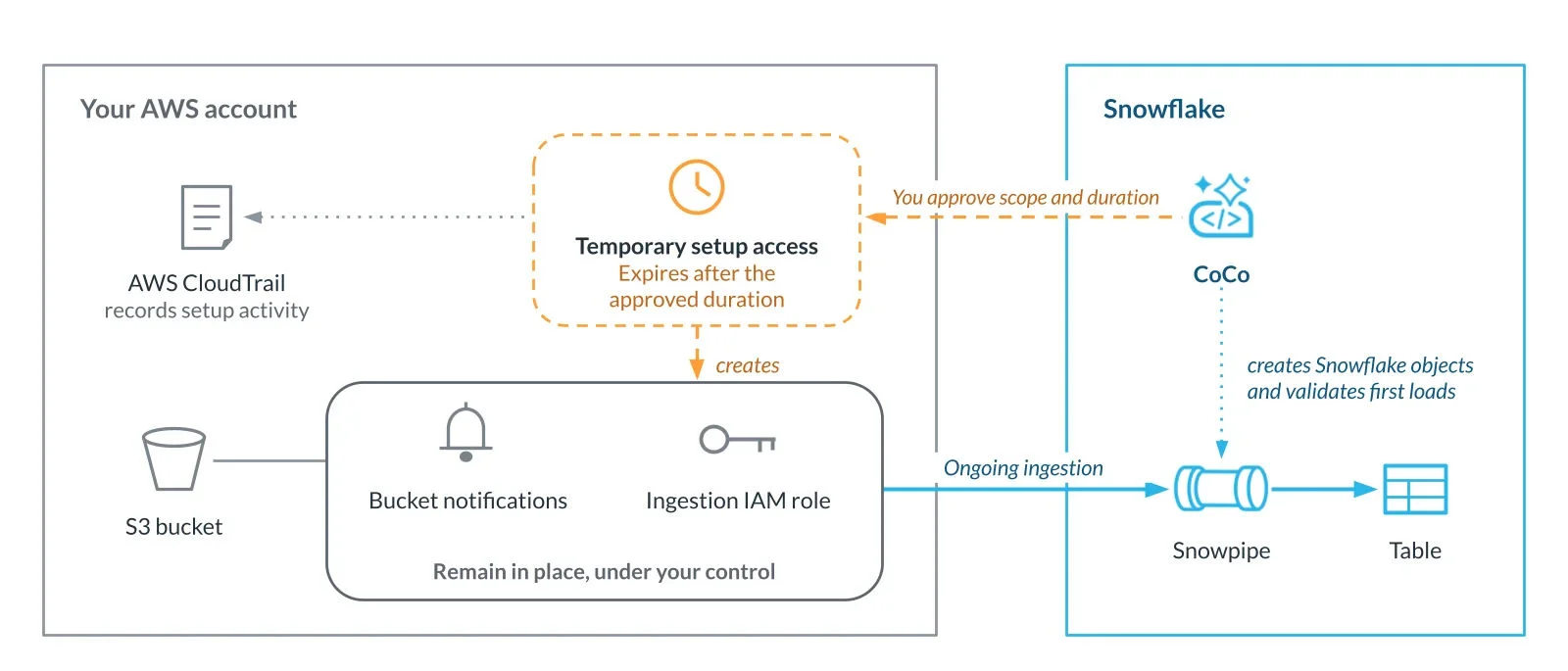
The mobile team’s bucket is on Amazon S3, so it uses AWS IAM temporary delegation to grant Snowflake limited, time-bound permissions for the setup:
- CoCo prepares the request: It asks only for what the setup needs — notification access on one bucket and permission to create or update the storage role Snowpipe uses, with a permissions boundary that caps what that role can do.
- You decide in the AWS Management Console: Review every requested permission, then allow it, deny it or send it to your AWS administrator for approval.
- Snowflake sets up what you approved: It creates the storage role and trust policy. Once CoCo creates the pipe with SQL you approve, Snowflake adds the pipe’s notification rule and leaves the bucket’s existing rules in place.
AWS CloudTrail logs every setup action Snowflake takes under the delegated role, and Snowflake query history shows each statement CoCo ran under your user and role.
Keep your pipeline in code, or deploy it your way
Teams that deploy cloud resources through code can have CoCo prepare the setup as code instead, on AWS, Azure and Google Cloud. For standard and Iceberg tables, CoCo writes Terraform for the complete pipeline, covering both the Snowflake objects and the cloud resources, filled in from the sampled files. On AWS, the Terraform keeps the bucket’s existing notification rules. Your team reviews it in a pull request and deploys it as usual. CoCo also offers two other setup options:
- Reuse existing cloud access: Keep the storage integration and IAM role you already use, and CoCo walks you through the notification setup.
- Create Snowflake objects and generate cloud setup files: CoCo creates the Snowflake objects with SQL you approve and generates Terraform, CloudFormation or ARM templates for your cloud team to deploy.
For example:
Generate complete Snowpipe Terraform for gcs://my-bucket/events/. My team will deploy it.CoCo Desktop and CoCo CLI can apply Terraform and cloud setup files for you, using the cloud credentials on your machine and asking before each application, or you can leave deployment to your team. In Snowsight, CoCo saves the files in a snowpipe folder in your workspace.
Load the same data into open Apache Iceberg tables
If a data science team wants the same clickstream data in Apache Spark™, ask for an Iceberg table instead:
Continuously ingest s3://my-bucket/clickstream/ into an Iceberg table.CoCo sets up a Snowflake-managed Iceberg table and the pipe that feeds it. Snowpipe writes the data as Parquet, converting other formats as they load, and Snowflake maintains the Iceberg metadata, so Spark and other Iceberg-compatible engines can read the table. Snowflake also handles table maintenance for Snowflake-managed Iceberg tables. You can also generate the Iceberg pipeline as Terraform.
Let CoCo confirm the first files load
Once access and deployment are done, CoCo checks pipe status, notification delivery and load history, then reports any load errors. You don’t have to query SYSTEM$PIPE_STATUS or COPY_HISTORY yourself. If no new files have arrived yet, it can walk you through a test file.
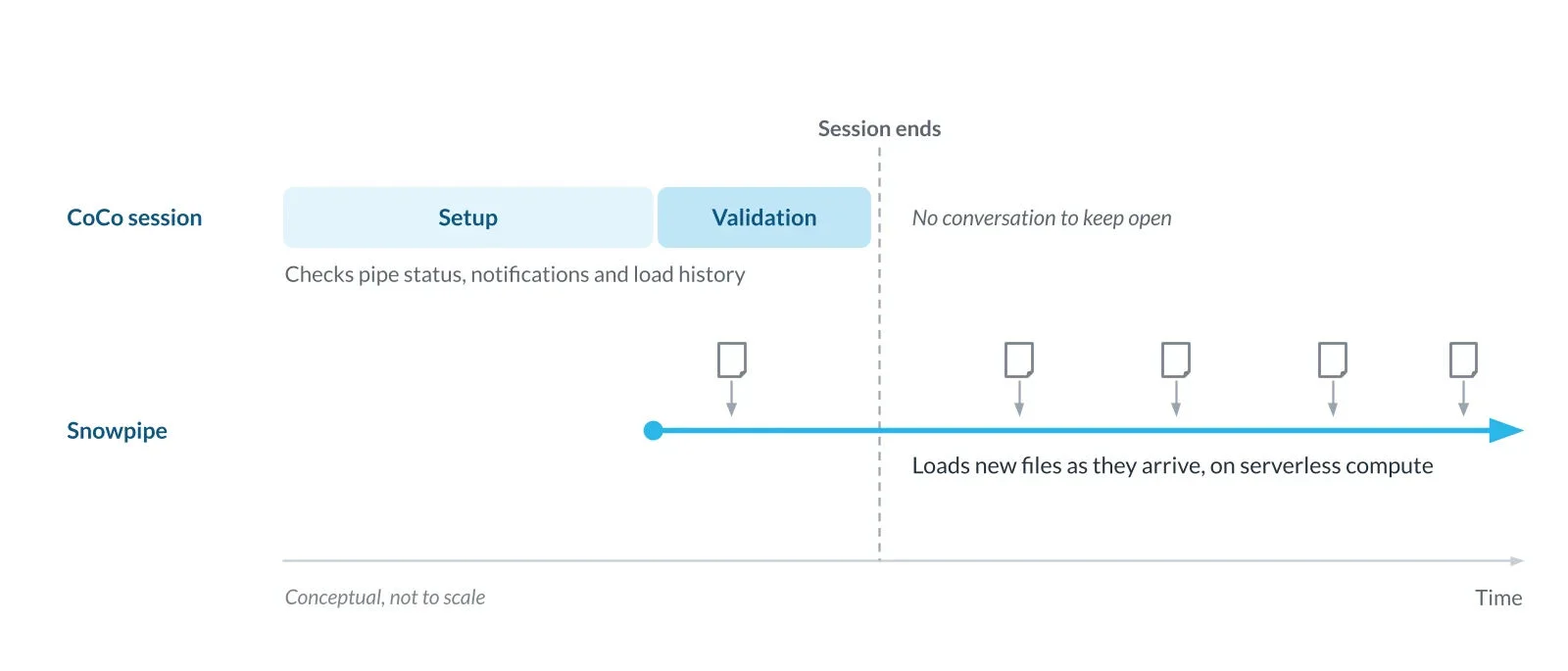
For the mobile team, the clickstream since launch day is already in a table, showing which new features people use and what to fix before the next build. The same fresh data is ready for the AI applications and agents that depend on it.
Run one-time loads with CoCo
Bulk loading with CoCo is also generally available today. When files are already in place, such as for a backfill, a migration or an on-demand delivery, ask CoCo for a one-time load, and it prepares the file format and table, runs COPY INTO on your warehouse and checks the results. If a request doesn’t say whether to load once or continuously, CoCo asks first.
Get started today
Check the prerequisites and required privileges in the automated Snowpipe setup documentation, then:
- Open CoCo in Snowsight, CoCo Desktop or CoCo CLI. In Snowsight, you can also select Set up Snowpipe with CoCo on the Ingestion » Add Data page.
- Describe your source. For example:
Continuously ingest data from s3://your-bucket/path/ - Pick a setup option, then approve what CoCo prepares.
- Let CoCo confirm the first loads.
Snowpipe and CoCo resources
After setup, Snowpipe loads files on serverless compute, billed as Snowpipe usage. See CoCo costs and Snowpipe costs for details. If you’re new to Snowflake, start a free trial. To learn more, see:
- Automated Snowpipe setup with CoCo
- Bulk load files with CoCo
- Snowflake CoCo documentation
- AWS IAM temporary delegation
Point CoCo at your next data source and let Snowpipe keep it loading.
Note: AWS IAM temporary delegation isn’t available in AWS GovCloud (US) or China regions. Cloud approvals and permission propagation can affect setup time.
Aug 24, 2026Data Engineering
Stream to Apache Iceberg Easily with Snowpipe Streaming

Jun 17, 2026Product and Technology
Real-Time Pipelines Ship Simply and Affordably with Snowpipe Streaming and Snowflake CoCo

Jun 22, 2022Product and Technology
Best Practices for Data Ingestion with Snowflake: Part 1

