Nov 17, 2026/6 min readGen AI
CoCo Desktop 2.0: A Complete Upgrade for Getting Your Deep Data Work Done Faster


Snowflake CoCo Desktop gives data teams one place to do their data work on Snowflake, with an agent that understands their data and works within their roles. Since it became generally available in July, CoCo Desktop has become a daily part of work for many, so we’ve kept updating it to make it as useful as possible.
With version 2.0, available today for macOS and Windows, CoCo takes on more of that work, and does it more easily, quickly and autonomously.
What's new
- A redesigned Desktop UI (generally available): A new layout for agent sessions, navigation and settings.
- Multi-task with split panes (GA): Show several agent sessions side by side in one window.
- Rebuilt agentic browser (GA): Tabs, page comments and agent activity indicators in the built-in browser.
- Session search (GA): Find earlier sessions and reopen them.
- Snowflake App Runtime support (public preview): Build, run, deploy and share Snowflake App Runtime apps, alongside Streamlit in Snowflake apps, from the Apps view.
- Artifacts (public preview): Publish reports to Snowflake, share them by role.
- Cloud automations (public preview): Scheduled checks and reports that run in Snowflake, including when your computer is off.
- Agent profiles (public preview): A default model and set of skills that administrators define once for a team.
- Server-side memory (public preview): CoCo's memory of your projects, stored in Snowflake and available on any machine.
Experience quality
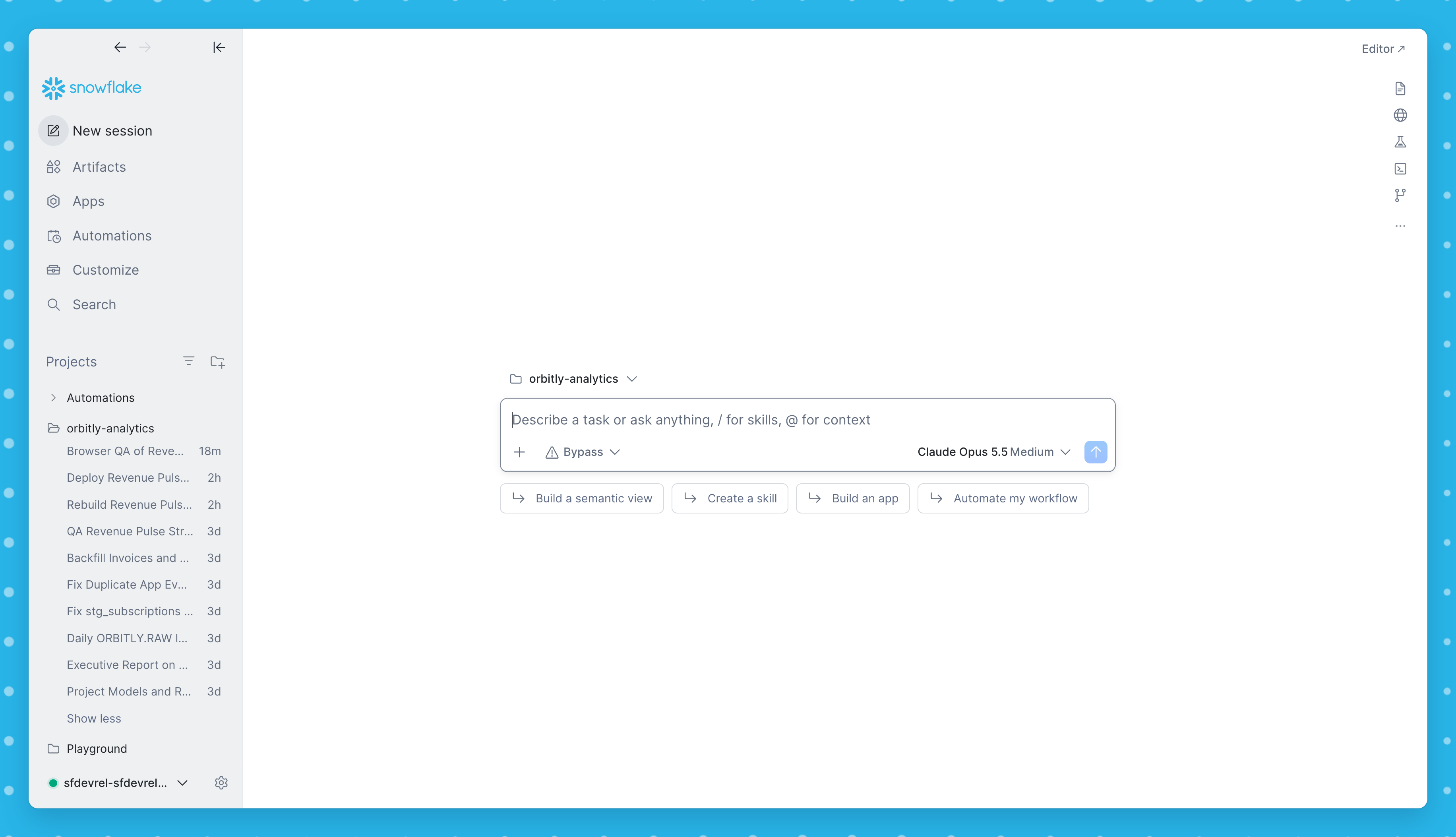
The first thing you'll notice: CoCo Desktop now looks like a modern, sleek application. The 2.0 UI was rebuilt with Snowflake's new Experience Quality program, which our Design team leads to raise the quality of the UI and UX across Snowflake's products. We measure Experience Quality against the ease, speed and quality of the best tools people already love, without giving up security, power or depth.
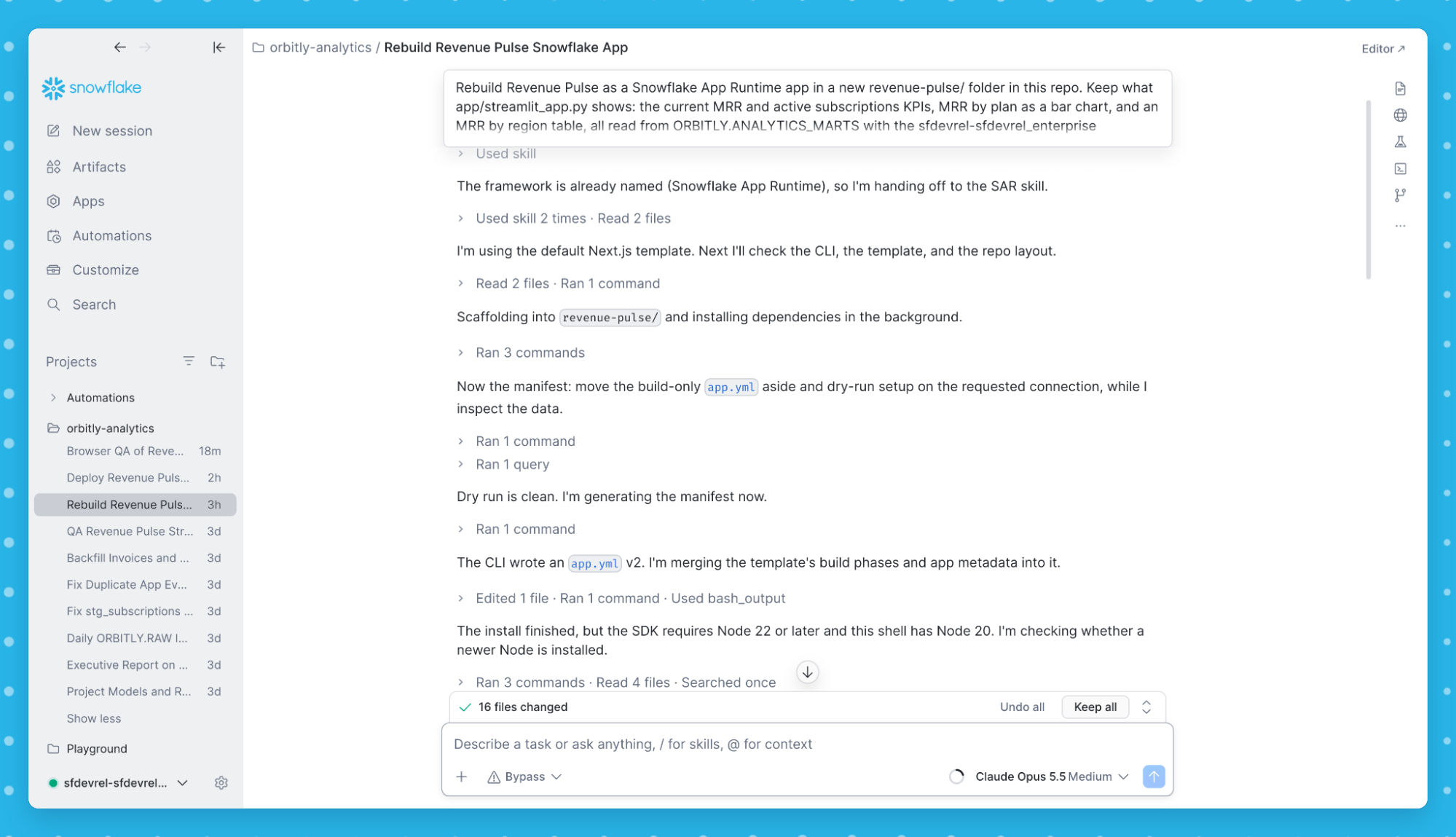
For 2.0, the CoCo Desktop team and the Design team worked as partners on two major changes you'll notice right away. Long agent runs are calmer: tool calls are sorted into lookups and actions, sub-agents appear as cards, and every step opens for detail when you want it. The app's hierarchy and clarity are sharper throughout. We also added a bit of playfulness, so look for our penguin friend, CoCo.
How these features show up in your real work:
Take this hypothetical example. Let’s say that you own a dbt project that feeds Revenue Pulse, the Snowflake App Runtime app your exec team uses to track monthly recurring revenue. Every dbt test passes, but before the quarter ends, you want a second set of eyes.
1. Ask CoCo to review the project
Ask CoCo what each dbt model does, what's landing in the raw tables and what looks risky. If an administrator assigned your team an agent profile, a shared setup of model and skills, the session starts with it. Server-side memory, which keeps what CoCo learns in Snowflake instead of on one laptop, brings in earlier sessions on this project from any machine, and session search reopens last month's work.
CoCo reads the dbt models and queries the raw tables with your active role. It finds three problems no test checked for: 1. Canceled subscriptions still count as active, overstating MRR by about $900K (roughly 9%) 2. Some events landed twice, inflating daily activity 3. A few days of invoices never landed.
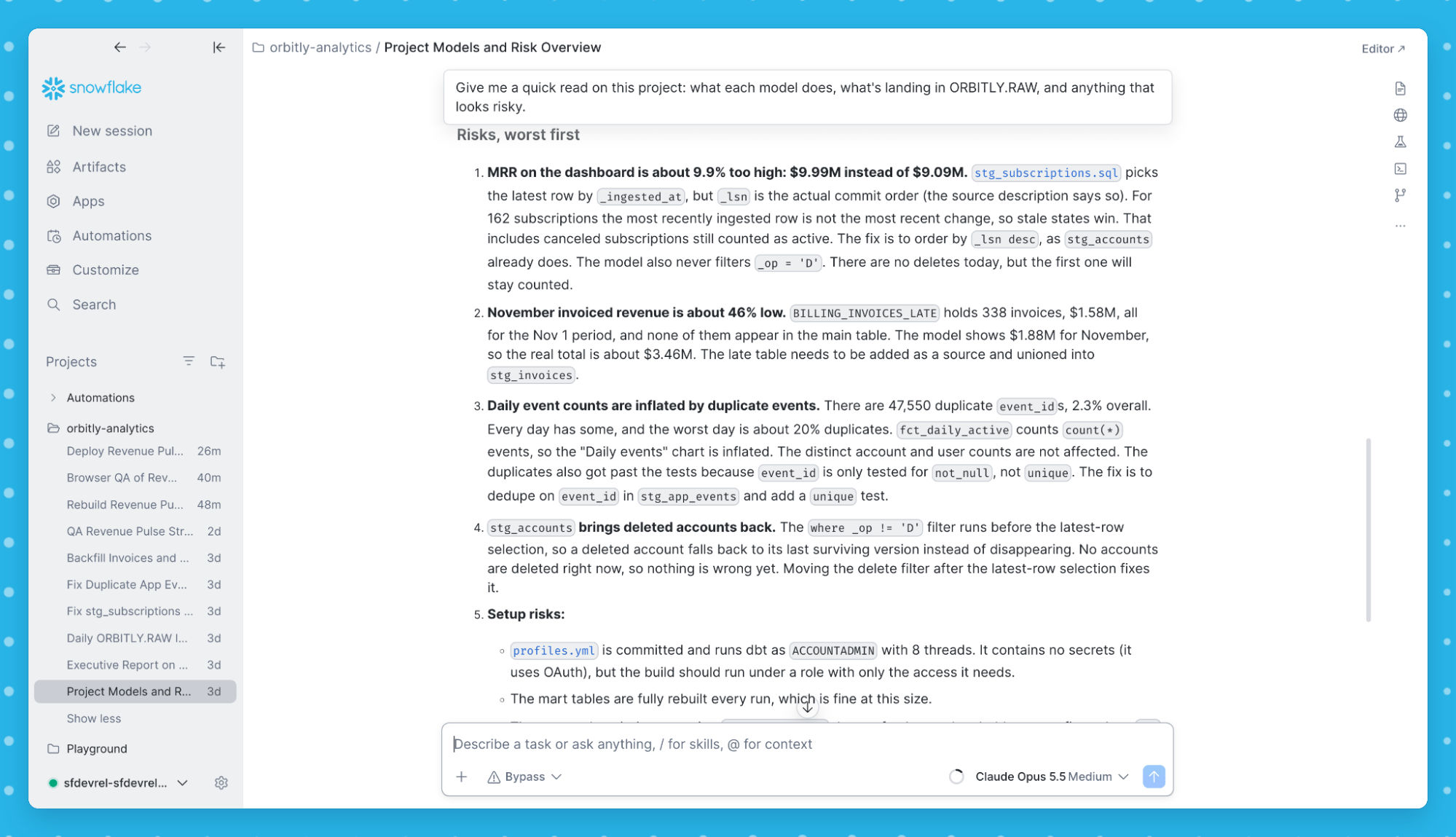
Figure 3: CoCo reads the project and the raw tables and reports what looks risky.
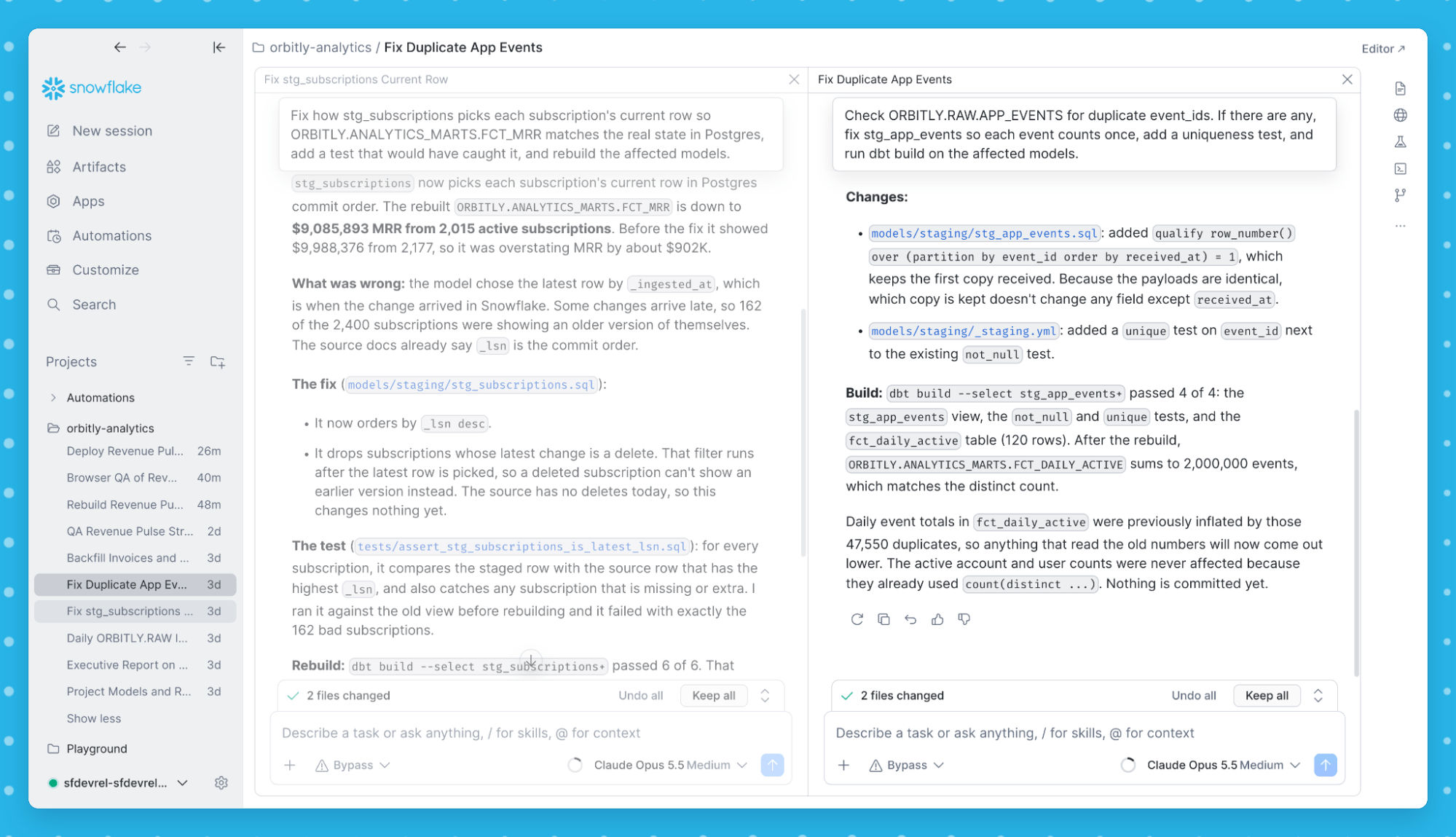
2. Fix two at once, on one screen
Start one session per issue, then drag the sessions from the sidebar into the main window to show them in split panes. In each session, CoCo fixes the model, adds a dbt test for the condition it found and rebuilds the affected models.
3. CoCo tests the app using the Agentic Browser
Fixed dbt models don't help if the app still shows the old number. CoCo starts Revenue Pulse, opens it in the Agentic Browser and checks it like a reviewer: screenshots, chart tooltips, table sort and search, etc. Then it compares every number on the page with the corrected tables. While CoCo drives, the browser shows what it's doing, such as "CoCo is clicking," with a Stop button.
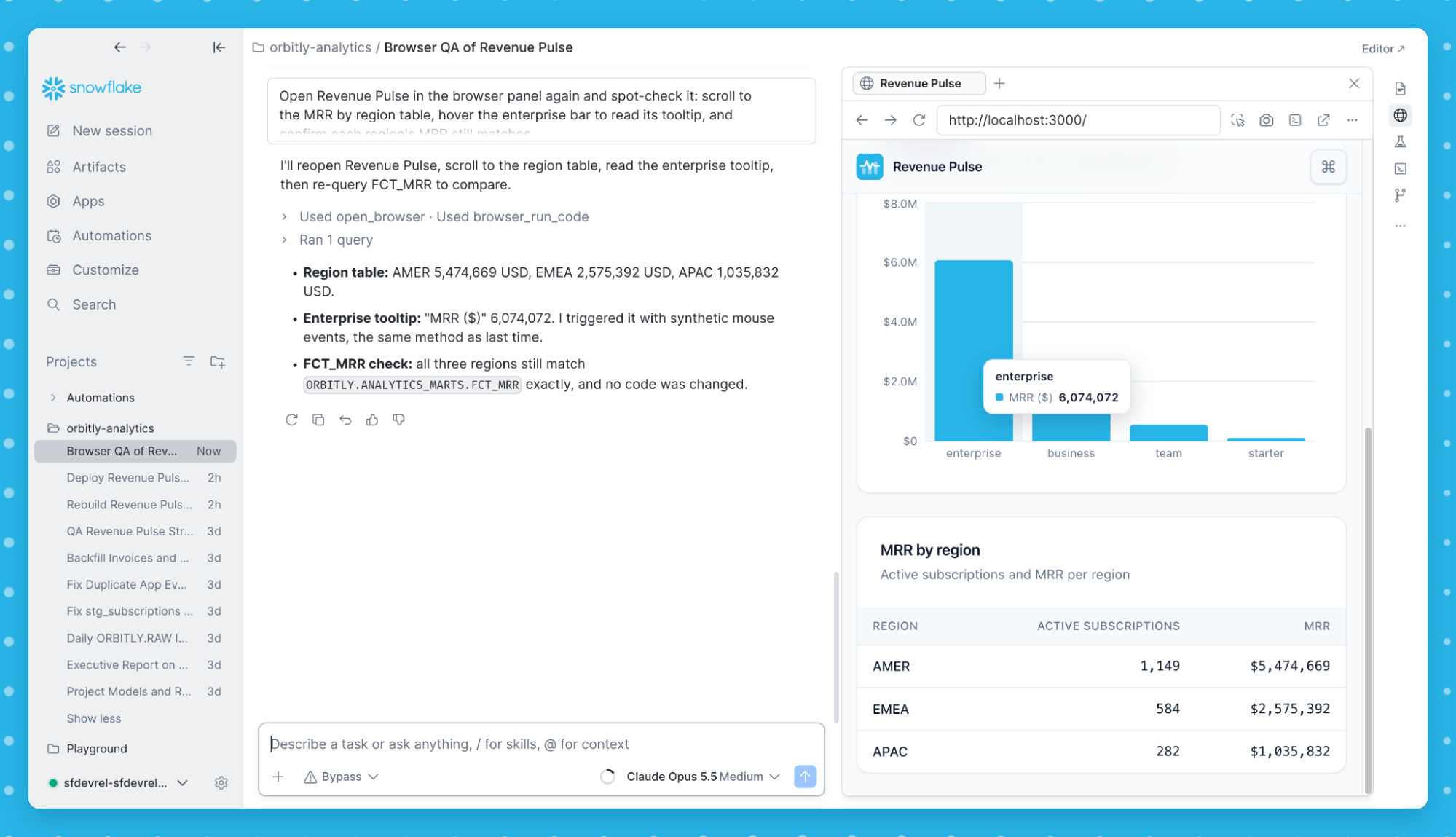
Figure 5: CoCo checks the corrected app in the browser panel against the tables.
The upgraded Agentic Browser adds:
- Tabs: Each session has its own browser panel, with multiple tabs.
- Agent activity: The browser shows when CoCo is in control of the page.
- Comments: Select an element on the page, leave a comment and ask CoCo to address it.
- Everyday controls: Find in page, a settings menu and the option to open a page in its own window.
4. Deploy the app to Snowflake
Deploy the updated app from the Apps view, and share it with roles or users from the same place. Or just ask CoCo to deploy it for you. Snowflake App Runtime apps are full-stack web apps that run in Snowflake and query data under Snowflake roles.
The Apps view also supports Streamlit in Snowflake apps, and it can start new apps: describe the app, and CoCo recommends a framework, creates the project and opens a preview.
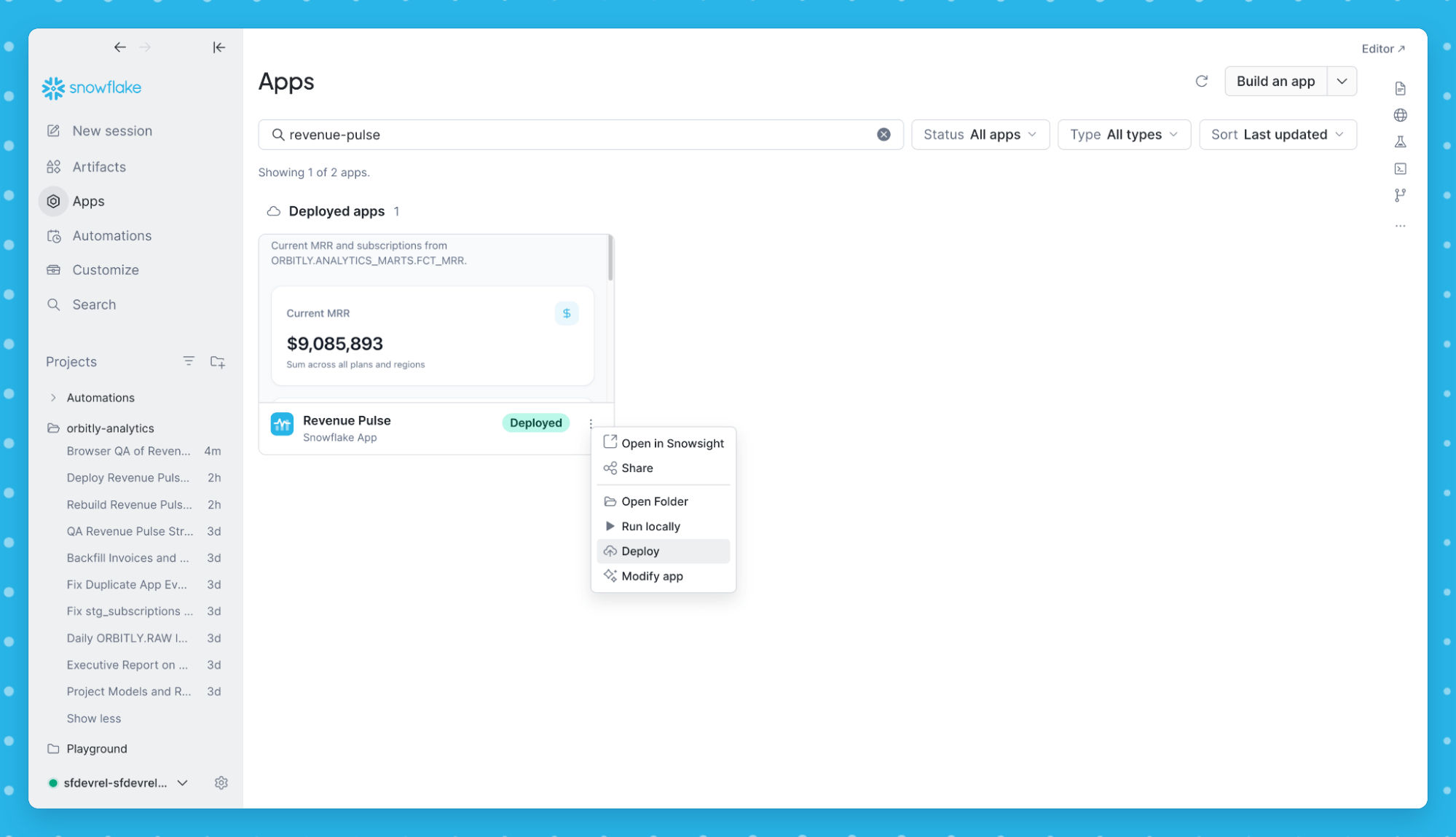
Figure 6: Deploying the corrected revenue app from the Apps view.
Ask CoCo for a one-page HTML Report that covers the cause, the impact, the changes and the new tests. CoCo bases the report on what changed and lists anything it couldn’t explicitly verify.
Then, publish the report to Snowflake as an artifact. Artifacts are shared by role, so you can decide which roles should have access. Teammates who want to view your artifacts can open the share link directly in Snowsight or CoWork.
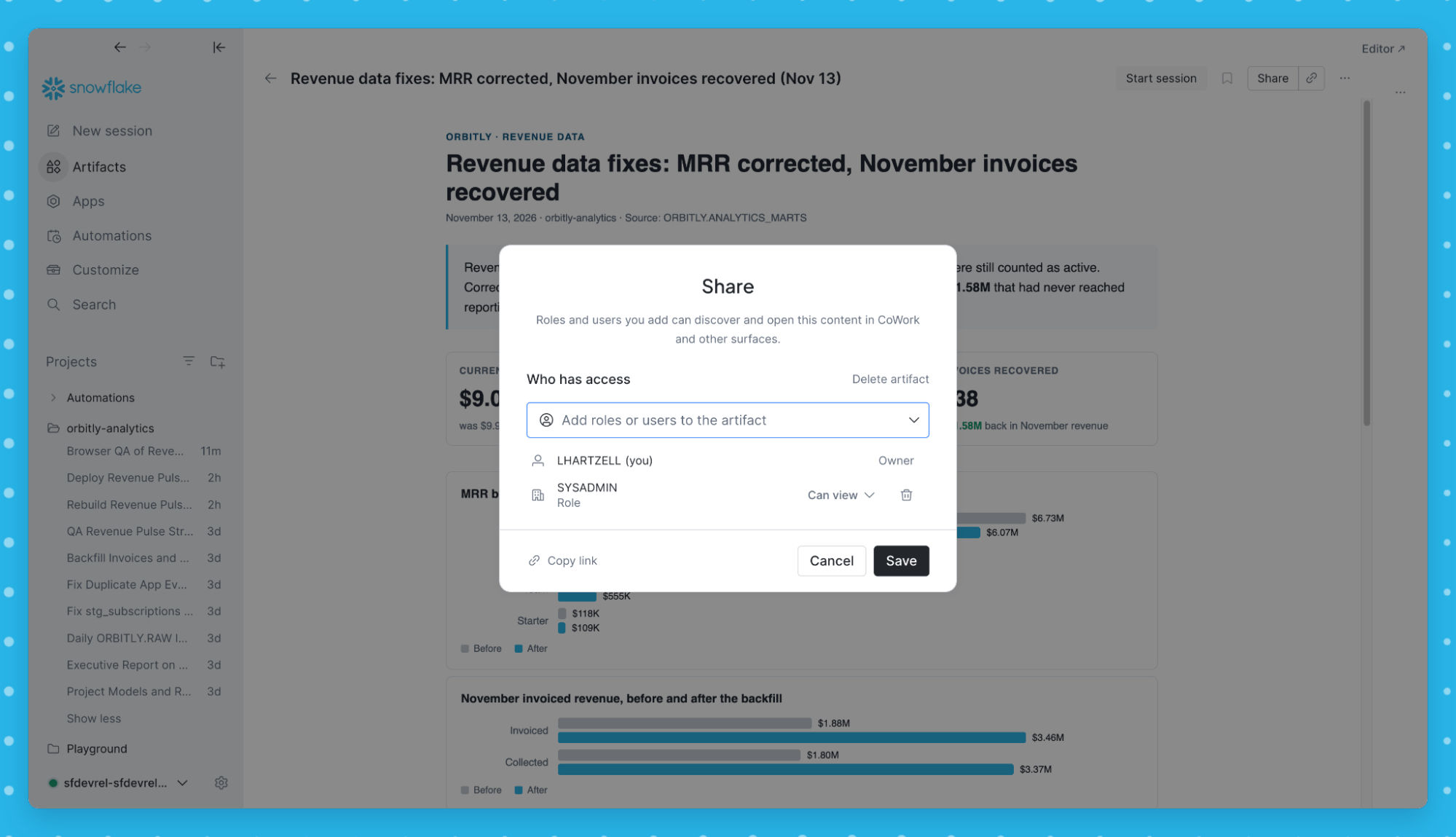
Figure 7: Sharing the published report with a role.
6. Make sure it doesn’t come back with Cloud Automations
To catch these issues in the future, describe a check in plain language, for example: "Every weekday at 7 a.m., look for duplicate events, out-of-order change data and invoices that have not arrived, and send me a short report." CoCo writes the checks against your tables, previews each one and runs a test before deploying. The job is saved as a cloud automation, which runs in Snowflake, even if you are away or if your laptop’s closed.
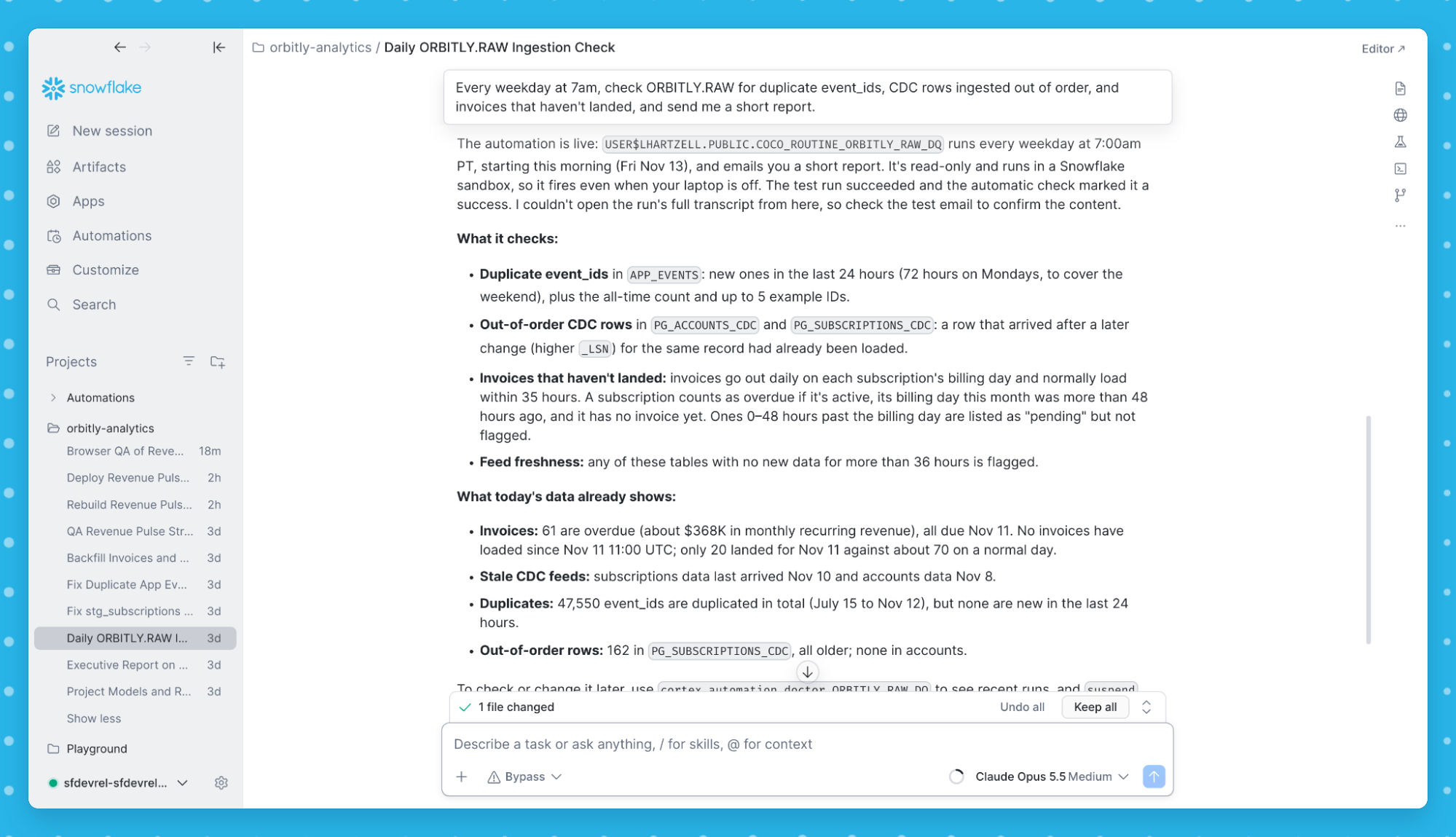
Figure 8: CoCo builds the weekday check and schedules it as a cloud automation.
Built for teams
Administrators can set agent profiles with a default model and skills for a team. Skills are reusable instructions that teach CoCo how your team works, like your dbt conventions, review checklist or deploy steps. Server-side memory lives in Snowflake, not on one computer. CoCo acts through each user's Snowflake roles, and administrators can apply managed settings and per-user credit limits.
Get started
Version 2.0 is available today for macOS and Windows. Existing installations update from within the app.
- Download: CoCo Desktop for macOS or Windows
- Watch: CoCo Desktop 2.0 Launch Video
- Read: The CoCo Desktop documentation and release notes
Get the full power of Snowflake in one place. CoCo Desktop 2.0 brings your data, code and agent into one workspace. Try it today.

Nov 3, 2026AI & ML
Snowflake CoCo: Agentic Development on Data Without Limits

Sep 4, 2026AI & ML
Build Reproducible Data Pipelines with CoCo, Snowflake's AI Coding Agent

Jun 10, 2026Product and Technology
Data Engineering in the AI Era: New Snowflake Tools Built for Smart Pipelines