Building AI Agents with Cortex Code and CoWork
Overview
This guide walks you through building a complete AI-powered analytics agent using Snowflake Cortex Code (CoCo) — the AI-native IDE for Snowflake. You will go from raw data to a production-ready Cortex Agent with evaluations, all driven by natural language prompts.
The lab uses a convenience store hot food sales dataset (100 stores, 100 items, 539K transactions) and demonstrates how Cortex Code automates the creation of semantic views, agents, skills, and evaluation frameworks.
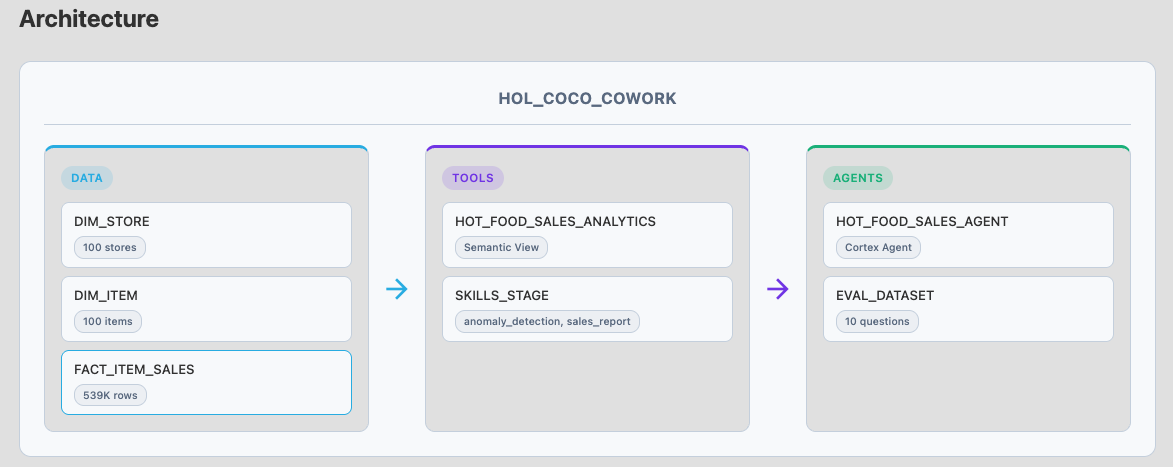
┌─────────────────────────────────────────────────────────┐
│                  HOL_COCO_COWORK Database                 │
├───────────────┬──────────────────┬──────────────────────┤
│  DATA Schema  │  TOOLS Schema    │  AGENTS Schema       │
│               │                  │                      │
│  DIM_STORE    │  Semantic View:  │  Cortex Agent:       │
│  DIM_ITEM     │  HOT_FOOD_SALES  │  HOT_FOOD_SALES     │
│  FACT_ITEM    │  _ANALYTICS      │  _AGENT             │
│  _SALES       │                  │                      │
│               │  (8 VQRs,        │  (text-to-SQL tool,  │
│  100 stores   │   2 relationships│   2 skills,          │
│  100 items    │   3 tables)      │   orchestration +    │
│  539K sales   │                  │   response instrs)   │
│               │  Skills Stage:   │                      │
│               │  anomaly_detect  │                      │
│               │  sales_report    │                      │
└───────────────┴──────────────────┴──────────────────────┘
Prerequisites
- A Snowflake account with ACCOUNTADMIN access
- Cortex Code desktop application installed and connected to your Snowflake account
- Access to a Snowflake Workspace
What You Will Learn
- How to use Cortex Code to build Snowflake objects from natural language prompts
- How to create semantic views with verified queries for Cortex Analyst
- How to build a Cortex Agent with orchestration instructions and server-side skills
- How to evaluate agent performance using Snowflake's built-in evaluation framework
What You Will Build
- A star-schema data model for convenience store hot food sales
- A semantic view with 8 verified queries (VQRs)
- A Cortex Agent with anomaly detection and sales report skills
- An evaluation framework measuring answer correctness and logical consistency
Setup Environment
This step creates all the infrastructure needed for the lab. You will run SQL and Python scripts in a Snowflake Workspace.
Required Files
Download the Setup folder which contains all scripts and data needed and extract them:
| File | Type | Purpose |
|---|---|---|
| 01_setup.sql | SQL | Creates warehouse, database, schemas, stages, and tables |
| 02_copy_files.py | Python | Uploads CSV data and skill files to stages |
| 03_load_data.sql | SQL | Loads data into tables and verifies row counts |
| data/dim_store.csv | CSV | 100 convenience stores |
| data/dim_item.csv | CSV | 100 hot food items |
| data/fact_item_sales.csv | CSV | 539K sales transactions |
Step 1: Load Project Files into a Workspace
- Download all the files listed in the Required Files table above (or clone the companion repository)
- In Snowsight > Projects > Workspaces, click + Workspace to create a new blank workspace
- Use the Upload button (or drag and drop) to upload the following folder structure:
Setup/— including thedata/subfolder with all three CSV filesSkills/— both skill subfolders with their SKILL.md filesPrompts/— all three prompt files (Optional)
- Verify all files appear in the workspace file browser before proceeding
Step 2: Create Infrastructure (SQL)
Open Setup/01_setup.sql in the Workspace and click Run All. This creates:
-- Warehouse and compute pool
CREATE WAREHOUSE IF NOT EXISTS HOL_WH
  WAREHOUSE_SIZE = 'XSMALL'
  AUTO_SUSPEND = 60
  AUTO_RESUME = TRUE;

CREATE COMPUTE POOL IF NOT EXISTS HOL_COMPUTE_POOL
  MIN_NODES = 1
  MAX_NODES = 1
  INSTANCE_FAMILY = CPU_X64_XS
  AUTO_RESUME = TRUE
  AUTO_SUSPEND_SECS = 300;

-- Database and schemas
CREATE DATABASE IF NOT EXISTS HOL_COCO_COWORK;
CREATE SCHEMA IF NOT EXISTS DATA;
CREATE SCHEMA IF NOT EXISTS TOOLS;
CREATE SCHEMA IF NOT EXISTS AGENTS;

-- Tables: DIM_STORE, DIM_ITEM, FACT_ITEM_SALES
-- File format, stages, and foreign key constraints
Step 3: Upload Files to Stages (Python)
Open Setup/02_copy_files.py in the Workspace and click Run All. This uploads:
- CSV data files to
@HOL_STAGE - Agent skill files to
@SKILLS_STAGE
Step 4: Load Data (SQL)
Open Setup/03_load_data.sql in the Workspace and click Run All. This loads data into all three tables.
Verify the final query output shows:
| TABLE_NAME | ROW_COUNT |
|---|---|
| DIM_STORE | 100 |
| DIM_ITEM | 100 |
| FACT_ITEM_SALES | 539,215 |
NOTE: If row counts don't match, re-run the scripts in order. The fact table uses a staging table with JOINs to resolve UUID foreign keys.
Create Semantic View
From this point forward, all steps are performed in Cortex Code Desktop (CoCo). Open the project folder in CoCo and use the chat panel.
A semantic view is an AI-ready data layer that maps business concepts to your tables. It enables Cortex Analyst to generate accurate SQL from natural language questions.
Run the Prompt
In the Cortex Code chat panel, type:
/semantic-view @semantic_view.md
The @ symbol attaches the file Prompts/semantic_view.md as context for the command.
What CoCo Does
Cortex Code will automatically:
- Discover all tables in
HOL_COCO_COWORK.DATA - Generate a semantic model with dimensions, facts, and relationships
- Create 8 verified queries (VQRs) covering common sales analytics questions
- Validate the YAML against Snowflake
- Deploy the semantic view to
HOL_COCO_COWORK.TOOLS
Verified Queries Included
The semantic view includes verified queries for:
- Total revenue
- Total revenue by category
- Total revenue by state
- Top 10 stores by revenue
- Top 10 best-selling items by quantity
- Monthly revenue trend
- Average discount percentage by category
- Total transaction count
Expected Result
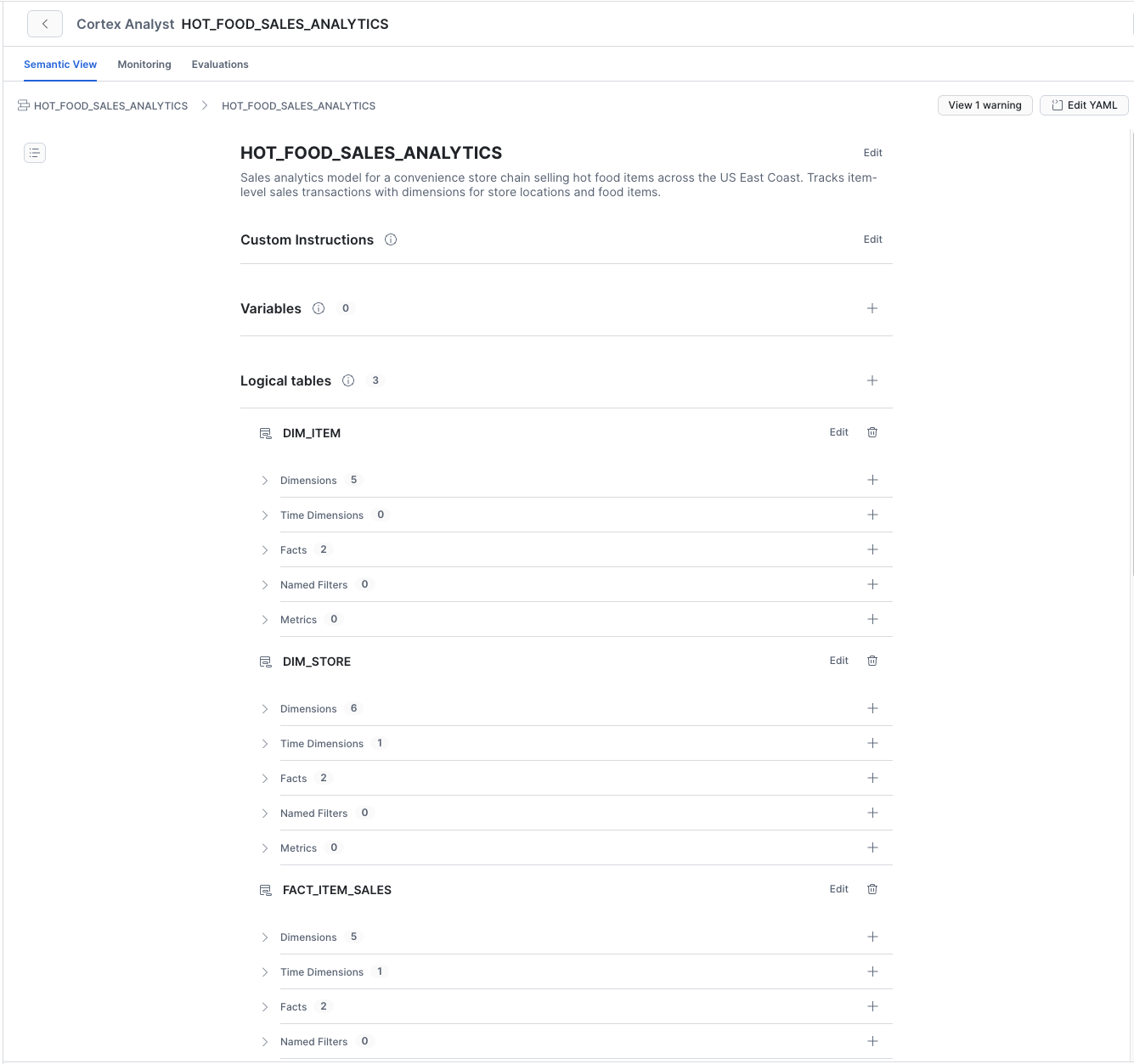
Semantic view HOL_COCO_COWORK.TOOLS.HOT_FOOD_SALES_ANALYTICS is created with:
- 3 tables (FACT_ITEM_SALES, DIM_STORE, DIM_ITEM)
- 2 relationships (fact to each dimension)
- 8 verified queries
Create Cortex Agent
A Cortex Agent is an intelligent entity that reasons over your data using tools (text-to-SQL, search, skills) and responds to user questions conversationally.
Run the Prompt
In the Cortex Code chat panel, type:
/cortex-agent @agent.md
What CoCo Does
Cortex Code will:
- Create a workspace directory for the agent configuration
- Build the agent specification with:
- Orchestration instructions — role context, tool selection logic, boundaries, and business rules
- Response instructions — assertive tone, chart generation, multilingual support
- Tool configuration — pointing to
HOL_COCO_COWORK.TOOLS.HOT_FOOD_SALES_ANALYTICS - Skills — anomaly detection and sales report generation from
@SKILLS_STAGE
- Validate and deploy the agent to
HOL_COCO_COWORK.AGENTS
Agent Skills
The agent is equipped with two server-side skills:
Anomaly Detection — Performs z-score analysis over a 7-day rolling window to find unusual spikes or drops in revenue, quantity, or transactions. Supports grouping by store, category, state, or item.
Sales Report Generator — Produces structured executive reports with summary metrics, top products, monthly trends, missed opportunities, and recommended actions for a specific store or state.
Expected Result
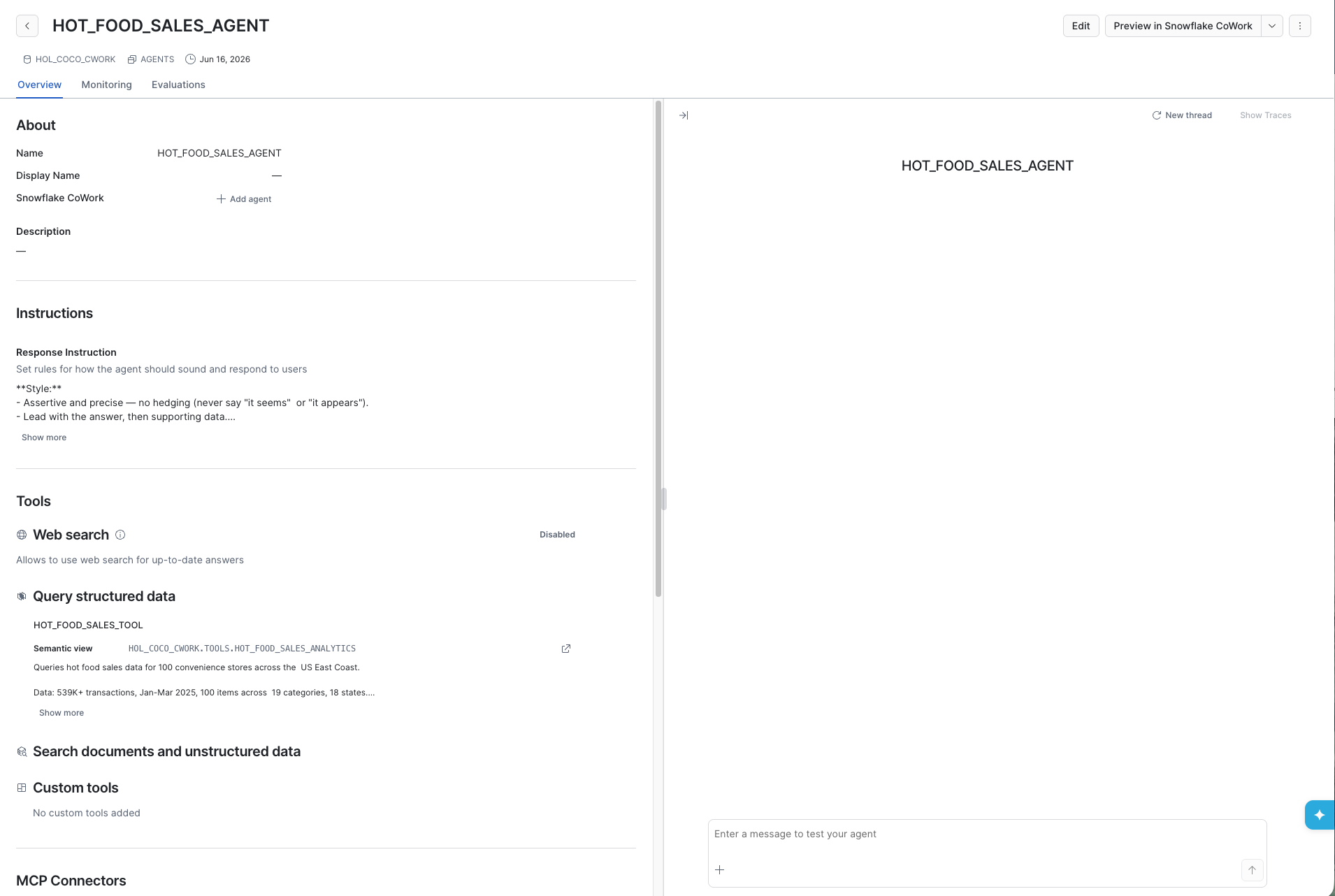
Agent HOL_COCO_COWORK.AGENTS.HOT_FOOD_SALES_AGENT is created and ready to answer questions.
Run Evaluations
Evaluations measure how well your agent answers questions against ground truth data. This step creates a test dataset and runs automated scoring.
Run the Prompt
In the Cortex Code chat panel, type:
@evaluations.md
What CoCo Does
Cortex Code will:
- Query the underlying tables to compute ground truth answers
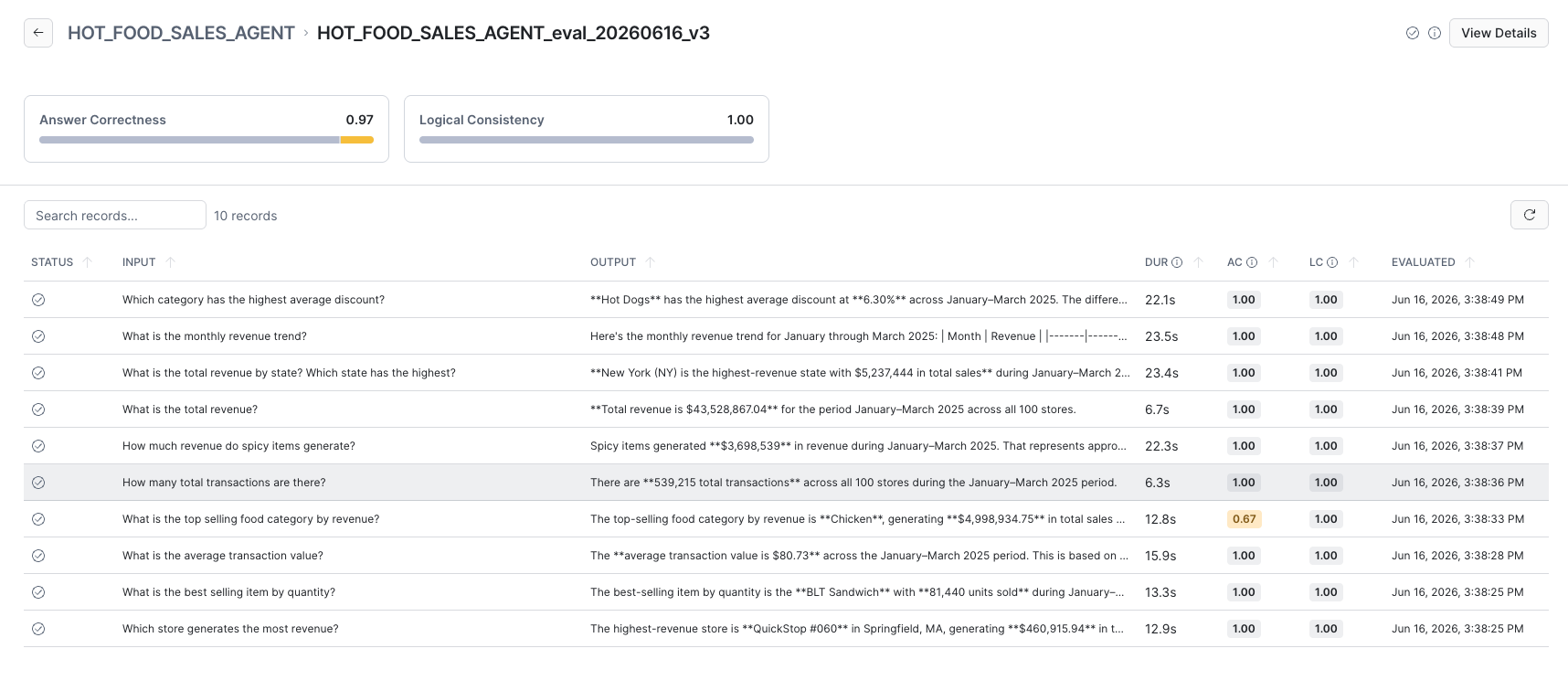
- Create an evaluation dataset with 10 questions across 5 categories:
- Basic metrics — total revenue, transaction count, average transaction value
- Dimensional analysis — revenue by state, by category, by discount
- Trend analysis — monthly revenue patterns
- Rankings — top store, top item
- Filter analysis — spicy items performance
- Register the dataset using
SYSTEM$CREATE_EVALUATION_DATASET - Run the evaluation measuring:
answer_correctness— factual accuracy of the agent's responseslogical_consistency— coherence and reasoning quality
- Present results with per-question scores
Expected Result
Evaluation scores of approximately:
- Answer Correctness: ~93%
- Logical Consistency: 100%
Test the Agent in CoWork
Now that the agent is deployed, you can interact with it through Snowflake CoWork.
Access CoWork
Open Snowflake CoWork and ensure:
- Your role is set to ACCOUNTADMIN
- Your warehouse is set to HOL_WH
- Your agent is set to HOT_FOOD_SALES_AGENT
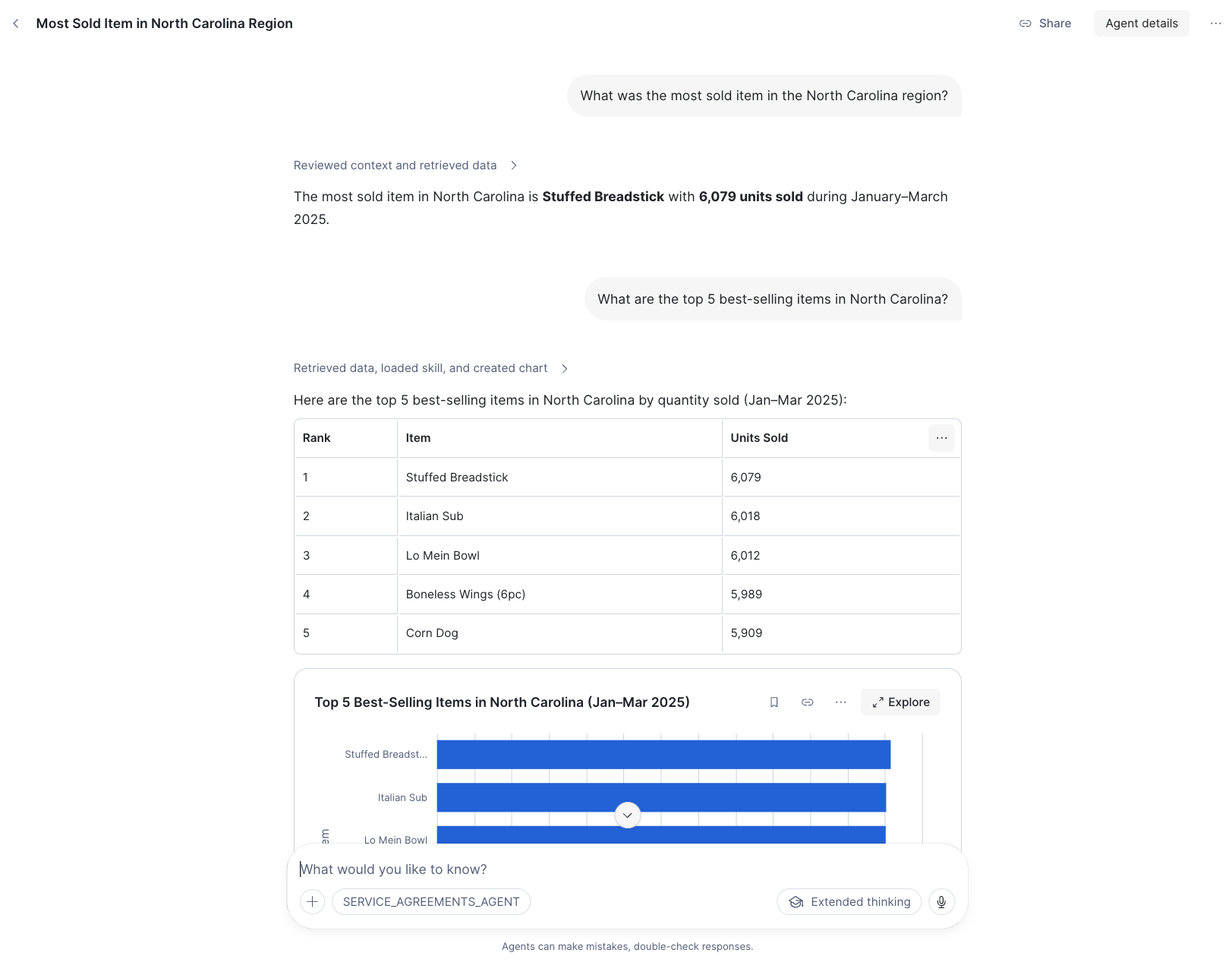
Sample Questions
Try these questions to test the agent's capabilities:
Basic Analytics
- What is the total revenue for Q1 2025?
- How many transactions happened in March?
Dimensional Analysis
- Which state generates the most revenue?
- What are the top 5 categories by sales volume?
Trend Analysis
- Show me the monthly revenue trend with a chart.
- How did February compare to January?
Anomaly Detection (Skill)
- Are there any unusual revenue patterns by category?
- Detect anomalies in transactions by store.
Sales Reports (Skill)
- Generate a sales report for QuickStop #001.
- Give me an executive summary for the state of NY.
Conclusion And Resources
Congratulations! You have built a complete AI-powered analytics agent using Cortex Code — from raw data to a production-ready Cortex Agent with automated evaluations.
What You Learned
- How to set up a star-schema data model in Snowflake for analytics
- How to use Cortex Code's
/semantic-viewcommand to auto-generate semantic views with verified queries - How to use Cortex Code's
/cortex-agentcommand to build agents with orchestration instructions, tools, and skills - How to create ground truth evaluation datasets and run automated agent evaluations
- How to interact with your agent through Snowflake CoWork
Key Takeaway
Steps 2-4 were entirely driven by single natural language prompts in Cortex Code. The AI-assisted development workflow lets you build production Snowflake objects from high-level instructions — no manual YAML authoring, no SQL debugging, no configuration files.
Related Resources
This content is provided as is, and is not maintained on an ongoing basis. It may be out of date with current Snowflake instances
