Build Streamlit Apps Together with Git-Backed Workspaces
Overview
Snowflake Workspaces give you two ways to work on a Streamlit in Snowflake (SiS) app as a team: shared workspaces, where everyone edits inside Snowsight, and git-backed workspaces, where Git is the syncing mechanism between Snowsight and everyone's local machine. Git-backed workspaces are the better fit when part of your team is comfortable in a terminal and part of your team prefers building visually inside Snowsight.
This guide walks through a single realistic scenario with two collaborators working on the same app:
- Priya builds and previews the app entirely inside Snowsight Workspaces (browser-only, no local setup).
- Marcus works entirely from the command line with a local clone of the same Git repository.
Both are editing the same streamlit_app.py, in the same repository, on the same branch, and Git is what keeps them in sync.
What You'll Learn
- How to connect a Snowflake account to a GitHub repository so Workspaces can use it
- How to create a git-backed workspace from an existing repository in Snowsight
- How to edit and preview a Streamlit app inside a workspace, then commit and push straight from Snowsight
- How a command-line Git user pulls those changes, makes their own edit, and pushes back
- How to pull remote changes back into the workspace and deploy the app to a shared
STREAMLITobject
What You'll Build
A small Cortex-powered Streamlit app (prompt pills that call ai_complete()) that ends up with contributions from both a Snowsight-only user and a command-line-only user, deployed as a shared Streamlit in Snowflake app.
The Collaboration Flow
The diagram below summarizes how the two personas hand off work through Git over the course of this guide:
sequenceDiagram
    participant Admin as Admin (ACCOUNTADMIN)
    participant GitHub
    participant Marcus as Marcus (CLI)
    participant Priya as Priya (Snowsight Workspace)
    participant Streamlit as Deployed STREAMLIT App

    Note over Admin,GitHub: Setup (one-time)
    Admin->>GitHub: CREATE SECRET + API INTEGRATION
    Admin->>Marcus: GRANT USAGE on integration
    Admin->>Priya: GRANT USAGE on integration

    Note over Marcus,GitHub: Marcus Clones the Repo
    Marcus->>GitHub: git clone + checkout -b feature/collab-tutorial
    Marcus->>GitHub: git push -u origin feature/collab-tutorial

    Note over Priya,GitHub: Priya Creates a Workspace
    Priya->>GitHub: Create git-backed workspace (OAuth2 / PAT)
    Priya->>Priya: Switch branch → feature/collab-tutorial
    Priya->>Priya: Convert to Streamlit app + edit intro copy
    Priya->>Priya: Run (private dev preview)
    Priya->>GitHub: Commit + Push

    Note over Marcus,GitHub: Marcus Pulls and Edits
    GitHub->>Marcus: git pull (gets Priya's commit)
    Marcus->>Marcus: Add 4th prompt pill
    Marcus->>GitHub: git commit + git push

    Note over Priya,GitHub: Priya Pulls Marcus's Change
    GitHub->>Priya: Pull (gets Marcus's commit)
    Priya->>Priya: Verify 4th pill in code/preview

    Note over Priya,Streamlit: Deploy the App
    Priya->>Streamlit: Deploy workspace code
    Streamlit-->>Admin: SHOW STREAMLITS (verify)
What You'll Need
- Access to a Snowflake account with Cortex AI enabled
- A role with
USAGEon a compute pool, and a default warehouse selected for your user (Streamlit apps in Workspaces run on a compute pool). Most accounts already have a default compute pool configured; ifSHOW COMPUTE POOLSreturns nothing usable, ask an admin to create one - A GitHub account and a personal access token with
reposcope - A Snowflake role with
ACCOUNTADMIN, or one that has been granted the account-levelCREATE INTEGRATIONprivilege, for the one-time Git setup step gitinstalled locally (any recent version)- A fork of streamlit/simple-streamlit-app, forked into your own GitHub account so both collaborators can push to it
Setup
Before either collaborator touches the app, someone with elevated privileges connects the Snowflake account to GitHub. This is a one-time, account-wide step; once it's done, any user with USAGE on the resulting objects can create git-backed workspaces against that GitHub organization or user.
Store your GitHub credentials as a secret
Run this as a role that can create secrets in a schema you control (this does not require ACCOUNTADMIN):
CREATE OR REPLACE SECRET my_db.my_schema.github_pat
  TYPE = password
  USERNAME = '<your_github_username>'
  PASSWORD = '<your_github_personal_access_token>';
Create the API integration
This step requires ACCOUNTADMIN, or a role explicitly granted the account-level CREATE INTEGRATION privilege, making it the one part of this guide a typical developer role cannot run:
USE ROLE ACCOUNTADMIN;

CREATE OR REPLACE API INTEGRATION github_git_api_integration
  API_PROVIDER = git_https_api
  API_ALLOWED_PREFIXES = ('https://github.com/<your_github_username>')
  ALLOWED_AUTHENTICATION_SECRETS = (my_db.my_schema.github_pat)
  ENABLED = TRUE;

GRANT USAGE ON INTEGRATION github_git_api_integration TO ROLE my_developer_role;
GRANT USAGE ON SECRET my_db.my_schema.github_pat TO ROLE my_developer_role;
Scope API_ALLOWED_PREFIXES to your own GitHub username (or org) rather than all of https://github.com, since it's a prefix match: https://github.com/<your_github_username> covers every repository you own.
Note: Already have a GitHub OAuth app configured for Workspaces? Some accounts have an account-wide OAuth integration (
API_USER_AUTHENTICATION = (TYPE = SNOWFLAKE_GITHUB_APP)or a custom OAuth2 integration) set up by an admin. If so, skip the secret and PAT-based integration above. When you create the workspace in the next section, choose OAuth2 instead of Personal access token and sign in with GitHub directly. Both paths land in the same place: an API integration your role can use to connect a workspace to a repository.
Verify the connection with SQL (optional)
You can sanity-check that Snowflake can actually reach your fork before going into Snowsight:
CREATE OR REPLACE GIT REPOSITORY my_db.my_schema.simple_streamlit_app_check
  API_INTEGRATION = github_git_api_integration
  GIT_CREDENTIALS = my_db.my_schema.github_pat
  ORIGIN = 'https://github.com/<your_github_username>/simple-streamlit-app.git';

SHOW GIT BRANCHES IN my_db.my_schema.simple_streamlit_app_check;

LS @my_db.my_schema.simple_streamlit_app_check/branches/main;
SHOW GIT BRANCHES should return your main branch with a commit hash, and LS should list streamlit_app.py, requirements.txt, README.md, and .streamlit/config.toml, the four files in the sample app. This is a throwaway check; drop it once confirmed:
DROP GIT REPOSITORY my_db.my_schema.simple_streamlit_app_check;
Marcus Clones the Repo
Marcus works entirely from the terminal. He starts by cloning his fork and creating a feature branch that both collaborators will work on:
git clone https://github.com/<your_github_username>/simple-streamlit-app.git
cd simple-streamlit-app
git checkout -b feature/collab-tutorial
git push -u origin feature/collab-tutorial
At this point the branch exists on GitHub with the same four files as main; nothing has changed yet. Pushing an unmodified branch first means Priya has something to select when she creates her workspace in the next section.
Note: First push over HTTPS asking for a password? If
git pushfails with "Password authentication is not supported", configure a credential helper. If you use the GitHub CLI, sign in withgh auth login, then rungh auth setup-git. Keep tokens out of remote URLs, shell history, and committed files.
Priya Creates a Workspace
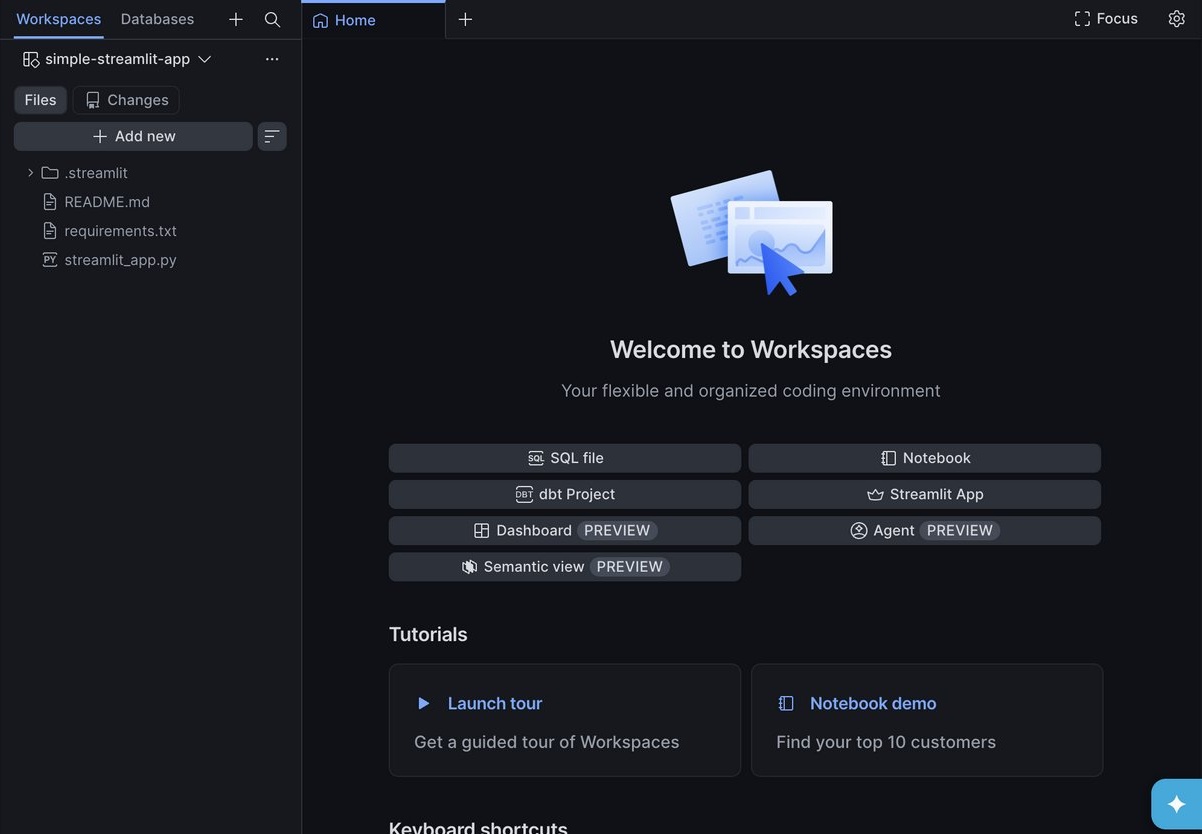
Priya has never touched the app before and doesn't use git day-to-day. She does everything from Snowsight.
Create the workspace
- Sign in to Snowsight.
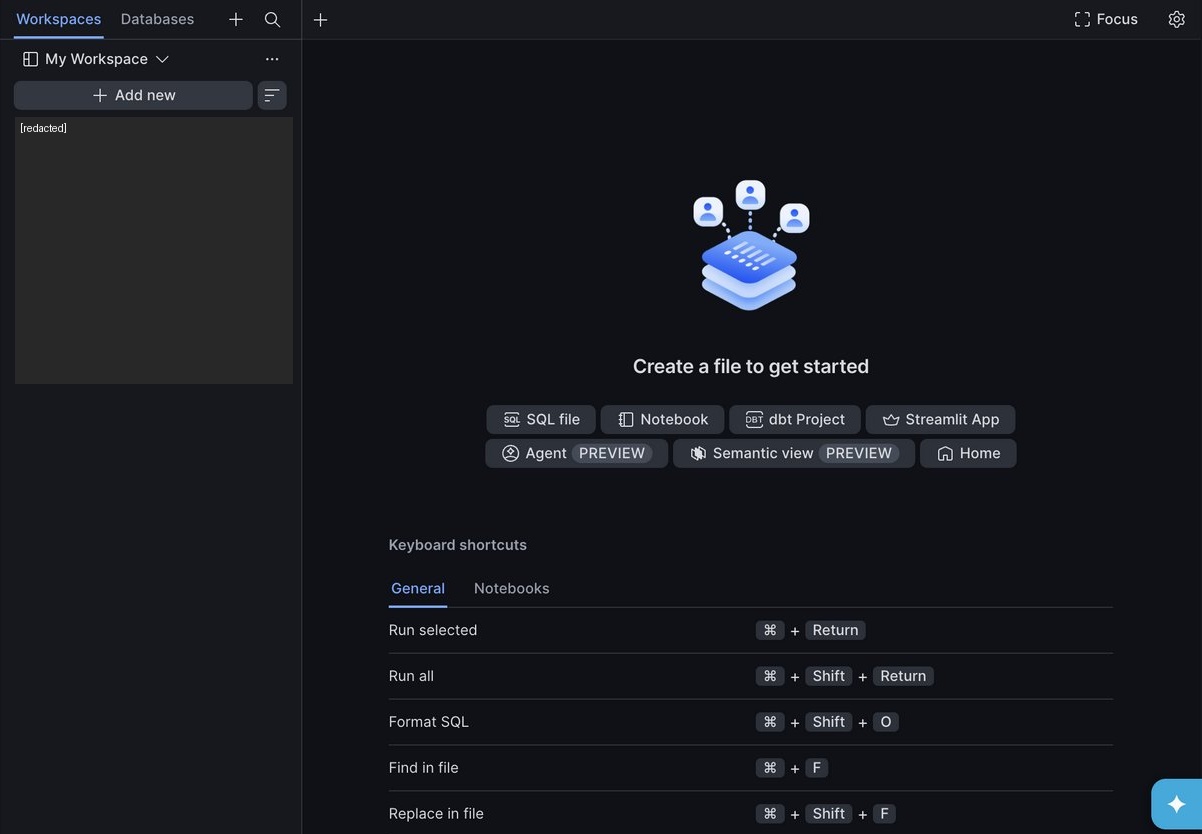
- In the navigation menu, select Projects » Workspaces.
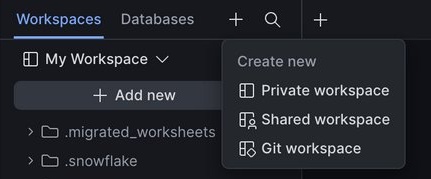
- Select Add new » Create new workspace, then choose Git workspace from the menu. This opens the Create workspace from Git repository dialog.
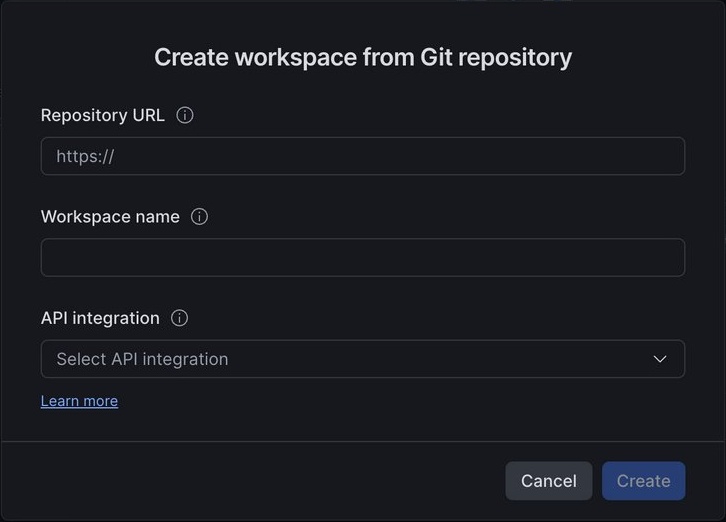
- Paste the repository URL:
https://github.com/<your_github_username>/simple-streamlit-app. The Workspace name field auto-fills from the repo name. - From the API integration menu, select
github_git_api_integration(or the OAuth integration your admin configured). - Choose an authentication method. The dialog offers three:
- OAuth2: sign in to GitHub directly (default if an OAuth integration is configured)
- Personal access token: if you followed the Setup section
- Public repository: no credentials at all, available whenever the repo is public; read-only, so Push stays disabled. This is fine for quickly previewing this guide, but Priya needs OAuth2 or a personal access token to complete the commit-and-push steps below
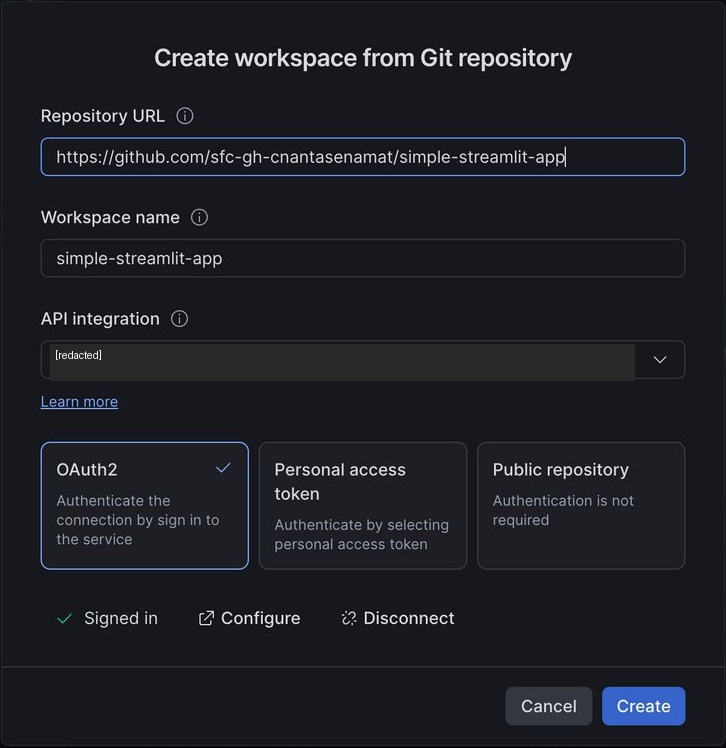
- Select Create. Give it a moment, then confirm the workspace actually exists. The UI can show the Files/Changes tabs as if creation succeeded even when it didn't fully persist. If reopening Projects » Workspaces doesn't show it, redo the dialog.
- Once the workspace opens, use the branch selector at the bottom of the screen (shows main by default) to switch to
feature/collab-tutorial, the branch Marcus pushed. If it doesn't appear in the list yet, select Fetch all first to pull the latest remote branches, then look again.
Run the app
- Open
streamlit_app.pyin the file browser. A banner appears: "This file looks like a Streamlit app, but is missing configuration." Clicking plain Run at this point executes the file as a generic Python script and fails withModuleNotFoundError: No module named 'streamlit', so don't click it yet.
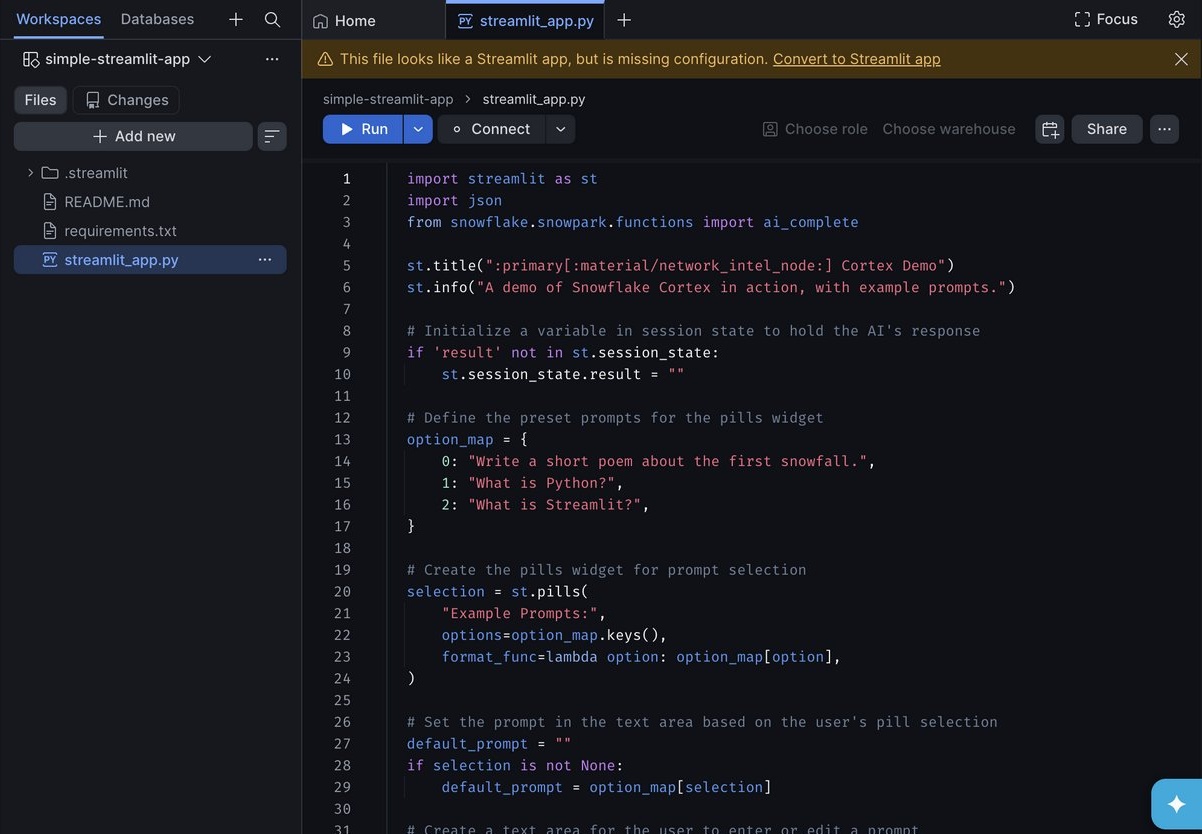
- Select Convert to Streamlit app from the banner. In the confirmation dialog, leave Move into a new app folder checked and keep the default folder name (or set your own).
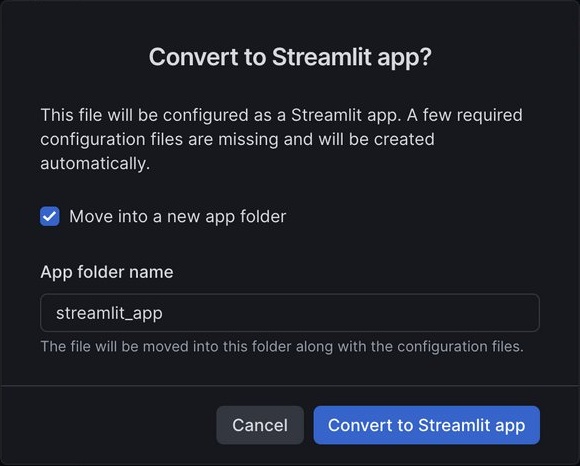
- Confirm. Workspaces moves
streamlit_app.pyand.streamlit/config.tomlinto that folder and generates two new files alongside them:pyproject.tomlandsnowflake.yml(the container-runtime Streamlit app config). All four show up as A (added) in the file tree.
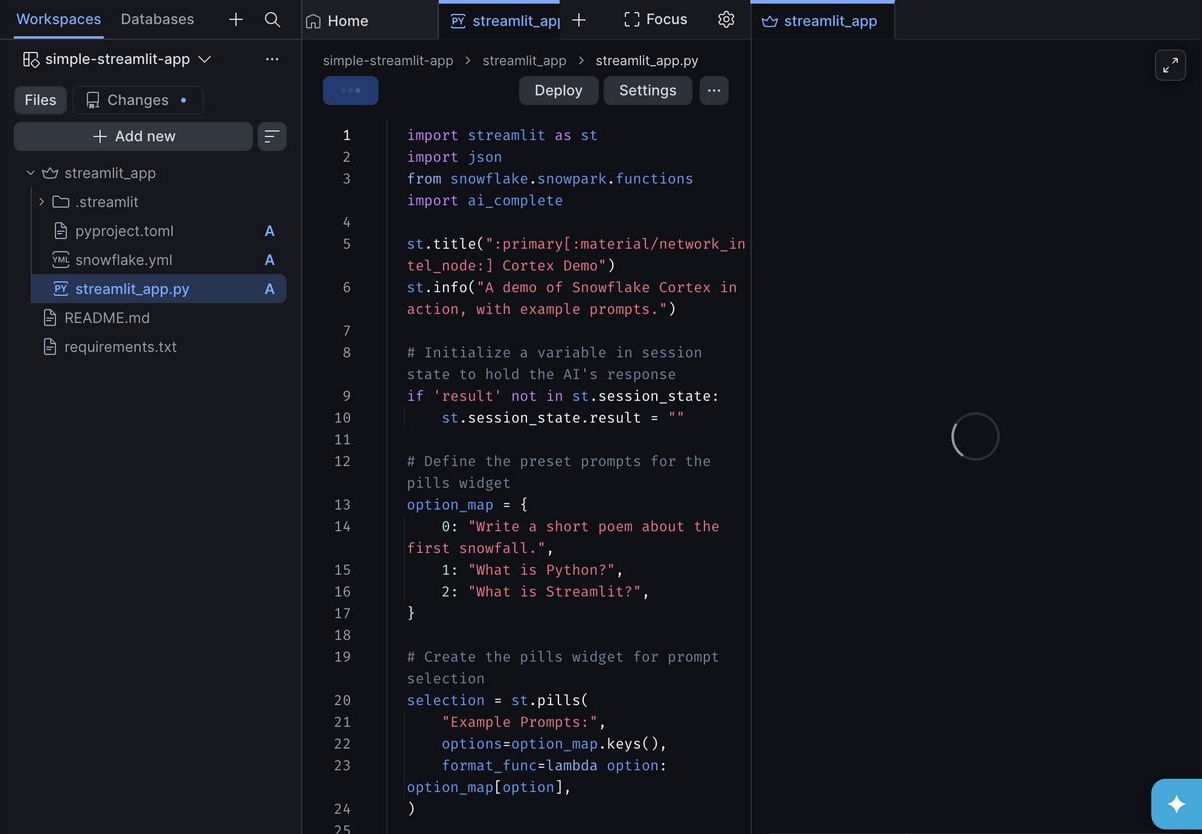
- Now select Run (or
Cmd+Enter/Ctrl+Enter). This launches a private development app that only Priya can see, running on the account's compute pool. - Confirm the app loads: a title, an info banner, three example prompt pills, and a text area.
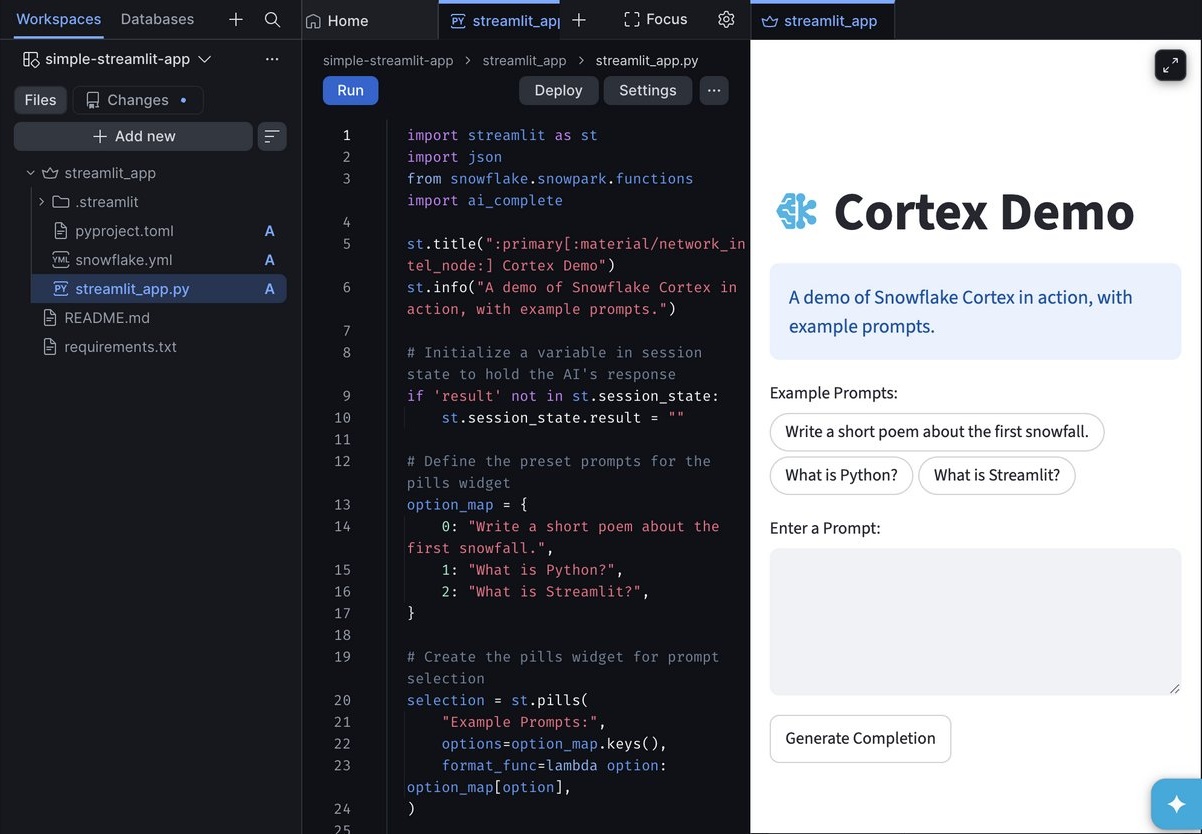
Note: One-time restructuring. "Convert to Streamlit app" only needs to run once per app file; it's how Workspaces turns a plain
.pyfile into a recognized Streamlit app. If you clone this repo fresh or someone else already ran the conversion and pushed the resultingpyproject.toml/snowflake.yml, Workspaces detects the existing configuration and shows a working Run button immediately, no conversion needed.
Note: Preview stuck on "Starting app..."? If the status sticks there for more than about a minute, even though the Logs panel already shows "Streamlit process started," don't wait it out. Close the preview tab and select Run again with
streamlit_app.pyas the active file tab; this reliably clears it in under 30 seconds. It's a one-off stall in the auto-triggered run from the Convert dialog, unrelated to compute pool capacity.
Note: "App not found" with no logs at all? If Run reports that you don't have access to the app or it doesn't exist, and the Logs panel stays empty, open Settings and check Compute pool. If it's blank, select an available compute pool, save, and Run again. A missing compute pool was the cause in one test of this guide; the message can also indicate other access or configuration problems.
Make an edit
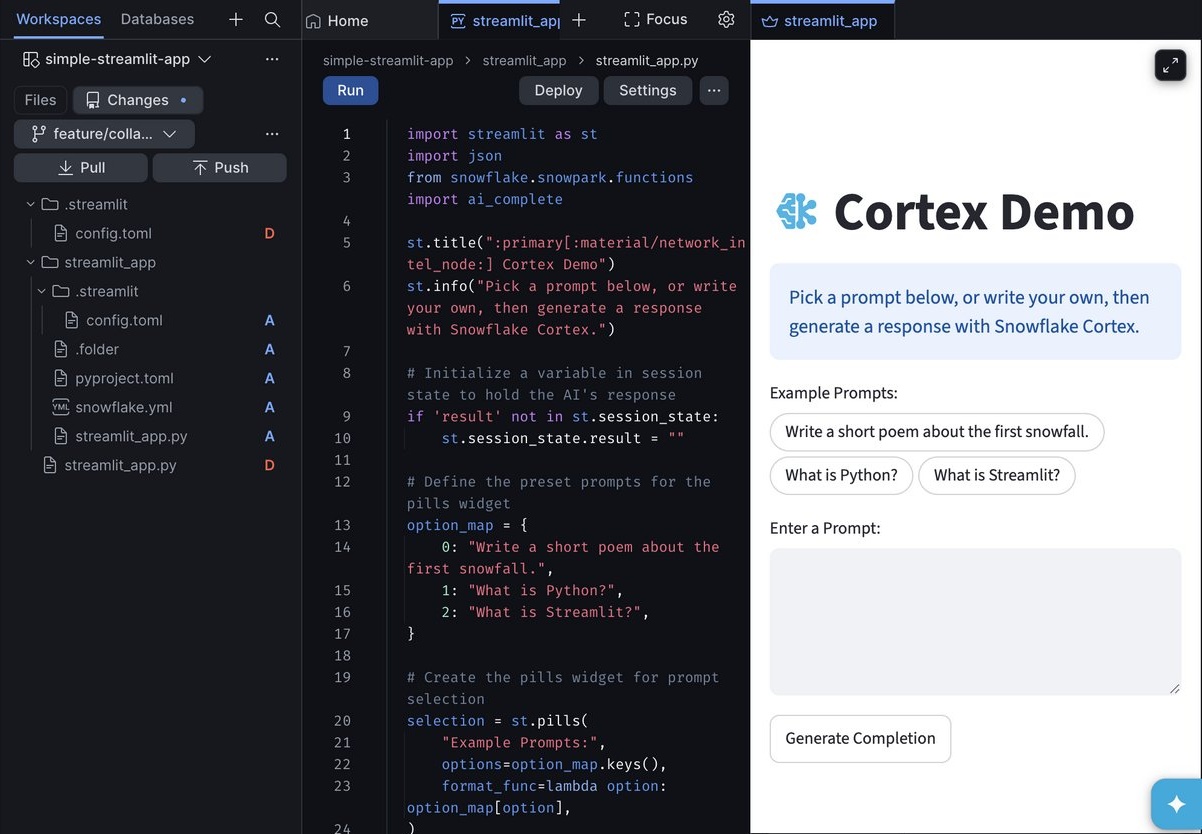
Priya wants to make the app's intro copy clearer. She edits the st.title and st.info lines in streamlit_app/streamlit_app.py (the file's new path after the conversion step above):
st.title(":primary[:material/network_intel_node:] Cortex Demo")
st.info("A demo of Snowflake Cortex in action, with example prompts.")
becomes:
st.title(":primary[:material/network_intel_node:] Cortex Demo")
st.info("Pick a prompt below, or write your own, then generate a response with Snowflake Cortex.")
She saves and re-runs to confirm the new copy shows up in the preview.
Commit and push
- Select Changes at the top of the folder view.
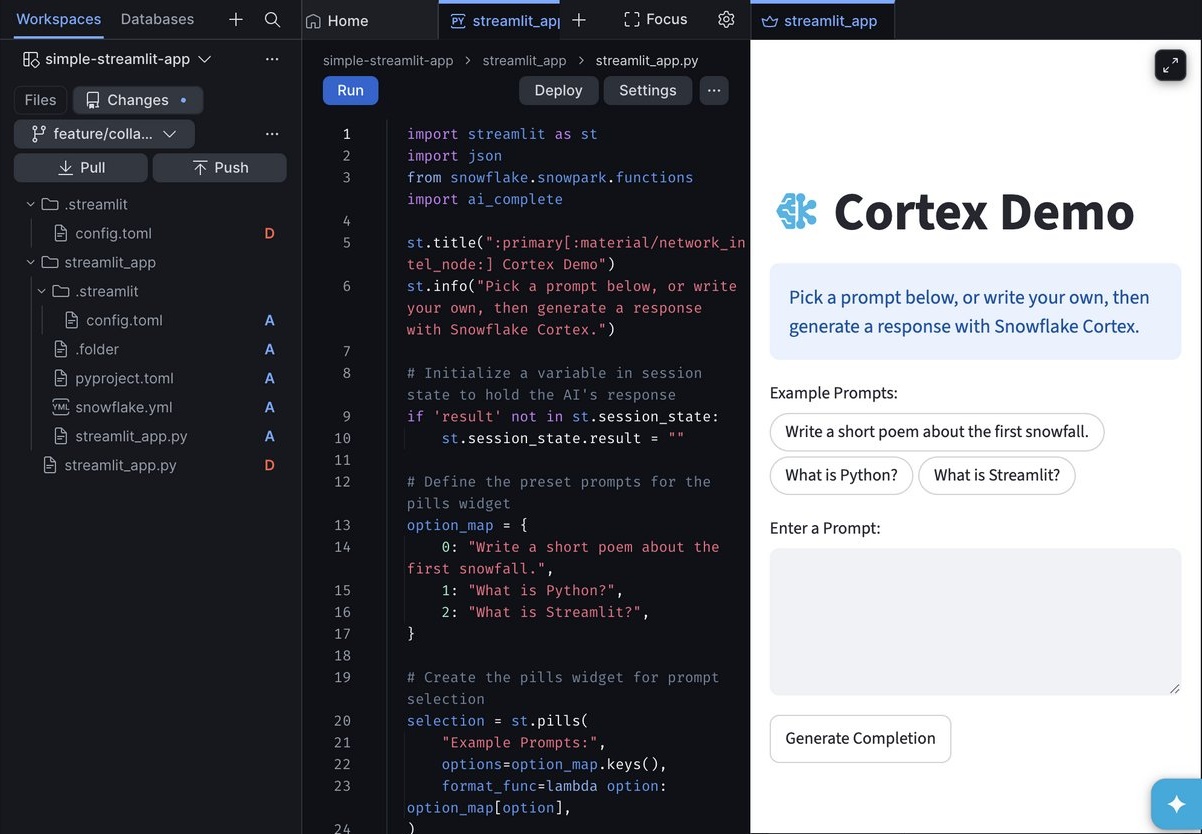
- Because the conversion step moved files, this commit includes more than just the copy edit:
streamlit_app.pyand.streamlit/config.tomlshow as D (deleted) at the repo root, andstreamlit_app/streamlit_app.py,streamlit_app/.streamlit/config.toml,streamlit_app/pyproject.toml, andstreamlit_app/snowflake.ymlshow as A (added). The file move and the new config files are captured in the same set of changes as Priya's copy edit.
- Enter a commit message, for example:
Convert to Streamlit app and clarify intro copy. - Select Push.
The change is now on feature/collab-tutorial in GitHub. Marcus hasn't touched his laptop yet, and he already has Priya's change waiting for him.
Note: Confirm the push actually landed. Snowsight can show a successful "Pushing to remote" state even when the commit didn't reach GitHub, and the UI gives no error in that case. Before assuming Marcus has something to pull, check the repository directly (the GitHub UI, or
git log origin/feature/collab-tutorialafter agit fetchon Marcus's side) and confirm the new commit is there. If it isn't, the reliable fallback is pushing the same change from a local clone withgit, which doesn't share this failure mode.
Marcus Pulls and Edits
Back on the command line, Marcus fetches Priya's commit:
git pull origin feature/collab-tutorial
git log --oneline -3
He sees Priya's commit (Convert to Streamlit app and clarify intro copy) and notices the file layout changed: streamlit_app.py moved from the repo root into a streamlit_app/ folder, alongside a new pyproject.toml and snowflake.yml. The updated st.info line is now in streamlit_app/streamlit_app.py.
Marcus adds a fourth prompt pill, a code change that's easier for him to make in his own editor than in a browser:
option_map = {
    0: "Write a short poem about the first snowfall.",
    1: "What is Python?",
    2: "What is Streamlit?",
    3: "What is a Snowflake git-backed workspace?",
}
He commits and pushes:
git add streamlit_app/streamlit_app.py
git commit -m "Add a fourth example prompt about git-backed workspaces"
git push origin feature/collab-tutorial
Priya Pulls Marcus's Change
Marcus's commit is on GitHub, but Priya's workspace doesn't have it yet, since Workspaces doesn't auto-sync remote changes.
- Back in Snowsight, open the workspace and select Changes.
- Select the down arrow next to Pull, and confirm there are no local uncommitted edits first.
- Select Pull to fetch and merge Marcus's commit.
- Open
streamlit_app/streamlit_app.pyand confirm the fourth prompt pill (What is a Snowflake git-backed workspace?) is now present.
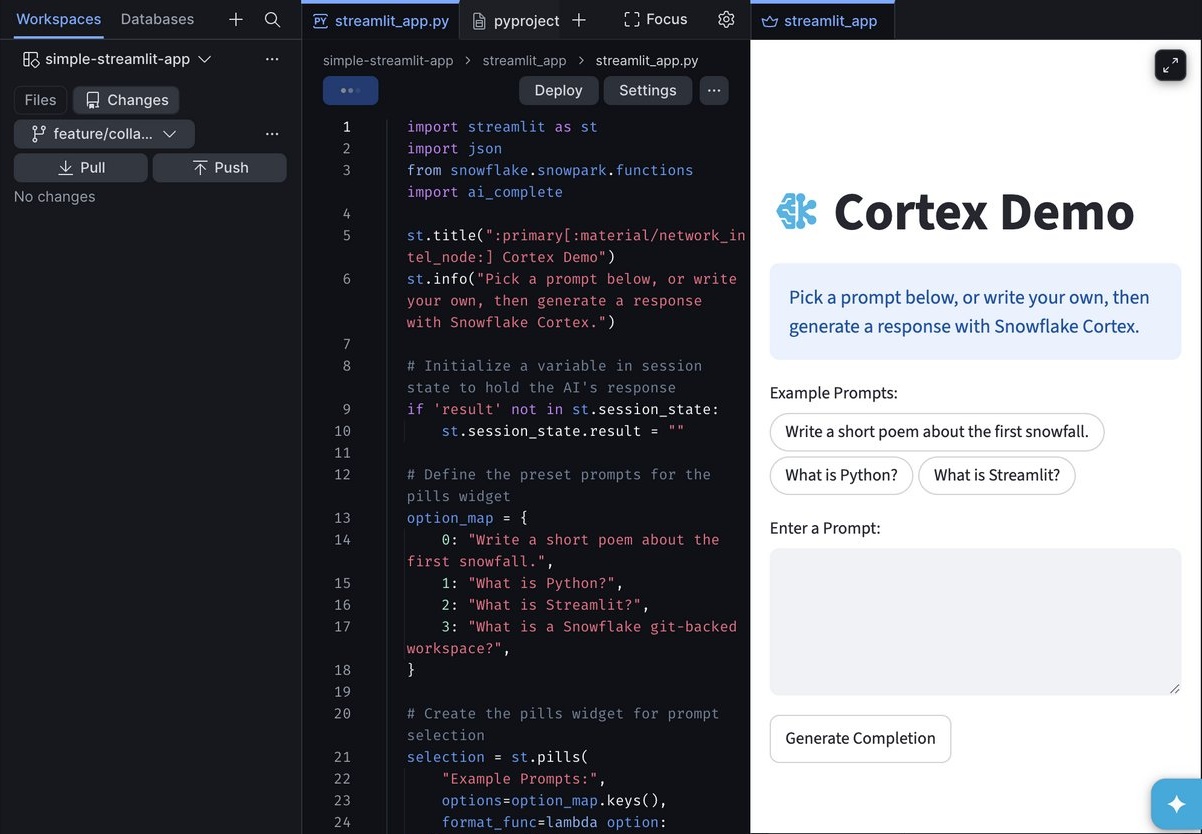
- Select Run again to confirm the app shows four pills instead of three.
Note: Preview still showing three pills after Pull? The live preview iframe can lag behind the code after a Pull, even across repeated Run clicks. Trust the code editor over the preview: if
streamlit_app/streamlit_app.pyalready shows the fourth pill in the source, the pull succeeded and it's safe to continue to Deploy.
Note: What if Priya and Marcus edit the same line? A push can be rejected if the remote has commits the workspace doesn't have yet. Snowsight will prompt Priya to Pull first; if the pull produces a genuine conflict, the affected file shows a red
Mand an inline diff where she can Accept all current, Accept all remote, or resolve line-by-line before pushing again. See Integrate workspaces with a Git repository for the full conflict-resolution walkthrough.
Deploy the App
So far, both collaborators have only seen a private development app, Priya's preview and nobody else's. Deploying publishes the current workspace code to a real STREAMLIT object other roles can access.
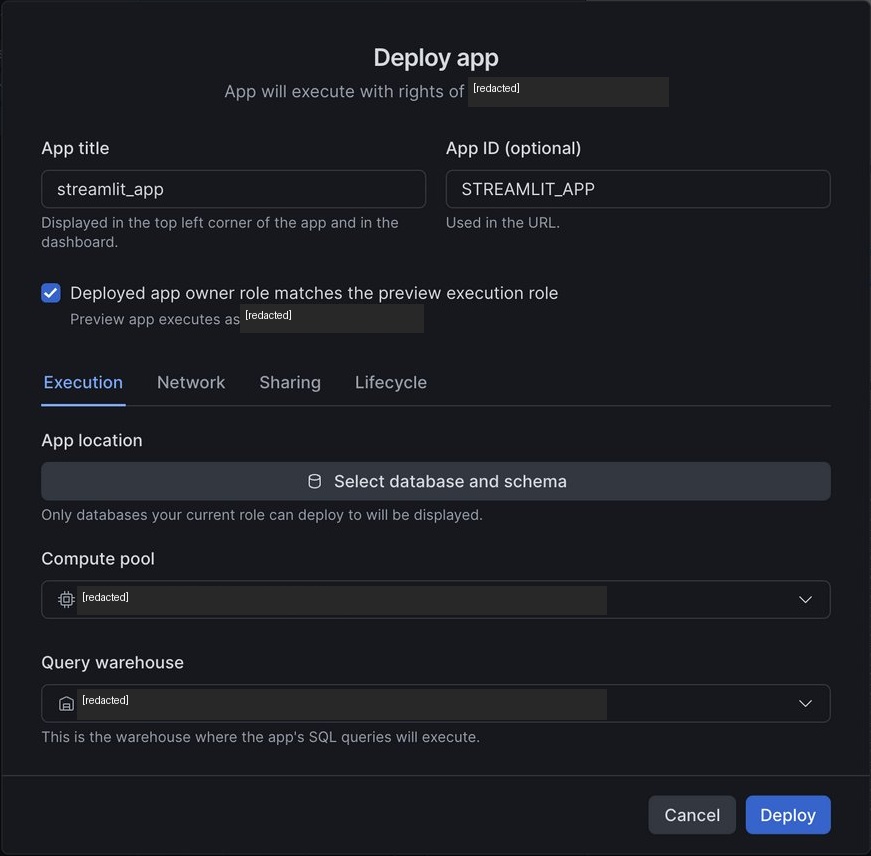
- In the workspace's project pane toolbar, select Deploy.
- Review the settings: app title, target database and schema, compute pool, and the query warehouse.
- Select Deploy.
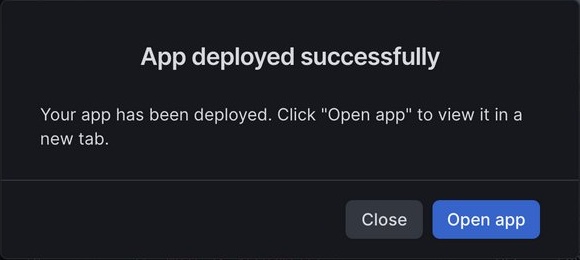
Verify from SQL (the app's name is auto-populated from the app folder, streamlit_app, not the repository name):
SHOW STREAMLITS LIKE '%STREAMLIT_APP%' IN ACCOUNT;
Keep in mind the split between the two states: editing the workspace code afterward does not change the deployed app until you deploy again, and changing the deployed app's settings does not persist across future deploys. See Streamlit in Snowflake in Workspaces for the full development-app-versus-deployed-app model.
Clean Up
Keep any changes you want to retain in GitHub before removing tutorial resources. Coordinate with your collaborator so neither person loses uncommitted work.
-
Drop the Snowflake objects you created in this guide. Replace
<db>.<schema>with the database and schema you picked in the Deploy dialog. The API integration requiresACCOUNTADMIN, the same role you used to create it in Setup. Skip the integration and secret if you used an existing OAuth integration instead.USE ROLE ACCOUNTADMIN; DROP STREAMLIT IF EXISTS <db>.<schema>.STREAMLIT_APP; DROP GIT REPOSITORY IF EXISTS my_db.my_schema.simple_streamlit_app_check; DROP API INTEGRATION IF EXISTS github_git_api_integration; DROP SECRET IF EXISTS my_db.my_schema.github_pat; -
Delete the
simple-streamlit-appworkspace from Projects » Workspaces once its changes are pushed to GitHub. -
Delete the feature branch from your fork once you have merged or saved the work you want to keep:
git push origin --delete feature/collab-tutorial -
Revoke the GitHub personal access token you created for this guide under GitHub » Settings » Developer settings » Personal access tokens.
Conclusion And Resources
Congratulations! You've successfully connected a Snowflake account to a GitHub repository, created a git-backed workspace, and walked through a full collaboration loop between a Snowsight-only user and a command-line Git user editing the same Streamlit in Snowflake app, ending with a deployed, shareable app that carries commits from both of them.
What You Learned
- Git-backed workspaces use Git itself as the sync mechanism between Snowsight and a local clone, so no shared workspace or RBAC grant is needed for two people to collaborate
- Connecting Snowflake to GitHub is a one-time, account-level step (
CREATE API INTEGRATIONneedsACCOUNTADMIN), but everyday use of that connection doesn't - A workspace's Run preview is private to you; nothing is visible to others until you Deploy
- Commit and Push/Pull inside Snowsight map directly to the
gitcommands a command-line collaborator already knows
Related Resources
Documentation:
Additional Reading:
- streamlit/simple-streamlit-app, the sample app used throughout this guide
- Snowflake Cortex Overview
This content is provided as is, and is not maintained on an ongoing basis. It may be out of date with current Snowflake instances
