Building an Iceberg Lakehouse with Snowflake and Microsoft OneLake
Overview
Data architectures are consolidating around open table formats and flexible compute engines. As data volumes grow and AI workloads become more demanding, maintaining multiple copies of the same datasets across systems is no longer practical. The combination of OneLake storage, Apache Iceberg tables, and Snowflake’s execution engine provides a clean, sustainable model that meets the needs of this architecture.
Apache Iceberg serves as the shared table layer between Snowflake and Microsoft Fabric. Iceberg’s metadata structure, versioning, and concurrency model allow multiple engines to read and write the same tables without conflict. This removes the need for synchronization pipelines, custom connectors, or duplicated storage zones. The data lives once in OneLake, and Snowflake can operate on it directly through the Iceberg REST catalog.
In Snowflake, these Iceberg tables appear as first-class objects; fully governed, queryable with standard SQL, compatible with Snowpark, and available to downstream tools. Snowflake handles optimization, performance, and security policies, while OneLake maintains the underlying files. Fabric engines can access the same tables when needed, ensuring consistency across engines without extra engineering work.
This pattern is becoming the default approach for large-scale data estates: open storage, shared table formats, and specialized compute engines operating side-by-side. It keeps the storage layer open and portable while allowing Snowflake to provide the reliability, performance, and governance needed for production workloads. It also supports future requirements without re-architecting. Teams can introduce new engines, frameworks, or AI systems as needed, all against the same Iceberg tables.
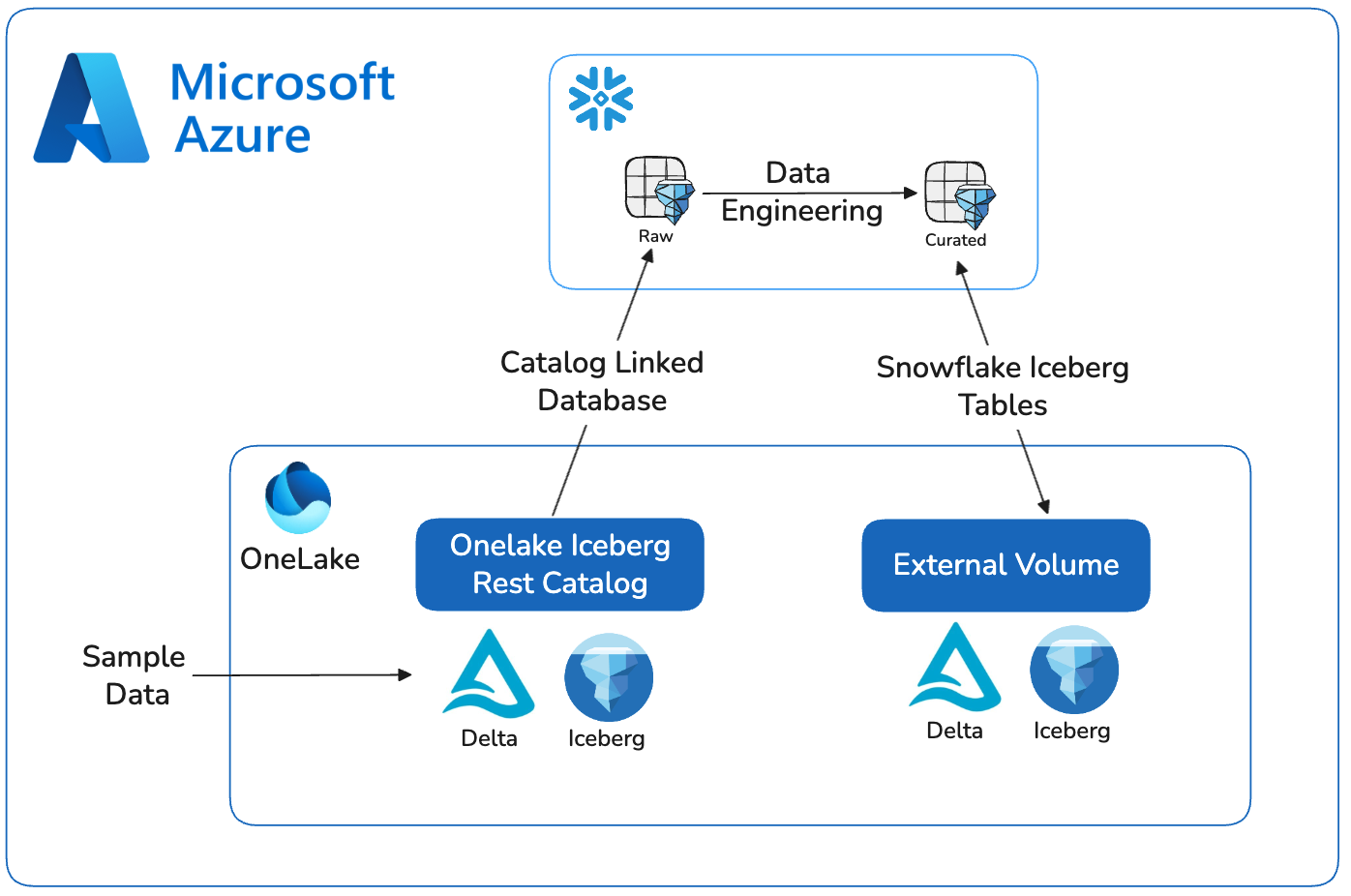
This quickstart demonstrates the core workflow: creating Iceberg tables in OneLake, registering them with Snowflake through the REST catalog, and validating end-to-end access. The steps reflect where modern architecture is heading; open storage, minimal data movement, and Snowflake as the primary compute layer for engineering, analytics, and AI.
Prerequisites
- familiarity with Snowflake and a Snowflake account
- familiarity with Microsoft Fabric and a Fabric workspace
What You Will Learn
- creating a catalog integration to read Iceberg data in OneLake
- creating a Snowflake Database in OneLake and writing Snowflake managed Iceberg tables
- setting OneLake as a catalog linked database in Snowflake
- querying Iceberg from Snowflake and Fabric services
What You Will Build
- You will build a fully interoperable, open lakehouse by integrating Snowflake with Microsoft OneLake. You will get sample data in Fabric, set up OneLake as a Catalog Linked Database in Snowflake, and create Iceberg tables in OneLake. The end result is a seamless data architecture where Snowflake can manage and query data stored in the open formats of OneLake.
What You will Need
- A free Snowflake Account
- Fabric Capacity
- For the sake of the lab it is best if both platforms have access to the public internet and are not in a virtual network.
Prepare Sample Data
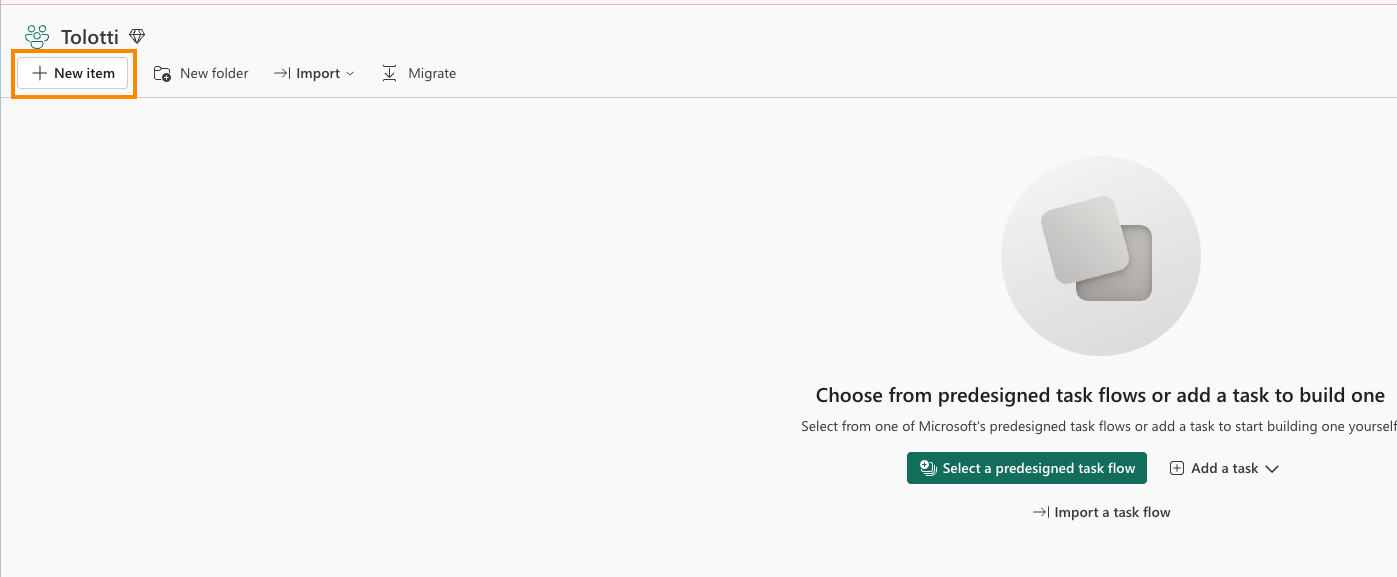
- Select Lakehouse and name it SnowflakeOneLakeLakehouse.
- Ensure Lakehouse schemas is checked and Create.
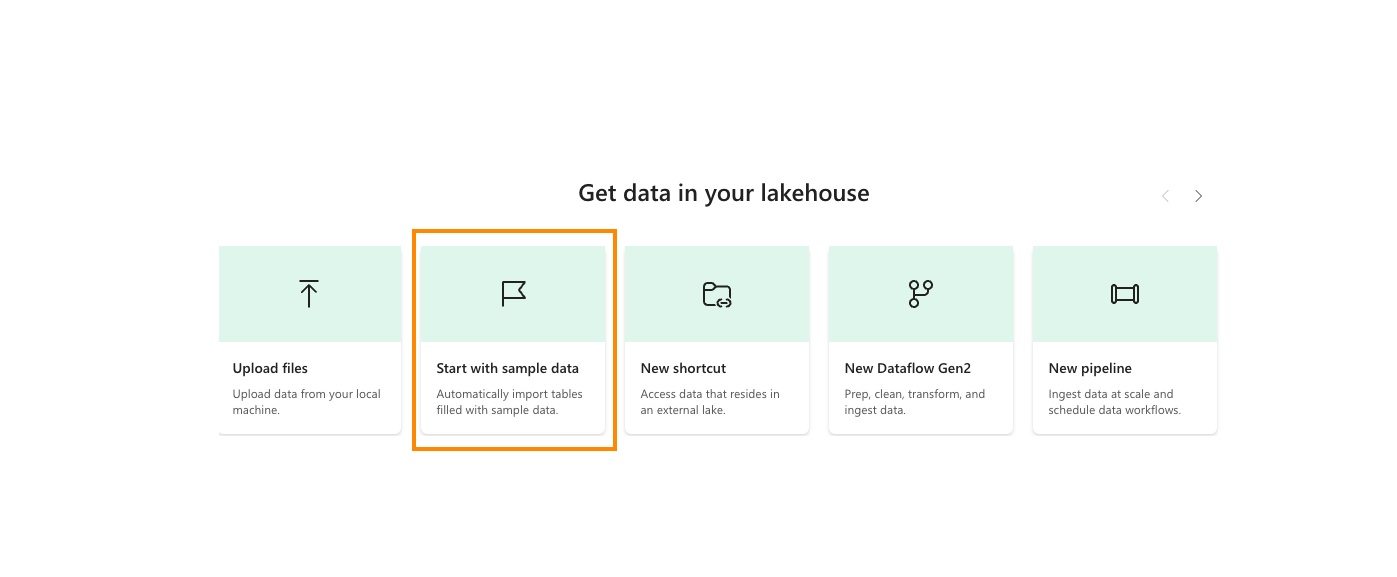
- In the center of the screen, select Start with sample data.
- Select Retail data model from Wide World Importers.
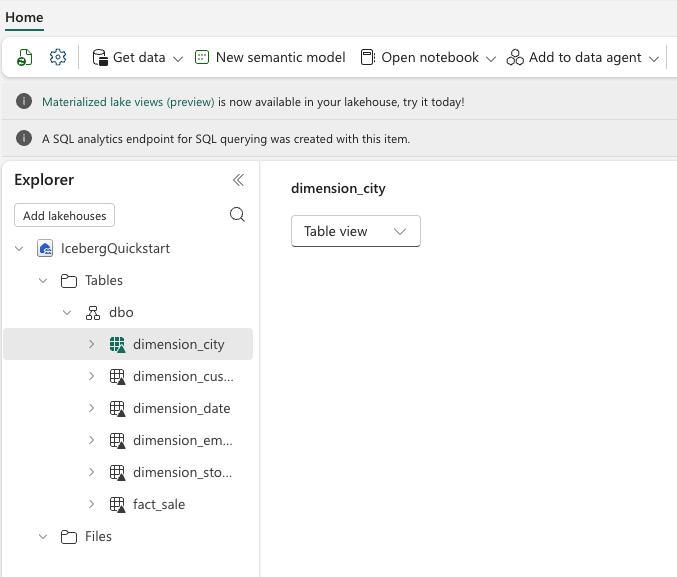
You should now see a number of tables available.
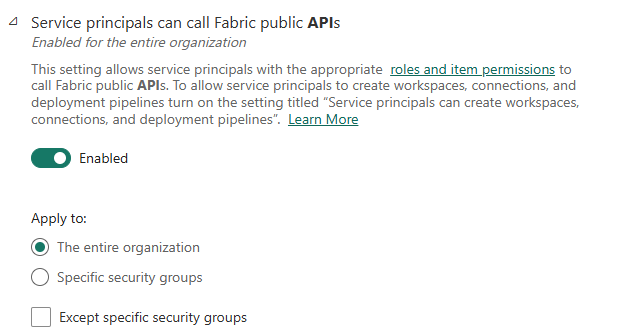
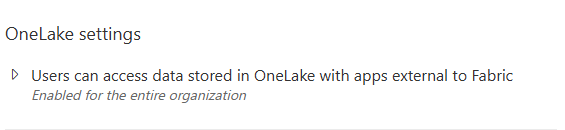
These Fabric Settings needs to be enabled:
In the Fabric Admin Portal, in Tenant Settings under the Developer Settings category, "Service Principals can call Fabric public APIs" is ENABLED.
Create a Snowflake Catalog Linked Database
Azure Portal
-
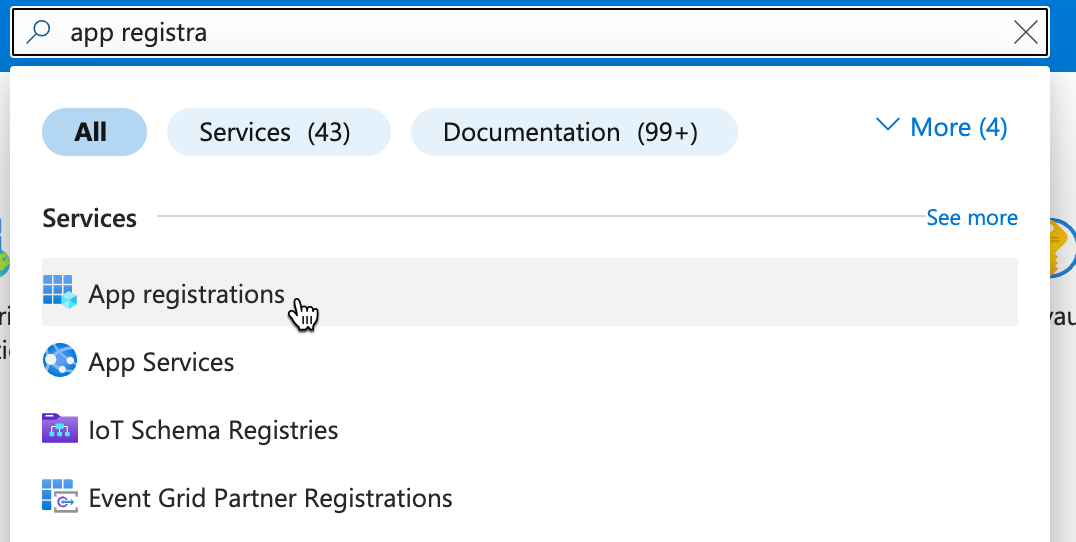
In the Azure portal search for and open "App Registrations"
-
Click "+ New Registration"

-
Give the app name (ex. _Snowflake_Oath_Client )
- Create by clicking "Register"
- Copy and make note of the "Directory (tenant) ID"
- Copy and make note of the "Application (client) ID"
- Copy and make note of the "Managed application in local directory" Name -- used for "Managed Access" step

-
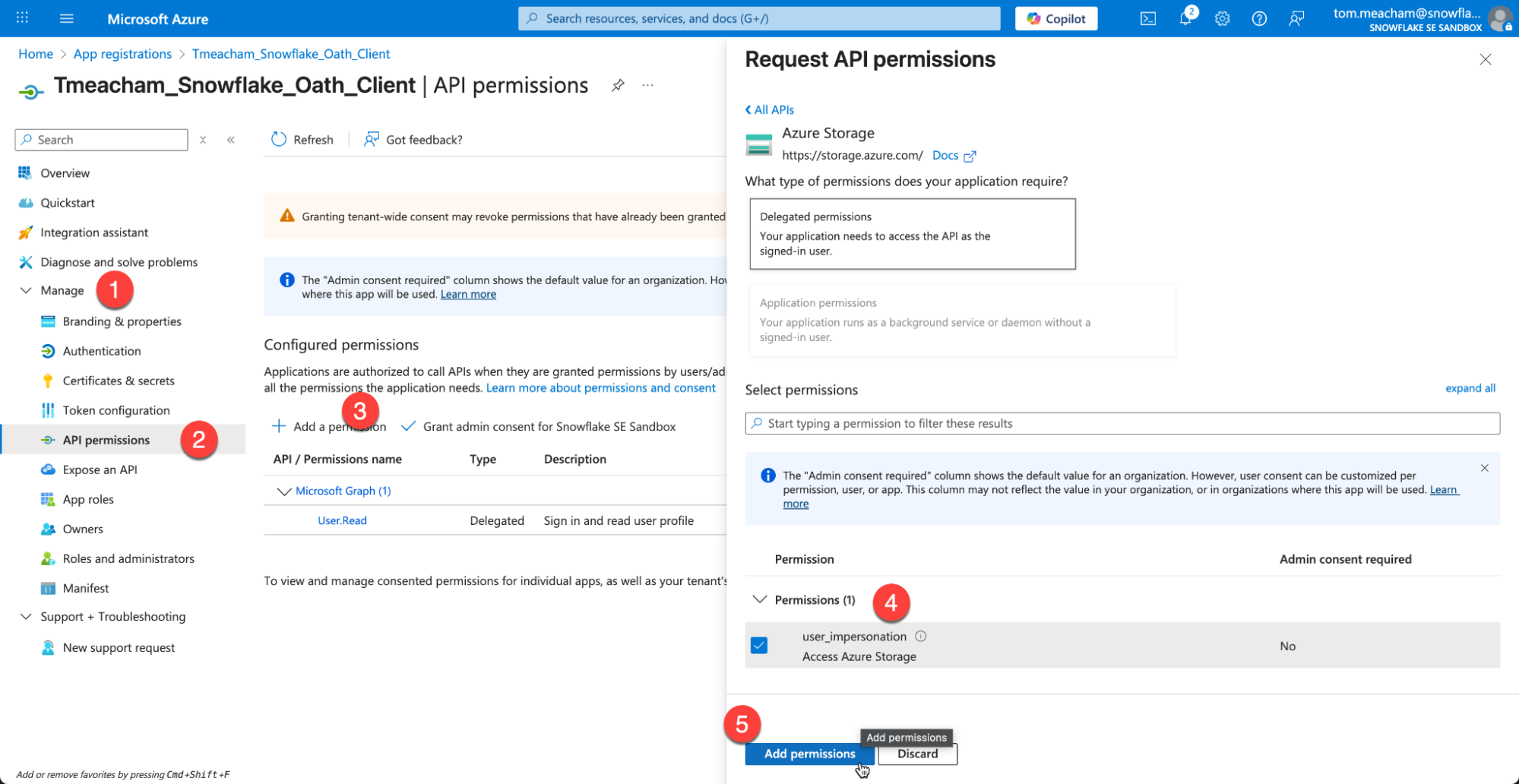
Under Manage, choose API Permissions
- Under Configured permissions, click "Add a Permission"
- Select the Azure Storage tile.
- Check the box for user_impersonation
- Click Add Permission
- Grant admin consent (Next to Add a permission)
-
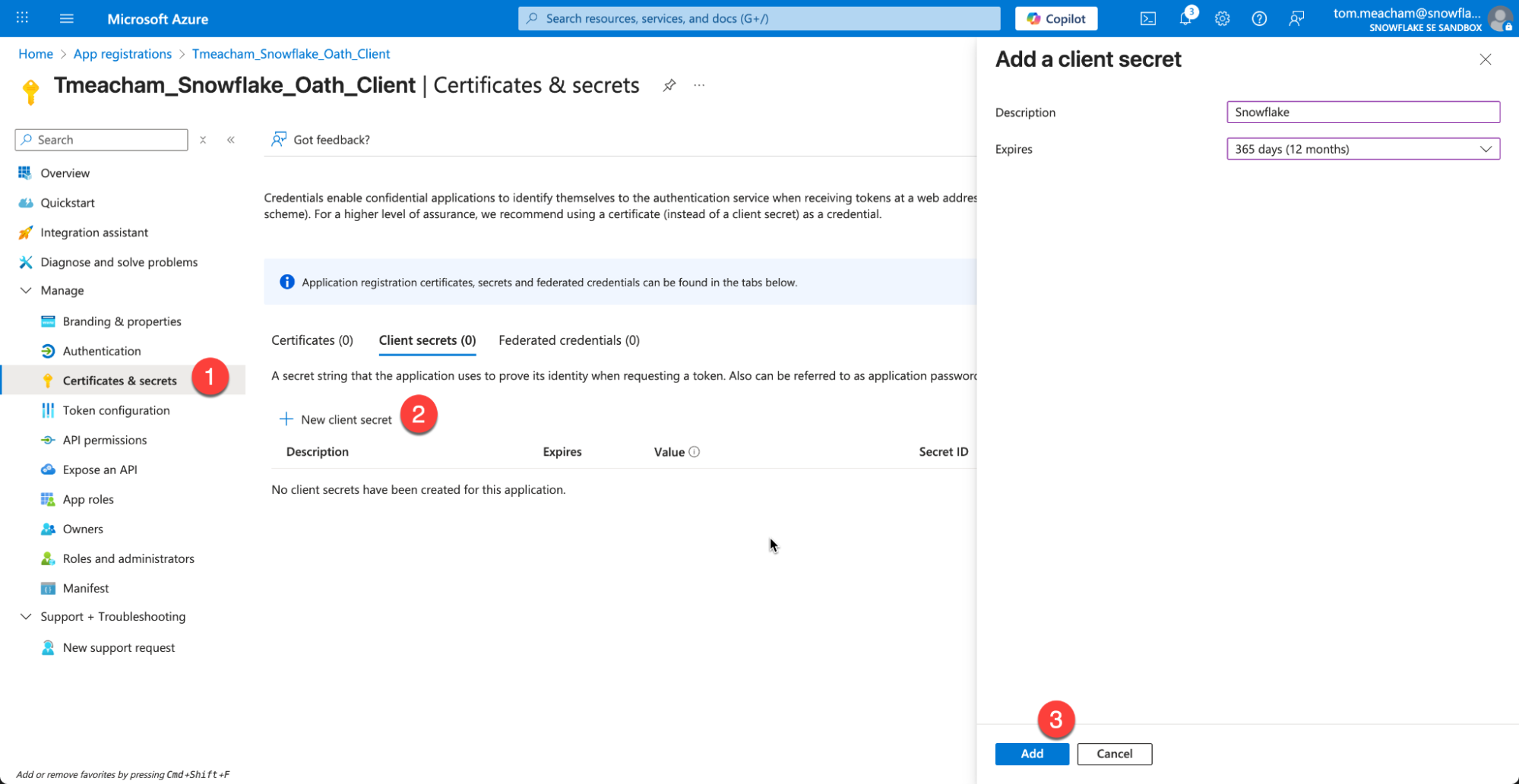
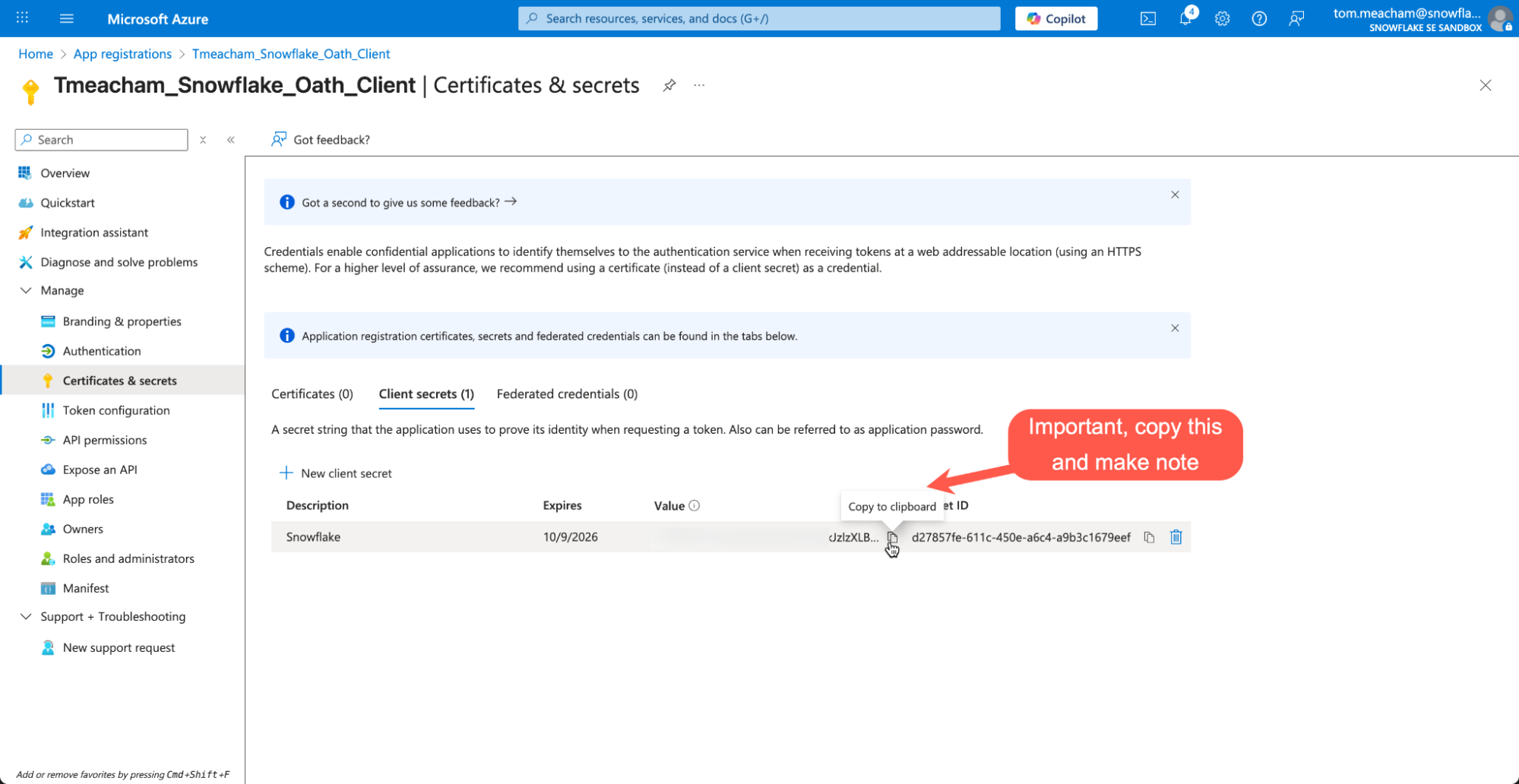
On the left hand menu, click "Certificates & secrets" and click "New Client Secret" !!IMPORTANT!! Copy the Value, as it will not be available later.
Fabric Workspace
- Return to your Fabric Workspace (note: not your Lakehouse)
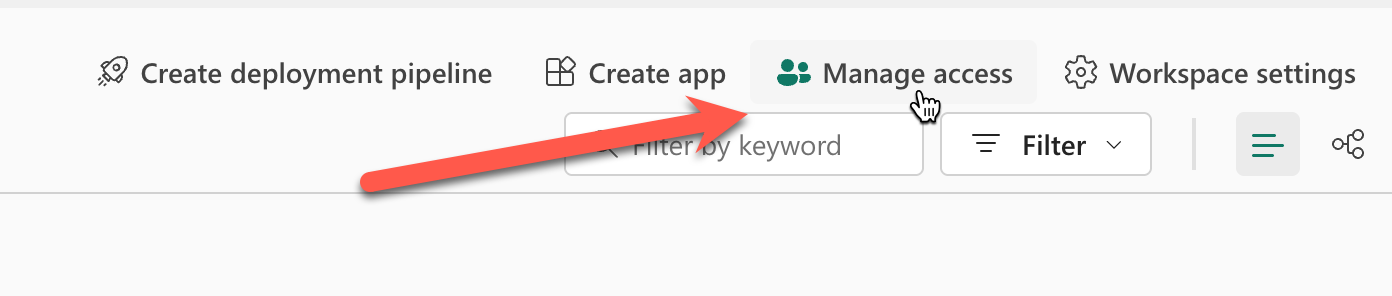
Click Manage Access at the top
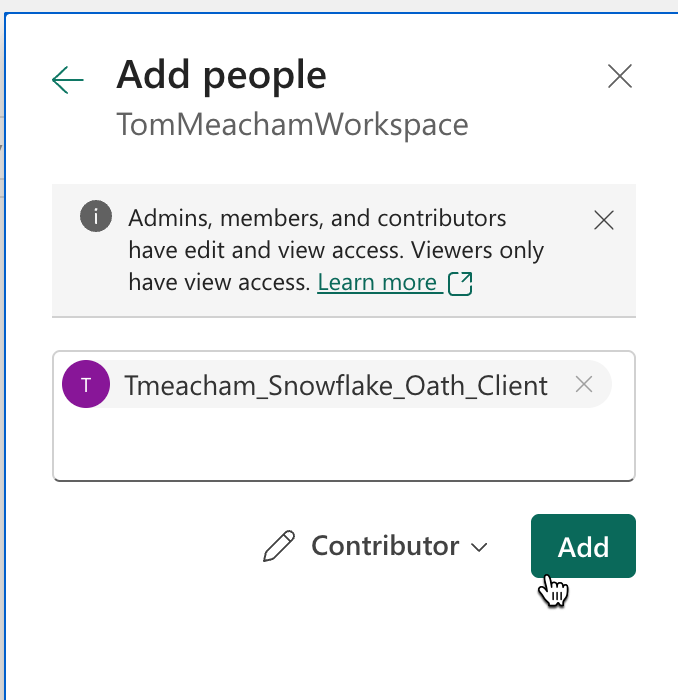
Paste in the "Managed application in local directory" from earlier, and set the role to "Contributor"
Fabric Lakehouse
- Click on your Lakehouse to fetch the following values from the url in the browser (just copy url)

Snowflake
- Create a New SQL file. Because setup will require creating account level integrations, ACCOUNTADMIN role will be required for setup.
- Paste in the variables you have captured into the SQL script.
USE ROLE ACCOUNTADMIN;

/*****************************************************************************************
>> Step 1
Create the Snowflake External Iceberg Rest Catalog Integration object.

*****************************************************************************************/
-- Create catalog integration object
CREATE OR REPLACE CATALOG INTEGRATION SnowflakeOneLakeLakehouse_IRC_INT
    CATALOG_SOURCE = ICEBERG_REST
    TABLE_FORMAT = ICEBERG
    REST_CONFIG = (
        CATALOG_URI = 'https://onelake.table.fabric.microsoft.com/iceberg' -- Iceberg base URL at the OneLake table endpoint
        CATALOG_NAME = 'xxxxxxxx-xxxx-xxxx-xxxx-xxxxxxxxxx/xxxxxxxx-xxxx-xxxx-xxxx-xxxxxxxxxx' -- From the Fabric lakehouse URL, in the form `workspaceID/dataItemID`.  The workspaceID follows groups/ and the dataItemId follows lakehouses/
        ACCESS_DELEGATION_MODE = VENDED_CREDENTIALS
    )
    REST_AUTHENTICATION = (
        TYPE = OAUTH -- Entra auth
        OAUTH_TOKEN_URI = 'https://login.microsoftonline.com/xxxxxxxx-xxxx-xxxx-xxxx-xxxxxxxxxx/oauth2/v2.0/token' -- Insert Entra tenant ID
        OAUTH_CLIENT_ID = 'xxxxxxxx-xxxx-xxxx-xxxx-xxxxxxxxxx' -- Entra application client ID
        OAUTH_CLIENT_SECRET = 'xxxxxxxx-xxxx-xxxx-xxxx-xxxxxxxxxx' -- Entra application client secret value
        OAUTH_ALLOWED_SCOPES = ('https://storage.azure.com/.default') -- Storage token audience
    )
    ENABLED = TRUE
;


/*****************************************************************************************
Validate the Catalog Integration object was created
*****************************************************************************************/
SHOW CATALOG INTEGRATIONS like 'SnowflakeOneLakeLakehouse_IRC_INT';


/*****************************************************************************************
Optional: describe the Catalog Integration object
*****************************************************************************************/
DESC CATALOG INTEGRATION SnowflakeOneLakeLakehouse_IRC_INT;


/*****************************************************************************************
Create a Snowflake Catalog linked database to connect to Fabric OneLake Lakehouse

Reference:
* https://docs.snowflake.com/en/sql-reference/sql/create-database-catalog-linked
*****************************************************************************************/
CREATE OR REPLACE DATABASE SnowflakeOneLakeLakehouse_CLDB
  LINKED_CATALOG = (
    CATALOG = SnowflakeOneLakeLakehouse_IRC_INT
  )
;

/*****************************************************************************************
You can now query and explore your data.
Note: Fabric is case sensitive, so you will need to use double quoted identifiers for
mixed case or lower case object names. ex. "schema"."table"
*****************************************************************************************/
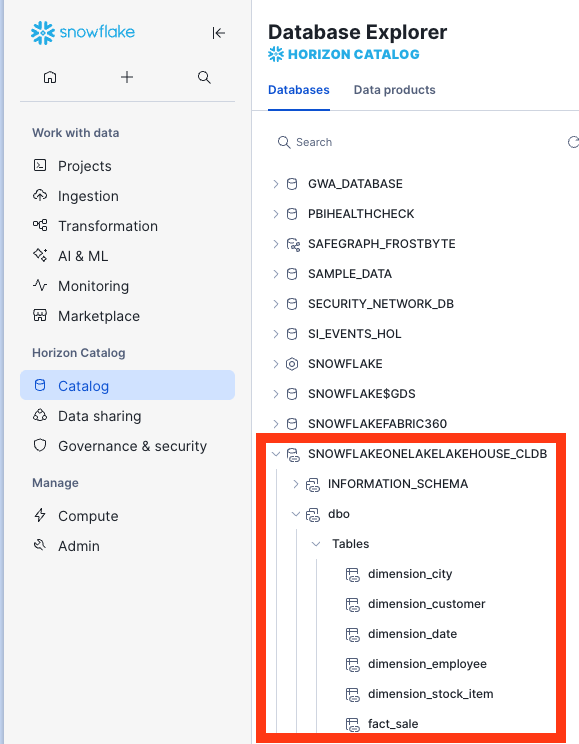
USE DATABASE SnowflakeOneLakeLakehouse_CLDB;
SHOW SCHEMAS;
SHOW TABLES;  --This may take a minute to populate
It may take a minute for the initial sync to complete.
Create a Snowflake Database in OneLake
In this section, curated and enriched data will be written back to OneLake as a Snowflake Database Object. In a real environment this would be the data engineering work to clean the raw data in OneLake, combine data from disparate sources, modeling the unified data in your enterprise data warehouse, and preparing data products to be consumed by users. But for the sake of this quickstart, this step will just be merging some of the raw data and filtering records and writing the table back to OneLake.
Start by creating a Snowflake database that will serve the processed, curated data.
CREATE OR REPLACE DATABASE SNOWFLAKEONELAKELAKEHOUSE_ANALYTICS;
Create a Snowflake connection in Microsoft Fabric
In this step you create a Snowflake connection in Microsoft Fabric, which allows you to connect your standard database in Snowflake to Microsoft Fabric.
- Navigate to Microsoft Fabric.
- Select the Settings icon and select Manage connections and gateways.
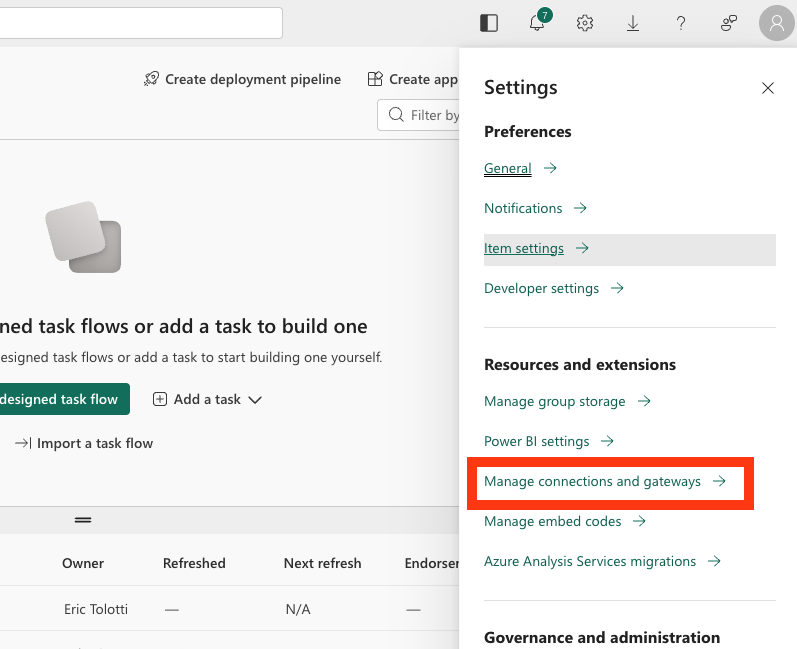
- Select + New.
- In the New connection dialog, create a Snowflake connection:
-
Select Cloud.
-
For Connection name, enter a connection name.
-
For Connection type, select Snowflake.
-
For Server, enter your identifier for your Snowflake account:
-
https://-.snowflakecomputing.com Finding the organization and account name for an account
-
For Warehouse, enter the name of a warehouse in Snowflake.
-
For Authentication method, select Snowflake.
-
For Username, enter the name of the user.
-
For Password, enter the password for the user that you created in Snowflake.
-
Select Create.
-
For more information about creating a Snowflake connection in Microsoft Fabric, see Set up your Snowflake database connection
-
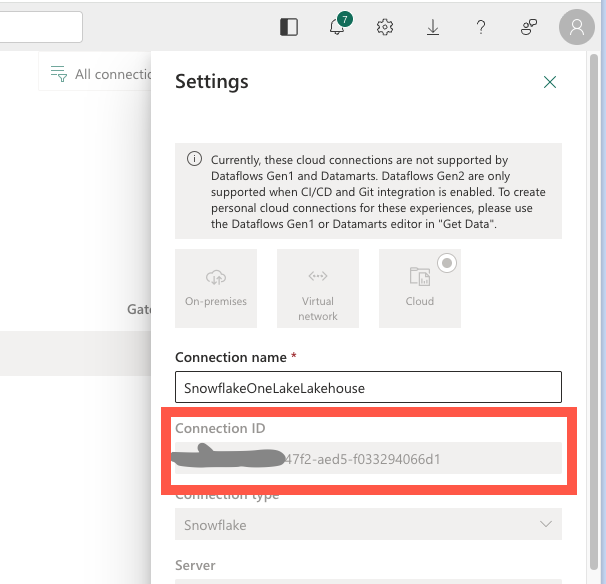
After your connection is created, save the Connection ID for your connection for use later.
-
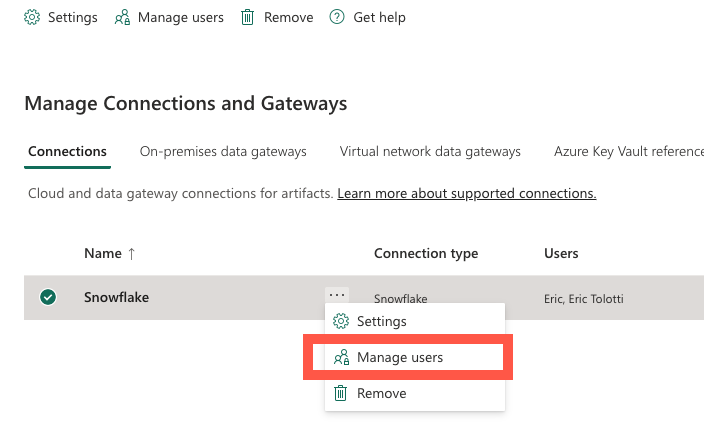
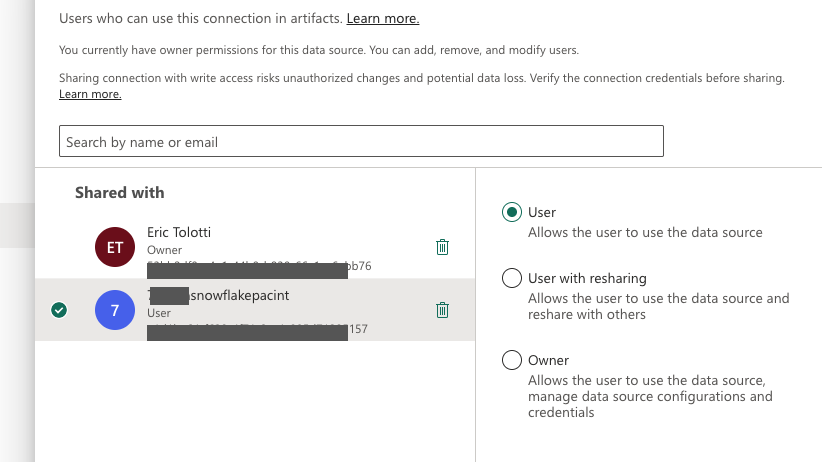
From the connection Managed users menu, search for your multi-tenant app name and grant it user access to the connection. (Note: If you don't know your multi-tenant app name, the next section will display it)
Connect your Snowflake database to Microsoft Fabric
In this step, you connect a standard Snowflake database to Microsoft Fabric.
-
Sign in to Snowsight.
-
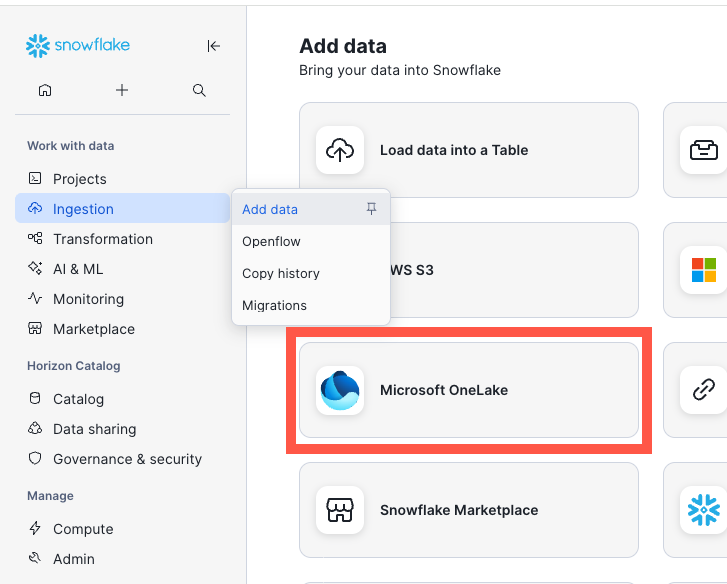
In the navigation menu, select Ingestion » Add Data.
-
On the Add Data page, select Microsoft OneLake.
-
Enter your Fabric tenant ID and select Continue.
-
Select Continue. And in the Create an item in Microsoft Fabric dialog, fill in the fields:
- For Fabric workspace name, enter the name of the workspace in Fabric where you want to view your Iceberg tables.
- Note the Multi-tenant app name at the top of step 2 of 3
-
For Snowflake database, select SNOWFLAKEONELAKELAKEHOUSE_ANALYTICS and continue.
-
In the Create External Volume dialog, to create an external volume, review the volume details, and then select Create Volume. Be sure to consent to the entra URL if prompted to create the service principal in Azure. This may need to be run by an Entra ID admin if you do not have access.
Fabric Workspace
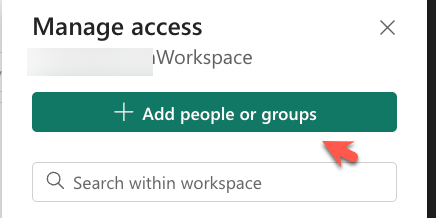
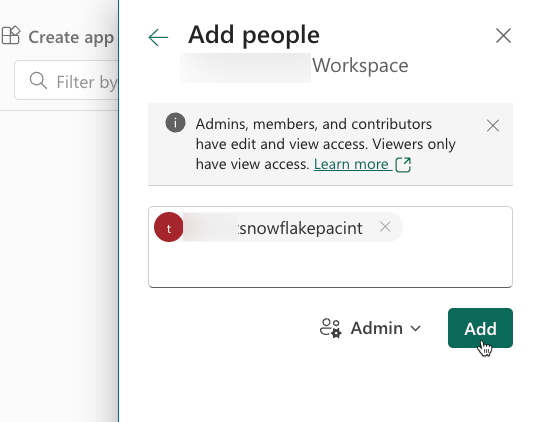
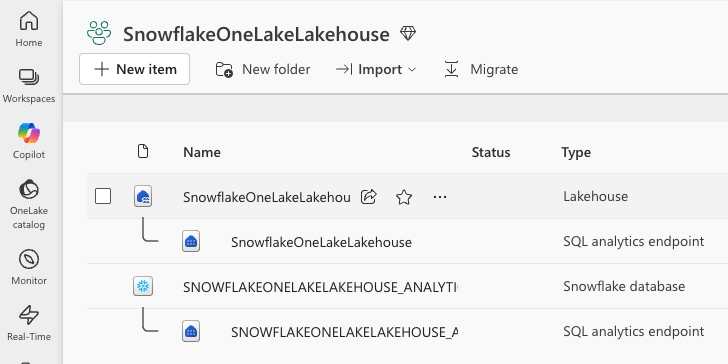
- Return to your Fabric Workspace and click Manage Access in the top right of the interface. Make sure you are in your Fabric Work Space, and NOT your Lakehouse interface.
- Take the value of the AZURE_MULTI_TENANT_APP_NAME and add it to the workspace.
Create an Iceberg table
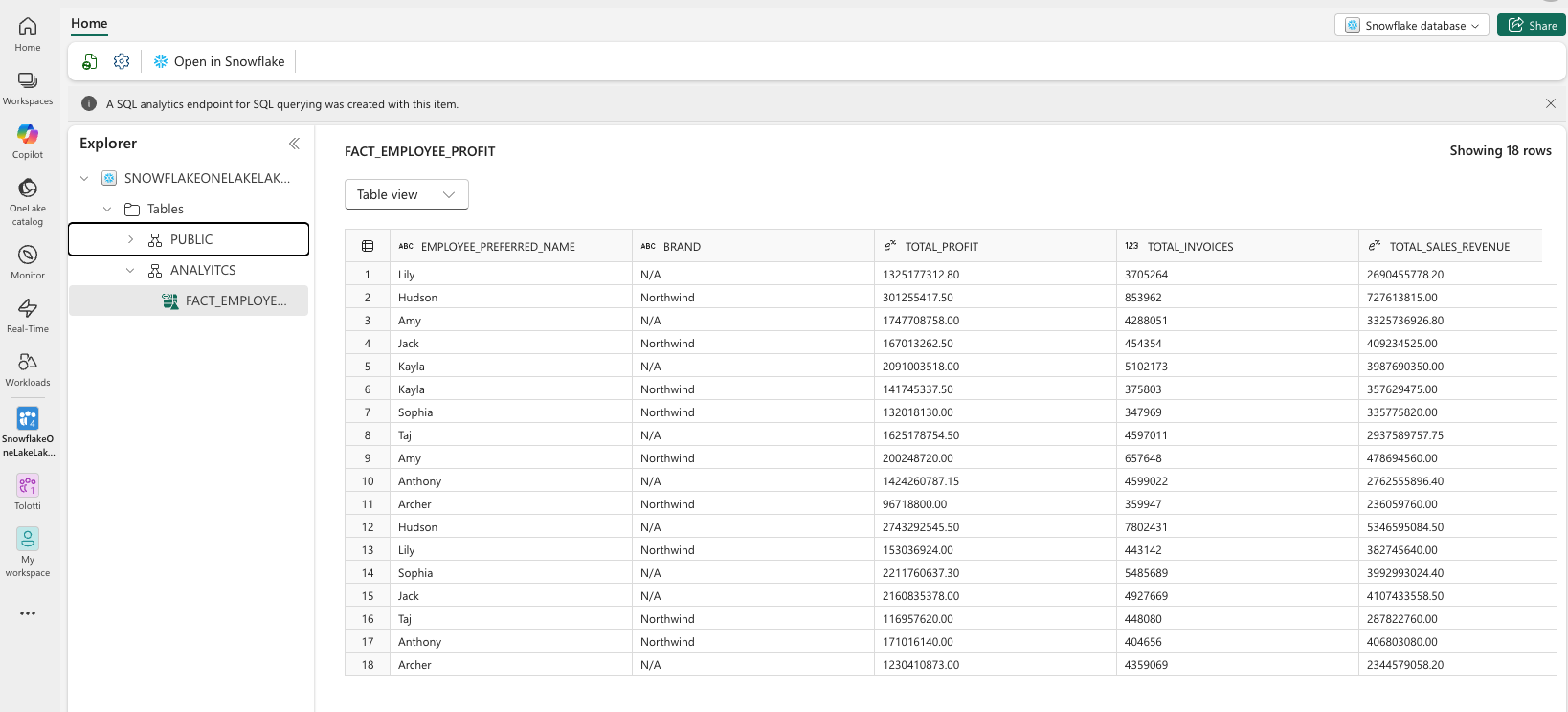
In this step, you create a Snowflake-managed Iceberg table stored in OneLake.
USE DATABASE SNOWFLAKEONELAKELAKEHOUSE_ANALYTICS;

--Create the Iceberg table in OneLake
 CREATE ICEBERG TABLE FACT_EMPLOYEE_PROFIT  (
        EMPLOYEE_PREFERRED_NAME STRING,
        BRAND STRING,
        TOTAL_PROFIT NUMBER(18, 2),
        TOTAL_INVOICES int,
        TOTAL_SALES_REVENUE NUMBER(18, 2)
    )
CATALOG = 'SNOWFLAKE';

--Insert sample data
INSERT INTO SNOWFLAKEONELAKELAKEHOUSE_ANALYTICS.ANALTYICS.FACT_EMPLOYEE_PROFIT
    --Top Selling Employees: Profit Breakdown by Product Brand
SELECT
    T_E.PreferredName,
    T_SI.Brand,
    SUM(T0.Profit) AS TotalProfit,
    COUNT(T0.WWIInvoiceID) AS TotalInvoices,
    SUM(T0.TotalExcludingTax) AS TotalSalesRevenue
FROM
    fact_sale T0
JOIN
    dimension_employee T_E ON T0.SalespersonKey = T_E.EmployeeKey
JOIN
    dimension_stock_item T_SI ON T0.StockItemKey = T_SI.StockItemKey
WHERE
    T_E.IsSalesperson = 1
    AND T0.Profit > 0
GROUP BY
    T_E.PreferredName,
    T_SI.Brand
ORDER BY
    T_E.PreferredName,
    TotalProfit DESC;
Conclusion and Resources
Congratulations! You've successfully created an Iceberg table in OneLake as a Snowflake data object, and set up OneLake as a catalog linked database in Snowflake. Resulting in a fully bi-directional Open Lakehouse. You can now use this data for power BI reports, querying from Snowflake, working with Snowpark, working with Fabric Notebooks, and many more use-cases. This is the foundation for an Iceberg Lakehouse architecture with Snowflake on Azure!
What You Learned
- creating a catalog integration to read Iceberg data in OneLake
- creating a Snowflake Database in OneLake and writing Snowflake managed Iceberg tables
- setting OneLake as a catalog linked database in Snowflake
- querying Iceberg from Snowflake and Fabric services
Resources
If you have any questions, reach out to your Snowflake account team!
This content is provided as is, and is not maintained on an ongoing basis. It may be out of date with current Snowflake instances
