Close Faster, Audit Smarter: Build It with CoCo, Ask It with CoWork
Overview
Duration: 2
Close-cycle data comes from everywhere: the payroll system, the general ledger, the bank. Each system has its own date format, its own way of recording amounts, and its own codes for categories and departments. So nobody has a single, trustworthy view of what's been spent, and the team burns days hunting for the one transaction that doesn't tie out.
In this hands-on lab you'll fix that for Meridian Stay, a fictional global hotel brand, as its finance team closes the books on November 2026. You'll land the raw exports in open Apache Iceberg tables, use Snowflake CoCo to clean and standardize them, match transactions across systems, and surface every discrepancy on a live reconciliation dashboard. Then you'll hand the result to the whole team through Snowflake CoWork, so anyone can ask "What's out of balance this month and why?" and get an answer in seconds.
Prerequisites
- No coding experience required. CoCo writes the SQL; you describe what you want and review the result.
What You'll Learn
- How to clone a public GitHub repo as a Git-backed Snowflake Workspace and run a notebook inside it
- How to land raw data in Snowflake-managed Apache Iceberg tables, an open format that other engines can read
- How to use CoCo to standardize department names and category codes, parse dates and amounts, remove duplicates, and filter out reversed entries
- How to match bank transactions to the general ledger, tie payroll back to it, and flag every discrepancy
- How to run a Streamlit reconciliation dashboard that traces every gap to its root cause, and extend it with CoCo
- How to create a Semantic View with CoCo and a Cortex Agent backed by it
- How to ask close-cycle questions in plain language in Snowflake CoWork
What You'll Need
- A free Snowflake trial account: https://signup.snowflake.com/
- The companion GitHub repo: https://github.com/Snowflake-Labs/expedition-2026-day-3-hol
What You'll Build
- A governed, deduplicated transaction ledger built from three messy exports, stored as Iceberg
- A reconciliation table that flags every unmatched transaction across systems
- A live reconciliation dashboard
- A Cortex Agent that answers close-cycle questions in Snowflake CoWork
Open a Snowflake Trial Account
Duration: 3
To complete this lab, you'll need a Snowflake account. A free Snowflake trial account works well. To open one:
-
Navigate to https://signup.snowflake.com/. This link pre-selects AWS and the US East (Ohio) region for you.
-
Complete the first page of the form.
-
On the next section, set the Snowflake edition to Enterprise (Most popular).
-
Confirm AWS – Amazon Web Services is selected as the cloud provider (pre-filled by the link).
-
Confirm US East (Ohio) is selected as the region (pre-filled by the link).
-
Complete the rest of the form and click Get started.
Why AWS? This lab stores its Iceberg tables in Snowflake-managed storage, which is available on AWS and Azure. Stick with the pre-selected AWS region.
Understand the Scenario
Duration: 2
You're on the finance operations team at Meridian Stay, and it's the first week of December 2026. The November close is due, and the controller wants every discrepancy identified before the external auditors arrive on December 10.
Last quarter, a $47,000 wire transfer for a ballroom renovation deposit to a ccontractor cleared the bank but was never journaled in the general ledger. The auditors flagged it, and the team spent a week tracing it back to a journal entry nobody created. Leadership wants to know: could it happen again, and is anything else missing?
The root cause is simple: the three financial systems don't agree with each other.
| Source system | Export | How it's messy |
|---|---|---|
| Payroll register (ADP / Workday) | payroll_register.csv | MM/DD/YYYY dates, amounts stored as text ("$4,200.00"), department codes like F&B and MGMT, and one row exported twice |
| General ledger (NetSuite / SAP) | gl_journal_entries.csv | Nov 01 2026 dates, debits in parentheses ((23,900.00)), category codes (PAY, UTIL, MAINT), and a Reversed entry that was never removed |
| Bank statement | bank_statement.csv | YYYY-MM-DD dates, debits as negative numbers, free-text descriptions ("WIRE TFR - GRAND BALLROOM RENOVATION DEPOSIT"), and no category or department columns |
Here's the plan
- Land the three exports, exactly as they arrived, in Apache Iceberg tables.
- Clean them with CoCo into one unified transaction ledger, also stored as Iceberg.
- Match transactions across systems and flag every discrepancy.
- See the reconciliation status on a live dashboard that investigates every gap.
- Ask close-cycle questions in plain language through a Cortex Agent in Snowflake CoWork.
Everything through step 4 runs from a single notebook (lab.ipynb) and a pre-built app in the companion repo. Step 5 is done in the Snowsight UI. Let's get started!
Set Up Your Workspace and Notebook
Duration: 5
There are no setup scripts to run and no SQL worksheets to open first. Your first action is to create a Git-backed Workspace that clones the companion repo. The repo contains the notebook you'll run (lab.ipynb), the three financial exports (data/), and the reconciliation dashboard (reconciliation_dashboard/).
Sign in as ACCOUNTADMIN
Make sure you are signed into your trial account. Confirm your active role is ACCOUNTADMIN.
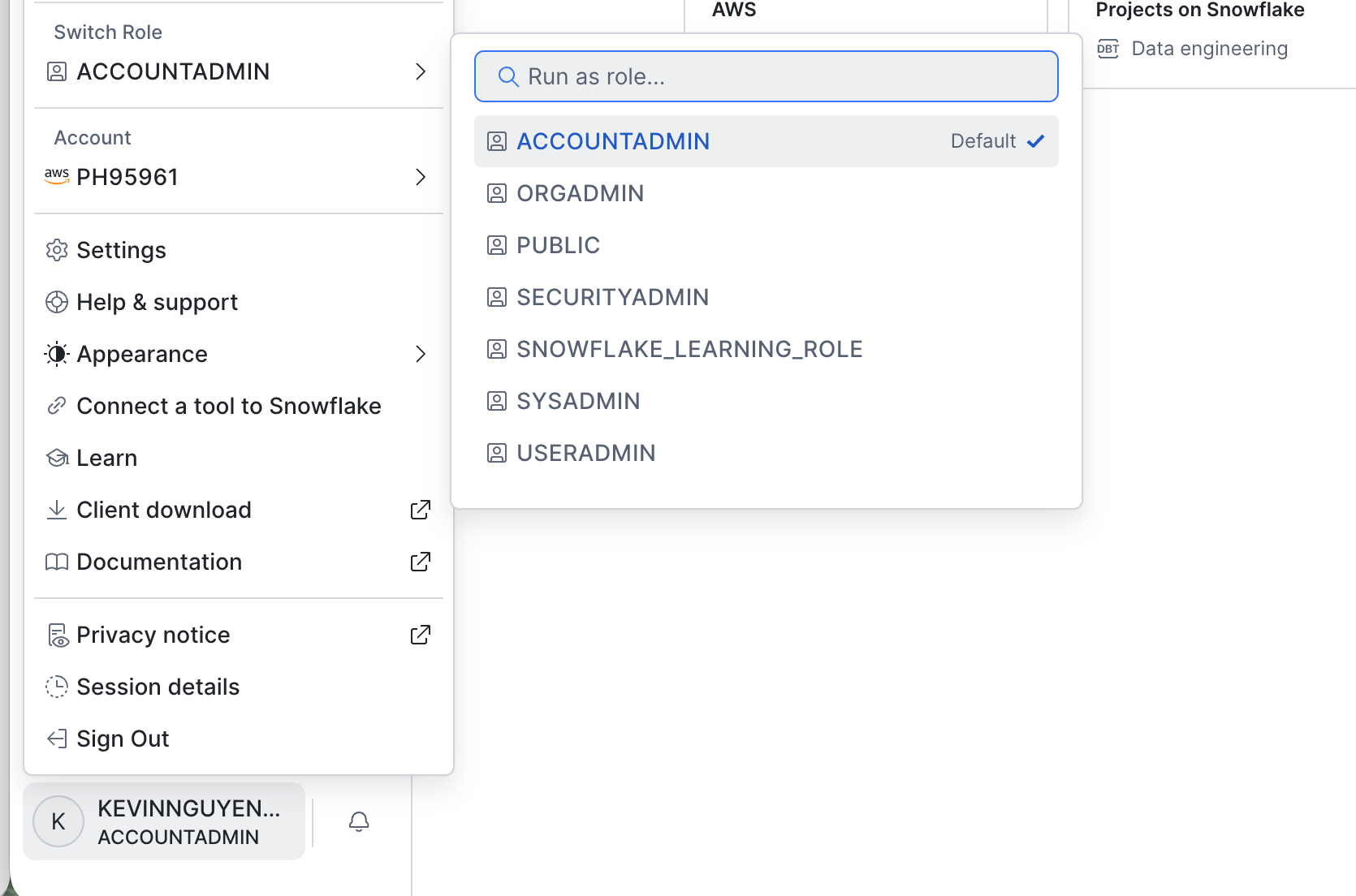
Create a Git-backed Workspace
-
In Snowsight, navigate to Projects >> Workspaces.
-
Click the + icon next to Workspaces/Databases -> Create new Git workspace.
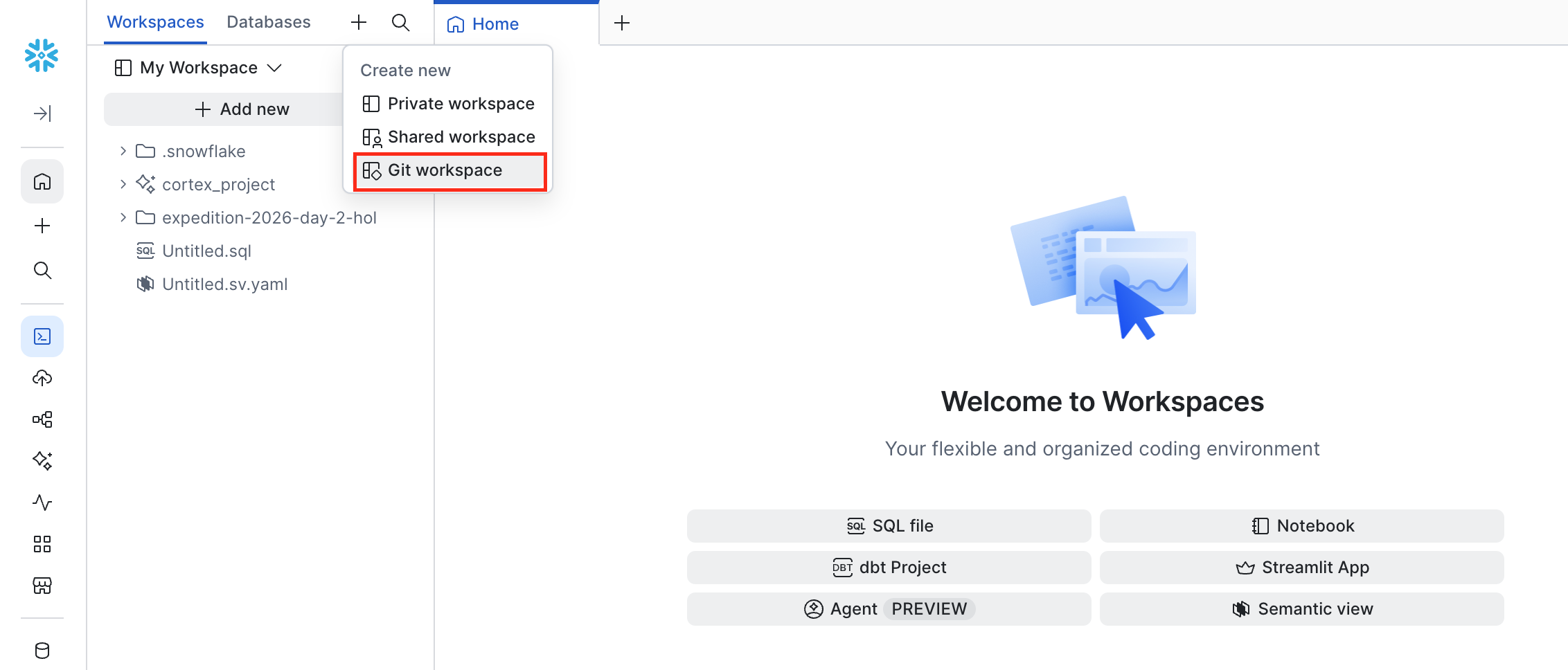
- Fill out the modal:
- Repository URL:
https://github.com/Snowflake-Labs/expedition-2026-day-3-hol - Workspace name: anything you like (e.g.,
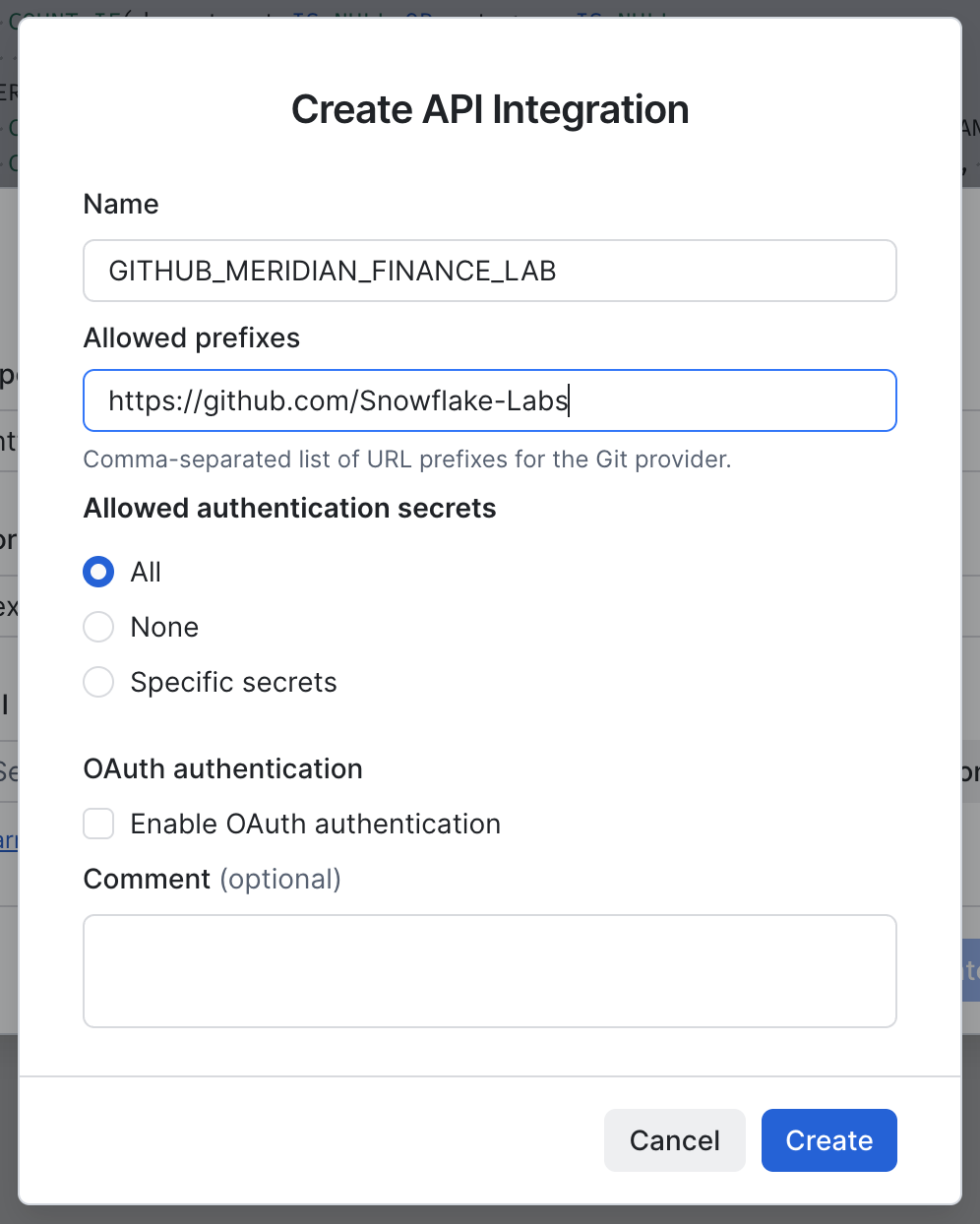
finance-close) - API integration: click + / Create new and provide:
- Name:
GITHUB_MERIDIAN_FINANCE_LAB - Allowed prefixes:
https://github.com/Snowflake-Labs
- Name:
- Check Public repository.
- Repository URL:
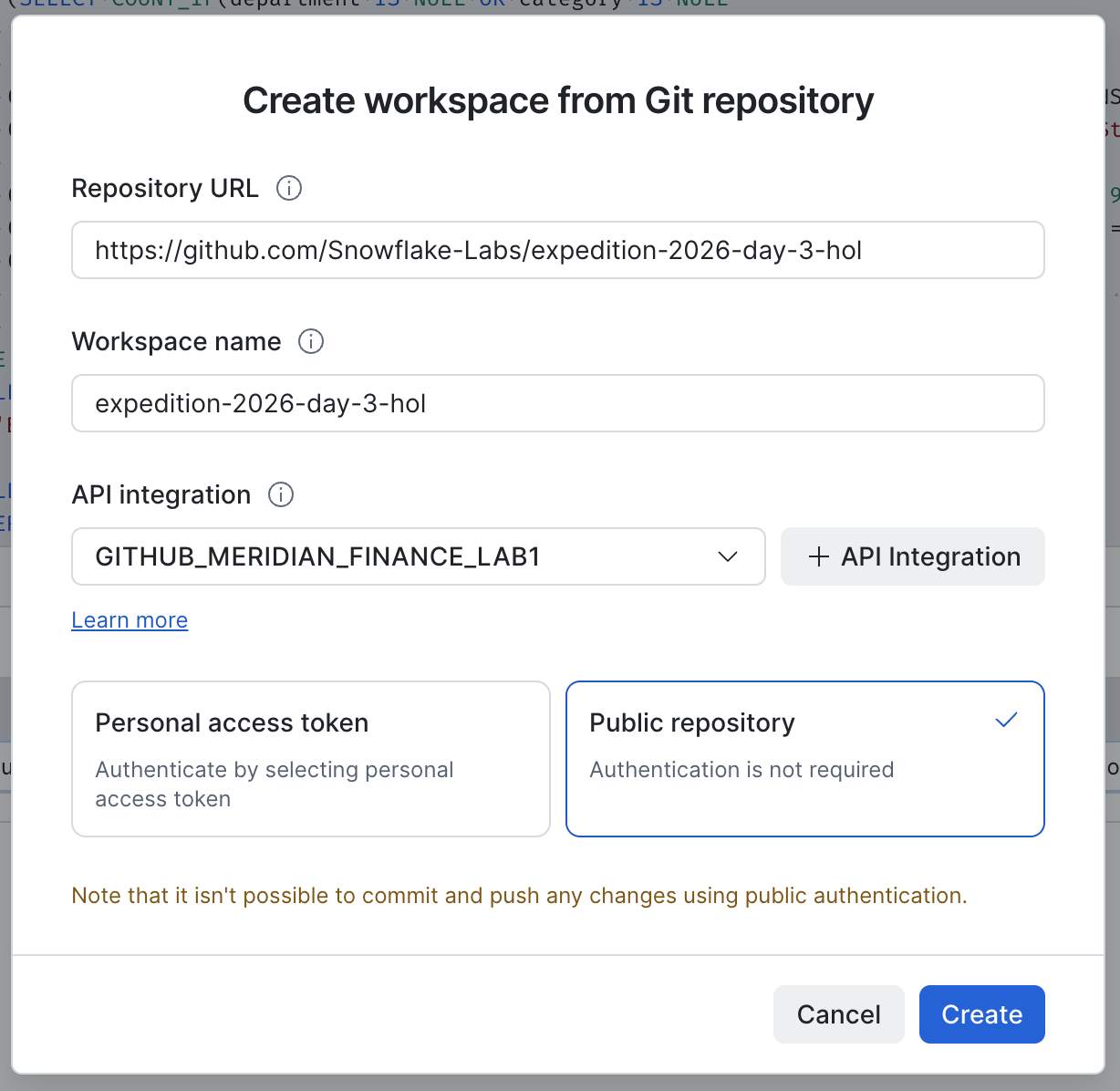
- Click Create.
What just happened? The Workspace modal created a Git API integration for you, a one-time step that tells Snowflake which GitHub organization is an allowed source for Git-backed Workspaces.
The Workspace opens with the repo's files visible in the file explorer on the left.
Open the notebook and set its compute
-
In the Workspace file explorer, open
lab.ipynb. -
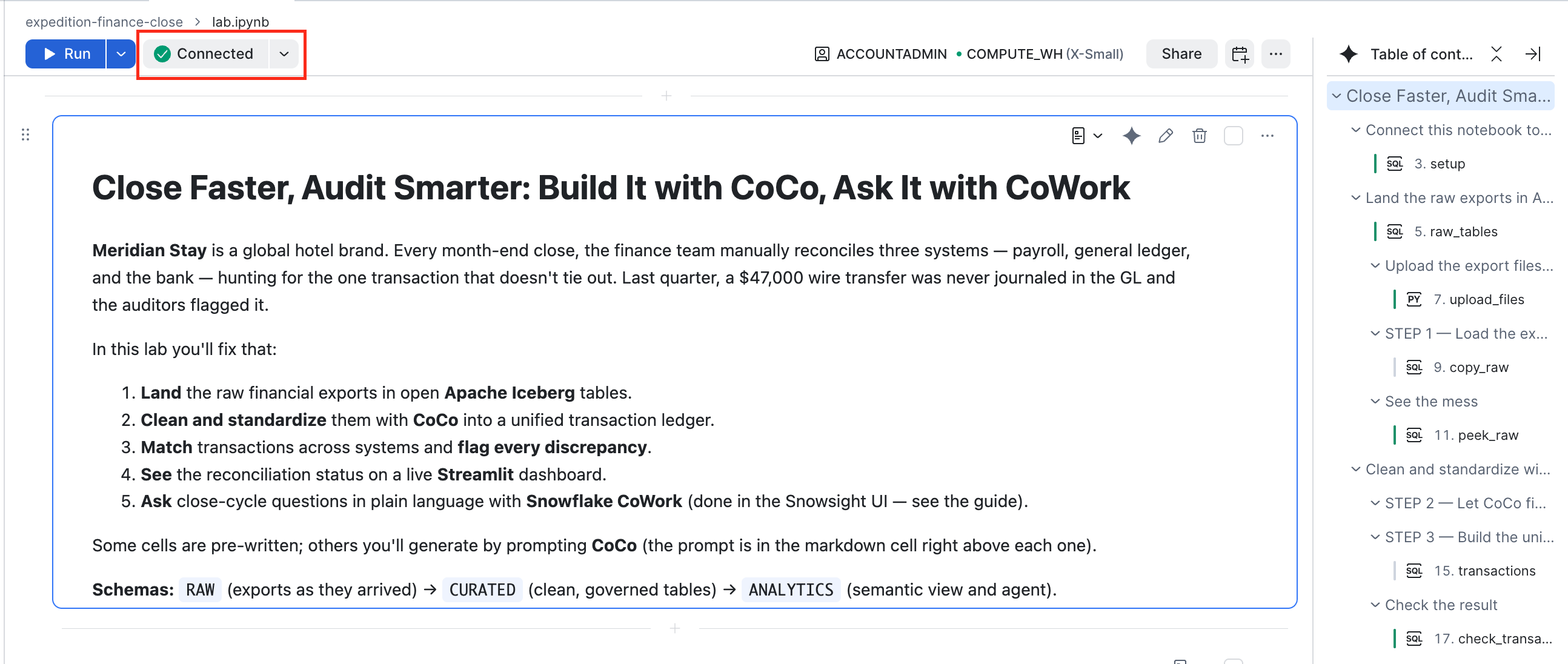
Click Connect next to the Run button and select Create and connect. Wait for the status bar at the bottom of the notebook to show Connected before proceeding. The first connection can take a few minutes while Snowflake starts the notebook's compute.
-
Set the notebook's active role and warehouse using the role & warehouse picker at the top of the Notebooks editor:
- Role: ACCOUNTADMIN
- Warehouse: COMPUTE_WH (the default warehouse in every trial account)
-
Work top-to-bottom through the notebook. Markdown cells explain each step; code cells contain the SQL, some of which you'll generate yourself with CoCo. Run a cell with the play button (or Shift+Enter).
Throughout the lab, the notebook shows a CoCo prompt in the markdown cell directly above each empty SQL cell. You can use the prompts from there or copy them from this guide. They should be identical or similar.
Open the CoCo panel
Open the CoCo chat panel from the Workspace toolbar. You'll send it prompts throughout the lab.
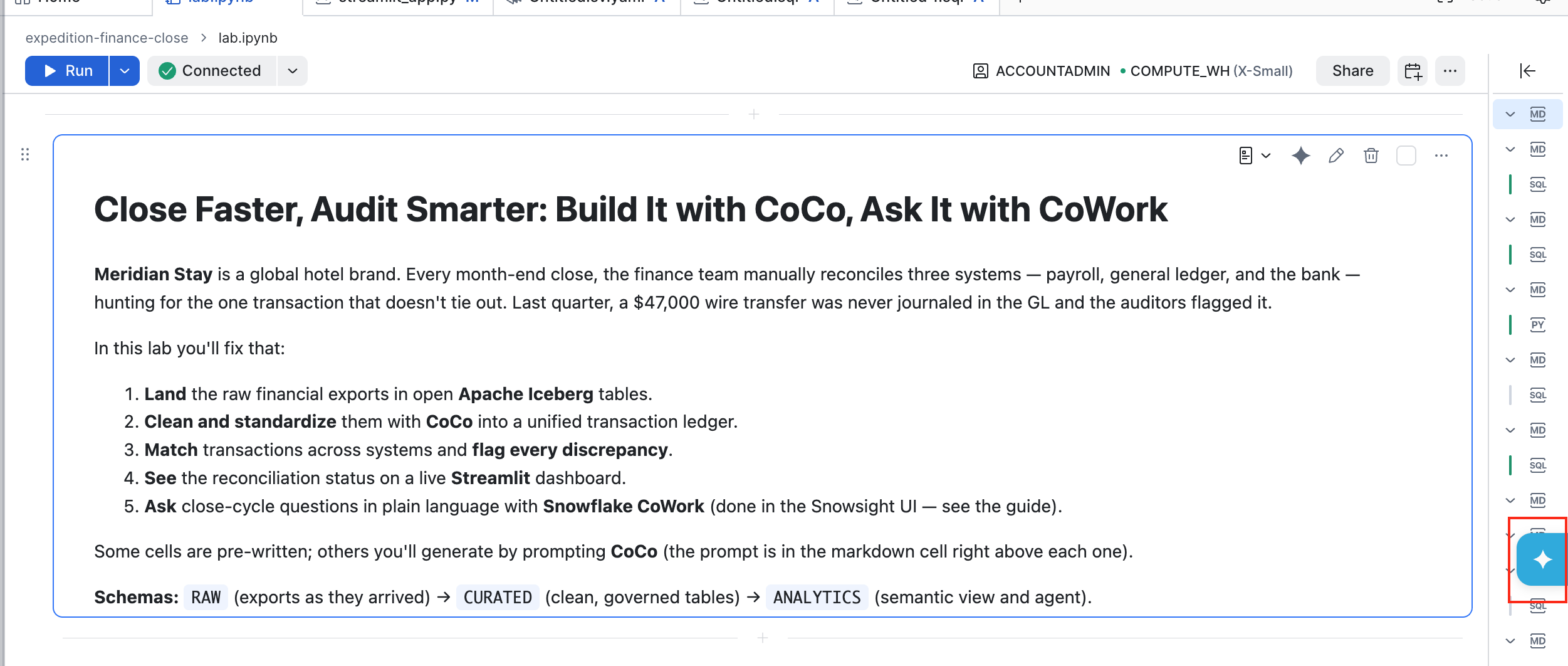
Key principle: Use CoCo to generate the hard parts and understand why. The workflow is: describe -> generate -> compare -> run. After CoCo generates SQL, compare it against the Expected output shown in the notebook. If it does the same thing, click Allow to run it. Optionally, copy the SQL into the notebook cell for future reference.
Run the setup cell
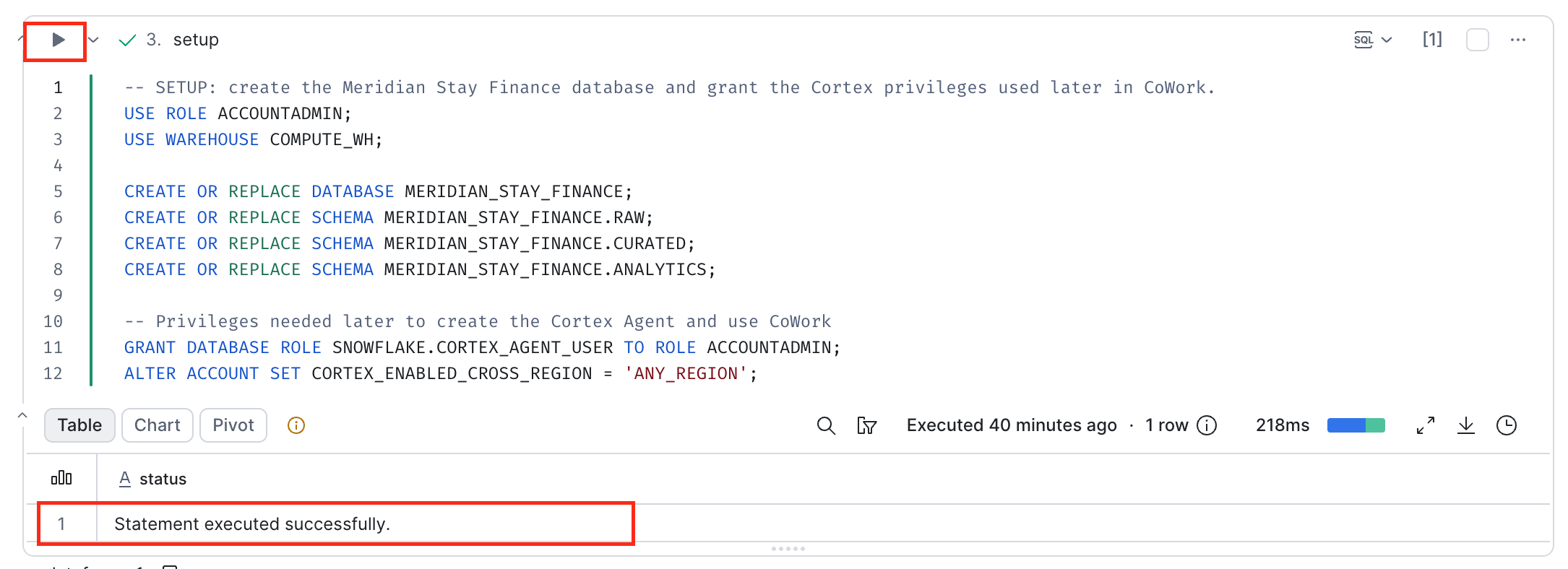
The first SQL cell in the notebook (setup) creates the MERIDIAN_STAY_FINANCE database with three schemas:
RAW: the exports, exactly as they arrivedCURATED: clean, governed tablesANALYTICS: the semantic view and agent
It also grants the Cortex Agent privileges your role needs later. Run the setup cell before continuing. You should see "Statement executed successfully."
Land the Raw Exports in Apache Iceberg
Duration: 7
The first step is to get the raw exports into Snowflake without changing them, so you always have the original to compare against.
Why Apache Iceberg?
Apache Iceberg is an open table format. An Iceberg table's data is stored as Parquet files plus open metadata, so other engines (Spark, Trino, DuckDB, and more) can read the same tables through Snowflake Horizon Catalog. Your financial data stays open instead of being locked into one tool, which matters when the external auditors, a consulting firm, or a shared-services team needs access too.
In this lab you'll use Snowflake-managed Iceberg tables (CATALOG = 'SNOWFLAKE' and EXTERNAL_VOLUME = 'SNOWFLAKE_MANAGED'). Snowflake manages the storage for you, so there's no cloud bucket or IAM setup.
Create the raw tables
Run the raw_tables cell. It creates:
- Three raw Iceberg tables, one per export, with every column as
STRING(exactly as exported) - A CSV file format,
RAW.CSV_FF - An internal stage,
RAW.FINANCIAL_EXPORTS, to hold the files
Upload the export files
Run the upload_files Python cell. It copies the three CSVs from the repo's data/ folder into the stage. You should see three files with status UPLOADED.
STEP 1 — Load the exports
COPY INTO is Snowflake's bulk-loading command. It reads files from a stage and inserts them into a table, and it works the same way whether the target is a standard table or an Iceberg table.
Send this prompt to CoCo, then compare its SQL against the expected output in the notebook. If it does the same thing, click Allow to run it.
CoCo's SQL won't always match word for word. CoCo writes its SQL fresh each time, so it may format statements differently, add optional settings, or take a slightly different route than the expected output. That's fine. What matters is that it does the same thing and that the row counts and check results match.
"Load the three CSV files in the stage @MERIDIAN_STAY_FINANCE.RAW.FINANCIAL_EXPORTS into their matching Iceberg tables in MERIDIAN_STAY_FINANCE.RAW: payroll_register.csv into PAYROLL_REGISTER, gl_journal_entries.csv into GL_JOURNAL_ENTRIES, and bank_statement.csv into BANK_STATEMENT. Use the file format MERIDIAN_STAY_FINANCE.RAW.CSV_FF and load the columns in file order."
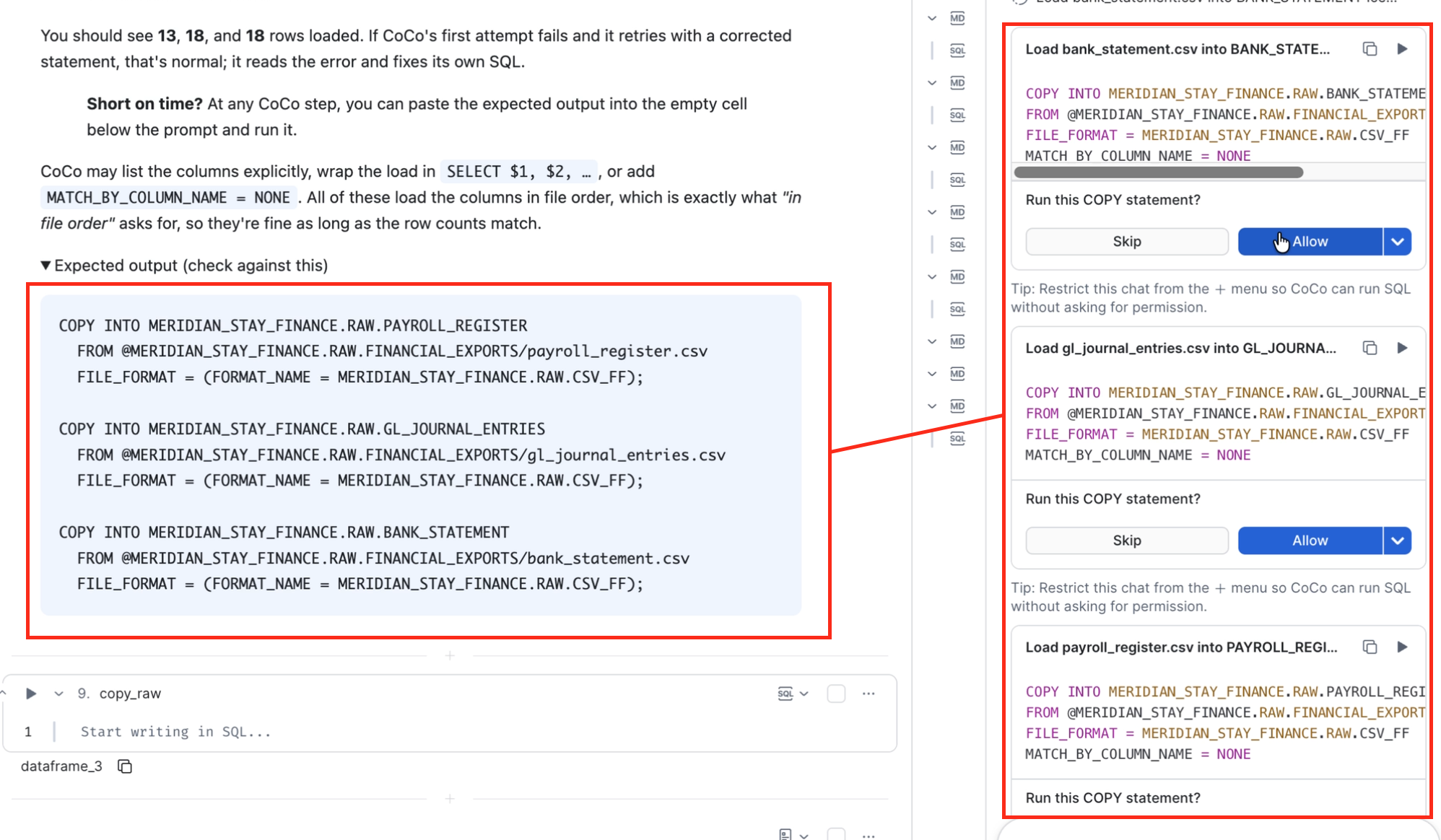
You should see 13, 18, and 18 rows loaded. CoCo may list the columns explicitly, wrap the load in SELECT $1, $2, …, or add MATCH_BY_COLUMN_NAME = NONE. All of these load the columns in file order, so they're fine as long as the row counts match.
Short on time? At any CoCo step, you can paste the expected output from the notebook into the empty cell below the prompt and run it.
See the mess
Run the peek_raw cell. It shows every row from all three exports side by side, so you can see the problems before you fix them:
- Bank: The cleanest of the three — ISO dates, negative numbers for debits — but the descriptions are free text (
"WIRE TFR - GRAND BALLROOM RENOVATION DEPOSIT"), and there's no category or department at all. - GL: Amounts are in parentheses for debits:
(23,900.00). Dates sayNov 01 2026. JE-2014 is a Reversed entry that cancels JE-2013, but both are still in the export. Categories are codes:PAY,UTIL,MAINT. - Payroll: James Rivera (EMP-102) appears twice on 11/15 with the same reference ID — a re-export duplicate. Amounts are text like
"$4,200.00". Departments sayF&BandMGMTinstead of full names.
You can't reconcile until all three systems speak the same language, and that's next.
Clean and Standardize With CoCo
Duration: 12
Now you'll turn three messy exports into one unified transaction ledger. This usually takes a finance analyst a full day of spreadsheet work. With CoCo, you describe the rules in plain language and review the SQL it writes.
The rules
- One vocabulary. Every department and expense category maps to a single standard label.
- Real dates and numbers. Three date formats become real
DATEvalues. Text amounts ("$4,200.00"), parenthesized debits ((23,900.00)), and negative numbers (-23900.00) all become cleanNUMBER(12,2)values. - No duplicates. A payroll row that was exported twice is kept once.
- No reversed entries. A reversed GL entry and the original entry it cancels net to zero, so neither belongs in the ledger.
STEP 2 — Let CoCo find the mess
Before building anything, ask CoCo to compare the three sources. It queries the raw tables itself and shows you how differently each system records the same things.
"Compare how the three tables in MERIDIAN_STAY_FINANCE.RAW record departments and expense categories. Map every label to one of these standard values:
- Department: Front Desk, Food & Beverage, Housekeeping, Management, Spa & Wellness, Operations, Facilities, Marketing, Admin, Finance
- Category: Payroll, Utilities, Maintenance, Marketing, Travel, Office Supplies, Insurance, Professional Services
Also point out how dates and amounts are formatted differently, and any rows that should be excluded (duplicates, reversed entries)."
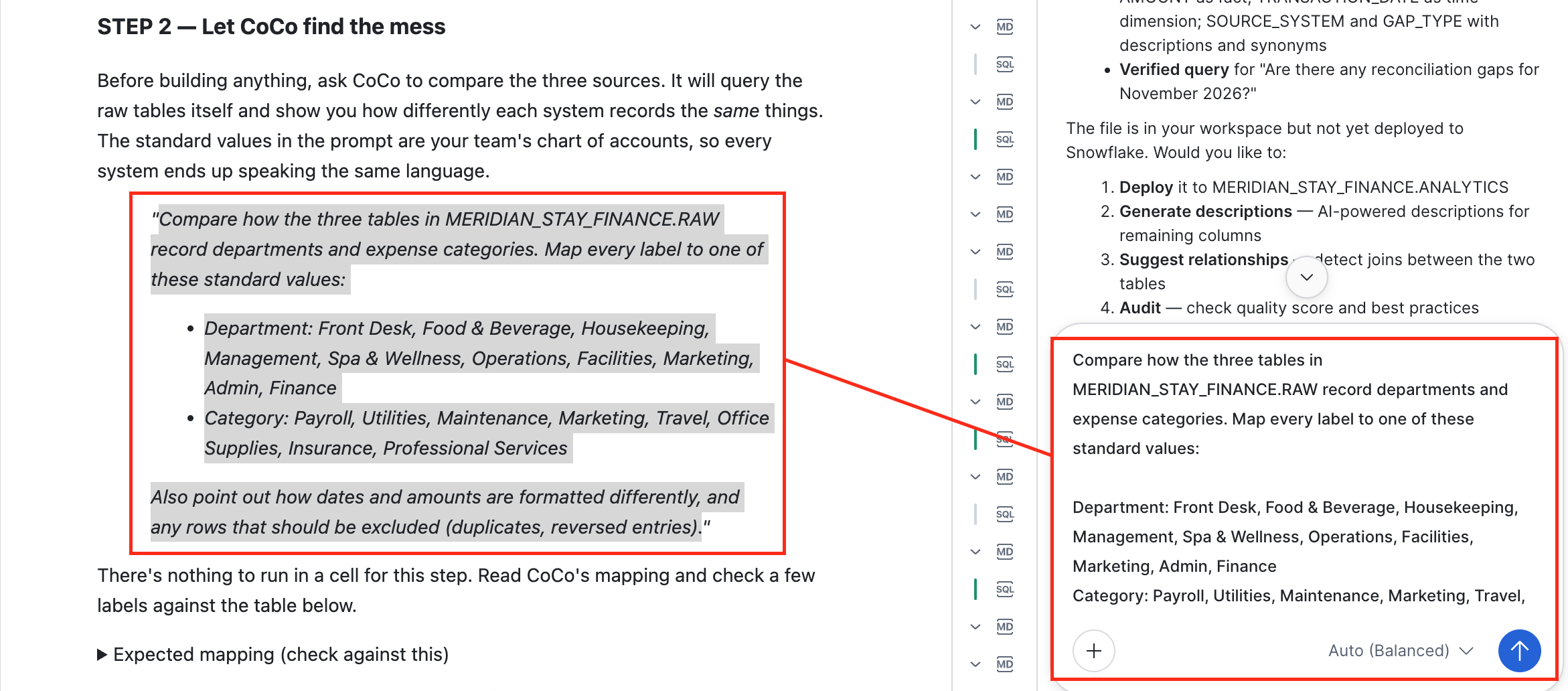
CoCo should map, for example, F&B to Food & Beverage, MGMT to Management, and GL codes PAY to Payroll, UTIL to Utilities, MAINT to Maintenance, MKTG to Marketing, TRAVEL to Travel, MISC to Office Supplies, INS to Insurance, and PROF to Professional Services. It should also call out the three date formats, the three amount formats, the duplicate payroll row (EMP-102 on 11/15), and the reversed GL entry (JE-2014) along with the original it cancels (JE-2013). The full expected mapping is in the notebook.
Why give CoCo the standard values? They're business decisions, like "
F&Bmeans Food & Beverage" and "MISCmeans Office Supplies." Listing them is how you make sure CoCo applies your chart of accounts instead of inventing its own.
STEP 3 — Build the unified TRANSACTIONS table
In the same CoCo conversation, send this prompt. CoCo reuses the mapping from STEP 2 and writes the SQL. Your SQL may not match the expected output in the notebook word for word, and that's fine; the check cell is what tells you it's right. Click Allow to run it.
"Using that mapping, create a Snowflake-managed Iceberg table MERIDIAN_STAY_FINANCE.CURATED.TRANSACTIONS (EXTERNAL_VOLUME = 'SNOWFLAKE_MANAGED') that combines the three raw tables into one transaction ledger:
- Columns: transaction_id, transaction_date, description, amount, department, category, source_system, reference_id
- Convert all dates to DATE type and all amounts to NUMBER(12,2) — make debits positive (absolute value)
- Map department names and category codes to the standard values
- Set source_system to 'Payroll Register', 'General Ledger', or 'Bank Statement'
- Exclude reversed GL entries (status = 'Reversed') and the original entries they cancel (a reversal's reference_id is the original's reference_id plus '-R')
- Remove the duplicate payroll row (same employee, same date, same reference_id — keep one)
- For the bank statement, set category to 'Uncategorized' and department to 'Unknown' since those fields aren't in the export"
Check the result
Run the check_transactions cell. You should see:
| transactions | source_systems | source_system_names | categories | departments |
|---|---|---|---|---|
| 46 | 3 | Bank Statement, General Ledger, Payroll Register | 9 | 11 |
The 9 categories are the 8 standard ones plus Uncategorized for the bank rows, and the 11 departments are the 10 standard ones plus Unknown for the bank rows. CoCo's STEP 2 summary may list fewer, because it only shows the labels it had to change.
If your numbers are different, ask CoCo to fix it rather than editing the SQL yourself:
- More than 46 transactions: "Which transactions appear more than once in MERIDIAN_STAY_FINANCE.CURATED.TRANSACTIONS? Fix the duplicate removal, and make sure both JE-2013 and its reversal JE-2014 are excluded."
- Fewer than 46: "Are all 12 unique payroll rows, 16 GL entries, and 18 bank rows included?"
- Different source system names: "Set source_system to exactly 'Payroll Register', 'General Ledger', or 'Bank Statement'." The dashboard and the gap check rely on these names.
Before and after
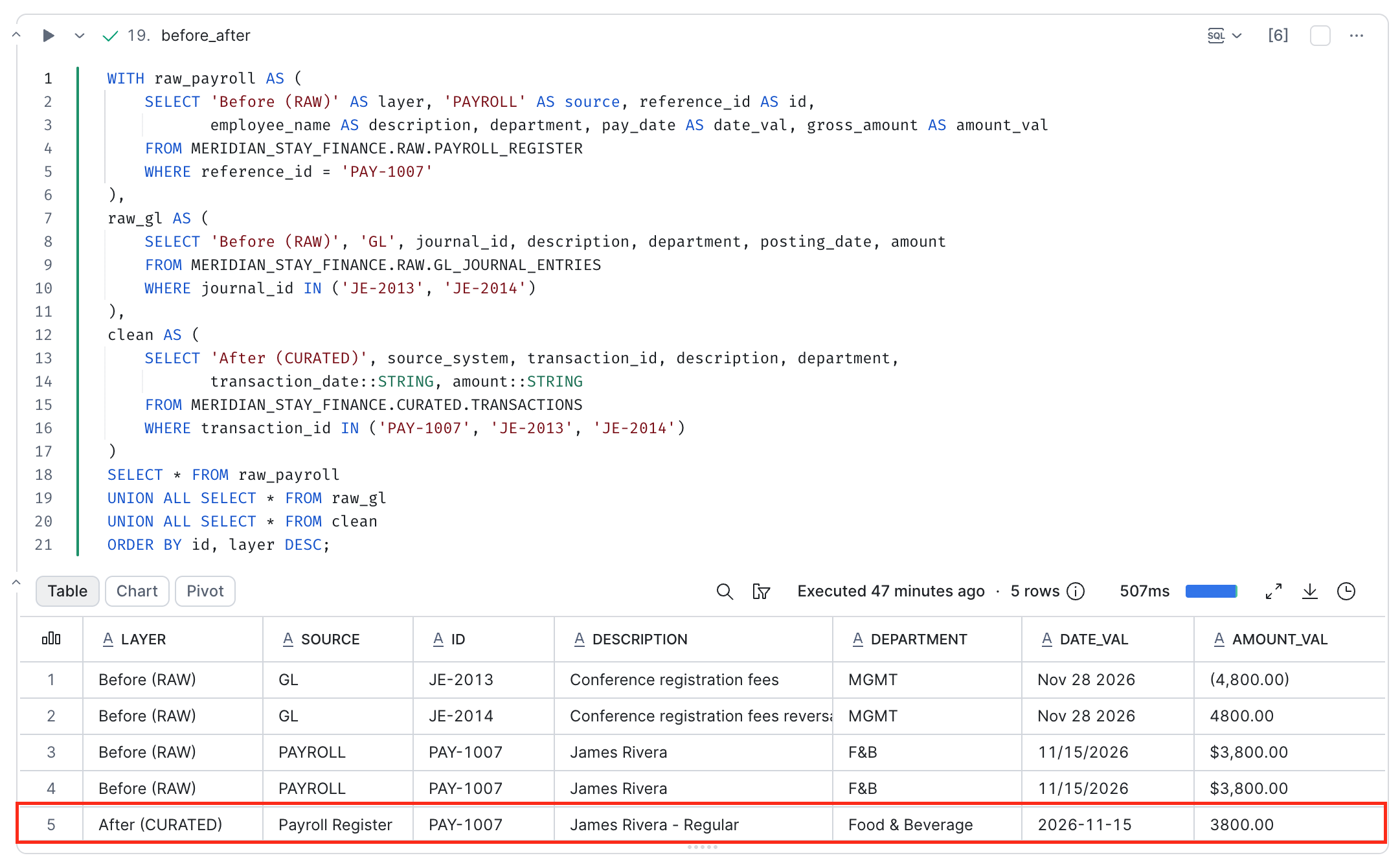
Run the before_after cell. It shows the rows that needed the most cleaning, as they arrived in RAW and as they are now in CURATED:
- The duplicate payroll row (James Rivera, EMP-102, 11/15, PAY-1007) collapses into one.
- The reversed GL entry (JE-2014) and the original it cancels (JE-2013, $4,800 conference registration fees) are both gone.
F&B→Food & Beverage,MGMT→Management,PAY→Payroll,MAINT→Maintenance.- Dates and amounts now use one standard format.
STEP 4 — Find every reconciliation gap
A reconciliation gap is a transaction that appears in one system but has no matching entry in another. That's exactly what the auditors found last quarter with the $47,000 wire transfer.
The matching logic: a GL entry and a bank transaction match if they have the same absolute amount and their dates are within 3 days of each other.
One direction only: This lab checks every bank payment against the GL. A full reconciliation also runs the other way, looking for GL entries with no bank payment yet, such as accruals or checks that haven't cleared.
Send this prompt to CoCo. Compare the output against the expected output in the notebook, then click Allow to run it.
"Create a Snowflake-managed Iceberg table MERIDIAN_STAY_FINANCE.CURATED.RECONCILIATION_GAPS (EXTERNAL_VOLUME = 'SNOWFLAKE_MANAGED') that identifies every bank transaction in CURATED.TRANSACTIONS with source_system = 'Bank Statement' that has no matching GL entry (source_system = 'General Ledger') with the same amount and a posting date within 3 days. Include:
- Columns: gap_id, transaction_id, transaction_date, description, amount, source_system, gap_type, notes
- Set gap_type to 'Bank Only - No GL Match'
- Set notes to 'No corresponding general ledger entry found within 3 days'"
Check the result
Run the check_gaps cell. You should see 2 gaps totaling $47,200:
| Gap | Transaction | Date | Amount | Description |
|---|---|---|---|---|
| 1 | BK-3006 | 2026-11-12 | $47,000.00 | WIRE TFR - GRAND BALLROOM RENOVATION DEPOSIT |
| 2 | BK-3018 | 2026-11-30 | $200.00 | MONTHLY ACCOUNT SERVICE FEE |
The first gap is the one leadership was afraid of: a $47,000 renovation deposit wire, paid on November 12 and never journaled. It's the same kind of miss the auditors flagged last quarter, and it happened again. Someone authorized the payment, but nobody created the GL journal entry. But look at the second one: BK-3018, $200, MONTHLY ACCOUNT SERVICE FEE. This wasn't in anyone's close checklist. You just discovered it because you matched every bank transaction against the GL instead of spot-checking the big ones.
This is the kind of gap that a manual close misses: too small to flag, too regular to question, and exactly the sort of thing that turns into an audit finding when someone finally looks.
Notice what's not in the ledger: the $4,800 conference registration fees (JE-2013) and their reversal (JE-2014). The registration was cancelled and never paid, so neither the charge nor its reversal belongs in November's books. Leave JE-2013 in and Travel spending is overstated by $4,800.
What about payroll? Payroll is checked a different way: the paychecks in the payroll register should add up to each payroll batch in the GL. You'll add that tie-out to the dashboard with CoCo in STEP 5.
See It on a Live Dashboard
Duration: 9
A table of gaps is useful. A dashboard the whole team can look at during the close meeting is better. The companion repo includes a pre-built Streamlit app that reads from both CURATED.TRANSACTIONS and CURATED.RECONCILIATION_GAPS and shows the reconciliation status for November 2026.
Run the dashboard
- In the Workspace file explorer, open
reconciliation_dashboard/streamlit_app.py.
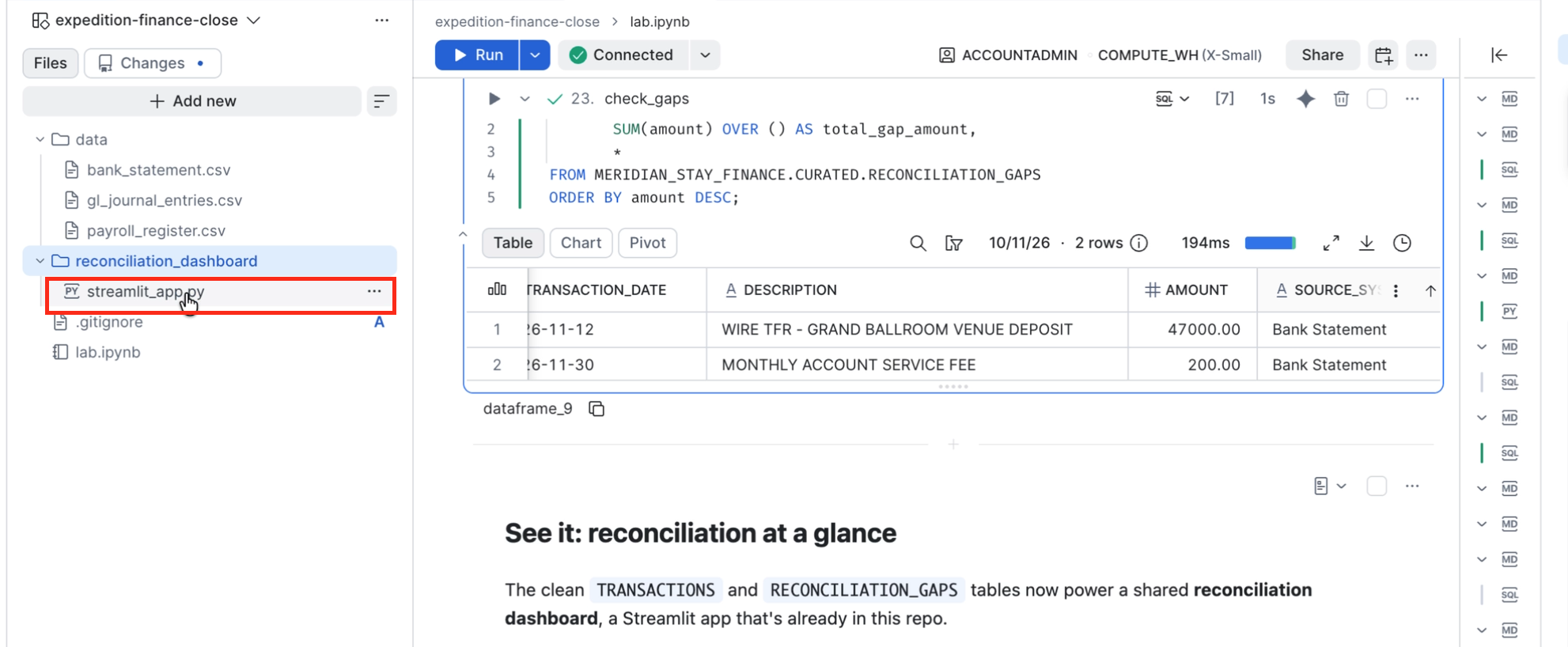
- If a banner says "This file looks like a Streamlit app, but is missing configuration", click Convert to streamlit app. The Workspace adds the configuration files the app needs.
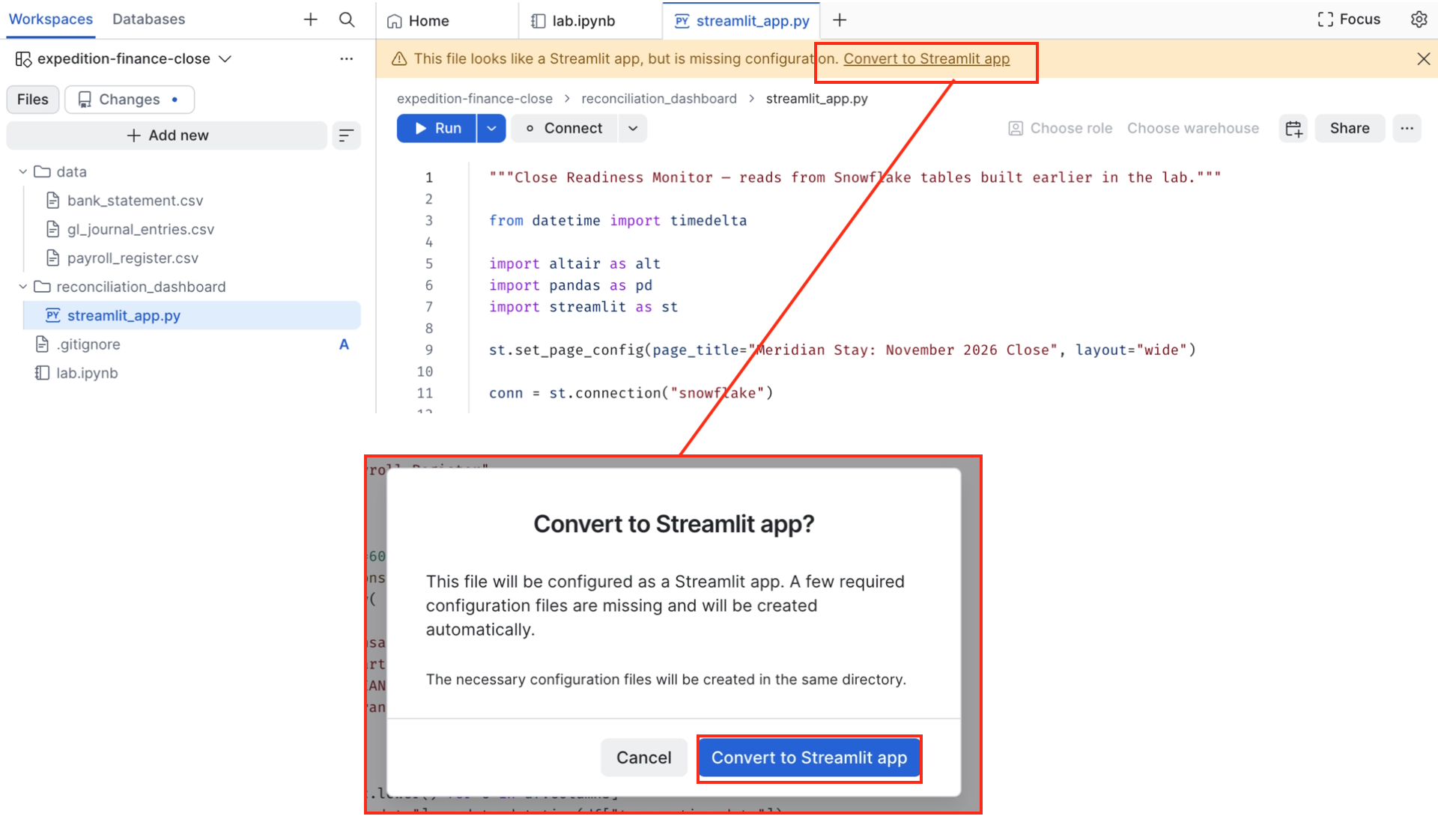
- Click Run. The app runs privately for you on a container runtime.
How to read it
The dashboard tells one story from top to bottom:
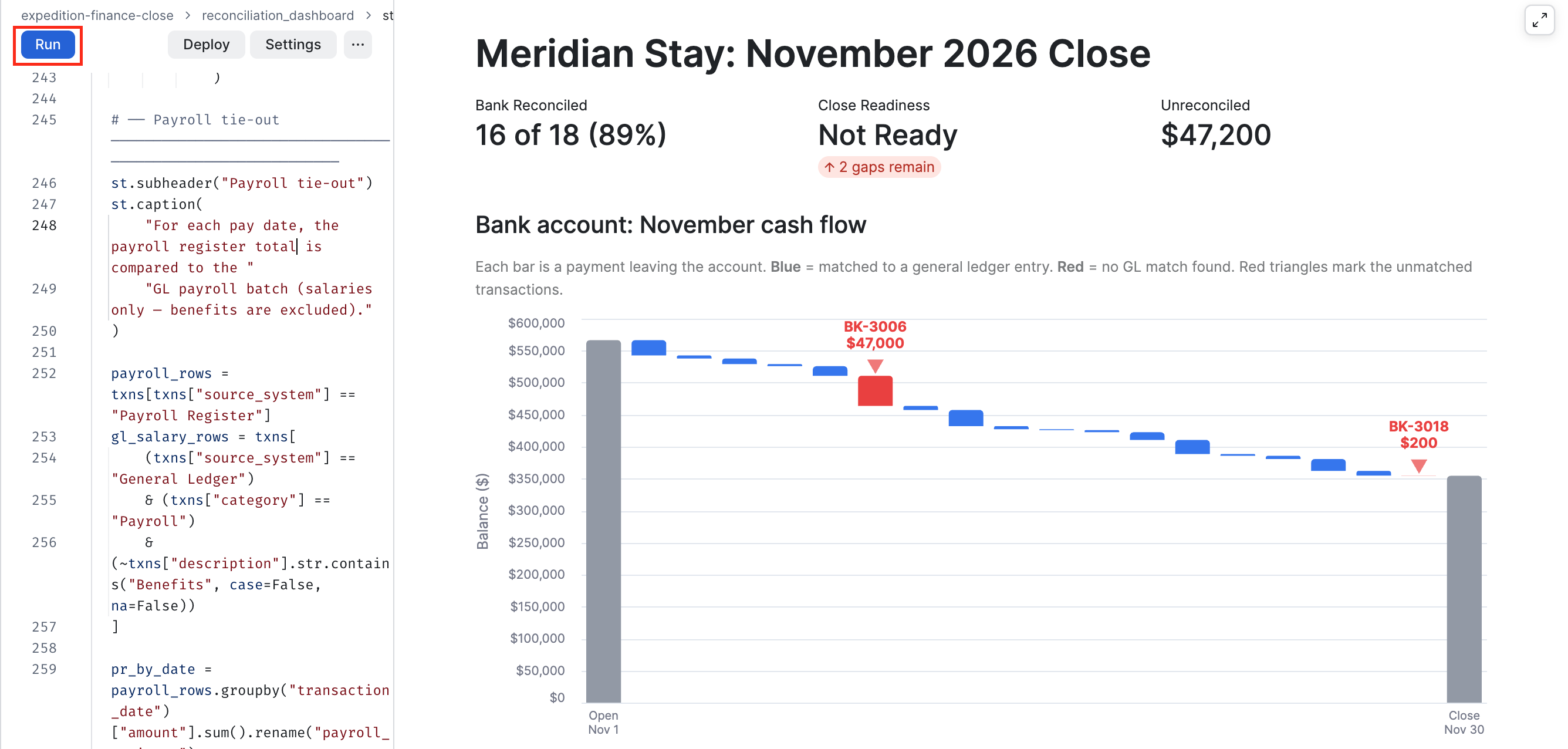
- Summary metrics at the top: how many of the 18 bank transactions matched the GL (16 of 18, 89%), whether the month is ready to close (Not Ready, 2 gaps remain), and the total unreconciled amount ($47,200).
- A waterfall chart that traces November's cash flow from opening to closing balance. Each bar is a payment leaving the account. Blue bars matched a GL entry; red bars did not. Red triangles call out each gap's transaction ID and amount (BK-3006 for $47,000 and BK-3018 for $200).
- Investigate the gaps — one card per gap. Each card states what the bank paid, shows the GL entries around that date, and explains why none of them match. The root cause is right there: the $47,000 renovation deposit was authorized but never journaled; the $200 bank fee is a recurring gap that nobody journals.
- Next steps to close — a numbered list of the journal entries that need to be posted. Once every gap has one, reconciliation reaches 100% and the month is ready to close.
- A collapsed Full ledger expander at the bottom with all 46 transactions and filters by source system and category.
STEP 5 — Tie out payroll with CoCo
The dashboard checks the bank against the GL. Payroll needs a check of its own: the payroll register lists each paycheck, while the GL records each pay run as one batch. Instead of writing that check yourself, describe it to CoCo.
With streamlit_app.py open, send this prompt to CoCo:
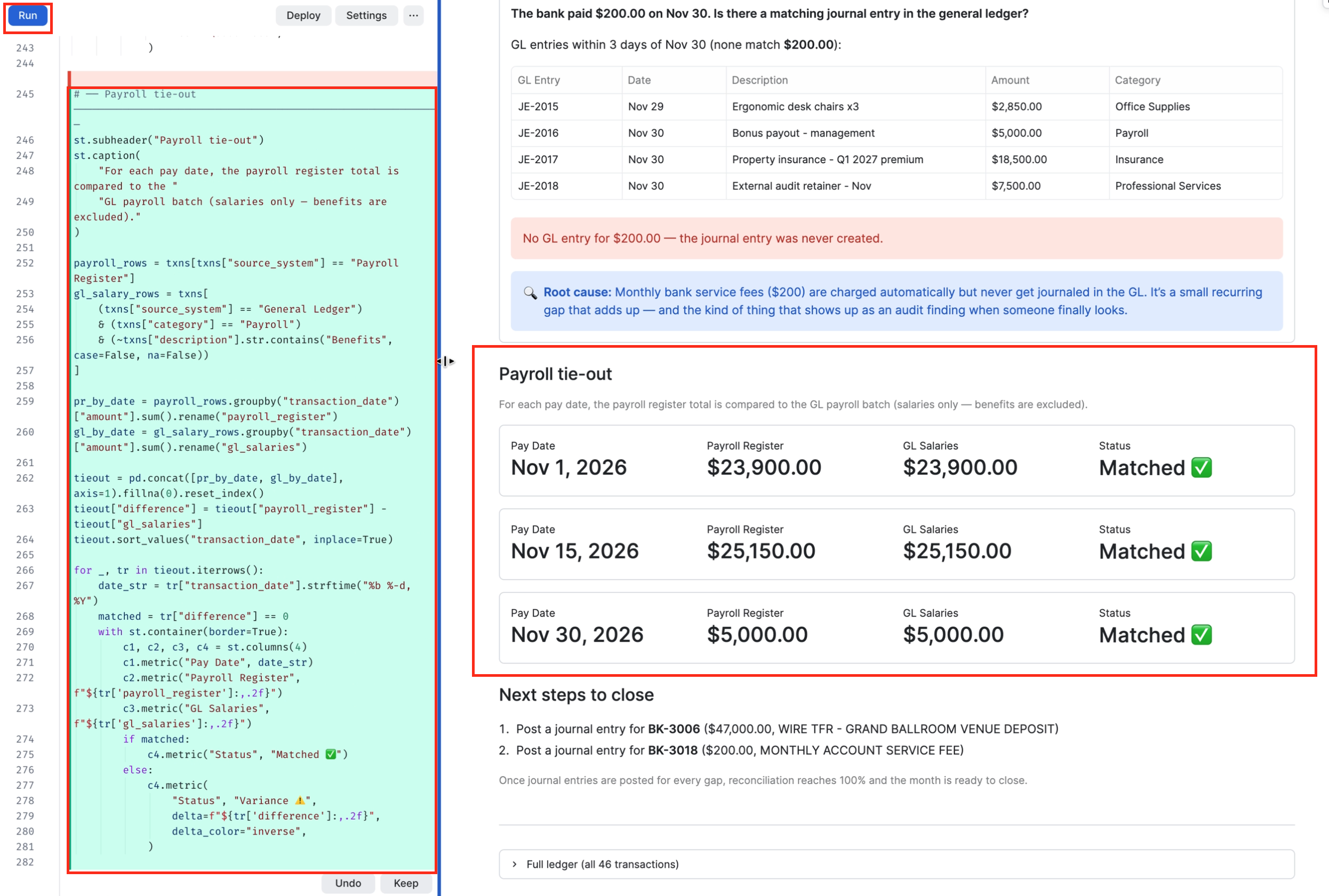
"Add a payroll tie-out below the gap cards. For each pay date, compare the payroll register total to the GL payroll batch (salaries only, not benefits), and show whether they match."
Review the changes CoCo proposes before you accept them. It should add a new section, not rewrite the code that's already there. Accept the changes and click Run again. You should see a new section like this, with a message that payroll ties out:
| Pay date | Payroll register | GL payroll batch | Difference |
|---|---|---|---|
| Nov 1 | $23,900.00 | $23,900.00 | $0.00 |
| Nov 15 | $25,150.00 | $25,150.00 | $0.00 |
| Nov 30 | $5,000.00 | $5,000.00 | $0.00 |
Why "salaries only"? The GL's Payroll category also includes benefits allocations ($4,780 on Nov 1 and $5,030 on Nov 15). They aren't in the payroll register, so counting them would make every pay date look out of balance.
The tie-out only works because STEP 3 removed the duplicate payroll row. Left in, James Rivera's second $3,800 paycheck would push the Nov 15 register total to $28,950, $3,800 more than the GL batch.
If the GL column comes out empty, tell CoCo: "The GL payroll batches have a reference ID starting with PAY-BATCH."
Want to share it? Click Deploy in the Workspace to publish the app to
MERIDIAN_STAY_FINANCE.ANALYTICSso teammates with access can open it from Projects >> Streamlit. This step is optional for the lab.
Ask It With CoWork
Duration: 18
The data is clean and the dashboard is live. Now make it available to everyone, in plain language. You'll create a Semantic View with CoCo, a Cortex Agent backed by it, and ask your questions in Snowflake CoWork. This happens in the Snowsight UI; no SQL is required.
STEP 1 — Create the Semantic View with CoCo
A Semantic View describes your data in business terms: which columns are dimensions (things you filter and group by, like category or department), which are facts (raw values, like amount), and which words people use for them ("expense type" means category, "cost center" means department). It's the bridge that lets Cortex Analyst turn a question like "What's out of balance this month?" into correct SQL.
-
In Snowsight, navigate to AI & ML -> Analyst.
-
Click Create in Workspaces in the top right.
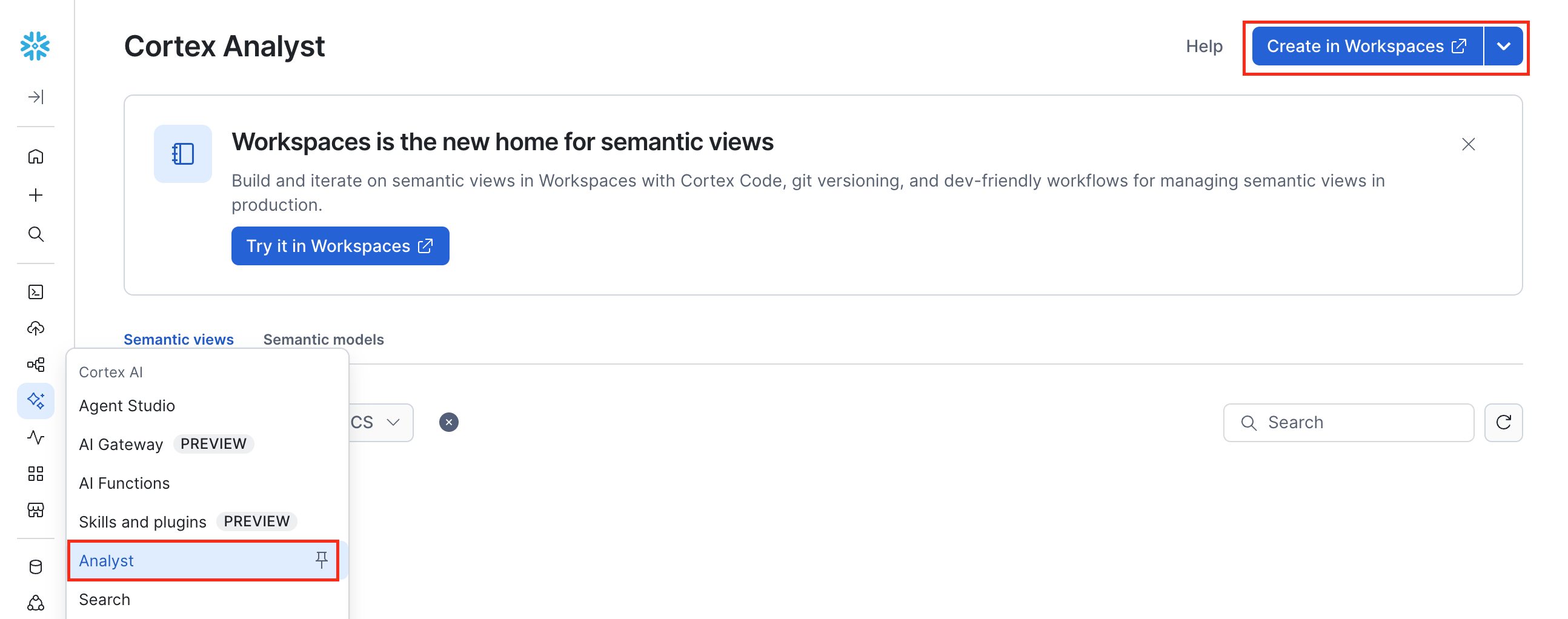
- Click Create with CoCo. Snowsight opens a new
.sv.yamlfile, and the CoCo panel asks for a name, a location, and the source tables.
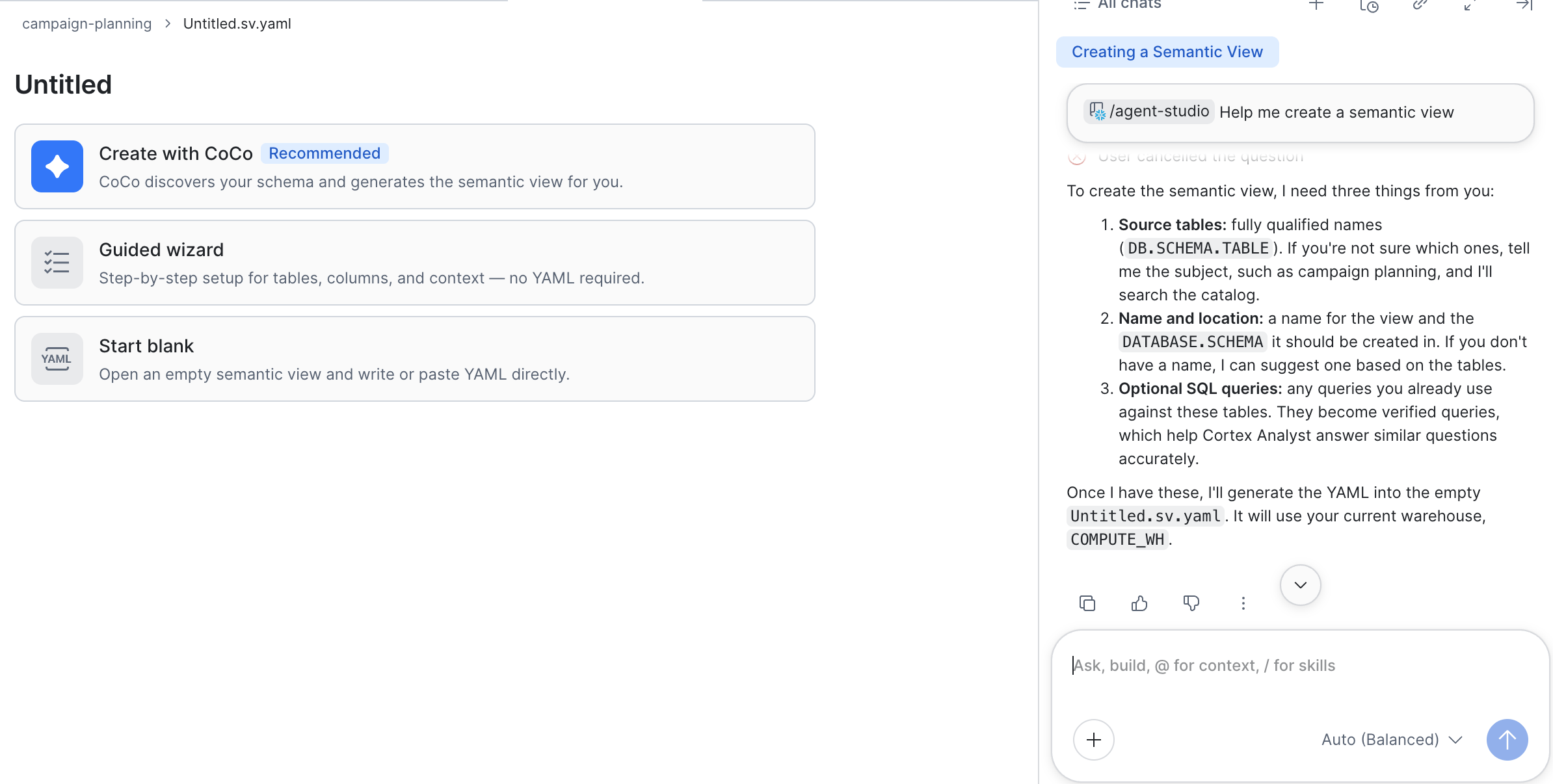
- Send CoCo this prompt:
"Create the semantic view with these details:
- Name: CLOSE_RECONCILIATION_SV
- Location: MERIDIAN_STAY_FINANCE.ANALYTICS
- Source tables: MERIDIAN_STAY_FINANCE.CURATED.TRANSACTIONS and MERIDIAN_STAY_FINANCE.CURATED.RECONCILIATION_GAPS
- Use transaction_id as the unique key for TRANSACTIONS and gap_id as the unique key for RECONCILIATION_GAPS, and add clear descriptions and synonyms for category, department, and source_system
- Give SOURCE_SYSTEM its own description on each table. On TRANSACTIONS, use: 'System the transaction came from. The payroll register, general ledger, and bank statement record the same money, so spending totals should use only General Ledger rows.'
- Make AMOUNT a fact on both TRANSACTIONS and RECONCILIATION_GAPS
- Make TRANSACTION_DATE a time dimension on both TRANSACTIONS and RECONCILIATION_GAPS
- Add this verified query for "Are there any reconciliation gaps for November 2026?": SELECT transaction_id, transaction_date, description, amount, gap_type, notes FROM MERIDIAN_STAY_FINANCE.CURATED.RECONCILIATION_GAPS ORDER BY amount DESC"
-
Allow CoCo to create the Semantic View draft in the Workspace. This creates an editable draft; it does not publish the view yet.
-
Review the draft in the Semantic View editor. Confirm it contains:
TRANSACTIONSTRANSACTION_IDas the unique keyAMOUNTunder FactsTRANSACTION_DATEunder Time Dimensions- Synonyms on
CATEGORY(for example, expense type) andDEPARTMENT(for example, cost center) - A
SOURCE_SYSTEMdescription that says spending totals use only General Ledger rows
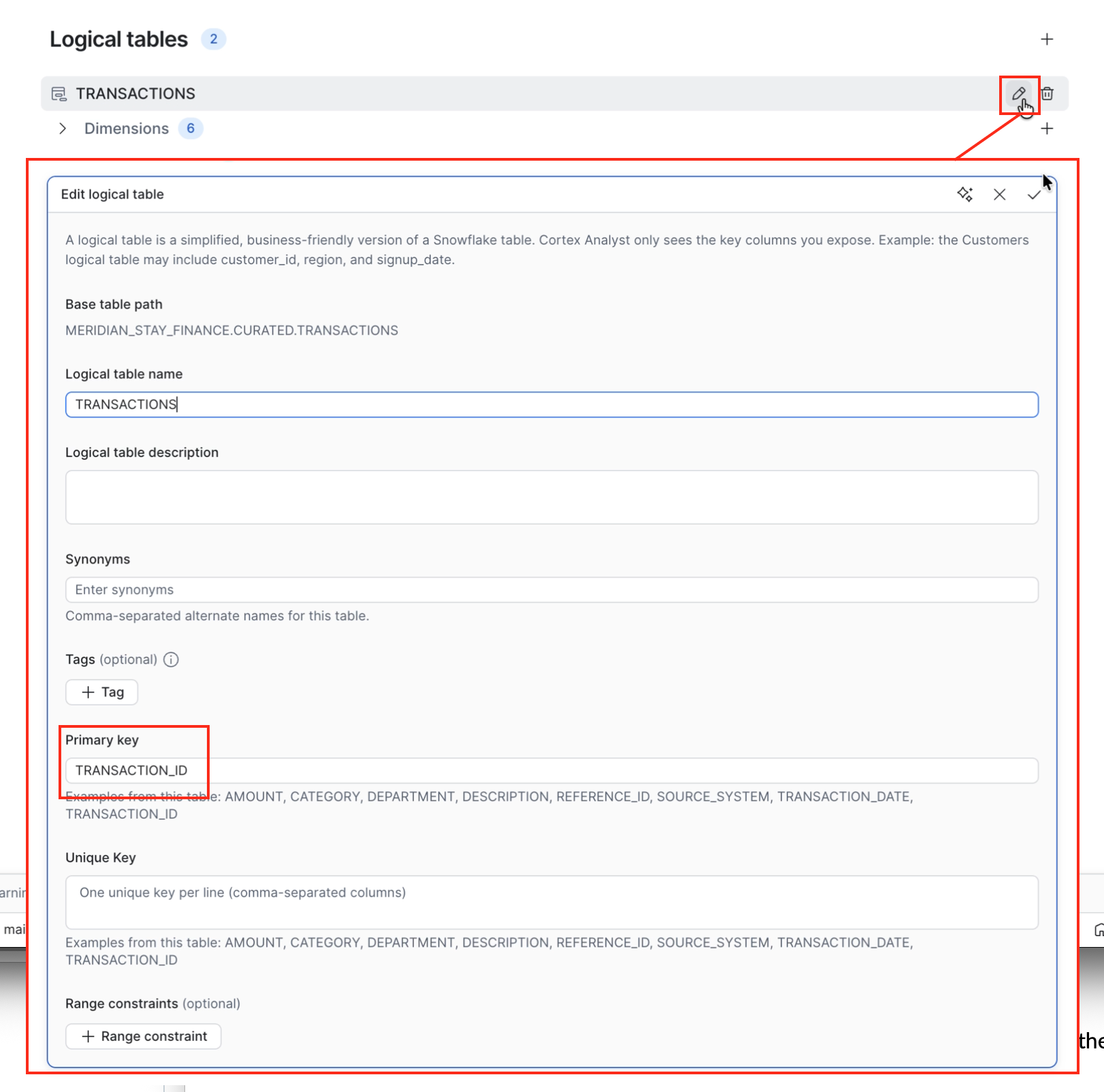
RECONCILIATION_GAPS
GAP_IDas the unique keyAMOUNTunder FactsTRANSACTION_DATEunder Time Dimensions
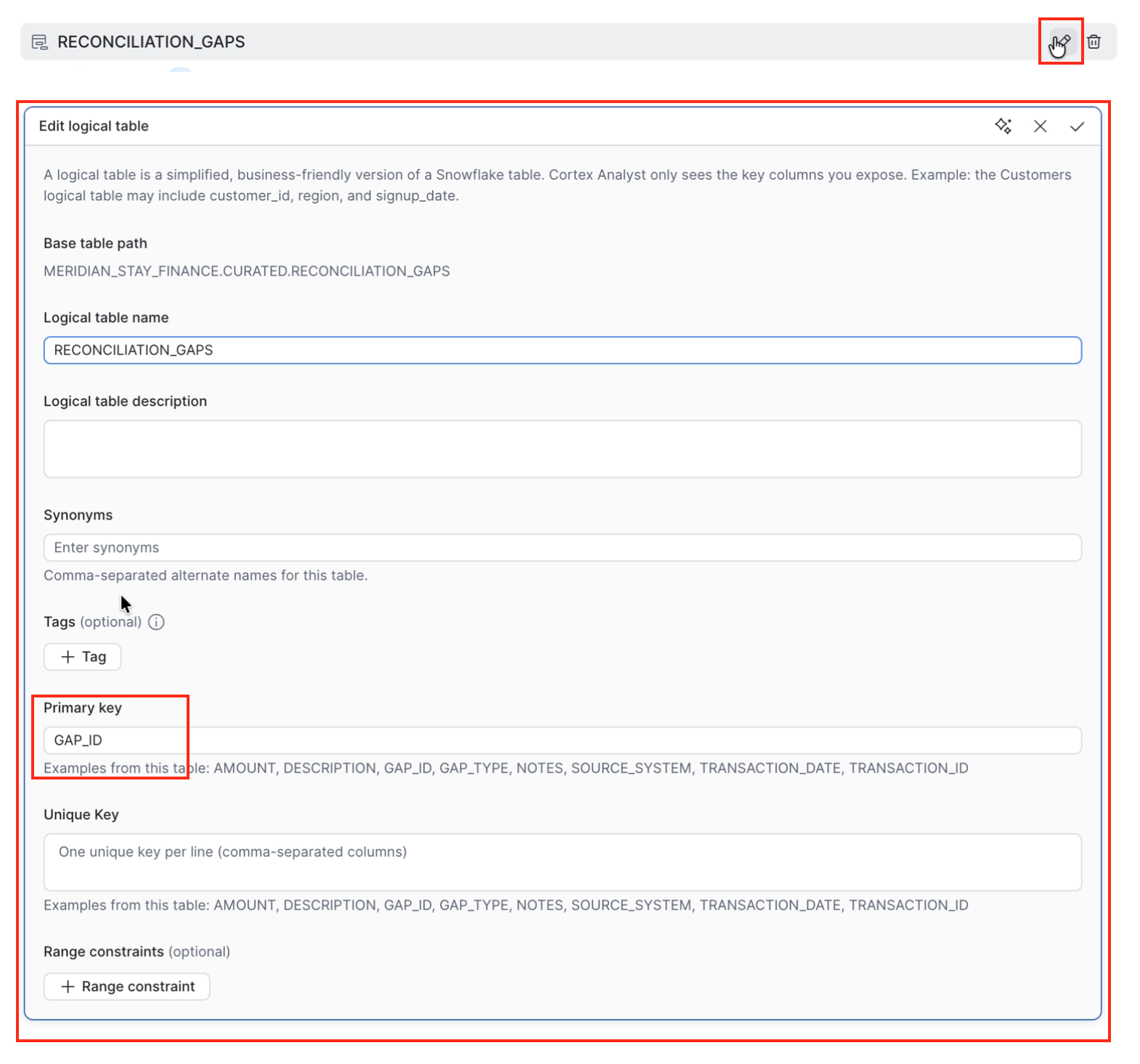
Verified queries
- One verified query: "Are there any reconciliation gaps for November 2026?"
Fine to keep: extra synonyms (for example, on GAP_TYPE or SOURCE_SYSTEM), extra descriptions, and metrics such as a total amount. Your exact synonym wording may differ.
Fix before publishing: anything on the list above that's missing or in the wrong place, such as AMOUNT under Dimensions or a SOURCE_SYSTEM description without the General Ledger note. Ask CoCo to fix it, for example "Make AMOUNT a fact on both tables."
- Click Publish in the top right of the editor. In the dialog, confirm Name
CLOSE_RECONCILIATION_SV, DatabaseMERIDIAN_STAY_FINANCE, and SchemaANALYTICS, then click Publish.
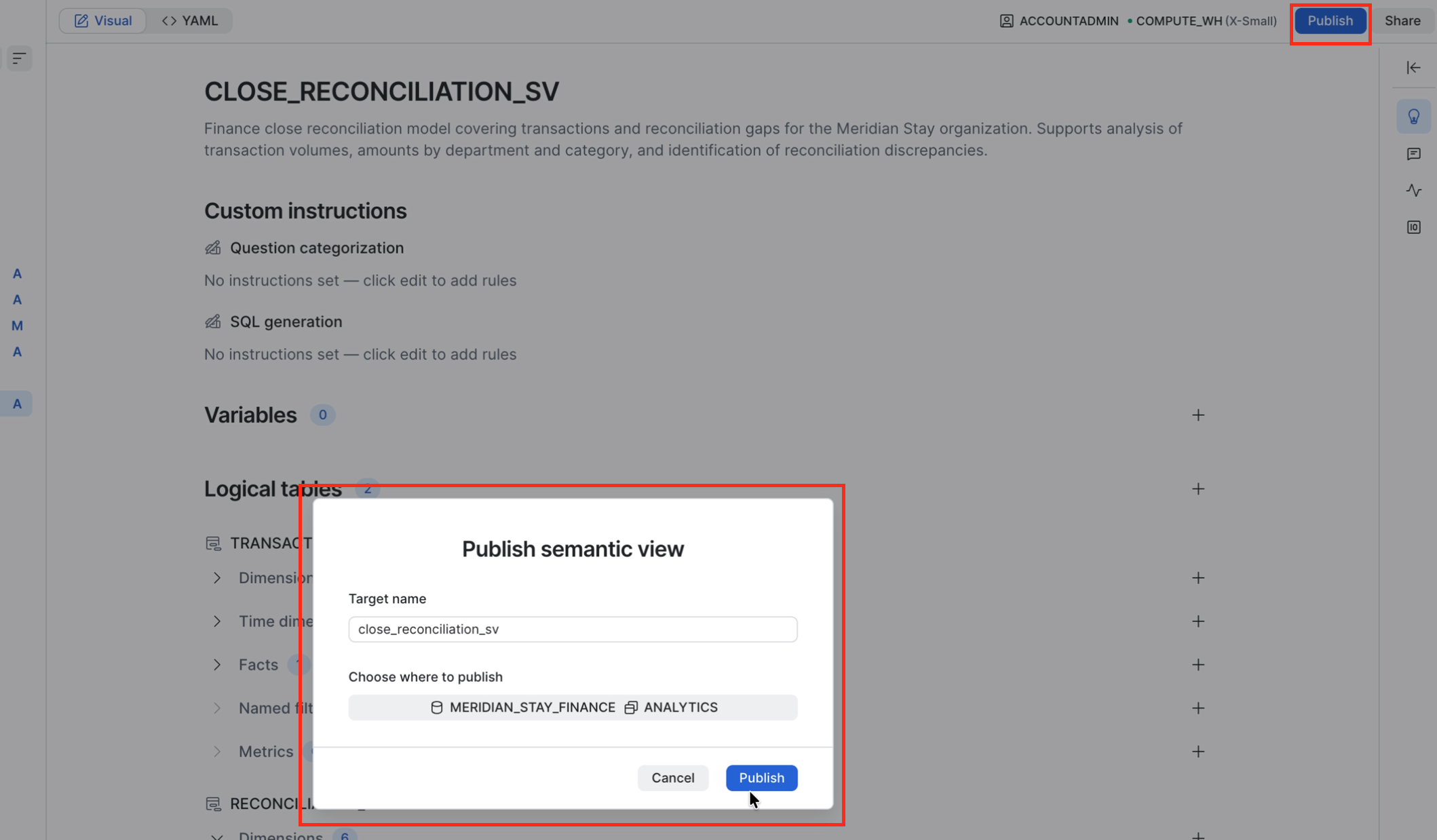
Prefer to click through it yourself? Choose Guided wizard in step 3 instead, select both
CURATEDtables and all columns, name itCLOSE_RECONCILIATION_SVinMERIDIAN_STAY_FINANCE.ANALYTICS, and click Publish.
STEP 2 — Create the Cortex Agent
Cortex Analyst is Snowflake's text-to-SQL engine; it reads the Semantic View to understand your data. The Cortex Agent receives questions, routes them to Cortex Analyst, and writes the answer.
-
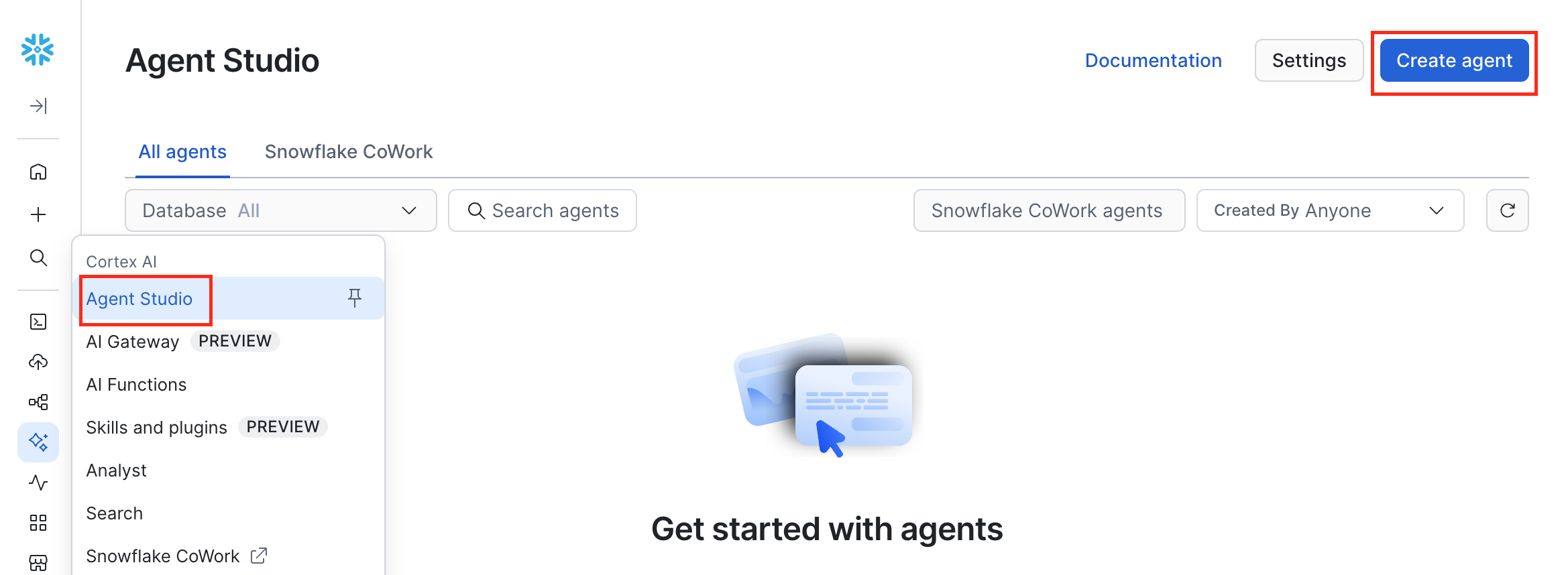
In Snowsight, navigate to AI & ML -> Agent Studio.
-
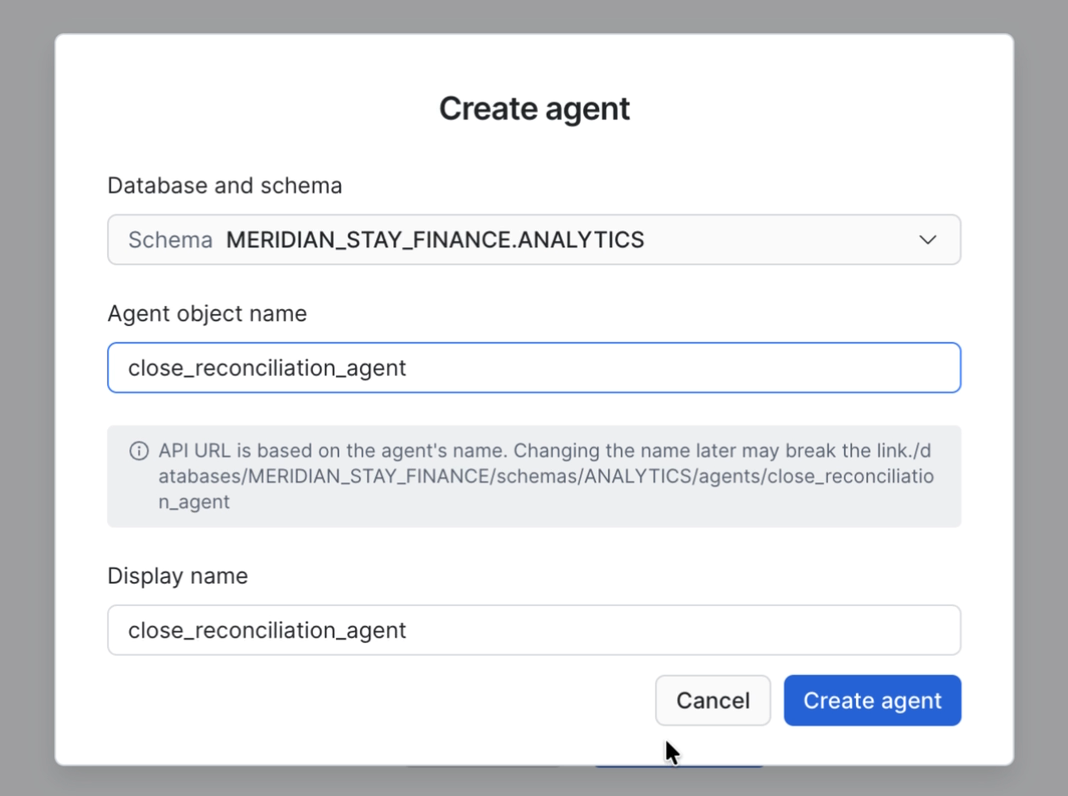
Click Create agent in the top right.
-
Configure:
- Database and schema:
MERIDIAN_STAY_FINANCE.ANALYTICS - Agent object name:
CLOSE_RECONCILIATION_AGENT
- Database and schema:
-
Click Create.
-
Click Configuration near the top of the agent editor.
-
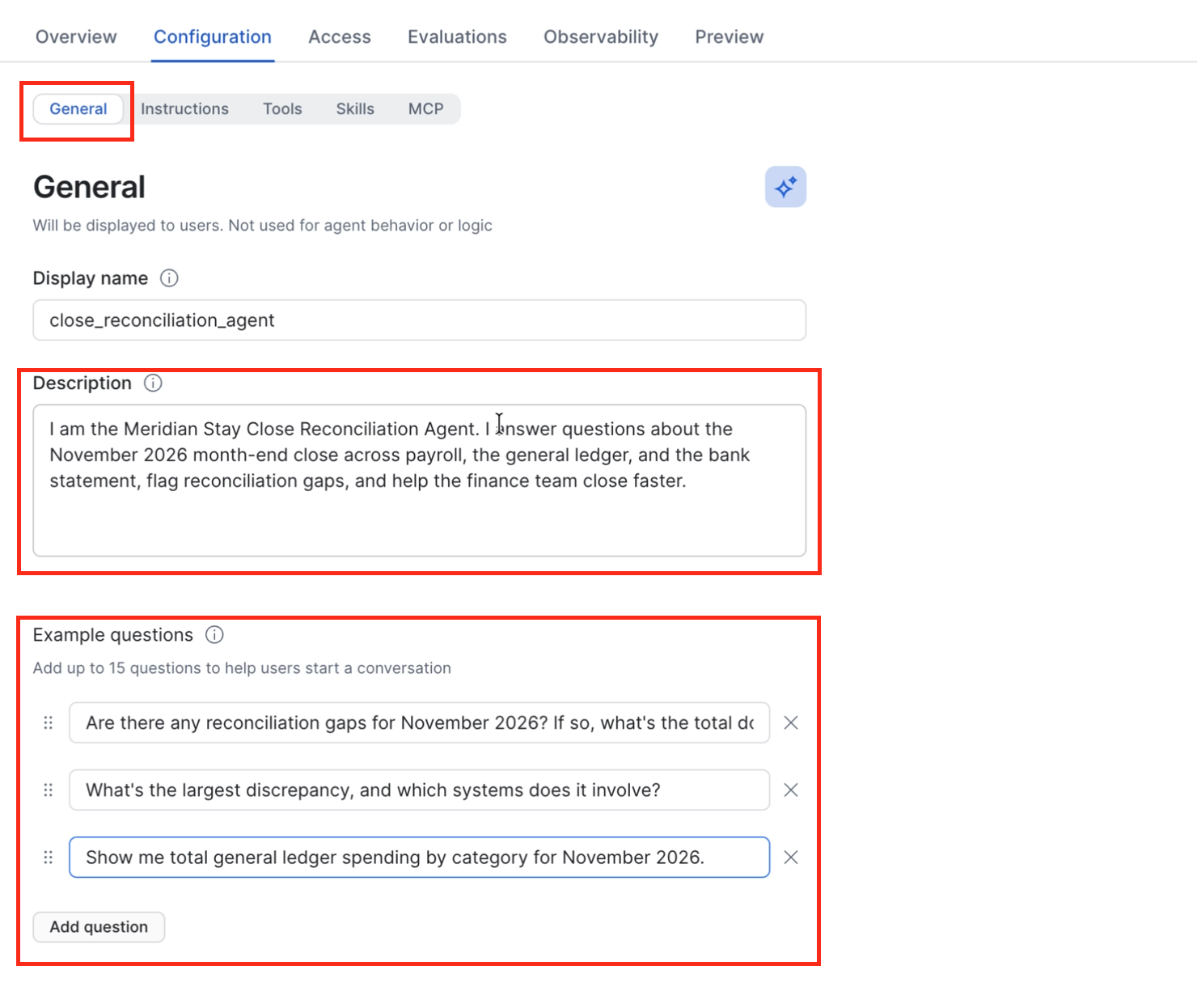
Under the General tab, set:
- Description:
I am the Meridian Stay Close Reconciliation Agent. I answer questions about the November 2026 month-end close across payroll, the general ledger, and the bank statement, flag reconciliation gaps, and help the finance team close faster. - Example questions:
Are there any reconciliation gaps for November 2026? If so, what's the total dollar amount?What's the largest discrepancy, and which systems does it involve?Show me total general ledger spending by category for November 2026.
- Description:
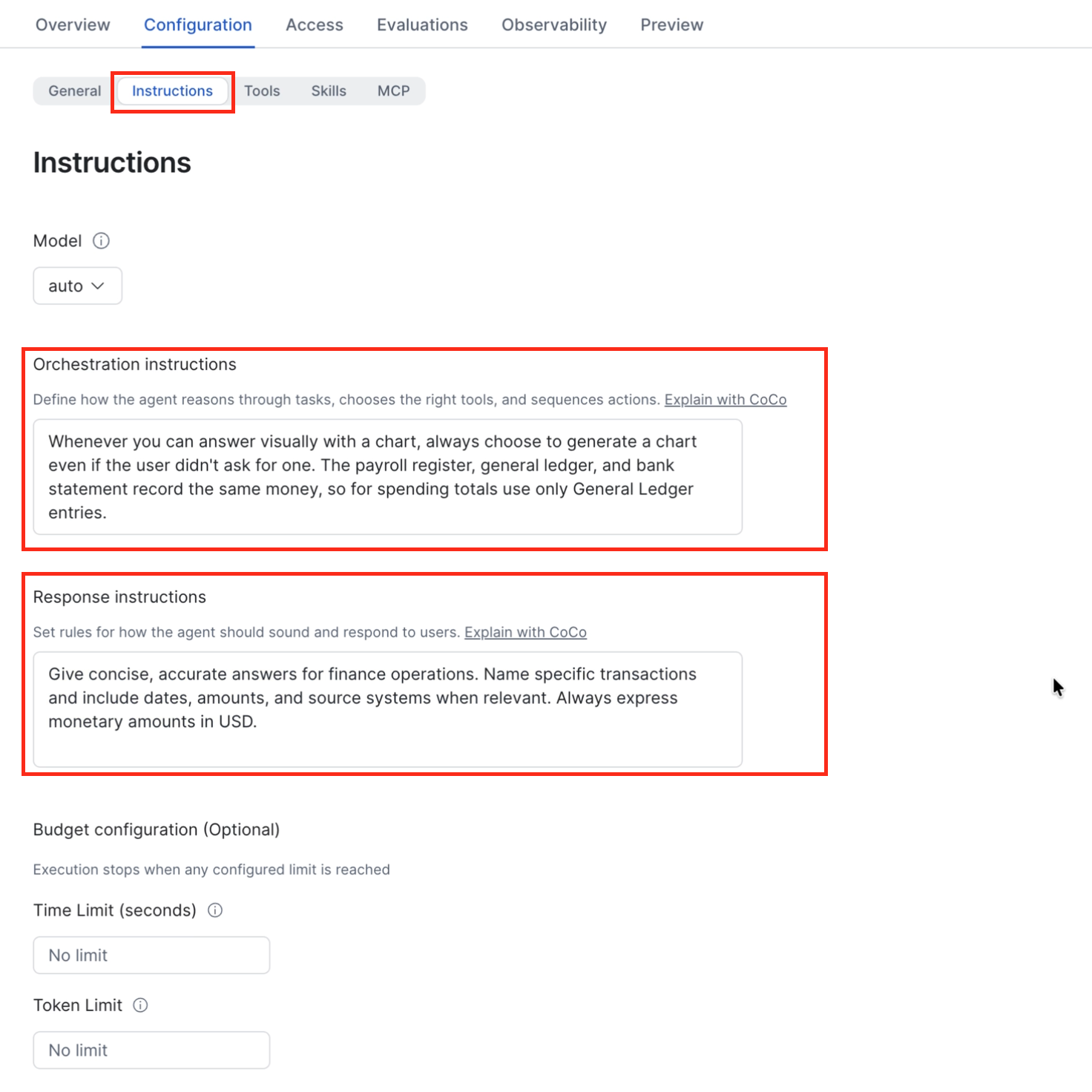
- Under the Instructions tab, set:
- Orchestration instructions:
Whenever you can answer visually with a chart, always choose to generate a chart even if the user didn't ask for one. The payroll register, general ledger, and bank statement record the same money, so for spending totals use only General Ledger entries. - Response instructions:
Give concise, accurate answers for finance operations. Name specific transactions and include dates, amounts, and source systems when relevant. Always express monetary amounts in USD.
- Orchestration instructions:
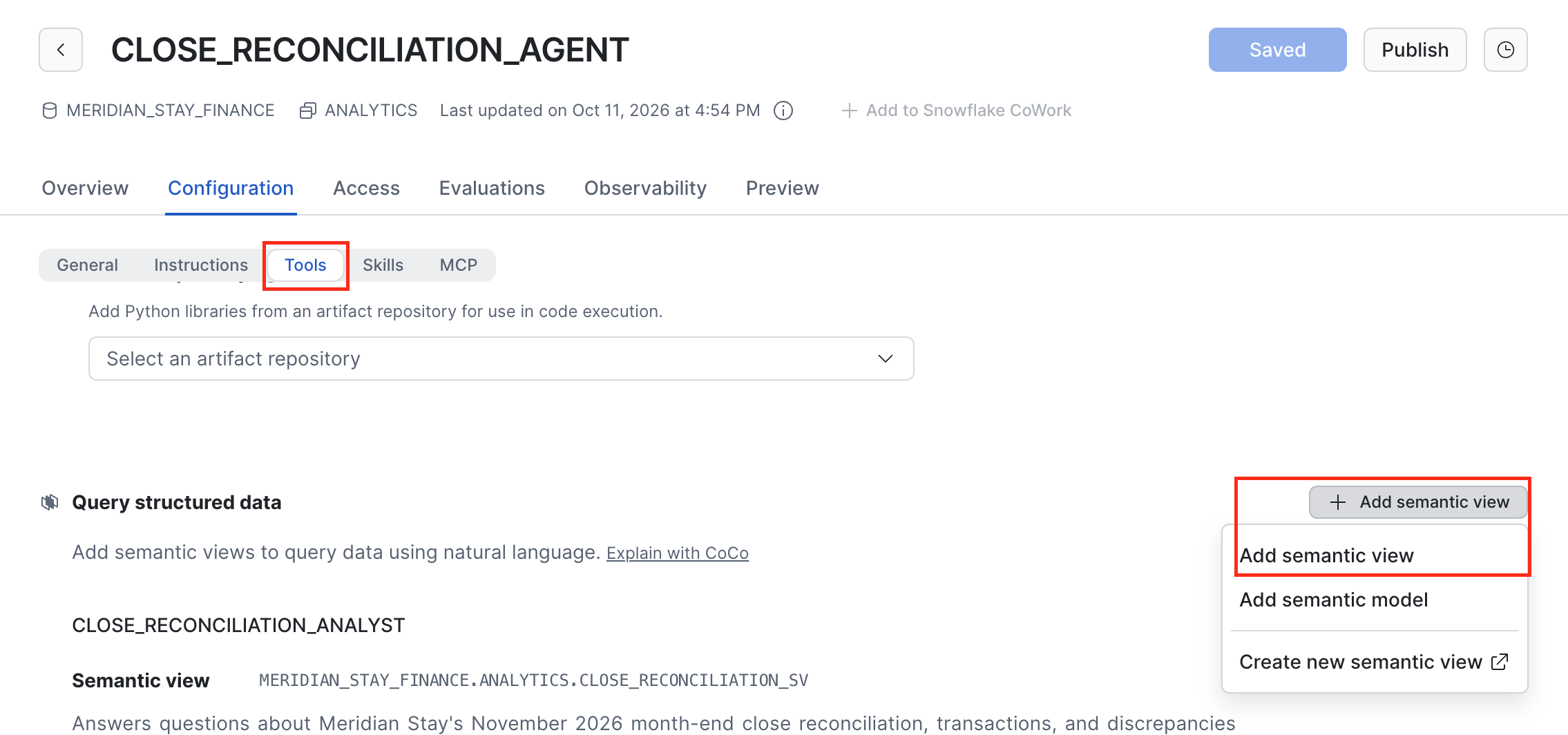
- Click Tools -> Add semantic view.
-
Configure the tool:
- Service database & schema:
MERIDIAN_STAY_FINANCE.ANALYTICS - Select semantic view:
CLOSE_RECONCILIATION_SV - Name:
CLOSE_RECONCILIATION_ANALYST - Description:
Answers questions about Meridian Stay's November 2026 month-end close reconciliation, transactions, and discrepancies
- Service database & schema:
-
Click Add, then click Save in the top right.
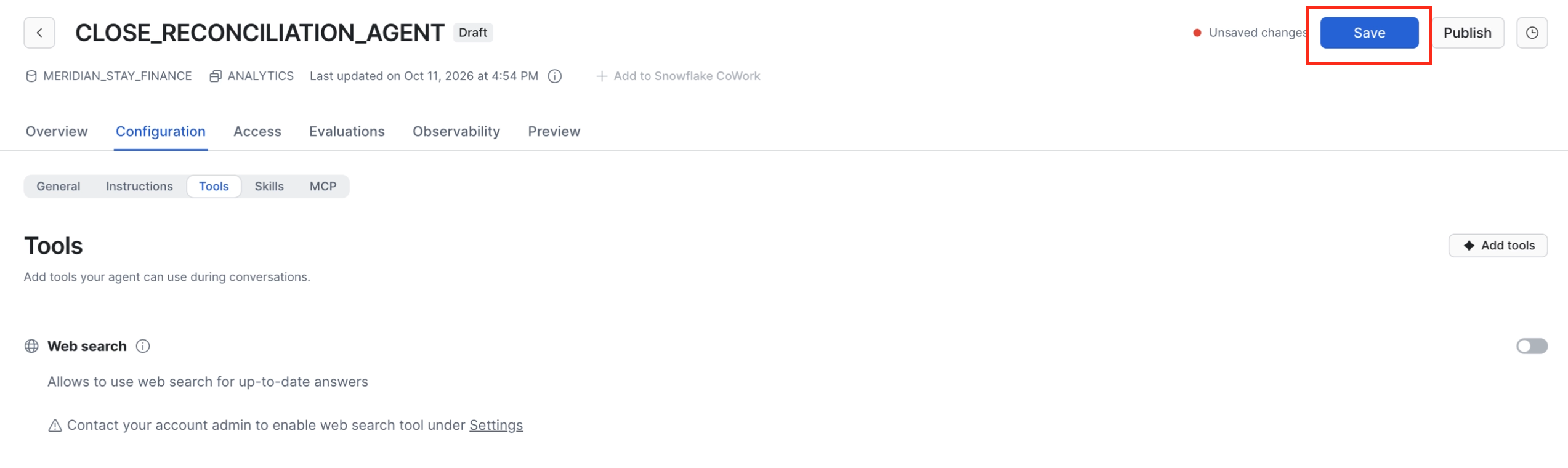
STEP 3 — Ask the agent the key question
Since you created the agent through the UI, it's already available in Snowflake CoWork.
- In Snowsight, navigate to AI & ML -> Snowflake CoWork.
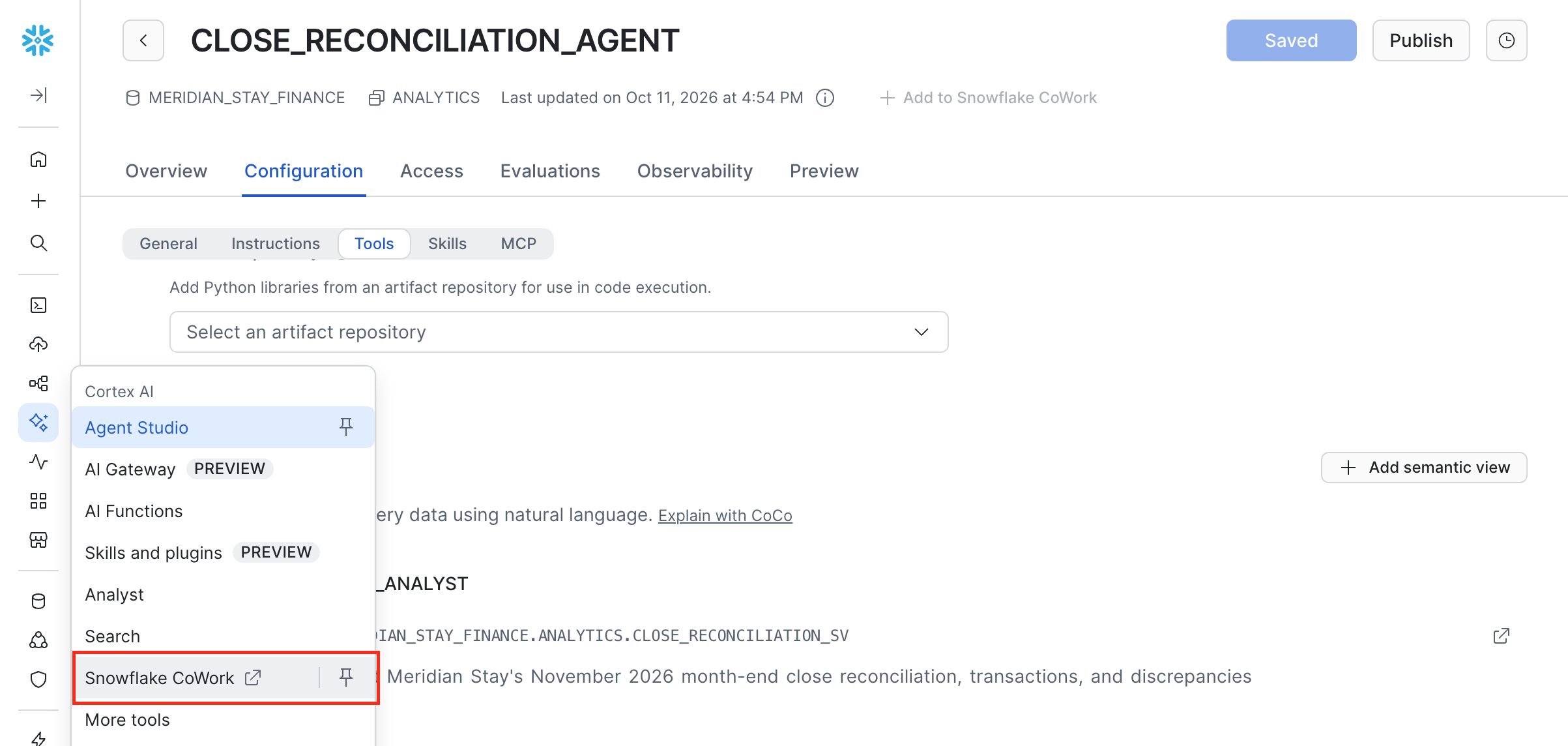
- Select CLOSE_RECONCILIATION_AGENT from the agent list.
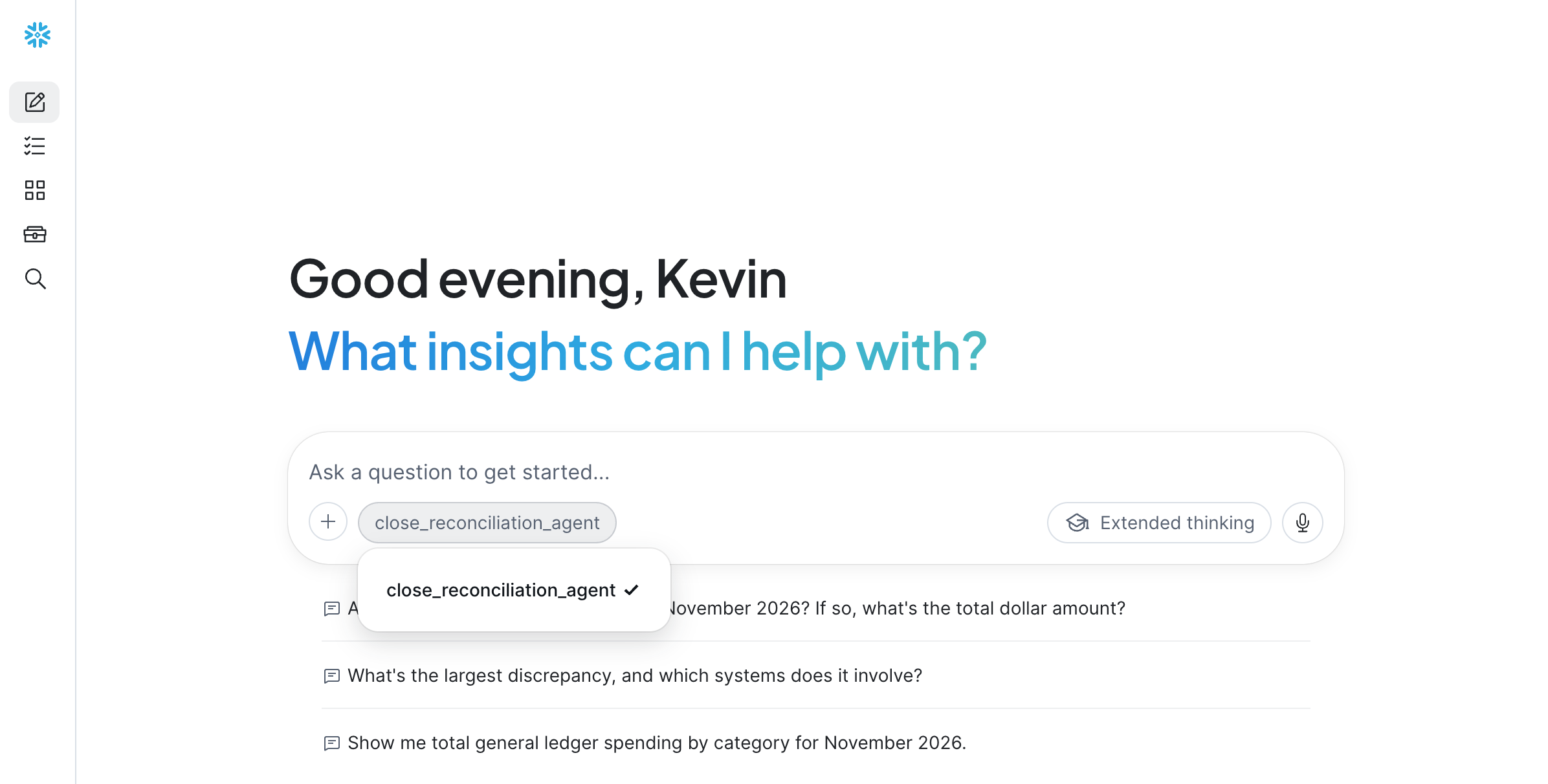
-
Ask:
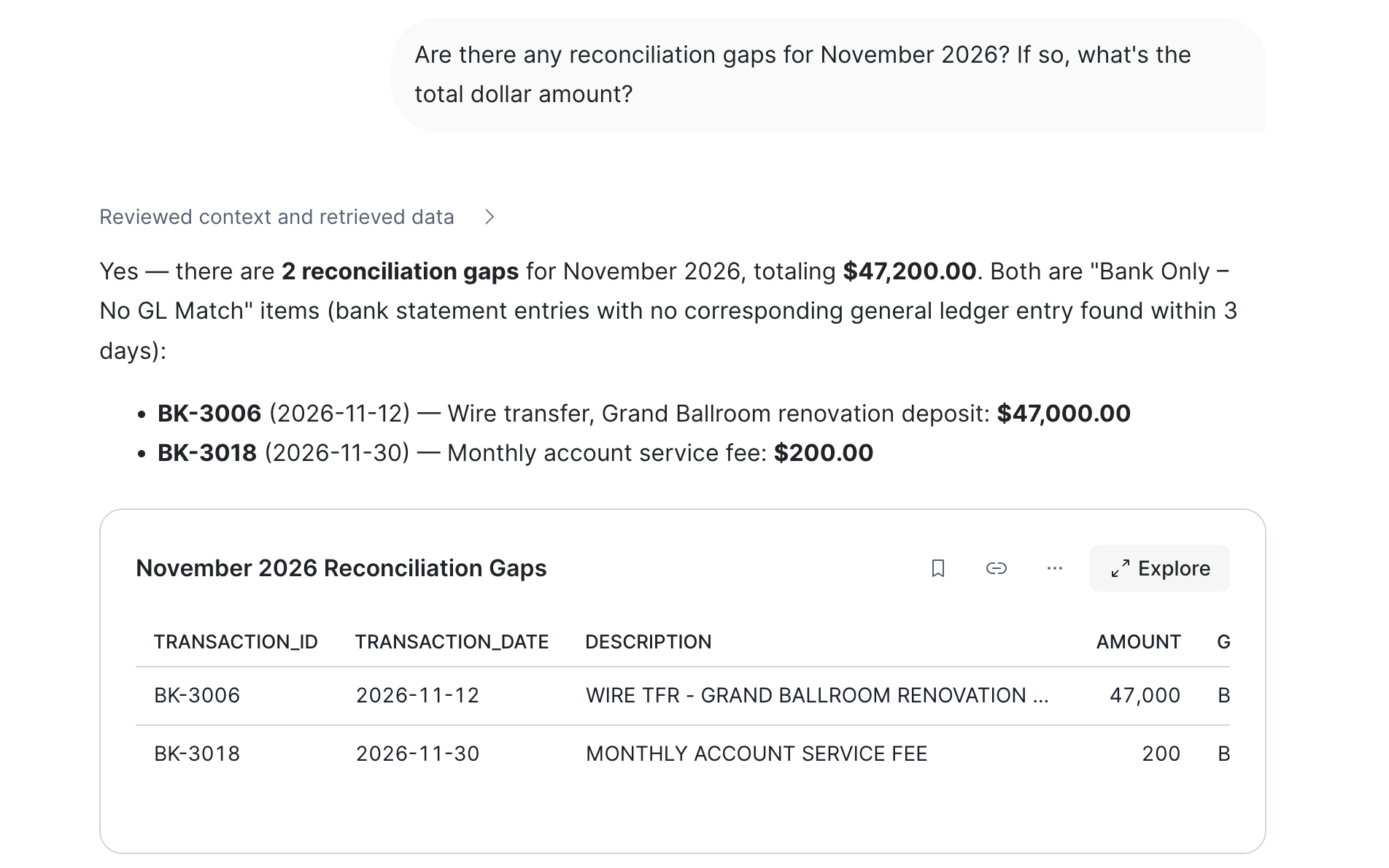
"Are there any reconciliation gaps for November 2026? If so, what's the total dollar amount?"
The agent should find 2 gaps totaling $47,200: the $47,000 renovation deposit wire transfer and the $200 bank service fee.
Investigate in CoWork
The first answer tells you what doesn't tie out. Continue the same conversation to find out why and what to do about it, the way an analyst would:
-
Understand the big one. Ask: "Tell me everything about the $47,000 wire transfer. When did it hit the bank, and what was it for?"
You should see it's BK-3006, dated November 12, described as "WIRE TFR - GRAND BALLROOM RENOVATION DEPOSIT." It hit the bank but was never journaled in the GL — someone authorized the payment, but nobody created the journal entry.
-
Ask if it will happen again. Ask: "Which of these gaps will happen again next month, and what should we change so it doesn't?"
The $200 bank service fee is charged every month, so it will come back in December unless someone sets up a recurring journal entry for it. The $47,000 wire was a one-time miss; the fix is a control, such as requiring a journal entry before a wire is released. That's the question leadership asked after last quarter's audit: could it happen again?
-
Check the total picture. Ask: "Show me total general ledger spending by category for November 2026, as a chart."
You should see Payroll as the largest category ($63,860), followed by Marketing ($27,000) and Maintenance ($25,200, mostly the $22,000 pool resurfacing). The agent should produce a bar chart.
Why the general ledger? The payroll register, GL, and bank statement record the same money, so a total across all three would count it two or three times. The GL is the book of record for spending.
-
Prove nothing else is missing. Ask: "How much cash left the bank in November, and how much did the general ledger record? Does the difference match the reconciliation gaps?"
The bank paid out $211,960 and the GL recorded $164,760. The $47,200 difference is exactly the two gaps, so they account for every dollar that's out of balance. That's what the controller needs to hear before the auditors arrive.
-
Turn it into action. Ask: "Draft a short email to the controller explaining the two gaps, the journal entry to post for each before December 10, and how to prevent each one."
CoWork turns the analysis into a message you could send today. This is the point of the whole lab: anyone on the team can go from "what doesn't tie out?" to "here's what we need to fix" without re-running the reconciliation by hand.
Your results may vary in wording and chart choice. Before acting on an answer, review the SQL and the rows behind it, especially for totals and amounts.
What CoWork adds
The notebook produced clean, open Iceberg tables. The Semantic View gives them business meaning and the words your team actually uses. The Cortex Agent makes that model available in CoWork, where anyone on the team can go from "is the close ready?" to "what needs to be fixed before the auditors arrive?" without writing a query or waiting on a report.
Next month's close: The cleaning and matching logic isn't specific to November. It's SQL you can run again on December's exports, and the agent answers from whatever is in the curated tables. The dashboard's title, opening balance, and gap explanations are written for November, so update those along with it. The work is the same at 18 bank transactions or 18,000. To go further, schedule the rebuild with a Snowflake Task, or turn the curated tables into Dynamic Tables so reconciliation runs every time new data lands.
Teardown
Duration: 1
Once you've finished the lab, run the teardown cell in the notebook, or execute the following in a SQL worksheet:
USE ROLE ACCOUNTADMIN;

-- Drops all schemas, Iceberg tables, the stage, the semantic view, and the Cortex Agent
DROP DATABASE IF EXISTS MERIDIAN_STAY_FINANCE;

-- Removes the Git API integration created for the workspace
DROP API INTEGRATION IF EXISTS GITHUB_MERIDIAN_FINANCE_LAB;
Note: Dropping
MERIDIAN_STAY_FINANCEcascades to everything inside it. If you deployed the dashboard toMERIDIAN_STAY_FINANCE.ANALYTICS, it's removed too.
Conclusion And Resources
Duration: 1
Congratulations! You took Meridian Stay's November close from three disconnected exports to a shared dashboard and an agent anyone can ask, prompting CoCo along the way.
What You Learned
- Landed raw exports in Snowflake-managed Apache Iceberg tables, keeping the data in an open format
- Used CoCo to standardize department names and category codes, parse three date formats and three amount formats, remove a payroll duplicate, and drop a reversed GL entry along with the entry it cancels
- Found 2 reconciliation gaps totaling $47,200 — a $47,000 renovation deposit wire transfer that was never journaled and a $200 bank fee that was never recorded
- Ran a Streamlit reconciliation dashboard that visualizes every gap and shows the root cause, then used CoCo to add a payroll tie-out
- Created a Semantic View with CoCo and a Cortex Agent backed by it
- Asked close-cycle questions in plain language in Snowflake CoWork
Related Resources
This content is provided as is, and is not maintained on an ongoing basis. It may be out of date with current Snowflake instances
