Build a Voice Assistant with openai-gpt-live-1 and Cortex Agents
Overview
Note:
openai-gpt-live-1is currently in Private Preview. Contact your Snowflake account team to request access.
Sample code, not production code. This app shows how
openai-gpt-live-1and Cortex Agents fit together. It isn't a supported Snowflake product and isn't hardened for production: review it, and add what your organization needs, before you use it with real data.
A sales rep has two minutes in the car before meeting a doctor. They don't want to open a dashboard. They want to ask "Who am I seeing today?" and hear the answer.
In this guide you build that assistant. You talk to it in the browser, hands-free. Two Snowflake services share the work:
openai-gpt-live-1is the voice. It listens, takes turns and speaks.- A Cortex Agent is the data expert. When a question needs your data,
openai-gpt-live-1hands it to the agent, and then says the agent's answer in its own words.
All data in this guide is synthetic. Halvern Therapeutics, its products, the doctors and the sales figures are invented.
Prerequisites
- A Snowflake account where you can use the ACCOUNTADMIN role
- Access to the
openai-gpt-live-1model for that account (see Enable openai-gpt-live-1) - Cross-region inference that includes Azure US, where
openai-gpt-live-1runs. It's an account-wide setting that applies to every model (see Enable openai-gpt-live-1) - Basic familiarity with SQL and a terminal
What You'll Learn
- How a voice model hands questions to your app (client delegation)
- How to start an
openai-gpt-live-1session through your account's AI Gateway, with no OpenAI or Azure key - How to stream a Cortex Agent answer back into a live conversation
- How to mix precomputed insights, answered instantly, with on-demand insights looked up live
What You'll Need
- Node.js 20.12 or later
- Chrome, Edge, Safari or Firefox
- Optional, to deploy the app for your team: Docker with
buildxand the Snowflake CLI
What You'll Build
- Sample sales data, a semantic view, a Cortex Agent and a view of today's precomputed insights, from one SQL script
- A small web app: start a call, talk, and watch each Snowflake lookup happen in a live transcript
Enable openai-gpt-live-1
The openai-gpt-live-1 model is in Private Preview, so it needs to be enabled
for your account first. The app reaches it through your account's AI Gateway
(usually named snowflake), which gives apps governed access to models, so you
never handle an Azure key.
1. Request access. Ask your Snowflake account team for access. Your
organization accepts the Private Preview terms, and Snowflake enables the
openai-gpt-live-1 model for your account.
2. Check that the model is listed. Once they confirm, check whether the model is in your account:
SHOW MODELS LIKE '%GPT-LIVE%' IN SCHEMA SNOWFLAKE.MODELS;
If OPENAI-GPT-LIVE-1 is listed, you're done with this step. If it isn't, run
this as ACCOUNTADMIN, then run the check again. Or wait: the list also refreshes
on its own within 24 hours.
USE WAREHOUSE <any_warehouse>;   -- the refresh needs one
CALL SNOWFLAKE.MODELS.CORTEX_BASE_MODELS_REFRESH();
Voice calls fail with a 401 until the model is listed.
3. Allow cross-region inference. openai-gpt-live-1 runs in Azure East US 2, and the
models the agent uses may not be offered in your region either. Unless your
account is in Azure East US 2, check the
cross-region inference
setting:
SHOW PARAMETERS LIKE 'CORTEX_ENABLED_CROSS_REGION' IN ACCOUNT;
If it shows DISABLED, or a region group that doesn't include Azure US (for
example AWS_US), openai-gpt-live-1 can't be reached. ANY_REGION fixes that, but it
means requests for every model may be processed in a region other than your
account's. Check your data-sovereignty requirements before you change it.
ALTER ACCOUNT SET CORTEX_ENABLED_CROSS_REGION = 'ANY_REGION';
No model grant is needed by default. Model access uses
role-based access control,
and by default every role can use every model: Snowflake grants the
SNOWFLAKE."CORTEX-MODEL-ROLE-ALL" application role to SNOWFLAKE.PUBLIC.
If your account limits model access, then after you run setup.sql in the next
section, grant the openai-gpt-live-1 model role to GPT_LIVE_SHOWCASE_ROLE:
GRANT APPLICATION ROLE SNOWFLAKE."CORTEX-MODEL-ROLE-OPENAI-GPT-LIVE-1" TO ROLE GPT_LIVE_SHOWCASE_ROLE;
The agent also needs one model it may use: if lookups then fail with "None of the preferred models are authorized", grant one of the models it lists the same way.
Set Up Snowflake
Download the app and unzip it:
gpt_live_agents_showcase.zip.
All the commands below run from the unzipped gpt-live-agents-showcase folder.
1. Create the objects. Run snowflake/setup.sql as ACCOUNTADMIN. Paste it
into a Snowsight worksheet and choose Run All, or use the
Snowflake CLI,
where <your-connection> is a connection you created with snow connection add.
snow sql -c <your-connection> --role ACCOUNTADMIN -f snowflake/setup.sql
The script creates everything below. You can run it again at any time; it rebuilds the same objects.
| Object | Name |
|---|---|
| Role | GPT_LIVE_SHOWCASE_ROLE |
| Warehouse | GPT_LIVE_SHOWCASE_WH |
| Database and schema | GPT_LIVE_SHOWCASE.FIELD_SALES |
| Table of sample data | HCP_EVENTS: 960 rows of a rep's schedule, prescriptions, meetings, objections and payer coverage |
| Semantic view | FIELD_SALES_SV |
| Cortex Agent | FIELD_SALES_AGENT |
| Briefing view | DAY_BRIEF: today's precomputed insights, one short paragraph per visit |
| OAuth integration | GPT_LIVE_SHOWCASE_OAUTH: lets the app sign you in with Snowflake. The script prints its client ID, which you need later. |
The data is synthetic. Every company, product, doctor and payer name is made up.
2. Grant access. As ACCOUNTADMIN, give yourself the role:
GRANT ROLE GPT_LIVE_SHOWCASE_ROLE TO USER <your_user>;
3. Test the agent. Before adding voice, check that the agent answers. In Snowsight, open AI & ML → Agents → FIELD_SALES_AGENT and ask:
How much ZEVRANTA did Dr. Vantreese prescribe in December?
The answer should be about 4.9 prescriptions.
Run the App Locally
1. Add your settings. Copy the example settings file:
cp .env.example .env
Open .env and fill in the two required values:
SNOWFLAKE_ACCOUNT_URL=https://<org>-<account>.snowflakecomputing.com
SNOWFLAKE_OAUTH_CLIENT_ID=<the client ID setup.sql printed>
The client ID isn't a secret. The app has no password or token of its own: you sign in with Snowflake when you open it. To see the client ID again, run:
SELECT PARSE_JSON(SYSTEM$SHOW_OAUTH_CLIENT_SECRETS('GPT_LIVE_SHOWCASE_OAUTH')):OAUTH_CLIENT_ID::STRING;
You don't need to change anything else. These optional settings have working
defaults, and the agent settings match the objects from setup.sql:
| Setting | Default | What it controls |
|---|---|---|
AI_GATEWAY_NAME | snowflake | The AI Gateway that starts openai-gpt-live-1 sessions |
GPT_LIVE_MODEL | openai-gpt-live-1 | The voice model |
GPT_LIVE_VOICE | marin | The assistant's voice, for example marin, cedar, alloy, coral or verse |
AGENT_DATABASE | GPT_LIVE_SHOWCASE | Where the agent lives |
AGENT_SCHEMA | FIELD_SALES | Where the agent lives |
AGENT_NAME | FIELD_SALES_AGENT | Which agent answers questions |
AGENT_TIMEOUT_MS | 120000 | How long one lookup may take, in milliseconds |
BRIEF_VIEW | GPT_LIVE_SHOWCASE.FIELD_SALES.DAY_BRIEF | The view with today's precomputed briefing. off turns it off |
SNOWFLAKE_WAREHOUSE | GPT_LIVE_SHOWCASE_WH | The warehouse that reads the briefing |
SNOWFLAKE_ROLE | GPT_LIVE_SHOWCASE_ROLE | The role the sign-in asks for, which also reads the briefing. off uses your default role |
LISTEN_PORT | 3000 | The local port. If you change it, change the OAuth integration's redirect URI to match: ALTER SECURITY INTEGRATION GPT_LIVE_SHOWCASE_OAUTH SET OAUTH_REDIRECT_URI = 'http://127.0.0.1:<port>/oauth/callback'; |
If you change .env later, restart the app: it reads the file when it starts.
2. Start the app.
npm install
npm run dev
Open http://127.0.0.1:3000, press Sign in with
Snowflake and sign in with your user. The app asks only for
GPT_LIVE_SHOWCASE_ROLE. Your Snowflake token stays in the app server's memory:
it is never written to disk and never reaches the browser, and only the browser
you signed in with can use it. Stopping the server
makes the app forget it; the tokens expire on their own.
Keep this sign-in. AI Gateway accepts the Snowflake OAuth token this sign-in gives the app. It doesn't currently accept a session from a driver's
externalbrowser(SSO) login, so don't swap the sign-in for that.
Have a Conversation
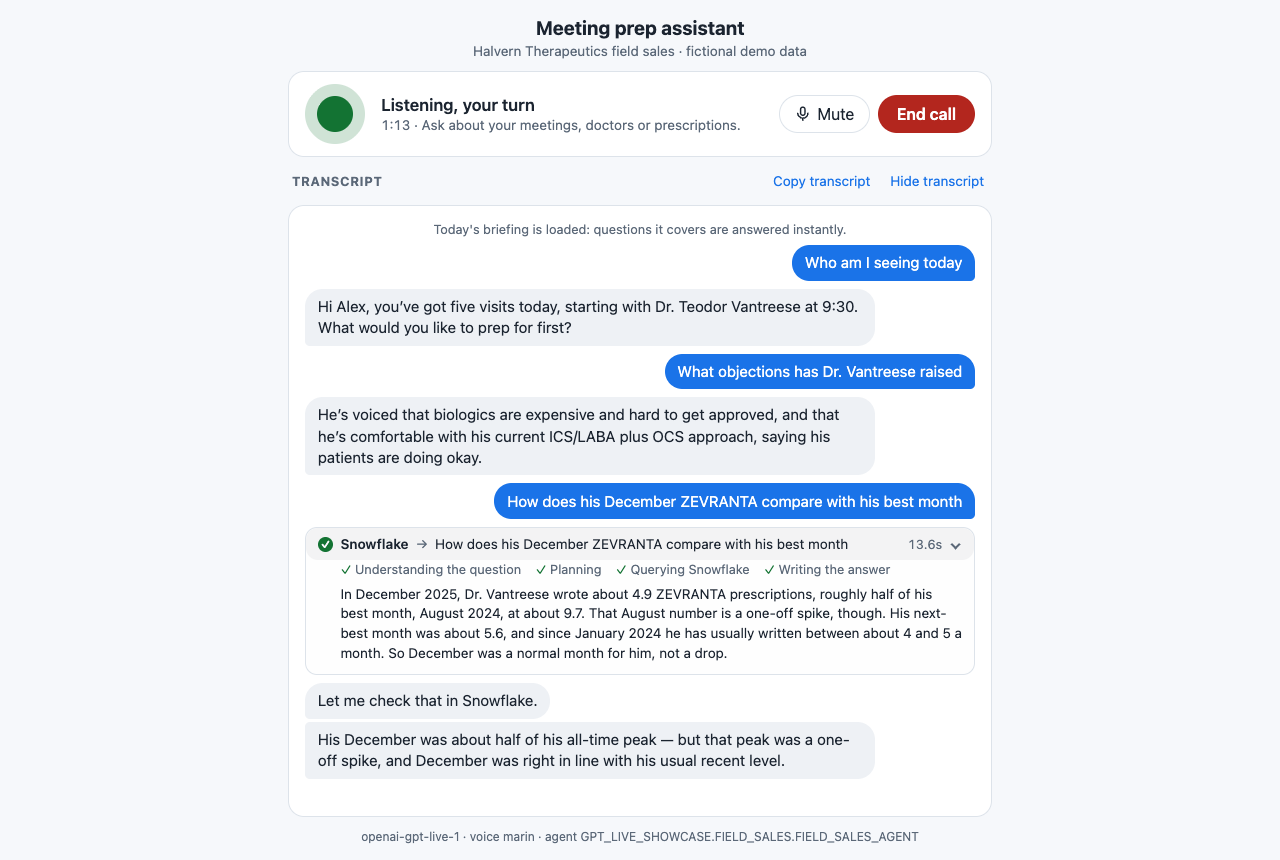
Press Start call and allow the microphone. The assistant greets you, and the transcript notes that today's briefing is loaded. The sample data is set on Friday 16 January 2026, so that is "today" for the assistant. Try both kinds of question.
Precomputed insights are in today's briefing, so openai-gpt-live-1 answers them at once:
- "Who am I seeing today?"
- "What's the focus for my meeting with Dr. Vantreese?"
- "How much ZEVRANTA did he prescribe in December?"
- "What objections has he raised?"
- "Which payer covers most of his patients?"
On-demand insights need a live lookup, so the Cortex Agent answers them in 15 to 20 seconds, with a Snowflake row in the transcript:
- "How does his December ZEVRANTA compare with his best month?"
- "How has his ZEVRANTA trend looked over the last six months?"
- "What happened on my last visit with him?"
Not every question goes to Snowflake. For small talk, or a follow-up that the
last answer already covers ("What time was the first one?"), openai-gpt-live-1 answers
straight away.
While you talk, the screen shows:
- A status line. It tells you who is talking or what is happening, such as "You're speaking", "Looking it up in Snowflake…" or "Listening, your turn", and, under it, what you can do now, such as "Talk any time to interrupt".
- A live transcript of both sides.
- A Snowflake row for each question sent to the agent. It shows the question and a timer. Click it to see the agent's steps and full answer.
- A Mute button. You can also press M. Mute only turns your microphone off: the call stays connected. End call closes the session, and Start call opens a new one.
- Copy transcript, which copies the whole conversation, including each lookup's question and answer.
If the sign-in fails, check that you opened http://127.0.0.1:3000 and that
your user has GPT_LIVE_SHOWCASE_ROLE. If the call doesn't start, the page
shows why, and the terminal running npm run dev has the full error. A 401
usually means openai-gpt-live-1 isn't enabled for the account yet, or
GPT_LIVE_SHOWCASE_ROLE can't use it: see Enable openai-gpt-live-1.
If lookups fail with "None of the preferred
models are authorized or available in your region", turn on
cross-region inference.
Now and then the voice service refuses a
single call (a 400 or 500): press Try again. If the assistant cuts itself
off, it is hearing itself through your speakers: use headphones, or turn the
volume down.
Each call opens an openai-gpt-live-1 session and each lookup runs the Cortex Agent; both
use credits (see the Snowflake Service Consumption Table).
The app server lets each user start at most 6 calls and 20 lookups a minute.
How It Works
Read the diagram from top to bottom. Each row is one step, and each arrow shows who sends what to whom.
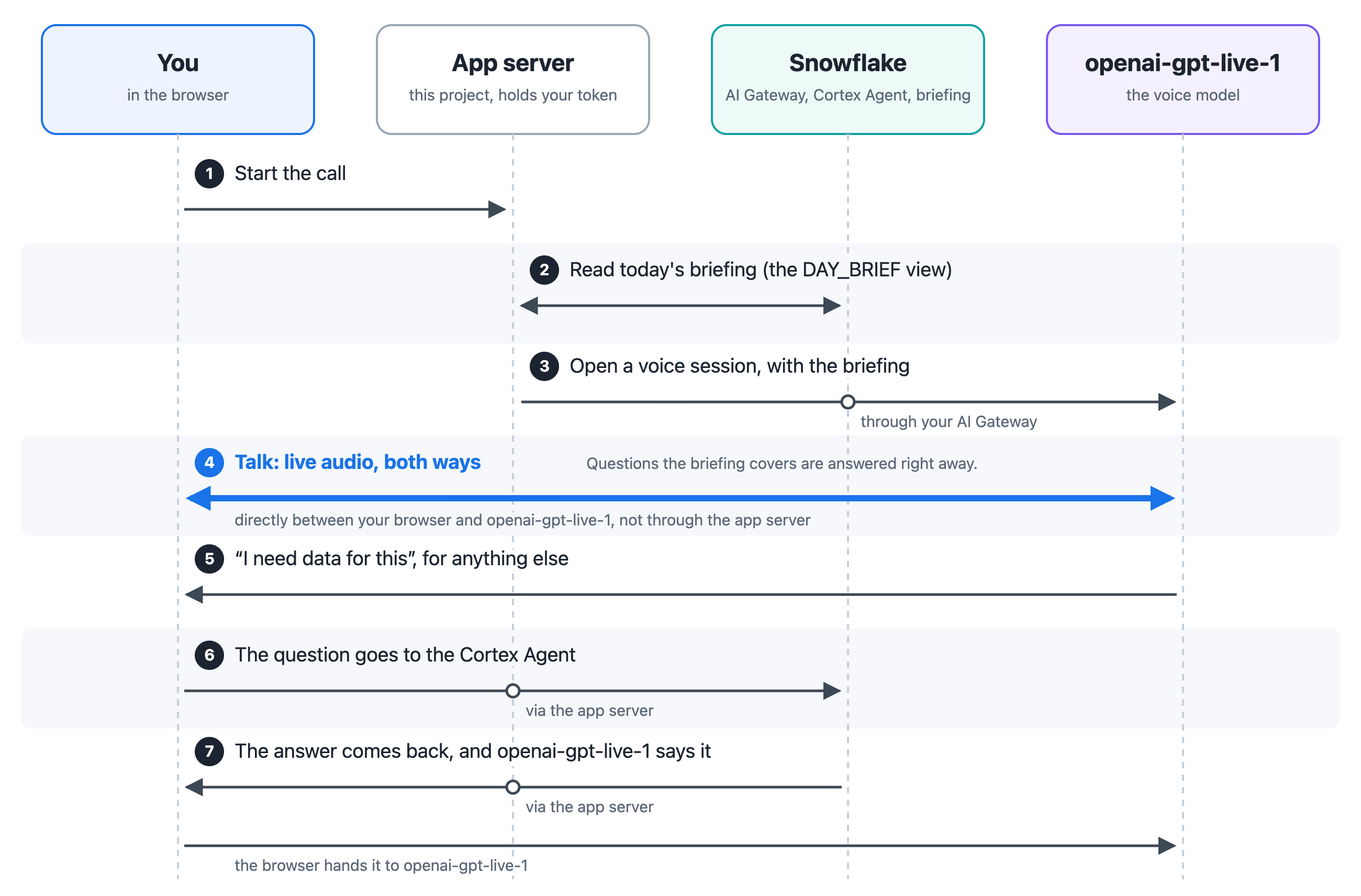
- You press Start call. The browser asks the app server to start a voice session.
- The server reads today's briefing. The
DAY_BRIEFview turns the data into one short paragraph per visit: its focus, the latest prescribing, the top payer, open objections and the next best action. These are the precomputed insights. - The server opens the session through the AI Gateway. The server asks
your account's AI Gateway to open an
openai-gpt-live-1session, with the briefing in its instructions. The server holds your token, and the gateway holds the model provider's key, so neither reaches the browser. - You and
openai-gpt-live-1talk directly. Your voice and its voice travel straight between the browser andopenai-gpt-live-1, at the model provider. They don't pass through the app server. When the briefing covers a question,openai-gpt-live-1answers at once. openai-gpt-live-1asks for data. For anything else, the on-demand insights,openai-gpt-live-1tells the browser, and the browser sends the conversation so far to the server. This hand-off is called client delegation:openai-gpt-live-1has no tools of its own, so your app answers its data questions.- The server asks the Cortex Agent. The agent turns the question into SQL over the semantic view and finds the answer.
openai-gpt-live-1says the answer. The answer goes back through the browser toopenai-gpt-live-1, which says it in its own words.
The DAY_BRIEF view is plain SQL over the data, so it gives the same answers
every time. To change what is precomputed, edit the view in
snowflake/setup.sql. The server caches the briefing for 10 minutes, so restart
npm run dev to see an edit at once. If the view is missing, calls still work:
every data question goes to the agent.
Precomputed vs on-demand insights
| Precomputed insights | On-demand insights | |
|---|---|---|
| Where they come from | The DAY_BRIEF view, read when the call starts | The Cortex Agent, at question time |
| Speed | Instant: openai-gpt-live-1 already knows them | About 15 seconds |
| What they cover | A fixed set: each visit's focus, latest prescribing, top payer, open objections, next best action | Anything the semantic view can answer |
| In the transcript | Only the spoken answer | A Snowflake row with the steps and the agent's full answer |
| To change them | Edit the view in snowflake/setup.sql | Edit the agent or the semantic view |
Which one answered
openai-gpt-live-1 decides, from its instructions in server/src/persona.ts, whether the
briefing covers a question. To see which one answered:
- In the app: each answer from the Cortex Agent has a Snowflake row in the
transcript. No row means
openai-gpt-live-1answered on its own, from the briefing or the conversation. - In the server log: each lookup logs
Delegation startedandDelegation answered, with its time and the tools the agent used. - In code: a lookup begins when the browser receives
openai-gpt-live-1'ssession.delegation.createdevent (web/app.js).
Deploy to SPCS
This step is optional. So far the app runs on your machine. To share it with
your team, run it as one container in your account with
Snowpark Container Services
(SPCS). Everyone opens it at one URL after signing in to Snowflake. It needs no
token or .env: the app uses the token Snowflake mounts in the container.
You need Docker with buildx, and a Snowflake CLI connection whose user can use
both ACCOUNTADMIN and GPT_LIVE_SHOWCASE_ROLE. From the app folder, create the
compute pool and grants, build and push the image under a tag of your choice
(here v1), then create the service:
snow sql -c <your-connection> --role ACCOUNTADMIN -f spcs/01_spcs_objects.sql
spcs/push-image.sh <your-connection> v1
snow sql -c <your-connection> --role GPT_LIVE_SHOWCASE_ROLE -f spcs/02_service.sql -D image_tag=v1
As ACCOUNTADMIN, let each person in:
GRANT ROLE GPT_LIVE_SHOWCASE_USER TO USER <app_user>;
Then take back the two rights GPT_LIVE_SHOWCASE_ROLE needed only to create the
service. The app runs with that role's rights, so without them it can't create
other services. To create the service again from scratch, run
spcs/01_spcs_objects.sql again first.
REVOKE CREATE SERVICE, CREATE IMAGE REPOSITORY ON SCHEMA GPT_LIVE_SHOWCASE.FIELD_SALES
  FROM ROLE GPT_LIVE_SHOWCASE_ROLE;
After a minute or two, open the ingress_url from
SHOW ENDPOINTS IN SERVICE GPT_LIVE_SHOWCASE.FIELD_SALES.GPT_LIVE_SHOWCASE_SERVICE;
and sign in.
Every call runs as GPT_LIVE_SHOWCASE_ROLE, so every app user can ask, through
the agent, about anything that role can read. Grant it only data that all app
users may see.
The service costs compute until you suspend it: the compute pool doesn't suspend on its own while the service runs. When you're done, as ACCOUNTADMIN:
ALTER SERVICE GPT_LIVE_SHOWCASE.FIELD_SALES.GPT_LIVE_SHOWCASE_SERVICE SUSPEND;
ALTER COMPUTE POOL GPT_LIVE_SHOWCASE_POOL SUSPEND;
The README's Deploy to SPCS section covers starting it again, shipping a new version and troubleshooting.
Clean Up
To remove everything this guide created, run as ACCOUNTADMIN. The first four lines only matter if you deployed to SPCS; they do nothing otherwise.
DROP SERVICE IF EXISTS GPT_LIVE_SHOWCASE.FIELD_SALES.GPT_LIVE_SHOWCASE_SERVICE;
ALTER COMPUTE POOL IF EXISTS GPT_LIVE_SHOWCASE_POOL STOP ALL;
DROP COMPUTE POOL IF EXISTS GPT_LIVE_SHOWCASE_POOL;
DROP ROLE IF EXISTS GPT_LIVE_SHOWCASE_USER;
DROP DATABASE IF EXISTS GPT_LIVE_SHOWCASE;
DROP WAREHOUSE IF EXISTS GPT_LIVE_SHOWCASE_WH;
DROP ROLE IF EXISTS GPT_LIVE_SHOWCASE_ROLE;
DROP SECURITY INTEGRATION IF EXISTS GPT_LIVE_SHOWCASE_OAUTH;
Conclusion And Resources
You built a voice assistant that holds a natural, hands-free conversation and
answers questions from your data in Snowflake. openai-gpt-live-1 handles the voice, a
Cortex Agent handles the data, and you never handle a model key.
What You Learned
- How to start an
openai-gpt-live-1session through the Snowflake AI Gateway - How client delegation lets a voice model hand data questions to your app
- How to stream a Cortex Agent's answer back into a live conversation
- How precomputed insights answer common questions instantly, while the agent handles the rest
Related Resources
This content is provided as is, and is not maintained on an ongoing basis. It may be out of date with current Snowflake instances
