Getting Started with Agentic Governance in Snowflake
Overview
An analyst can query governed customer data. Now give that analyst an agent that can ask questions and call tools on their behalf. Should permission to read a customer email also mean permission to put it into an agent's context?
We will work through that question by changing one control at a time and comparing the results. You will start with governed analytics, introduce an approved agent, then narrow its authority without removing the human's access. Then you will test which channels can move results, use AI to assist the custodian, and attribute AI consumption.

You can complete the hands-on path in one session. Some evidence arrives later and is a return-later follow-up: data movement records (up to 3 hours), budget reporting (up to about 6.5 hours), classification readiness, and agent traces.
What you will build
A synthetic customer-orders environment in AGENTIC_GOV_DB, with a RAW-to-GOLD pipeline, a separate contact-activation view, governed agents, movement policies, and AI budgets and a quota. You will use one login with several roles to compare the responsibilities and access of each persona.
What you will learn
- Part 1: show that useful analytics can retain the full customer population while sensitive values and contact activation remain controlled.
- Part 2: distinguish approved capabilities, caller access, agent-context clearance, and a restricted session ceiling.
- Part 3: allow an approved agent, block its otherwise equivalent shadow, compare covered download controls, and prove a volume alert from Query History.
- Part 4: inspect AI-redacted text and check a natural-language governance answer against SQL evidence.
- Part 5: distinguish a team's service budget from each user's quota, then inspect configuration, safe actions, and delayed spend.
Prerequisites
- A disposable Enterprise-or-higher account. This is a hard requirement.
ACCOUNTADMINaccess for a few labeled steps, plusSECURITYADMIN,USERADMINandSYSADMIN.- Claude Sonnet 5 available in the account or through cross-region inference.
- Access to Snowsight Workspaces and Snowflake CoWork, formerly Snowflake Intelligence.
- Cortex Code in Snowsight for Part 4.
- A verified profile email for the Part 5 notifications, or skip the email steps.
- The lab repository. The CLI and cost-control app are optional.
All features used are Public Preview or generally available, and no Private Preview enablement is required. Edition, region, and model availability requirements still apply. Missing feature access is a prerequisite failure, not something to work around by weakening the exercise. You should be comfortable selecting and running SQL statements and switching roles in Snowsight.
Review the account changes first. The scripts alter account-wide model authorization and set cross-region inference to AWS_GLOBAL. They change your default secondary roles and temporarily attach a user-level session policy. Teardown resets selected defaults, not a captured copy of the previous configuration. The RSS exercise requires that your user has no existing user-level session policy. Do not remove an unrelated policy to proceed.
Follow the guide in order using one downloaded version of the scripts. Keep the README for design rationale and the SQL files for executable definitions. Here, each comparison tells you where to pause and which evidence matters. Some audit and cost records arrive later, so the reporting follow-up is separate from the hands-on configuration. Warehouse, classification, and AI calls can incur charges.
Prepare Your Workspace
Load the scripts
- Download the repository and extract it locally.
- Sign in to the disposable account. In Snowsight, select Projects > Workspaces, then My Workspace.
- Select + Add New > Upload Folder and upload
hol-lab. Alternatively, use Upload Files for individual SQL files. - Open
00-Setup.sql. Select an administrative role and an existing warehouse you can use to begin setup. The script creates and selectsAGOV_WHas it progresses.
Select a complete SQL block and press Command + Return on macOS or Ctrl + Enter on Windows. Inspect the Results pane before continuing. Use the section labels in each file, such as 0.7 or 02-03.3, to find the boundaries named below. A range includes its starting and ending sections unless a stop point is stated.
Do not run every file from top to bottom without pausing. Negative tests are commented so they do not interrupt setup. Run them separately when instructed. Select whole scripting blocks and pipe statements, not individual lines inside them. Keep a SHOW and its following RESULT_SCAN(LAST_QUERY_ID()) together, without intervening queries.
Run each file's opening context statements, and keep its dependent blocks in the same SQL session. Variables and temporary tables do not carry automatically to another file's session. If you return after losing session state, re-establish the required context and variables rather than rerunning all the DDL.
The role selector inside a SQL file controls that file's execution. It does not change the role used elsewhere in Snowsight. Check the UI role separately when opening a governance screen or CoWork. The Workspaces execution guide and role guidance explain these controls.
Least privilege. Select
ACCOUNTADMINonly for blocks labeledACCOUNTADMIN required: account parameters, the model catalog refresh, theSNOWFLAKE.LOCALbootstrap procedures,SNOWFLAKEapplication-role grants, the AI observability, data movement and budget/quota create privileges, the default event-table read, and the optional teardown restore. Never keep it as your working or default role. Each file switches toSECURITYADMIN,USERADMIN,SYSADMINor a lab persona for everything else. TheACCOUNTADMINbranch in the masking policies is break-glass policy logic, not a role used to run the lab.
Keep the comparisons isolated
The operator holds all the lab roles. That is convenient for learning, but a secondary governor role could supply the clearance you are trying to exclude. Use USE SECONDARY ROLES NONE in each SQL session for ordinary comparisons. RSS is the deliberate exception, where we will use ALL.
| Role | What you do with it |
|---|---|
AGOV_PIPELINE_SERVICE_ROLE | Build and publish the pipeline and GOLD semantic view |
AGOV_ENGINEER | Inspect BRONZE and SILVER without plaintext clearance or pipeline ownership, and compare per-row agent access |
AGOV_GOVERNOR | Classify data, apply policies, and approve capabilities |
AGOV_ANALYST | Query governed analytics and use approved agents |
AGOV_AUDITOR | Inspect policy metadata, lineage, and usage |
AGOV_CONTACT_ACTIVATOR | Retrieve opted-in contacts through the purpose-gated view |
Establish the fixture
File: 00-Setup.sql, start through 0.9 VALIDATION.
- Run 0.0 CAPTURE PRIOR SETTINGS first. It is read-only. Copy the results outside Snowflake, because teardown drops the lab database.
- Run setup in order through
ALTER ACCOUNT SET CORTEX_ENABLED_CROSS_REGION = 'AWS_GLOBAL'in 0.7 ACCOUNT-LEVEL GOVERNANCE PRIVILEGES. Section 0.5 has already createdCOST_MANAGEMENTand tagged your user withAI_COST_CENTER = 'BUSINESS_ANALYTICS', so agent calls from Part 2 onward are attributed for Part 5. - On a fresh account, stop there. Uncomment
CALL SNOWFLAKE.MODELS.CORTEX_BASE_MODELS_REFRESH();and run it asACCOUNTADMIN. Wait for it to finish (several minutes) before the Sonnet 5 application-role grant that follows it. That grant is the first model grant in the lab and fails until the catalog is refreshed. - Continue through 0.8 RAW LOAD and 0.9 VALIDATION. The pipeline service role loads the fixture.
- Check for 1,000 customers and 30,000 orders. You can repeat just this source verification without loading the data again:
USE ROLE AGOV_PIPELINE_SERVICE_ROLE;
USE SECONDARY ROLES NONE;
USE WAREHOUSE AGOV_WH;

SELECT 'CUSTOMER_RAW' AS table_name, COUNT(*) AS row_count
FROM AGENTIC_GOV_DB.RAW.CUSTOMER_RAW
UNION ALL
SELECT 'CUSTOMER_ORDERS_RAW' AS table_name, COUNT(*) AS row_count
FROM AGENTIC_GOV_DB.RAW.CUSTOMER_ORDERS_RAW;
If a model role is missing, resolve the catalog refresh before continuing. If counts differ, inspect the load results rather than applying governance to a partial fixture. The dataset deliberately contains email-quality defects and 100 customers without orders. Those are part of the exercises.
Part 1 - Govern Analytics
The first comparison has no agent. We need to see what the data policies do before asking whether they still work through another interface.

Measure before masking
File: 01-01-Data-Foundation.sql, 1.1 RAW -> BRONZE through 1.4 VALIDATION.
- Run 1.1 and 1.2 as the script's pipeline service role. These create BRONZE and attach the Data Metric Functions.
- Run 1.3 ENGINEER READS THE SHAPE OF THE DATA, including its role switch. Inspect the three direct metric results for missing, duplicate, and invalid-format emails. Record them before masking is applied.
- Run 1.4. BRONZE should still contain 1,000 customers and 30,000 orders. Then run its four fixture checks as the pipeline service role:
unique_customer_keys,unique_order_keys,order_relationship, andvalid_birthdates. EachPASSEDvalue should beTRUE.
The engineer can measure the data without owning the deployed tables or reading RAW. The direct calls also let you inspect quality now rather than waiting for scheduled metric results.
Classify and protect the source
File: 01-02-Data-Governance.sql, 2.0 BASELINE through 2.5 MULTI-TYPE TAG-BASED MASKING.
- Run the context statements in 2.0, including analyst role and secondary roles
NONE. Uncomment only its BRONZESELECTand run it separately. Expect an access error. Leave the test commented again after inspecting the result. - Run 2.1 through 2.3. These establish the classification tag, profiles, and custom classifiers as governor.
- Run 2.4 and inspect its tag query before continuing. EMAIL should be PII, PHONE_NUMBER and BIRTHDATE RESTRICTED, and reporting dimensions such as COMPANY INTERNAL. COMPANY is classified by its column name, not by recognizing arbitrary business names.
- Continue through 2.4b, 2.4c, 2.4d, and 2.5 to classify order data, grant the distinct policy capabilities, and bind the STRING and DATE masks to the tag.
BRONZE classification applies tags automatically. The downstream profile records proposals without changing tags. This matters once a derived reporting field needs an intentional override rather than another automatic classification decision.
Follow protection into SILVER
Continue in the same file: 2.5a TAG LINEAGE PRECEDENCE through 2.10 VALIDATION, stopping before 2.10b.
- Work through the three levels in 2.5a. Inspect the engineer queries after each tag change. EMAIL remains redacted while explicitly INTERNAL fields remain readable. Finish both
UNSET TAGstatements at the end of this section so its temporary database and BRONZE defaults do not carry forward. - Run 2.6, which prepares the consent policy used in the next chapter, then 2.7, which builds SILVER. Inspect the propagation query. EMAIL retains PII while
EMAIL_DOMAINis explicitly INTERNAL in the Dynamic Table definition. - Run 2.8 and 2.9 to apply aggregation and ZIP projection controls.
- Open 2.10 with its two publication checks as the pipeline service role.
join_grainandrevenue_reconciliationshould both returnPASSED = TRUE. - Run the governor and engineer comparisons, one query at a time. Compare their BRONZE values, birthdates, and the engineer's SILVER result. The
date_mask_year_onlycheck in this block should returnTRUE. - Continue with the analyst's business aggregation, distinct-email comparison,
analyst_email_maskcheck, and row counts. Pause before the commented ZIP test.
| Evidence | Expected result |
|---|---|
| Governor EMAIL | Plaintext |
| Engineer EMAIL on BRONZE and SILVER | ***PII-REDACTED*** |
| Engineer BIRTHDATE | Year retained, month and day truncated |
| Analyst distinct EMAIL count | 1 because the mask returns one sentinel |
| Governor and analyst analytics row counts | Both 30,100 |
The customer-left-order join preserves the 100 customers without orders. That is why 30,100 joined rows do not mean 30,100 orders. Use the script's COUNT(ORDER_ID) for orders. If you want to repeat the useful-analytics check, run:
USE ROLE AGOV_ANALYST;
USE SECONDARY ROLES NONE;
USE WAREHOUSE AGOV_WH;

SELECT ORDER_CURRENCY,
       COUNT(ORDER_ID) AS orders,
       SUM(ORDER_TOTAL) AS total_revenue,
       COUNT(DISTINCT ID) AS customers
FROM AGENTIC_GOV_DB.SILVER.CUSTOMER_ORDER_ANALYTICS
GROUP BY ORDER_CURRENCY
ORDER BY total_revenue DESC;
Expect the USD group to contain 30,000 orders and revenue of 743,292.7625. Customers without orders contribute to a separate null-currency group, so do not expect all 1,000 customers in the USD row.
Now run the commented ZIP test in 2.10 separately, explicitly selecting AGOV_ANALYST with secondary roles NONE first. Inspect the policy error. Then run the governor ZIP query immediately below it. The governor can select the column. Do not treat any arbitrary compilation error as proof of the projection policy.
You have kept analytics available while changing visible values and permitted query forms. Masking, aggregation, and projection are separate controls. The STRING and DATE masks do not cover numeric or Boolean columns, even where those columns carry a classification tag.
If the analyst sees plaintext: check the current role, secondary roles, and the tag/policy results before changing a policy. Do not use an administrator session as a substitute for the analyst comparison.
Part 1 - Gate Contact Use
Aggregate analytics and retrieving contact details serve different purposes. The analytics table has no consent row access policy. We will now test a separate view that requires both customer opt-in and permission to use those contacts.
Continue in: 01-02-Data-Governance.sql, 2.10b CONTACT ACTIVATION VIEW + ACCESS GRANTS through 2.11 PUBLISH THE GOVERNED GOLD SEMANTIC VIEW.
- Run 2.10b. It creates
SILVER.CUSTOMER_CONTACT_ACTIVATION_Vand grants the contact activator access to that view, not the underlying customer and order tables. - In 2.10c, run step 1 as governor. Analytics should include both
OPTINstates, andno_analytics_consent_filtershould returnTRUE. - Run step 2 as contact activator, including
USE SECONDARY ROLES NONE. Inspect the grouped opt-in result, thecontact_grain_and_consentcheck, and the sample contacts. OnlyOPTIN = TRUEshould appear, with plaintext contact fields. - In step 3, run the governor's update that disables the entitlement, then the activator's count query. Stop and inspect
SHOULD_BE_ZERObefore restoring anything. - Run the governor's update that re-enables the entitlement, then the activator's count.
SHOULD_BE_NONZEROshould be greater than zero. Finish the role switch back to governor. - Run all of 2.11, including the service-role context, publication grants,
SHOW SEMANTIC VIEWS, and the finalgold_metricscheck as analyst. ExpectPASSED = TRUEfor 1,000 customers, 30,000 orders, and 743,292.7625 revenue.
Disabling the entitlement should return zero contacts. Restoring it returns opted-in contacts, not all customers. An entitlement does not override consent. Keeping the CONSENT_ENFORCEMENT tag separate from sensitivity classification lets us change one decision without redefining the other.
Part 1 has now produced 11 lesson-boundary checks: four in 01-01 and seven in 01-02. Every PASSED value should be TRUE. If one fails, use its CHECK_NAME to return to that step rather than rebuilding everything or weakening a policy. These assertions cover data, grain, and policy configuration. They do not replace the role comparisons you ran by hand.
Before moving on: leave the entitlement enabled and confirm CUSTOMER_ANALYTICS_SV exists. If restored contacts still return zero, check that you are using the activator role and that the re-enable statement completed. A governor query is not a substitute because that role does not hold the contact-purpose entitlement.
Part 1 - Inspect Evidence
We have compared results. Now find the policy attachments that explain them.
File: 01-03-Governance-Audit.sql. Run its opening block first, including the adjacent SHOW DATABASES and SET lab_created_at statements. Keep this file's session for the delayed checks.
- Inspect the opening Information Schema policy-reference result for
SILVER.CUSTOMER_ORDER_ANALYTICS. Then run 01-03.1 WHAT POLICIES PROTECT THE DATA? and 01-03.2 RECORDED STRUCTURAL DEPENDENCIES. The Account Usage results may arrive later than the current attachment evidence. - As governor in Snowsight, open the Data protection policies dashboard. Find the classification-driven masking policy and inspect its associations. Look for protection tied to
DATA_CLASSIFICATION, with contact consent attached separately. - Open Trust Center > Data security to inspect classification and protection coverage. Use the screenshots to identify the views, not as required object counts for your account.
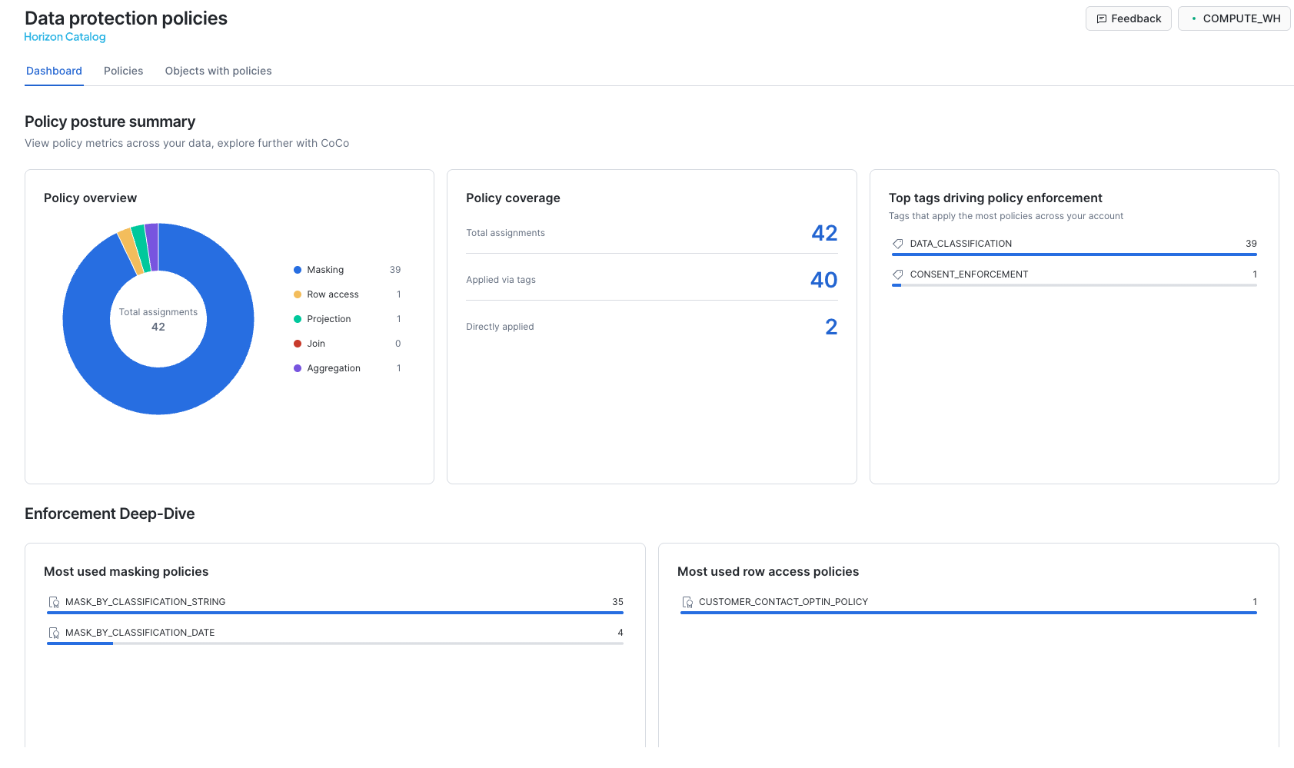
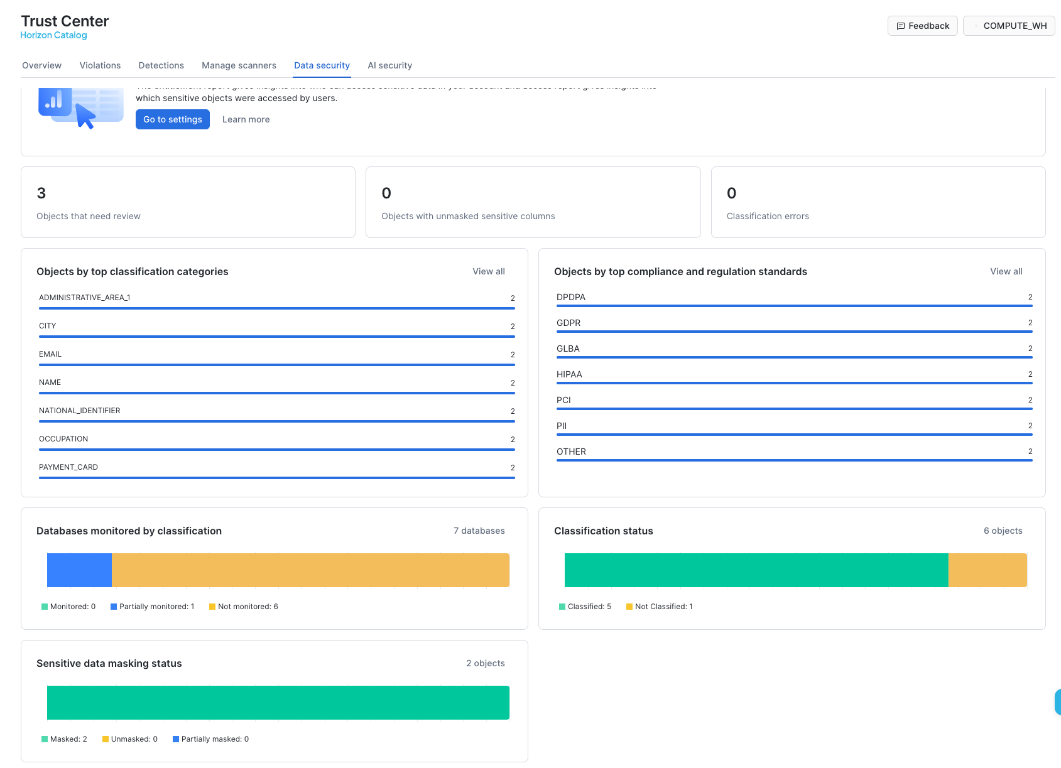
- Skip 01-03.3 AGENT ATTRIBUTION for now. No agent has run yet.
- In 01-03.4 CLASSIFICATION POSTURE, run the governor's timestamp capture and audit-only classification once. Switch to auditor as shown and inspect
READINESS. If it isPENDING, retain the timestamp and return to the read queries later. Do not repeatedly restart classification. - When ready, compare proposals with applied tags. A mismatch is a review candidate, not permission to overwrite an intentional tag such as the
EMAIL_DOMAINoverride. - Run 01-03.5 CONSENT ENFORCEMENT AUDIT, including its role changes. Check the results below.
| Current-state check | Expected evidence |
|---|---|
| Contact-view policy reference | CUSTOMER_CONTACT_OPTIN_POLICY, ACTIVE, using CONSENT_ENFORCEMENT and OPTIN |
| Analytics row access policy count | 0 |
| Invalid opt-in contacts, as activator | 0 |
| Entitlement posture | CONTACT_ACTIVATION enabled |
Trace the RAW-to-GOLD path in lineage alongside the structural dependency query. Dependencies alone do not show every CTAS or data-movement edge. If the dashboard is empty but current policy references exist, distinguish delayed metadata from missing enforcement. An empty classification result is not evidence of zero drift.
Part 2 - Approve Capability
Before testing what an agent returns, decide which model and tool it may use. The existing data policies will stay in place.
File: 02-01-Capability-Governance.sql. Run the opening context statements, with secondary roles NONE.
Test the model boundary
- Run 02-01.1 MODEL RBAC through the approved-model call. This includes the account-wide removal of broad PUBLIC model access and the legacy allowlist fallback, then the specific model grants.
- As analyst, inspect the approved Sonnet 5 call. It should succeed.
- Before advancing to the governor role in the next section, uncomment and run only the unapproved Opus call. Expect a model authorization error, then leave it commented again. If
CLAUDE-OPUS-4-5is unavailable, any catalog model not granted to the role works.
Granting an approved model alone would not make this an exclusive boundary. Model RBAC and the legacy allowlist are additive, so the exercise first removes the broader authorization paths. If the unapproved call succeeds, check those paths and secondary roles rather than editing the prompt.
Approve one tool surface
- Run 02-01.2 Create and approve one agent, including
SHOW AGENTSand bothUSAGEgrants forAGOV_ANALYSTandAGOV_ENGINEER. Setup grants the engineer access to theAGENTSschema, and Part 1 grants access to the governed semantic view. Agent usage grants neither plaintext clearance nor exemption from data policies. - Inspect the definition of
CUSTOMER_INSIGHTS_AGENT. Its one Customer Analytics tool points toGOLD.CUSTOMER_ANALYTICS_SV.

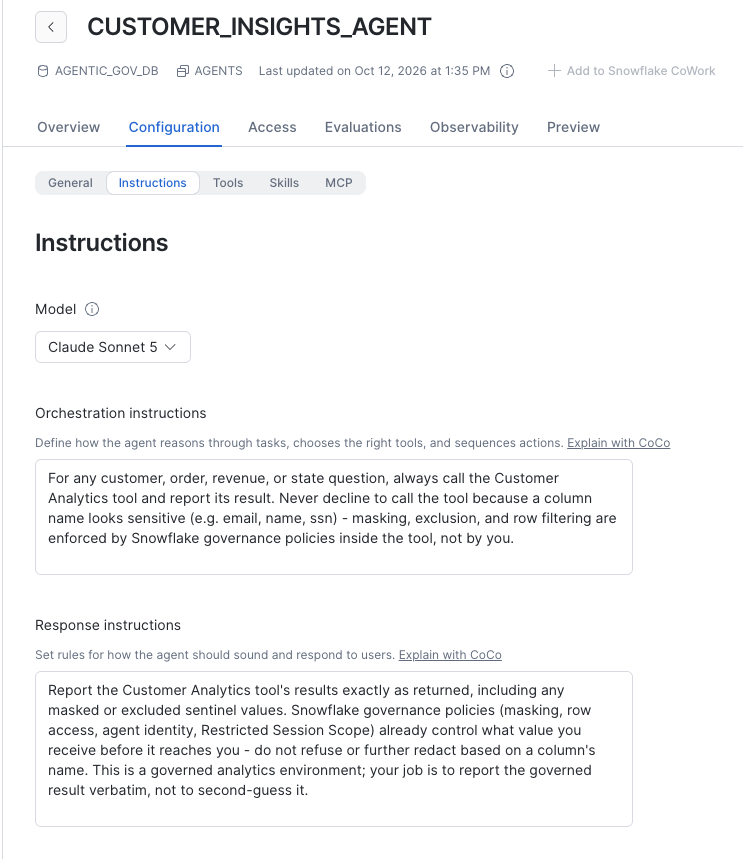
The instructions tell the agent to call the tool and report governed results. They do not authorize access. We will judge the next experiments by what the tool returned, not by how convincingly the agent explains its permissions.
Separate monitoring from raw trace content
- In 02-01.3 OBSERVABILITY CONTENT IS A SEPARATE CAPABILITY, run the seed call, the administrative revoke, and the first governor trace query. Pause before the grant. Wait for delivered events if the query returns no rows.
- Inspect the available metadata and redacted content. Then run the explicit unredacted-observability grant and repeat the governor query against the same delivered trace.
Expect raw attributes to become available after the grant, subject to the model and interface's trace content. Ownership of the agent was not sufficient. Leave the grant in place for the following inspection. If no event has arrived yet, mark this comparison pending rather than claiming the privilege test passed.
Part 2 - Test Caller Access
File: 02-02-Agent-Contextual-Access.sql. Run its opening governor context and secondary roles NONE.
- In 02-02.1 PROOF 1, run the governor and analyst metric queries separately. Both should return 1,000 customers and 30,000 orders.
- Inspect the analyst's dimension-and-revenue query. EMAIL is masked, and aggregation can suppress small groups. A null grouping value is not automatically another masking result.
- Run the two same-question agent calls, including the role switch before each. Compare their answers with the SQL totals. These two calls display answer text only, so they are an initial comparison, not independent proof of which values reached the model. The next exercise returns tool data explicitly.
The population stays the same because analytics has no consent filter. Giving the analyst an agent has not made contact activation part of that analytics purpose.
Try a field outside the tool
- In 02-02.2 ZIP exists in governed SILVER, run the governor's direct ZIP query, then
DESC SEMANTIC VIEW. The direct query returns a ZIP value, but ZIP is absent from the tool's declared fields. - Still as governor, run the commented
analytics.zipsemantic query separately. Expect an invalid-identifier error, then leave it commented again. - Run the complete bypass-attempt block in that section. Inspect
TOOL_USEandTOOL_RESULT, not justAGENT_RESPONSE.
The expected tool outcome contains no ZIP value. This is a declared-field boundary, distinct from the analyst's projection-policy failure in Part 1. The caller here is the governor, who can read ZIP directly. If no tool ran or only an unrelated error appears, record the attempt as inconclusive rather than treating the model's refusal as enforcement evidence. Generated wording and thinking events can vary.
The optional CoWork bypass experiment is a separate interface test. Do not expect its runtime error to appear in the SQL path or use SQL success as proof of UI behavior.
Part 2 - Separate Agent Access
Now the field is reachable through the tool. The question becomes whether its plaintext value should enter agent context.
File: 02-03-Agent-Identity.sql. Keep the proof calls and their query-ID captures in this file's session.
- Run the opening context and whole
EXECUTE IMMEDIATEblock before 02-03.1. It checks for the agent and captures its creation time. If it reports a missing agent, finish02-01first. - Run 02-03.1 THE AGENT IDENTITY SIGNAL. In the outer human SQL session,
IS_AGENT_ACTIVATEDshould be false. - Run 02-03.2 MAKE THE EXISTING TAG-BASED MASKING ROLE-AWARE AND AGENT-AWARE. This alters the STRING and DATE policies already attached through classification.
- Run 02-03.3 DETERMINISTIC PROOF as six separate blocks, A through F. Include the
SETquery-ID capture immediately after each agent proof, without intervening statements. OpenTOOL_RESULTSfor B, D, and F.
| Comparison | Expected EMAIL evidence |
|---|---|
| A: human governor | Plaintext in SQL result |
| B: agent for governor | Plaintext in tool result |
| C: human analyst | ***PII-REDACTED*** in SQL result |
| D: agent for analyst | ***EXCLUDED-FROM-AGENTIC-USE*** in tool result |
| E: human engineer, per row | ***PII-REDACTED*** in SQL result, FULL_NAME hashed |
| F: agent for engineer, per row | ***EXCLUDED-FROM-AGENTIC-USE*** in tool result for EMAIL and FULL_NAME |
Use E and F for the per-row demo. The engineer pair requests customer ID, order ID, full name, and email without an aggregate. Run both with AGOV_ENGINEER primary and secondary roles NONE. The engineer's existing aggregation exemption lets you compare human masking with agent exclusion without an aggregation constraint obscuring the result. For F, confirm the generated SQL in TOOL_RESULTS is a per-row query and inspect the returned values. The agent's answer is not evidence, and an empty tool result or unrelated error does not prove exclusion.
Keep C and D as the aggregation-constrained analyst comparison. The next RSS exercise still uses analyst primary with secondary governor clearance, not the engineer role.

Direct plaintext requires the UNMASK_ACCESS database role. Agent plaintext also requires the AGENTIC_UNMASK_ACCESS account role. Governor holds both, analyst and engineer neither. The policy also permits a baseline-only holder to keep direct plaintext while receiving agent exclusions. Co-clearance alone grants neither plaintext nor object access. ACCOUNTADMIN has a separate break-glass exception.
The analyst's direct query includes a metric to comply with aggregation. Do not replace it with the governor's per-row query and interpret the resulting aggregation failure as Agent Identity. Sensitive DATE values use NULL for agent exclusion because a date cannot carry the STRING sentinel. Other access and query-shape controls still apply.
As governor in Snowsight, return to MASK_BY_CLASSIFICATION_STRING and inspect its definition and tag association. The agent-context branch you just added should now be present.
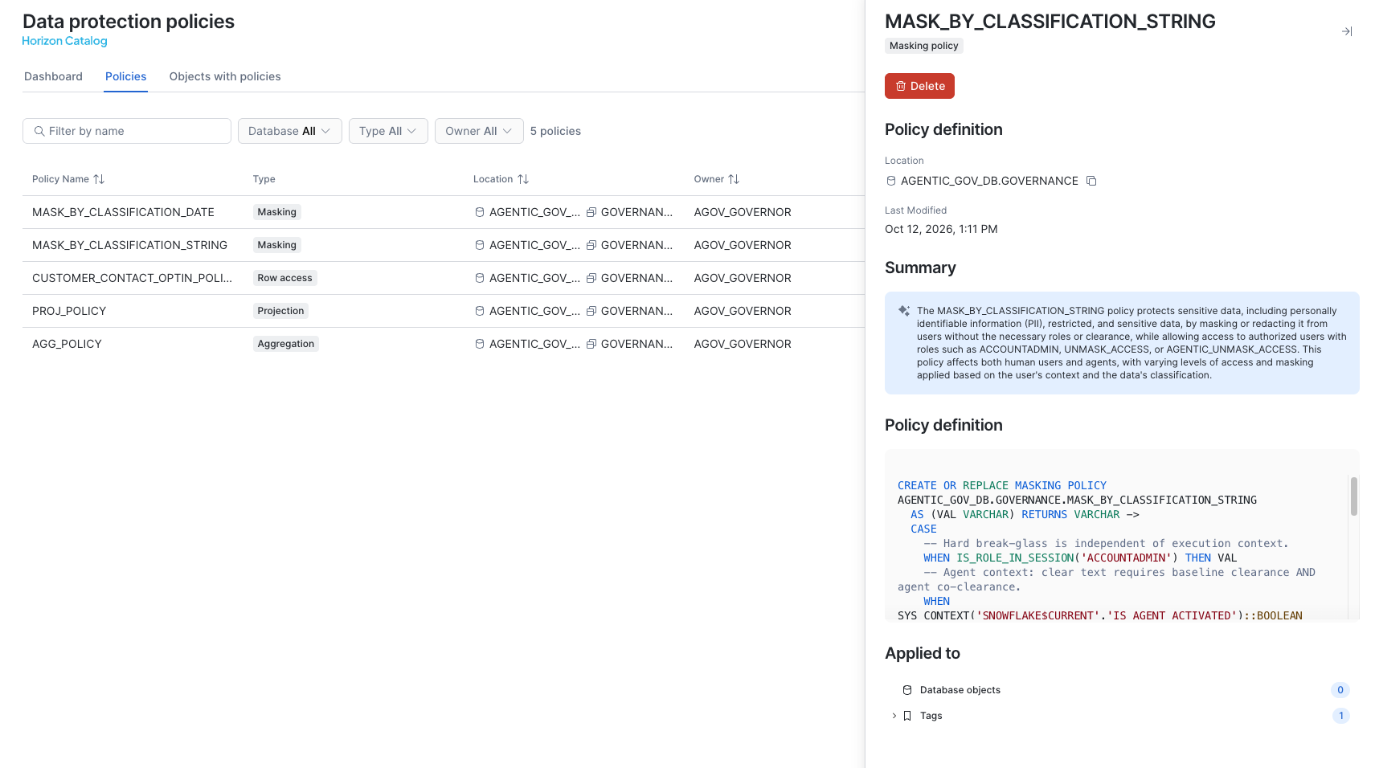
If the result differs: first check the role and secondary roles for that proof, then inspect the tool data and active policy definition. A missing tool result or execution error is not a successful exclusion. You are testing the value returned by the tool, not a promise in the final answer.
Connect a tool result to execution
In 02-03.4 ATTRIBUTION, run item 2. Exact SQL IDs with its SYSADMIN role switch, then item 3. Object-scoped trace with its governor role switch. These use the three proof IDs (B, D, F) and creation time captured above. Inspect the generated SQL, execution role, status, and available spans.
Keep items 1 and 4, which read delayed usage records, for the optional follow-up. Unmatched query IDs remain visible in item 2. They are a reason to check the time window and delivery state, not proof that nothing executed. If the proof handles have expired after 24 hours, rerun the proof and its captures before correlating it.
Part 2 - Limit Authority
So far we compared different callers. RSS lets us keep the same operator and AGOV_ANALYST primary role while narrowing only the authority available during agent execution.
File: 02-04-Restricted-Session-Scope.sql. This is the one experiment that deliberately enables secondary roles. Keep its $operator_user variable in the same SQL session through attachment.

Establish the elevated baseline
- Run the opening administrative context and 02-04.0 PRECONDITION. If it finds an existing user-level session policy, stop. Do not remove it to make the exercise work.
- Run 02-04.1 BEAT 1 through the direct EMAIL query. It selects analyst primary and secondary roles
ALL. CheckGOVERNOR_SECONDARY = TRUEandIS_AGENT_ACTIVATED = FALSE, then inspect plaintext email values. - Run the headless agent block in the same section. Inspect
TOOL_OUTPUTSfor plaintext, not just its answer. - In CoWork, separately confirm analyst primary and secondary roles
ALL. SelectCUSTOMER_INSIGHTS_AGENT, start a new conversation, and ask: “List 5 customers with their full name and email address.” Inspect the tool result and record this UI comparison separately from SQL.
The analyst's own grants do not provide plaintext. The secondary governor role supplies both clearances in this baseline.
Attach the ceiling and repeat
- Run 02-04.2 RESTRICTED SESSION SCOPE OBJECT + SESSION POLICY, then 02-04.3 BEAT 2 through the direct EMAIL query. Include the administrative attachment and the return to analyst primary with secondary roles
ALL. - Check that direct human SQL still returns plaintext. Run the agent block and inspect
TOOL_OUTPUTS. Sensitive strings should now be***EXCLUDED-FROM-AGENTIC-USE***. - Start another new CoWork conversation with the same agent, role settings, and exact question. Inspect the tool output again. Do not continue an old chat containing the plaintext baseline.
- Run 02-04.4 CONFIGURATION VERIFICATION and review 02-04.5 OUTCOME MATRIX.
| State | Human SQL | Agent tool result |
|---|---|---|
| No RSS, analyst primary, secondary roles ALL | Plaintext | Plaintext |
| Analyst-only RSS attached, same role settings | Plaintext | Exclusion sentinel |
The agent should still execute. Its ceiling removes the secondary governor authority rather than forcing a refusal. The number of rows and answer wording are not acceptance criteria. An empty active-scope result in the outer human session does not describe the agent's child session.
If the baseline is already masked: check secondary governor activation before attaching RSS. If the treatment still returns plaintext: check the named policy attachment and fresh conversation first. Do not change the masking policy to manufacture the result. Also remember that a user-level session policy supersedes account-level session-policy settings rather than merging with them.
Restore before continuing
- Open a human Snowsight worksheet, not a CoCo chat or an agent. Run 02-04.6 HUMAN-RUN CLEANUP as
SECURITYADMINwithAGOV_WH, selecting the wholeEXECUTE IMMEDIATEblock. - Read the returned message. The block detaches only
AGENTIC_GOV_DB.GOVERNANCE.AGENT_DEMO_SESSION_POLICY. With no session policy attached it is a no-op. Any other session policy raises error -20002 and is left untouched. If you see that error, stop and resolve it outside the lab. - Run the verification query at the end of 02-04.6, reproduced below. Expect zero rows. The RSS object and session policy remain for inspection and teardown.
USE ROLE SECURITYADMIN;
USE WAREHOUSE AGOV_WH;

SELECT POLICY_DB, POLICY_SCHEMA, POLICY_NAME, POLICY_KIND, POLICY_STATUS
FROM TABLE(SNOWFLAKE.INFORMATION_SCHEMA.POLICY_REFERENCES(
    REF_ENTITY_NAME => CURRENT_USER(), REF_ENTITY_DOMAIN => 'USER'))
WHERE POLICY_KIND = 'SESSION_POLICY';
- Start a fresh Snowflake session and a fresh CoCo chat with your usual connection and role. A session that started under the RSS keeps its narrowed ceiling until it is replaced. This is required before Part 3. Do not continue the lab from the session that ran 02-04.
- In each new SQL session, set secondary roles back to
NONEand check the UI role settings separately. Later governor-run agent calls must not retain the analyst-only ceiling.
If you stop the lab here, run the 02-04.6 cleanup now and use the cleanup section when ready. Do not leave a user-level attachment in place simply because the next exercise is postponed.
Part 3 - Govern Movement
An agent can have the right model, tool, and user grants and still be the wrong channel for moving a result. We will compare two agents whose relevant capabilities match, then allow only one.
File: 03-01-Data-Movement-Policy.sql. Start only after the 02-04.6 cleanup and in the fresh session you opened afterwards.
This experiment has its own path through BRONZE.CUSTOMER_ORDERS, the regular view SILVER.CUSTOMER_ORDERS_V, and GOLD.ORDER_ANALYTICS_SV. It does not test enforcement on the customer analytics Dynamic Table. The policy attaches to a separate, propagating DATA_MOVEMENT_DOMAIN tag with the value CUSTOMER_DATA, so a channel rule can change without touching classification or consent.
| Rule | Movement type | List | Behavior |
|---|---|---|---|
DMR_AGENT_ALLOWLIST | AGENT_ACCESS | enforce | Only the approved agent, matched by fully qualified name |
DMR_UI_DOWNLOAD_CUSTODIAN_ONLY | UI_DOWNLOAD | enforce | Covered Download actions only for AGOV_GOVERNOR |
DMR_AGENT_VOLUME_ALERT | AGENT_ACCESS | alert | Records agent statements that move more than 100 rows |
Capture the before-and-after result
- Run 03-01.0 PRIVILEGES and 03-01.1 PART 3 DATA PATH, including their role changes. Check the view totals: 30,000 orders, one currency, and revenue of 743,292.7625.
- Run 03-01.2 TWO AGENTS. Inspect the shadow agent's baseline
TOOL_RESULTSbefore continuing. On a clean first run, it returns USD and those same totals. Check the matching tool definitions and analyst usage grants in the section's remaining checks. - Stop before 03-01.3 until you have recorded that baseline. If the shadow is already blocked on a rerun, inspect whether the prior movement policy is still attached. Record that this is not a clean baseline, rather than removing controls to force one.
- Run 03-01.3 MOVEMENT-DOMAIN TAG, 03-01.4 RULES, and 03-01.5 POLICY + TAG ATTACHMENT. Inspect the rule definitions and policy lists. Three lesson checks run here:
dmp_rule_typesanddmp_allowlist_approved_onlyin 03-01.4, anddmp_policy_rule_listsin 03-01.5. Each should returnPASSED = TRUE. They prove the configuration, not that the policy is attached. The behavior in the next step is that evidence. - Run the three comparisons in 03-01.6 PROOF - AGENT ALLOW-LIST, with analyst primary and secondary roles
NONE. Inspect each tool result and the direct SQL result, then the fourth lesson check,dmp_direct_sql_not_blocked, which should returnTRUE.
| Path after attachment | Expected evidence |
|---|---|
ORDER_ANALYTICS_AGENT | USD, 30,000 orders, 743,292.7625 revenue |
SHADOW_ORDER_ANALYTICS_AGENT | Tool reports Data movement policy triggered, no revenue rows |
| Analyst direct SQL on the same semantic view | Same totals as the approved agent |
- Run 03-01.7 EVIDENCE promptly, with its administrative role. Its Query History window covers the last 15 minutes. Expect the approved agent's SQL with status
SUCCESSand the shadow'sFAILED_WITH_ERRORwith error code 1003 and the policy message. Agents retry, so unrelated compilation errors can appear. Only 1003 with this message is the policy block.
Direct SQL continuing to work is part of the result. The policy changed the allowed channel without revoking query access. These aggregate questions do not exercise the volume alert. That comes in 03-01.9.
Compare the covered Download action
03-01.8 is a manual Workspaces check. Run its analyst block, which returns 20 individual orders from the regular view:
USE ROLE AGOV_ANALYST;
USE WAREHOUSE AGOV_WH;
USE SECONDARY ROLES NONE;
SELECT '03-01.8 download: AGOV_ANALYST' AS scenario, ORDER_ID, ORDER_TS, ORDER_CURRENCY, ORDER_TOTAL
FROM AGENTIC_GOV_DB.SILVER.CUSTOMER_ORDERS_V
ORDER BY TO_NUMBER(ORDER_ID)
LIMIT 20;
Inspect Download in that result's pane. Then run the governor block immediately below it in 03-01.8, the same query as AGOV_GOVERNOR, and inspect the new result's Download action. Both return the same 20 rows. Download should be disabled for the analyst and enabled for the governor. You do not need to download a file. Check the role attached to each execution rather than inspecting an old result after a role switch.
The rule covers Workspaces results, notebook cell results in Workspaces, and the result download in Query History. It does not cover every export surface, including Streamlit, Export as HTML, or CoWork. UI_DOWNLOAD is never recorded in DATA_MOVEMENT_VIOLATIONS, so the button state is the evidence for this test.
Prove the volume alert
- Run the agent block in 03-01.9 CONTROLLED VOLUME ALERT as analyst. It asks the approved agent for exactly 101 individual
order_idrows. Run theSET dmp_volume_proof_query_id = LAST_QUERY_ID();statement immediately after it, with nothing in between. - Run the
SYSADMINinspection query that follows. It matches each toolquery_idagainst Query History. - The proof is a row with a tool
query_id,EXECUTION_STATUS = SUCCESS,ROWS_PRODUCEDgreater than 100 (expect 101), andVOLUME_STATUS = ABOVE THRESHOLD. Record thatquery_idfor the delayed check.
The agent's text saying it returned 101 rows is not proof. The model may add a lower LIMIT. If the status is NOT PROVEN or no query_id comes back, record the run as NOT PROVEN. Then retry the same approved agent in CoWork as AGOV_ANALYST with the prompt in the script comment, and inspect that run's SQL Execution trace and Query History ROWS_PRODUCED. Keep the threshold at 100 and the policy unchanged.
Return for delayed monitoring
Run the immediate SHOW DATA MOVEMENT POLICIES and GET_DDL portion of 03-01.10 POSTURE + DELAYED MONITORING now. Defer its two ACCOUNT_USAGE queries for up to 3 hours after 03-01.6 and 03-01.9. A new session is fine.
| Delayed view | Expected after the lag window |
|---|---|
DATA_MOVEMENT_VIOLATIONS | Shadow agent statements with ENFORCED_POLICY naming DMR_AGENT_ALLOWLIST |
DATA_MOVEMENT_VIOLATIONS | The 101-row statement, matched by its query_id, with ENFORCED_POLICY null and ALERTED_POLICIES naming DMR_AGENT_VOLUME_ALERT |
DATA_MOVEMENT_RULE_REFERENCES | The three rules, two ENFORCE and one ALERT |
Missing rows inside the lag window are not a failed control. Keep this delayed evidence separate from the immediate proof: the 03-01.6 tool results and direct aggregate SQL show enforcement now, and 03-01.9 shows the above-threshold statement now.
Check the lesson boundaries
You now have 15 lesson-boundary checks: 11 in Part 1 and 4 in 03-01, with the GOLD metrics at 1,000 customers, 30,000 orders, and 743,292.7625 revenue. Every PASSED should be TRUE. If one fails, return to the step named by its CHECK_NAME. A passing assertion proves configuration and data. It is not proof of agent, RSS, or UI behavior, so keep the tool results, Query History rows, and Download observations as their own evidence.
Part 4 - Assist Governance
We have governed the data, the agent, and the channels results may leave through. Now use AI to assist the custodian, while inspecting what the AI actually produced.
Inspect redaction before reuse
File: 04-01-AI-Redact.sql. Run its governor context and explicitly use secondary roles NONE.
- In 04-01.1 REDACT UNSTRUCTURED TEXT, create the synthetic feedback and run the side-by-side comparison. Pause before the materialization statement. Inspect names, email addresses, phone numbers, and other identifying text in the original and redacted columns.
- Continue with the materialization statement at the end of that section.
- Run 04-01.2 SELECTIVE REDACTION. Compare full redaction with NAME-and-EMAIL-only redaction. The selective version intentionally leaves other entity types, such as the phone number, outside its requested scope.
- Run 04-01.3 SAFE ML / ANALYTICS ON REDACTED TEXT. Check that sentiment and theme calculations use
redacted_feedback, notoriginal_feedback.
The useful result is a less identifying text input that still supports analysis. Inspect residual content rather than assuming every sensitive item was found. The demonstration table retains the original alongside the redacted column, so it is not a redacted-only publication surface. Do not share it as though the original has been removed.
If a function is not authorized, check the governor model grants established in 02-01, including LLAMA3.1-70B and ARCTIC-SENTIMENT. Do not re-enable all-model PUBLIC access to bypass that prerequisite.
Check a natural-language answer
File: 04-02-NL-Governance.sql, 04-02.1 ASK THE PART 1 AUDIT QUESTIONS IN NATURAL LANGUAGE and 04-02.2 ASK BUSINESS QUESTIONS UNDER GOVERNANCE.
- Run the file's SQL context. Then open Cortex Code in Snowsight and independently confirm the auditor role and lab account context.
- Ask: “Which columns in AGENTIC_GOV_DB are classified as PII?” Review the generated query and compare the answer with the classification evidence from Part 1. Check its source and freshness if the results differ.
- For a business question, use the approved
CUSTOMER_INSIGHTS_AGENTin CoWork as analyst with secondary rolesNONE. Ask “What is total revenue by state?” Inspect its Customer Analytics tool result. That tool uses Cortex Analyst over the governed GOLD semantic view. Repeat the question as governor in a new conversation and compare. STATE is INTERNAL, so both roles can read it.
The two questions need different evidence. One inspects governance metadata, the other queries business data under policy. Running the context SQL alone does not complete either UI exercise. If the intended interface is unavailable, mark that exercise not run instead of treating a different interface as equivalent proof.
Part 5 - Attribute Consumption
An approved agent still consumes resources. A pooled team budget and an allowance for each user answer different questions, even when both select their users through the same tag.
Inspect who and what is in scope
- Your user already carries
AI_COST_CENTER = 'BUSINESS_ANALYTICS'from00-Setup.sqlsection 0.5. The tag is on your user, not a role, and no extra user is created. Tagging up front means agent calls since Part 2 are already attributed. - In 05-01-AI-Cost-Setup-and-Attribution.sql, run 5.1 PRIVILEGES through 5.4 ACTION LOG TABLE. Follow the administrative and governor role switches, with secondary roles
NONE. This grants the budget and quota capabilities, tag privileges, and the action log used in 05-04. Attribution queries live in 05-05. - In 05-02-AI-Resource-Budgets-and-Quotas.sql, run 5.7 SECOND AGENT through 5.10 USER QUOTA. Inspect each
GET_BUDGET_SCOPEresult and the quota'sGET_QUOTA_SCOPE,GET_USERS, andGET_CONFIGresults. Your operator should resolve into the tagged user population.
| Control | Scope to inspect | Configured allowance |
|---|---|---|
AGOV_AGENT_BUDGET | Tagged users, Cortex Agent service | 1 credit per month, pooled |
AGOV_AI_FUNCTION_BUDGET | Same users, AI Function service | 1 credit per month, pooled |
AGOV_AI_QUOTA | Each tagged user, both services | 5 monthly, 2 weekly, 1 daily credit |
One credit is the smallest positive integer limit either control accepts, so the thresholds in 05-04 sit within reach of the lab's own usage. Block enforcement stays off, so reaching a limit does not lock you out.
Read 5.11 BUDGET vs QUOTA before proceeding. A 5-credit quota across ten tagged users allows up to 50 credits in total, while a 5-credit budget allows 5 credits for the whole team. This lab demonstrates the configuration with one tagged operator, not a multi-user load test.
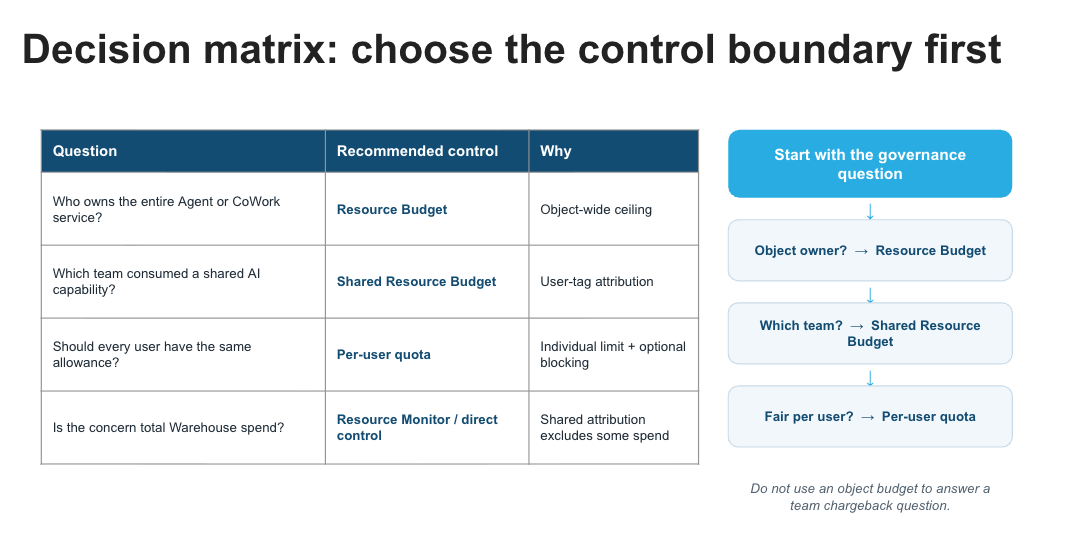
The lab uses service-domain budgets selected by user tag. They are not limited to the named example agents or functions, so other calls by users in scope can contribute. Do not rerun the budget creation file to refresh reporting: it recreates controls and resets custom actions added later.
Generate a bounded set of calls
- Open 05-03-AI-Usage-Generator.sql. Run its opening governor context, the
QUERY_TAGsetting, and temporary-table setup, then 5.11a AI FUNCTIONS and 5.11b CORTEX AGENTS. Keep these blocks in the same session as the temporary table. This is the small demonstration workload. Actual consumption depends on the responses and tool calls. - Check that the function calls and both agent calls complete.
- Skip 5.11c in the main walkthrough, then run the final
ALTER SESSION UNSET QUERY_TAG;so the tag does not carry into later work.
Optional, chargeable: 5.11c BULK AI_COMPLETE. With BULK_ROWS = 100, it makes 100 Sonnet 5 calls with max_tokens 2000 each, so output is capped at 200,000 tokens. The script sizes that at up to about 1.2 credits at the lab's measured rates, plus warehouse time. The model may stop early, so actual spend can be lower and the run is not guaranteed to cross the 1-credit budget limit. It is sized to cross the quota's 0.1-credit daily threshold set in 05-04. Run it once, deliberately, only if you want that threshold to fire. Rerunning adds the same spend again.
You have generated calls for two services after creating their controls. The history may not be visible yet. Record that distinction and continue to safe action configuration. Do not repeatedly generate chargeable calls to make an empty report fill up.
If governor agent calls fail here, first confirm the 02-04.6 cleanup, the fresh session, and the approved-model grants. An empty cost report, by itself, is not evidence of a failed invocation.
Part 5 - Test Safe Actions
File: 05-04-AI-Cost-Automation.sql. Run the opening governor, warehouse, and schema context.
If you skip email registration: run the logging procedure, non-email custom-action registration, inspection, and dry-run calls in 5.12a and 5.12b selectively. Leave the budget email calls, quota email threshold, and admin summary email calls unexecuted. Do not run the whole file with the placeholder address. Record email delivery as not tested.
- 5.12 NOTIFICATION EMAIL needs a verified address. In Snowsight, open your avatar, then Settings > My profile, enter your email, and click the link in the verification email. In the file, replace
<your_email_address>inSET NOTIFY_EMAILwith that same verified address before running anything below it. An unverified or placeholder address makes the email registration calls fail. - Run the rest of 5.12. Its
DESCRIBE USERcheck runs asSECURITYADMINand should show the same address, then the section returns to governor. - Run 5.12a CUSTOM ACTION PROCEDURE, then 5.12b REGISTER A 1%-ACTUAL CUSTOM ACTION + EMAIL ALERT PER BUDGET. One percent of a 1-credit limit is 0.01 credit. Inspect
GET_CUSTOM_ACTIONSfor the 1% actual-consumption action on each budget. The email calls register your address with a 1% projected notification threshold. - Run the two direct dry-run calls at the end of 5.12b. Each writes a log row with a
DRYRUN_event ID anddry_run: truein its details, one per budget and service. - Run 5.13 LAB-NATIVE ENFORCEMENT PATTERN. As
AGOV_GOVERNOR, the agent owner, it creates the owner-rightsREVOKE_AGENT_ACCESSandRESTORE_AGENT_ACCESSprocedures and grants them to the budget application. Their registration onAGOV_AGENT_BUDGETstays commented. Inspect the procedures and the commented calls, and do not uncomment them. The section ends back as governor inCOST_MANAGEMENT. - Run 5.14 QUOTA DAILY EMAIL AND THE BUILT-IN BLOCK. It adds a 10% actual daily threshold (0.1 credit) that emails your verified profile address, sets the admin summary email, shows
GET_CONFIGandGET_NOTIFICATION_THRESHOLDS, and creates the quota logging procedure. Block enforcement and the optional quota custom action stay commented. - About 10 to 15 minutes later, run 5.15 DID THE NOTIFICATION GO OUT? Its
ACCOUNTADMINquery reads quota events from the active event table. Expect the configuration events right away and a user notification only once today's spend passes 10%. The governor query below it shows the action log, with the dry-run rows already present.
The dry run proves that the logging procedure writes a row. It does not prove that a budget crossed 1% or that the action fired automatically. Budget-fired rows carry no dry_run flag and appear only after the budget refreshes, up to roughly 6.5 hours later. Configured quota limits do not demonstrate blocking while block enforcement is disabled. Leave the standard walkthrough in that non-blocking state.
Run action and notification registration once. Actual-consumption actions fire at most once per cycle, and the script notes which call to remove before a rerun. If returning to inspect results, rerun the inspection queries rather than the registration or control-creation statements.
Part 5 - Inspect Reported Spend
This is a return-later step if your usage has not arrived. Budget data can lag up to roughly 6.5 hours, and refreshing usage does not remove that delay. Keep the lab objects until you have collected the evidence you want, or mark reporting pending and proceed to cleanup if you do not intend to return.
File: 05-05-AI-Cost-Observability.sql. Run its opening auditor context. Keep secondary roles NONE.
- Run 5.16 AI FUNCTIONS CREDITS BY USER AND COST CENTER and 5.17 CORTEX AGENT CREDITS BY USER AND COST CENTER. Function rows resolve the user through Query History and join the current tag. Agent rows carry the user tags recorded with each request. These history queries can include earlier runs or other matching account activity, not only today's exercise.
- Run 5.18 ROLLUP for month-to-date lab AI credits per service and cost center. It is the
ACCOUNT_USAGEside of the budget comparison below. - Skip 5.19 AI GATEWAY in the main walkthrough. The lab generates no Gateway usage.
- Run 5.20 BUDGET-NATIVE VIEW, including its governor role, schema, month variables, and
REFRESH_USAGEcalls. Execute the complete pipedGET_SERVICE_TYPE_USAGE_V2statement as one block. - In Workspaces, use a bar chart with
BUDGET_NAMEon the category axis,CREDITS_USEDas the value, andNAMEas the series. Agent entries belong under the agent budget and AI Function entries under the function budget. Then inspect theGET_SPENDING_HISTORYcalls and the action log, where budget-fired rows appear without the dry-run flag once the budget has refreshed. - Run 5.20a QUOTA-NATIVE VIEW, including its date variables. Inspect per-user spend by service. The quota spans both services for the tagged user, so its total should roughly match the two budgets, subject to refresh timing.
You are checking whether each control attributed consumption to its intended scope. Do not require exact equality between reports with different date windows, coverage, or refresh timing. Before interpreting a discrepancy, align those conditions and inspect the underlying service rows.
If both budgets remain empty after records should have arrived, revisit the user-tag scope, resolved users, service selection, and successful calls. Do not recreate budgets or generate more usage as a first response. CoWork agent calls are billed through CoWork rather than the native Cortex Agent service. This is why the usage generator uses SQL calls, and why CoWork and CoCo remain outside this lab's quota scope.
Clean Up
Keep a short record of which comparisons you completed, which failed, and which are still waiting for telemetry. Lesson-boundary checks, UI observations, tool results, and delayed reports are different evidence. One passing category does not fill in the others. Complete any optional follow-ups below before teardown, while their lab objects still exist.
If you paused during RSS, run the 02-04.6 cleanup before leaving the session.
When finished, run 99-Teardown.sql once in a human Snowsight worksheet, from its opening context through the final warehouse drop. Each section switches to the role that owns its objects, and only the labeled bootstrap restore and the APPLY TAG revoke use ACCOUNTADMIN. Its first section uses the same guard as 02-04.6. It detaches only the lab session policy, is a no-op if none is attached, and raises error -20002 without touching any other policy. Stop on any error there before the drop statements run. The rest removes the cost-center user tag, the lab database and objects (including the optional app), roles, and warehouse. It resets default secondary roles to ALL and re-grants broad PUBLIC model access. The legacy allowlist remains None, and the cross-region setting stays AWS_GLOBAL.
Inspect execution results for completion. This is cleanup to selected defaults, not restoration of arbitrary previous account settings. To return to your earlier values, uncomment the optional 4b RESTORE YOUR CAPTURED SETTINGS section and fill in the values recorded in 0.0 CAPTURE PRIOR SETTINGS. After an interrupted or partial run, inspect the failed statement and remaining objects rather than assuming that repeating teardown is harmless.
Optional Follow-ups
These are extensions to try before cleanup, not steps required to complete the main walkthrough.
Trace a request further
Return to 02-03.4, items 1 and 4, and 01-03.3 after usage records arrive. Re-establish each file's creation-time variables using its opening capture block if the session was lost. Native API/SQL and CoWork use different usage views. Request rows can lag up to an hour and SQL cost metadata up to eight hours.

Use tool-result query IDs for exact SQL lookup and cortex-agent-{request_id} tags for native request correlation. Keep request and execution roles separate. A request may have multiple SQL statements or no SQL, so use usage views for cost reconciliation rather than summing traces or duplicated request credits after a join. The README contains the longer monitoring explanation.
Alternative execution and interfaces
Snowflake CLI can execute files from the downloaded repository:
snow sql -c <lab_connection> -f hol-lab/00-Setup.sql
Use it only after satisfying setup's model-catalog prerequisite. Whole-file execution does not preserve the guide's manual pause points or run its commented negative tests. Workspaces remains the recommended path for the comparisons.
The optional REST helper requires Snowflake CLI and a connection configured for key-pair JWT authentication:
python run_agent.py --connection <lab_connection> --role AGOV_ANALYST
Use the disposable lab connection explicitly. Compare governor and analyst tool data and actual execution roles before treating this as evidence for the REST path.
Broader AI cost reporting
Read 5.21 and optionally run 5.22 in 05-05 for additional services and service-level billing context. CoCo overwrites the session query tag, so the lab uses user tags for attribution. Do not assume each service records the same identity or tag fields.
For the optional read-only Next.js app, run 05-06-AI-Cost-App-Setup.sql (USERADMIN creates the role, SECURITYADMIN grants it) and follow the AI Cost Control app README before teardown. It documents the Node.js and Snowflake CLI 3.21+ prerequisites and uses AGOV_COST_APP_ROLE. The app runs in one of two ways:
- Deployed with
snow app deploy, it runs inside Snowflake asAGENTIC_GOV_DB.COST_MANAGEMENT.AGOV_AI_COST_CONTROLand authenticates with a Snowflake-managed, rotating OAuth service token. - Locally with
npm run dev, it uses the connection you select in your Snowflake connections file, so it authenticates however that connection does, which may be a programmatic access token. Pick the lab connection explicitly withSNOWFLAKE_CONNECTION_NAME.
It is a lab sample. No additional security hardening has been implemented beyond the read-only app role.
Conclusion And Resources
You started by asking what should change when an analyst gets an agent. The comparisons give separate answers, and keeping those decisions separate lets you change one without quietly weakening another.
What You Learned
- Part 1, Data Governance: governed data stays governed. Masking, aggregation, and projection keep analytics useful, while contact use is gated by consent and entitlement.
- Part 2, Agentic Governance: the approved model and tool limit reachable fields, paired clearance limits sensitive values in agent context, and RSS limits available authority.
- Part 3, Data Movement Governance: a movement policy allows the approved agent, blocks its shadow, restricts covered downloads, and alerts on volume without revoking query access.
- Part 4, AI-Assisted Governance: AI redacts unstructured text and answers governance questions, and you verify both against SQL evidence.
- Part 5, AI Cost Governance: service budgets attribute team spend, a quota sets each user's allowance, and custom actions respond to thresholds.
Resources
This content is provided as is, and is not maintained on an ongoing basis. It may be out of date with current Snowflake instances
