Multi-Index Cortex Search: Build a Retail Catalog Search App
Overview
Solve the two hardest search problems in retail: exact brand recall and semantic intent in a single Cortex Search service with four indexes. Then build a full-stack application on top of it.
This guide has two parts:
- Part 1 — Introduction to Multi-Index Cortex Search: Learn how multi-index works, set up a product catalog, create a search service and query it from SQL
- Part 2 — Building a Search Application: Use the Python SDK to query the service programmatically, then build a React + FastAPI demo app and deploy it to Snowpark Container Services. We will use a synthetic winter sports ecommerce shop as an example.
Download the code assets for this quickstart:
- setup_snowfield_pro_search.sql — Full environment and SQL setup
- products.csv — Product catalog data (1,085 products)
- querying_with_python_sdk.ipynb - Querying Multi-index Cortex Search with Python SDK
- snow-sports-demo/ — Full-stack application source (backend, frontend, Dockerfile, product images, and SPCS spec)
What You'll Need
- Snowflake account with the ACCOUNTADMIN role or custom role with required privileges
- Basic familiarity with SQL
- (Optional) Python 3.9+ with the
snowflake-ml-pythonSDK — only required for the optional Python SDK section
What You'll Learn
- Why keyword-only and vector-only search each fail in different ways on retail catalogs
- How Cortex Search
TEXT INDEXESandVECTOR INDEXESwork within a single service - How to construct the
SEARCH_TEXTcolumn for maximum retrieval coverage - How to query all indexes simultaneously from SQL using
SNOWFLAKE.CORTEX.SEARCH_PREVIEW() - How to derive category breakdowns from result attributes (not from separate services)
- How to use
AI_COMPLETE()to enrich product descriptions with AI before indexing - How to query with the Python SDK using
multi_index_query - How to build a full-stack demo app around Cortex Search
What You'll Build
- A product catalog table with a pre-computed
SEARCH_TEXTcolumn - A single Cortex Search service with three TEXT indexes and one VECTOR index
- Working SQL queries using
SEARCH_PREVIEWthat demonstrate brand recall, intent search, attribute filtering, and category breakdowns - AI-enriched product descriptions using
AI_COMPLETE()for deeper semantic recall - A Python query function using
multi_index_querythat hits all four indexes at once - A live SNOWFIELD PRO demo app with debounced auto-search
The Retail Catalog Retrieval Problem
The most common search failure mode in retail is not a technology limitation — it is choosing one retrieval strategy when the catalog needs two.
Consider a winter sports catalog with 1,085 products across Equipment, Apparel, Protection, and Accessories. Users issue two fundamentally different query types:
Query Type 1 — Brand Name Lookup
The user knows exactly what they want:
"ridgeline"
"black crows skis"
"marker kingpin"
These are exact match queries. Keyword search excels here — a brand name is a literal string and surfaces it at rank 1. But a pure embedding model struggles: brand names are proper nouns with little semantic neighbourhood in the training corpus. A vector-only search for "ridgeline" may return Dynastar Vertical ski pants (the word "ridgeline" appears in the description) ranked above actual Ridgeline brand products.
Query Type 2 — Intent / Brand Voice
The user knows what they need but not which brand:
"warm waterproof jacket for off-piste skiing"
"protective gear for a beginner on groomed runs"
"lightweight boot for touring in variable snow"
These are semantic queries. A vector index over descriptive text handles this naturally — the embedding captures the intent and matches products even when no keyword overlaps. Keyword search would return zero results for most of these queries.
Understanding Multi-Index Cortex Search
Snowflake Cortex Search enables hybrid search in Snowflake, combining keyword search and vector search. What’s different about Multi-Index Cortex Search is that it supports multiple searchable columns. Each column can be indexed independently as a text index, a vector index, or both, and each can be queried independently. You can also control per-field relevance using text_boosts and vector_boosts.
TEXT INDEXES
Text indexes over one or more string columns. Each column gets its own inverted index. Useful for:
- Exact brand name recall
- Product name keyword match
- Category and subcategory lookup
- SKU and model number search
VECTOR INDEXES
Dense embedding indexes over a text column. Snowflake supports multiple embedding models for managed vector generation. Useful for:
- Semantic / intent queries
- Brand voice and description matching
- Synonym and paraphrase handling
- Cross-lingual retrieval
Bring Your Own Vectors (BYOV): You can also provide pre-computed vector embeddings directly instead of using Snowflake-managed models. This is useful when:
- You have domain-specific embeddings trained on your own data (e.g., fashion, medical, legal corpora)
- You use a third-party embedding provider (OpenAI, Cohere, Voyage AI, etc.) and want consistent embeddings across your stack
- You need multilingual embeddings from a specialized model not yet available in Snowflake
- You have already embedded your corpus and want to avoid re-computation costs
This guide will focus on using embeddings models within Snowflake for vector generation.
Setting Up Your Snowflake Environment
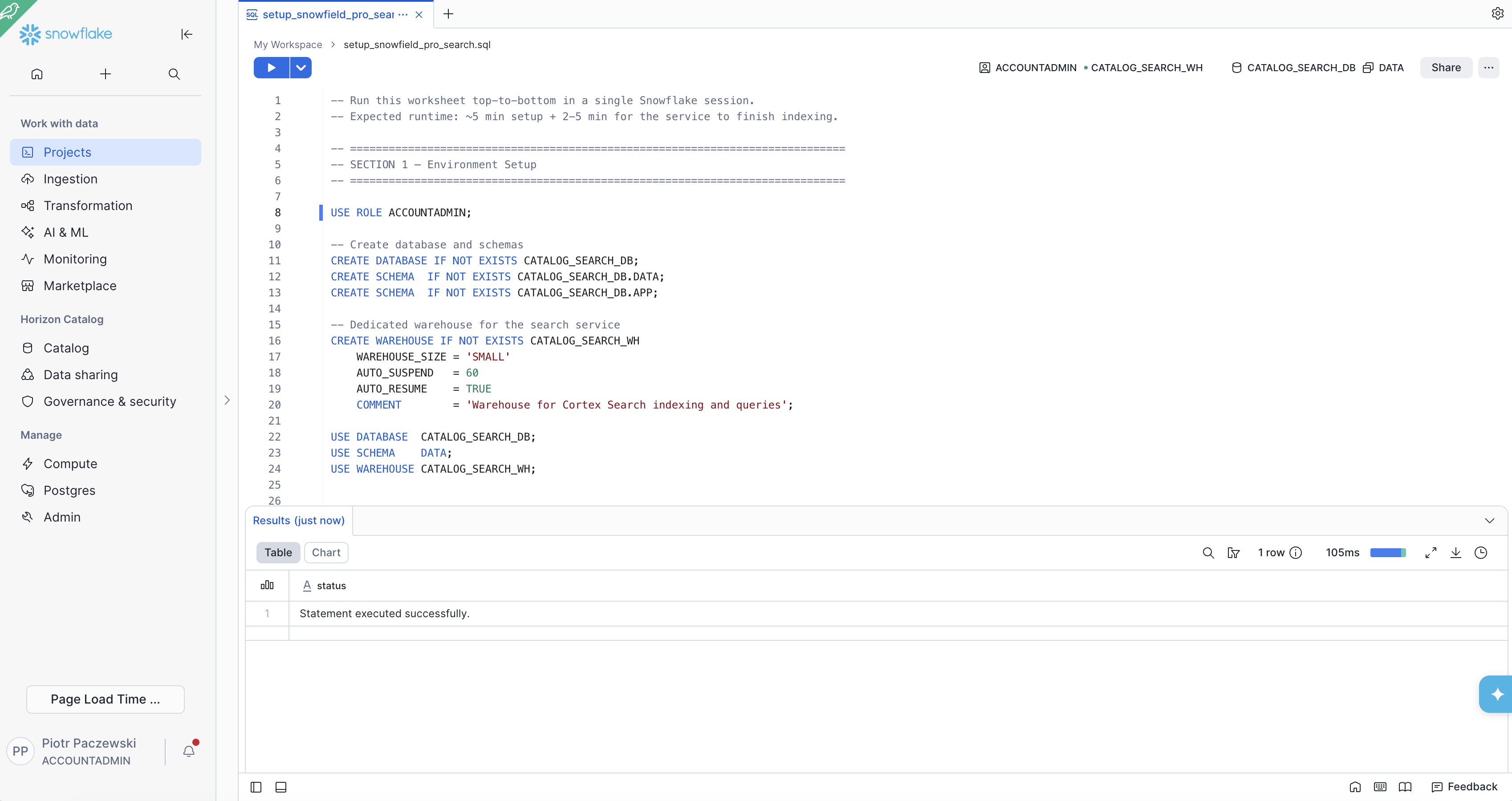
Step 1 — Create the Database and Warehouse
-- Use a role with sufficient privileges
USE ROLE ACCOUNTADMIN;

-- Create the database and schemas
CREATE DATABASE IF NOT EXISTS CATALOG_SEARCH_DB;
CREATE SCHEMA IF NOT EXISTS CATALOG_SEARCH_DB.DATA;
CREATE SCHEMA IF NOT EXISTS CATALOG_SEARCH_DB.APP;

-- Create a dedicated warehouse for the search service
CREATE WAREHOUSE IF NOT EXISTS CATALOG_SEARCH_WH
    WAREHOUSE_SIZE = 'SMALL'
    AUTO_SUSPEND = 60
    AUTO_RESUME = TRUE
    COMMENT = 'Warehouse for Cortex Search service and queries';

USE DATABASE CATALOG_SEARCH_DB;
USE SCHEMA DATA;
USE WAREHOUSE CATALOG_SEARCH_WH;
Step 2 — Create the PRODUCTS Table
CREATE OR REPLACE TABLE CATALOG_SEARCH_DB.DATA.PRODUCTS (
    PRODUCT_ID      NUMBER AUTOINCREMENT PRIMARY KEY,
    ITEM_NAME       VARCHAR(500),
    BRAND           VARCHAR(200),
    CATEGORY        VARCHAR(100),     -- Equipment | Apparel | Protection | Accessories
    SUBCATEGORY     VARCHAR(200),
    DISCIPLINE      VARCHAR(100),     -- Alpine | Freeride | Nordic | Touring | Park
    SKILL_LEVEL     VARCHAR(50),      -- Beginner | Intermediate | Advanced | Expert
    GENDER          VARCHAR(50),
    PRICE           NUMBER(10, 2),
    PRODUCT_TYPE    VARCHAR(100),
    FLEX_RATING     VARCHAR(50),
    DESCRIPTION     VARCHAR(2000),
    SEARCH_TEXT     VARCHAR(4000)
);
Step 3 — Load the Sample Catalog
The product catalog is provided as a CSV file (products.csv) with 1,085 products across Equipment, Apparel, Protection, and Accessories from 5 brands (Ridgeline, Black Crows, Salomon, Volkl, Ortovox).
First, create a file format and stage:
-- Create a file format for the CSV
CREATE OR REPLACE FILE FORMAT CATALOG_SEARCH_DB.DATA.PRODUCTS_CSV_FORMAT
  TYPE = 'CSV'
  FIELD_OPTIONALLY_ENCLOSED_BY = '"'
  SKIP_HEADER = 1
  NULL_IF = ('');

-- Create a stage to hold the CSV file
CREATE OR REPLACE STAGE CATALOG_SEARCH_DB.DATA.PRODUCTS_STAGE
  FILE_FORMAT = CATALOG_SEARCH_DB.DATA.PRODUCTS_CSV_FORMAT
  COMMENT = 'Stage for loading the products.csv catalog file';
Next, upload products.csv to the stage. You have two options:
Option A — Upload via Snowsight (recommended):
- In Snowsight, navigate to Data > Databases > CATALOG_SEARCH_DB > DATA > Stages
- Click on PRODUCTS_STAGE
- Click the "+ Files" button in the top right
- Drag and drop
products.csv(or click to browse and select the file) - Click "Upload"
Option B — Upload via PUT command (from SnowSQL or a Snowflake connector):
PUT file:///path/to/products.csv @CATALOG_SEARCH_DB.DATA.PRODUCTS_STAGE AUTO_COMPRESS=FALSE;
Finally, load the data into the table:
-- Load the CSV data into the PRODUCTS table
COPY INTO CATALOG_SEARCH_DB.DATA.PRODUCTS
  (ITEM_NAME, BRAND, CATEGORY, SUBCATEGORY, DISCIPLINE, SKILL_LEVEL, GENDER, PRICE, PRODUCT_TYPE, FLEX_RATING, DESCRIPTION)
FROM @CATALOG_SEARCH_DB.DATA.PRODUCTS_STAGE/products.csv
FILE_FORMAT = CATALOG_SEARCH_DB.DATA.PRODUCTS_CSV_FORMAT
ON_ERROR = 'ABORT_STATEMENT';

-- Verify row count (expected: 1,085)
SELECT COUNT(*) AS total_products FROM CATALOG_SEARCH_DB.DATA.PRODUCTS;
NOTE: In production, this is your existing catalog table. You do not need to load sample data — just point the search service at your real PRODUCTS table.
Step 4 — Build the SEARCH_TEXT Column
The SEARCH_TEXT column concatenates every attribute a user might describe — brand, product name, subcategory, discipline, skill level, gender, and the full description. This gives the vector index maximum coverage.
UPDATE CATALOG_SEARCH_DB.DATA.PRODUCTS
SET SEARCH_TEXT = TRIM(
    COALESCE(BRAND,        '') || ' ' ||
    COALESCE(ITEM_NAME,    '') || ' ' ||
    COALESCE(SUBCATEGORY,  '') || ' ' ||
    COALESCE(DISCIPLINE,   '') || ' ' ||
    COALESCE(SKILL_LEVEL,  '') || ' ' ||
    COALESCE(GENDER,       '') || ' ' ||
    COALESCE(DESCRIPTION,  '')
);
NOTE:
SEARCH_TEXTis the column that gets the vector index. It should be as descriptive as possible. If you run the optional AI enrichment section next, it will rewrite DESCRIPTION before you build this column — giving the vector index richer, more searchable content.
Step 5 — Verify the Data
-- Check row count and sample SEARCH_TEXT content
SELECT COUNT(*) AS total_products FROM CATALOG_SEARCH_DB.DATA.PRODUCTS;

SELECT PRODUCT_ID, BRAND, ITEM_NAME, CATEGORY,
       LEFT(SEARCH_TEXT, 200) AS search_text_preview
FROM CATALOG_SEARCH_DB.DATA.PRODUCTS
LIMIT 5;
Expected output: catalog rows with a SEARCH_TEXT preview that reads naturally (e.g. "Ridgeline Freeride Shell Jacket Outerwear Freeride Advanced Male 3-layer Gore-Tex shell with powder skirt...").
(Optional) Enrich Product Descriptions with Cortex AI
Short hand-written descriptions limit semantic recall. AI_COMPLETE() rewrites every product description in the natural language your customers actually use.
Why Enrich Before Indexing?
The vector index encodes the semantic meaning of SEARCH_TEXT. If descriptions are terse (e.g. "Gore-Tex shell with powder skirt"), they miss the synonyms, use cases, and natural language patterns customers type into search:
- "best jacket for deep powder days"
- "waterproof shell for aggressive off-piste skiing"
- "breathable ski jacket that works on the uptrack"
An LLM rewrites each description as a product page would — richer, more natural, search-optimised. This enrichment happens once at load time and is then indexed into the vector embedding for the lifetime of the product.
Step 1 — Preview Enrichment on 3 Rows
Always preview before committing to a mass update:
SELECT
    PRODUCT_ID,
    ITEM_NAME,
    BRAND,
    LEFT(DESCRIPTION, 100)                     AS original_description,
    AI_COMPLETE(
        'mistral-large2',
        CONCAT(
            'Write a rich, engaging product description for an online ski shop catalog. ',
            'Use natural language a customer would search for. Mention key use cases, ',
            'target skill level, and standout features. Keep it under 150 words.\n\n',
            'Product: ',     ITEM_NAME,    '\n',
            'Brand: ',       BRAND,        '\n',
            'Category: ',    SUBCATEGORY,  '\n',
            'Discipline: ',  DISCIPLINE,   '\n',
            'Skill Level: ', SKILL_LEVEL,  '\n',
            'Gender: ',      GENDER,       '\n',
            'Original description: ', DESCRIPTION
        )
    )                                           AS enriched_description
FROM CATALOG_SEARCH_DB.DATA.PRODUCTS
LIMIT 3;
Compare the original_description and enriched_description columns. The enriched version should feel like a product page — actionable, descriptive, and search-friendly.
Step 2 — Preserve Originals (Recommended)
-- Add a backup column before overwriting
ALTER TABLE CATALOG_SEARCH_DB.DATA.PRODUCTS
    ADD COLUMN DESCRIPTION_ORIGINAL VARCHAR(2000);

UPDATE CATALOG_SEARCH_DB.DATA.PRODUCTS
    SET DESCRIPTION_ORIGINAL = DESCRIPTION;
Step 3 — Enrich All Product Descriptions
-- Cost: ~1-2 credits per 1,000 rows with mistral-large2
-- Runtime: ~30-60 sec for 30 rows | ~3-5 min for 1,040 rows
UPDATE CATALOG_SEARCH_DB.DATA.PRODUCTS
SET DESCRIPTION = AI_COMPLETE(
    'mistral-large2',
    CONCAT(
        'Write a rich, engaging product description for an online ski shop catalog. ',
        'Use natural language a customer would search for. Mention key use cases, ',
        'target skill level, and standout features. Keep it under 150 words.\n\n',
        'Product: ',     ITEM_NAME,    '\n',
        'Brand: ',       BRAND,        '\n',
        'Category: ',    SUBCATEGORY,  '\n',
        'Discipline: ',  DISCIPLINE,   '\n',
        'Skill Level: ', SKILL_LEVEL,  '\n',
        'Gender: ',      GENDER,       '\n',
        'Original description: ', DESCRIPTION
    )
);
Step 4 — Rebuild SEARCH_TEXT with Enriched Descriptions
Now that DESCRIPTION is richer, rebuild the SEARCH_TEXT column so the vector index captures the full enriched content:
UPDATE CATALOG_SEARCH_DB.DATA.PRODUCTS
SET SEARCH_TEXT = TRIM(
    COALESCE(BRAND,        '') || ' ' ||
    COALESCE(ITEM_NAME,    '') || ' ' ||
    COALESCE(SUBCATEGORY,  '') || ' ' ||
    COALESCE(DISCIPLINE,   '') || ' ' ||
    COALESCE(SKILL_LEVEL,  '') || ' ' ||
    COALESCE(GENDER,       '') || ' ' ||
    COALESCE(DESCRIPTION,  '')
);

-- Verify the enriched SEARCH_TEXT preview
SELECT PRODUCT_ID, BRAND, ITEM_NAME,
       LEFT(SEARCH_TEXT, 250) AS search_text_preview
FROM CATALOG_SEARCH_DB.DATA.PRODUCTS
LIMIT 5;
NOTE: After completing this section, proceed to "Creating the Multi-Index Search Service". The service will index your enriched
SEARCH_TEXTautomatically.
Creating the Multi-Index Search Service
One DDL statement creates all four indexes and starts the indexing pipeline.
The Service DDL
CREATE OR REPLACE CORTEX SEARCH SERVICE CATALOG_SEARCH_DB.APP.PRODUCT_SEARCH
    TEXT INDEXES   BRAND, ITEM_NAME, SUBCATEGORY
    VECTOR INDEXES SEARCH_TEXT(model='snowflake-arctic-embed-l-v2.0')
    ATTRIBUTES     PRODUCT_ID, ITEM_NAME, BRAND, CATEGORY, SUBCATEGORY,
                   SKILL_LEVEL, DISCIPLINE, GENDER, PRICE, PRODUCT_TYPE, FLEX_RATING
    WAREHOUSE  = CATALOG_SEARCH_WH
    TARGET_LAG = '1 hour'
    AS (
        SELECT
            PRODUCT_ID,
            SEARCH_TEXT,
            ITEM_NAME,
            BRAND,
            CATEGORY,
            SUBCATEGORY,
            SKILL_LEVEL,
            DISCIPLINE,
            GENDER,
            PRICE,
            PRODUCT_TYPE,
            FLEX_RATING
        FROM CATALOG_SEARCH_DB.DATA.PRODUCTS
    );
What Each Clause Does
| Clause | Purpose |
|---|---|
TEXT INDEXES BRAND, ITEM_NAME, SUBCATEGORY | Creates text indexes on three structured columns for exact keyword match |
VECTOR INDEXES SEARCH_TEXT(model=...) | Creates a dense embedding index on the concatenated description column |
ATTRIBUTES ... | Columns returned with each result (not indexed — used for display/filtering) |
WAREHOUSE | Compute used for initial indexing and incremental refresh |
TARGET_LAG = '1 hour' | Maximum time between source table update and index refresh |
Verify Service Status
-- Check that the service has indexed your rows
SHOW CORTEX SEARCH SERVICES IN SCHEMA CATALOG_SEARCH_DB.APP;

-- Detailed status
DESCRIBE CORTEX SEARCH SERVICE CATALOG_SEARCH_DB.APP.PRODUCT_SEARCH;
Wait for indexing_state to show READY before running queries. For 1,040 rows this typically takes 2–5 minutes.
NOTE: The
TARGET_LAGsetting controls how frequently the service checks for new or updated rows. For a demo/dev catalog that rarely changes,'1 hour'is appropriate. For a live production catalog, use'1 minute'or different frequency.
Querying with SEARCH_PREVIEW (SQL)
NOTE:
SEARCH_PREVIEWis the easiest path to testing Multi-Index Cortex Search from SQL. TheSEARCH_PREVIEWfunction is provided for testing and validation only. It is not intended for serving search queries in an end-user application. The function has higher latency than the REST and Python APIs. For production applications use REST or the Python SDK'ssvc.search()method withmulti_index_queryreturns structured Python objects and gives you full multi-index control. See the optional SDK section below.
SNOWFLAKE.CORTEX.SEARCH_PREVIEW() is the SQL interface for Cortex Search — query indexes from a workspace, a Streamlit app, or any SQL-capable tool.
Test 1 — Query all indexes for search term: warm waterproof jacket for off-piste skiing"
SELECT PARSE_JSON(
    SNOWFLAKE.CORTEX.SEARCH_PREVIEW(
        'CATALOG_SEARCH_DB.APP.PRODUCT_SEARCH',
        '{
            "query": "warm waterproof jacket for off-piste skiing",
            "columns": ["ITEM_NAME", "BRAND", "CATEGORY", "PRICE"],
            "limit": 10
        }'
    )
) AS search_results;
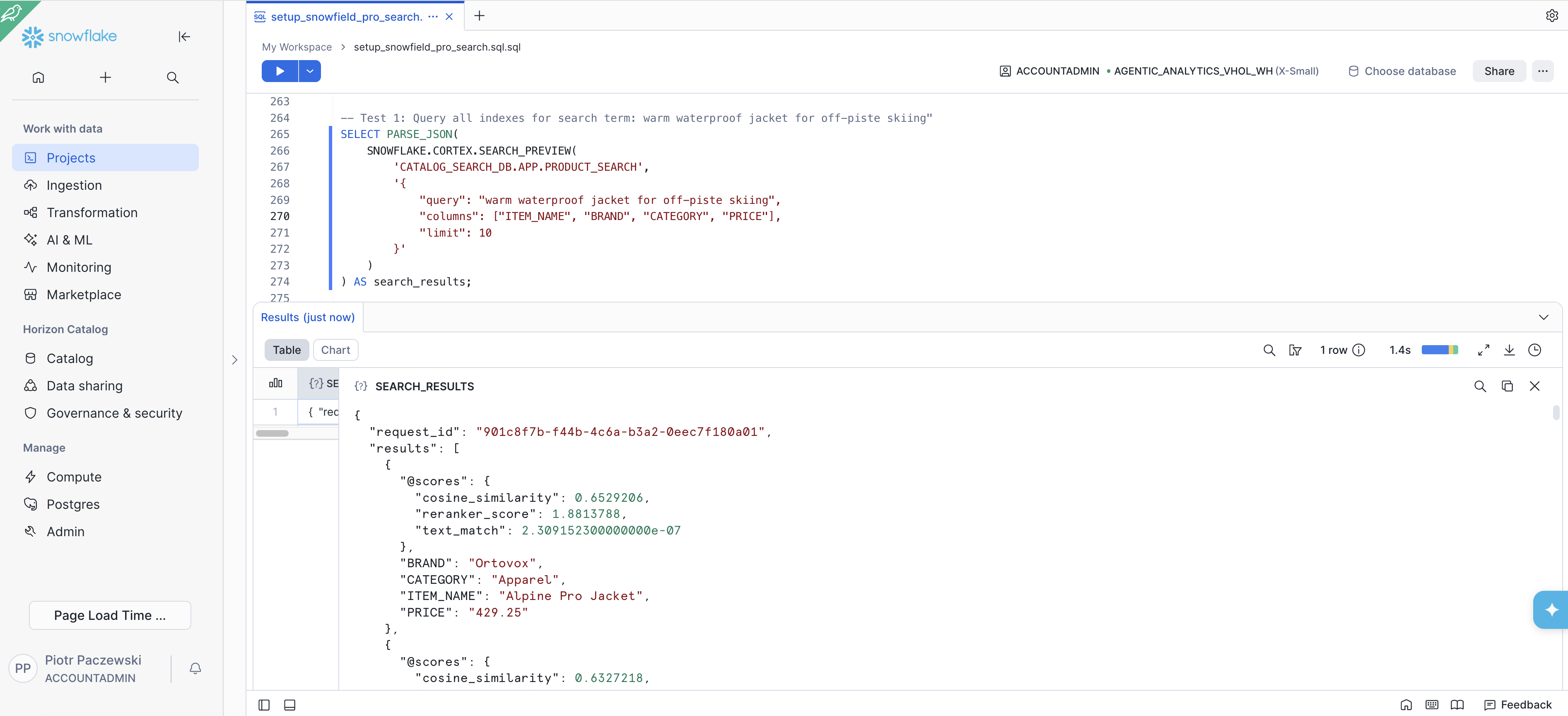
Expected result: Waterproof jacket on top for search results: even when the query uses entirely different words than the product descriptions.
Test 2 — Query using multi-index query syntax, search multiple columns indepedently. It searches the TEXT INDEX on the BRAND column for the search term "ridgeline" and SEARCH_TEXT column for "warm waterproof jacket off-piste".
SELECT PARSE_JSON(
    SNOWFLAKE.CORTEX.SEARCH_PREVIEW(
        'CATALOG_SEARCH_DB.APP.PRODUCT_SEARCH',
        '{
            "columns": ["PRODUCT_ID", "ITEM_NAME", "BRAND", "CATEGORY", "PRICE"],
            "multi_index_query": {
                "BRAND": [{"text": "ridgeline"}],
                "SEARCH_TEXT": [{"text": "warm waterproof jacket for off-piste skiing"}]
            },
            "limit": 10
        }'
    )
) AS search_results;
Test 3 — Attribute Filter (server-side filtering by SKILL_LEVEL)
SELECT PARSE_JSON(
    SNOWFLAKE.CORTEX.SEARCH_PREVIEW(
        'CATALOG_SEARCH_DB.APP.PRODUCT_SEARCH',
        '{
            "query": "protective gear",
            "columns": ["PRODUCT_ID", "ITEM_NAME", "BRAND", "CATEGORY", "SKILL_LEVEL", "PRICE"],
            "filter": {"@eq": {"SKILL_LEVEL": "Beginner"}},
            "limit": 10
        }'
    )
) AS search_results;
NOTE: The
filterclause is applied server-side before ranking — only products matching the filter are scored and returned. This is more efficient than fetching all results and filtering in your application.
Test 4 — Control Relevance with text_boosts and vector_boosts per column
Use scoring_config to fine-tune how much each index contributes to the final ranking.
SELECT PARSE_JSON(
    SNOWFLAKE.CORTEX.SEARCH_PREVIEW(
        'CATALOG_SEARCH_DB.APP.PRODUCT_SEARCH',
        '{
            "multi_index_query": {
                "BRAND": [{"text": "ridgeline"}],
                "SEARCH_TEXT": [{"text": "warm waterproof jacket for off-piste skiing"}]
            },
            "columns": ["PRODUCT_ID", "ITEM_NAME", "BRAND", "CATEGORY", "PRICE"],
            "limit": 10,
            "scoring_config": {
                "weights": {
                    "texts": 0.3,
                    "vectors": 0.6,
                    "reranker": 0.1
                },
                "functions": {
                    "text_boosts": [
                        {"weight": 1.0, "column": "BRAND"}
                    ],
                    "vector_boosts": [
                        {"weight": 2.0, "column": "SEARCH_TEXT"}
                    ]
                }
            }
        }'
    )
) AS search_results;
| Parameter | What it does |
|---|---|
weights.texts | Global weight for all text index scores (keyword matches) |
weights.vectors | Global weight for all vector index scores (semantic similarity) |
weights.reranker | Global weight for the cross-encoder reranker score |
text_boosts | Per-column multiplier applied on top of the global text weight — use to prioritize specific text indexes |
vector_boosts | Per-column multiplier applied on top of the global vector weight — use to prioritize specific vector indexes |
TIP: Start with the defaults and adjust incrementally. A higher
text_boostsweight on BRAND makes brand-name queries more precise; a highervector_boostsweight on SEARCH_TEXT improves recall for natural-language queries.
Tuning and Optimization
Multi-index retrieval is production-ready out of the box, but these practices improve recall further.
1. Enrich SEARCH_TEXT for Better Vector Coverage
The more descriptive the SEARCH_TEXT, the better the semantic index performs. Include everything a customer might say:
-- Enrich with brand taglines and synonyms if available
UPDATE CATALOG_SEARCH_DB.DATA.PRODUCTS
SET SEARCH_TEXT = TRIM(
    COALESCE(BRAND, '') || ' ' ||
    COALESCE(ITEM_NAME, '') || ' ' ||
    COALESCE(SUBCATEGORY, '') || ' ' ||
    COALESCE(DISCIPLINE, '') || ' ' ||
    COALESCE(SKILL_LEVEL, '') || ' ' ||
    COALESCE(GENDER, '') || ' ' ||
    COALESCE(DESCRIPTION, '') || ' ' ||
    -- Add brand tagline / voice if you have it
    COALESCE(BRAND_TAGLINE, '') || ' ' ||
    COALESCE(MATERIAL_TAGS, '')
);
2. Granular TEXT INDEXES for Niche Catalogs
For catalogs with strong SKU or model number search patterns, add those columns to TEXT INDEXES:
-- Example: add SKU and MODEL_NUMBER as TEXT indexes
-- (requires recreating the service)
CREATE OR REPLACE CORTEX SEARCH SERVICE ...
    TEXT INDEXES BRAND, ITEM_NAME, SUBCATEGORY, SKU, MODEL_NUMBER
    VECTOR INDEXES SEARCH_TEXT(model='snowflake-arctic-embed-l-v2.0')
    ...
Building a Search Application
You now have a working Multi-Index Cortex Search service. The remaining sections show how to build a full-stack search application on top of it — from a Python SDK query function to a React frontend deployed on local machine or on Snowpark Container Services.
Querying with the Python SDK
A single Python function replaces the fan-out pattern, the merge logic, and the manual reranker.
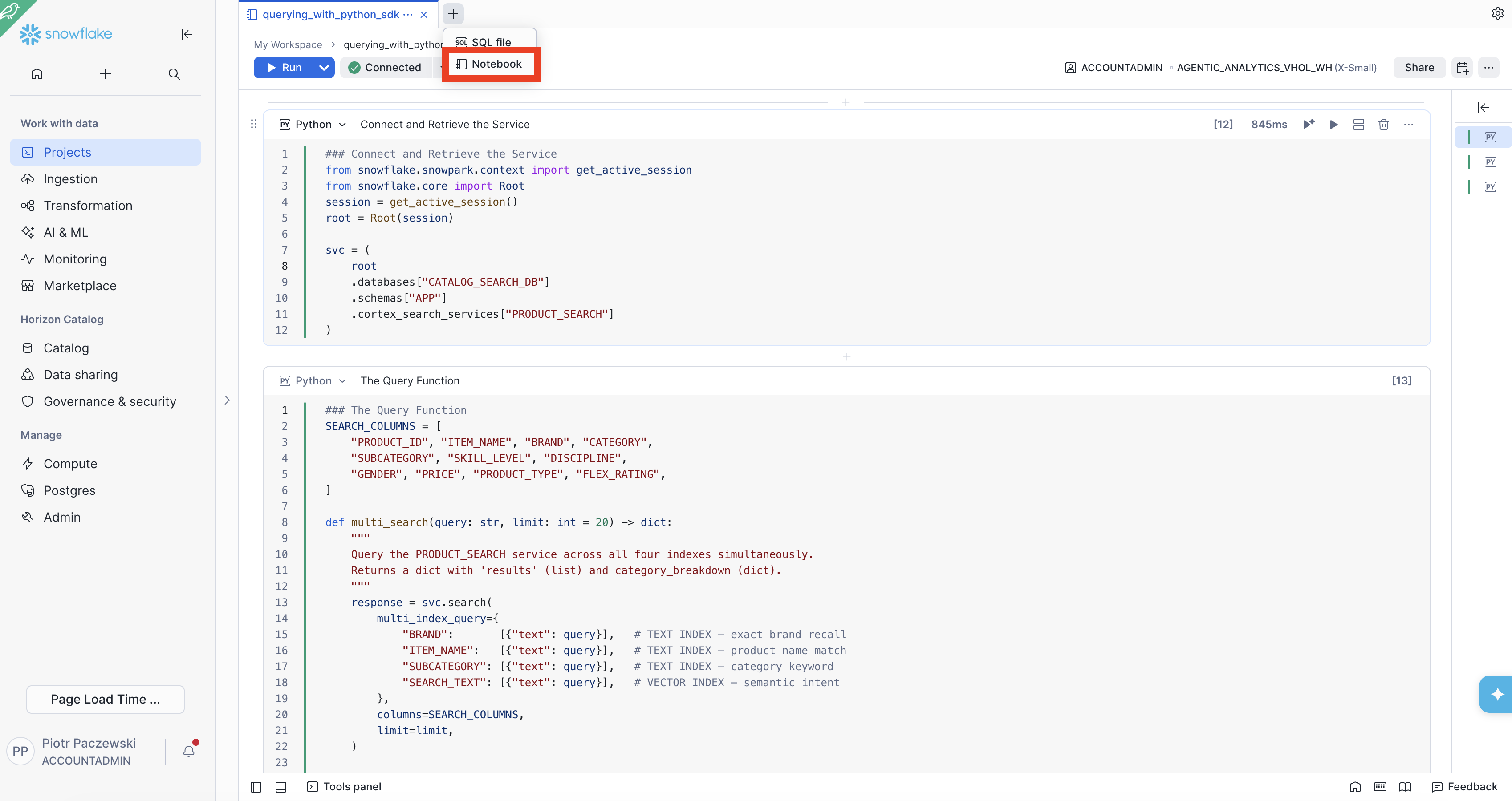
Connect and Retrieve the Service
from snowflake.snowpark.context import get_active_session
from snowflake.core import Root
session = get_active_session()
root = Root(session)

svc = (
    root
    .databases["CATALOG_SEARCH_DB"]
    .schemas["APP"]
    .cortex_search_services["PRODUCT_SEARCH"]
)
The Query Function
The query function will use all four indexes for the search. This can be easily adjusted by removing one of the indexes from the multi_search function definition.
### The Query Function
SEARCH_COLUMNS = [
    "PRODUCT_ID", "ITEM_NAME", "BRAND", "CATEGORY",
    "SUBCATEGORY", "SKILL_LEVEL", "DISCIPLINE",
    "GENDER", "PRICE", "PRODUCT_TYPE", "FLEX_RATING",
]

def multi_search(query: str, limit: int = 20) -> dict:
    """
    Query the PRODUCT_SEARCH service across all four indexes simultaneously.
    Returns a dict with 'results' (list) and category_breakdown (dict).
    """
    response = svc.search(
        multi_index_query={
            "BRAND":       [{"text": query}],   # TEXT INDEX — exact brand recall
            "ITEM_NAME":   [{"text": query}],   # TEXT INDEX — product name match
            "SUBCATEGORY": [{"text": query}],   # TEXT INDEX — category keyword
            "SEARCH_TEXT": [{"text": query}],   # VECTOR INDEX — semantic intent
        },
        columns=SEARCH_COLUMNS,
        limit=limit,
    )

    results = response.results

    # Derive category breakdown from the CATEGORY attribute on each result
    # (not from which service the result came from — there is only one service)
    category_counts = {}
    for r in results:
        cat = r.get("CATEGORY", "Unknown")
        category_counts[cat] = category_counts.get(cat, 0) + 1

    return {
        "results": results,
        "total": len(results),
        "category_breakdown": category_counts,
    }
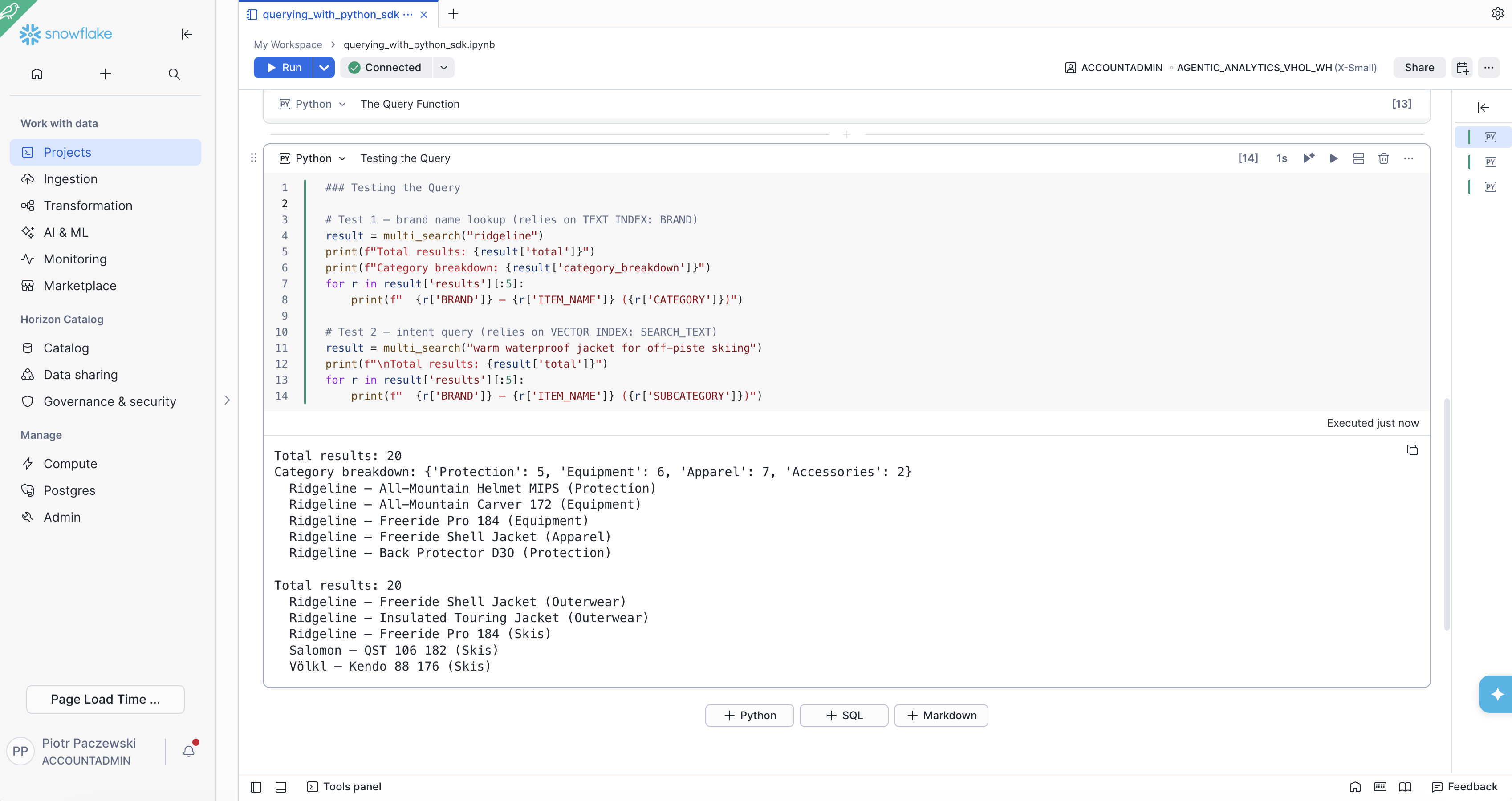
Testing the Query
# Test 1 — brand name lookup (relies on TEXT INDEX: BRAND)
result = multi_search("ridgeline")
print(f"Total results: {result['total']}")
print(f"Category breakdown: {result['category_breakdown']}")
for r in result['results'][:5]:
    print(f"  {r['BRAND']} — {r['ITEM_NAME']} ({r['CATEGORY']})")

# Test 2 — intent query (relies on VECTOR INDEX: SEARCH_TEXT)
result = multi_search("warm waterproof jacket for off-piste skiing")
print(f"\nTotal results: {result['total']}")
for r in result['results'][:5]:
    print(f"  {r['BRAND']} — {r['ITEM_NAME']} ({r['SUBCATEGORY']})")
Expected results from testing on the screenshoot below.
The Demo App: SNOWFIELD PRO
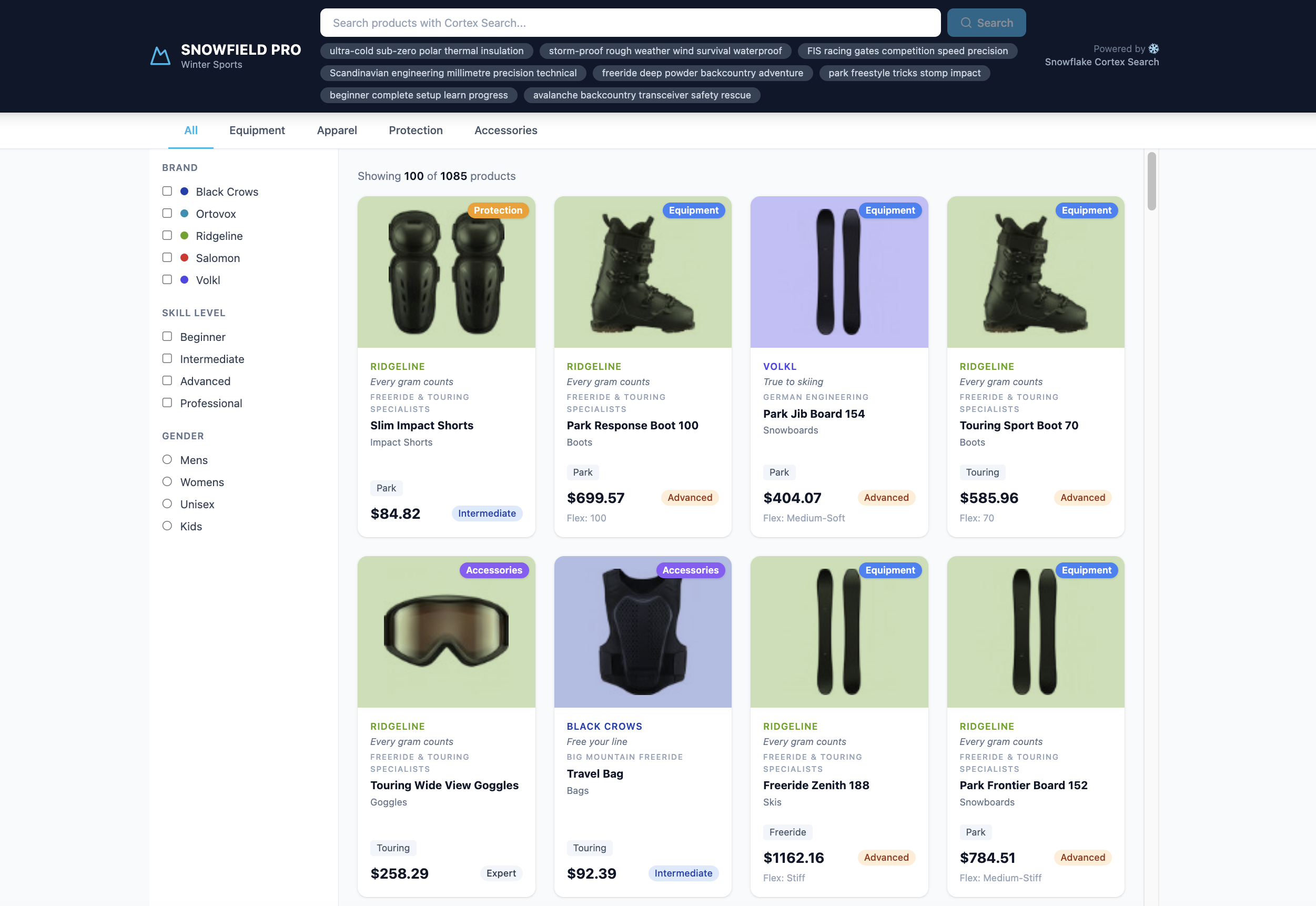
You've seen the power of Multi-Index Cortex Search from SQL and Python SDK. Now let's put it behind a FastAPI backend and a React frontend — with debounced auto-search and a multi-index insights panel.
The full SNOWFIELD PRO demo connects a FastAPI backend to a React frontend. The Python SDK's multi_index_query drives the search; every result carries a CATEGORY attribute that powers the live category breakdown sidebar.
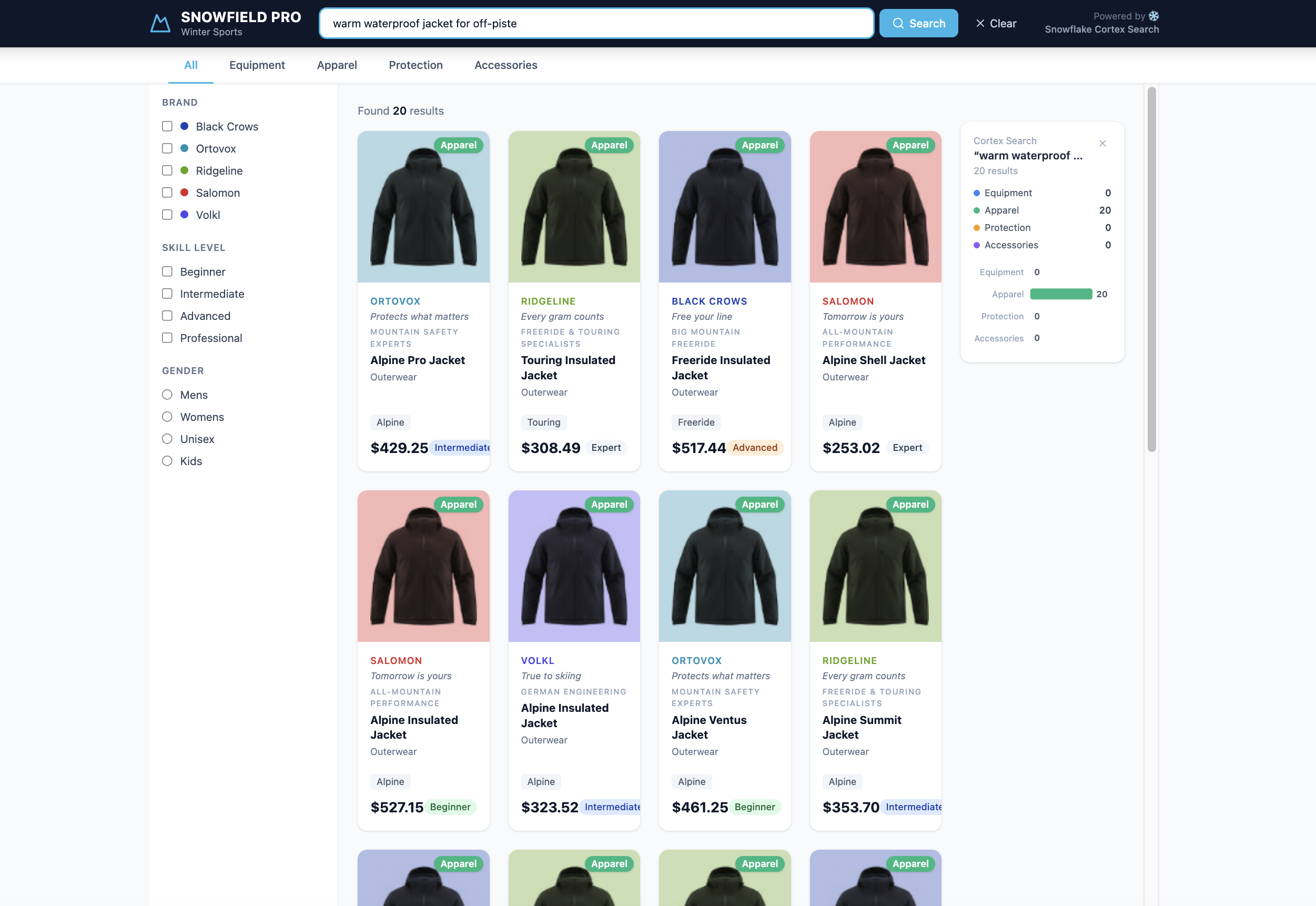
We will cover two options for running the app:
- Option 1: Running the App Locally
- Option 2: Running the App in Snowpark Container Services
Option 1 - Running the App Locally
Prerequisites
- Python 3.9+ with pip
- Node.js 18+ with npm
- A Snowflake connection configured in
~/.snowflake/connections.toml(the backend reads this automatically)
Step 1 — Install Backend Dependencies
From the code/snow-sports-demo/backend directory:
cd code/snow-sports-demo/backend
pip install -r requirements.txt
This installs FastAPI, uvicorn, snowflake-connector-python, snowflake-snowpark-python, snowflake-core, pydantic, and cryptography.
Step 2 — Install Frontend Dependencies
From the code/snow-sports-demo/frontend directory:
cd ../frontend && npm install
Step 3 — Start the Backend
The backend reads your Snowflake connection from ~/.snowflake/connections.toml. Set the SNOWFLAKE_CONNECTION environment variable to the name of your connection entry:
cd ../backend
SNOWFLAKE_CONNECTION=your_connection_name uvicorn main:app --reload --port 8000
The backend starts on http://localhost:8000.
Step 4 — Start the Frontend
In a separate terminal:
Verify backend works properly with:
curl http://localhost:8000/api/health
# Expected: {"status":"ok","database":"CATALOG_SEARCH_DB"}
NOTE: The first search request takes 30–60 seconds while the Snowpark session is established. Subsequent requests are fast.
Start the frontend:
cd ../frontend
npm run dev
The Vite dev server starts on http://localhost:5173 (or the next available port). It automatically proxies /api requests to the backend on port 8000.
Step 5 — Test the App
Open http://localhost:5173 in your browser:
- Search
"ridgeline"— observe all Ridgeline brand products surface at rank 1 (TEXT INDEX on BRAND) - Search
"warm waterproof jacket for freeride"— observe semantic results with no keyword overlap (VECTOR INDEX on SEARCH_TEXT) - The right sidebar shows the category breakdown derived from result attributes
Architecture
Browser (localhost:5173)
  │
  ├── React frontend (Vite dev server)
  │     └── POST /api/search/multi ──proxy──▶ localhost:8000
  │
  └── FastAPI backend (uvicorn)
        └── svc.search(multi_index_query={...})
              └── Cortex Search Service: CATALOG_SEARCH_DB.APP.PRODUCT_SEARCH
                    ├── TEXT INDEXES: BRAND, ITEM_NAME, SUBCATEGORY
                    └── VECTOR INDEXES: SEARCH_TEXT
Option 2 - Running the App on Snowpark Container Services (SPCS)
The same app can be deployed to SPCS for production use — no code changes required. The backend automatically detects the SPCS environment and uses OAuth token authentication from the mounted /snowflake/session/token file.
Trial Account Limitation: Snowpark Container Services (SPCS) is not available on Snowflake trial accounts. If you are using a trial account, you can skip this section and use the local deployment described above instead. The local deployment provides the same functionality for development and testing purposes.
Prerequisites
- Docker installed locally (for building the image)
- ACCOUNTADMIN or a custom role with required privileges
- The Cortex Search service (
CATALOG_SEARCH_DB.APP.PRODUCT_SEARCH) already created from the earlier sections
Step 1 — Create an Image Repository
CREATE IMAGE REPOSITORY IF NOT EXISTS CATALOG_SEARCH_DB.APP.APP_IMAGES;

-- Get the repository URL (you'll need this for docker push)
SHOW IMAGE REPOSITORIES IN SCHEMA CATALOG_SEARCH_DB.APP;
-- Note the repository_url column, e.g.: <account>.registry.snowflakecomputing.com/catalog_search_db/app/app_images
Step 2 — Build the Docker Image
From the code/snow-sports-demo directory (where the Dockerfile is):
docker build --platform linux/amd64 -t snow-sports-store:v1 .
NOTE: The
--platform linux/amd64flag is required even on Apple Silicon — SPCS runs on x86_64 nodes.
Step 3 — Login to the Snowflake Registry
# Using the Snowflake CLI
snow spcs image-registry login --connection your_connection_name

# Or manually with Docker
docker login <account>.registry.snowflakecomputing.com -u <username>
Step 4 — Tag and Push the Image
Replace <account> with your Snowflake account registry hostname (from Step 1):
docker tag snow-sports-store:v1 <account>.registry.snowflakecomputing.com/catalog_search_db/app/app_images/snow-sports-store:v1

docker push <account>.registry.snowflakecomputing.com/catalog_search_db/app/app_images/snow-sports-store:v1
Step 5 — Create a Compute Pool
CREATE COMPUTE POOL IF NOT EXISTS CATALOG_SEARCH_POOL
  MIN_NODES = 1
  MAX_NODES = 1
  INSTANCE_FAMILY = CPU_X64_XS
  AUTO_SUSPEND_SECS = 300
  AUTO_RESUME = TRUE;
Step 6 — Create the SPCS Service
CREATE SERVICE CATALOG_SEARCH_DB.APP.SNOW_SPORTS_STORE
  IN COMPUTE POOL CATALOG_SEARCH_POOL
  FROM SPECIFICATION $$
spec:
  containers:
  - name: snow-sports-store
    image: /catalog_search_db/app/app_images/snow-sports-store:v1
    env:
      SNOWFLAKE_DATABASE: CATALOG_SEARCH_DB
      SNOWFLAKE_SCHEMA: APP
      SNOWFLAKE_WAREHOUSE: CATALOG_SEARCH_WH
    resources:
      requests:
        cpu: 0.5
        memory: 1Gi
      limits:
        cpu: 2
        memory: 4Gi
  endpoints:
  - name: store-ui
    port: 8000
    public: true
$$
  MIN_INSTANCES = 1
  MAX_INSTANCES = 1;
Step 7 — Verify Deployment
-- Check service status (wait for status = READY)
SELECT SYSTEM$GET_SERVICE_STATUS('CATALOG_SEARCH_DB.APP.SNOW_SPORTS_STORE');

-- Get the public endpoint URL
SHOW ENDPOINTS IN SERVICE CATALOG_SEARCH_DB.APP.SNOW_SPORTS_STORE;
Open the ingress_url from the SHOW ENDPOINTS output in your browser. The app is live.
Cleanup
Run this SQL to remove all objects created in this quickstart.
-- Drop the database
DROP DATABASE IF EXISTS CATALOG_SEARCH_DB;

-- Drop the warehouse
DROP WAREHOUSE IF EXISTS CATALOG_SEARCH_WH;
Conclusion and Resources
You have built a production-ready retail catalog search using Multi-Index Cortex Search — one service, four indexes, zero manual reranking — and wrapped it in a full-stack application.
What You Built
Part 1 — Multi-Index Cortex Search:
- A product catalog table with a pre-computed
SEARCH_TEXTcolumn combining brand, name, subcategory, and description - A single Cortex Search service with three TEXT indexes (BRAND, ITEM_NAME, SUBCATEGORY) and one VECTOR index (SEARCH_TEXT)
- Working SQL queries using
SNOWFLAKE.CORTEX.SEARCH_PREVIEW()demonstrating brand recall, intent search, attribute filtering, and category breakdowns - AI-enriched product descriptions generated with
AI_COMPLETE()for deeper semantic recall
Part 2 — Search Application:
- A Python
multi_search()function usingmulti_index_queryto hit all four indexes in one SDK call - A full SNOWFIELD PRO demo app with debounced auto-search and a multi-index insights sidebar
- A production deployment path via Snowpark Container Services
Key Takeaways
- Multi-index is native, not a pattern —
TEXT INDEXESandVECTOR INDEXESare first-class DDL clauses in Cortex Search. One service, one call. - Brand recall requires a TEXT INDEX on BRAND — vector embeddings alone cannot reliably surface brand names at rank 1. Keyword search on the BRAND column solves this.
- Intent recall requires a VECTOR INDEX — keyword search cannot match "warm boot for icy terrain" against products that use different words. Embeddings solve this.
- The reranker is built in — you do not write score fusion logic. The service fuses text and vector signals automatically.
- CATEGORY comes from result attributes — in a single-service architecture, the category breakdown is a grouping of the
CATEGORYattribute on each result, not a reflection of which service matched. - AI enrichment amplifies semantic recall — running
AI_COMPLETE()on descriptions before indexing closes the vocabulary gap between terse product copy and natural customer queries.
Resources
This content is provided as is, and is not maintained on an ongoing basis. It may be out of date with current Snowflake instances
