Build Full-Stack Apps with Snowflake App Runtime
Overview
Three prompts. Three apps. Zero infrastructure.
You will build ChurnGuard, a customer retention app, by describing what you want to Cortex Code Desktop. Each iteration adds one prompt and one kind of app:
| Iteration | What You Build | Snowflake Features |
|---|---|---|
| 1 — Explore your data | A churn dashboard you can pivot and drill into. See the risk. Explore the why. | Application Service, querySnowflake, app.yml |
| 2 — Run the workflow | An Action Board where teams flag customers, assign actions, and track them to resolution. Turn insight into action. | Snowflake Postgres, data mirroring, dynamic tables, alerts, External Access Integration |
| 3 — Bring AI into the app | A Cortex Agent inside the app that answers questions and proposes actions for you to approve. Ask your data. Get a next step. | Cortex Agent, semantic view, serverless task, MCP server |
Snowflake App Runtime runs the app on Snowflake as an APPLICATION SERVICE. You don't build Docker images, manage a registry, or set up a pipeline. One command deploys it.
Each iteration ends with a working app. Session leaders can stop after any of them.
Prompt Approach
Each iteration uses an Intent-Driven Development (IDD) prompt. It tells Cortex Code what you want, not how to build it:
| Section | Purpose |
|---|---|
| Goal | The outcome you want |
| Requirements | What the app must do |
| UI | Look, layout, and interactions |
| Constraints | Scope and safety rules |
| Output | What success looks like |
What You'll Learn
The three iterations map to the three kinds of app Snowflake App Runtime is built for:
- Advanced data exploration: build an interactive app on governed data, with full control of the UI, that queries Snowflake without managing credentials
- Workflow apps: read and write governed data with shared state and approvals. Keep operational data (fast row inserts and updates) in Snowflake Postgres, mirror it to Snowflake, and let dynamic tables and alerts carry the logic so the app stays thin
- AI apps and agents: embed a Cortex Agent that reasons over your data and calls your app's tools, and expose those tools as an MCP server for agentic automation
- The App Runtime lifecycle: the describe, build, deploy, iterate loop, the app.yml manifest, and in-place upgrades at a stable URL
What You'll Need
Important: Snowflake App Runtime isn't available on trial accounts. You need an account where App Runtime is enabled.
-
A Snowflake account with Snowflake App Runtime enabled.
-
ACCOUNTADMIN access for the setup scripts, which:
- Create a custom role and database
- Grant BIND SERVICE ENDPOINT so the app gets a URL
- Grant CREATE EXTERNAL ACCESS INTEGRATION and CREATE NETWORK POLICY for Postgres connectivity (iteration 2)
- Grant the snowflake.postgres_mirror_admin application role for data mirroring (iteration 2)
- Grant the SNOWFLAKE.CORTEX_USER database role for the Cortex Agent (iteration 3)
After setup, you work as the dedicated SFQUICKSTART_CHURNGUARD_ROLE.
You probably have Git and Node.js already. The table lists every tool so you can check versions. psql and the Cortex Code CLI are optional:
| Tool | Version | Used for | Get it |
|---|---|---|---|
| Cortex Code Desktop | Latest | Running the prompts that build the app | Download |
| Cortex Code CLI | Latest | Optional: calling the app's MCP server (iteration 3) | Install |
| Snowflake CLI | 3.26.0+ | Running scripts and deploying the app | Install |
| Node.js and npm | 20+ | Building the app locally | Download |
| Git | Any recent | Cloning the repo and switching iterations | Download |
| psql | Any recent | Optional: connecting to Postgres from your terminal (iteration 2) | Download or brew install libpq on macOS |
If you want to try the MCP server in iteration 3, install the Cortex Code CLI:
# macOS, Linux, or WSL
curl -LsS https://ai.snowflake.com/static/cc-scripts/install.sh | sh

# Windows (PowerShell)
irm https://ai.snowflake.com/static/cc-scripts/install.ps1 | iex
Environment Setup
Verify Tools
Check the required tools. Snowflake CLI must be 3.26.0 or later and Node.js 20 or later:
# Check the required and optional tools
snow --version
node --version
git --version

# optional tools
psql --version
cortex --version
Clone the Repository
The repo holds the setup scripts and the prompt for each iteration:
# Clone the companion repo
git clone https://github.com/Snowflake-Labs/sfguide-build-full-stack-apps-with-snowflake-app-runtime.git
cd sfguide-build-full-stack-apps-with-snowflake-app-runtime
Tip: The solution branch has the finished ChurnGuard app through iteration 3. Use it to compare your app or to skip ahead, but don't merge it into my-app. Once you have my-app (below), compare at any point with:
git diff my-app origin/solution -- churnguard/
Add a Snowflake CLI Connection
Add a quickstart connection and test it:
# Add the quickstart connection, then test it
snow connection add --connection-name quickstart \
  --account <your_account> --user <your_user> \
  --warehouse SFQUICKSTART_CHURNGUARD_WH \
  --authenticator 'OAUTH_AUTHORIZATION_CODE' \
  --client-store-temporary-credential \
  --no-interactive

snow connection test --connection quickstart
The command writes the connection to your Snowflake config file. Replace your_account and your_user with your values. Cortex Code Desktop and the Cortex Code CLI read the same file.
Note: The guide uses the connection name quickstart. If you use another name, change it in .env, AGENTS.md, and every --connection flag (including cortex mcp add in iteration 3).
Run the Setup Scripts
Run the three setup scripts in order:
# Run the setup scripts in order
snow sql -f scripts/setup.sql --connection quickstart       # database and TPC-DS check
snow sql -f scripts/grants.sql --connection quickstart      # quickstart role and grants
snow sql -f scripts/setup-data.sql --connection quickstart  # sample data (usually under a minute)
What each one does:
- setup.sql creates the SFQUICKSTART_CHURNGUARD database and the SFQUICKSTART_CHURNGUARD_WH warehouse (X-Small, suspends after 60 seconds idle), and checks for the TPC-DS sample data (about 65 million rows). If your account doesn't have it, the script creates it from the Snowflake share. You can also get it from Snowflake Marketplace.
- grants.sql creates SFQUICKSTART_CHURNGUARD_ROLE and grants it to you. The role owns the quickstart database and can deploy apps, use the warehouse, and read the sample data. Each iteration adds its own grants when you rerun the script (Postgres in iteration 2, Cortex AI in iteration 3).
- setup-data.sql samples the TPC-DS 10 TB dataset once into two small tables, CHURN_METRICS (about 30,000 customers) and CHURN_TRENDS (monthly totals), so dashboard queries return in under a second. It samples with TABLESAMPLE SYSTEM instead of scanning the 29-billion-row fact tables.
Check the tables:
snow sql --connection quickstart --role SFQUICKSTART_CHURNGUARD_ROLE -q "
  SELECT 'CHURN_METRICS' AS tbl, COUNT(*) AS row_count
    FROM SFQUICKSTART_CHURNGUARD.PUBLIC.CHURN_METRICS
  UNION ALL
  SELECT 'CHURN_TRENDS', COUNT(*)
    FROM SFQUICKSTART_CHURNGUARD.PUBLIC.CHURN_TRENDS"
Expect about 30,000 rows in CHURN_METRICS and 12 rows (one per month) in CHURN_TRENDS. TPC-DS is a benchmark dataset, so its dates come from the early 2000s rather than this year.
Prepare Your Working Directory
Create your own working branch, my-app, from the iteration 1 branch:
# Create my-app from the iteration 1 branch
git fetch origin
git checkout -b my-app origin/iteration-1/data-exploration
The branch includes AGENTS.md, which tells Cortex Code your connection, role, database, and conventions. Cortex Code reads it automatically.
Set the default connection and role. The branch also includes .env.example, which makes quickstart your default connection and SFQUICKSTART_CHURNGUARD_ROLE its role. Load it now that grants.sql has created the role:
# Load the default connection and role
cp .env.example .env

# with direnv (https://direnv.net)
echo dotenv > .envrc && direnv allow
# or, without direnv, run this instead in each new terminal:
# set -a; source .env; set +a

snow connection test   # should show quickstart with SFQUICKSTART_CHURNGUARD_ROLE
Set the connection's default role and warehouse. snow app deploy uses the connection's default role, not --role or .env, so set it in your Snowflake config file (~/.snowflake/connections.toml). Add these two lines to the [quickstart] block, or update them if they're already there:
role = "SFQUICKSTART_CHURNGUARD_ROLE"
warehouse = "SFQUICKSTART_CHURNGUARD_WH"
The setup scripts still switch to ACCOUNTADMIN themselves, so you can rerun grants.sql later without changing anything.
Snowflake CLI commands, the Cortex Code CLI, and npm run dev started from this terminal now use that connection and role. The files hold no secrets, and the repo's .gitignore keeps .env and .envrc out of your commits.
Open the repo directory in Cortex Code Desktop. Your account name should appear in the status bar.
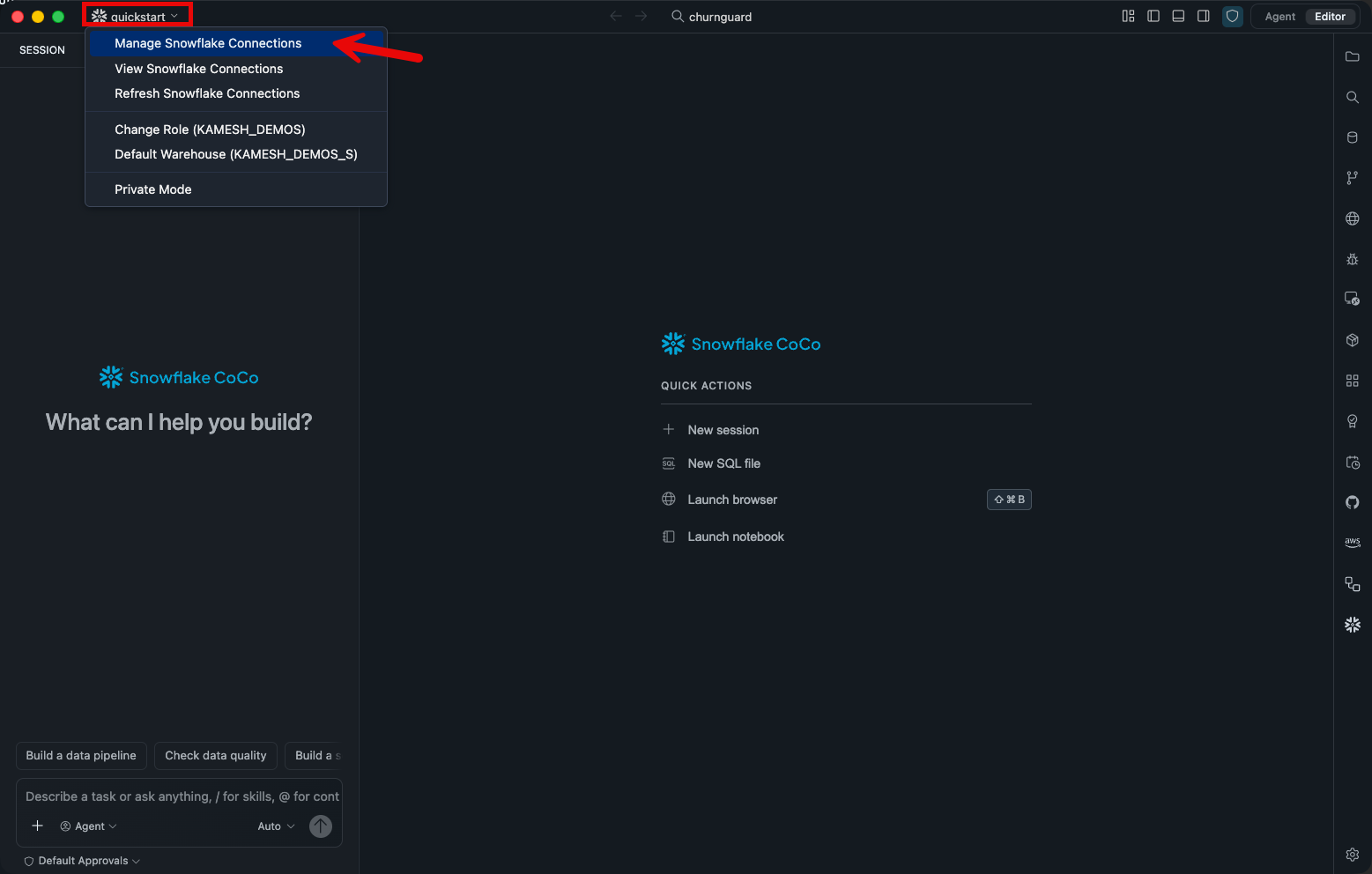
How your app carries over. Cortex Code generates the app in churnguard/ on your my-app branch. Each iteration branch adds only that iteration's prompts and scripts, so at the start of the next iteration you commit your app and merge the next branch in. Edit only files in churnguard/ and every merge stays conflict-free.
Iteration 1: Build the Data Explorer
See the risk. Explore the why.
A static report shows you numbers. An explorer lets you ask why. In this iteration one prompt builds a churn dashboard you can pivot and drill into, and deploys it.
The Prompt
Open the prompt file 01-build-explorer.md and paste it into Cortex Code Desktop. Here it is in full, so you can see how an IDD prompt is put together:
/snowflake-apps

Goal: Build a customer churn risk dashboard called ChurnGuard
that helps retention teams identify and prioritize at-risk customers.

Requirements:
- KPI cards: total customers, churn rate, revenue at risk, avg return rate
- Segment chart: churn risk distribution by credit rating (High/Medium/Low)
- Trend chart: active customers vs churn indicator over time
- Customer details table showing individual high-risk customers
  with 10-per-page pagination and risk level filter tabs
- Drill down: clicking a segment in the churn-risk chart filters the
  customer table to that segment; a "Clear filter" button resets it
- Pivot: a dimension selector above the segment chart lets users switch
  the grouping column (credit rating, marital status, education level,
  or gender) and the chart re-aggregates on selection
- Query the pre-computed tables in SFQUICKSTART_CHURNGUARD.PUBLIC:
  CHURN_METRICS (customer-level data) and CHURN_TRENDS (monthly aggregates)

UI:
- Modern card-based layout with generous spacing and subtle shadows
- Professional color palette (blues and grays with accent colors for risk levels)
- Responsive grid that works well on wide screens
- Smooth loading states and transitions
- Data-dense but not cluttered -- prioritize readability

Constraints:
- Query only the local CHURN_METRICS and CHURN_TRENDS tables
  (do NOT query SNOWFLAKE_SAMPLE_DATA directly -- the fact tables are too large)
- Add the usage markers from AGENTS.md (APP_ORIGIN in app.yml,
  QUERY_TAG on the connection with "iter":"1")

Output:
- Deployed interactive dashboard at the Application Service URL
- Clean Next.js project structure ready for iteration
How the prompt is built:
- /snowflake-apps loads the skill that knows how to build App Runtime apps
- Goal is the outcome, in one sentence
- Requirements say what the app must do
- UI describes the look and feel, not components
- Constraints set scope and safety rules
- Output says how you know it worked
The prompt never names a framework, a chart library, or a file. Those choices are left to Cortex Code. The later prompts follow the same structure.
What Happens
The build and deploy take a few minutes, so follow along in the chat. Cortex Code generates code with an LLM, so layout, chart styles, and colors vary between runs; your app will do the same things as the screenshots but may not look identical.
AGENTS.md tells Cortex Code where to deploy, so it works through the whole lifecycle:
1. Scaffold. Cortex Code copies the Next.js App Runtime starter and runs npm install.
2. Manifest and code. It runs snow app setup to generate the app.yml manifest, then writes:
- API routes that query CHURN_METRICS and CHURN_TRENDS
- A React frontend with KPI cards, a segment chart with drill-down, a trend chart, a pivot selector, and a customer table with risk badges
- Styling that follows the prompt's UI section
3. Deploy. Cortex Code runs snow app deploy, watches the build, and gives you the App URL once the service is RUNNING.
Key Concepts
- Owner's rights means the app's queries run as the service's own role, so the code holds no credentials and you don't grant anything per user. See Query Snowflake.
Verify
Tip: Run snow app open --connection quickstart to open the app in your browser, or add --print-only to print its URL. Add --watch if the deploy is still finishing.
Open the App URL. Click a segment in the churn-risk chart to filter the customer table, then switch the pivot to another dimension.
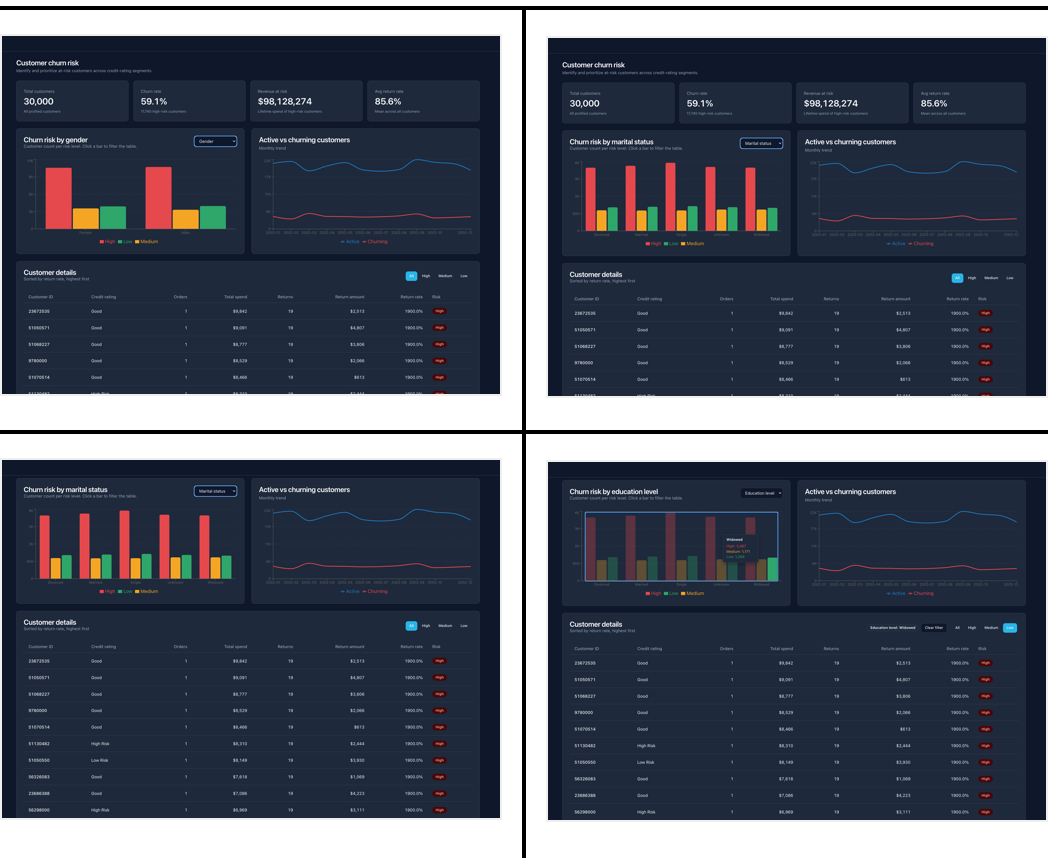
Note: The tables come from sampled TPC-DS data, so your numbers may differ if you rerun setup-data.sql.
The URL stays the same when you redeploy. The service upgrades in place, with no downtime.
Note: SHOW APPLICATION SERVICES may report SUSPENDED right after a deploy. That's normal: the service suspends when idle and resumes on the first request, so just open the URL.
Checkpoint: the dashboard filters by segment and pivots by dimension. You're ready for iteration 2.
Test Locally (Optional)
Start the dev server from churnguard/, then open http://localhost:3000. It connects to Snowflake with your CLI credentials.
npm run dev
Understanding app.yml
Open app.yml in your project root. snow app setup (Snowflake CLI 3.26.0+) generates it, and every App Runtime app uses it as its manifest. Cortex Code runs snow app setup for you; run it yourself only when you bring existing app code.
Tip: Have a project that uses snowflake.yml? See Migrate from snowflake.yml to app.yml.
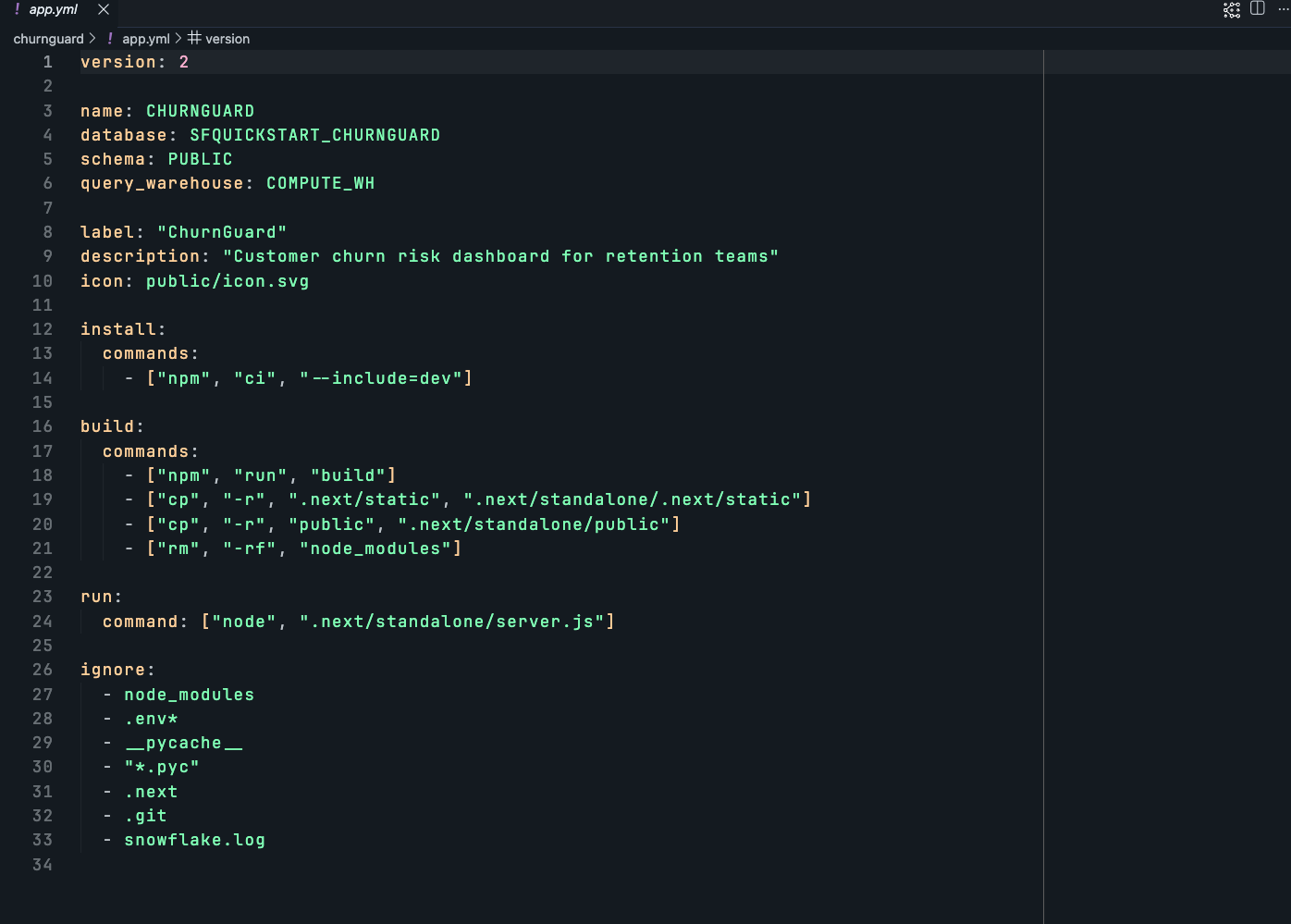
For every field, see the app.yml reference.
Key Fields
| Field | Purpose |
|---|---|
| version: 2 | Required. Without it the CLI ignores the deployment keys |
| name | Name of the APPLICATION SERVICE object |
| database / schema | Where the app object lives. Both must exist |
| query_warehouse | Warehouse for the app's SQL queries |
| label / description / icon | How the app is presented |
| ignore | Files left out of the upload |
| auto_resume | Resume the service when a request arrives (default true) |
| auto_suspend_secs | Idle seconds before the service suspends (default 0, never; minimum 300) |
| environment_variables | Plain (non-secret) settings for the app. ChurnGuard sets APP_ORIGIN here (see the note below) |
Each snow app deploy applies the whole manifest. Iteration 2 adds secrets and external_access_integrations so the app can reach Snowflake Postgres. Otherwise only the app code changes.
Note: ChurnGuard carries two anonymous usage markers: APP_ORIGIN in app.yml and a QUERY_TAG on every query the app runs. They tell Snowflake DevRel that an app started from this guide. They hold no customer data, and the app works the same without them. To opt out, delete both. AGENTS.md in the companion repo describes them.
Tip: With the default auto_suspend_secs of 0, the app never suspends and keeps consuming credits while idle. For a lab, set it to 300 (five minutes), or run the cleanup when you finish. See Scale and suspend apps.
Iteration 2: Add Workflow Capabilities
Turn insight into action.
A dashboard tells you who is at risk. It doesn't help you do anything about it. In this iteration ChurnGuard becomes a workflow app: teams flag customers, assign retention actions, and track them to resolution.
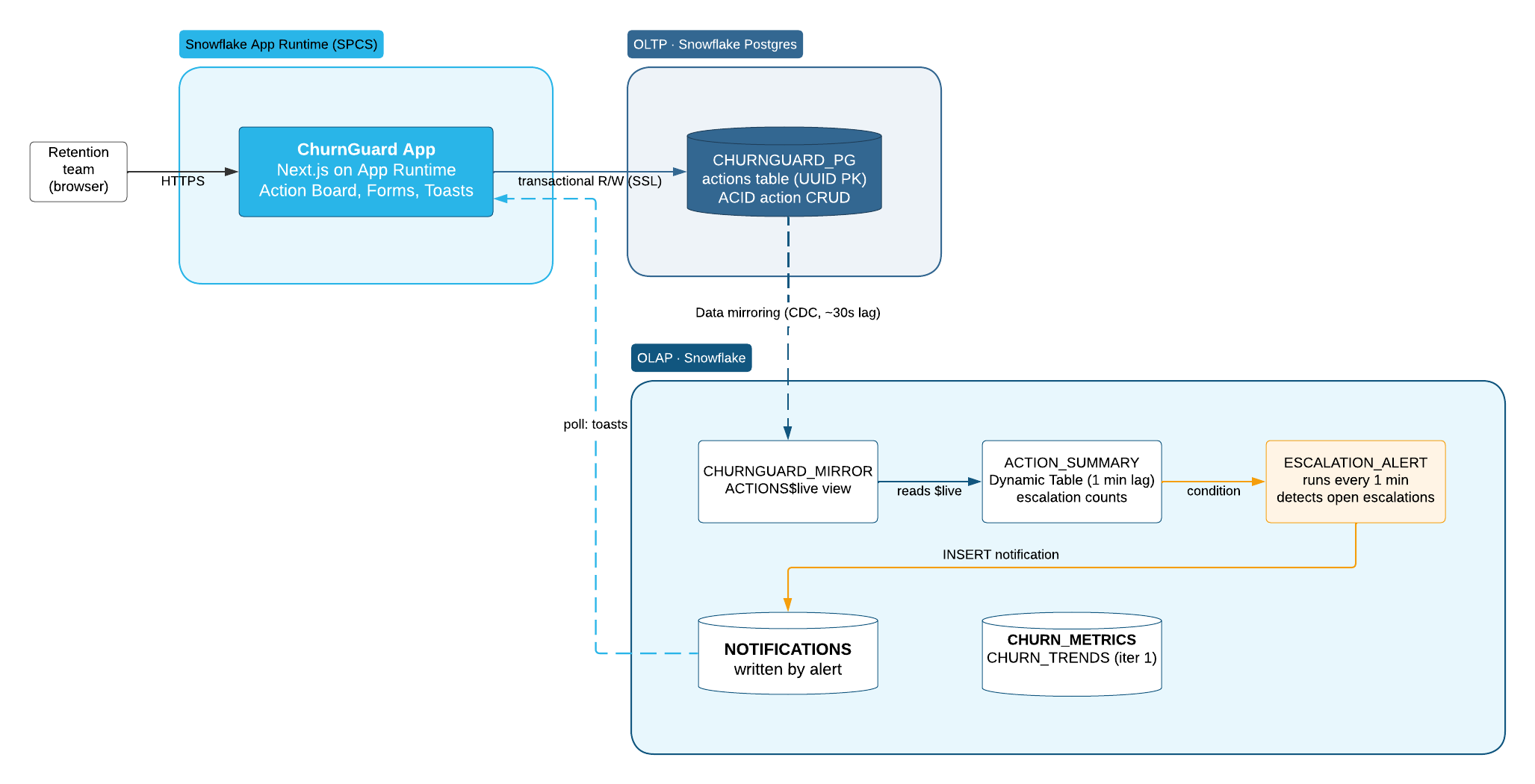
The app reads and writes actions only in Snowflake Postgres, so the Action Board always shows the latest state. In Snowflake, data mirroring, a dynamic table, and an alert run separately. The only thing the app reads from that pipeline is the NOTIFICATIONS table.
Setup
Commit your iteration 1 work if you haven't already, then merge in iteration 2:
# Commit iteration 1, then merge in iteration 2
git add -A && git commit -m "Iteration 1 done"
git fetch origin && git merge --no-edit origin/iteration-2/workflow-app
Step 1 — Rerun grants. This adds the Postgres, External Access Integration, mirroring, and alert privileges:
snow sql -f scripts/grants.sql --connection quickstart
Step 2 — Create the Postgres instance and data mirror. Find your public IP address first (for example at ifconfig.me); the prompt asks for it so psql can create the table. Then open the prompt file 02-postgres-setup.md and paste it into Cortex Code Desktop. It uses the /snowflake-postgres skill to:
- Create the CHURNGUARD_PG Postgres instance
- Store credentials as the CHURNGUARD_PG_SECRET and CHURNGUARD_PG_HOST_SECRET secrets, right away, because the password is shown only once
- Attach the CHURNGUARD_PG_POLICY network policy with two rules: CHURNGUARD_PG_INGRESS_RULE for Snowpark Container Services egress IPs, and a temporary CHURNGUARD_PG_LOCAL_IP_RULE for your IP
- Create the actions table, with the primary key mirroring needs and an index that allows one open action per customer
- Create a network rule and an External Access Integration for the app
- Mirror the data to the CHURNGUARD_MIRROR database
- Remove your IP from the policy, so only the app can reach Postgres
Note: The Postgres instance takes 3–5 minutes to provision. The prompt waits and checks for you. To use psql again later, see Troubleshooting.
Step 3 — Create the dynamic table, notifications table, and alert:
snow sql -f scripts/iteration-2-setup.sql --connection quickstart
This creates the ACTION_SUMMARY dynamic table, which reads the mirrored $live view, plus the NOTIFICATIONS table and ESCALATION_ALERT.
Note: From here on, some objects use credits while they run: the Postgres instance, the dynamic table and alert (both every minute), and, in iteration 3, a daily task. Run Cleanup when you're done.
The Prompt
Open the prompt file 02-add-workflow.md and paste it into Cortex Code Desktop. It asks for an Action Board, writes to Postgres with parameterized queries, and toast notifications driven by a Snowflake alert.
What Happens
Cortex Code changes the existing app. It doesn't start over.
1. Postgres connection. A lib/postgres.ts module opens a connection pool with credentials from the Snowflake secrets that app.yml mounts. The connection uses SSL, which Snowflake Postgres requires.
2. Write routes. New API routes insert and update actions with parameterized queries:
const pool = getPgPool()
await pool.query(
  "INSERT INTO actions (customer_key, assigned_to, action_type, notes) VALUES ($1, $2, $3, $4)",
  [customerKey, assignedTo, actionType, notes]
);
The action list and its KPI cards read from Postgres too, so a new action shows up the moment you save it. A customer can have only one open action: flagging them again shows already flagged instead of creating a duplicate.
3. Mirroring. Postgres changes replicate to Snowflake automatically. ACTION_SUMMARY reads the mirrored $live view. The app never queries it.
4. Notifications. ESCALATION_ALERT runs every minute. When the dynamic table shows open escalations, it writes a row to NOTIFICATIONS. The app polls that table and shows a toast. No email or webhook needed.
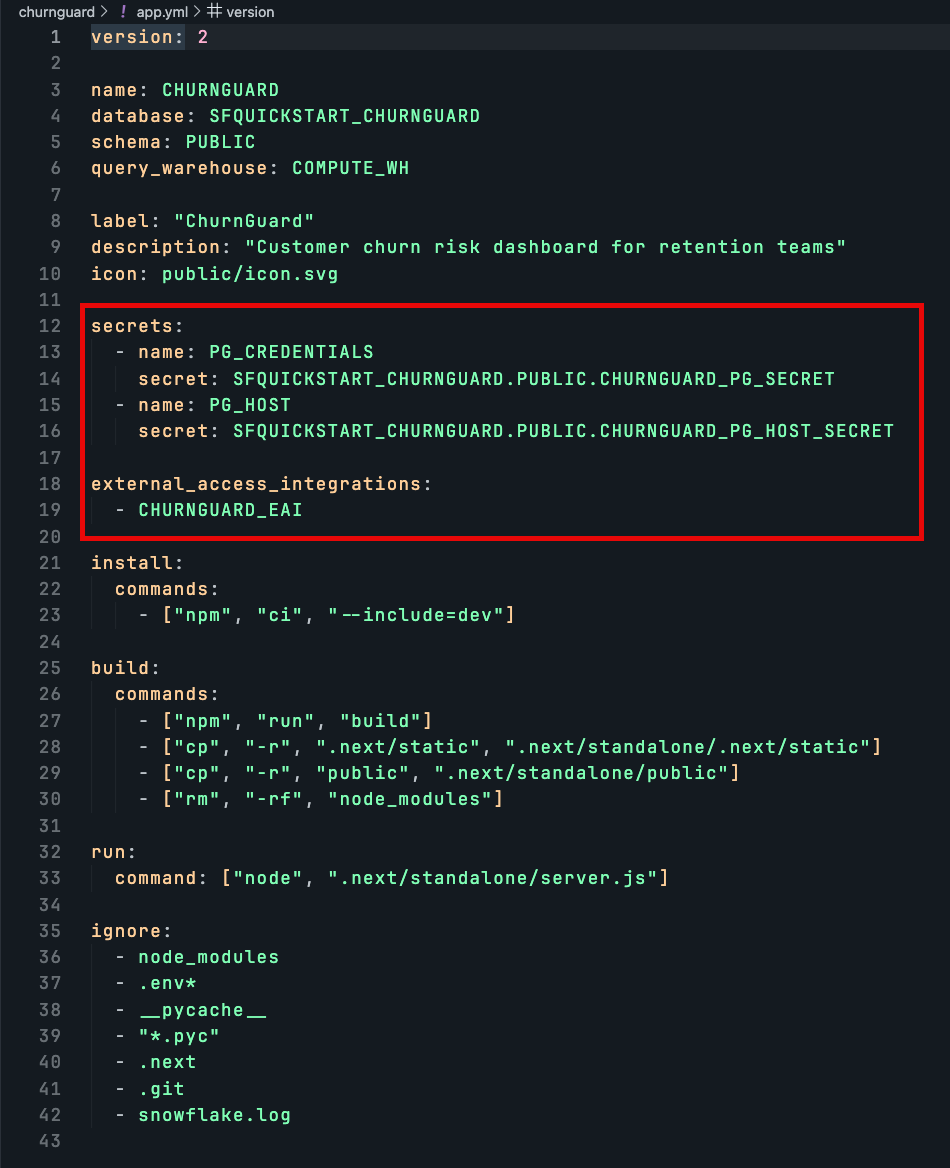
5. Manifest. app.yml gains secrets for the Postgres credentials and host, and external_access_integrations for network access to Postgres.
6. Redeploy. The app upgrades in place at the same URL.
Understanding the Updated app.yml
Compare app.yml with the iteration 1 version. Cortex Code added two blocks:
| New field | Purpose |
|---|---|
| secrets | Mounts Snowflake secrets inside the running app. Each entry maps a name the code uses, such as PG_CREDENTIALS, to a secret object. Credentials never appear in source code. |
| external_access_integrations | Lets the app make outbound network calls. CHURNGUARD_EAI pairs the Postgres network rule (host and port) with the secrets above. |
The install, build, run, and ignore fields don't change. Adding these two blocks is all the app needs to reach Postgres.
Key Concepts
- Snowflake Postgres is managed PostgreSQL inside Snowflake, built for fast row-level inserts and updates from apps. See Snowflake Postgres.
- Data mirroring copies Postgres changes into Snowflake continuously. The $live view is about 30 seconds behind, with no ETL to build. See Data mirroring.
- External Access Integrations pair a network rule with secrets so an app can call an outside host. See External network access.
- Dynamic tables keep a query result up to date. ACTION_SUMMARY refreshes within a minute, so the alert reads totals instead of raw rows. See Dynamic tables.
- Alerts run a check on a schedule and act when it's true. ESCALATION_ALERT keeps notification logic in Snowflake, not in the app. See Alerts.
Verify
Open the app and run through the workflow:
- Find a high-risk customer in the customer table.
- Click Flag and choose Escalate as the action type.
- Open the Action Board. The new action and its KPI cards appear right away, because both read from Postgres.
- Click the status badge to move it from New to In Progress to Resolved.
- Wait 1–2 minutes while the data mirrors, the dynamic table refreshes, and the alert runs.
- A toast appears for the escalation. Dismiss it.
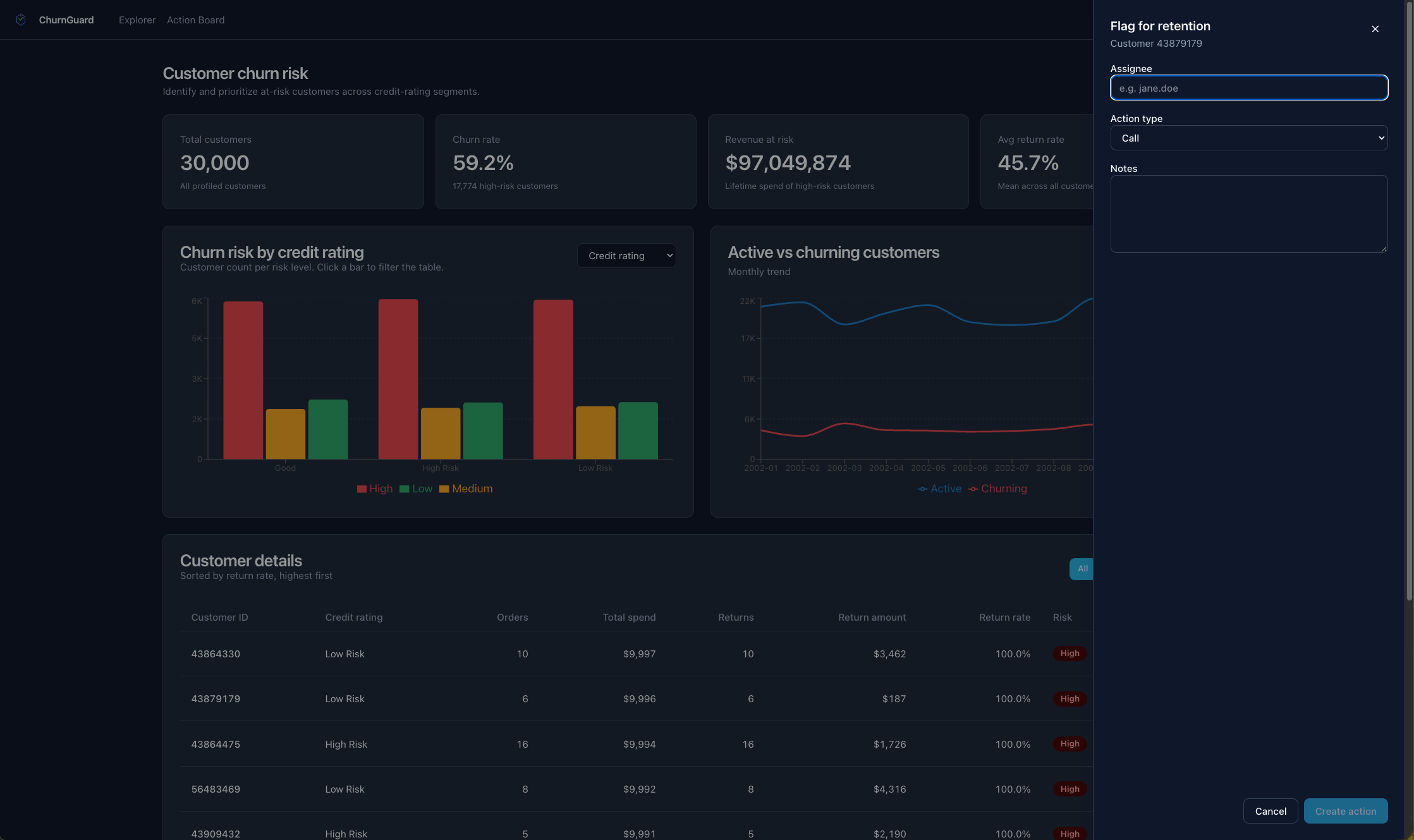
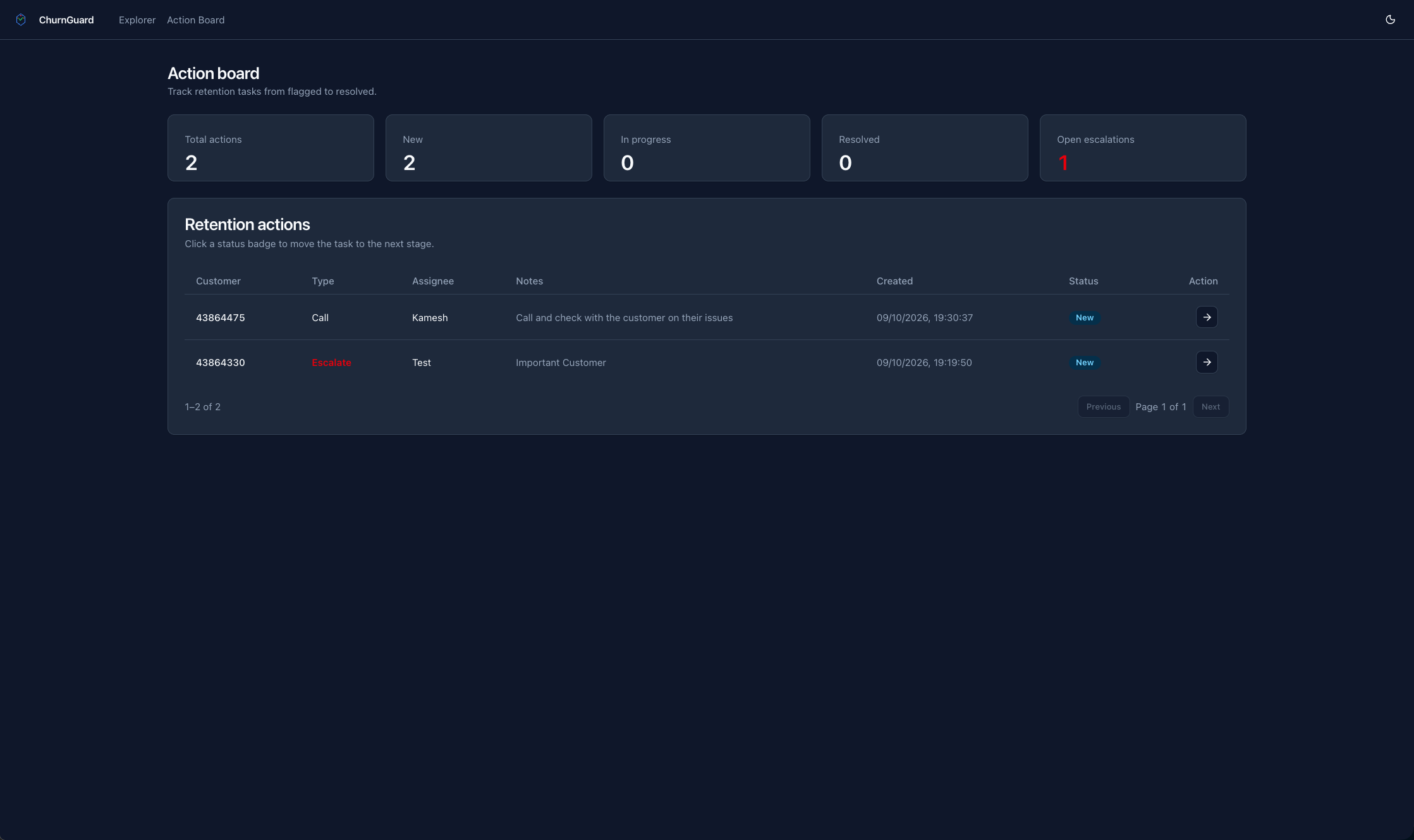
Checkpoint: you can flag a customer, move the action through its statuses, and see an escalation toast. You're ready for iteration 3.
Iteration 3: Make ChurnGuard Intelligent
Ask your data. Get a next step.
In this iteration ChurnGuard gets an agent. You ask a question from any page, and a Cortex Agent explores the data, explains what it finds, and recommends what to do. Overnight, a serverless task stages recommendations, so proposals wait for you in the morning. An MCP server lets other agents, such as the Cortex Code CLI, use ChurnGuard without opening a browser.
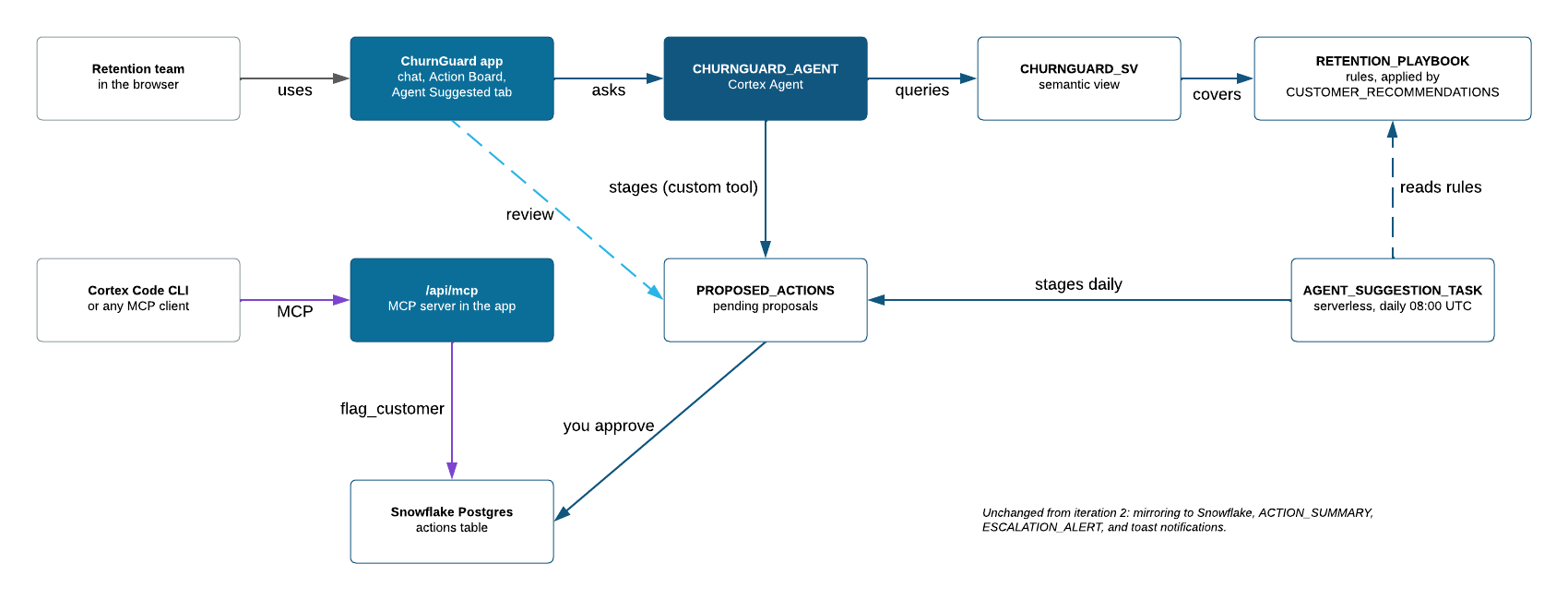
AI proposes. You approve. Three design choices keep a person in control:
- The playbook decides what to do. RETENTION_PLAYBOOK holds ordered rules, such as High risk and spend over $7,000 → Offer. The CUSTOMER_RECOMMENDATIONS view applies them, so the same customer always gets the same action and you can see which rule produced it. The agent chooses which customers to look at, and the playbook chooses the action.
- The agent proposes, and the app writes. The agent can't write actions. Its custom tool stages proposals in PROPOSED_ACTIONS. You review them on the Agent Suggested tab, and approving one goes through the same POST /api/actions route as a manual action.
- A task stages proposals daily. AGENT_SUGGESTION_TASK calls the staging procedure at 08:00 UTC.
Setup
Commit your iteration 2 work if you haven't already, then merge in iteration 3:
# Commit iteration 2, then merge in iteration 3
git add -A && git commit -m "Iteration 2 done"
git fetch origin && git merge --no-edit origin/iteration-3/ai-app
Step 1 — Rerun grants. This adds the privileges for the agent, the staging procedure, and the task:
snow sql -f scripts/grants.sql --connection quickstart
Step 2 — Create the playbook, recommendations view, proposals table, staging procedure, and daily task:
snow sql -f scripts/iteration-3-setup.sql --connection quickstart
The setup also runs the task once, so proposals are ready right away. See iteration-3-setup.sql for the full SQL.
The playbook starts with five rules:
| Priority | When | Action |
|---|---|---|
| 1 | High churn risk and credit rating "High Risk" | Escalate |
| 2 | High churn risk, spend over $7,000 | Offer |
| 3 | High churn risk, return rate over 40% | Call |
| 4 | High churn risk (any other) | |
| 5 | Medium churn risk, return rate over 25% |
The Prompts
Iteration 3 uses two prompts, like iteration 2.
1. Semantic view and agent. Open the prompt file 03-agent-setup.md and paste it into Cortex Code Desktop. It uses /agent-studio to create the CHURNGUARD_SV semantic view and the CHURNGUARD_AGENT agent, then tests the agent.
2. Agent in the app. Open the prompt file 03-add-agent.md and paste it into Cortex Code Desktop. It uses /snowflake-apps to add the chat drawer, the Agent Suggested tab, the approve flow, and the MCP server, then redeploys.
What Happens
In Snowflake
1. Semantic view. CHURNGUARD_SV covers CHURN_METRICS, CHURN_TRENDS, CUSTOMER_RECOMMENDATIONS, ACTION_SUMMARY, and NOTIFICATIONS, with synonyms and verified queries. The agent can answer questions such as "which high-risk customers have no open action?"
2. Cortex Agent. CHURNGUARD_AGENT has:
- Cortex Analyst on the semantic view, to answer data questions with SQL
- Data to Chart, to answer with charts
- A custom tool, stage_retention_actions, backed by the STAGE_RETENTION_PROPOSALS procedure, to stage proposals
- Instructions to take actions only from CUSTOMER_RECOMMENDATIONS and to skip customers who already have an open action
3. Daily proposals. AGENT_SUGGESTION_TASK runs at 08:00 UTC. It stages up to 20 proposals, highest risk and spend first, for customers with no open action and no pending proposal.
In the app
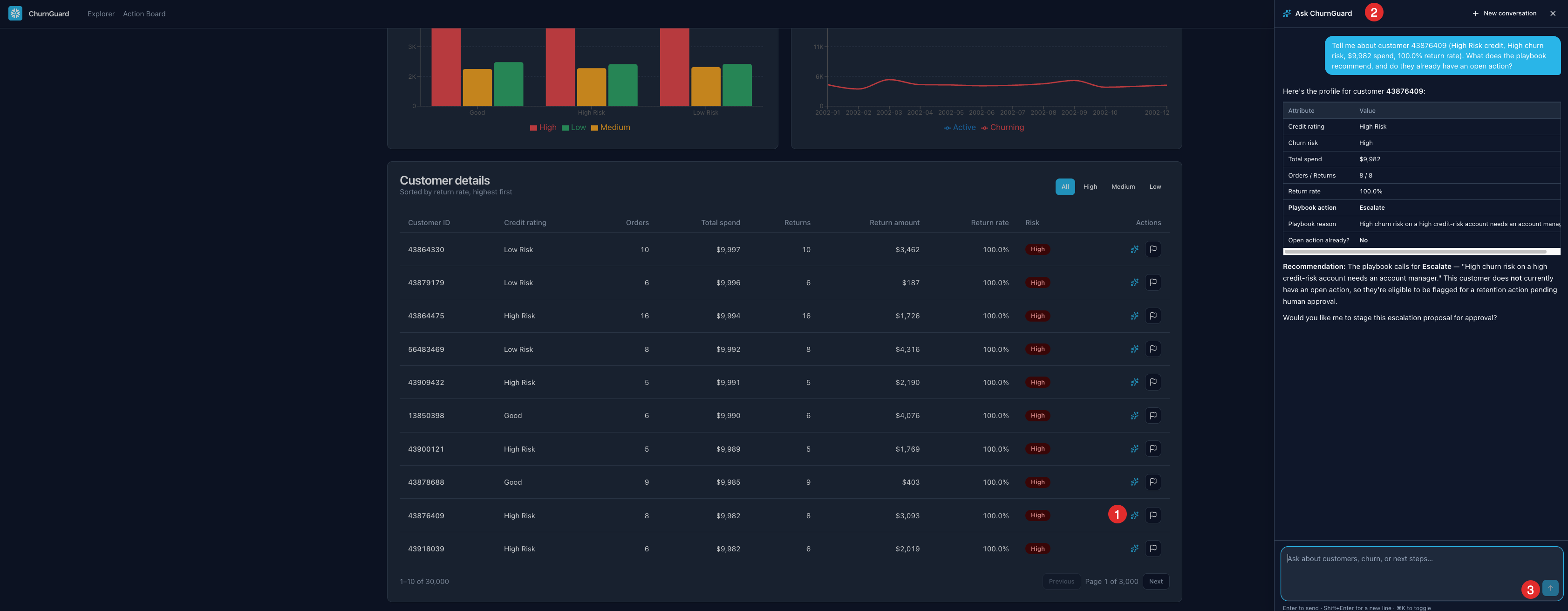
4. Chat in the app. Open the chat drawer from the header or with Cmd+K. The conversation stays open as you move between pages. Each screen also offers a shortcut that carries its context:
- Customer row: Ask about this customer
- Segment chart bar: Explain this segment
- High-risk KPI: Why?
- Action Board card: Suggest next step
- Escalation toast: Explain this escalation
An empty drawer suggests prompts for the current page.
5. Streaming answers. An API route streams the agent:run REST API. An answer takes about 30 seconds, so the chat shows a thinking indicator, then each tool call, then the answer with tables and charts. When the agent stages proposals, the chat shows how many and links to the Agent Suggested tab.
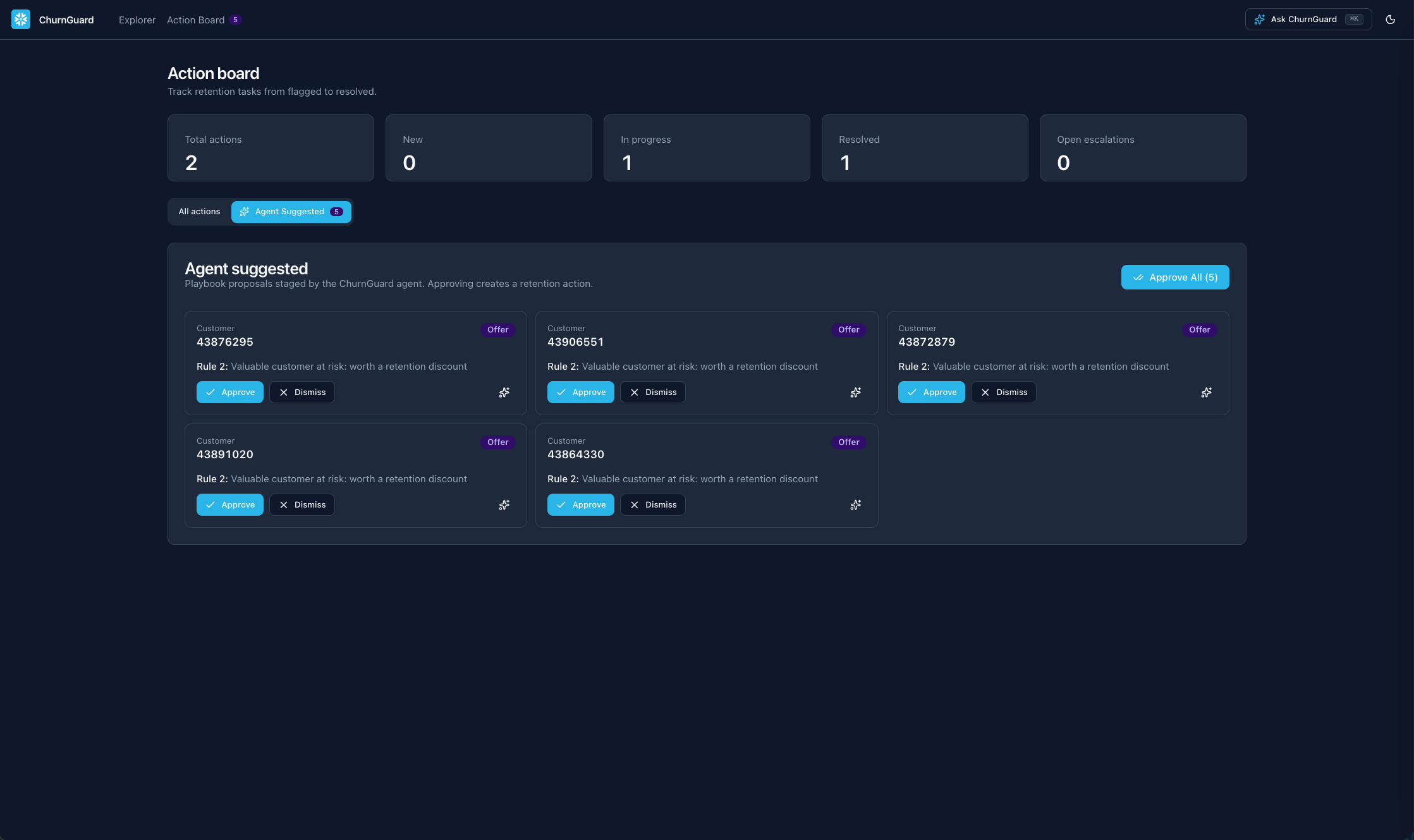
6. Agent Suggested tab. The Action Board gains a tab of pending proposals. Each card shows the customer, the action, and the playbook rule behind it. Approve writes the action to Postgres, Dismiss drops it, and Approve All handles every pending proposal. A badge shows how many are waiting. If a customer already has an open action, approving dismisses the proposal and tells you how many were skipped.
7. Threads. The app reuses one agent thread per conversation, so follow-up questions keep their context.
8. MCP server. The app serves an MCP server at /api/mcp with four tools: flag_customer, list_actions, get_customer_risk, and get_churn_summary. Snowflake authenticates every request as your user. The Cortex Code CLI connects with your Snowflake connection, not an API key; other MCP clients are redirected to the Snowflake login page.
Key Concepts
- Cortex Agents plan, call tools, and answer in a single managed service. See Cortex Agents.
- A lookup table grounds the agent. Rules in a table make recommendations consistent and easy to explain. Change a threshold in RETENTION_PLAYBOOK and the next answer uses it, with no change to the agent.
- Custom tools connect an agent to a stored procedure. See Custom tools.
- The agent:run REST API streams the agent's work and keeps context in threads. See Cortex Agents Run API.
- Serverless tasks run on managed compute, so there's no warehouse to size or suspend.
- Model Context Protocol (MCP) lets other agents call your app's tools. See Model Context Protocol.
Verify
Open the app and try the agent:
- Open the Action Board and switch to the Agent Suggested tab. You should see the proposals the setup staged.
- Click Approve All. The actions move to the main Action Board.
- Open the chat drawer with Cmd+K.
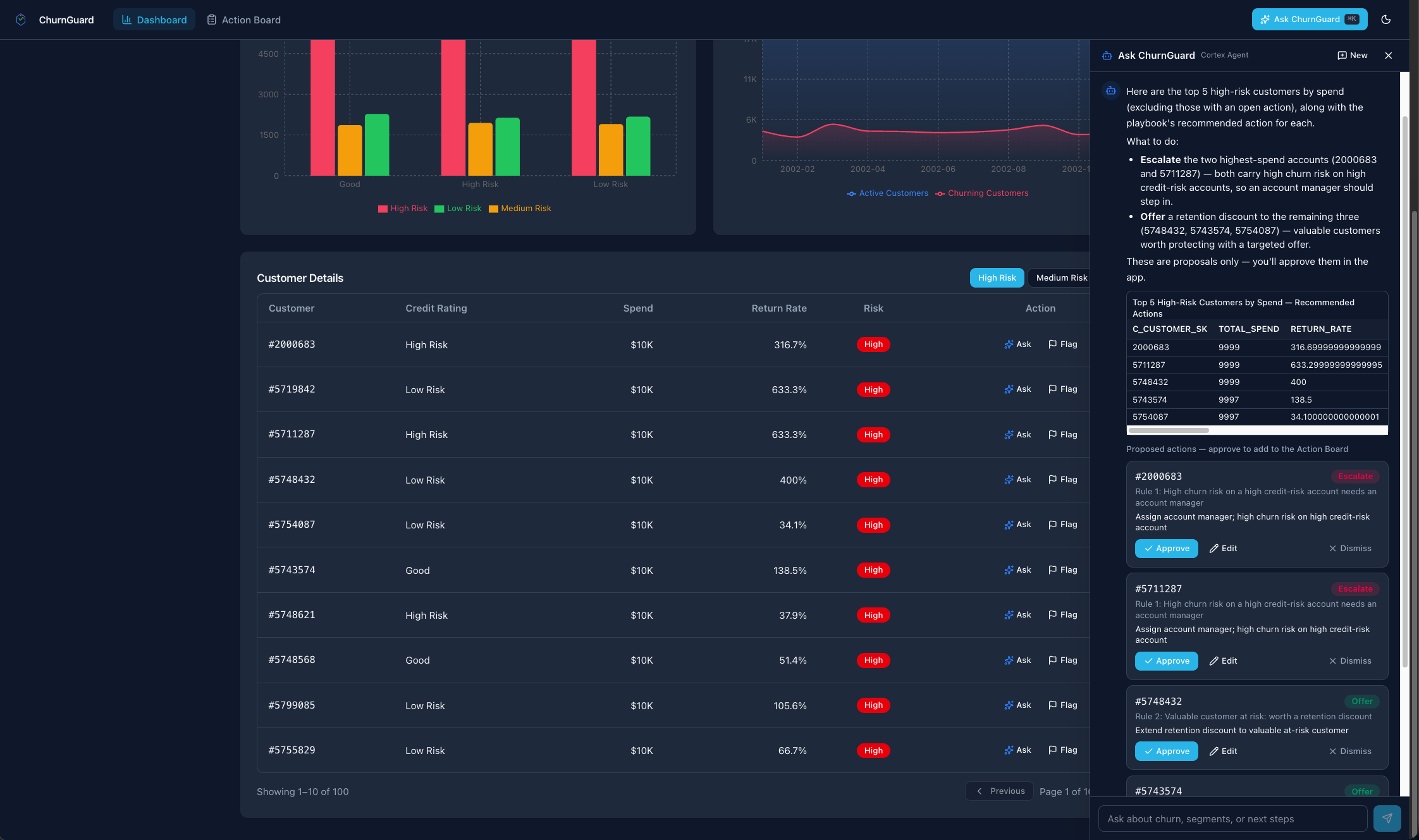
- Ask: "Who are the top 5 high-risk customers by spend and what should we do?"
- The agent returns a table of 5 customers, each with an action and the playbook rule behind it.
- Ask: "Flag high-risk customers for retention." The agent calls stage_retention_actions, and new proposals appear on the Agent Suggested tab.
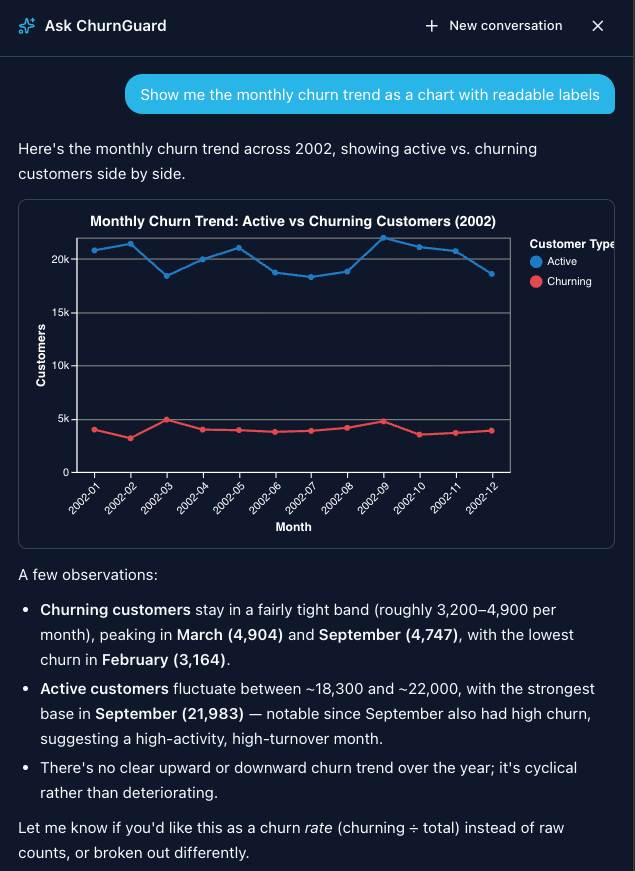
- Ask: "Show me the monthly churn trend as a chart with readable labels." The agent answers with a chart.
- On the dashboard, open a customer row and choose Ask about this customer. The agent explains that customer's risk and suggests a next step.
Verify the MCP server with the Cortex Code CLI. Add the server and start the CLI. Run this from the churnguard/ folder; snow app open --print-only prints your App URL, and the command adds /api/mcp to it. The --snowflake-connection flag signs each request in as your Snowflake user.
# Add the ChurnGuard MCP server, then start the CLI
cd churnguard
cortex mcp add churnguard "$(snow app open --print-only --connection quickstart)/api/mcp" \
  --type http --snowflake-connection quickstart
cortex mcp reconnect churnguard   # should report 4 tools
cd ..
cortex
Then ask the CLI, one at a time (your results will differ):
| Ask the CLI | Tool it calls | Sample result |
|---|---|---|
| Using the churnguard MCP server, list open retention actions. | list_actions | 11 open actions: 10 Offer, 1 Call |
| Find a high-risk customer with no open action and show their risk. | get_churn_summary, get_customer_risk | Customer 56557609: High churn risk, $9,966 spend, 100% return rate. Recommended: Escalate (rule 1) |
| Flag that customer with the recommended action. | flag_customer | Created action 8d701687-… (Escalate, status New). Flag them again and the tool answers already flagged. |
Open the Action Board in your browser: the new action is at the top of All actions, and Open escalations goes up by one. Within about a minute, once the mirror syncs and the alert runs, an escalation toast appears on every page.
Checkpoint: the agent answers questions, stages proposals you can approve, and the MCP server works from the CLI. ChurnGuard is complete.
Troubleshooting
Use the queries below, or paste the error into Cortex Code Desktop and ask "Why am I seeing this?"
| Symptom | Likely cause | Fix |
|---|---|---|
| Insufficient privileges on deploy | A grant is missing, or the connection's default role isn't the quickstart role | Rerun grants.sql as ACCOUNTADMIN, and set role = "SFQUICKSTART_CHURNGUARD_ROLE" for the connection (see Prepare Your Working Directory) |
| Connection refused or SSL required (iteration 2) | The Postgres instance isn't running yet | Wait for provisioning, then check the instance state |
| psql hangs (iteration 2) | The Postgres instance is suspended | Run ALTER POSTGRES INSTANCE CHURNGUARD_PG RESUME, wait until READY, then retry |
| psql can't reach Postgres from your machine | Setup removed your IP from the network policy | Add CHURNGUARD_PG_LOCAL_IP_RULE back to CHURNGUARD_PG_POLICY (below), and remove it when you're done |
| Lost the Postgres application password | It's shown only once, at CREATE | Run ALTER POSTGRES INSTANCE CHURNGUARD_PG RESET ACCESS FOR 'application' and update CHURNGUARD_PG_SECRET |
| The app can't reach Postgres | External Access Integration or secrets missing | Check CHURNGUARD_EAI and the two Postgres secrets exist |
| Actions don't reach Snowflake | Mirroring runs about 30 seconds behind | Wait, then check the mirror state is REPLICATING |
| No toast after an escalation | The dynamic table or alert hasn't refreshed | Check the dynamic table refresh history |
| The chat shows errors (iteration 3) | The agent or semantic view is missing | Check both exist in the quickstart schema |
| The Agent Suggested tab is empty | The task hasn't run or is suspended | Check task history, resume it, or run it now |
| The MCP server won't connect | Wrong URL, connection, or role | The URL must be your App URL plus /api/mcp; your connection test must pass; your role needs USAGE on the app. Use the Cortex Code CLI: other MCP clients are redirected to the Snowflake login |
The checks, grouped by area:
-- Grants, Postgres, and network
SHOW GRANTS TO ROLE SFQUICKSTART_CHURNGUARD_ROLE;
SHOW POSTGRES INSTANCES IN ACCOUNT;
SHOW EXTERNAL ACCESS INTEGRATIONS;
SHOW SECRETS IN SCHEMA SFQUICKSTART_CHURNGUARD.PUBLIC;
-- Allow psql from your machine again (if your IP changed, update the rule first:
-- ALTER NETWORK RULE SFQUICKSTART_CHURNGUARD.PUBLIC.CHURNGUARD_PG_LOCAL_IP_RULE SET VALUE_LIST = ('<your-public-ip>/32');)
ALTER NETWORK POLICY CHURNGUARD_PG_POLICY
  ADD ALLOWED_NETWORK_RULE_LIST = ('SFQUICKSTART_CHURNGUARD.PUBLIC.CHURNGUARD_PG_LOCAL_IP_RULE');
-- ...and remove it when you're done
ALTER NETWORK POLICY CHURNGUARD_PG_POLICY
  REMOVE ALLOWED_NETWORK_RULE_LIST = ('SFQUICKSTART_CHURNGUARD.PUBLIC.CHURNGUARD_PG_LOCAL_IP_RULE');

-- Mirroring and the dynamic table
SELECT * FROM CHURNGUARD_MIRROR.PUBLIC.ACTIONS$live LIMIT 5;
CALL SNOWFLAKE.POSTGRES.LIST_MIRRORED_TABLES('churnguard_mirror');
SELECT * FROM TABLE(INFORMATION_SCHEMA.DYNAMIC_TABLE_REFRESH_HISTORY(
    NAME => 'SFQUICKSTART_CHURNGUARD.PUBLIC.ACTION_SUMMARY'
)) ORDER BY REFRESH_END_TIME DESC LIMIT 5;
-- Agent, semantic view, and the daily task
SHOW AGENTS IN SCHEMA SFQUICKSTART_CHURNGUARD.PUBLIC;
SHOW SEMANTIC VIEWS IN SCHEMA SFQUICKSTART_CHURNGUARD.PUBLIC;
SELECT * FROM TABLE(INFORMATION_SCHEMA.TASK_HISTORY(
    TASK_NAME => 'AGENT_SUGGESTION_TASK'
)) ORDER BY SCHEDULED_TIME DESC LIMIT 5;
SELECT * FROM PROPOSED_ACTIONS ORDER BY PROPOSED_AT DESC LIMIT 10;
SHOW TASKS LIKE 'AGENT_SUGGESTION_TASK';
ALTER TASK AGENT_SUGGESTION_TASK RESUME;   -- if suspended
EXECUTE TASK AGENT_SUGGESTION_TASK;        -- run it now
Merge conflict when moving to the next iteration
A conflict means a file outside churnguard/ was edited. Keep the iteration branch's version:
git checkout --theirs <file> && git add <file> && git commit --no-edit
Anything else
Paste the error into Cortex Code Desktop and ask:
"I'm running the ChurnGuard quickstart and got this error: [paste error]. What's wrong and how do I fix it?"
Cortex Code can run diagnostic queries in your account.
Cleanup
Run this when you're done, including any Build Your Own App prompts in the next section. It removes everything the guide created:
snow sql -f scripts/cleanup.sql --connection quickstart
It drops:
- The APPLICATION SERVICE
- The data mirror, its CHURNGUARD_MIRROR database, and its catalog integration
- The CHURNGUARD_PG Postgres instance
- CHURNGUARD_EAI, CHURNGUARD_PG_POLICY, and the network rules
- The SFQUICKSTART_CHURNGUARD database and everything in it
- The SFQUICKSTART_CHURNGUARD_WH warehouse and SFQUICKSTART_CHURNGUARD_ROLE
The script ends by listing anything left over; every list should be empty.
Warning: Make sure the script finishes. A Postgres instance left running keeps using credits.
Leave SNOWFLAKE_SAMPLE_DATA in place unless you're sure nothing else in your account uses it.
To clean up by hand:
-- Manual cleanup: run these in order
USE ROLE ACCOUNTADMIN;
DROP APPLICATION SERVICE IF EXISTS SFQUICKSTART_CHURNGUARD.PUBLIC.CHURNGUARD;

-- The quickstart role owns the mirror and the Postgres instance
USE ROLE SFQUICKSTART_CHURNGUARD_ROLE;
-- Also drops the CHURNGUARD_MIRROR database and its catalog integration
CALL SNOWFLAKE.POSTGRES.DROP_MIRROR('churnguard_mirror');
DROP POSTGRES INSTANCE IF EXISTS CHURNGUARD_PG;

USE ROLE ACCOUNTADMIN;
DROP INTEGRATION IF EXISTS CHURNGUARD_EAI;
DROP NETWORK POLICY IF EXISTS CHURNGUARD_PG_POLICY;
DROP DATABASE IF EXISTS SFQUICKSTART_CHURNGUARD;   -- includes the network rules
DROP WAREHOUSE IF EXISTS SFQUICKSTART_CHURNGUARD_WH;
DROP ROLE IF EXISTS SFQUICKSTART_CHURNGUARD_ROLE;
If DROP_MIRROR fails, DROP POSTGRES INSTANCE fails too, because the mirror's catalog integration still references the instance. cleanup.sql shows the error and handles both leftovers; by hand, run DROP INTEGRATION IF EXISTS CHURNGUARD_MIRROR_CATALOG_INTEGRATION, and to drop the mirror database, first run GRANT OWNERSHIP ON DATABASE CHURNGUARD_MIRROR TO ROLE ACCOUNTADMIN (it's owned by the snowflake application).
To remove what the guide set up on your machine:
cortex mcp remove churnguard
If you used psql, also remove the CHURNGUARD_PG entries from ~/.pgpass and ~/.pg_service.conf. Then set your connection's default role back to what it was: SFQUICKSTART_CHURNGUARD_ROLE no longer exists.
Conclusion And Resources
What You Learned
You built one app in three iterations, and each one added a kind of app:
- Explore your data. A dashboard you can pivot and drill into, deployed with one command and no credentials in your code.
- Run the workflow. Operational writes (fast row inserts and updates) to Snowflake Postgres, mirrored into Snowflake, where a dynamic table and an alert drive notifications.
- Bring AI into the app. A Cortex Agent grounded in a playbook. It proposes actions, a person approves them, a task stages them daily, and an MCP server lets other agents use the app.
Every iteration followed the same loop:
- Describe the outcome in an IDD prompt.
- Build: Cortex Code scaffolds or changes the app.
- Deploy with snow app deploy to the same URL, with no downtime.
- Verify in the browser.
- Iterate with another prompt.
To compare your app with the reference, see the solution branch of the companion repo.
Build Your Own App
Keep going. Paste any of these prompts into Cortex Code Desktop and keep extending ChurnGuard. Each one follows the IDD structure, so edit the requirements to fit what you want.
User profiles and role-based views
Goal: Personalize ChurnGuard for each signed-in user.

Requirements:
- Identify the signed-in user from the sf-context-current-user request header
  (or CURRENT_USER() in a query run with the callersRights: true option).
  Snowflake already handles login.
- Show the user's name and role in the header, with a profile menu
- Store preferences (default risk filter, default page) in a USER_PREFERENCES table
- Show "My actions" on the Action Board: actions assigned to the current user
- Only users with the CHURNGUARD_MANAGER role can see Approve All

Constraints:
- Check roles in the API route, not only in the UI
- Keep per-request identity in request scope, never in module-level variables

Output: Redeployed app with profile menu, saved preferences, and role-based approval.
Export at-risk customers
Goal: Let users take a filtered customer list into a spreadsheet.

Requirements:
- Add an "Export CSV" button to the customer table
- Export the rows that match the current filters, not only the current page
- Name the file churnguard-<risk>-<date>.csv

Output: Redeployed app with CSV export.
More ideas to write as IDD prompts in the same shape:
| Idea | Goal | Key requirements |
|---|---|---|
| Edit the playbook in the app | Let managers change RETENTION_PLAYBOOK rules without writing SQL | A Playbook page to edit, reorder, and turn rules on or off; every change recorded in a PLAYBOOK_AUDIT table; parameterized writes |
| Weekly churn digest | Send the retention team a weekly summary without anyone opening the app | A serverless task every Monday at 08:00 UTC; new high-risk customers, open escalations, and resolved actions; email through a notification integration; a Preview digest button |
| Cohort retention chart | Show whether customers stay longer over time | Customers grouped by first purchase month or quarter; retention by month after; an Explain this cohort agent shortcut |
| Dark mode and mobile layout | Make ChurnGuard comfortable on any screen, day or night | A remembered dark/light toggle; tables become cards on narrow screens; full-screen chat drawer; WCAG AA contrast in both themes |
Related Resources
- Deploy targets: deploy the same app to dev and prod
- Scale and suspend: control cost when the app is idle
- Developing secure runtime apps: caller's rights, identity checks, and secrets
- Cortex Code CLI: automate your app from the terminal with MCP
- Snowflake App Runtime documentation
- Getting started with Snowflake App Runtime
- app.yml manifest reference
- Query Snowflake from your app
- Access control for Snowflake App Runtime
- Snowflake Postgres
- Postgres data mirroring
- Cortex Agents
- Cortex Agents Run API
- Cortex Code Desktop
- Snowflake CLI command reference
- TPC-DS sample data
- Intent-Driven Development (IDD)
This content is provided as is, and is not maintained on an ongoing basis. It may be out of date with current Snowflake instances
