Build an AI-Powered Video Publishing App on Snowflake
Overview
Creators publishing a video, for example to YouTube, usually have to write a description, mark chapter timestamps, pick SEO keywords, choose a thumbnail, and write captions. VidPrep prepares drafts of these outputs from a video or audio file you upload, using Snowflake Cortex. It does not download videos from YouTube or other sites; process only media you own or have rights to use. Review the transcript and generated copy before publishing; transcription and model output can contain errors.
The core design principle behind VidPrep is that a large language model should never be trusted to emit a timestamp directly, because it can hallucinate one that doesn't correspond to anything said in the video. Instead, the model is only ever asked to point at a position in a real, transcribed word array, and the actual timestamp is looked up in code from that position. This guide walks through that architecture and how to build and deploy the whole app on Snowflake.
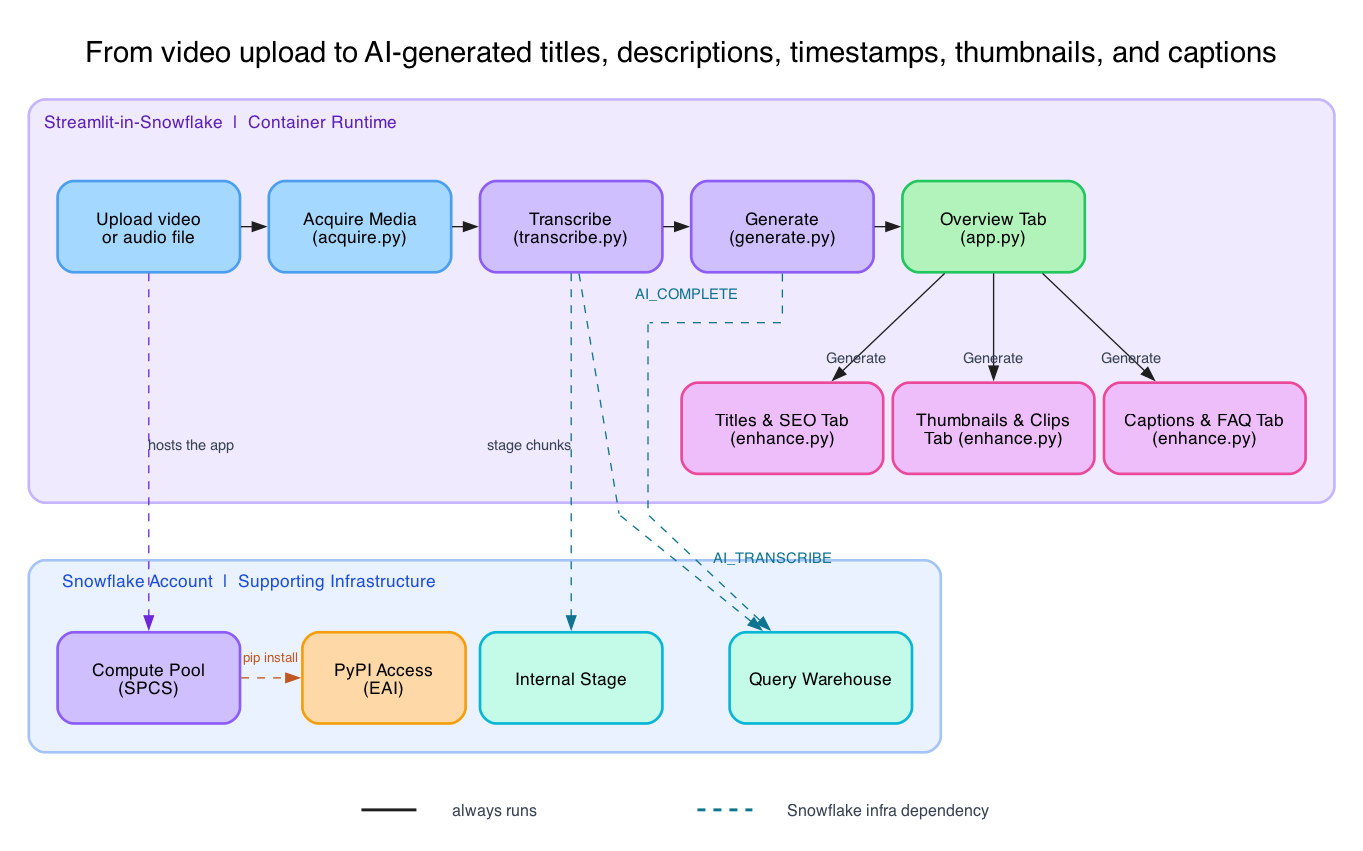
Read the solid arrows as processing order, not unconditional execution: cached results can skip work, and extras run only when requested. The warehouse provides the SQL query context; Cortex runs AI inference on its own compute. The diagram's warehouse arrows indicate SQL calls, not the location of model execution.
What You'll Learn
- How to use
AI_TRANSCRIBEto produce word-level timestamped transcripts, including chunking media that exceeds its length limit - How to use
AI_COMPLETEwith a structured JSON response format to extract chapters, descriptions, and SEO metadata - Why timestamps should be resolved from real transcript data in code, never generated directly by a model
- How to build a multi-tab Streamlit UI with lazy, cached AI generation per tab
- How to deploy a Streamlit app on the container runtime, with a compute pool and an External Access Integration for installing Python packages from PyPI
What You'll Build
VidPrep, a Streamlit-in-Snowflake app, with:
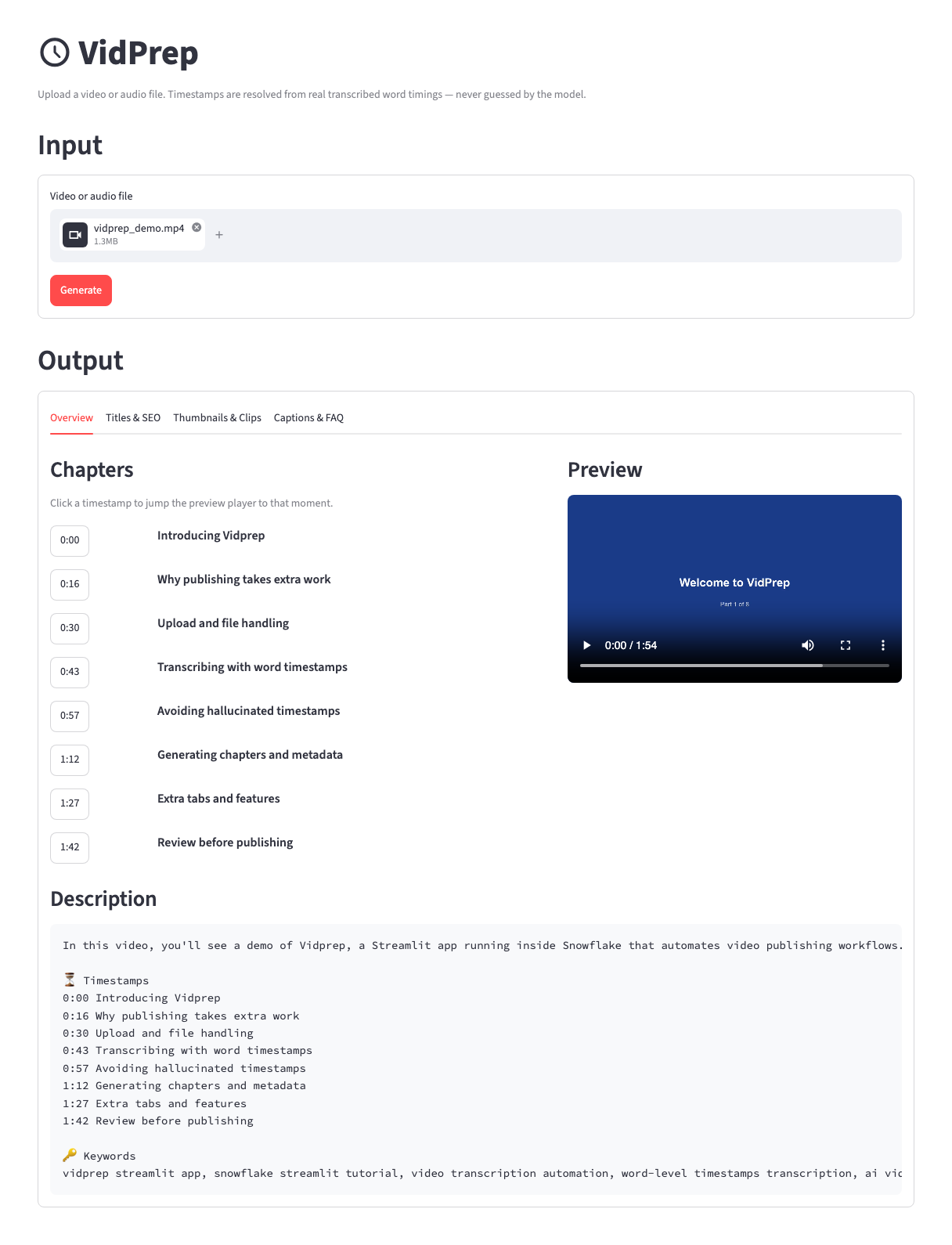
- An Overview tab with generated chapters (clickable: each timestamp seeks the preview player), a video preview, and a copy-paste description block
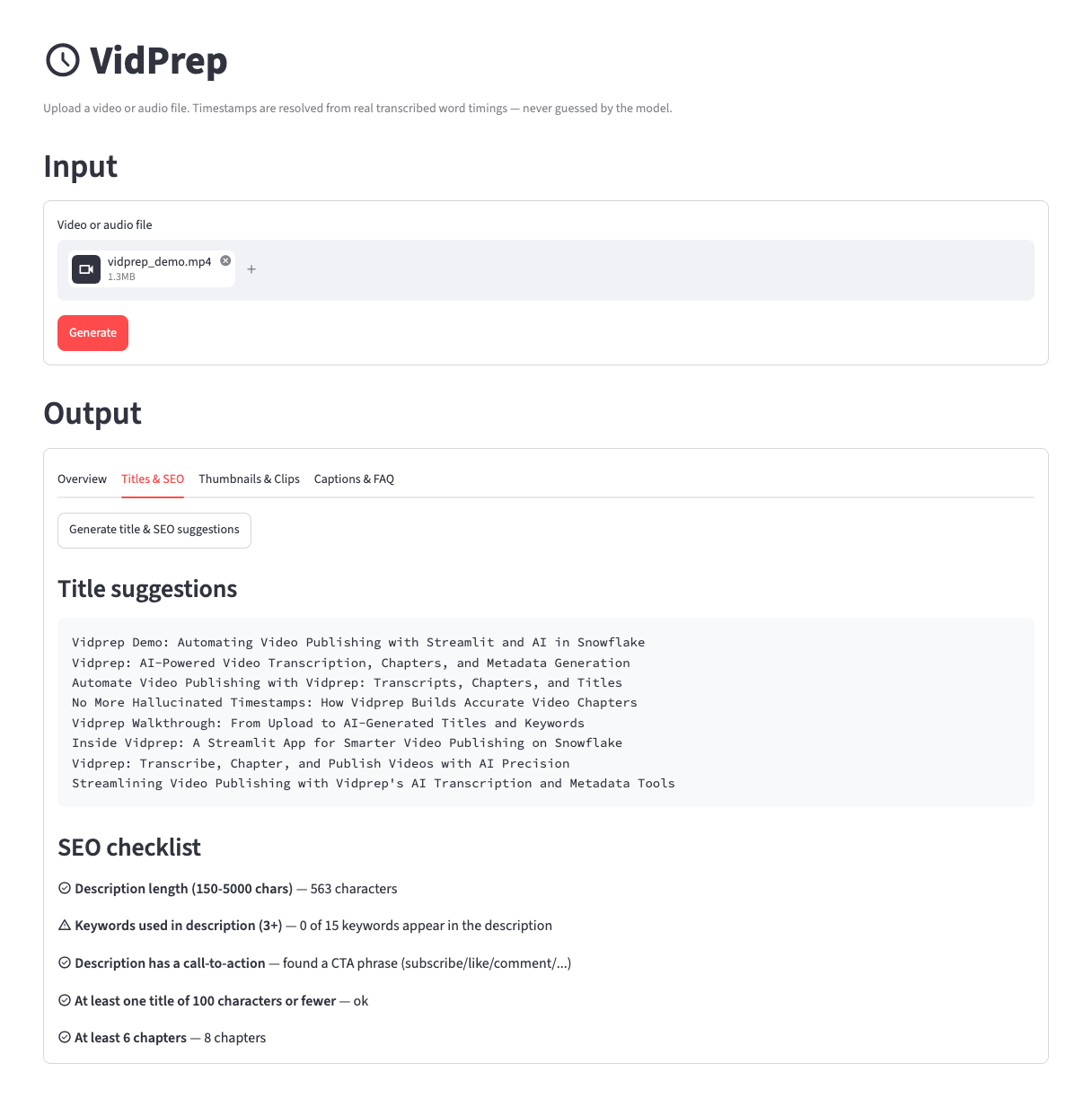
- A Titles & SEO tab with title suggestions and a free SEO checklist
- A Thumbnails & Clips tab with real extracted thumbnail frames and verbatim pull quotes
- A Captions & FAQ tab with downloadable
.srt/.vttcaption files and a generated FAQ
Screenshots of each part appear in the sections that build it. They come from one live run on the synthetic sample video in the companion repository, so you can upload the same file and compare your results.
What You'll Need
- Access to a Snowflake account
- A role with privileges to create a warehouse, database, stage, compute pool, and external access integration (e.g.
ACCOUNTADMIN, or an equivalent custom role) - Snowflake CLI (
snow) installed locally - Python 3.11+ installed locally
- Familiarity with Python and basic SQL
Setup
Create the Snowflake objects
Use a dedicated tutorial environment, and record which resources you create. Do not reuse or replace another project's app. Cortex calls and container compute incur usage charges.
Run the following as a role with sufficient privileges. This creates a dedicated warehouse, database/schema, an internal stage (used to hand media files to AI_TRANSCRIBE), a compute pool for the Streamlit container runtime, and an External Access Integration so the container runtime can install the Python dependencies in pyproject.toml from PyPI (container runtime apps have no PyPI access by default).
-- XSMALL is enough here: the AI_TRANSCRIBE/AI_COMPLETE calls run on Cortex's
-- own compute, not this warehouse, so it only needs to handle staging and metadata queries.
CREATE WAREHOUSE IF NOT EXISTS VIDPREP_WH WAREHOUSE_SIZE = XSMALL;

CREATE DATABASE IF NOT EXISTS VIDPREP_DB;
CREATE SCHEMA IF NOT EXISTS VIDPREP_DB.APPS;

CREATE STAGE IF NOT EXISTS VIDPREP_DB.APPS.VIDPREP_STAGE
  ENCRYPTION = (TYPE = 'SNOWFLAKE_SSE');

-- INITIALLY_SUSPENDED keeps the pool from billing before the first deploy.
-- AUTO_RESUME (default TRUE) starts it when the app launches, and
-- AUTO_SUSPEND_SECS suspends it again after 10 idle minutes.
CREATE COMPUTE POOL IF NOT EXISTS VIDPREP_COMPUTE_POOL
  MIN_NODES = 1
  MAX_NODES = 1
  INSTANCE_FAMILY = CPU_X64_XS
  INITIALLY_SUSPENDED = TRUE
  AUTO_SUSPEND_SECS = 600;

-- Container runtime apps need this to install pyproject.toml's dependencies
-- from PyPI. SNOWFLAKE.EXTERNAL_ACCESS.PYPI_RULE is a Snowflake-managed
-- network rule, so no separate CREATE NETWORK RULE is needed for it.
CREATE EXTERNAL ACCESS INTEGRATION IF NOT EXISTS PYPI_ACCESS
  ALLOWED_NETWORK_RULES = (SNOWFLAKE.EXTERNAL_ACCESS.PYPI_RULE)
  ENABLED = TRUE;
Clone the project
git clone https://github.com/streamlit/ai-powered-video-publishing.git
cd ai-powered-video-publishing
Review the dependencies
The app's pyproject.toml is short. Besides Streamlit and the Snowflake connector, it only needs imageio-ffmpeg for a bundled ffmpeg binary, because the container runtime has no system ffmpeg:
[project]
name = "vidprep"
version = "0.1.0"
requires-python = ">=3.11"
dependencies = [
    "snowflake-connector-python>=3.3.0",
    "streamlit[snowflake]>=1.64.0",
    "imageio-ffmpeg>=0.5.1",
]
Connect with Streamlit's managed connection
The app never opens its own Snowflake connection. It uses st.connection("snowflake"), which reads local secrets during development and the app's embedded identity once deployed (the same code path either way):
"""Snowflake connection helper. Uses Streamlit's managed connection, which
reads `.streamlit/secrets.toml` locally and embedded identity when hosted in
Snowflake (Streamlit in Snowflake). Same code path both places."""

import streamlit as st


def run_query(sql: str, params=None):
    """Execute a single SQL statement and return all rows."""
    cur = st.connection("snowflake").cursor()
    cur.execute(sql, params)
    return cur.fetchall()
For local development, use an existing named Snowflake connection without copying credentials into the project. Start the app with the intended profile explicitly selected:
SNOWFLAKE_DEFAULT_CONNECTION_NAME=<your_connection_name> python -m streamlit run app.py
Confirm that profile targets the intended account and has access to the configured stage. Hosted Streamlit uses its embedded identity. For isolated tests, set VIDPREP_STAGE_FQN to a test-only stage and VIDPREP_CACHE_DIR to a fresh local directory. Stage names must contain three unquoted identifiers. Never commit connection credentials.
Warning:
st.connection("snowflake")setssnowflake.connector.paramstyleto"qmark"as a side effect. Every SQL statement in this app uses?placeholders, never%s; mixing in%sproduces a confusing syntax error at the Snowflake parser, not a Python error.
Acquire the Media
acquire.py saves the uploaded file and wraps it in one AcquiredMedia object that the rest of the app consumes. Start with media you own or are authorized to process. Uploads use unique temporary filenames, so an uploaded filename cannot overwrite another file, and the cache key is a hash of the file's contents:
def acquire_from_upload(uploaded_file) -> AcquiredMedia:
    """Save a Streamlit UploadedFile to disk and wrap it as AcquiredMedia."""
    ext = os.path.splitext(uploaded_file.name)[1].lstrip(".").lower()
    if ext not in _SUPPORTED_VIDEO_EXTS and ext not in _SUPPORTED_AUDIO_EXTS:
        raise AcquisitionError(
            f"Unsupported file type '.{ext}'. AI_TRANSCRIBE supports: "
            f"{sorted(_SUPPORTED_VIDEO_EXTS | _SUPPORTED_AUDIO_EXTS)}"
        )

    with tempfile.NamedTemporaryFile(dir=TMP_DIR, suffix=f".{ext}", delete=False) as destination:
        dest_path = destination.name
        destination.write(uploaded_file.getbuffer())

    file_hash = _file_hash(dest_path)
    media_kind = "video" if ext in _SUPPORTED_VIDEO_EXTS else "audio"

    return AcquiredMedia(
        source_type="upload",
        local_media_path=dest_path,
        media_kind=media_kind,
        cache_key=f"upload_{file_hash}",
        title=os.path.splitext(uploaded_file.name)[0],
    )
Uploaded video files double as the preview player's source and the input for thumbnail frame extraction. Audio-only uploads get an audio player instead, and the thumbnail tab reports that no video frames are available.
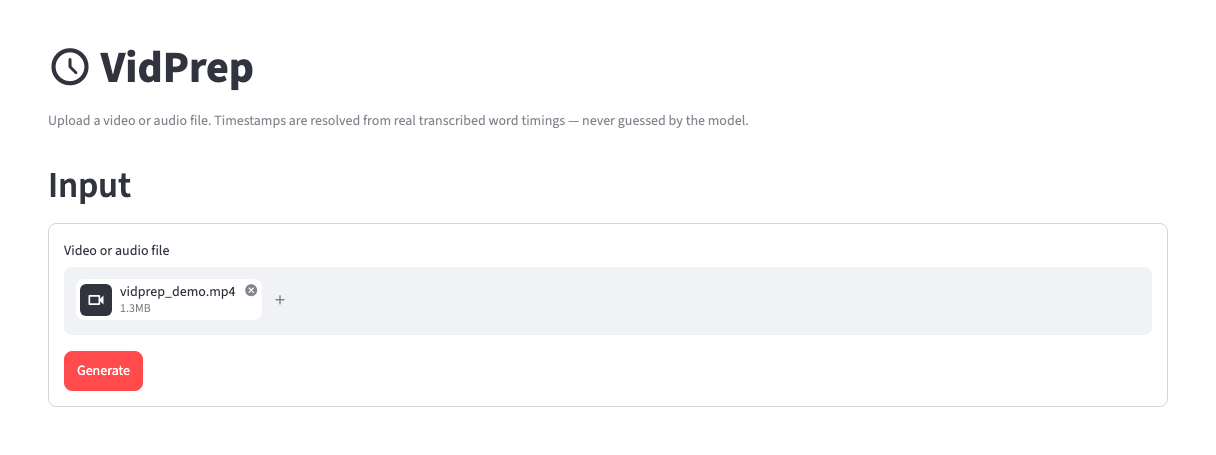
In the app, this is the Input section: a single file uploader and a Generate button. Here the sample video vidprep_demo.mp4 has been added and is ready to process:
Transcribe with AI_TRANSCRIBE
transcribe.py builds a single transcript timeline for the media. Downstream timestamps are resolved against that timeline, so their accuracy depends on the transcription.
AI_TRANSCRIBE has a practical limit on media length when requesting word-level timestamps, so longer media is split into chunks with ffmpeg, transcribed independently, and re-based onto one continuous timeline using each chunk's measured duration (not the requested split point, which can drift):
def _transcribe_chunk_with_ai_transcribe(chunk_path: str) -> dict:
    """Stage the chunk and call AI_TRANSCRIBE with word-level timestamps."""
    staged_name = put_file(chunk_path, STAGE_FQN)
    sql = (
        f"SELECT AI_TRANSCRIBE(TO_FILE('@{STAGE_FQN}', ?), "
        "OBJECT_CONSTRUCT('timestamp_granularity', 'word'))"
    )
    try:
        rows = run_query(sql, params=(staged_name,))
        if not rows or rows[0][0] is None:
            raise TranscriptionError("AI_TRANSCRIBE returned no result.")
        return json.loads(rows[0][0])
    finally:
        try:
            run_query(f"REMOVE '@{STAGE_FQN}/{staged_name}'")
        except Exception:
            logging.getLogger(__name__).warning("Staged media cleanup failed; check the configured stage.")
Cleanup is attempted even if transcription or response parsing fails. A cleanup warning means you should inspect the stage and remove only the files from your own run. Transcripts are cached by a hash of the uploaded file's contents, so uploading the same file again reuses its transcript.
Generate with AI_COMPLETE
This is the section that enforces VidPrep's core correctness rule. generate.py never asks the model for a timestamp. It only asks for a word_index into the transcript array it was shown, tagged inline as [INDEX]word:
_CHAPTER_SCAN_SCHEMA = {
    "type": "object",
    "properties": {
        "chapter_candidates": {
            "type": "array",
            "items": {
                "type": "object",
                "properties": {
                    "word_index": {"type": "number"},
                    "title": {"type": "string"},
                },
                "required": ["word_index", "title"],
            },
        },
        "chunk_summary": {"type": "string"},
    },
    "required": ["chapter_candidates", "chunk_summary"],
}
The AI_COMPLETE call requests structured JSON with this schema. A request can occasionally return NULL, so the helper retries a bounded number of times before reporting an error:
def _ai_complete_json(prompt: str, schema: dict) -> dict:
    sql = "SELECT AI_COMPLETE(?, ?, PARSE_JSON(?), PARSE_JSON(?))"
    model_params = json.dumps({"temperature": 0.2, "max_tokens": COMPLETE_MAX_TOKENS})
    response_format = json.dumps({"type": "json", "schema": schema})
    params = (COMPLETE_MODEL, prompt, model_params, response_format)
    for attempt in range(1, AI_COMPLETE_ATTEMPTS + 1):
        rows = run_query(sql, params=params)
        if rows and rows[0][0] is not None:
            raw = rows[0][0]
            # AI_COMPLETE with response_format returns the structured object directly.
            return json.loads(raw) if isinstance(raw, str) else raw
        if attempt < AI_COMPLETE_ATTEMPTS:
            time.sleep(AI_COMPLETE_RETRY_DELAY_SECONDS * attempt)
    raise GenerationError(
        f"AI_COMPLETE returned no result after {AI_COMPLETE_ATTEMPTS} attempts. "
        "This is usually transient; please try again."
    )
The generated result and each extra (titles, quotes, FAQ) are cached under a key that includes a hash of the model and the inputs the prompt uses, so a changed transcript or regenerated result never reuses stale suggestions.
This app uses claude-sonnet-5 as the AI_COMPLETE model, set by COMPLETE_MODEL in config.py. That model isn't hosted in every region. If your region doesn't offer it, either enable cross-region inference as ACCOUNTADMIN:
ALTER ACCOUNT SET CORTEX_ENABLED_CROSS_REGION = 'ANY_REGION';
or change COMPLETE_MODEL to a model that is available in your region (see model availability) and redeploy. The cache key includes the model name, so switching models never reuses old results.
The transcript is scanned in overlapping word-count windows rather than one full-transcript call. Returned indices are converted to integers and clamped to the transcript's bounds. This keeps timestamps within the transcript; it does not establish that the selected chapter boundary is suitable:
def _resolve_and_clean_chapters(words, raw_candidates: list[dict]) -> list[Chapter]:
    n = len(words)
    resolved: list[tuple[int, str]] = []
    for c in raw_candidates:
        try:
            idx = int(c["word_index"])
        except (KeyError, TypeError, ValueError):
            continue
        idx = max(0, min(idx, n - 1))
        title = (c.get("title") or "").strip()
        if title:
            resolved.append((idx, title))
    resolved.sort(key=lambda x: x[0])
    # Always start at the true beginning.
    if not resolved or resolved[0][0] != 0:
        resolved.insert(0, (0, "Introduction"))
    ...
A second AI_COMPLETE call, given the combined per-chunk summaries, writes the description and suggests SEO keywords in the same structured response:
_DESCRIPTION_SCHEMA = {
    "type": "object",
    "properties": {
        "description": {"type": "string"},
        "keywords": {"type": "array", "items": {"type": "string"}},
    },
    "required": ["description", "keywords"],
}
The Overview tab shows the result. For the two-minute sample, the model proposed eight chapters, and each start time (0:00, 0:16, 0:30, and so on) was looked up from the transcript word it pointed at. Each timestamp is a button that seeks the preview player. Below them, the description block combines the generated description, the chapter list, and the keywords, ready to paste into a video platform:
Add Publishing Extras
enhance.py layers six more publishing-prep features on top of the core pipeline, following the same "never invent, always resolve" rule:
- Title suggestions come from one
AI_COMPLETEcall that asks for 5-8 candidates of 100 characters or fewer. - A SEO checklist is pure Python (no model call at all), checking description length, keyword usage, call-to-action presence, title length, and chapter count.
On the Titles & SEO tab, the sample produced eight title candidates. The checklist passed four checks and flagged one: none of the 15 keywords appear word for word in the description. That warning is the point of the checklist: it tells you what to fix by hand before publishing.
- Thumbnail candidates are real JPEG frames extracted with
ffmpegnear each chapter start, using a two-second offset where the media duration permits. - Pull quotes reuse the same chunked-scan pattern as chapters: the model picks a
start_word_index/end_word_indexspan, and the quote text is built verbatim from the transcript:
def generate_quotes(media: AcquiredMedia, transcript: Transcript, max_quotes: int = 6) -> list[Quote]:
    ...
    quotes = [
        Quote(
            start_seconds=words[s].start,
            end_seconds=words[e].end,
            text=" ".join(w.text for w in words[s : e + 1]),
        )
        for s, e in all_spans
    ]
    return quotes
The Thumbnails & Clips tab shows both. Each thumbnail is a real frame taken two seconds after a chapter start (0:02, 0:18, 0:45, and so on), labelled with that chapter. Each pull quote is copied exactly from the transcript with its real time span, such as "A language model should never invent a timestamp." at 0:59 to 1:01:

- Caption files (
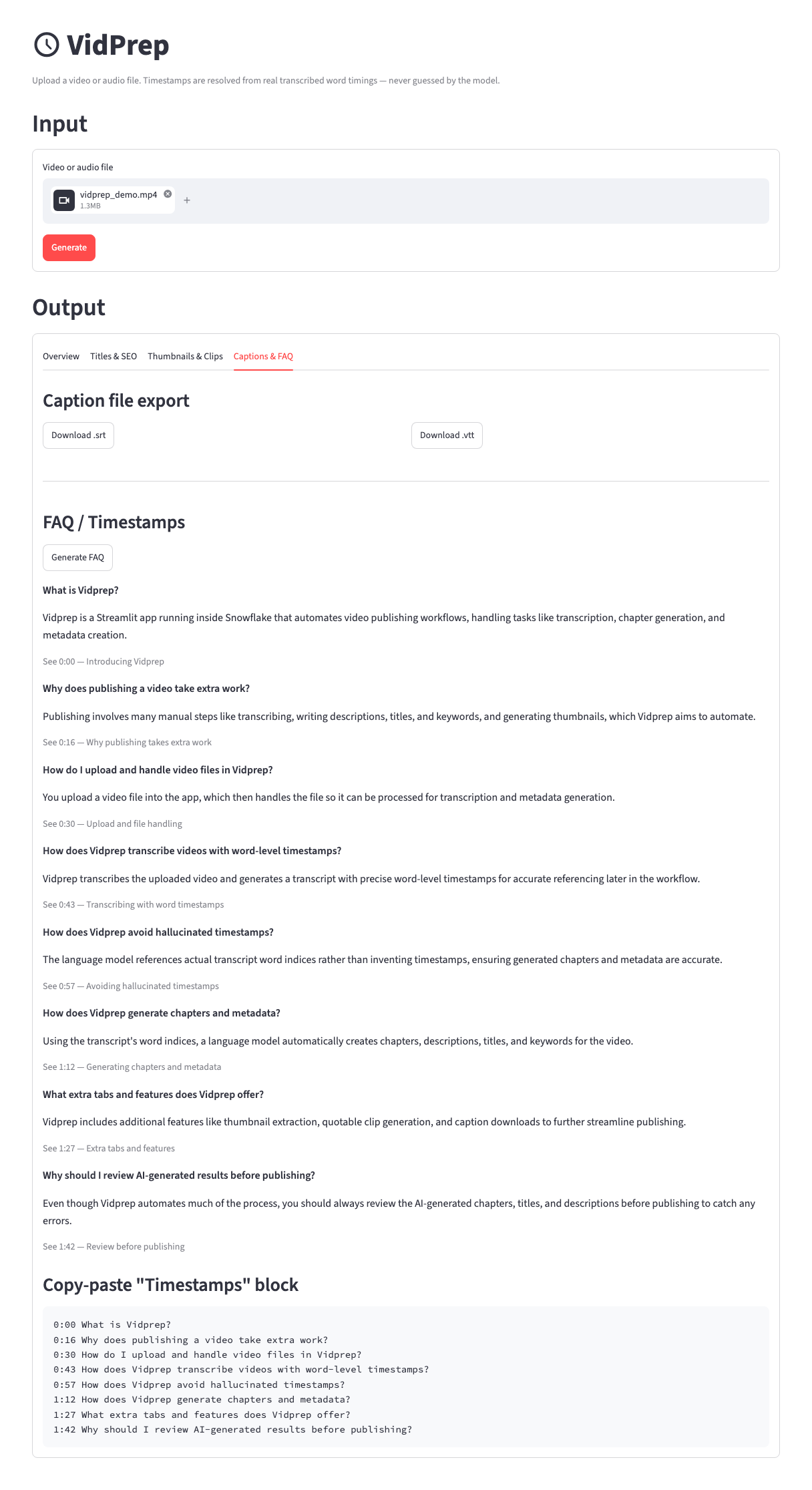
.srt/.vtt) are built deterministically from the word-level transcript by grouping words into cues, with no model call needed. - An FAQ phrases each chapter as a question, tied back to that chapter's real
start_secondsby index, never a model-invented timestamp.
The Captions & FAQ tab has the two caption downloads at the top. Below them, each FAQ entry ends with a "See" link to the chapter it came from, and the copy-paste Timestamps block lists every question at its chapter's start time:
Treat all of this generated copy as a first draft and review it before publishing.
Build the UI
app.py wraps the Input controls in a bordered container, then, once a result exists in st.session_state, renders the Output section as four tabs. The tab set has a key and on_change="rerun" (available in Streamlit 1.64 and later), so the selected tab survives the rerun that every button click triggers. Without it, clicking an extras button would send the user back to Overview:
tab_overview, tab_titles_seo, tab_thumbs, tab_captions = st.tabs(
    ["Overview", "Titles & SEO", "Thumbnails & Clips", "Captions & FAQ"],
    key="output_tab",
    on_change="rerun",
)
The three "extras" tabs are lazy: each has its own Generate button, and results are kept in st.session_state["extras"] so switching tabs doesn't lose them or re-trigger a model call:
with tab_titles_seo:
    if st.button("Generate title & SEO suggestions", key="gen_titles_seo"):
        try:
            with st.spinner("Generating title and SEO suggestions..."):
                extras["titles_seo"] = enhance.generate_titles_seo(media, result, transcript.duration)
        except GenerationError as e:
            st.error(f"Generation failed: {e}")

    titles_seo = extras.get("titles_seo")
    if titles_seo:
        st.subheader("Title suggestions")
        st.code("\n".join(titles_seo.titles), language=None)
The app clears previous media, transcript, results, extras, and the selected tab when Generate is clicked, including when input is missing or the next request fails. A failed request therefore cannot leave another video's output displayed as its result, and each new result opens on Overview.
If a model call still returns no result after its retries, the tab shows a "Generation failed" message. Click that tab's Generate button again; earlier results stay in place.
Deploy to Snowflake
VidPrep runs on the Streamlit-in-Snowflake container runtime, using Python dependencies and the ffmpeg executable bundled by imageio-ffmpeg. The only outbound access it needs is PyPI, for installing those dependencies when the container starts.
Define the deployment in snowflake.yml:
definition_version: 2
entities:
  vidprep:
    type: streamlit
    identifier:
      name: VIDPREP
      database: VIDPREP_DB
      schema: APPS
    query_warehouse: VIDPREP_WH
    runtime_name: SYSTEM$ST_CONTAINER_RUNTIME_PY3_11
    compute_pool: VIDPREP_COMPUTE_POOL
    external_access_integrations:
      - PYPI_ACCESS
    main_file: app.py
    artifacts:
      - app.py
      - acquire.py
      - generate.py
      - transcribe.py
      - enhance.py
      - cache.py
      - config.py
      - snowflake_conn.py
      - pyproject.toml
Check that snowflake.yml references the resources you created in Setup. If you chose different names, update the identifier, warehouse, compute pool, integrations, and config.py stage default together. Confirm each listed artifact exists and no credentials are included. Use a distinct app name for a test deployment; --replace must not overwrite an app you need to preserve.
snow streamlit deploy vidprep --connection <your_connection_name> --replace
The first deploy resolves and locks Python dependencies inside the container, which can take a few minutes. If you later change pyproject.toml, redeploy with --prune to clear the stale lockfile left on the stage. The keyed output tabs require Streamlit 1.64 or later; if the deployed app fails on st.tabs, confirm the container resolved a version that satisfies the pyproject.toml floor.
Verify the Workflow
- Upload a short original video and select Generate. If you don't have one, use
sample/vidprep_demo.mp4from the companion repository: a two-minute synthetic narrated demo with eight sections and no real people or data. The screenshots in this guide were produced from it. Confirm a description, ordered chapter timestamps, and a working local preview appear. Click a later chapter timestamp and confirm the preview player moves to that time. - Generate titles/SEO suggestions, thumbnails, pull quotes, and an FAQ from their respective tabs. Each tab should stay selected after its Generate button runs. Download both caption formats and inspect their text and timestamps.
- For a fresh live check, use a new cache directory and test stage. A cached result or a mocked unit test is not proof of a new Snowflake call.
- Review transcription accuracy, generated claims, and chapter suitability manually. Resolved timestamps refer to transcript entries; they do not guarantee correct transcription or ideal chapter boundaries.
Clean Up
Save any generated outputs you need, and stop the local app if you started one. Then run the following as the role you used in Setup. Stopping the compute pool's workloads first is required before it can be dropped. Dropping the database also removes the stage and any media left on it.
DROP STREAMLIT IF EXISTS VIDPREP_DB.APPS.VIDPREP;
ALTER COMPUTE POOL VIDPREP_COMPUTE_POOL STOP ALL;
DROP COMPUTE POOL IF EXISTS VIDPREP_COMPUTE_POOL;
DROP EXTERNAL ACCESS INTEGRATION IF EXISTS PYPI_ACCESS;
DROP DATABASE IF EXISTS VIDPREP_DB;
DROP WAREHOUSE IF EXISTS VIDPREP_WH;
Finally, delete the local cache directory (.cache by default, or whatever you set VIDPREP_CACHE_DIR to) to remove cached transcripts, thumbnails and caption files.
Conclusion And Resources
VidPrep turns an uploaded video into draft publishing materials: chapters, a description, titles and keywords, thumbnail candidates, pull quotes, captions, and an FAQ. Chapter timestamps and quote spans are resolved from transcript data in code. Review those outputs before publishing.
What You Learned
- How to get word-level timestamped transcripts from
AI_TRANSCRIBE, including chunking long media - How to request structured JSON from
AI_COMPLETEand resolve returned indices against transcript data - Why resolving timestamps from real data in code, rather than trusting a model to emit them, eliminates a whole class of hallucination bugs
- How to deploy a Streamlit app on the container runtime with a compute pool and an External Access Integration for PyPI
Related Resources
Documentation:
Additional Reading:
This content is provided as is, and is not maintained on an ongoing basis. It may be out of date with current Snowflake instances
