
Sep 23, 2026/5 min readCore Platform
Stop Guessing, Start Optimizing: Workload Performance Analysis with CoCo

TL;DR: Workload Performance Analysis is a natural-language skill in CoCo that analyzes Snowflake query execution telemetry — spilling, pruning, cache, Query Acceleration Service (QAS), Search Optimization Service (SOS) — and surfaces recommendations for what to optimize. Launch it using the skill workload-performance-analysis in CoCo or from Performance Explorer, Query History or Query Details in Snowsight. No installation or configuration required.
Snowflake captures detailed execution telemetry for every query your account runs: partitions scanned, bytes spilled, cache hit ratios, queuing time, acceleration eligibility, and stores it in ACCOUNT_USAGE views. The data has always been there; the bottleneck was figuring out what fixes to implement.
It requires knowing which views to query, which metrics signal a real problem versus normal variance, and how to connect what you see to a concrete action such as reclustering a table or enabling SOS. That expertise gap is what keeps performance investigations slow, manual and inconsistent.
We're introducing Workload Performance Analysis, a new skill in CoCo and a natural language interface for Snowflake query performance analysis that is now generally available (GA). You describe what you want to understand and the skill interprets the results in context and tells you what to do about it.
How Workload Performance Analysis works
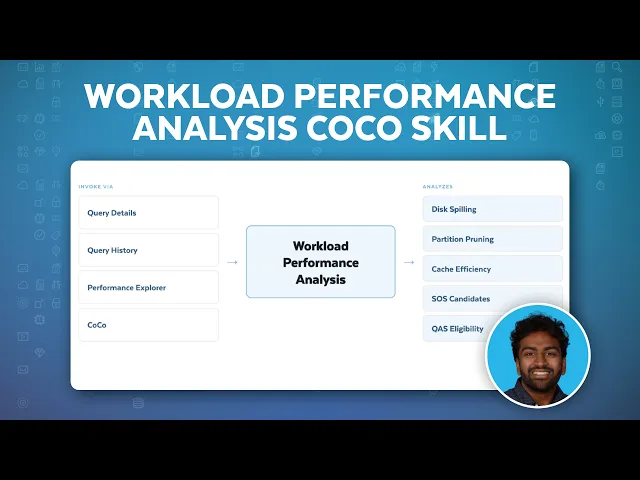
Workload Performance Analysis is a single entry point for SQL execution performance analysis. Depending on what you ask, it focuses on a specific query, a warehouse, a table, a stored procedure run, a set of recurring query patterns, or a broad account-wide health scan.
It covers the full range of execution performance dimensions:
| Dimension | Details |
|---|---|
| Disk spilling | Local and remote, with root-cause framing and fix recommendations |
| Partition pruning | Scan efficiency ratios and clustering key recommendations for poorly pruning tables |
| Cache efficiency | Local disk cache and warehouse cache hit rates across a workload |
| Search Optimization Service (SOS) | Identifying workloads that would benefit from SOS on point lookups or range scans |
| Query Acceleration Service (QAS) | Finding long-tail queries eligible for elastic acceleration |
| Stored procedure runs | Analyzing a parent CALL and every child query it spawned as a single unit |
| Account-level health checks | A broad scan across all four dimensions in one pass |
Results are summarized with the most important findings first — not a raw dump of every row in a data table.
When should you use Workload Performance Analysis?
Use the Workload Performance Analysis skill when:
- A specific query is slow and you need to understand why — partition pruning issues, spilling or long queue time
- A warehouse is underperforming and you want a breakdown of spill, cache and pruning metrics over a time window
- You are evaluating a table for reclustering or SOS before committing to a configuration change
- A stored procedure run produced unexpected results and you want to trace every child query it spawned
- You want a health check — a broad scan across spilling, pruning, cache and QAS eligibility for your account in one pass
Four ways to use Workload Performance Analysis
The Workload Performance Analysis skill is available from four places — in Snowsight and directly in CoCo. You shouldn't need to copy query IDs or re-enter filters you already set in Snowsight.
- Query Details: Open any query's detail view in Snowsight and select Analyze with CoCo. CoCo receives the full execution context for that query automatically. If the query is a CALL to a stored procedure, the skill traces the parent and all child queries together.
- Query History: From Query History with one or more queries in view, select Analyze with CoCo. The Workload Performance Analysis skill uses the list you're already looking at as the scope — no copy-pasting required.
- Performance Explorer: With filters already applied to the Performance Explorer dashboard — time range, warehouse, query pattern — select Analyze with CoCo. The skill interprets the charts and trends in the context of the view you set up.
- CoCo directly: In the CLI, Desktop app or Snowsight panel, describe what you want to analyze or type /workload-performance-analysis. This is the right path for broad or cross-warehouse questions that aren't tied to a specific Snowsight page.
The Snowsight entry points pass page context to the Workload Performance Analysis skill automatically. In CoCo CLI and CoCo Desktop, include the scope in your prompt — warehouse name, query ID, table name or time range. The more specific the prompt, the tighter the analysis.
Test out Workload Performance Analysis today
Here are prompts that represent the full range of what Workload Performance Analysis is designed for:
- Summarize spill and cache metrics for warehouse ANALYTICS_WH over the last 7 days.
- Why is query 01b24bb0-0007-9627-0000-0001234abcde slow? Root cause and recommendations.
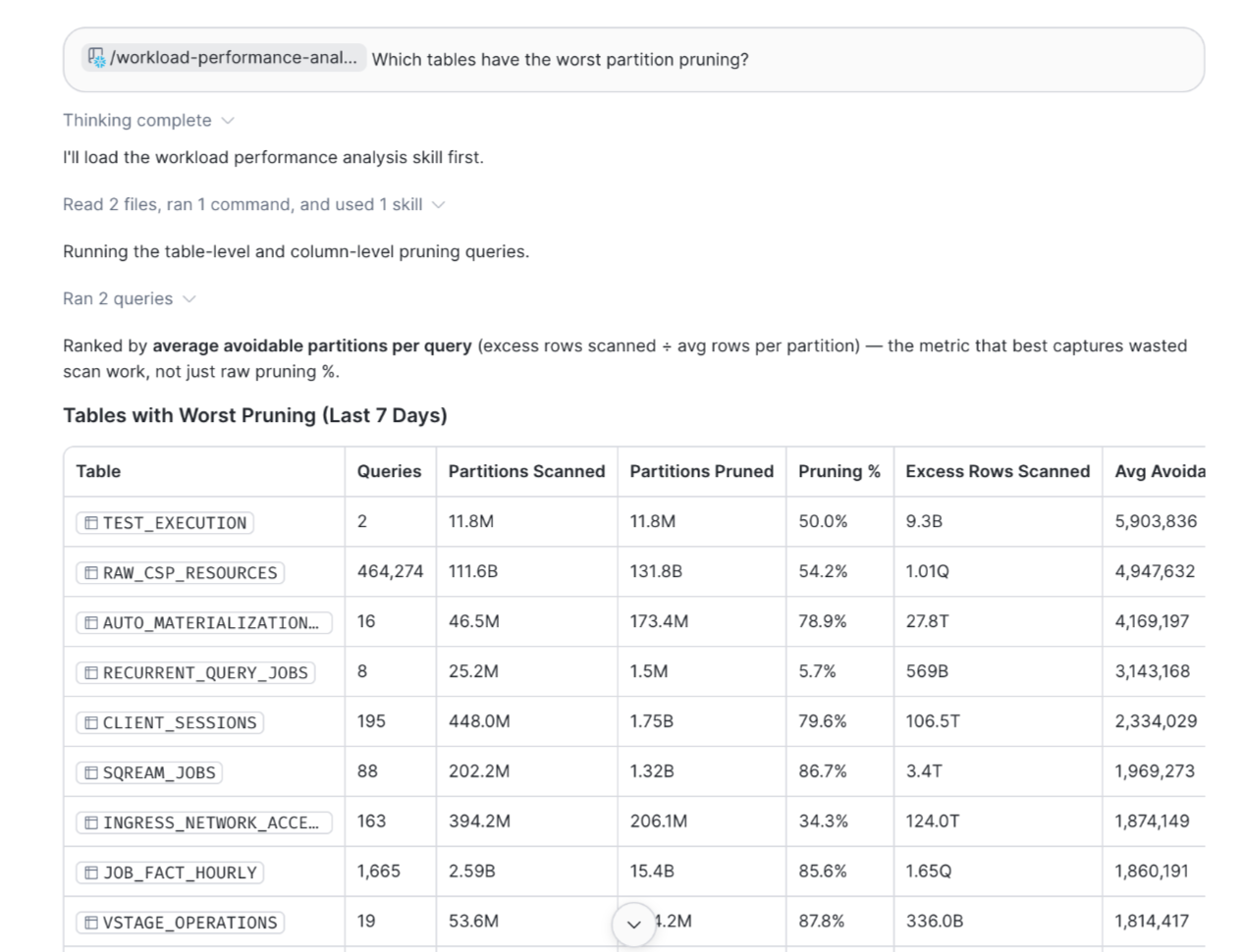
- Which tables have the worst partition pruning? Recommend clustering keys for the top offenders.
- Are any of my recurring query patterns good QAS candidates?
- Health check: spilling, pruning, cache and QAS eligibility account-wide for the last week.
- What happened inside this stored procedure run, including all child queries?
For warehouse sizing recommendations, Workload Performance Analysis may ask whether your workload prioritizes speed (minimize wait time and query runtime) or cost (accept some queuing or spilling to save credits). That framing shapes meaningfully different guidance. For credit and spend analysis, use the cost-intelligence skill instead.
Key takeaways
- Workload Performance Analysis is a CoCo skill that turns Snowflake ACCOUNT_USAGE telemetry into specific, actionable recommendations.
- It covers disk spilling, partition pruning, cache efficiency, SOS candidates, QAS eligibility and stored procedure traces.
- Launch Workload Performance Analysis from Snowsight (Query Details, Query History, Performance Explorer) or directly in CoCo using the skill workload-performance-analysis — no setup required.
- For spend and credit analysis, use the cost-intelligence skill in CoCo instead.
