Sep 21, 2026/4 min readData Engineering
Optimizing Dynamic Tables Performance with Dynamic Tables Insights and Snowflake CoCo


As data pipelines scale in complexity, managing performance and compute costs becomes a top priority for data engineering teams. Dynamic Tables simplify declarative data transformations in Snowflake by automatically refreshing target tables as underlying data changes. However, as query logic grows more complex, it can be challenging to optimize query structures, reduce refresh lag, and control costs.
To streamline this process, we are introducing Dynamic Tables Insights — a feature built directly into Snowsight and integrated with Snowflake CoCo (CLI, Snowsight, and Desktop) to help you surface, understand, and apply performance best practices to your Dynamic Tables automatically.
What are Dynamic Tables insights?
Dynamic Tables Insights continuously analyzes your declarative definitions and refresh execution metrics to identify opportunities for more performant patterns, inefficient SQL constructs, or structural bottlenecks.
Rather than manually auditing complex Dynamic Table pipelines, Dynamic Tables Insights surfaces clear, actionable recommendations directly within Snowsight and Snowflake CoCo.
Key capabilities include:
- Automatic detection: Identifies optimization opportunities such as
QUALIFY RANK() = 1logic buried inside subqueries, or non-monotonic grouping functions likeGROUP BY HASH(...)causing high partition re-evaluation. - Integrated workflow: Integrates seamlessly into the Snowsight Dynamic Table interface and CoCo workflows.
- Targeted performance improvement: Focuses specifically on reducing refresh execution time and lowering compute consumption.
Finding insights in Snowsight
Locating dynamic tables that can benefit from performance tuning is simple:
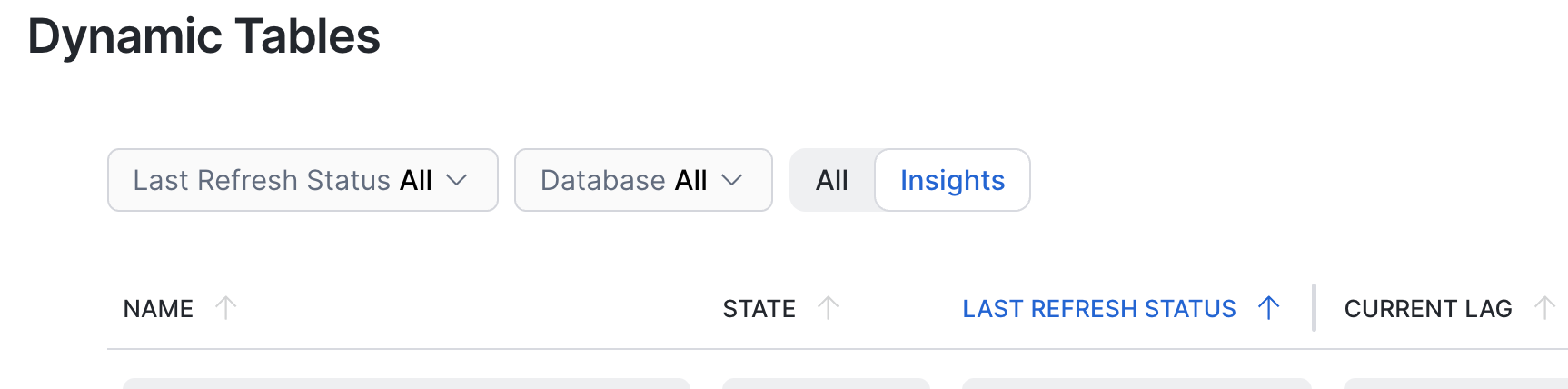
- Global inventory view: Navigate to the Dynamic Tables list page in Snowsight. Use the Insights filter button to quickly surface tables across your account that have actionable insights.
- Detailed context: Click on a specific Dynamic Table to bring up its details page. When performance improvements are identified, an Insights panel appears directly alongside the graph and execution metrics.
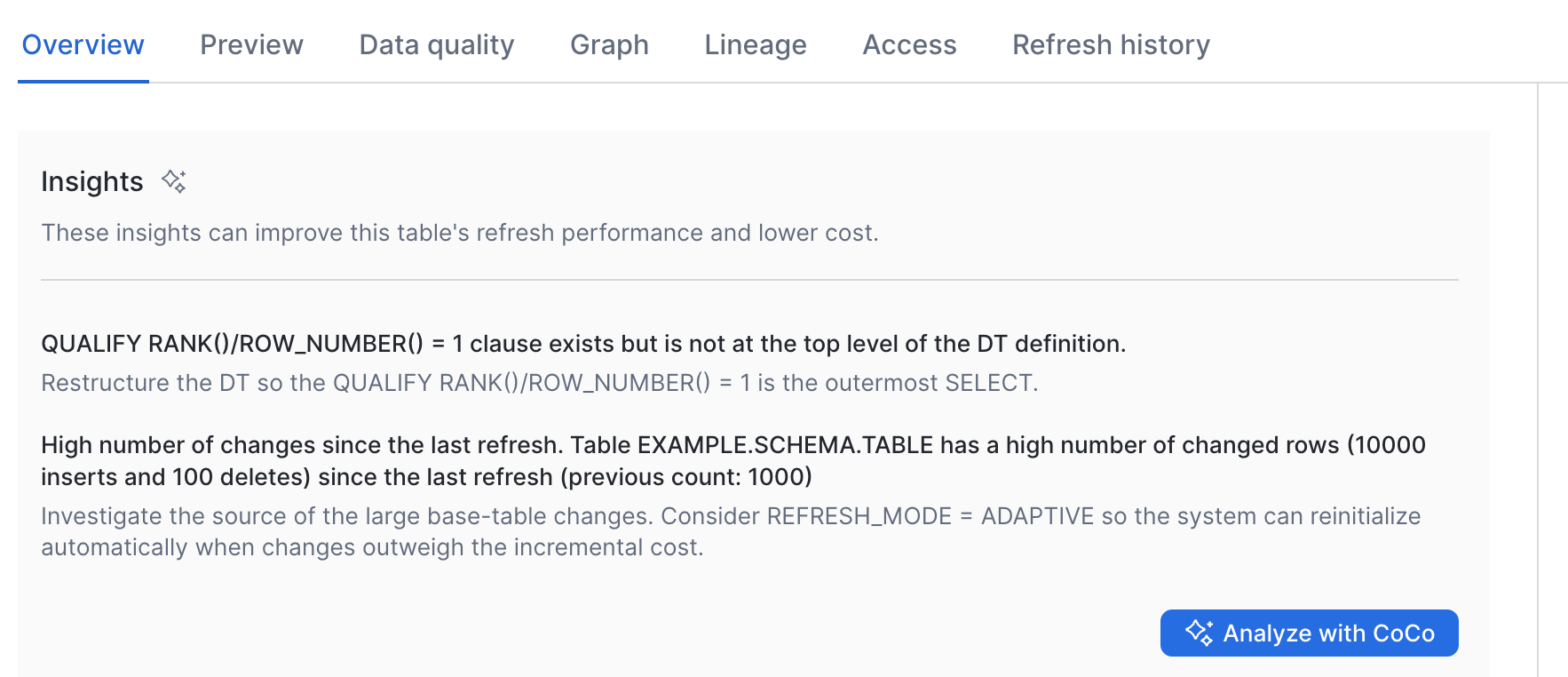
For example, an insight might flag that a window function — such as QUALIFY RANK() = 1 — is located inside a subquery rather than at the top level of the definition, which prevents the Dynamic Table from executing the most efficient incremental plan.
Resolving insights using CoCo
Detecting improvement opportunities is only the first step. Dynamic Tables Insights pairs directly with CoCo across both the CoCo CLI and CoCo Desktop environments to assist you in executing these changes with confidence.
When you click Analyze with CoCo (or work directly within CoCo CLI/Desktop), CoCo will:
- Evaluate contextual dependencies: Analyze the target Dynamic Table alongside its upstream and downstream dependencies.
- Provide interactive guidance: Explain why the current dynamic table structure leads to suboptimal performance and detail the optimization mechanism.
- Generate automated DDL: Draft suggested DDL syntax (
ALTER DYNAMIC TABLE ...,CREATE OR REPLACE DYNAMIC TABLE ...) or underlying base table modifications needed to apply the recommendation. - Execute optimizations: Let you review the proposed DDL, apply the changes directly, and observe potential reductions in refresh latency and credit consumption.
Best practices
Using Dynamic Tables Insights along with CoCo is the recommended standard for maintaining optimal data pipelines in Snowflake.
- Regular audits: Periodically check high-throughput or mission-critical tables to help ensure new pipeline additions maintain efficient refresh logic.
- Shift-left optimization: Integrate CoCo CLI into your local developer workflow or CI/CD checks to catch performance bottlenecks before deploying changes to production.
Getting started
Ready to optimize your dynamic data pipelines? You can start leveraging Dynamic Tables Insights in just a few quick steps:
- Log into Snowsight and navigate to the Dynamic Tables section.
- Use the "Insights" filter on the list page to quickly identify existing Dynamic Tables with performance optimization potential.
- Open a Dynamic Table from the list to view its details page and inspect the Insights box. If you see recommendations to improve refresh speed or reduce costs, click the Analyze with CoCo button to initiate CoCo.
- Work with CoCo to analyze the flagged performance issues, review the suggested improvements, and propose ready-to-use DDL statements to apply the optimizations to your environment.
