Cortex REST API Usage Visualization
Overview
Duration: 2
This quickstart shows how to build a self-contained HTML dashboard that visualizes your Cortex REST API token consumption using the Canvas API — with zero external CDN dependencies. The dashboard reimplements five chart types commonly built with Vega-Lite, using only native browser APIs.
What You'll Learn
- How to query
SNOWFLAKE.ACCOUNT_USAGE.CORTEX_REST_API_USAGE_HISTORYfor token-level data - How to build interactive charts with the HTML Canvas API (no libraries)
- Five visualization patterns: scatter, histogram, circle plot, trellis dot plot, and multi-line cumulative
- How to implement tooltips and retina-display support with
devicePixelRatio
What You'll Need
- A Snowflake account with Cortex REST API access
- ACCOUNTADMIN role or appropriate privileges to query ACCOUNT_USAGE views
- A modern web browser (Chrome, Firefox, Safari, Edge)
- A text editor
What You'll Build
A five-chart dashboard showing:
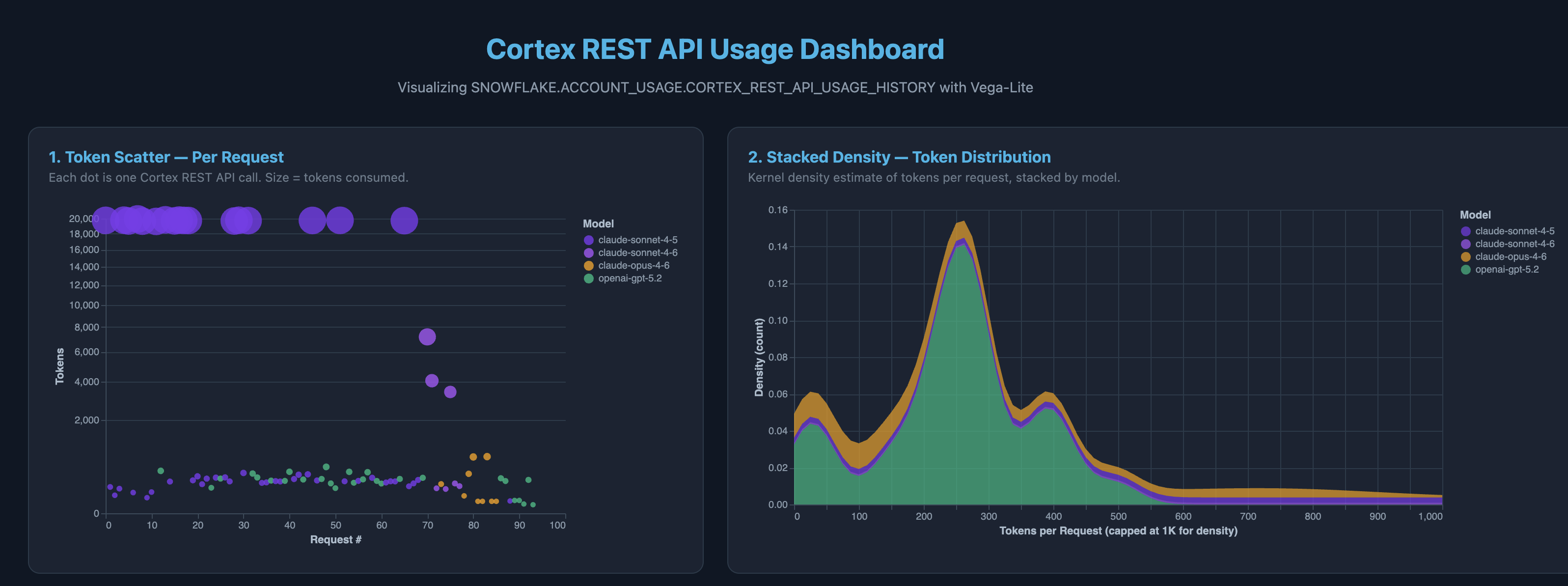
- Token Scatter — each API call as a sized dot (√ scale)
- Token Distribution Histogram — stacked bars by model and token range
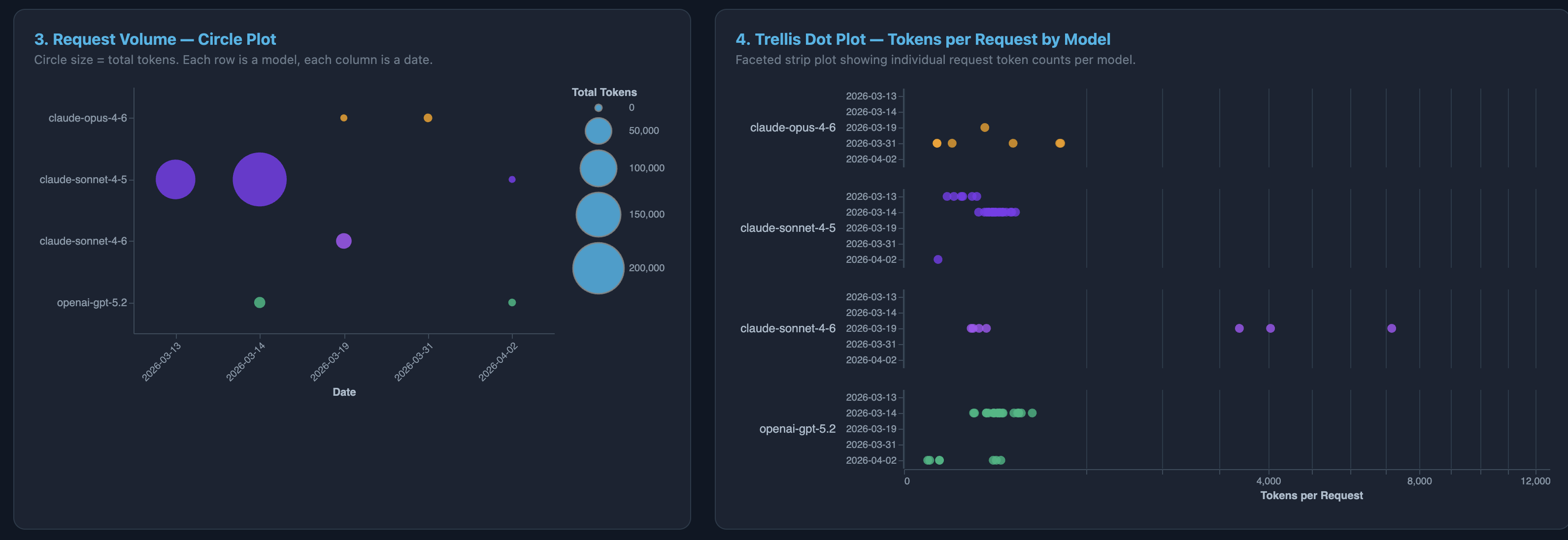
- Circle Plot — bubble matrix of request volume by date and model
- Trellis Dot Plot — faceted strip plot of per-request tokens
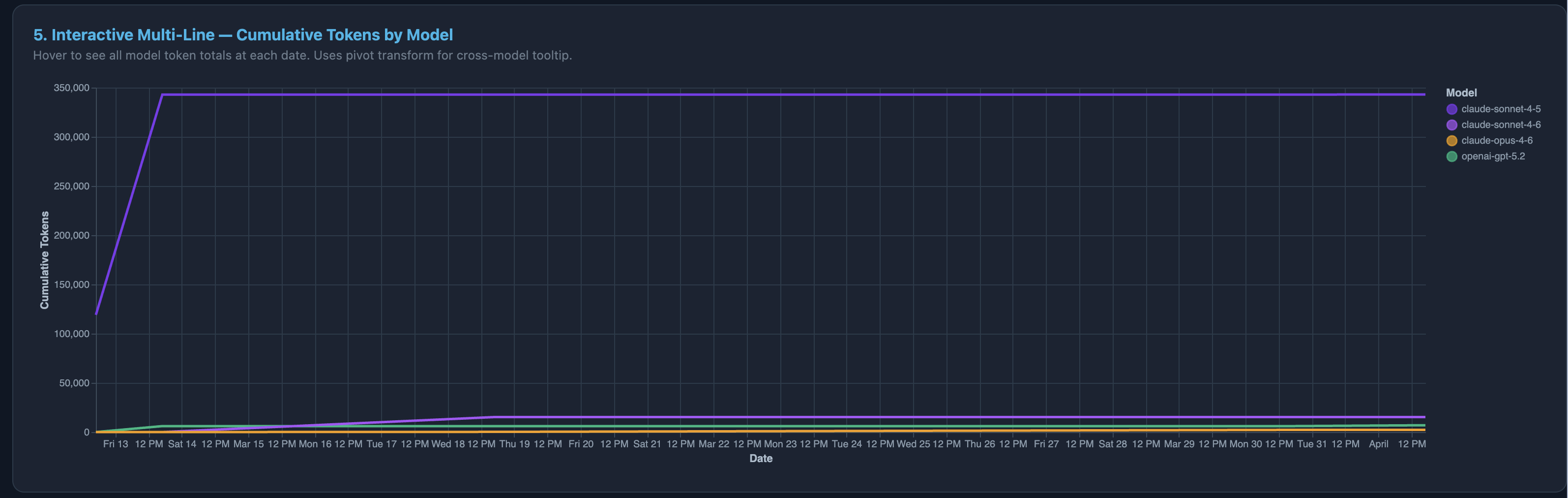
- Interactive Multi-Line — cumulative token usage over time with cross-model hover tooltip
Query Your Usage Data
Duration: 3
The dashboard is powered by SNOWFLAKE.ACCOUNT_USAGE.CORTEX_REST_API_USAGE_HISTORY. Run the following SQL to extract per-request token data:
USE ROLE ACCOUNTADMIN;
GRANT IMPORTED PRIVILEGES ON DATABASE SNOWFLAKE TO ROLE <your_role>;

SELECT
    DATE_TRUNC('day', START_TIMESTAMP)::DATE  AS date,
    TO_CHAR(START_TIMESTAMP, 'HH24:00')       AS hour,
    MODEL                                      AS model,
    TOKEN_COUNT                                AS tokens,
    LEFT(REQUEST_ID, 8)                        AS id
FROM SNOWFLAKE.ACCOUNT_USAGE.CORTEX_REST_API_USAGE_HISTORY
WHERE START_TIMESTAMP >= DATEADD('day', -30, CURRENT_TIMESTAMP())
ORDER BY START_TIMESTAMP;
Copy the output into a JSON array in the format:
[
  {"date":"2026-03-13","hour":"03:00","model":"claude-sonnet-4-5","tokens":19757,"id":"92b20b48"},
  ...
]
Tip: The
ACCOUNT_USAGEviews have up to 2 hours of latency. For near-real-time data, useINFORMATION_SCHEMA.CORTEX_REST_API_USAGE_HISTORY(15-minute latency, shorter retention).
Dashboard Architecture
Duration: 3
The dashboard is a single HTML file with no external dependencies — no Vega-Lite, D3, or Chart.js CDN imports. All rendering is done with the Canvas 2D API.
Key Design Patterns
| Pattern | Implementation |
|---|---|
| Retina support | devicePixelRatio scaling on every canvas |
| Layout | CSS Grid (2-column) with full-width bottom chart |
| Color scheme | Dark theme (#0f1724 bg, #1a2332 cards, #29b5e8 accent) |
| Tooltips | Fixed-position <div> shown on mousemove, hidden on mouseleave |
| Scale types | Linear and √ (square root) for token values |
| Hit testing | Math.hypot() for circles, bounding-box for rectangles |
File Structure
cortex-rest-api-usage-visualization/
├── cortex_rest_api_dashboard.html   ← the complete dashboard
├── assets/
│   ├── ScatterStackedDensity.png
│   ├── CirclesTrellis.png
│   └── Interactive.png
└── cortex-rest-api-usage-visualization.md
Chart 1 — Token Scatter Plot
Duration: 3
The scatter plot renders each Cortex REST API call as a circle. The y-axis uses a square root scale so both small (< 500) and large (∼ 20K) token values are visible without the small values collapsing to the axis.
How the √ Scale Works
const sqrtScale = v => Math.sqrt(v / maxTokens);
This maps token values to [0, 1] using the square root, compressing large outliers while expanding the lower range. The same technique is used in Vega-Lite's "scale": {"type": "sqrt"}.
Canvas Circle Drawing
ctx.globalAlpha = 0.75;
ctx.fillStyle = modelColorMap[r.model];
ctx.beginPath();
ctx.arc(x, y, radius, 0, Math.PI * 2);
ctx.fill();
Each dot's radius is proportional to token count: 3 + (tokens / maxTokens) * 14.
Chart 2 — Stacked Histogram
Duration: 2
Requests are bucketed into token ranges (0–100, 100–500, 500–1K, 1K–5K, 5K–10K, 10K–20K, 20K+). Within each bucket, bars are stacked by model color.
Binning Strategy
const bins = [
  {label: "0-100", min: 0, max: 100},
  {label: "100-500", min: 100, max: 500},
  ...
];
Non-uniform bins capture the bimodal distribution common in Cortex API usage — many short completion calls alongside longer multi-turn conversations.
Chart 3 — Circle Plot (Bubble Matrix)
Duration: 2
Inspired by the Vega-Lite "Natural Disasters" example, this chart places one circle per date × model cell. Circle area encodes total tokens for that combination.
Sizing Formula
const radius = 6 + Math.sqrt(r.total_tokens / maxTokens) * 30;
The Math.sqrt ensures circle area scales linearly with tokens (since area ∝ r²).
Chart 4 — Trellis Dot Plot
Duration: 2
Faceted by model (one row per model), this strip plot shows individual request token values on a shared √ x-axis. It reveals per-model distributions at a glance — e.g., claude-sonnet-4-5 having a bimodal pattern of small and large requests.
Faceting Implementation
allModels.forEach((m, mi) => {
  const fy = margin.top + mi * facetH;
  // Draw model label, grid lines, then dots
  const modelReqs = requests.filter(r => r.model === m);
  ...
});
Chart 5 — Interactive Multi-Line Cumulative
Duration: 3
The full-width bottom chart shows cumulative tokens over time for each model. Hovering reveals a cross-model tooltip showing all models' totals at the nearest date.
Cumulative Calculation
allModels.forEach(model => {
  let cumul = 0;
  sorted.forEach(d => { cumul += d.tokens; byDate[d.date] = cumul; });
  // Fill forward for dates with no activity
  let last = 0;
  allDates.forEach(date => {
    if (byDate[date] !== undefined) last = byDate[date];
    filledData[model].push({date, cumulative: last});
  });
});
Mouse Hover Nearest-Date
canvas.addEventListener("mousemove", e => {
  const closestIdx = allDates.reduce((best, _, i) => {
    const x = margin.left + (i / (allDates.length - 1)) * plotW;
    return Math.abs(mx - x) < Math.abs(mx - bestX) ? i : best;
  }, 0);
  // Build tooltip with all models at this date
});
Customization Guide
Duration: 2
Using Your Own Data
Replace the requests array at the top of the <script> block with your SQL output. The dashboard auto-detects:
- Models: derived from
modelColorMapkeys - Dates: extracted from the data array
- Token ranges: fixed bins work for most usage patterns
Adding Models
Add entries to modelColorMap:
const modelColorMap = {
  "claude-sonnet-4-5": "#7c3aed",
  "claude-sonnet-4-6": "#a855f7",
  "claude-opus-4-6": "#f59e0b",
  "openai-gpt-5.2": "#10b981",
  "your-new-model": "#ec4899"  // add more here
};
Changing the Theme
Update three CSS values:
body { background: #0f1724; }— page background.card { background: #1a2332; }— chart card backgroundh1, .card h2 { color: #29b5e8; }— accent color
Conclusion
Duration: 1
What You Learned
- Querying per-request token data from
CORTEX_REST_API_USAGE_HISTORY - Building five chart types with the HTML Canvas API and zero dependencies
- Implementing interactive tooltips, retina scaling, and √ scales
- Customizing the dashboard with your own data and color themes
Related Resources
This content is provided as is, and is not maintained on an ongoing basis. It may be out of date with current Snowflake instances
