Build an AI Assistant for Telco using AI SQL and Snowflake CoWork
Overview
Introduction
Telecommunications companies face unique challenges in managing vast amounts of operational data—from network performance metrics and infrastructure capacity to customer call recordings, support tickets, and satisfaction surveys. To address these challenges effectively, a unified platform is essential—one capable of storing and processing all data types, whether MP3 call recordings, PDF help documents, or structured network telemetry.
Throughout this quickstart, we'll use NovaConnect—a fictitious telecommunications company—as our example organization. NovaConnect operates a nationwide 5G network serving millions of customers, and needs AI-powered tools to analyze network performance, understand customer feedback, and streamline support operations.

This data must be readily accessible for analysis using the latest large language models (LLMs) such as Anthropic, Gemma, LLaMA, or DeepSeek. Ensuring the trustworthiness and security of generated insights is critical, especially when they inform network operations decisions and customer experience strategies.
In addition, developing Agentic AI capabilities allows for natural language question-answering tailored to network engineers, customer service managers, and operations teams who need real-time insights into network health and customer satisfaction.
In this hands-on lab, you'll learn how to build a Telco Operations AI Agent from the ground up using the Snowflake AI Data Cloud.
Learn how you can leverage the latest AI technologies right within the Snowflake platform. When AI is deeply embedded in your trusted data platform, the possibilities are endless. We will be exploring the processing of both Unstructured and Structured data which will then allow the application of a Cortex Agent to help discover insights by leveraging All Data.
Data Sources and Analytics
This hands-on lab utilizes a comprehensive telecommunications dataset spanning multiple data types to demonstrate real-world AI applications. You'll work with:
Network Operations Data
- Network Performance Metrics - Latency, download/upload speeds, packet loss, and availability from cell towers
- Infrastructure Capacity - Bandwidth utilization, equipment status, and capacity planning data
- 4G/5G Tower Analytics - Regional performance metrics across multiple geographic regions
Customer Experience Data
- 25 Call Recordings (MP3) - Customer support calls transcribed with AI_TRANSCRIBE
- 8 Help Documents (PDF) - Product guides and troubleshooting documents processed with AI_PARSE_DOCUMENT
- Customer Feedback Summary - Sentiment analysis, complaints, and feedback categorization
- Customer Details - Demographics, plan types, tenure, and churn analysis
- Support Tickets - Issue tracking with priority, category, and resolution data
- CSAT Surveys - Customer satisfaction scores and NPS ratings
AI-Powered Analysis Journey
Your AI assistant will synthesize insights from all these sources to answer questions like:
- "Which regions have the highest network latency issues?"
- "Show me 5G towers operating above 80% capacity"
- "Find calls mentioning network connectivity problems"
- "Which customer segments have the highest churn risk?"
- "What are the top customer complaints this month?"
This diverse dataset enables you to experience how modern AI can unify structured network data with unstructured customer interactions, creating comprehensive operational intelligence.
⚠️ Important Disclaimer: All data including NovaConnect company information is completely synthetic and created for educational purposes. Business decisions cannot be made based on any outcomes of this lab.
What You'll Build
In this quickstart, you'll build a comprehensive AI-powered telecommunications operations platform called NovaConnect Intelligence using Snowflake's Cortex AI capabilities. This end-to-end solution demonstrates how to:
- Process unstructured documents (PDFs) with Cortex Document Processing
- Transcribe and analyze customer call audio with AI Transcribe and AI Sentiment
- Create intelligent search experiences with Cortex Search Services
- Build natural language data queries with Cortex Analyst and semantic models
- Deploy conversational AI agents with Snowflake CoWork
What You'll Learn
- How to extract structured data from unstructured documents
- How to build and configure Cortex Search Services for RAG applications
- How to create Cortex Analyst semantic models for business intelligence
- How to use Snowflake CoWork agents with multiple tools
- How to deploy production-ready Streamlit applications in Snowflake
What You'll Need
- A Snowflake account (free trial works for most features) with ACCOUNTADMIN access
- Web browser (Chrome, Firefox, or Safari)
- Basic knowledge of SQL
- 15-20 minutes for deployment
Deployment Options
This quickstart offers two deployment paths to accommodate different preferences and skill levels. Choose the option that best fits your workflow:
Option 1: Snowsight UI (Recommended)
Best for: Most users, visual learners, those new to Snowflake
Deploy directly from GitHub using Snowflake's built-in Git integration. This approach:
- No local setup required - Everything runs in your browser
- Visual feedback - Watch each step execute in Snowsight
- Easy troubleshooting - See errors immediately in the UI
- Learn as you go - Understand what each script does
You'll connect Snowflake to GitHub, then run a series of SQL scripts that automatically:
- Configure your account and create required objects
- Load sample data from stages
- Deploy Cortex Search services and Analyst semantic models
- Create notebooks for data processing
Option 2: Snowflake CoCo CLI (Alternative)
Best for: Developers, automation enthusiasts, CLI power users
Use the Telco Agent Builder skill for guided, conversational deployment. This approach:
- Conversational interface - AI guides you through deployment
- Automated execution - Less manual copying/pasting
- Skill-based - Uses Snowflake CoCo's agent capabilities
Assets Created
By the end of this lab, you'll have deployed:
- Database:
TELCO_OPERATIONS_AIwith multiple schemas - Warehouse:
TELCO_WH(Medium) - Role:
TELCO_ANALYST_ROLEwith CORTEX_USER privileges - 14+ Tables with ~10,000 rows of telco data
- 2 Cortex Search Services (call transcripts, support tickets)
- 3 Cortex Analyst Semantic Models (network, infrastructure, customer)
- 1 Snowflake CoWork Agent (Telco Operations AI Agent)
- 3 Snowflake Notebooks for data processing
- 33+ Files (25 MP3 audio, 8 PDF documents)
Architecture Overview
Multi-Modal AI Platform
This quickstart deploys a complete multi-modal AI platform combining:
Data Sources → AI Processing → Structured Data → AI Services → Applications
Data Types:
- 📄 Documents (PDFs - help guides, product information)
- 🎙️ Audio (MP3 customer support calls)
- 📊 Structured (Network metrics, customer data, 10,000+ rows)
- 📧 Support Tickets (Customer issues and resolutions)
- 📱 Customer Feedback (Sentiment analysis, complaints)
AI Capabilities:
- Cortex Document Processing (AI_PARSE_DOCUMENT, AI_EXTRACT)
- Audio AI (AI_TRANSCRIBE with timestamps)
- Sentiment AI (AI_SENTIMENT for call analysis)
- Translation AI (AI_TRANSLATE for multi-language support)
- Aggregation AI (AI_AGG without context limits)
Latest AISQL Syntax: All examples use 2025 AI_* functions
System Architecture
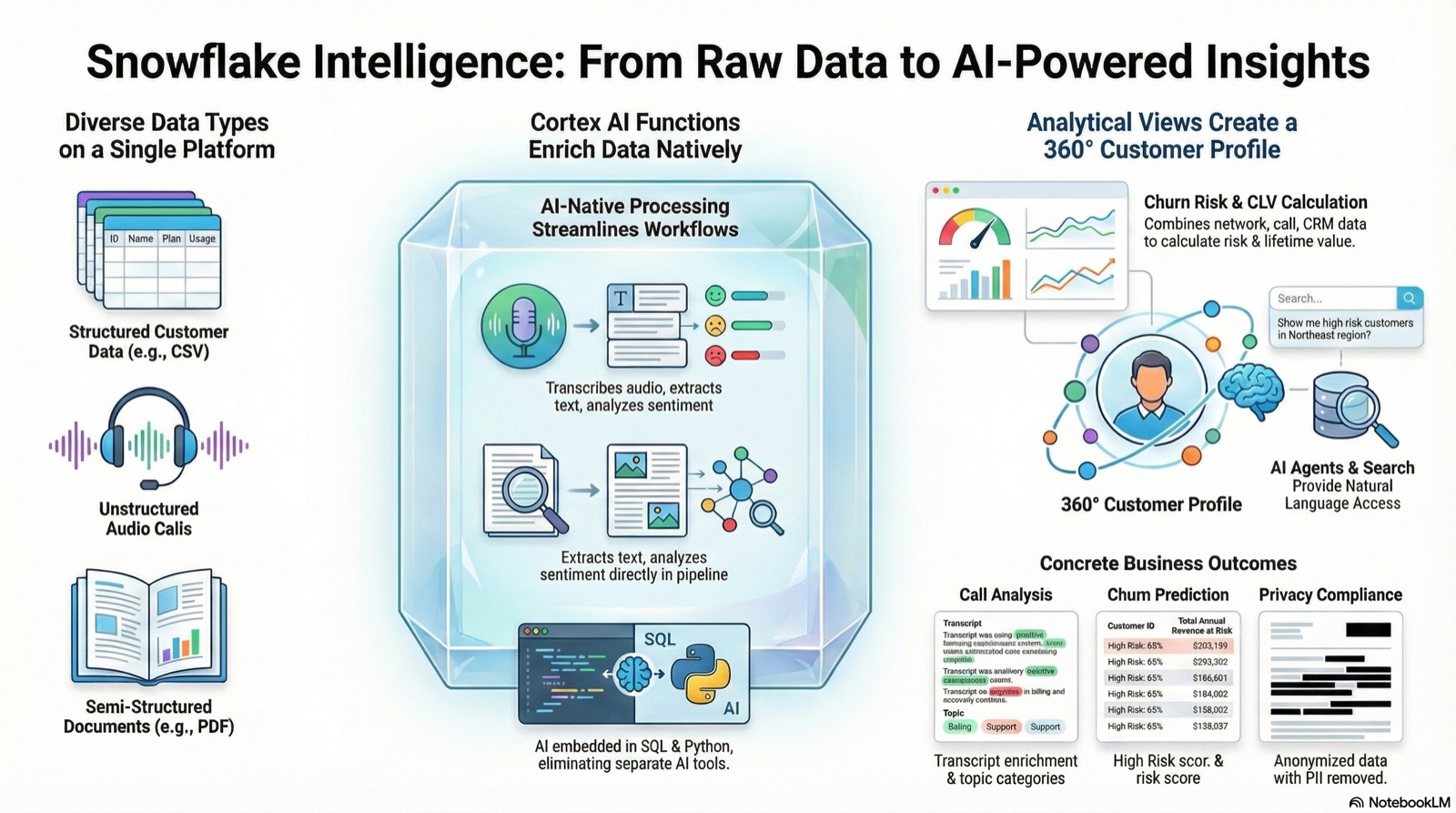
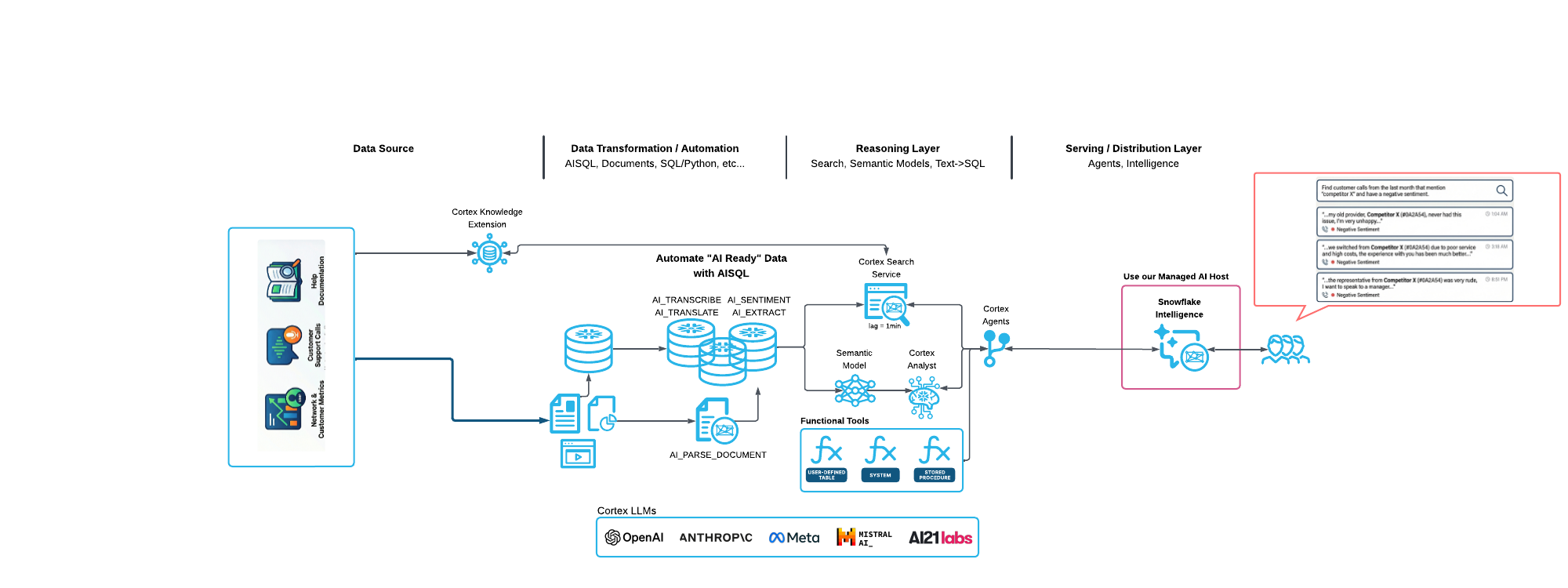
The NovaConnect AI platform follows a layered architecture that transforms raw unstructured data into actionable intelligence. Data flows from multiple sources (documents, audio, structured tables) through Cortex AI processing functions, into organized tables and search indices, and finally surfaces through Snowflake CoWork agents and applications.
The architecture diagram below illustrates how each component connects:
- Left side: Raw data sources (PDFs, MP3s, CSVs) stored in Snowflake stages
- Middle: AI processing layer using Cortex functions to extract, transcribe, and analyze content
- Right side: Structured outputs (tables, search services, semantic models) that power the agent
The dataflow diagram below shows how data moves through the system to power Snowflake CoWork. Raw data enters from the left (CSV files, PDF documents, MP3 audio recordings), gets processed through Cortex AI functions in the middle (AI_PARSE_DOCUMENT, AI_TRANSCRIBE, AI_SENTIMENT), and flows into the structured outputs on the right (Cortex Search services and Cortex Analyst semantic models). These services become the "tools" that the Snowflake CoWork agent uses to answer user questions—combining structured SQL queries with semantic search across unstructured content.
Key Technologies
- Cortex AI Functions: AI_PARSE_DOCUMENT, AI_TRANSCRIBE, AI_SENTIMENT, AI_COMPLETE
- Cortex Search: 2 search services for semantic search and RAG
- Cortex Analyst: 3 semantic models for natural language SQL
- Snowflake CoWork: Conversational agents with tool orchestration
- Cortex Document Processing: Automated document processing at scale
Setup Your Environment
Step 1: Get a Snowflake Account
Option A - Free Trial (Recommended):
- Visit https://signup.snowflake.com/
- Sign up for a free 30-day trial
- Choose Enterprise edition
- Select a cloud region (AWS, Azure, or GCP)
- Verify your email
- Log in to Snowsight (https://app.snowflake.com)
Option B - Existing Account:
- Use any Snowflake account with ACCOUNTADMIN access
- Log in to Snowsight
- No special setup required
Step 2: Connect to GitHub Repository in Snowflake
Deploy directly from GitHub - No downloads or CLI tools needed!
Step 2a: Create Git Integration (One-Time Setup)
- In Snowsight, click on Projects
- Select Workspaces
- Add new SQL file
- Copy and paste this script:
-- Setup Git Integration (one-time)
-- This creates a SEPARATE database for Git repos so you can drop/recreate
-- TELCO_OPERATIONS_AI without losing the Git integration

USE ROLE ACCOUNTADMIN;

-- Create SEPARATE database for Git repositories (won't be dropped with main database)
CREATE DATABASE IF NOT EXISTS TELCO_AI_LAB
    COMMENT = 'Persistent database for Git repository integrations - DO NOT DROP';
CREATE SCHEMA IF NOT EXISTS TELCO_AI_LAB.GIT_REPOS;

USE DATABASE TELCO_AI_LAB;
USE SCHEMA GIT_REPOS;

-- Create API integration for GitHub
CREATE OR REPLACE API INTEGRATION git_api_integration
    API_PROVIDER = git_https_api
    API_ALLOWED_PREFIXES = ('https://github.com/Snowflake-Labs/')
    ENABLED = TRUE;

-- Grant usage on API integration
GRANT USAGE ON INTEGRATION git_api_integration TO ROLE ACCOUNTADMIN;

-- Create Git repository object
CREATE OR REPLACE GIT REPOSITORY TELCO_AI_LAB.GIT_REPOS.TELCO_AI_REPO
    API_INTEGRATION = git_api_integration
    ORIGIN = 'https://github.com/Snowflake-Labs/sfguide-build-an-ai-assistant-for-telco-with-aisql-and-snowflake-intelligence.git';

-- Grant READ permission on Git repository
GRANT READ ON GIT REPOSITORY TELCO_AI_LAB.GIT_REPOS.TELCO_AI_REPO TO ROLE ACCOUNTADMIN;

-- Fetch code from GitHub
ALTER GIT REPOSITORY TELCO_AI_LAB.GIT_REPOS.TELCO_AI_REPO FETCH;

SELECT 'Git integration ready!' AS status,
       'Git repo is in TELCO_AI_LAB database (separate from main database)' AS note;
- Click Run (or press Cmd/Ctrl + Enter)
- Wait for completion (~30 seconds)
- ✅ Git integration complete! You're now connected to GitHub
Step 2b: Access Git Repository in Snowflake UI
Now will create a workspace from the github repository
-
Create a Workspace from Github repository by clicking on My Workspace, then select the option From Git repository
-
When Prompted, use the following URL in the Repository URL field:
https://github.com/Snowflake-Labs/sfguide-build-an-ai-assistant-for-telco-with-aisql-and-snowflake-intelligence.git
-
Press Create
-
Navigate to the assets folder (at the root of the repository):
You should see the following file structure:
assets/
├── sql/                    ← Deployment scripts (START HERE)
├── data/                   ← CSV files and PDFs
├── audio/                  ← MP3 call recordings
├── Notebooks/              ← Snowflake notebooks
└── semantic_models/        ← YAML definitions
- Navigate to
sql/- This is where the deployment scripts are - You'll see SQL files numbered 01-05
✅ You're now ready to deploy!
Step 3: Deploy from GitHub Using Git Integration
Understanding GitHub Integration in Snowflake
Snowflake's Git Integration feature allows you to connect directly to GitHub repositories and execute SQL scripts without downloading files locally. This is powerful because:
- Version Control: Scripts are always up-to-date from the source repository
- No Downloads: Execute directly from GitHub - no local files needed
- Reproducible: Same scripts, same results every time
- Workspace Integration: Browse, view, and edit files directly in Snowsight
When you created the Git Repository object in Step 2, Snowflake established a connection to the Telco AI GitHub repository. This connection allows you to:
- Browse files in the repository through the Snowsight UI
- Create Workspaces from repository folders for interactive development
- Fetch updates when the repository changes
The deployment scripts in assets/sql/ are numbered 01-05 and should be executed in order. Each script builds on the previous one, creating the complete NovaConnect AI platform.
Deploy Using the Git Repositories UI
- Navigate: Projects → Git Repositories → TELCO_AI_LAB.GIT_REPOS.TELCO_AI_REPO
- Browse to:
assets/sql/ - Right-click each file (01-05) → "Open in new worksheet"
- Execute each script in order
What gets deployed:
- ✅ Database
TELCO_OPERATIONS_AIwith schemas - ✅ Role
TELCO_ANALYST_ROLEwith CORTEX_USER privileges - ✅ 14+ tables with ~10,000 rows of data
- ✅ 2 Cortex Search Services
- ✅ 3 Cortex Analyst Semantic Models
- ✅ 1 Snowflake CoWork Agent
- ✅ 3 Notebooks
- ✅ Stages with MP3 audio files and PDFs
Deployment time: 15-20 minutes
Alternative: Deploy with Snowflake CoCo CLI
New! You can also deploy this quickstart using the Snowflake CoCo CLI - Snowflake's AI-powered command-line assistant.
Option C: Automated Deployment with Snowflake CoCo
If you have Snowflake CoCo CLI installed, you can use the built-in skills for guided, automated deployment. Skills are structured markdown instructions that guide Snowflake CoCo through complex deployment procedures.
1. Clone the Repository
git clone https://github.com/Snowflake-Labs/sfguide-build-an-ai-assistant-for-telco-with-aisql-and-snowflake-intelligence.git
cd sfguide-build-an-ai-assistant-for-telco-with-aisql-and-snowflake-intelligence
2. Configure Your Snowflake Connection (if not already configured)
# List available connections
snow connection list

# Or create a new connection
snow connection add
3. Register the Project Skills
The repository includes custom skills in .cortex/skills/, but they need to be registered before use. Run this command once to add the skills directory:
# Register the skills directory (one-time setup)
cortex skill add .cortex/skills

# Verify the skills were added
cortex skill list
You should see output like:
Added skill directory: /path/to/.cortex/skills
Skills found: telco-agent-builder, telco-agent-uninstall
Note: Skills require a file named
SKILL.md(uppercase) in each skill subdirectory. The repository is pre-configured with this structure.
4. Launch Snowflake CoCo
Start Snowflake CoCo from the project directory:
cortex
5. Deploy Using the Skill
Once Snowflake CoCo is running, simply ask it to deploy. Use any of these prompts:
> Deploy the NovaConnect Telco Operations AI quickstart
> Build the telco agent
> Set up the telecommunications agent
Snowflake CoCo will load the telco-agent-builder skill and guide you through each step interactively.
6. (Optional) Customize Regions Before Deployment
The skill will ask if you want to customize the demo regions. By default, the data uses Malaysian regions (Kuala Lumpur, Selangor, Penang, etc.).
If you prefer different regions, the skill will run a Python script to generate customized CSV files:
# US Cities preset
python assets/scripts/generate_regional_data.py --preset us

# European Cities preset
python assets/scripts/generate_regional_data.py --preset european

# Generic regions (Region Alpha, Region Beta, etc.)
python assets/scripts/generate_regional_data.py --preset generic

# Custom mapping
python assets/scripts/generate_regional_data.py --mapping "Kuala Lumpur:Sydney,Selangor:Melbourne"
This generates new CSV files in assets/data/regional/ which the skill will upload instead of the defaults.
Available Skills
The repository includes two skills in .cortex/skills/:
| Skill | Description | Trigger Phrases |
|---|---|---|
| telco-agent-builder | Deploy the complete solution | "deploy telco", "build the agent", "set up novaconnect" |
| telco-agent-uninstall | Clean up all resources | "uninstall telco", "remove the agent", "cleanup" |
What the Deployment Skill Does
The telco-agent-builder skill guides you through these steps:
- ✅ Verify prerequisites - Check Snowflake connection and permissions
- ✅ Customize regions (optional) - Generate regional data if requested
- ✅ Configure account - Create role, warehouse, database, schemas, and stages
- ✅ Upload data - Copy CSV, PDF, and MP3 files to Snowflake stages
- ✅ Load tables - Create and populate 14+ tables with telco data
- ✅ Deploy Cortex Search - Create 2 semantic search services
- ✅ Deploy Cortex Analyst - Upload semantic models and create the Intelligence Agent
- ✅ Deploy Notebooks - Create 3 Snowflake Notebooks
- ✅ Verify deployment - Run checks to confirm everything is working
Uninstalling with Snowflake CoCo
To remove all deployed resources, use the uninstall skill:
> Uninstall the telco agent
> Clean up the NovaConnect deployment
> Remove the telco quickstart
This will drop the database, warehouse, role, and all related objects.
Benefits of CLI Deployment
- Interactive guidance - Step-by-step with explanations at each stage
- Error handling - Automatic troubleshooting and suggested fixes
- Progress tracking - Real-time status updates
- Customization - Easily modify regions, settings, or skip optional steps
- Idempotent - Safe to re-run if interrupted
Troubleshooting Skills
Skills not found? If Snowflake CoCo doesn't recognize the skills, verify they're registered:
# Check registered skills
cortex skill list

# If not listed, add the skills directory
cortex skill add .cortex/skills
"No valid skills found" error? Skills require a specific file structure:
- Each skill must be in its own subdirectory (e.g.,
.cortex/skills/telco-agent-builder/) - The skill file must be named
SKILL.md(uppercase, notskill.mdor<name>.md)
To remove a registered skill directory:
cortex skill remove .cortex/skills
Note: Snowflake CoCo CLI is currently in Private Preview. Contact your Snowflake account team to request access.
Step 4: Verify Deployment
After deployment completes, verify in Snowflake UI:
-- Check all components
USE DATABASE TELCO_OPERATIONS_AI;

SHOW TABLES IN SCHEMA DEFAULT_SCHEMA;              -- Should see 14+ tables
SHOW CORTEX SEARCH SERVICES IN SCHEMA DEFAULT_SCHEMA; -- Should see 2 services
SHOW NOTEBOOKS IN SCHEMA NOTEBOOKS;                -- Should see 3 notebooks
SHOW AGENTS IN SCHEMA SNOWFLAKE_INTELLIGENCE.AGENTS;  -- Should see Telco Operations AI Agent
All set? ✅ Continue to the next section!
Verify Your Deployment
After Git integration deployment completes, let's verify everything was created successfully.
Check Database Objects
Open Snowflake UI and navigate to Data → Databases → TELCO_OPERATIONS_AI
You should see:
- ✅ DEFAULT_SCHEMA - Main data tables
- ✅ CORTEX_ANALYST - Semantic model stage and views
- ✅ NOTEBOOKS - Snowflake notebooks
- ✅ STREAMLIT - Streamlit applications schema
- ✅ MODELS - ML models and UDFs schema
Verify Tables (14+)
USE DATABASE TELCO_OPERATIONS_AI;
USE SCHEMA DEFAULT_SCHEMA;

-- Show all tables
SHOW TABLES;

-- Verify key table counts
SELECT 'network_performance' AS table_name, COUNT(*) AS rows FROM network_performance
UNION ALL SELECT 'infrastructure_capacity', COUNT(*) FROM infrastructure_capacity
UNION ALL SELECT 'customer_details', COUNT(*) FROM customer_details
UNION ALL SELECT 'customer_feedback_summary', COUNT(*) FROM customer_feedback_summary
UNION ALL SELECT 'CALL_TRANSCRIPTS', COUNT(*) FROM CALL_TRANSCRIPTS
UNION ALL SELECT 'AGENT_PERFORMANCE', COUNT(*) FROM AGENT_PERFORMANCE
UNION ALL SELECT 'NETWORK_INCIDENTS', COUNT(*) FROM NETWORK_INCIDENTS;
Verify Cortex Search Services (2)
SHOW CORTEX SEARCH SERVICES IN SCHEMA DEFAULT_SCHEMA;
You should see:
- ✅ CALL_TRANSCRIPT_SEARCH
- ✅ SUPPORT_TICKET_SEARCH
Verify Applications
Notebooks:
SHOW NOTEBOOKS IN TELCO_OPERATIONS_AI.NOTEBOOKS;
- ✅ 1_DATA_PROCESSING
- ✅ 2_ANALYZE_CALL_AUDIO
- ✅ 3_INTELLIGENCE_LAB
All verified? ✅ Let's start using the AI features!
Explore the Demo
Duration: 45
Installation Complete - Now Let's Explore!
Congratulations! You've successfully deployed the NovaConnect Telco Operations AI platform. The installation phase is complete.
What you've deployed:
- Database with 14+ tables of telco data
- 2 Cortex Search services for semantic search
- 3 Cortex Analyst semantic models for natural language queries
- 1 Snowflake CoWork Agent
- 3 Snowflake Notebooks for data processing
What's next: In the following sections, you'll explore and interact with the AI capabilities you just deployed:
| Stage | Section | What You'll Do |
|---|---|---|
| 1 | AI & ML Studio | Explore Cortex Playground and Document Processing Playground to understand LLM capabilities |
| 2 | Snowflake Notebooks | Run 3 notebooks to process documents, transcribe audio, and explore AI functions |
| - Document Processing | Process PDFs with AI_PARSE_DOCUMENT (Notebook 1) | |
| - Audio Analysis | Transcribe call recordings with AI_TRANSCRIBE (Notebook 2) | |
| - Intelligence Lab | Advanced AI exploration and analytics (Notebook 3) | |
| 3 | AI Services | Explore the deployed Cortex Search and Cortex Analyst services |
| 4 | Intelligence Agent | Chat with your telco data using the deployed agent |
AI & ML Studio
Snowflake AI and ML Studio
Before diving into the notebooks, let's explore the AI & ML Studio - your one-stop shop for trying out AI functions using a user-friendly UI.
Navigate to the AI & ML section in the Snowflake navigation bar.
Features You'll Explore
The AI and ML Studio provides access to:
- Cortex Playground - Compare text completions across multiple LLMs
- Cortex Fine Tuning - Customize large language models for specific tasks
- Cortex Search - Low-latency semantic search over your data
- Cortex Analyst - Text-to-SQL for business intelligence
- Document Processing Playground - Explore AI_EXTRACT and AI_PARSE_DOCUMENT functions
Cortex Playground
The Cortex LLM Playground lets you compare text completions across multiple large language models available in Cortex AI.
Why This Matters for Unstructured Data
Before processing unstructured documents at scale, it's valuable to understand how LLMs interpret and extract information from text. The Cortex Playground provides a sandbox to:
- Test different models - Compare how Claude, Llama, Mistral, and other models handle your specific use cases
- Refine your prompts - Experiment with prompt engineering before building production pipelines
- Understand model capabilities - See how models extract key information, summarize content, and answer questions
- Validate extraction strategies - Test whether a model can reliably pull specific data points from unstructured text
This foundational understanding will help you design better document processing workflows when you move to the Notebooks section.
Try it now:
- Click on Cortex Playground in the AI & ML Studio
- Select a model (e.g.,
claude-4-sonnet,llama-3.1-70b,mistral-large2) - Try asking a telecommunications question:
Example prompt:
"What are the key metrics I should monitor for 5G network performance? What factors indicate potential service degradation?"
What you'll see: The model will suggest various factors to consider:
- Network latency and jitter
- Download/upload speeds
- Packet loss rates
- Handover success rates
- Signal strength (dBm)
- User load and capacity utilization
Experiment with Document-Style Prompts
Try pasting a sample of unstructured text and asking the model to extract specific information:
Example - Extracting from a support ticket:
"Extract the following from this support ticket: customer issue, product mentioned, urgency level, and resolution requested.
Ticket: Customer called regarding slow internet speeds on their NovaConnect Pro plan. They've been experiencing issues for 3 days and have already tried restarting their router. Customer is frustrated as they work from home and need this resolved urgently. Requesting a technician visit or account credit."
What you'll learn:
- How well the model identifies key entities
- Whether it can handle domain-specific terminology
- How to structure extraction prompts for consistent results
Key insight: The prompt engineering skills you develop here translate directly to the AI_EXTRACT and AI_PARSE_DOCUMENT functions you'll use in the Notebooks.
Document Processing Playground
The Document Processing Playground is a powerful AI tool that helps you understand how text is extracted from documents. It provides an interactive UI for testing AI_EXTRACT and AI_PARSE_DOCUMENT functions, allowing you to experiment with different extraction strategies before implementing them in production.
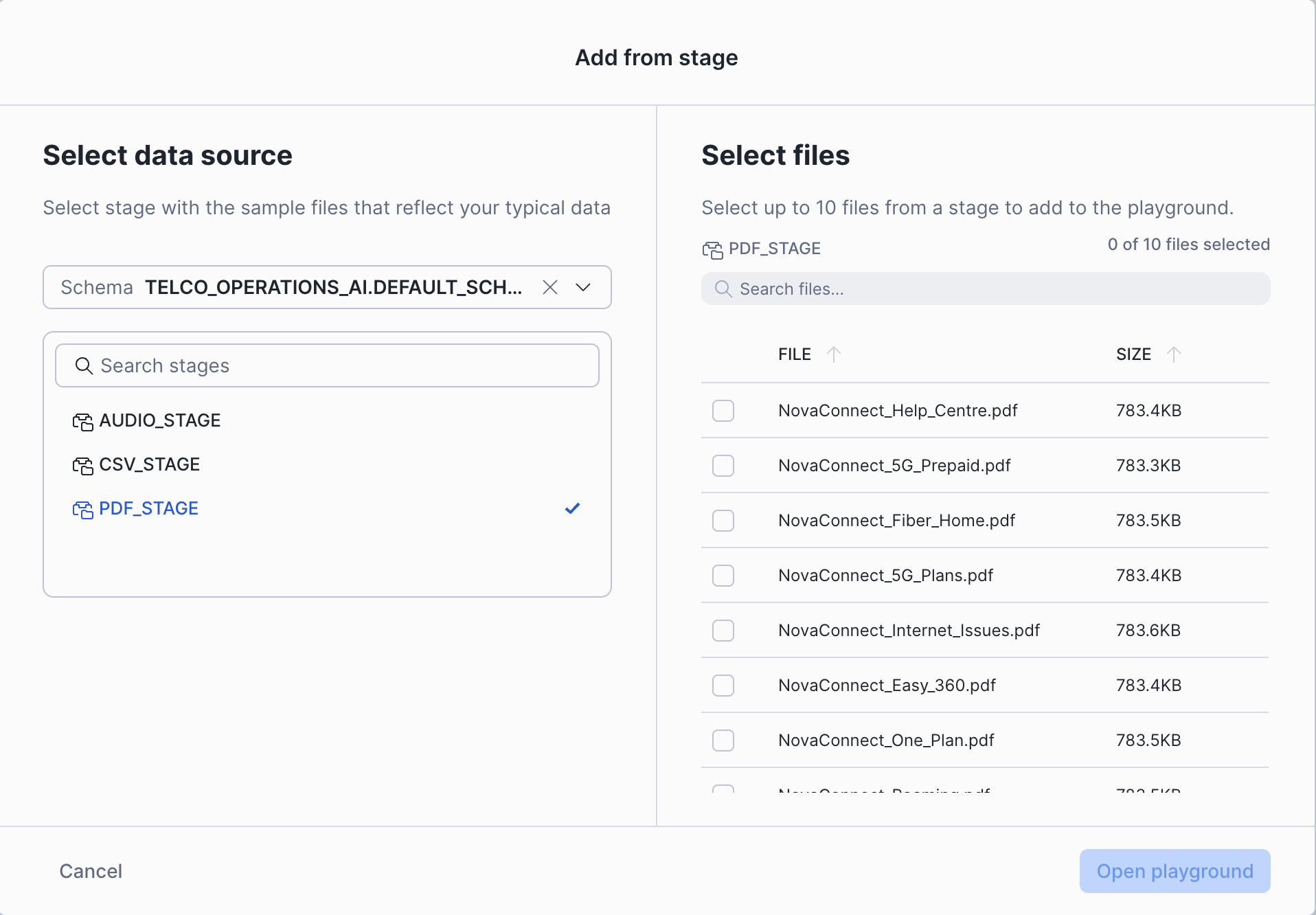
Step 1: Upload Documents from Stage
- Click Document Processing Playground in the AI & ML Studio
- Click Add from stage
- Select the following:
- Database:
TELCO_OPERATIONS_AI - Schema:
DEFAULT_SCHEMA - Stage:
PDF_STAGE
- Database:
- Choose 1-2 PDF documents (e.g., NovaConnect help documents)
- Click Open playground
Step 2: Extract Information Using Questions
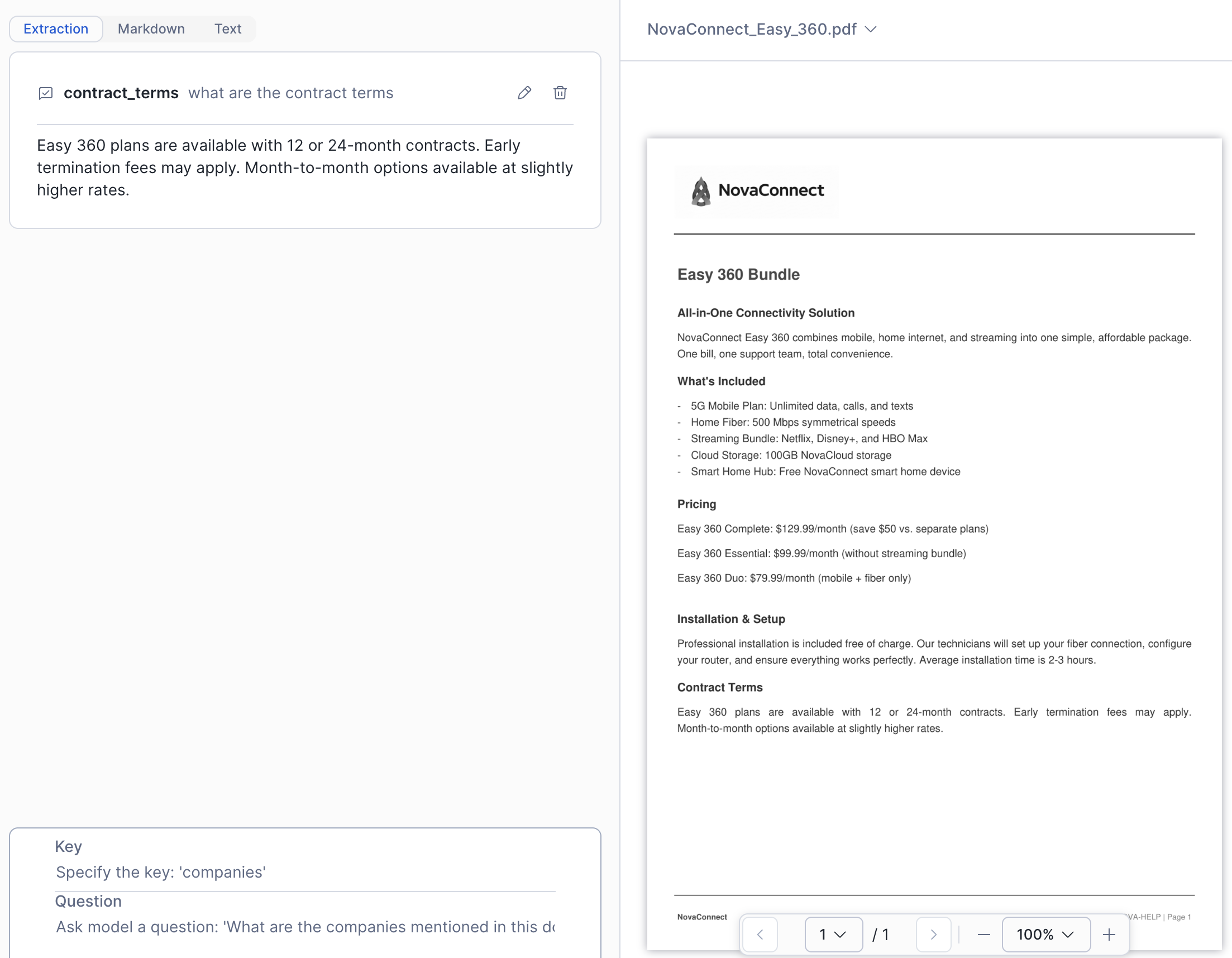
Once your document is loaded, you'll see three tabs: Extraction, Markdown, and Text.
The Extraction tab is where you can ask questions to pull specific information from the document.
Try creating these key-value question pairs:
- Key:
product_nameQuestion:What is the name of the product or service? - Key:
featuresQuestion:What are the key features mentioned? - Key:
priceQuestion:What is the pricing information? - Key:
data_allowanceQuestion:What is the data allowance or quota? - Key:
contract_termsQuestion:What are the contract terms?
After entering each question, click Add Prompt to see the extracted results.
Step 3: Get the SQL Code
Once you've asked at least one question, the playground automatically generates SQL code:
- Click Code Snippets in the top right corner
- Review the generated SQL using AI_EXTRACT and AI_PARSE_DOCUMENT functions
- Click Workspaces to open the code in a new worksheet
Example generated code:
-- Extract Data
SELECT AI_EXTRACT(
    file => TO_FILE('@TELCO_OPERATIONS_AI.DEFAULT_SCHEMA.PDF_STAGE', 'NovaConnect_Easy_360.pdf'),
    responseFormat => PARSE_JSON('{"schema":{"type":"object","properties":{"contract_terms":{"description":"what are the contract terms","type":"string"}}}}')
) AS extracted_data;

-- Parse file (Layout mode)
SELECT AI_PARSE_DOCUMENT(
    TO_FILE('@TELCO_OPERATIONS_AI.DEFAULT_SCHEMA.PDF_STAGE', 'NovaConnect_Easy_360.pdf'),
    { 'mode': 'LAYOUT', 'page_split': true }
) AS parsed_document;
This SQL code can be used to automate document processing at scale!
💡 Tip: You'll see these functions in action in the 1_DATA_PROCESSING notebook, which processes all 8 NovaConnect PDF documents using
AI_PARSE_DOCUMENTwith LAYOUT mode for bulk text extraction.
Summary: What You've Learned
Before proceeding to the notebooks, you now understand:
✅ Cortex Playground - How to test LLM capabilities and prompt engineering ✅ AI_PARSE_DOCUMENT - Extract text and structure from PDFs ✅ AI_EXTRACT - Pull specific fields from documents using questions ✅ SQL Code Generation - Automating document processing at scale
Next: Apply these concepts in the notebooks to process help documents and call recordings!
Document Processing
Overview
In this section, you'll process unstructured documents using Cortex AI functions through Notebook 1.
What You'll Process:
- 📄 8 Help Documents (PDFs) - Product guides, troubleshooting documents, and service information
Cortex AI Functions You'll Use:
- AI_PARSE_DOCUMENT - Extract all text from PDFs preserving layout
- AI_COMPLETE - Generate structured extractions using LLMs
- AI_SENTIMENT - Analyze emotional tone in customer communications
Open Notebook 1
Navigate to AI & ML Studio → Notebooks → 1_DATA_PROCESSING
What the Notebook Demonstrates
PDF Processing:
- Parse help documents with AI_PARSE_DOCUMENT
- Extract product features, pricing, and data allowances
- Create searchable content from unstructured PDFs
Key Tables Created by This Notebook:
After running this notebook, you'll have processed PDFs ready for search and analysis.
Follow the Notebook
The notebook contains detailed instructions and explanations for each step. Simply:
- Click Start to begin the notebook session
- Read through each cell's markdown explanations
- Run All or execute cells one by one
- Observe the outputs and interactive visualizations
Time: 10-15 minutes to run through all cells.
Audio Analysis
Overview
Process customer call recordings using AI_TRANSCRIBE to convert speech to text, then analyze the content for sentiment and insights.
What You'll Process:
- 🎙️ 25 Customer Support Calls (MP3 audio files)
- 🗣️ Speaker Identification - Separate customer and agent comments
- 💭 Sentiment Analysis - Measure emotional tone throughout the call
- 📝 Call Summarization - Generate AI summaries of each call
Open Notebook 2
Navigate to AI & ML Studio → Notebooks → 2_ANALYZE_CALL_AUDIO
What the Notebook Demonstrates
AI_TRANSCRIBE - Converts MP3 audio to timestamped text:
- Generates full transcripts with speaker identification
- Preserves timestamps for navigation
- Processes multi-speaker conversations
AI_SENTIMENT - Analyzes emotional tone:
- Scores sentiment segment by segment
- Identifies positive, negative, and neutral sections
- Tracks sentiment trends over the call
AI_COMPLETE - Summarizes calls:
- Creates concise call summaries
- Identifies key issues discussed
- Extracts action items and resolutions
Key Tables Updated by This Notebook
After running this notebook, you'll have:
- CUSTOMER_CALL_TRANSCRIPTS - Full transcripts with summaries
- Updated sentiment analysis for calls
💡 Note: The CALL_TRANSCRIPTS table with sample data is pre-loaded during initial deployment for the search services to work immediately.
Follow the Notebook
The notebook includes:
- Audio file listings and metadata
- Transcription with AI_TRANSCRIBE
- Sentiment analysis with AI_SENTIMENT
- Call summarization with AI_COMPLETE
- Interactive visualizations
Simply run through the cells to see how audio becomes searchable, analyzable data.
Time: 10-15 minutes to complete.
Intelligence Lab
Overview
Notebook 3 provides advanced analytics and visualizations combining all your processed data.
Open Notebook 3
Navigate to AI & ML Studio → Notebooks → 3_INTELLIGENCE_LAB
What the Notebook Demonstrates
Cross-Domain Analysis:
- Correlating network issues with customer complaints
- Identifying patterns in customer churn
- Regional performance comparisons
- Agent performance analytics
Visualizations:
- Network performance dashboards
- Customer sentiment trends
- Capacity utilization charts
- Call center metrics
Follow the Notebook
This notebook brings together insights from all data sources for comprehensive operational intelligence.
Time: 10-15 minutes to complete.
Cortex Search Services
Overview
The deployment scripts created 2 intelligent search services that make your telecommunications data instantly accessible using semantic search. This is the foundation for RAG (Retrieval Augmented Generation) applications.
Why Search Services Matter:
- Traditional keyword search fails with conversational content
- Semantic search understands meaning and context
- Critical for AI agents to find relevant information quickly
- Powers the Telco Operations agent you'll use later
What's Deployed:
- CALL_TRANSCRIPT_SEARCH - Search customer call transcripts by conversation content
- SUPPORT_TICKET_SEARCH - Search support tickets by issue description
Test the Search Services
- Navigate to AI & ML Studio → Cortex Search
- Select CALL_TRANSCRIPT_SEARCH service
- Try a search: "network connectivity problems"
- Observe:
- Semantic search results (not exact match)
- Ranked by relevance
- Attributes returned (CALL_ID, SPEAKER_ROLE, SENTIMENT_SCORE)
Search Service Details
| Service | Purpose | Search Column | Attributes |
|---|---|---|---|
| CALL_TRANSCRIPT_SEARCH | Customer call transcripts | SEGMENT_TEXT | CALL_ID, SPEAKER_ROLE, SENTIMENT_SCORE, CALL_TIMESTAMP |
| SUPPORT_TICKET_SEARCH | Support tickets | DESCRIPTION | TICKET_ID, CUSTOMER_ID, CATEGORY, STATUS, PRIORITY |
Cortex Analyst
Overview
Cortex Analyst enables natural language querying of structured data using semantic models. Instead of writing SQL, users ask questions in plain English and Cortex Analyst generates the SQL automatically.
What's Deployed:
- 📊 3 Semantic Models - Network performance, infrastructure capacity, customer feedback
- 🔍 Natural Language to SQL - Ask questions, get SQL and results
- 📈 Verified Queries - Pre-tested queries for common questions
Semantic Model 1: Network Performance
Purpose: Query network metrics across cell towers and regions
Key Dimensions:
- TOWER_ID, TOWER_NAME, REGION, NETWORK_TYPE
Key Facts:
- AVG_LATENCY_MS, AVG_DOWNLOAD_SPEED_MBPS, PACKET_LOSS_PCT
- CALL_DROP_RATE_PCT, HANDOVER_SUCCESS_RATE_PCT, AVAILABILITY_PCT
Example Questions:
- "Which towers have high latency issues?"
- "What are the best performing 5G towers by download speed?"
- "Show me network availability by region"
- "Which regions have the highest call drop rates?"
Semantic Model 2: Infrastructure Capacity
Purpose: Analyze bandwidth utilization and capacity planning
Key Dimensions:
- TOWER_ID, TOWER_NAME, REGION, EQUIPMENT_STATUS
Key Facts:
- TOTAL_BANDWIDTH_GBPS, USED_BANDWIDTH_GBPS, UTILIZATION_PCT
- EXPECTED_GROWTH_PCT, UPGRADE_RECOMMENDED
Example Questions:
- "Which towers are operating at over 80% capacity?"
- "Which towers need infrastructure upgrades?"
- "Which towers will run out of capacity in the next 6 months?"
- "Show me 5G towers with upgrade recommended"
Semantic Model 3: Customer Feedback
Purpose: Analyze customer sentiment, complaints, and churn
Key Dimensions:
- REGION, FEEDBACK_TYPE, CUSTOMER_SEGMENT, PLAN_TYPE
Key Facts:
- COMPLAINT_COUNT, AVG_SENTIMENT_SCORE, NETWORK_ISSUE_COUNT
- MONTHLY_REVENUE, TENURE_MONTHS, IS_CHURNED
Example Questions:
- "Which regions have the most customer complaints?"
- "What is the trend in customer sentiment over the past month?"
- "What are the top reasons for customer churn?"
- "Show me customers at risk of churning"
Explore Cortex Analyst in the UI
- From the navigation bar, click AI & ML → Studio
- Click on Cortex Analyst
- The semantic models are available via the stage
@TELCO_OPERATIONS_AI.CORTEX_ANALYST.CORTEX_ANALYST
Key Insights
✅ Semantic Models bridge business language and database schemas ✅ Verified Queries provide pre-tested SQL for common questions ✅ Natural Language enables non-technical users to query data ✅ Multiple Models allow domain-specific analysis
Next: These semantic models become tools for the Snowflake CoWork Agent!
Intelligence Agent
Overview: The Telco Operations AI Agent
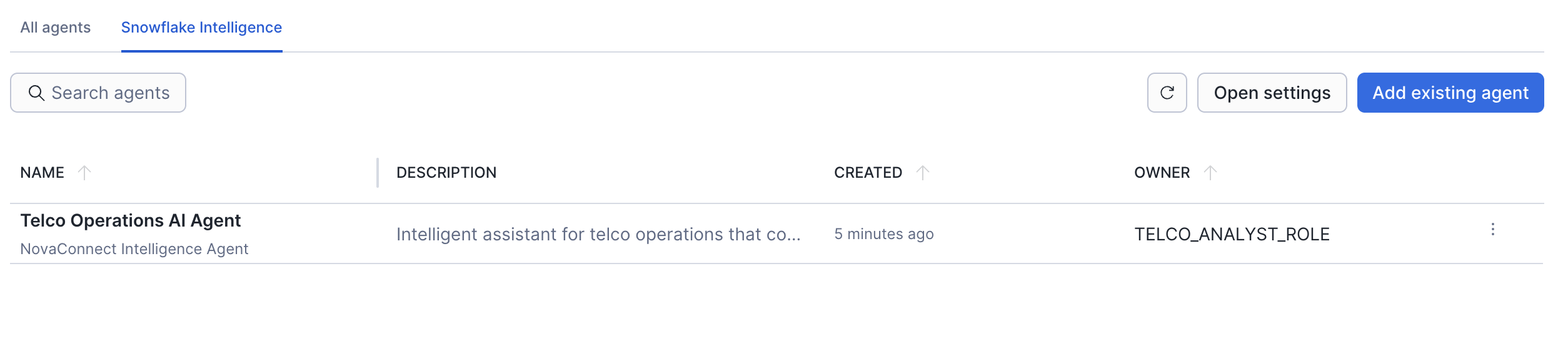
The Telco Operations AI Agent is your AI-powered telecommunications operations assistant that combines multiple data sources, search capabilities, and analytical tools to provide comprehensive insights about network performance, customer experience, and operational efficiency.
What the Agent Can Do:
- 📊 Analyze network performance metrics and identify issues
- 🏗️ Monitor infrastructure capacity and recommend upgrades
- 💬 Search customer call transcripts for specific topics
- 📧 Search support tickets for issue patterns
- 📈 Track customer sentiment and churn risk
This agent represents the culmination of all the previous work - it brings together the unstructured data processing, search services, and semantic models into one conversational interface.
Access the Agent
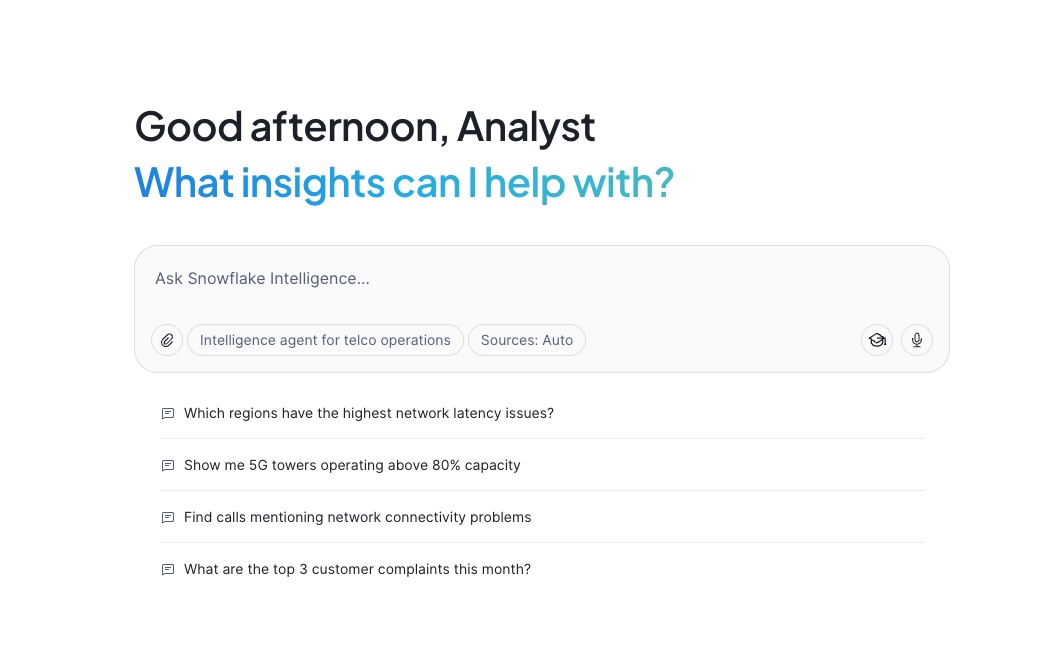
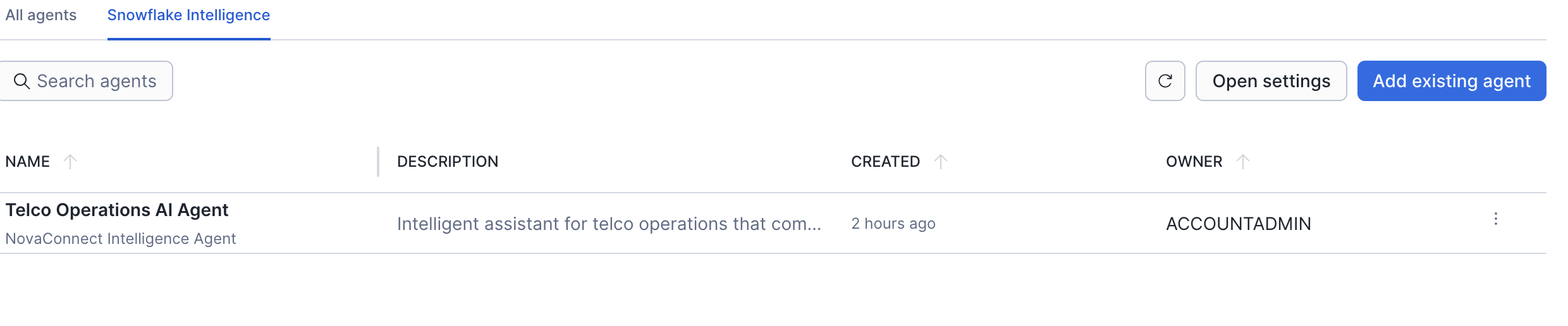
- Navigate to AI & ML Studio → Snowflake CoWork in your Snowflake account
- Select the Telco Operations AI Agent
- The agent will automatically select the right tools based on your question
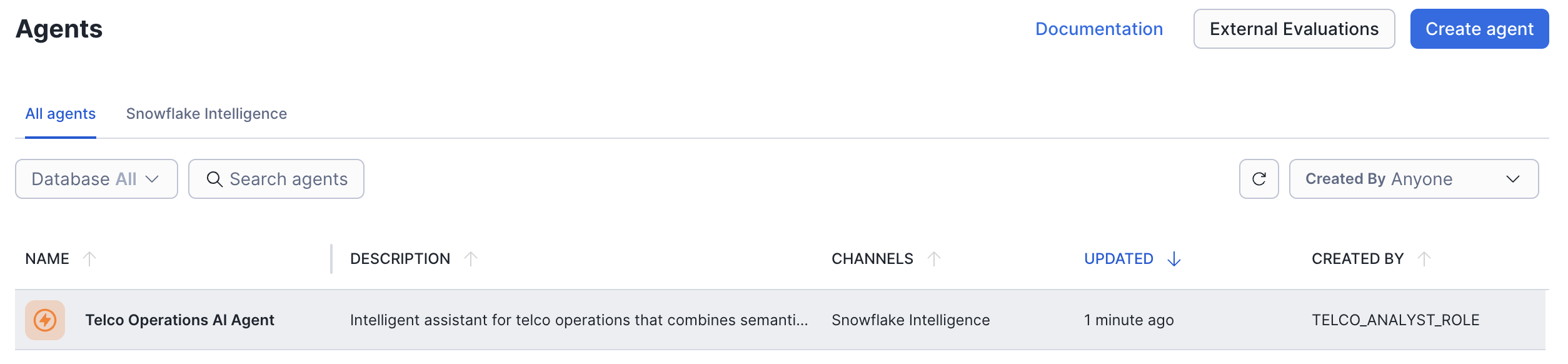
Location: SNOWFLAKE_INTELLIGENCE.AGENTS."Telco Operations AI Agent"
Agent Architecture: 5 Powerful Tools
The Telco Operations AI Agent has access to 5 different tools that it automatically orchestrates based on your questions:
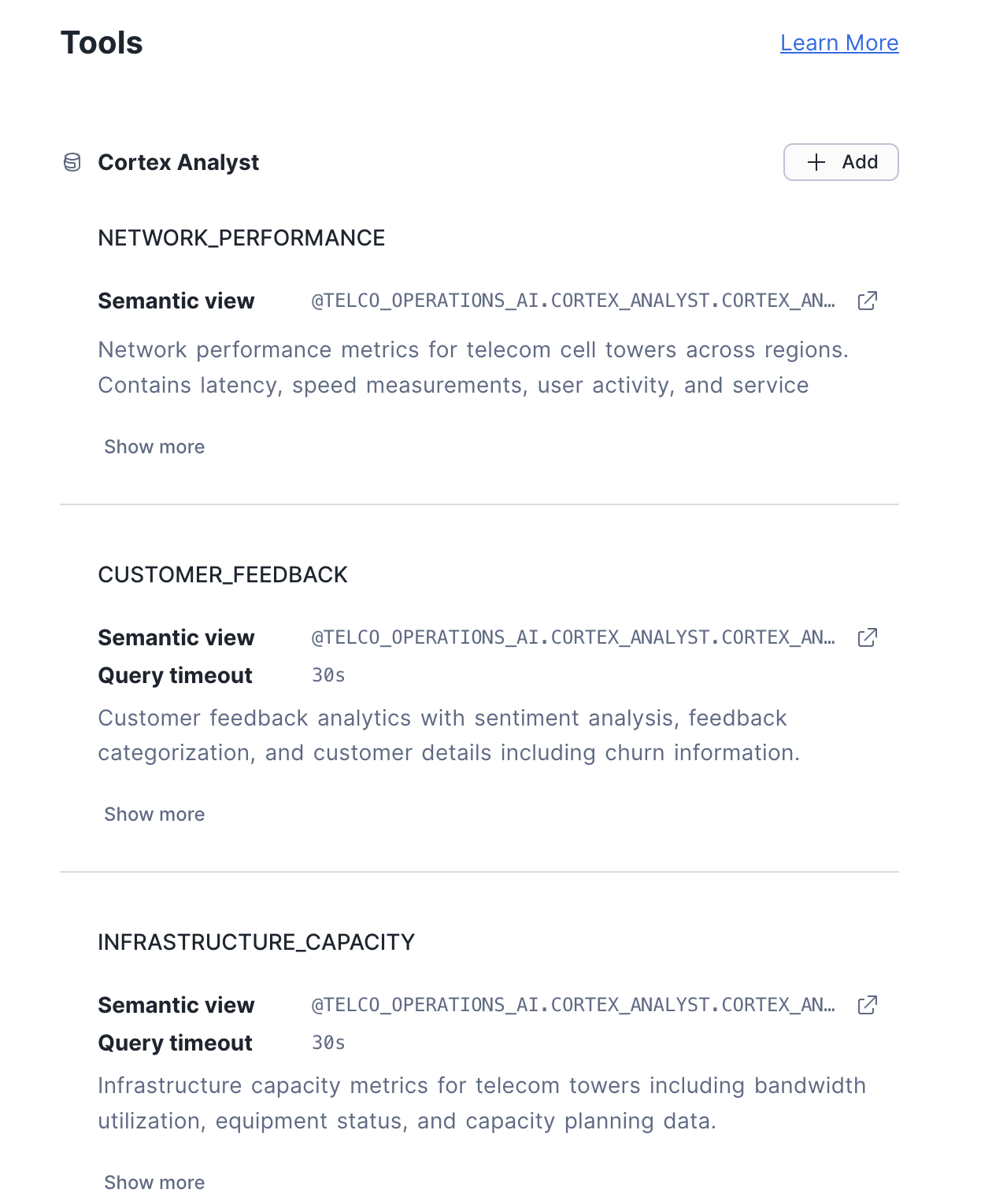
Cortex Analyst Tools (3)
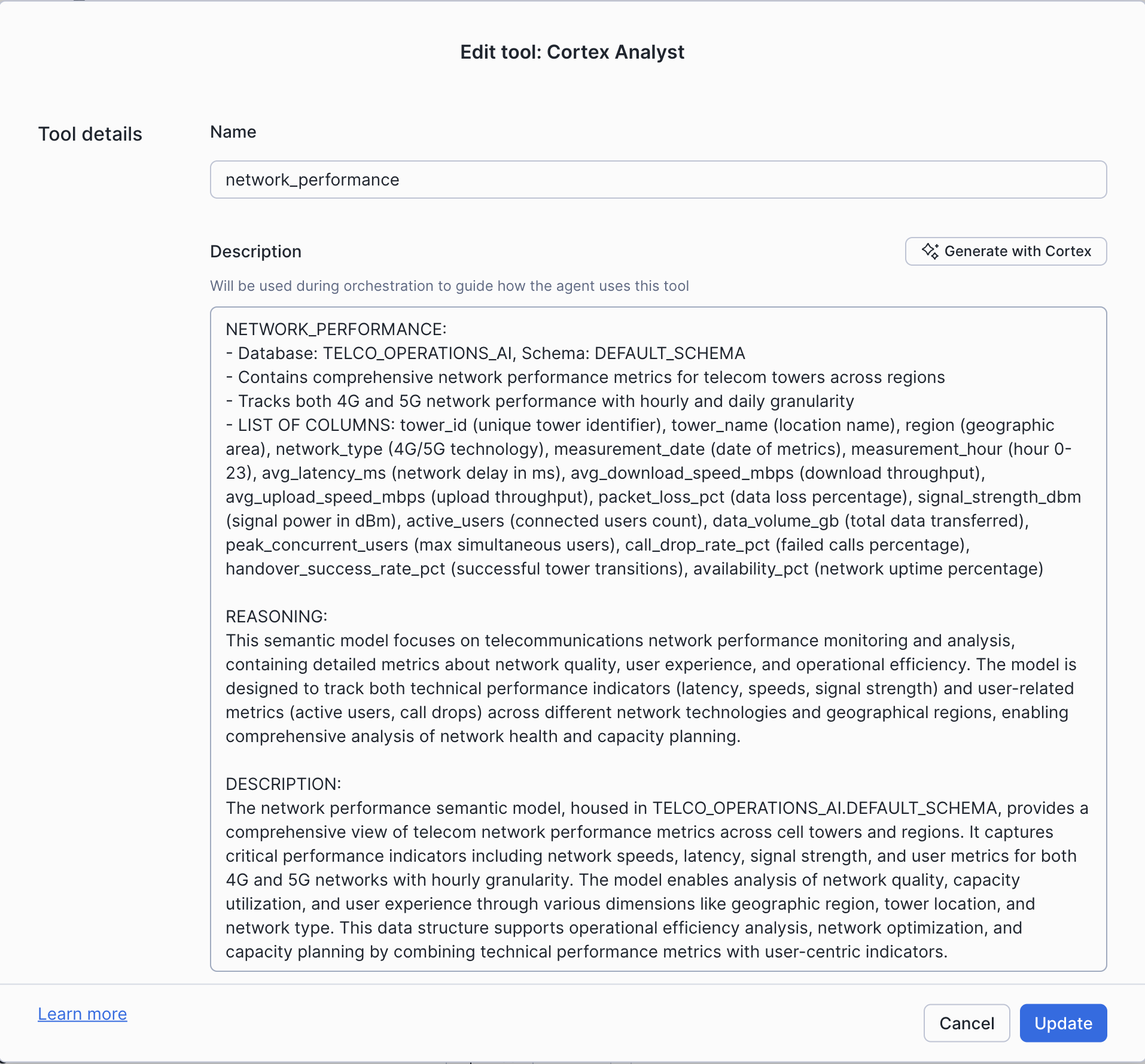
1. network_performance
- Network performance metrics for cell towers across regions
- Latency, speed measurements, user activity, service quality
- Uses:
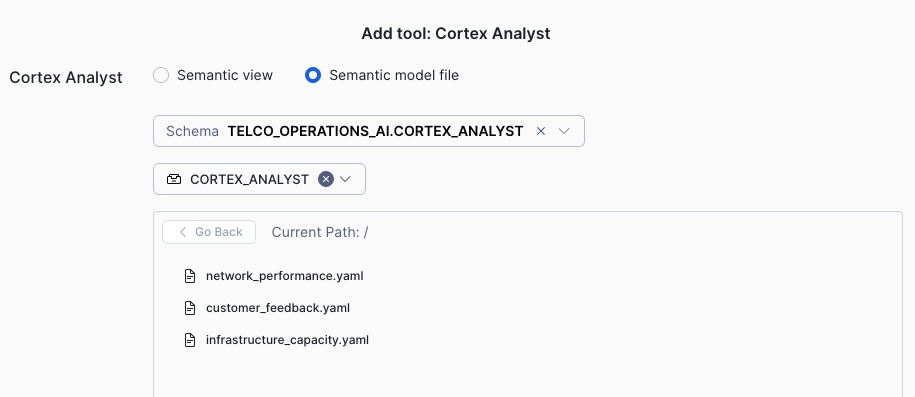
network_performance.yamlsemantic model
2. Customer_Feedback
- Customer feedback analytics with sentiment analysis
- Feedback categorization and customer details including churn
- Uses:
customer_feedback.yamlsemantic model
3. Infrastructure_Capacity
- Infrastructure capacity metrics for telecom towers
- Bandwidth utilization, equipment status, capacity planning
- Uses:
infrastructure_capacity.yamlsemantic model
Cortex Search Tools (2)
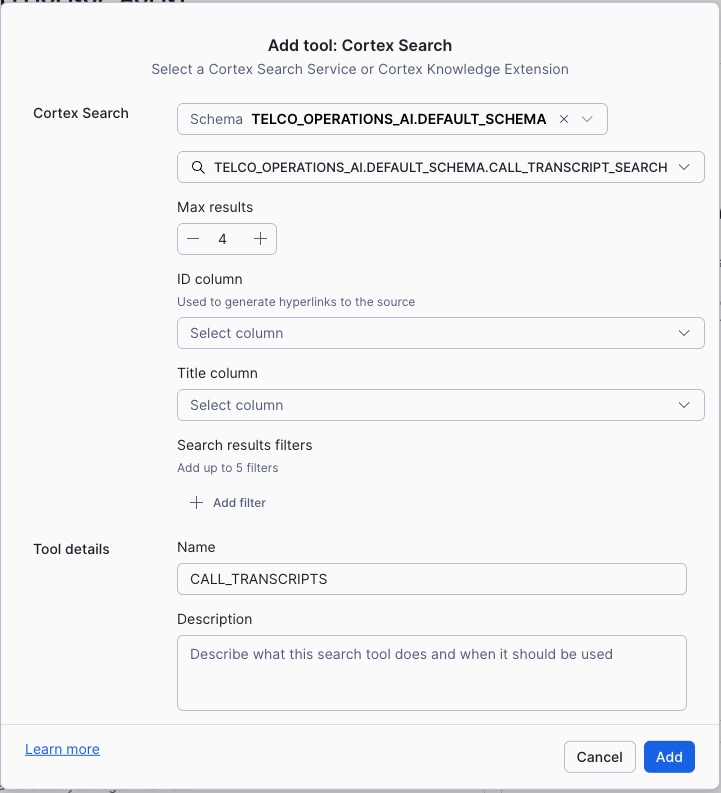
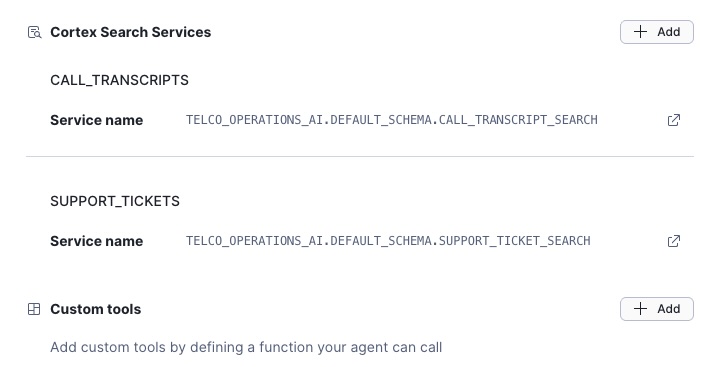
4. CALL_TRANSCRIPTS
- Search customer call transcripts for specific issues or keywords
- Includes sentiment scores and speaker identification
- Service:
CALL_TRANSCRIPT_SEARCH
5. SUPPORT_TICKETS
- Search support tickets for issue tracking and resolution
- Includes priority, category, and status information
- Service:
SUPPORT_TICKET_SEARCH
What the Agent Can Do
1. Network Performance Analysis
Try asking:
"Which regions have the highest network latency issues?"
The agent will:
- Query the network_performance semantic model
- Analyze latency metrics by region
- Rank regions by average latency
- Show you towers that need attention
Behind the scenes: Uses the network_performance Cortex Analyst tool to generate and execute SQL.
2. Capacity Planning
Try asking:
"Show me 5G towers operating above 80% capacity"
The agent will:
- Query infrastructure capacity data
- Filter for 5G towers with high utilization
- Show capacity exhaustion timelines
- Recommend upgrades where needed
Data sources: Infrastructure capacity metrics with utilization percentages and growth projections.
3. Customer Call Analysis
Try asking:
"Find calls mentioning network connectivity problems"
The agent will:
- Search call transcripts semantically
- Find conversations about connectivity issues
- Show sentiment scores for matching calls
- Identify patterns in customer complaints
Demonstrates: Semantic search across transcribed call recordings.
4. Customer Churn Analysis
Try asking:
"Which customer segments have the highest churn risk?"
The agent will:
- Analyze customer feedback and churn data
- Segment by customer type and plan
- Identify at-risk customers
- Correlate with complaint patterns
5. Cross-Domain Insights
Try asking:
"Are network issues correlated with negative customer sentiment?"
The agent will:
- Query both network performance and customer feedback
- Correlate latency spikes with complaint volumes
- Identify regions with both technical and satisfaction issues
- Provide actionable insights
6. Cross-Domain Analysis
Try asking:
"Are network issues correlated with negative customer sentiment?"
The agent will:
- Query both network performance and customer feedback
- Correlate latency spikes with complaint volumes
- Identify regions with both technical and satisfaction issues
- Provide actionable insights
Sample Conversation Flow
Here's an example conversation demonstrating the agent's capabilities:
You: "Which regions have the highest network latency issues?"
Agent: Queries network performance, shows regions ranked by average latency
You: "Show me 5G towers operating above 80% capacity"
Agent: Queries infrastructure capacity, lists overloaded towers with utilization %
You: "Find calls mentioning network connectivity problems"
Agent: Searches call transcripts, returns matching conversations with sentiment
You: "What are the top 3 customer complaints in October 2025?"
Agent: Queries customer feedback, shows complaint categories ranked
Sample Questions to Try
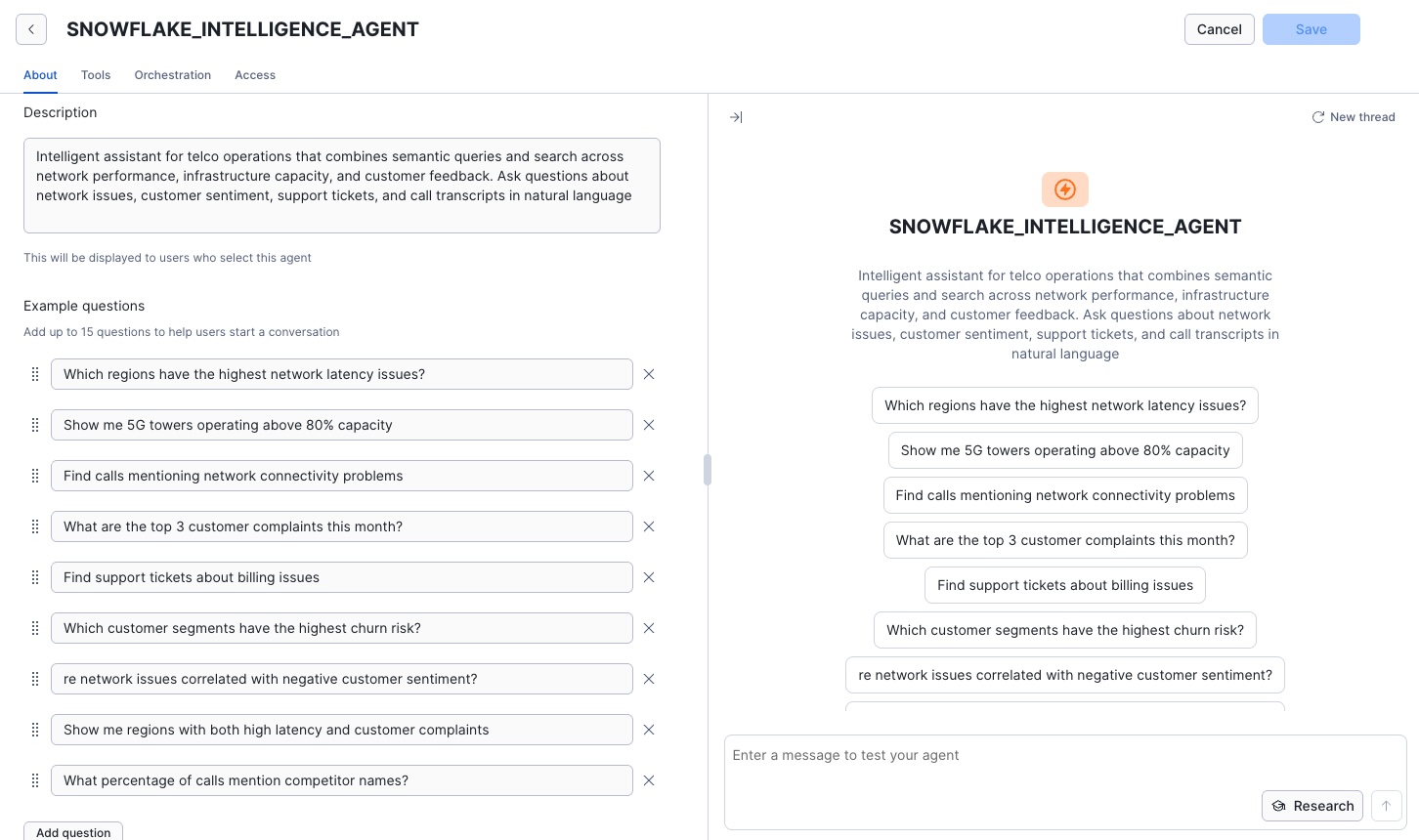
Here are the sample questions configured in the agent:
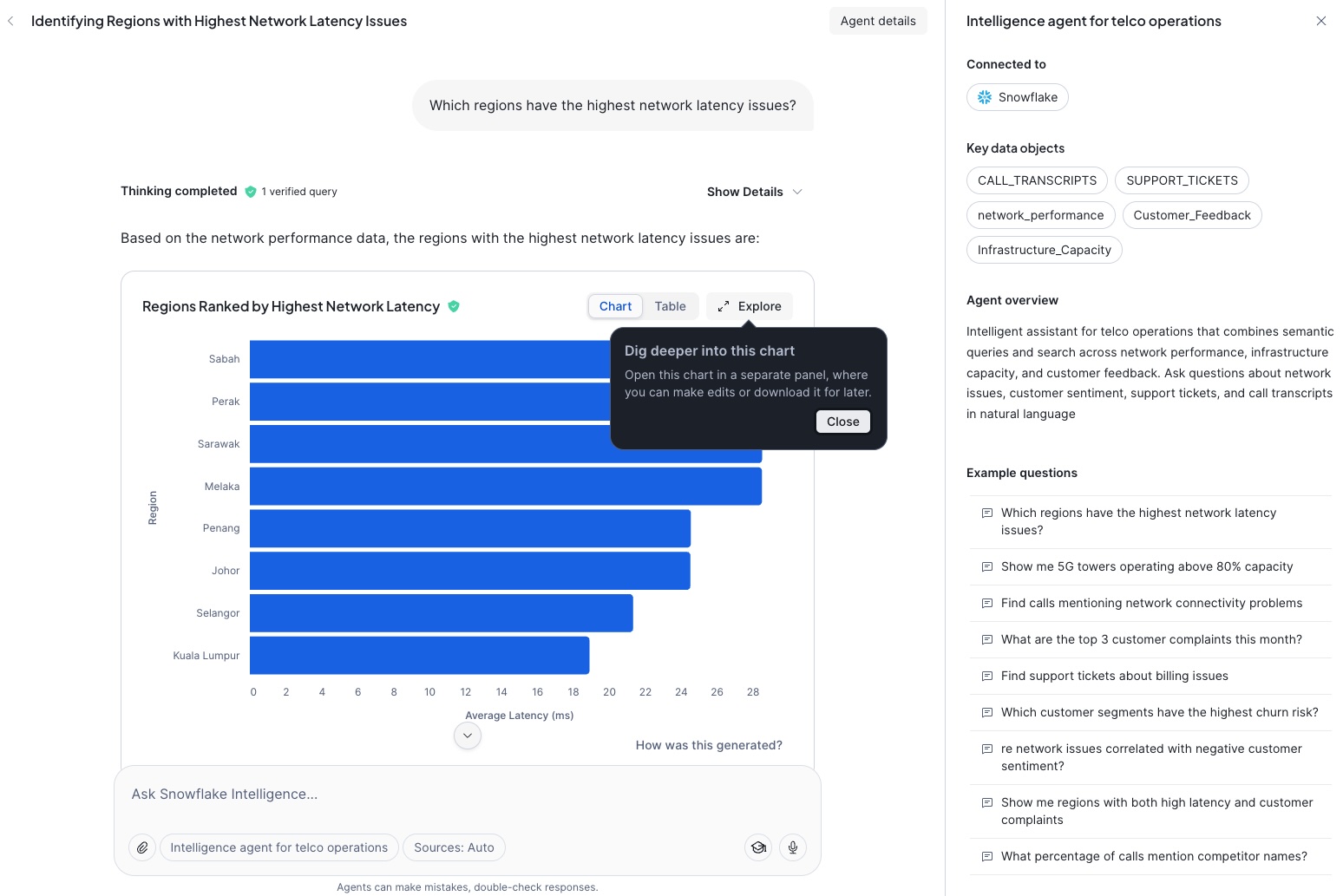
- "Which regions have the highest network latency issues?"
- "Show me 5G towers operating above 80% capacity"
- "Find calls mentioning network connectivity problems"
- "What are the top 3 customer complaints in October 2025?"
- "Find support tickets about billing issues"
- "Which customer segments have the highest churn risk?"
- "Are network issues correlated with negative customer sentiment?"
- "Show me regions with both high latency and customer complaints"
- "What percentage of calls mention competitor names?"
Editing and Understanding the Agent
After using the agent, explore its configuration:
- Navigate to AI & ML Studio → Agents
- Click on Telco Operations AI Agent
- Click Edit to view:
- Sample Questions: The questions you just tried
- Tools: All 5 tools available to the agent
- Orchestration Instructions: How the agent decides which tools to use
- Access Control: Who can use the agent
Agent Configuration Details
When configuring the agent, you'll see these key sections:
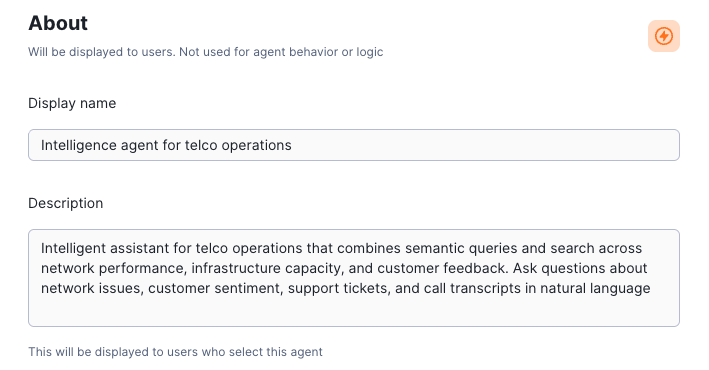
Agent Description:
Semantic Model YAML Files:
The agent uses 3 semantic models located in the CORTEX_ANALYST stage:
Add Tools with Detailed Descriptions:
All 3 Semantic Model Tools:
Cortex Search Service Configuration:
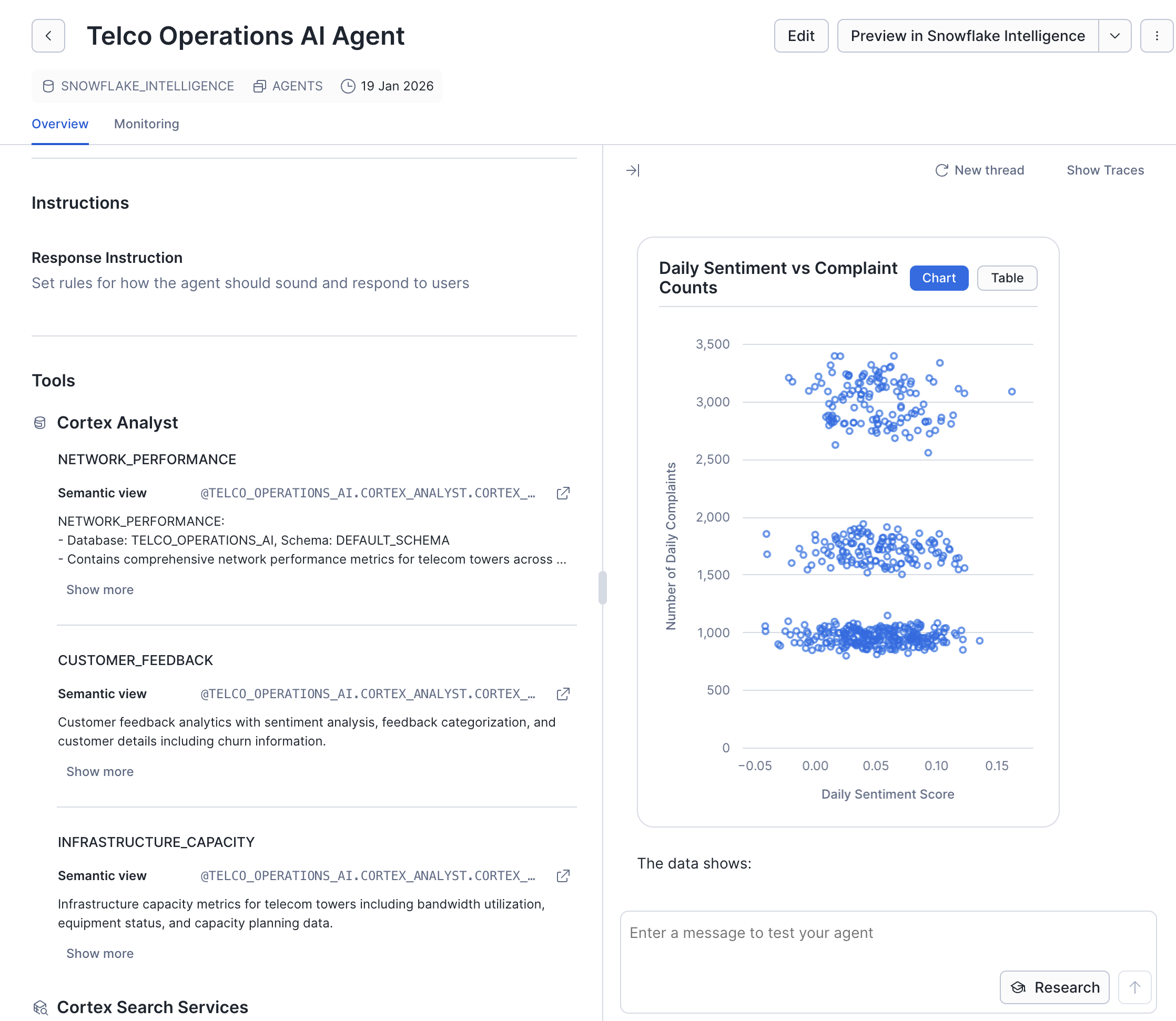
Test Your Agent:
The Test Agent interface is where you can interact with your AI assistant in real-time before publishing it. Here you can:
- Ask natural language questions about network performance, customer feedback, and infrastructure capacity
- Verify tool selection - watch which tools (Cortex Analyst semantic models or Cortex Search services) the agent chooses to answer each question
- Review SQL generation - see the actual SQL queries generated by Cortex Analyst for structured data questions
- Test multi-tool queries - try complex questions that require the agent to combine data from multiple sources
- Refine responses - iterate on your tool descriptions and instructions to improve answer quality
- Debug issues - identify when the agent selects the wrong tool or misunderstands a question
Try questions like: "What regions have the highest call drop rates?" or "What are customers saying about 5G coverage?"
Configure Sample Questions:
Data Coverage
Network Data
- Multiple Regions: Geographic coverage across all operational areas
- Network Types: 4G and 5G towers
- Performance Metrics: Latency, speed, packet loss, availability
Customer Data
- Customer Segments: Consumer, Business, Enterprise
- Plan Types: Premium 5G, Standard 4G, Business Plan
- Churn Analysis: Reasons, at-risk identification
Interaction Data
- 25 Call Recordings: Transcribed with AI_TRANSCRIBE
- Support Tickets: Categorized by type and priority
- Feedback: Sentiment analyzed by channel and region
Configure Snowflake CoWork Settings
To customize the appearance of your Intelligence interface:
- Navigate to AI & ML → Agents → Snowflake CoWork tab
- Click Open Settings
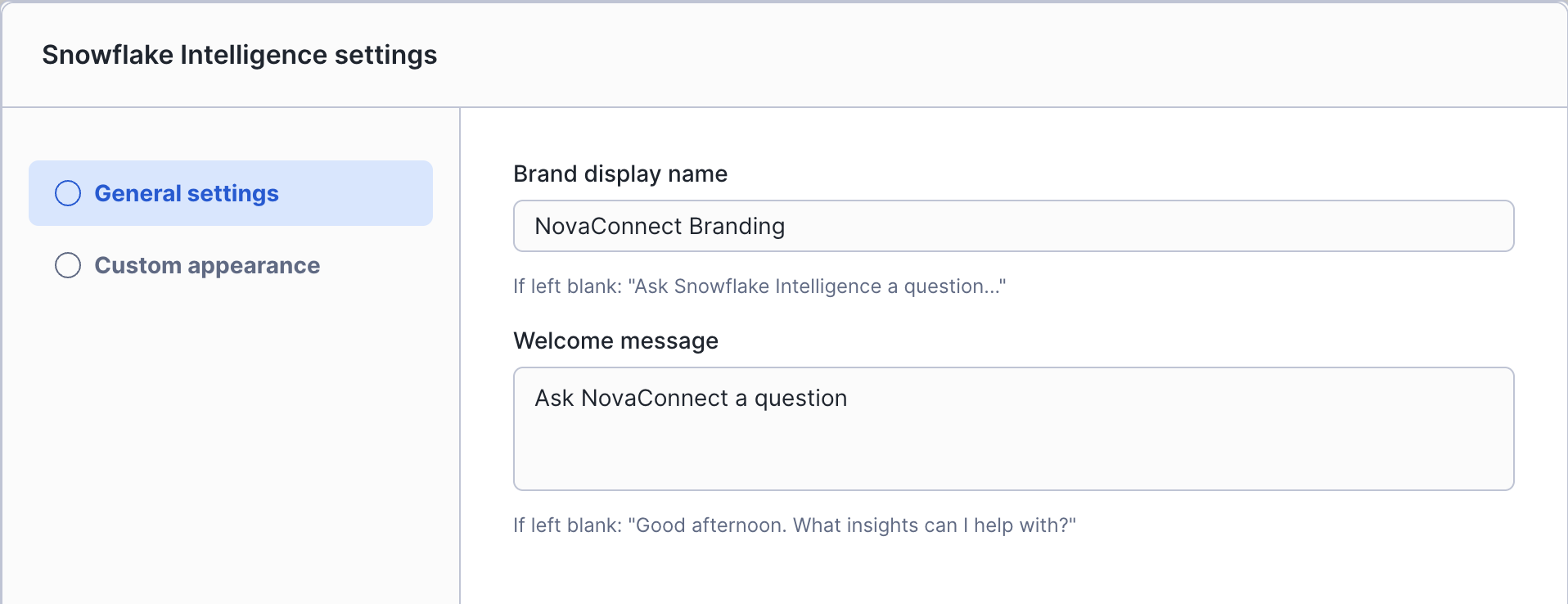
Customize the Interface:
- Display Name: "NovaConnect Intelligence" or your organization name
- Description: Brief description of what the agent can help with
- Welcome Message: Greeting users see when starting a conversation
- Color Theme: Match your brand colors
Brand Your Intelligence with Logos:
Use the NovaConnect logos to brand your interface:

Tips for Best Results
Ask Specific Questions
✅ Good: "Which 5G towers have latency above 25ms?" ❌ Too vague: "Tell me about the network"
Use Follow-up Questions
The agent maintains context, so you can:
- Ask initial question
- Drill deeper on specific findings
- Request different visualizations
- Ask for comparisons
Understanding Agent Responses
When You See Charts
The agent automatically generates visualizations based on the orchestration instruction to convert to logs when comparing measures.
When You See "Checking multiple sources..."
The agent is:
- Querying semantic models
- Searching search services
- Combining results from multiple tools
This ensures comprehensive, validated answers.
Data Limitations & Disclaimers
Synthetic Data
- NovaConnect: Entirely fictional telecommunications company
- All metrics: Synthetic but industry-realistic
- Customer data: Generated for demonstration purposes
Purpose
This is a demonstration environment showing telecommunications AI capabilities. Do not make actual business decisions based on this data!
Customize Regions (Optional)
Duration: 5
Make the Demo Your Own
The sample data uses Malaysian regions by default (Kuala Lumpur, Selangor, Penang, etc.). If you'd like to customize the demo to use regions relevant to your geography, we've included a customization script.
Running the Customization Script
- Navigate to the SQL script in your Git repository:
-- Open from Snowflake UI or run directly
@TELCO_AI_REPO/branches/main/assets/sql/99_customize_regions.sql
- Or create a new SQL worksheet and copy the script from:
assets/sql/99_customize_regions.sql
Available Presets
The script includes several preset configurations you can uncomment:
| Preset | Example Regions |
|---|---|
| US Cities | New York Metro, Los Angeles, Chicago, Houston, Phoenix |
| European | London, Paris, Berlin, Madrid, Rome, Amsterdam |
| Generic | Region Alpha, Region Beta, Region Gamma, etc. |
Custom Mapping
To create your own mapping, modify the INSERT INTO REGION_MAPPING statements:
INSERT INTO REGION_MAPPING VALUES
    -- (Original Region, Your New Region, Original Prefix, Your New Prefix)
    ('Kuala Lumpur', 'Your City Name', 'KL', 'YCN'),
    ('Selangor', 'Another Region', 'SEL', 'AR'),
    -- ... add more as needed
What Gets Updated
The script updates the following tables:
NETWORK_PERFORMANCE- Tower regions and namesINFRASTRUCTURE_CAPACITY- Tower regions and namesCUSTOMER_FEEDBACK_SUMMARY- Feedback regions
After running the customization, your agent queries will return results using your custom region names!
Conclusion
What You've Accomplished
In this quickstart, you've built a comprehensive AI-powered telecommunications operations platform using Snowflake's Cortex AI capabilities. You started by processing unstructured data—extracting insights from PDF help documents using Cortex Document Processing, transcribing customer call recordings with AI_TRANSCRIBE, and analyzing sentiment across thousands of data points. This transformed raw, unstructured telecommunications content into structured, queryable data that forms the foundation of intelligent applications.
You then created the AI services layer that makes this data accessible and actionable. Cortex Search services enable semantic search across call transcripts and support tickets—finding relevant information based on meaning rather than keywords. Cortex Analyst semantic models allow natural language queries against structured network and customer data, automatically generating SQL from plain English questions. Together, these services power the intelligence layer that connects users to insights without requiring technical expertise.
Finally, you deployed and explored the Snowflake CoWork Agent—the "Telco Operations AI Agent" that orchestrates all of these capabilities through a conversational interface. The agent seamlessly combines search services and semantic models to answer complex operational questions and generate visualizations. This demonstrates how modern AI platforms can unify structured and unstructured data analysis, enabling faster decision-making and deeper insights across telecommunications operations use cases.
Resources
- Repository: GitHub - Telco AI Assistant
- Documentation: See README.md in repository
Ready to build AI-powered applications with Snowflake Cortex? Start experimenting with your own data today!
Related Resources
Re-deploying / Reset
Since the Git repo is in a separate database, you can easily reset:
-- Drop the main database (Git repo stays safe!)
DROP DATABASE IF EXISTS TELCO_OPERATIONS_AI;
DROP DATABASE IF EXISTS SNOWFLAKE_INTELLIGENCE;

-- Fetch latest code
ALTER GIT REPOSITORY TELCO_AI_LAB.GIT_REPOS.TELCO_AI_REPO FETCH;
Then re-run deployment scripts (01-05) from the Git Repositories UI as described in Step 3.
This content is provided as is, and is not maintained on an ongoing basis. It may be out of date with current Snowflake instances
