Ask Questions About Your Snowflake Data in Slack with Dot
Overview
Dot is an AI data analyst. Business teams ask questions in Slack, Microsoft Teams or the Dot web app. Dot writes the SQL, runs it in your Snowflake account and answers with tables and charts.
In this guide you load a small sales dataset, describe it with Snowflake comments, and give Dot read-only access through a key-pair service user. Then you ask a question in Slack and check Dot's answer with your own SQL.
Prerequisites
- Basic SQL
- Access to Snowsight with the ACCOUNTADMIN role, or with SYSADMIN and SECURITYADMIN
What You'll Learn
- How to give an outside tool read-only access with a
TYPE = SERVICEuser and key-pair authentication - How table and column comments give an AI analyst business context
- How to see and limit the queries and credits a tool uses
What You'll Need
- A Snowflake account. A free trial works.
- A Dot account where you are an admin. You can sign up for free.
- OpenSSL on your computer. It comes with macOS and most Linux distributions.
- Optional: a Slack workspace where you can install apps. Without Slack you can ask in the Dot web app.
What You'll Build
- A sales dataset in Snowflake with business descriptions
- A read-only Dot connection that answers your team's questions in Slack
Load Sample Data
Copy four tables from the TPC-H sample data into a new database and give the columns readable names. Dot skips the shared SNOWFLAKE_SAMPLE_DATA database when it syncs, so you work on a copy.
Open a SQL worksheet in Snowsight and run:
USE ROLE SYSADMIN;
USE WAREHOUSE COMPUTE_WH; -- or any warehouse you can use

CREATE DATABASE IF NOT EXISTS DOT_DEMO;
CREATE SCHEMA IF NOT EXISTS DOT_DEMO.SALES;
USE SCHEMA DOT_DEMO.SALES;

CREATE OR REPLACE TABLE REGIONS AS
SELECT R_REGIONKEY AS REGION_ID, R_NAME AS REGION_NAME
FROM SNOWFLAKE_SAMPLE_DATA.TPCH_SF1.REGION;

CREATE OR REPLACE TABLE NATIONS AS
SELECT N_NATIONKEY AS NATION_ID, N_NAME AS NATION_NAME, N_REGIONKEY AS REGION_ID
FROM SNOWFLAKE_SAMPLE_DATA.TPCH_SF1.NATION;

CREATE OR REPLACE TABLE CUSTOMERS AS
SELECT C_CUSTKEY AS CUSTOMER_ID, C_NATIONKEY AS NATION_ID, C_MKTSEGMENT AS MARKET_SEGMENT
FROM SNOWFLAKE_SAMPLE_DATA.TPCH_SF1.CUSTOMER;

CREATE OR REPLACE TABLE ORDERS AS
SELECT O_ORDERKEY AS ORDER_ID, O_CUSTKEY AS CUSTOMER_ID, O_ORDERDATE AS ORDER_DATE,
       O_ORDERSTATUS AS ORDER_STATUS, O_TOTALPRICE AS ORDER_AMOUNT
FROM SNOWFLAKE_SAMPLE_DATA.TPCH_SF1.ORDERS;
If your account has no SNOWFLAKE_SAMPLE_DATA database, create it with ACCOUNTADMIN and run the block above again:
USE ROLE ACCOUNTADMIN;
CREATE DATABASE SNOWFLAKE_SAMPLE_DATA FROM SHARE SFC_SAMPLES.SAMPLE_DATA;
GRANT IMPORTED PRIVILEGES ON DATABASE SNOWFLAKE_SAMPLE_DATA TO ROLE PUBLIC;
Check the row counts:
SELECT 'ORDERS' AS table_name, COUNT(*) AS row_count FROM DOT_DEMO.SALES.ORDERS
UNION ALL SELECT 'CUSTOMERS', COUNT(*) FROM DOT_DEMO.SALES.CUSTOMERS
UNION ALL SELECT 'NATIONS', COUNT(*) FROM DOT_DEMO.SALES.NATIONS
UNION ALL SELECT 'REGIONS', COUNT(*) FROM DOT_DEMO.SALES.REGIONS;
You should see 1,500,000 orders, 150,000 customers, 25 nations and 5 regions.
Describe the Tables
Dot reads table and column comments when it syncs. A comment is the quickest way to tell Dot what a column means and which business rules apply.
USE ROLE SYSADMIN;
USE SCHEMA DOT_DEMO.SALES;

COMMENT ON TABLE ORDERS IS 'One row per customer order. Revenue is the sum of ORDER_AMOUNT.';
COMMENT ON COLUMN ORDERS.ORDER_AMOUNT IS 'Total value of the order in US dollars';
COMMENT ON COLUMN ORDERS.ORDER_STATUS IS 'F = fulfilled, O = open, P = partially shipped';
COMMENT ON COLUMN ORDERS.CUSTOMER_ID IS 'Joins to CUSTOMERS.CUSTOMER_ID';

COMMENT ON TABLE CUSTOMERS IS 'One row per customer';
COMMENT ON COLUMN CUSTOMERS.NATION_ID IS 'Joins to NATIONS.NATION_ID';
COMMENT ON COLUMN CUSTOMERS.MARKET_SEGMENT IS 'Industry of the customer, for example AUTOMOBILE or BUILDING';

COMMENT ON TABLE NATIONS IS 'Countries where customers are based';
COMMENT ON COLUMN NATIONS.REGION_ID IS 'Joins to REGIONS.REGION_ID';

COMMENT ON TABLE REGIONS IS 'Sales regions: AFRICA, AMERICA, ASIA, EUROPE and MIDDLE EAST';
The same works for your own tables. When Dot gets a question wrong, a missing definition is often the cause. Add it as a column comment and sync again. Dot picks up changed column comments on every sync, but keeps a table's description once it has one.
Create Warehouse and Role
Give Dot its own warehouse, so you can see and cap what it costs. Then create a role that can only read the SALES schema.
USE ROLE SYSADMIN;
CREATE WAREHOUSE IF NOT EXISTS DOT_WH
  WAREHOUSE_SIZE = XSMALL
  AUTO_SUSPEND = 60
  AUTO_RESUME = TRUE
  INITIALLY_SUSPENDED = TRUE
  STATEMENT_TIMEOUT_IN_SECONDS = 600;

USE ROLE SECURITYADMIN;
CREATE ROLE IF NOT EXISTS DOT_ROLE;
GRANT ROLE DOT_ROLE TO ROLE SYSADMIN; -- keeps the role hierarchy tidy

GRANT USAGE ON WAREHOUSE DOT_WH TO ROLE DOT_ROLE;
GRANT USAGE ON DATABASE DOT_DEMO TO ROLE DOT_ROLE;
GRANT USAGE ON SCHEMA DOT_DEMO.SALES TO ROLE DOT_ROLE;
GRANT SELECT ON ALL TABLES IN SCHEMA DOT_DEMO.SALES TO ROLE DOT_ROLE;
GRANT SELECT ON FUTURE TABLES IN SCHEMA DOT_DEMO.SALES TO ROLE DOT_ROLE;
GRANT SELECT ON ALL VIEWS IN SCHEMA DOT_DEMO.SALES TO ROLE DOT_ROLE;
GRANT SELECT ON FUTURE VIEWS IN SCHEMA DOT_DEMO.SALES TO ROLE DOT_ROLE;
DOT_ROLE gets no privilege to create, change or delete data. Snowflake enforces that, whatever SQL a tool sends.
An X-Small warehouse is enough for most teams. It suspends after a minute without queries. The warehouse timeout stops any single query after 10 minutes, because Snowflake applies the lower of the warehouse and session timeouts. For a monthly credit limit, add a resource monitor to DOT_WH.
Create a Service User
A user with TYPE = SERVICE cannot sign in with a password or SAML SSO, so Dot signs in with a key pair. It is also the setup that keeps working: Snowflake is phasing out single-factor password sign-ins, and from August to October 2026 it blocks passwords for all service users, including LEGACY_SERVICE users.
Create an encrypted key pair on your computer. OpenSSL asks you to choose a passphrase, then asks for it again to write the public key:
openssl genrsa 2048 | openssl pkcs8 -topk8 -v2 aes-256-cbc -inform PEM -out dot_rsa_key.p8
openssl rsa -in dot_rsa_key.p8 -pubout -out dot_rsa_key.pub
dot_rsa_key.p8 is the private key, encrypted with your passphrase. Keep both secret. You paste them into Dot in the next step.
Print the public key on one line, without the BEGIN and END lines:
grep -v "PUBLIC KEY" dot_rsa_key.pub | tr -d '\n'
Create the user with that public key:
USE ROLE SECURITYADMIN;
CREATE USER IF NOT EXISTS DOT_USER
  TYPE = SERVICE
  DEFAULT_ROLE = DOT_ROLE
  DEFAULT_WAREHOUSE = DOT_WH
  RSA_PUBLIC_KEY = 'MIIBIjANBgkqh...' -- paste your one-line public key
  COMMENT = 'Service user for Dot';

GRANT ROLE DOT_ROLE TO USER DOT_USER;
Check that Snowflake stored the right key. This query returns the fingerprint of the stored key:
DESC USER DOT_USER
  ->> SELECT SUBSTR(
        (SELECT "value" FROM $1
           WHERE "property" = 'RSA_PUBLIC_KEY_FP'),
        LEN('SHA256:') + 1) AS key;
It must match the fingerprint of your key file:
openssl rsa -pubin -in dot_rsa_key.pub -outform DER | openssl dgst -sha256 -binary | openssl enc -base64
If your account restricts sign-ins with network policies, allow the IP addresses listed in the Dot Snowflake docs.
Connect Dot to Snowflake
Find your account identifier:
SELECT CURRENT_ORGANIZATION_NAME() || '-' || CURRENT_ACCOUNT_NAME() AS account_identifier;
Then in Dot:
- Open Settings, go to Connections and click Snowflake.
- Enter the account identifier and the username
DOT_USER. - Turn on Key-pair. Paste the full contents of
dot_rsa_key.p8into Private Key, including the BEGIN and END lines. - Enter your passphrase in Passphrase.
- Enter the role
DOT_ROLEand the warehouseDOT_WH. - Click Connect.
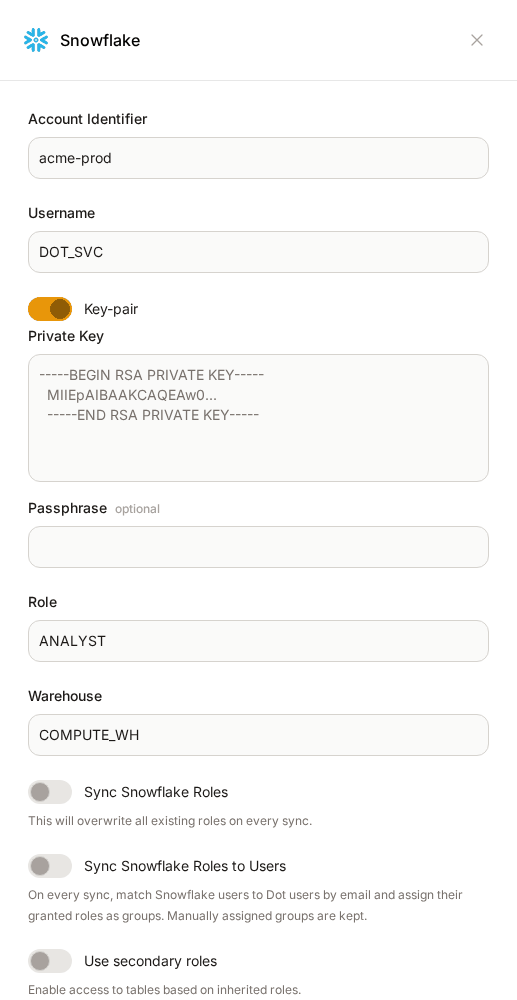
Dot checks that it can see the warehouse, saves the connection and syncs the tables that DOT_ROLE can see. It reads table and column names, your comments and a sample of values.
When the sync is done, open Model in the left navigation. Make sure all four DOT_DEMO.SALES tables are active, and turn on Active for any that are not.
Store dot_rsa_key.p8 and its passphrase in your password manager, then delete the local copy.
Ask Your First Question
Start in the Dot web app, so you can compare the answer with your own SQL. Open a new chat and ask:
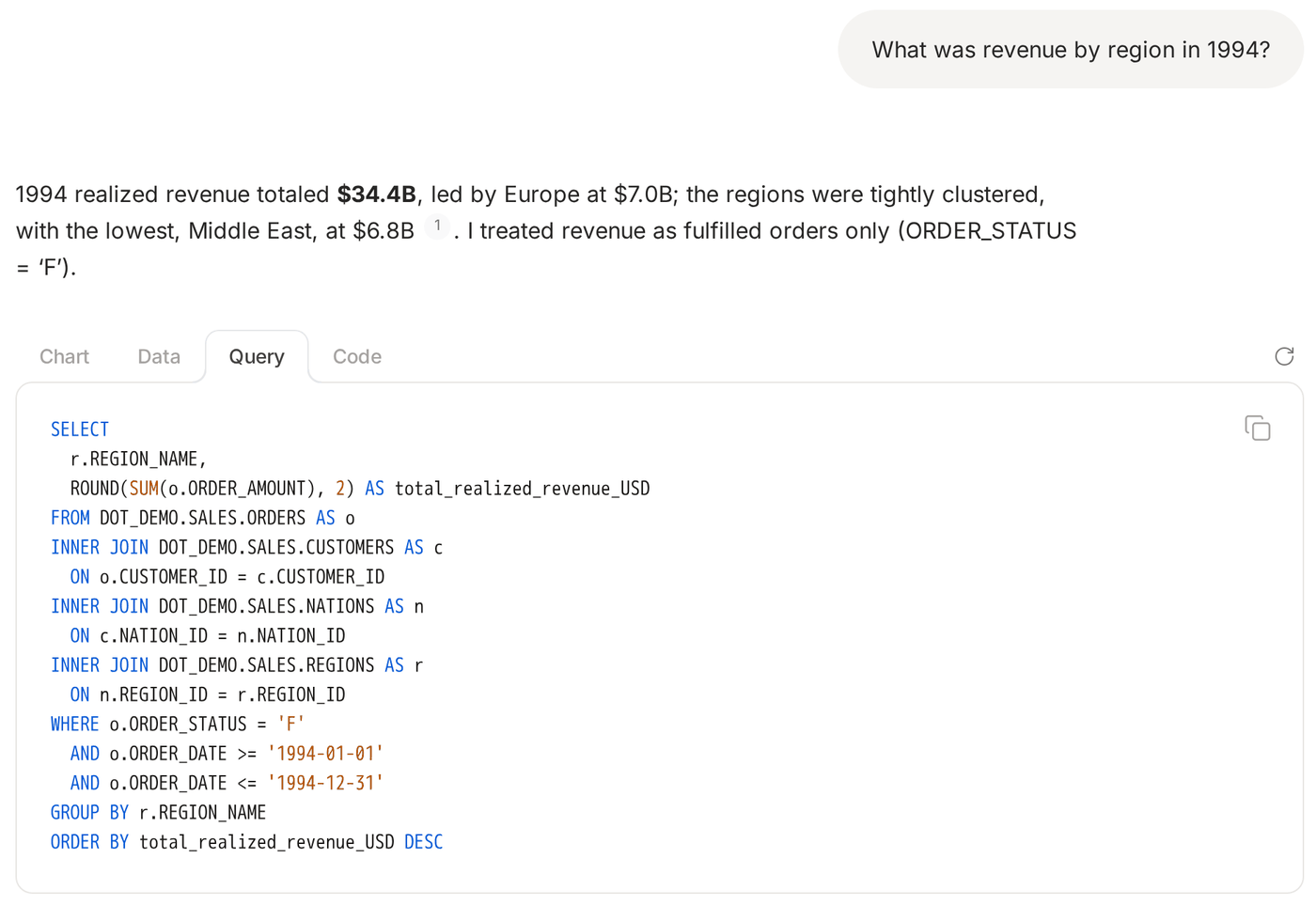
What was revenue by region in 1994?
Dot finds the tables, joins them and answers with a table or a chart. Click the Query tab on the result to see the SQL it ran.

Now run your own query in Snowsight:
SELECT r.REGION_NAME, ROUND(SUM(o.ORDER_AMOUNT), 2) AS REVENUE
FROM DOT_DEMO.SALES.ORDERS o
JOIN DOT_DEMO.SALES.CUSTOMERS c ON c.CUSTOMER_ID = o.CUSTOMER_ID
JOIN DOT_DEMO.SALES.NATIONS n ON n.NATION_ID = c.NATION_ID
JOIN DOT_DEMO.SALES.REGIONS r ON r.REGION_ID = n.REGION_ID
WHERE YEAR(o.ORDER_DATE) = 1994
GROUP BY r.REGION_NAME
ORDER BY REVENUE DESC;
The numbers should match. If they do not, compare the two queries. The difference usually points to a business rule that Dot did not know. Add it as a column comment, sync the connection and ask again.
Your comments shape the answer. Every 1994 order is fulfilled, so total order value and revenue are the same. Ask about 1997 instead and Dot points out that every 1997 order is still open (O), because the ORDER_STATUS comment told it what the status codes mean.
Ask a follow-up in the same chat, such as Split Europe by market segment. Dot keeps the context of the conversation.

Ask in Slack
- In Dot, open Settings, go to Connections and click Slack.
- Click Add Dot to Slack and allow the app in your Slack workspace.
- Reload the Connections page in Dot and check the Slack Team ID field. Dot fills it in when your Slack workspace uses the same email domain as your Dot account. If it is empty, copy the ID that starts with
Tfrom your Slack URL in the browser, after/client/. Paste it and click Save. - In a Slack channel, invite Dot with
/invite @Dot. - Start a thread with your question:
@Dot what was revenue by region in 1994? - Reply in the same thread to ask a follow-up, such as
split Europe by market segment. Dot uses the whole thread as context, and you don't need to tag@Dotagain.
Each answer in Slack has an Access Online link. It opens the answer in Dot, where you can see the SQL.
Dot also answers in Microsoft Teams. See Dot in Microsoft Teams for the setup.
Review Dot's Queries
Every query from Dot carries the query tag dot and runs as DOT_USER. SYSADMIN owns DOT_WH, so it can list the ones that ran on that warehouse:
USE ROLE SYSADMIN;
SELECT start_time, execution_status, total_elapsed_time, query_text
FROM TABLE(DOT_DEMO.INFORMATION_SCHEMA.QUERY_HISTORY_BY_USER(
       USER_NAME => 'DOT_USER', RESULT_LIMIT => 1000))
WHERE query_tag = 'dot'
ORDER BY start_time DESC;
To see the credits DOT_WH uses per day, query the account usage views with ACCOUNTADMIN. New usage can take a few hours to appear there.
USE ROLE ACCOUNTADMIN;
SELECT DATE_TRUNC('day', start_time) AS usage_day, SUM(credits_used) AS credits
FROM SNOWFLAKE.ACCOUNT_USAGE.WAREHOUSE_METERING_HISTORY
WHERE warehouse_name = 'DOT_WH'
GROUP BY usage_day
ORDER BY usage_day DESC;
Clean Up
In Dot, open Settings, go to Connections, click Edit on the Snowflake connection, click Remove and confirm. If you installed the Slack app only for this guide, remove it from your Slack workspace.
Then drop the Snowflake objects:
USE ROLE SECURITYADMIN;
DROP USER IF EXISTS DOT_USER;
DROP ROLE IF EXISTS DOT_ROLE;

USE ROLE SYSADMIN;
DROP WAREHOUSE IF EXISTS DOT_WH;
DROP DATABASE IF EXISTS DOT_DEMO;
Delete the key files if you still have them:
rm -f dot_rsa_key.p8 dot_rsa_key.pub
Conclusion And Resources
You gave an AI analyst read-only access to Snowflake through a key-pair service user, described your data with comments, and answered a question in Slack. The same setup works for your own data: grant DOT_ROLE read access to the schemas your teams ask about, and add comments as new questions come in.
What You Learned
- How to create a
TYPE = SERVICEuser with key-pair authentication and a read-only role - How Snowflake comments give an AI analyst business context
- How to check an AI answer against your own SQL
- How to see and cap the queries and credits a tool uses
Related Resources
This content is provided as is, and is not maintained on an ongoing basis. It may be out of date with current Snowflake instances
