CoCo Control Hub and Chargeback Solution
Overview
Duration: 3
Governance tells you how much Snowflake CoCo costs. Chargeback answers who owes what — and lets you recover it.
In this quickstart you'll deploy the chargeback and cost-attribution layer of CoCo Control Hub — a Streamlit-in-Snowflake app — and produce a real, itemized bill for CoCo usage. You'll attribute usage with a confidence-labeled waterfall, pick the adoption model that matches your engagement, and export an internal showback statement or an external invoice as a branded PDF. No data leaves Snowflake.
What You'll Build
By the end you will have generated, from your own account's data:
- An itemized bill grouped by team, user, or engagement
- An internal showback PDF (at cost) and an external invoice PDF (with margin)
- A cost-tag mapping that drives vertical/partner attribution
Prerequisites
- Snowflake account with ACCOUNTADMIN (one-time setup only)
- CoCo enabled, with at least a few days of real CLI / Snowsight / Desktop usage on the account — the bill is generated from actual
ACCOUNT_USAGEhistory, so an account with no CoCo usage will produce an empty bill - Snowflake CLI installed:
curl -LsS https://ai.snowflake.com/static/cc-scripts/install.sh | sh - Any warehouse (XSMALL is sufficient)
What You'll Learn
- How CoCo usage is attributed to an identity with a fallback waterfall
- Why per-query/session tags don't work for CoCo — and what to use instead
- How to express three cross-charge scenarios as configuration, not code
- How to price LLM token credits and warehouse compute independently
- How to produce a showback vs an invoice from the same underlying data
Source Code
GitHub (Snowflake-Labs): https://github.com/Snowflake-Labs/sfquickstarts/tree/master/site/sfguides/src/cortex-code-control-hub-chargeback/assets/code
Architecture
Duration: 3
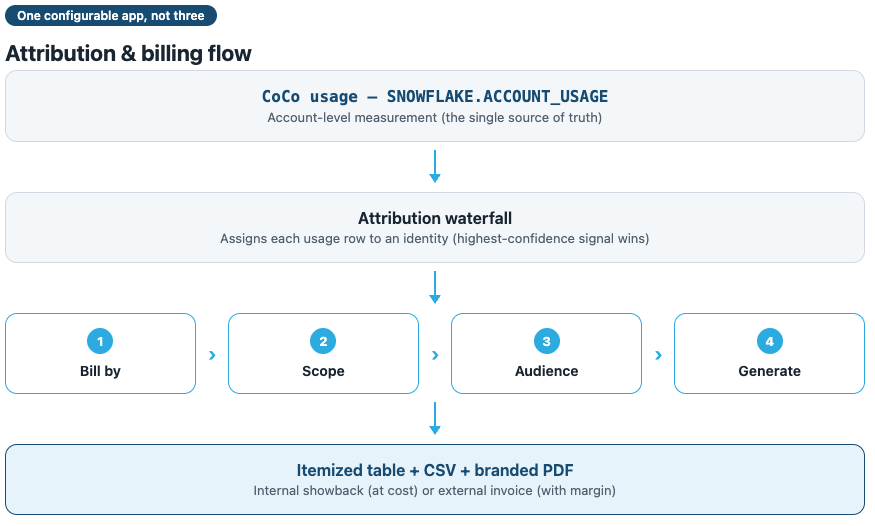
One Configurable App, Not Three
The three adoption models are presets of two knobs — what you group by (attribution dimension) and who you're billing (internal vs external) — not separate code paths.
The Attribution Waterfall
Each usage row is attributed by the highest-confidence signal available; anything left over is quarantined rather than billed:
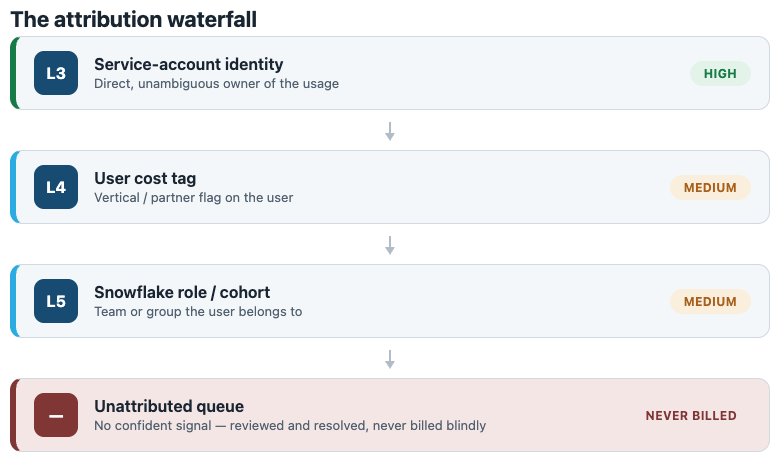
| Level | Signal | Confidence |
|---|---|---|
| L3 | Service-account identity | HIGH |
| L4 | User cost tag (vertical / partner flag) | MEDIUM |
| L5 | Snowflake role / cohort | MEDIUM |
| — | Unattributed queue | never billed until resolved |
aside negative Per-query and per-session query tags do not work for CoCo — it overwrites the session query tag. Attribution uses identity-level signals (L3–L5), not L1/L2 tags.
Two-Rate Pricing
LLM token credits are priced at a flat AI list rate (April 2025: $2.00 global / $2.20 in-region, editable); warehouse compute is priced at your contract credit rate — so the bill reflects the true blended cost of CoCo.
Deploy the App
Duration: 8
Step 1: Download and set your deploy target
Download the assets/code folder from the Source Code link above. Set your target in snowflake.yml (the only file you edit — or ask CoCo to fill it):
identifier:
  name: CORTEX_CODE_CREDIT_MANAGER
  database: MY_DATABASE       # your target database
  schema: MY_SCHEMA           # your target schema
query_warehouse: MY_WAREHOUSE # your warehouse
aside positive Leave
config.yaml's deployment fields blank — the app self-resolves database/schema at runtime (sidebar override, thenconfig.yaml, thenCURRENT_DATABASE()/CURRENT_SCHEMA()). There is nothing else to configure.
Step 2: Deploy
snow streamlit deploy --connection YOUR_CONNECTION --replace
Expected result: the command prints a URL to the deployed Streamlit app under your database/schema.
Step 3: Run in-app Setup
Open the app in Snowsight and go to Setup. Run each phase in order (all idempotent):
- Run Check — verifies required objects
- Create Missing Objects — runs
prerequisites.sql; creates allCC_*tables, stored procedures, and tasks (including the chargeback tables and the cost-tag sync procedure) - Seed Default Settings — pricing + config defaults
- Run Initial Data Refresh — backfills usage and warehouse-attribution summaries
Expected result: Setup shows all checks green, and the Cost Attribution page shows usage for the last 30 days. If it's empty, confirm the account has recent CoCo usage (see Prerequisites).
Tag Users for Attribution
Duration: 5
Open Attribution & Tags.
- Review the waterfall panel — see how each signal (service account, then user tag, then role) is applied and what lands in the Unattributed queue.
- In the cost-tag editor, assign each active CoCo user a Vertical (e.g.,
Data Platform,Marketing) and set the Partner flag where relevant. - Click Save.
Expected result: the grid persists to CC_COST_TAGS, and the Vertical and Partner flag dimensions become selectable on the Chargeback page (they're greyed out until at least one tag exists).
aside positive If your account already tags users natively, enable auto-sync — the nightly
SP_CC_SYNC_COST_TAGSmirrorsACCOUNT_USAGE.TAG_REFERENCESintoCC_COST_TAGSread-only. The app never modifies account objects.
Generate an Internal Showback
Duration: 6
Open Chargeback. First pick an adoption model, then walk the four steps.
Choose a model — click the M1 · Internal Cross-Charge card. This pre-fills Bill by = Vertical and Audience = Internal showback.
- Bill by — leave as Vertical (or choose User/Role to try without tags).
- Scope — set Lookback = 30 days.
- Audience — Internal · showback is selected; enter a Prepared for value (e.g.,
Data Platform team). - Generate.
Expected result:
- KPI tiles populate: Total Credits, Cost (USD), Showback (at cost), Line Items.
- An itemized table lists one row per vertical with credits and USD.
- Download Chargeback PDF produces a one-page SHOWBACK statement whose header reads PREPARED FOR: Data Platform team.
aside positive Toggle Include SQL / warehouse cost to add the warehouse compute CoCo consumed (priced at your contract rate) — the KPI and composition bar update to show the AI-vs-warehouse split.
Generate an External Invoice
Duration: 5
Now bill an outside party from the same data.
Choose a model — click M3 · Partner on Customer Account (pre-fills Bill by = User, Audience = External invoice).
- Audience — confirm External · invoice; set Margin % =
15. - Fill Bill to (e.g.,
Acme Corp), an Invoice #, and Prepared by. - Generate.
Expected result:
- The Billed KPI now exceeds Cost (USD) by your margin.
- Download Chargeback PDF produces an INVOICE with a BILL TO block, a subtotal, a margin line, and a total.
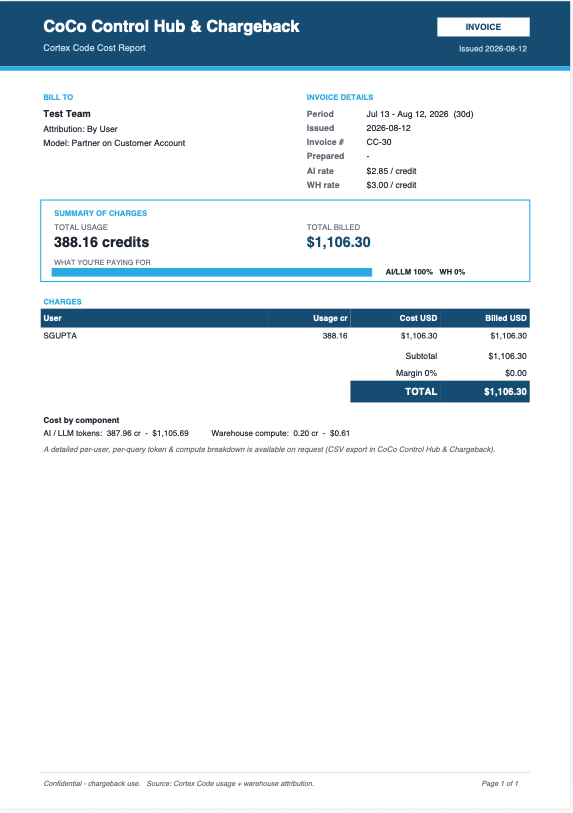
aside positive Same data, two outputs: internal cross-charge is at-cost showback; external delivery is an invoice with margin. That's the "one configurable app" design — you changed audience, not code.
Optional: Optimize with Model Bake-off
Duration: 3
Open Model Bake-off to keep spend efficient:
- Historical Optimization — per-model credit spend and token efficiency, with downgrade recommendations for expensive tiers carrying heavy volume.
- Interactive Bake-off — run one prompt across models discovered live from your account (
SHOW CORTEX BASE MODELS) and compare cost, latency, and an LLM-judged quality score.
Conclusion And Resources
Duration: 2
What You Built
- Attributed CoCo spend with a confidence-labeled waterfall
- Generated both an internal showback and an external invoice from the same period
- Exported branded PDF bills — with data never leaving Snowflake
The Pattern
Attribution-as-configuration — one app, two knobs (dimension x audience) — generalizes beyond CoCo to any usage you need to split across teams, customers, or partners.
Troubleshooting
- Empty bill / "No billable usage found" — the account has no CoCo usage in the selected window, or the refresh task hasn't run. Re-run Setup, then Run Initial Data Refresh and widen the lookback.
- Vertical/Partner greyed out — no cost tags yet; add at least one in Attribution & Tags.
Resources
- Source Code (Snowflake-Labs): https://github.com/Snowflake-Labs/sfquickstarts/tree/master/site/sfguides/src/cortex-code-control-hub-chargeback/assets/code
- CoCo Docs: https://docs.snowflake.com/en/user-guide/cortex-code/cortex-code
- Streamlit in Snowflake: https://docs.snowflake.com/en/developer-guide/streamlit/about-streamlit
This content is provided as is, and is not maintained on an ongoing basis. It may be out of date with current Snowflake instances
