Getting Started with Managed Snowflake MCP Server
Overview
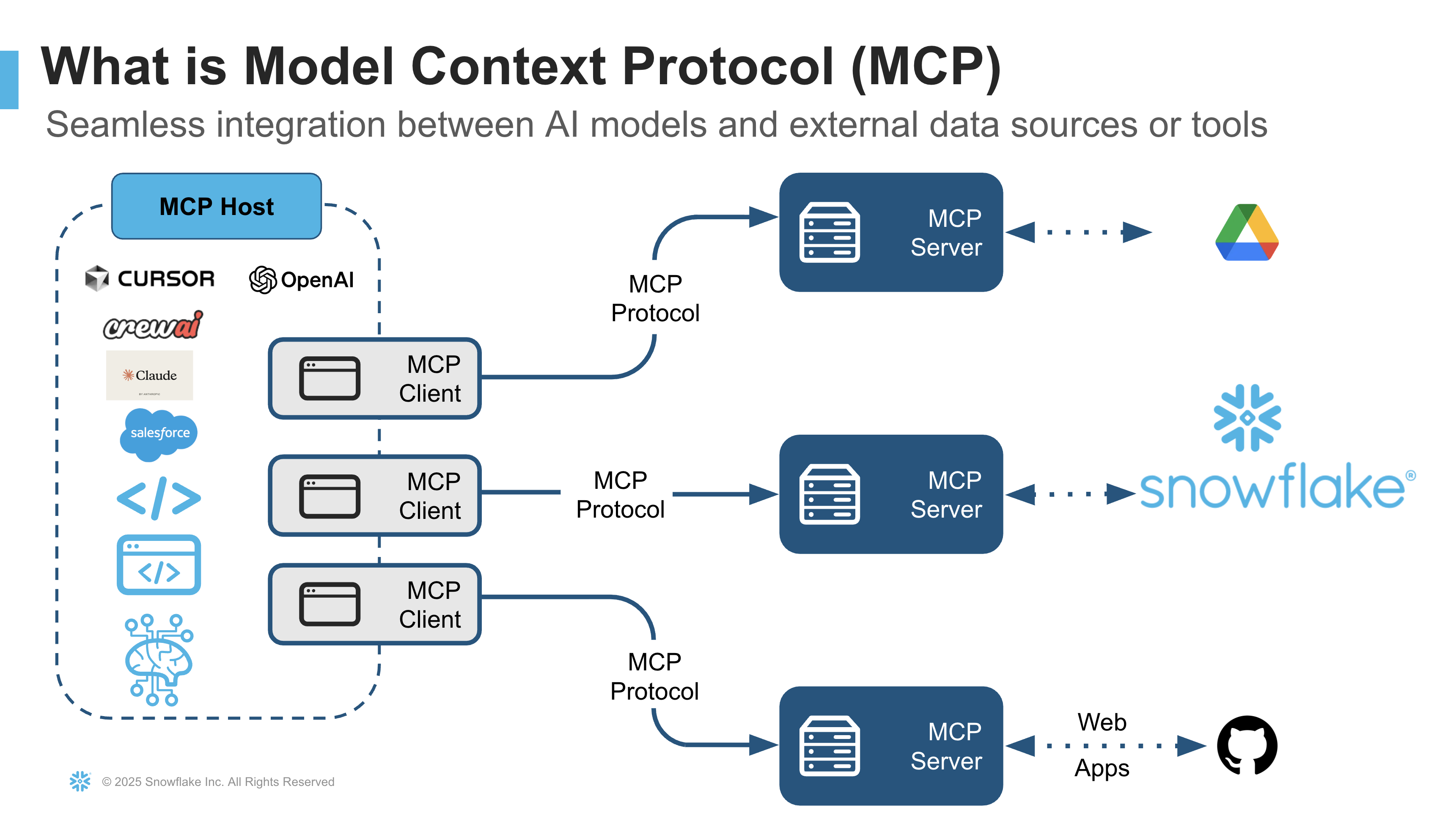
The Snowflake MCP Server allows AI agents to securely retrieve data from Snowflake accounts without needing to deploy separate infrastructure. MCP clients discover and invoke tools, and retrieve data required for the application. The Snowflake MCP Server includes Cortex Analyst and Cortex Search as tools on the standards-based interface. It is now available with Model Context Protocol (MCP) so that AI Agents can discover and invoke tools (Cortex Analyst, Cortex Search) via a unified and standard based interface.
Top 3 Benefits
- Governed By Design: Enforce the same trusted governance policies, from role-based access to masking, for the MCP server as you do for your data.
- Reduced Integration: With the MCP Server, integration happens once. Any compatible agent can then connect without new development, accelerating adoption and reducing maintenance costs.
- Extensible Framework: Provide agents with out-of-the-box secure access to structured and unstructured data. You can refine the tools to improve how agents interact with your data.
Why It Matters
MCP Server on Snowflake simplifies the application architecture and eliminates the need for custom integrations. Enterprises can expedite delivery of generative AI applications with richer insights on a standards based architecture and a robust governance model with the Snowflake AI data cloud.
Prerequisites
- Access to a Snowflake account with ACCOUNTADMIN role. If you do not have access to an account, create a free Snowflake trial account.
- Access to Cursor.
What You Will Learn
- How to create building blocks for Snowflake MCP Server that can intelligently respond to questions by reasoning over data
- How to configure Cursor to interact with Snowflake MCP Server
What You Will Build
A Snowflake MCP Server that intelligently responds to questions by reasoning over data from within Cursor.
Setup
Create Objects
-
Clone GitHub repo.
-
In Snowsight, create a SQL Worksheet and open setup.sql to execute all statements in order from top to bottom.
Programmatic Access Token
Create a Programmatic Access Token (PAT) for your role and make a note/local copy of it. (You will need to paste it later.)
Cortex Search Service
This tool allows the agent to search and retrieve information from unstructured text data, such as customer support tickets, Slack conversations, or contracts. It leverages Cortex Search to index and query these text "chunks," enabling the agent to perform Retrieval Augmented Generation (RAG).
- In Snowsight, on the left hand navigation menu, select AI & ML >> Cortex Search
- On the top right, click on Create
- Role and Warehouse: ACCOUNTADMIN | DASH_WH_S
- Database and Schema: DASH_MCP_DB.DATA
- Name: Support_Tickets
- Select data to be indexed: select FACT_SUPPORT_TICKETS table
- Select a search column: select DESCRIPTION
- Select attribute column(s): select CATEGORY, SUBCATEGORY, PRIORITY, CHANNEL, STATUS, SATISFACTION_SCORE
- Select columns to include in the service: Select all
- Configure your Search Service: Keep default values and select DASH_WH_S for "Warehouse for indexing"
Cortex Analyst - Semantic View
This tool enables the agent to query structured data in Snowflake by generating SQL. It relies on semantic views, which are mappings between business concepts (e.g., "product name," "sales") and the underlying tables and columns in your Snowflake account. This abstraction helps the LLM understand how to query your data effectively, even if your tables have complex or arbitrary naming conventions.
- In Snowsight, on the left hand navigation menu, select AI & ML >> Cortex Analyst
- On the top right, click on Create new down arrow and select Upload your YAML file
- Upload FINANCIAL_SERVICES_ANALYTICS.yaml | Select database, schema, and stage: DASH_MCP_DB.DATA >> SEMANTIC_MODELS
- On the top right, click on Save
Semantic View
- In Snowsight, create Semantic View based on the YAML file.
Snowflake MCP Server
PREREQUISITE: Successful completion of steps outlined under Setup.
Create Snowflake MCP Server
To create the Snowflake MCP server, run the following in the same SQL worksheet.
create or replace mcp server dash_mcp_server from specification
$$
tools:
  - name: "Finance_and_Risk_Assessment_Semantic_View"
    identifier: "DASH_MCP_DB.DATA.FINANCIAL_SERVICES_ANALYTICS"
    type: "CORTEX_ANALYST_MESSAGE"
    description: "Comprehensive semantic model for financial services analytics, providing unified business definitions and relationships across customer data, transactions, marketing campaigns, support interactions, and risk assessments."
    title: "Financial And Risk Assessment"
  - name: "Support_Tickets_Cortex_Search"
    identifier: "DASH_MCP_DB.DATA.SUPPORT_TICKETS"
    type: "CORTEX_SEARCH_SERVICE_QUERY"
    description: "A tool that performs keyword and vector search over unstructured support tickets data."
    title: "Support Tickets Cortex Search"
  - name: "SQL_Execution_Tool"
    type: "SYSTEM_EXECUTE_SQL"
    description: "A tool to execute SQL queries against the connected Snowflake database."
    title: "SQL Execution Tool"
  - name: "Send_Email"
    identifier: "DASH_MCP_DB.DATA.SEND_EMAIL"
    type: "GENERIC"
    description: "A custom tool to send emails to user's verified email address."
    title: "Send_Email"
    config:
      type: "procedure"
      warehouse: "DASH_WH_S"
      input_schema:
        type: "object"
        properties:
          body:
            description: "Use HTML-Syntax for this. If the content you get is in markdown, translate it to HTML. If body is not provided, summarize the last question and use that as content for the email."
            type: "string"
          recipient_email:
            description: "If the email is not provided, send it to the current user's email address."
            type: "string"
          subject:
            description: "If subject is not provided, use Snowflake Intelligence."
            type: "string"
$$;
Before proceeding, test the connection using curl to make sure your account URL/MCP server endpoint and PAT are correct. NOTE: Replace and with your values.
curl -X POST "https://<YOUR-ORG-YOUR-ACCOUNT>.snowflakecomputing.com/api/v2/databases/dash_mcp_db/schemas/data/mcp-servers/dash_mcp_server" \
  --header 'Content-Type: application/json' \
  --header 'Accept: application/json' \
  --header "Authorization: Bearer <YOUR-PAT-TOKEN>" \
  --data '{
    "jsonrpc": "2.0",
    "id": 12345,
    "method": "tools/list",
    "params": {}
  }'
After running this command, you should see the list of configured tools as shown below. If not, make sure your account and PAT are correct.
{
  "jsonrpc" : "2.0",
  "id" : 12345,
  "result" : {
    "tools" : [ {
      "name" : "Finance & Risk Assessment Semantic View",
      "description" : "Comprehensive semantic model for financial services analytics, providing unified business definitions and relationships across customer data, transactions, marketing campaigns, support interactions, and risk assessments.",
      "title" : "Financial And Risk Assessment",
      "inputSchema" : {
        "type" : "object",
        "description" : "A message and additional parameters for Cortex Analyst.",
        "properties" : {
          "message" : {
            "description" : "The user's question.",
            "type" : "string"
          }
        },
        "required" : [ "message" ]
      }
    }, {
      "name" : "Support Tickets Cortex Search",
      "description" : "A tool that performs keyword and vector search over unstructured support tickets data.",
      "title" : "Support Tickets Cortex Search",
      "inputSchema" : {
        "type" : "object",
        "description" : "A search query and additional parameters for search.",
        "properties" : {
          "query" : {
            "description" : "Unstructured text query.",
            "type" : "string"
          },
          "columns" : {
            "description" : "List of columns to return.",
            "type" : "array",
            "items" : {
              "type" : "string"
            }
          },
          "filter" : {
            "description" : "Filter query. Cortex Search supports filtering on the ATTRIBUTES columns specified in the CREATE CORTEX SEARCH SERVICE command.\nCortex Search supports four matching operators:\n1. TEXT or NUMERIC equality: @eq\n2. ARRAY contains: @contains\n3. NUMERIC or DATE/TIMESTAMP greater than or equal to: @gte\n4. NUMERIC or DATE/TIMESTAMP less than or equal to: @lte\nThese matching operators can be composed with various logical operators:\n- @and\n- @or\n- @not\nThe following usage notes apply:\n  Matching against NaN ('not a number') values in the source query are handled as\n  described in Special values. Fixed-point numeric values with more than 19 digits (not\n  including leading zeroes) do not work with @eq, @gte, or @lte and will not be returned\n  by these operators (although they could still be returned by the overall query with the\n  use of @not).\nTIMESTAMP and DATE filters accept values of the form: YYYY-MM-DD and, for timezone\naware dates: YYYY-MM-DD+HH:MM. If the timezone offset is not specified, the date is interpreted in UTC.\nThese operators can be combined into a single filter object.\nExample:\nFiltering on rows where NUMERIC column numeric_col is between 10.5 and 12.5 (inclusive):\n  { \"@and\": [\n    { \"@gte\": { \"numeric_col\": 10.5 } },\n    { \"@lte\": { \"numeric_col\": 12.5 } }\n  ]}\n",
            "type" : "object"
          },
          "limit" : {
            "description" : "Max number of results to return.",
            "type" : "integer",
            "default" : 10
          }
        },
        "required" : [ "query" ]
      }
    }, {
      "name" : "SQL Execution Tool",
      "description" : "A tool to execute SQL queries against the connected Snowflake database.",
      "title" : "SQL Execution Tool",
      "inputSchema" : {
        "type" : "object",
        "description" : "Tool to execute a SQL query.",
        "properties" : {
          "sql" : {
            "description" : "Single SQL query to execute.",
            "type" : "string"
          }
        }
      }
    } ]
  }
}
Now let's try this out in Cursor, but note that you should be able to use other clients like CrewAI, Claude by Anthropic, Devin by Cognition, and Agentforce by Salesforce.
Cursor
In Cursor, open or create mcp.json located at the root of your project and add the following. NOTE: Replace and with your values.
{
    "mcpServers": {
      "Snowflake MCP Server": {
        "url": "https://<YOUR-ORG-YOUR-ACCOUNT>.snowflakecomputing.com/api/v2/databases/dash_mcp_db/schemas/data/mcp-servers/dash_mcp_server",
            "headers": {
              "Authorization": "Bearer <YOUR-PAT-TOKEN>"
            }
      }
    }
}
Then, select Cursor -> Settings -> Cursor Settings -> Tools & MCP and you should see Snowflake MCP Server under Installed Servers.
Q&A in Cursor
Assuming you're able to see the tools under newly installed Snowflake MCP Server, let's chat! Start a new chat in Cursor and set your mcp.json as context to ask the following sample questions.
Q1. Show me the results for risk profile distribution across customer segments with transaction volumes. Include the number of customers, transaction counts, and average transactions per customer for each segment and risk profile combination.
Q2. What is the average customer lifetime value by region for customers with Low risk profile?
Q3. What is the risk profile distribution across customer segments and their correlation with transaction volumes?
Q4. Can you summarize the overall sentiments based on the support calls?
Q5. Which support categories would benefit most from automated responses based on transcript analysis?
Custom Tools
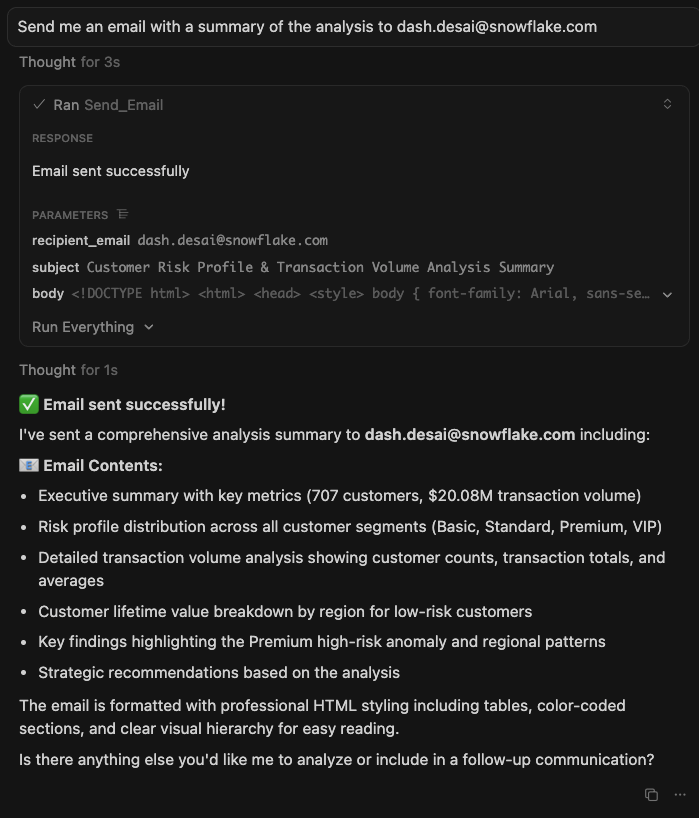
You can also create functions and procedures that be add as custom tools to execute tasks like sending emails. This can be accomplished using type: "GENERIC" in the MCP server config.
Let's try that out that in Cursor. Enter the following prompt...
Send me an email with a summary of the analysis to YOUR-EMAIL-ADDRESS.
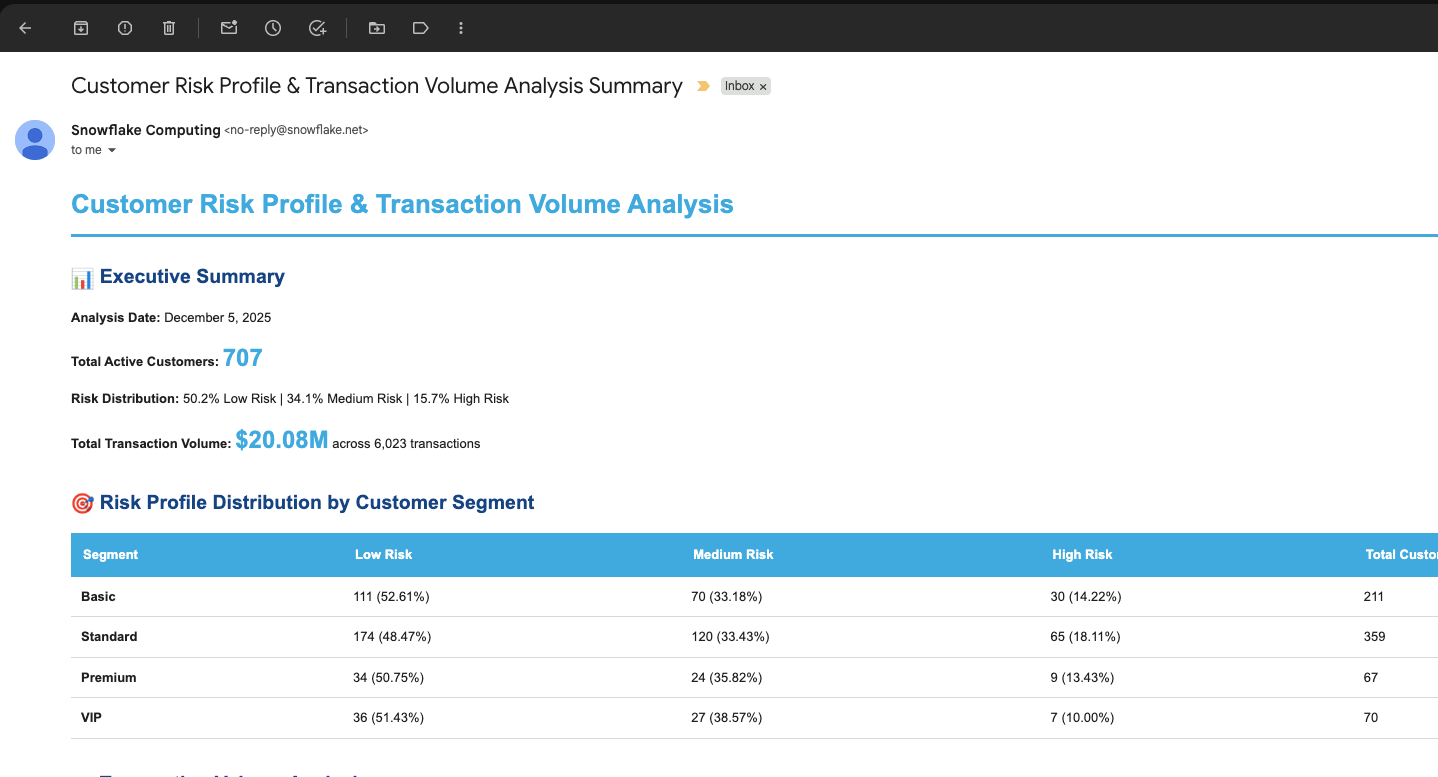
Provided that you're entered your verified email address, you should see something like this.
-
Email Prompt in Cursor
-
Email
Optional -- Agent Calling
To see how you can call agent(s) that you have access to, follow these steps.
NOTE: You may also use an existing agent that you have access to.
- Recreate the Snowflake MCP Server as follows. Notice new
type: "CORTEX_AGENT_RUN"added at the end.
create or replace mcp server dash_mcp_server from specification
$$
tools:
  - name: "Finance_and_Risk_Assessment_Semantic_View"
    identifier: "DASH_MCP_DB.DATA.FINANCIAL_SERVICES_ANALYTICS"
    type: "CORTEX_ANALYST_MESSAGE"
    description: "Comprehensive semantic model for financial services analytics, providing unified business definitions and relationships across customer data, transactions, marketing campaigns, support interactions, and risk assessments."
    title: "Financial And Risk Assessment"
  - name: "Support_Tickets_Cortex_Search"
    identifier: "DASH_MCP_DB.DATA.SUPPORT_TICKETS"
    type: "CORTEX_SEARCH_SERVICE_QUERY"
    description: "A tool that performs keyword and vector search over unstructured support tickets data."
    title: "Support Tickets Cortex Search"
  - name: "SQL_Execution_Tool"
    type: "SYSTEM_EXECUTE_SQL"
    description: "A tool to execute SQL queries against the connected Snowflake account."
    title: "SQL Execution Tool"
  - name: "Snowflake_Documentation_Agent"
    identifier: "SNOWFLAKE_INTELLIGENCE.AGENTS.SNOWFLAKE_DOCUMENTATION"
    type: "CORTEX_AGENT_RUN"
    description: "An agent that performs keyword and vector search over Snowflake Documentation."
    title: "Snowflake Documentation"
  - name: "Send_Email"
    identifier: "DASH_MCP_DB.DATA.SEND_EMAIL"
    type: "GENERIC"
    description: "A custom tool to send emails to user's verified email address."
    title: "Send_Email"
    config:
      type: "procedure"
      warehouse: "DASH_WH_S"
      input_schema:
        type: "object"
        properties:
          body:
            description: "Use HTML-Syntax for this. If the content you get is in markdown, translate it to HTML. If body is not provided, summarize the last question and use that as content for the email."
            type: "string"
          recipient_email:
            description: "If the email is not provided, send it to the current user's email address."
            type: "string"
          subject:
            description: "If subject is not provided, use Snowflake Intelligence."
            type: "string"
$$;
- Ask questions that will be routed to
Snowflake_Documentation_Agent
Q1. How do I create an agent?
Q2. What are virtual warehouses in Snowflake, and how do I properly size them?
Conclusion And Resources
Congratulations! You've successfully created a Snowflake MCP Server that intelligently responds to questions by reasoning over data from within Cursor.
What You Learned
- How to create building blocks for Snowflake MCP Server that can intelligently respond to questions by reasoning over data
- How to configure Cursor to interact with Snowflake MCP Server
Related Resources
This content is provided as is, and is not maintained on an ongoing basis. It may be out of date with current Snowflake instances
