Getting Started with Openflow Unstructured Data Pipeline
Overview
This demo showcases how to transform Google Drive business documents into actionable strategic intelligence using Snowflake's unstructured data processing capabilities.
Festival Operations Demo Dataset
You'll work with a realistic Festival Operations business document collection that includes:
- 15 business documents across multiple formats (PDF, DOCX, PPTX, JPG)
- 4 strategic categories: Strategic Planning, Operations Excellence, Compliance & Risk, Knowledge Management
- Real business scenarios: $2.8M technology investments, market expansion strategies, regulatory compliance
- Multi-format intelligence: Demonstrating cross-format document search and analysis
IMPORTANT - Demo Data Disclaimer: All business data, financial figures, and organizational information in this demo are entirely fictitious and created for demonstration purposes only. This includes financial figures, project timelines, employee data, and business scenarios.
By completing this guide, you will be able to build an end-to-end unstructured data pipeline that ingests documents from Google Drive, processes them through Openflow, and enables intelligent search and analysis using Snowflake Intelligence.
Here is a summary of what you will be able to learn in each step by following this quickstart:
- Setup Environment: Clone the repository, configure Snowflake database objects, and set up external access for Google Drive
- Openflow Configuration: Set up Openflow SPCS runtime and add the Google Drive connector
- Configure Document Ingestion Pipeline: Set up source, destination, and ingestion parameters for the Google Drive connector
- Prepare Sample Documents: Upload 15 Festival Operations documents to Google Drive for processing
- Data Pipeline Results: Verify document ingestion and explore auto-created tables and stages
- Cortex Search Setup: Explore the automatically created Cortex Search service for semantic search
- Snowflake Intelligence: Build an AI agent using Snowflake Intelligence for natural language document analysis
What is Openflow
Openflow is Snowflake's managed service for building and running data pipelines in Snowpark Container Services (SPCS). It provides pre-built connectors and processing capabilities that make it easy to ingest, transform, and analyze data from various sources including unstructured documents.
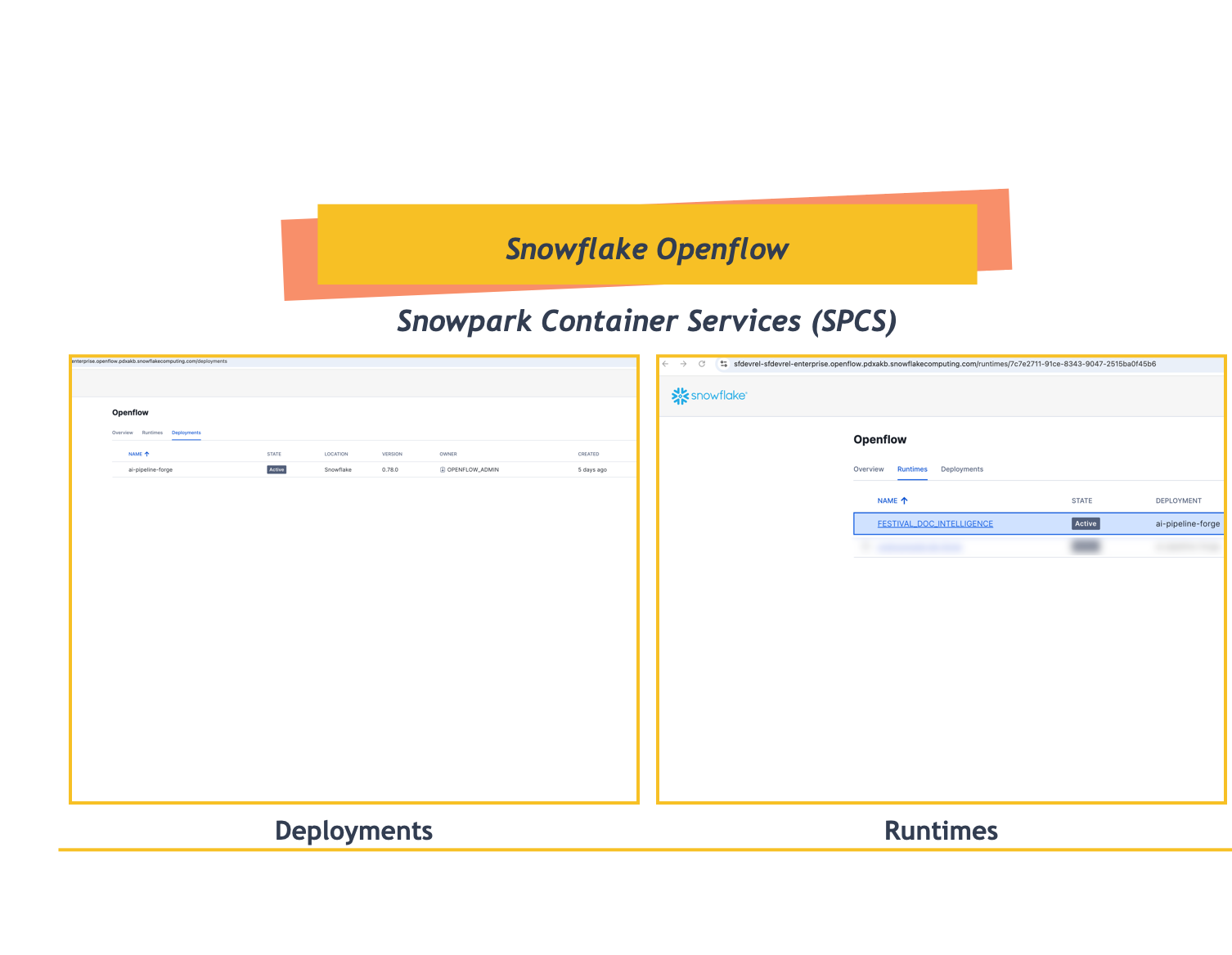
Key Benefits:
- Managed Infrastructure: Fully managed container runtime environment
- Pre-built Connectors: Ready-to-use connectors for popular data sources
- Scalable Processing: Automatic scaling based on data volume and processing needs
- Security: Built-in security and governance features
Learn more about Openflow.
What is Snowflake Intelligence
Snowflake Intelligence is an integrated AI capability that enables natural language interactions with your data. It combines large language models with your business context to provide intelligent search, analysis, and insights.
Core Components:
- Cortex Search: Semantic search across structured and unstructured data
- AI Agents: Natural language interfaces for business intelligence
- Context Awareness: Understanding of your data schema and business domain
This quickstart will focus on:
- Creating Cortex Search services for document content and metadata
- Building AI agents that can answer questions about your documents
- Enabling natural language queries across various document types
What You Will Learn
- How to set up Openflow for unstructured data processing
- How to configure Google Drive connector for document ingestion
- How to process multiple document formats (PDF, DOCX, PPTX, images)
- How to create Cortex Search services for semantic search
- How to build Snowflake Intelligence agents for natural language querying
- How to analyze business documents for strategic insights
What You Will Build
- An automated document ingestion pipeline from Google Drive
- A searchable knowledge base of business documents
- An AI-powered assistant for document analysis and insights
Prerequisites
Before starting, ensure you have:
- Snowflake Account: Enterprise account with Openflow enabled (AWS or Azure Commercial Regions)
- Account Permissions: ACCOUNTADMIN role or equivalent for initial setup
- Cortex Services: Cortex Search and Snowflake Intelligence enabled in your account
- Google Workspace: Admin access to create and configure service accounts
- Google Service Account (GSA): JSON key file with domain-wide delegation configured
IMPORTANT:
Google Service Account Setup: You'll need to create a Google Service Account (GSA) with appropriate permissions. Follow the official Google Cloud documentation to:
- Create a Service Account in Google Cloud Console
- Download the JSON key file
- Enable domain-wide delegation for the service account
- Grant necessary Google Drive API scopes
For detailed instructions, see: Creating and managing service accounts
Required Google Drive API Scopes:
https://www.googleapis.com/auth/drive.readonlyhttps://www.googleapis.com/auth/drive.metadata.readonly
Setup Environment
Clone the QuickStart Repository
First, clone the repository to get access to sample documents and SQL scripts:
git clone https://github.com/Snowflake-Labs/sfguide-getting-started-openflow-unstructured-data-pipeline.git
cd sfguide-getting-started-openflow-unstructured-data-pipeline
Repository Contents:
sample-data/google-drive-docs/- 15 Festival Operations documents in various formats (PDF, DOCX, PPTX, JPG)sql/- Reusable SQL scripts for setup, checks, and verificationTaskfile.yml- Automation tasks for building additional documents
Alternative: Use Snowflake Workspaces with Git Integration
For executing SQL scripts directly in Snowsight, you can import this repository into Snowflake Workspaces:
- Sign in to Snowsight and navigate to Projects → Workspaces
- Select From Git repository
- Paste the repository URL:
https://github.com/Snowflake-Labs/sfguide-getting-started-openflow-unstructured-data-pipeline - Configure your API integration and credentials
- Execute SQL scripts directly in Snowsight without leaving your browser
IMPORTANT: You still need to clone or download the repository locally to access the
sample-data/google-drive-docs/files for uploading to Google Drive. The Git integration in Workspaces provides access to SQL scripts but not binary document files (PDF, DOCX, PPTX, JPG) needed for the demo.
Learn more about integrating Workspaces with Git.
Create Database and Schema
Log into Snowsight using your credentials to create the necessary database objects.
IMPORTANT:
If you use different names for objects created in this section, be sure to update scripts and configurations in the following sections accordingly.
For each SQL script block below, select all the statements in the block and execute them top to bottom.
Open Snowflake Workspaces and run the following SQL commands to create the warehouse, database, schema, and role.
-- Create role and warehouse
USE ROLE ACCOUNTADMIN;
CREATE ROLE IF NOT EXISTS FESTIVAL_DEMO_ROLE;
CREATE WAREHOUSE IF NOT EXISTS FESTIVAL_DEMO_S
  WAREHOUSE_SIZE = SMALL
  AUTO_SUSPEND = 300
  AUTO_RESUME = TRUE;
GRANT USAGE ON WAREHOUSE FESTIVAL_DEMO_S TO ROLE FESTIVAL_DEMO_ROLE;

-- Create database and grant ownership
CREATE DATABASE IF NOT EXISTS OPENFLOW_FESTIVAL_DEMO;
GRANT OWNERSHIP ON DATABASE OPENFLOW_FESTIVAL_DEMO TO ROLE FESTIVAL_DEMO_ROLE;

-- Grant role to current user
SET CURR_USER=(SELECT CURRENT_USER());
GRANT ROLE FESTIVAL_DEMO_ROLE TO ROLE IDENTIFIER($CURR_USER);

-- Switch to demo role and create schema
USE ROLE FESTIVAL_DEMO_ROLE;
USE DATABASE OPENFLOW_FESTIVAL_DEMO;
CREATE SCHEMA IF NOT EXISTS FESTIVAL_OPS;
TIP: These commands are also available in
sql/setup.sqlin the repository for easy execution.
Enable Required Services (Optional)
Cortex Search and Snowflake Intelligence are available by default in most regions.
NOTE: If your Snowflake account is in
us-west-2, Cortex services are already available and this step can be skipped.
For accounts in other regions, you may need to enable cross-region Cortex access:
-- Check current Cortex cross-region setting (requires ORGADMIN role)
SHOW PARAMETERS LIKE 'CORTEX_ENABLED_CROSS_REGION' IN ACCOUNT;

-- Enable cross-region Cortex access if needed (requires ORGADMIN role)
-- This allows your account to use Cortex services from us-west-2
ALTER ACCOUNT SET CORTEX_ENABLED_CROSS_REGION = 'AWS_US';

-- Verify the setting was applied
SHOW PARAMETERS LIKE 'CORTEX_ENABLED_CROSS_REGION' IN ACCOUNT;
TIP: Contact your Snowflake administrator if you need assistance with ORGADMIN privileges or Cortex enablement.
Setup External Access Integration
Configure external access for Google APIs to allow Openflow to connect to Google Drive.
First, create a schema for network configuration (or use an existing one):
-- Create schema for network rules
USE ROLE ACCOUNTADMIN;
USE DATABASE OPENFLOW_FESTIVAL_DEMO;
CREATE SCHEMA IF NOT EXISTS NETWORKS;
Now create the network rules and external access integration:
-- Create network rule for Google APIs
CREATE OR REPLACE NETWORK RULE google_network_rule
  MODE = EGRESS
  TYPE = HOST_PORT
  VALUE_LIST = (
    'admin.googleapis.com',
    'oauth2.googleapis.com',
    'www.googleapis.com',
    'google.com'
  );

-- Verify the network rule was created successfully
DESC NETWORK RULE google_network_rule;
Optional: Add network rule for your Google Workspace domain
If you need to access resources from your specific Google Workspace domain, create an additional network rule:
-- Create network rule for your Google Workspace domain
-- Replace 'your-domain.com' with your actual Google Workspace domain
CREATE OR REPLACE NETWORK RULE your_workspace_domain_network_rule
  MODE = EGRESS
  TYPE = HOST_PORT
  VALUE_LIST = ('your-domain.com');

-- Example: For a domain like kamesh.dev
-- CREATE OR REPLACE NETWORK RULE kameshs_dev_network_rule
--   MODE = EGRESS
--   TYPE = HOST_PORT
--   VALUE_LIST = ('kameshs.dev');

-- Verify the domain network rule was created successfully
DESC NETWORK RULE your_workspace_domain_network_rule;
Create the External Access Integration
Now combine the network rules into an external access integration:
-- Create external access integration with Google API access
-- If you created a workspace domain rule, add it to ALLOWED_NETWORK_RULES
CREATE OR REPLACE EXTERNAL ACCESS INTEGRATION festival_ops_access_integration
  ALLOWED_NETWORK_RULES = (
    OPENFLOW_FESTIVAL_DEMO.NETWORKS.google_network_rule
    -- Add your workspace domain rule if created:
    -- , OPENFLOW_FESTIVAL_DEMO.NETWORKS.your_workspace_domain_network_rule
  )
  ENABLED = TRUE
  COMMENT = 'Used for Openflow Snowflake Deployments runtime to access Google Drive';

-- Verify the external access integration was created with correct settings
DESC EXTERNAL ACCESS INTEGRATION festival_ops_access_integration;
TIP: If you created a workspace domain network rule, uncomment and add it to the
ALLOWED_NETWORK_RULESlist in the external access integration.
Grant Permissions
Grant necessary permissions to the Openflow admin role:
-- Grant access to the external access integration
GRANT USAGE ON DATABASE OPENFLOW_FESTIVAL_DEMO TO ROLE OPENFLOW_ADMIN;
GRANT USAGE ON SCHEMA OPENFLOW_FESTIVAL_DEMO.NETWORKS TO ROLE OPENFLOW_ADMIN;
GRANT USAGE ON INTEGRATION festival_ops_access_integration TO ROLE OPENFLOW_ADMIN;

-- Verify grants
SHOW GRANTS TO ROLE OPENFLOW_ADMIN;
NOTE:
- The
OPENFLOW_ADMINrole is created automatically during Openflow Snowflake Deployment setup- No compute pools needed - Openflow Snowflake Deployments manages compute resources automatically
- No manual stages or tables - All document storage objects are automatically created by the Openflow connector
- SQL snippets available in
sql/network.sqlin the repository
IMPORTANT: Make note of the database, schema, and warehouse names as you'll need them for Openflow configuration.
Openflow Configuration
This section guides you through setting up Openflow Snowflake Deployments infrastructure and creating a runtime for the Festival Operations document pipeline.
IMPORTANT: Before configuring connectors, you must complete the Openflow Snowflake Deployments setup. This is a one-time configuration that establishes the foundation for all your Openflow data pipelines.
Complete Openflow Snowflake Deployments Setup
Follow the comprehensive Getting Started with Openflow Snowflake Deployments quickstart to set up your infrastructure:
Quickstart Guide: Getting Started with Openflow Snowflake Deployments
This 25-minute setup includes:
| Step | Task | Duration | What You'll Create |
|---|---|---|---|
| 1 | Setup Core Snowflake | 10 min | OPENFLOW_ADMIN role, network rules, BCR bundles |
| 2 | Create Deployment | 5 min | Openflow Snowflake Deployment with optional event logging |
| 3 | Create Runtime Role | 5 min | Runtime role with external access integrations |
| 4 | Create Runtime | 5 min | Active runtime environment ready for connectors |
Key Components You'll Set Up:
OPENFLOW_ADMINRole: Administrative role with deployment and integration privileges- Network Rules: Required for Openflow to communicate with Snowflake and external services
- Deployment: Container environment running in Snowpark Container Services (SPCS)
- Runtime Role: For this quickstart, use
FESTIVAL_DEMO_ROLE(created in Setup Environment) with database, schema, warehouse access, and external access integrations - Active Runtime: Ready to host connectors like Google Drive
TIP: The quickstart includes downloadable SQL scripts and Jupyter notebooks for automated setup. You can use these scripts to accelerate your deployment process.
After Setup: Once you complete the quickstart, you'll have a production-ready Openflow environment. You can then proceed with adding the Google Drive connector for this Festival Operations demo.
Alternative: Use Existing Openflow Infrastructure
If you already have Openflow Snowflake Deployments set up in your account, you can reuse your existing infrastructure. However, for this quickstart, we recommend using FESTIVAL_DEMO_ROLE to keep naming consistent:
-
Use existing deployment and runtime - No need to create new ones
-
Grant
FESTIVAL_DEMO_ROLEaccess - Ensure it has access tofestival_ops_access_integration(created in the previous "Setup Environment" section) -
Grant integration access - Add the external access integration to
FESTIVAL_DEMO_ROLE:USE ROLE ACCOUNTADMIN; GRANT USAGE ON INTEGRATION festival_ops_access_integration TO ROLE FESTIVAL_DEMO_ROLE;
Access Openflow Interface
After completing the Openflow Snowflake Deployments setup, access the Openflow interface to configure your runtime:
-
In Snowsight, navigate to Work with data in the left sidebar
-
Select Ingestion
-
Click on Openflow (this will open Openflow in a new browser tab)
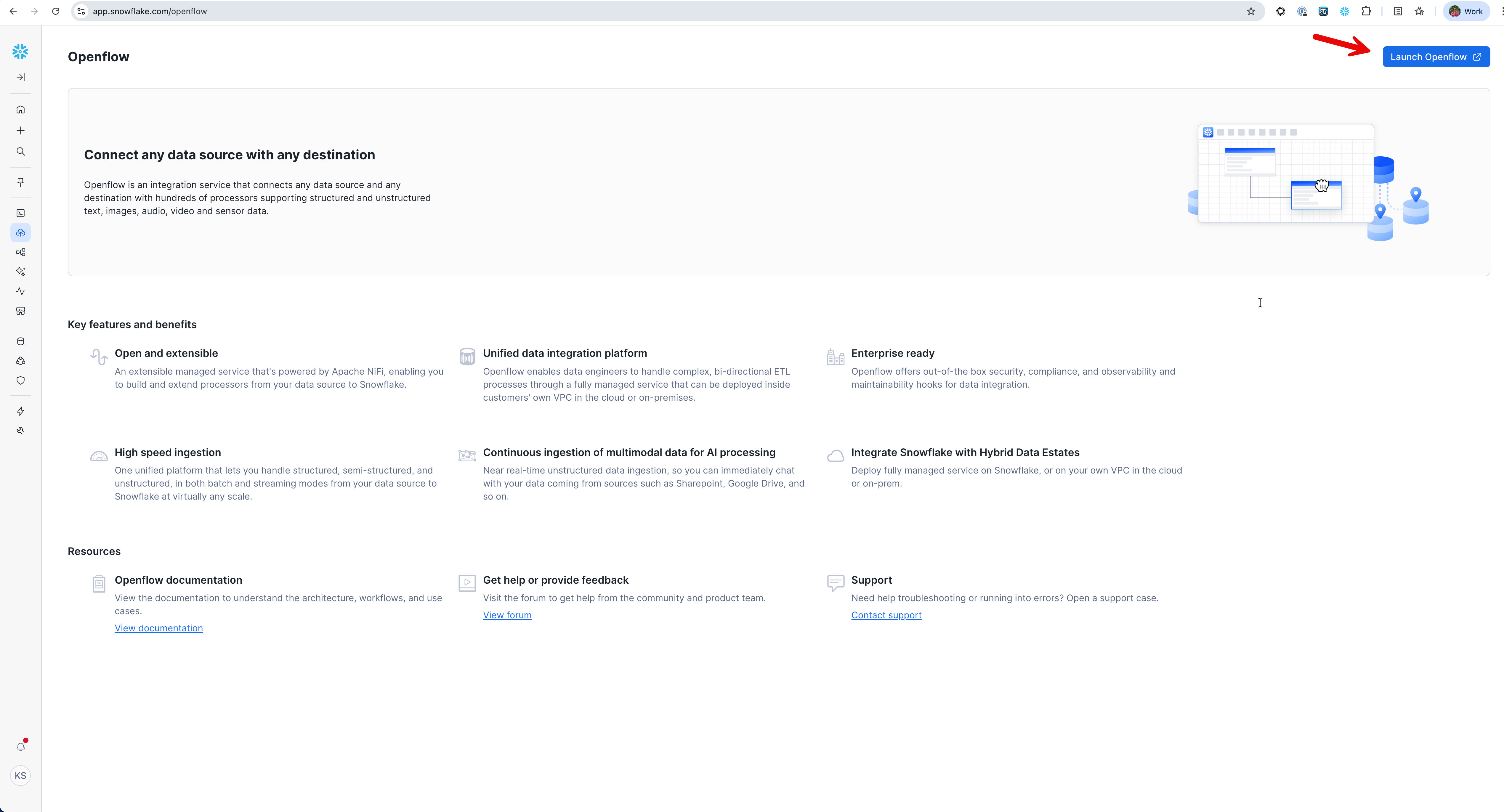
-
Accept the authentication prompt when Openflow opens in the new tab
Configure Runtime for Festival Operations
Now that you have Openflow open, configure your runtime for the Festival Operations pipeline:
Option A: Create New Runtime (Recommended for Demo)
Create a dedicated runtime for this demo:
- In the Openflow interface, click on the Runtimes tab at the top
- Click Create Runtime button
- Configure with these settings:
- Runtime Name:
FESTIVAL_DOC_INTELLIGENCE - Runtime Role:
FESTIVAL_DEMO_ROLE(created in Setup Environment) - External Access Integration:
festival_ops_access_integration(created in previous step) - Database:
OPENFLOW_FESTIVAL_DEMO - Schema:
FESTIVAL_OPS - Warehouse:
FESTIVAL_DEMO_S
- Runtime Name:
NOTE: Ensure the
festival_ops_access_integrationis accessible toFESTIVAL_DEMO_ROLE:USE ROLE ACCOUNTADMIN; GRANT USAGE ON INTEGRATION festival_ops_access_integration TO ROLE FESTIVAL_DEMO_ROLE;
After creating the runtime, your Openflow interface will look like this:
Option B: Use Existing Runtime
If you already have a runtime from the Openflow Snowflake Deployments quickstart (e.g., QUICKSTART_RUNTIME):
-
Grant access to the Festival Operations integration:
USE ROLE ACCOUNTADMIN; GRANT USAGE ON INTEGRATION festival_ops_access_integration TO ROLE YOUR_RUNTIME_ROLE; -
The runtime will automatically have access to the integration for Google Drive connectivity
RESOURCE MANAGEMENT:
- Openflow Snowflake Deployments automatically manages compute resources and scaling
- No manual compute pool configuration is required
- Database and schema access is configured at the runtime level
- Connector-specific settings are configured when adding the Google Drive connector
Add Google Drive Connector
Once the runtime is active, add the Google Drive connector (Overview tab in Openflow Home page):
-
Click Add Connector in your runtime
-
Search for "Google Drive" in the connector marketplace
-
Select the Google Drive connector
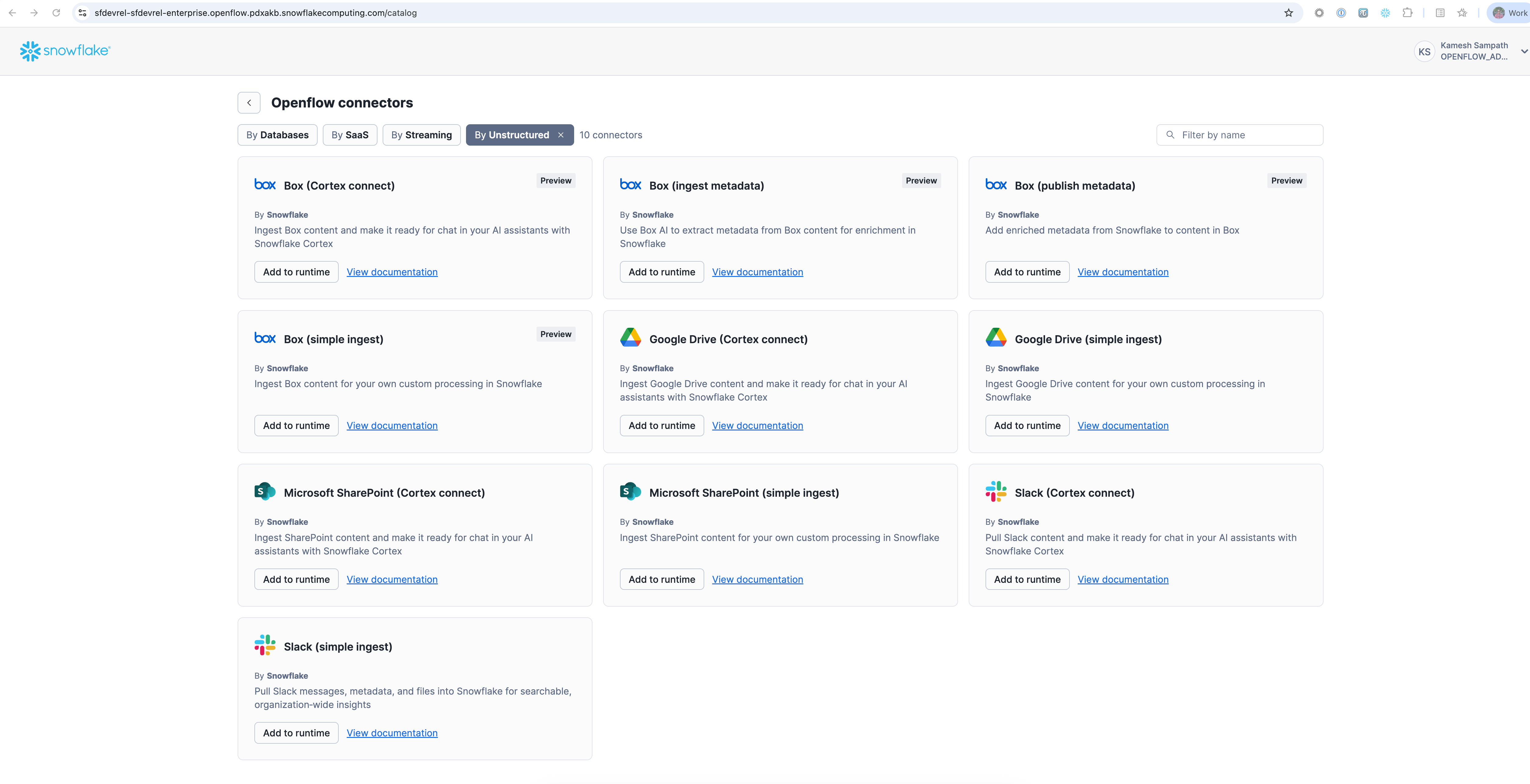
-
Click Add to Runtime
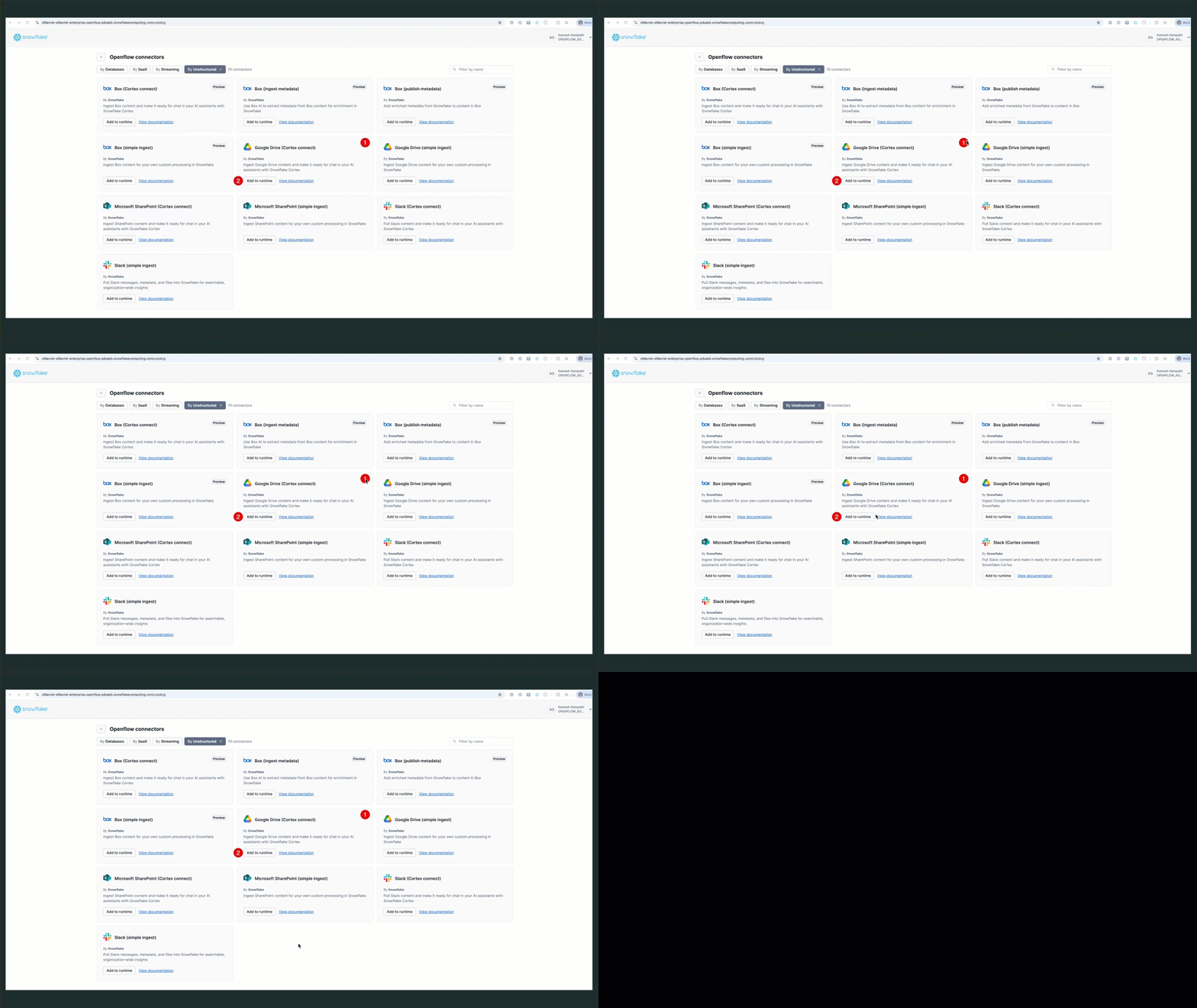
NOTE: After adding the connector to the runtime, you may see authorization prompts. Accept these prompts to allow the connector to access the runtime and required resources.
The connector will be automatically added to your canvas:
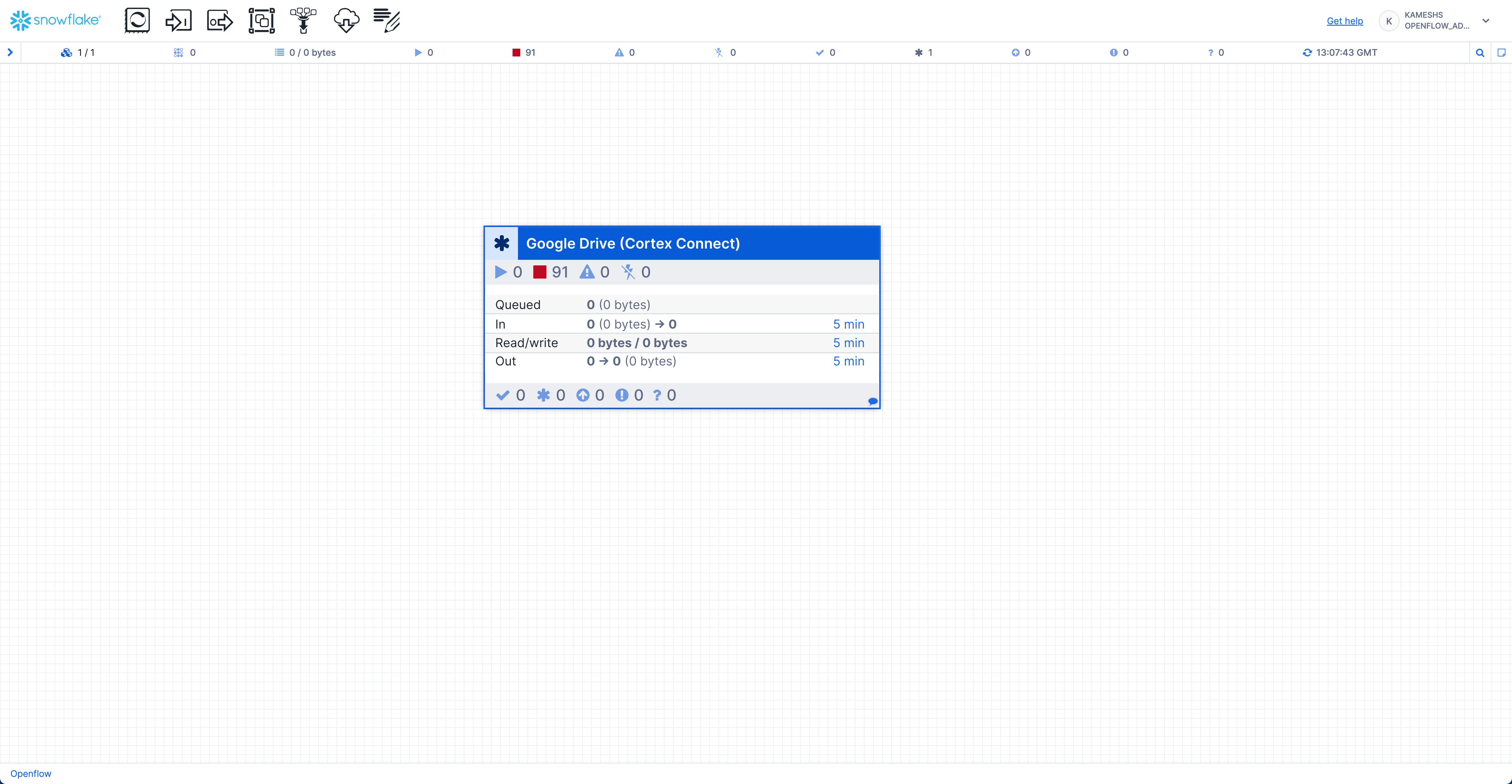
Prepare Google Drive Location
Before configuring the connector, set up your Google Drive location:
-
Create Shared Drive: In Google Drive web interface, create a new shared drive. This will be used as your Google Drive ID in the connector configuration.
-
Create Festival Operations Folder: Inside the shared drive, create a folder named "Festival Operations". This will be used as your Google Folder Name in the connector configuration.
TIP: Keep your Google Drive browser tab open - you'll need the shared drive ID and folder name for the next configuration step.
Configure Document Ingestion Pipeline
Now configure the Google Drive connector with the following parameters:
Configure Source Parameters
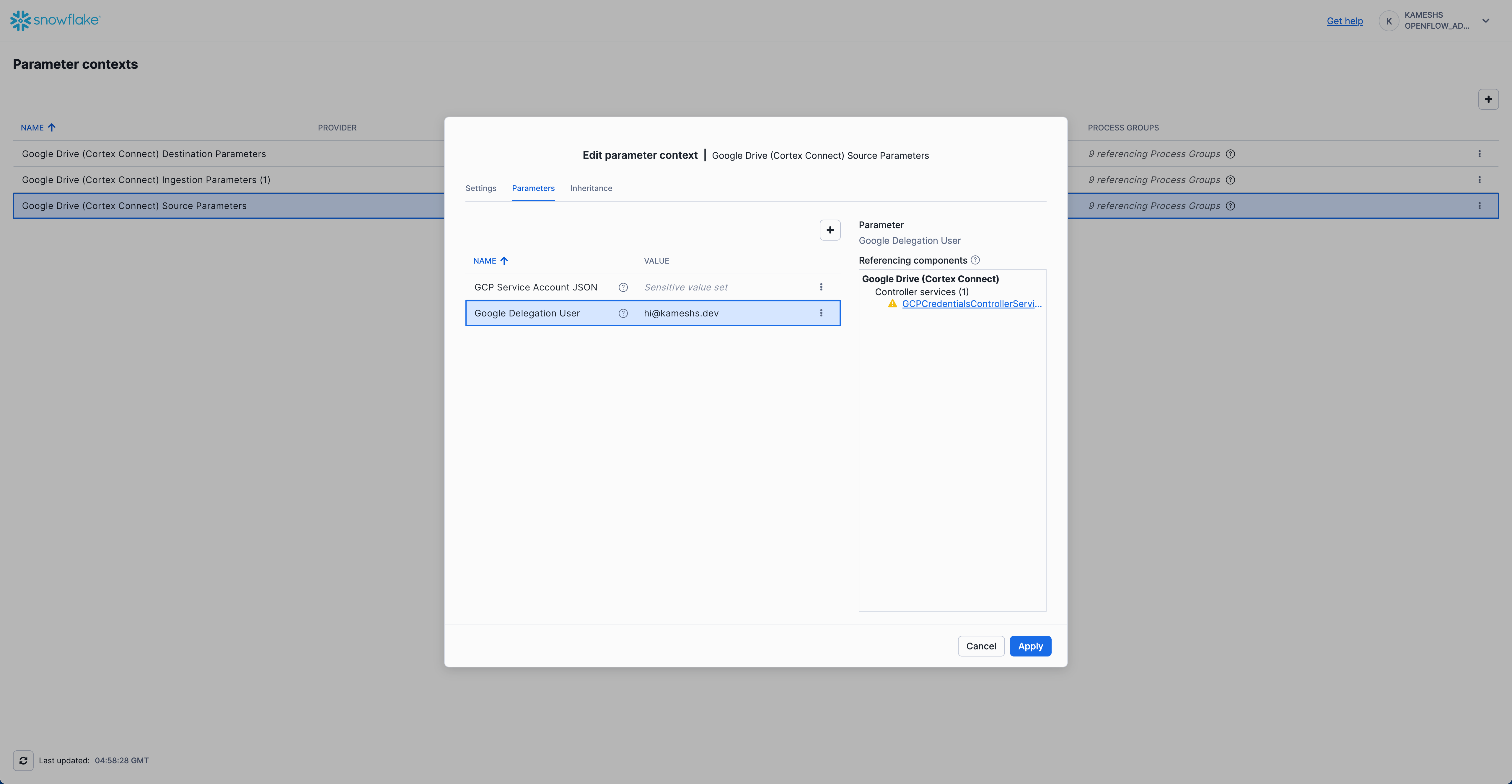
- GCP Service Account JSON: Paste the JSON content from your Google Service Account key file
- Google Delegation User:
[email protected](your Google Workspace user with drive access)
SECURITY BEST PRACTICE: For production environments, consider using a SecretManagerParameterProvider (such as
AwsSecretsManagerParameterProvider) to securely manage sensitive credentials like the GCP Service Account JSON. This approach stores secrets in a dedicated secrets manager instead of directly in the connector configuration, providing better security and easier credential rotation.
Configure Destination Parameters
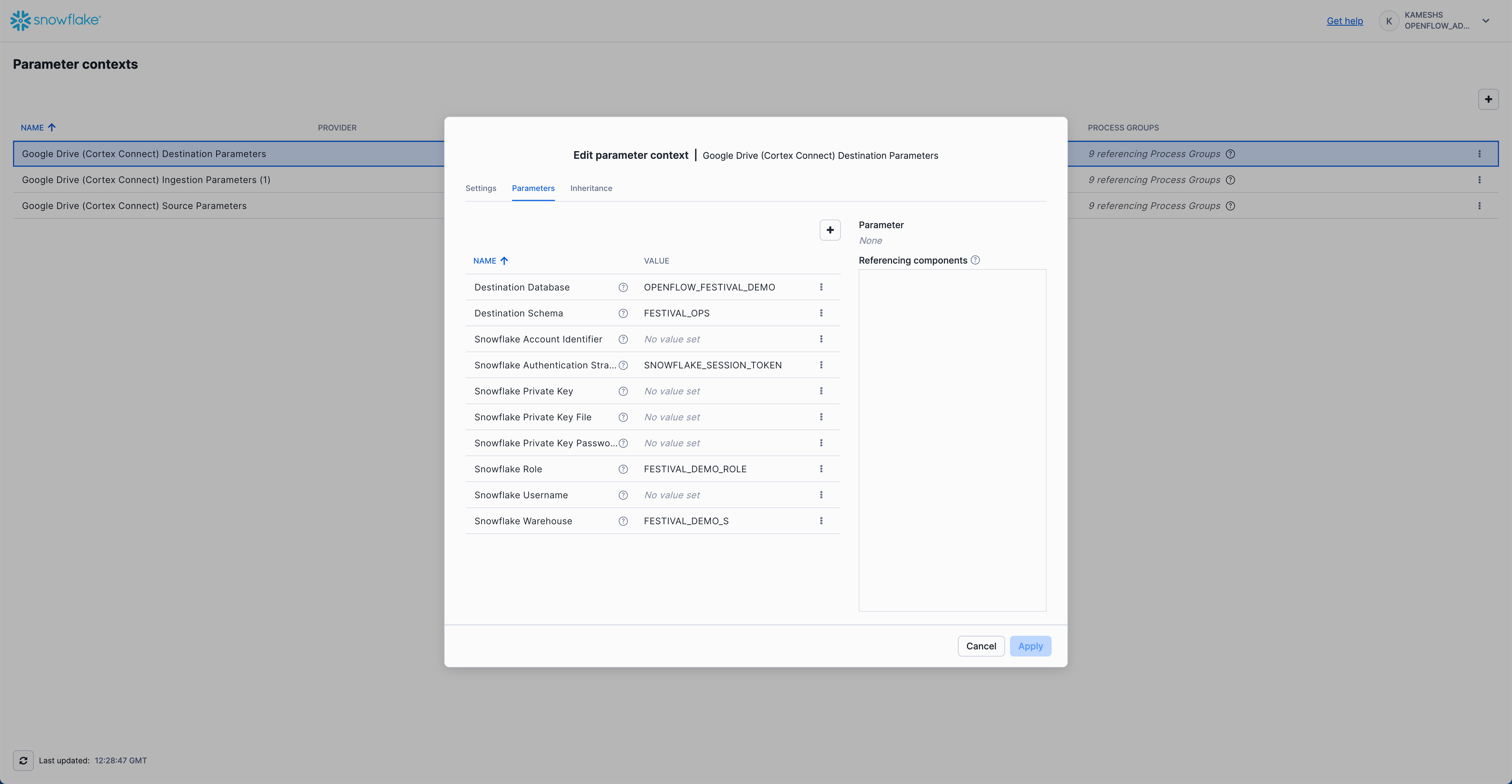
- Destination Database:
OPENFLOW_FESTIVAL_DEMO - Destination Schema:
FESTIVAL_OPS - Snowflake Authentication Strategy:
SNOWFLAKE_SESSION_TOKEN - Snowflake Role:
FESTIVAL_DEMO_ROLE - Snowflake Warehouse:
FESTIVAL_DEMO_S
Configure Ingestion Parameters
NOTE: By default, this section inherits parameters from "Configure Source Parameters" and "Configure Destination Parameters" sections above. For clarity in this quickstart, we'll turn off inheritance and configure only the required ingestion-specific parameters.
Navigate to Parameter Contexts from Runtime Canvas:
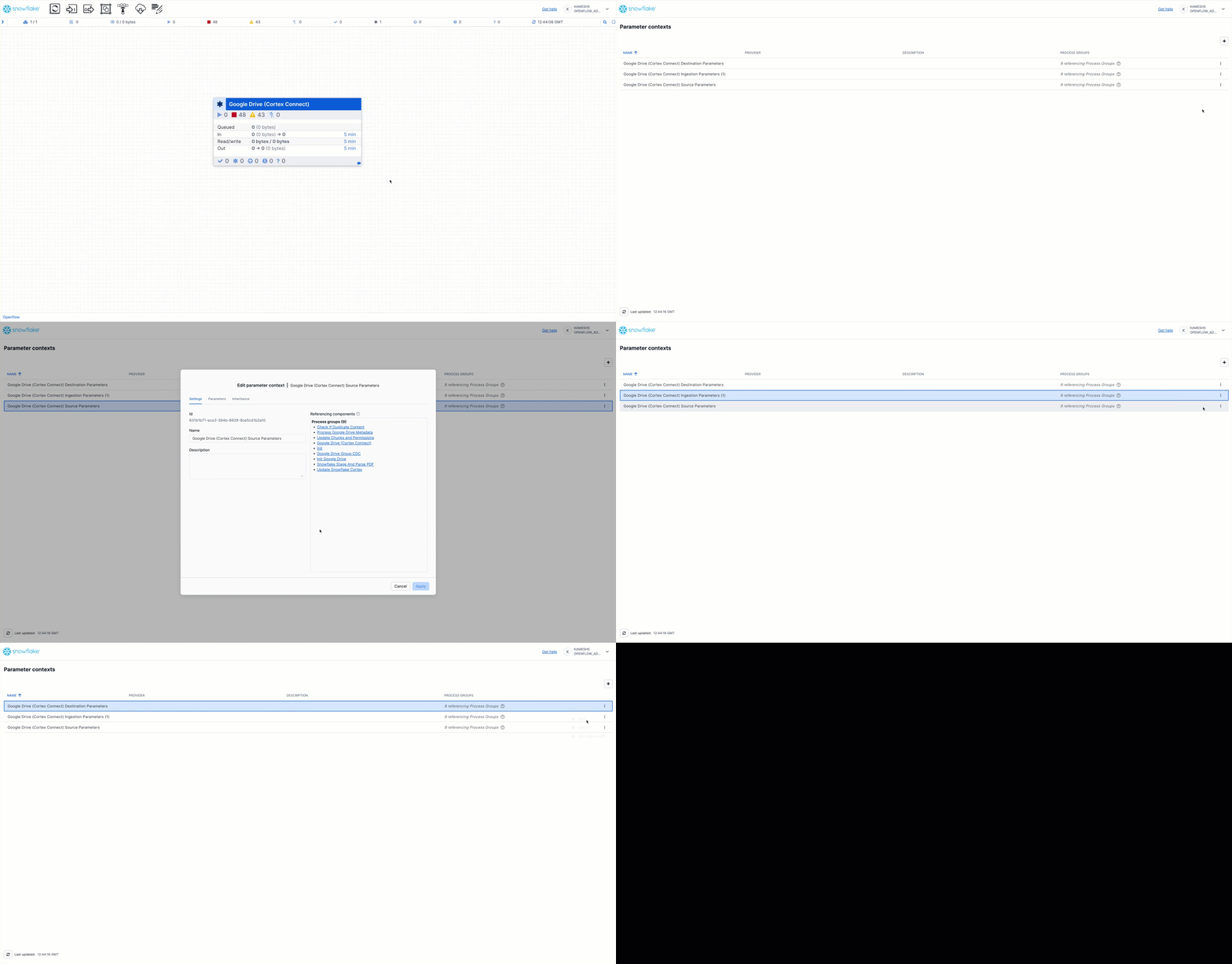
Turn Off Parameter Inheritance (for clarity):
Click the checkbox to disable inherited parameters and show only ingestion-specific settings:
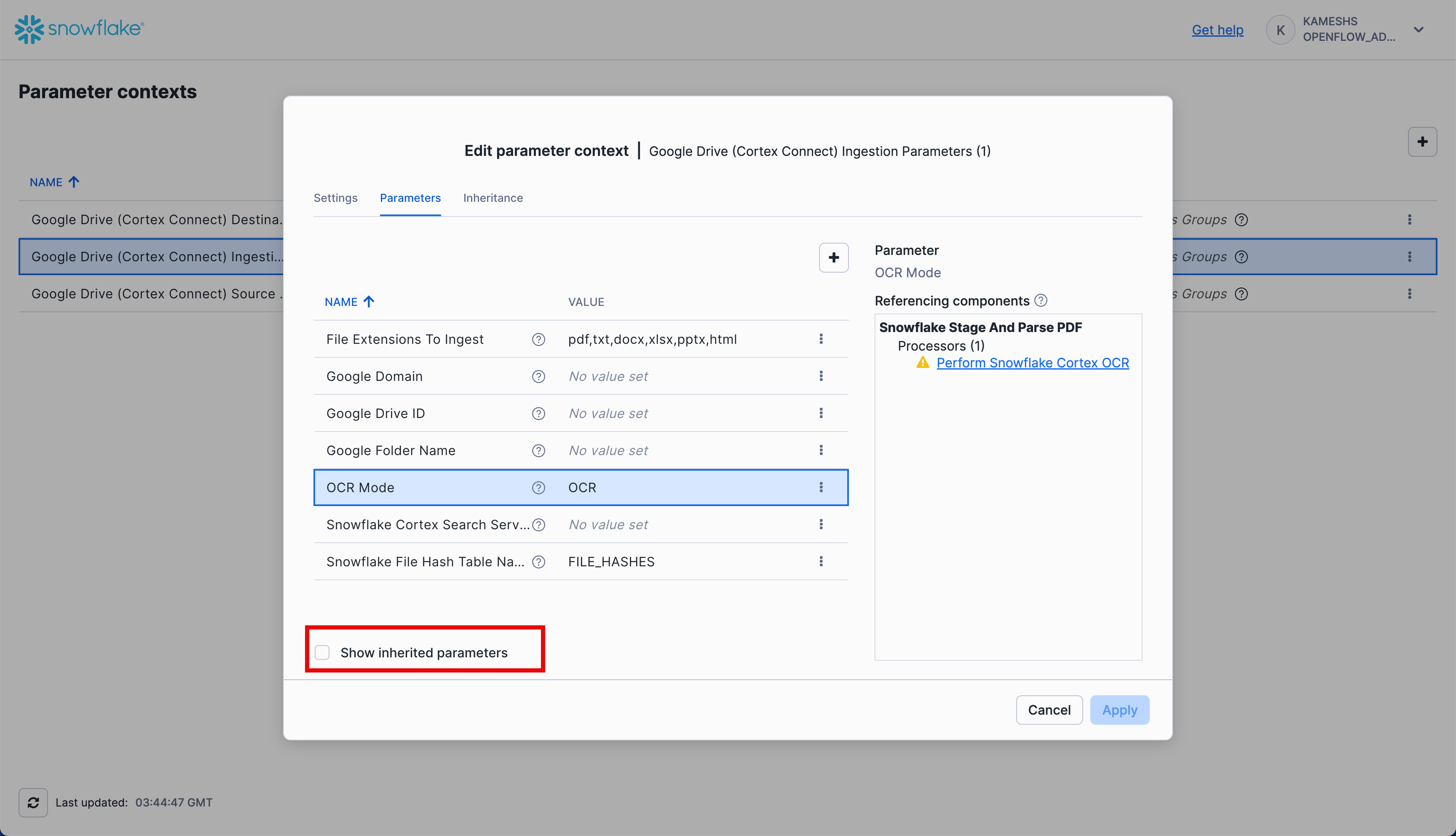
Configure the Ingestion Parameters:
Now configure only the ingestion-specific parameters:
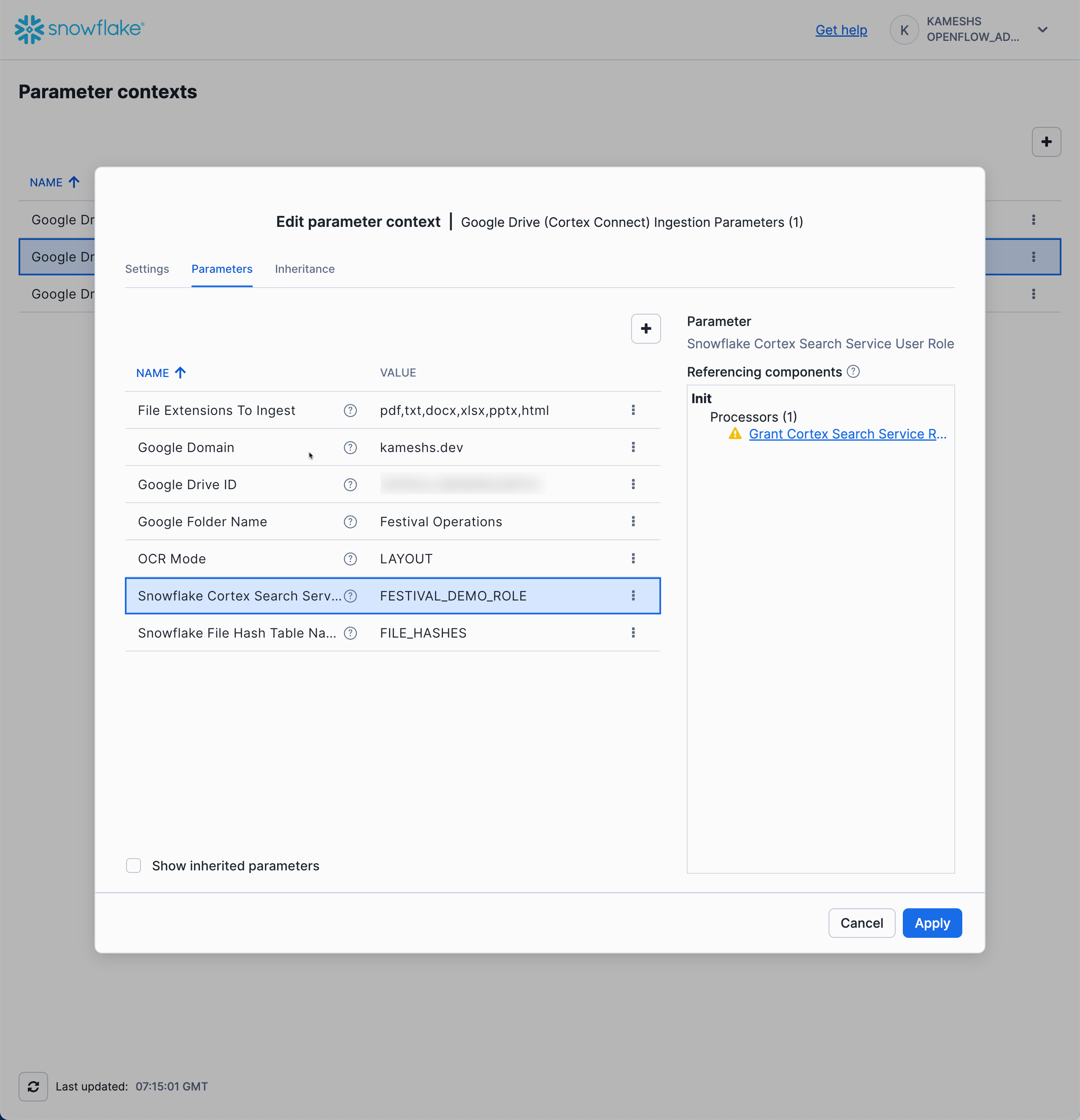
- File Extensions To Ingest:
pdf,txt,docx,xlsx,pptx,html,jpg - Google Domain:
[YOUR WORKSPACE DOMAIN] - Google Drive ID:
[Your shared drive ID] - Google Folder Name:
Festival Operations(The folder path in your Google Shared Drive) - OCR Mode:
LAYOUT(preserves document structure during text extraction) - Snowflake Cortex Search Service Role:
FESTIVAL_DEMO_ROLE
Test and Run the Pipeline
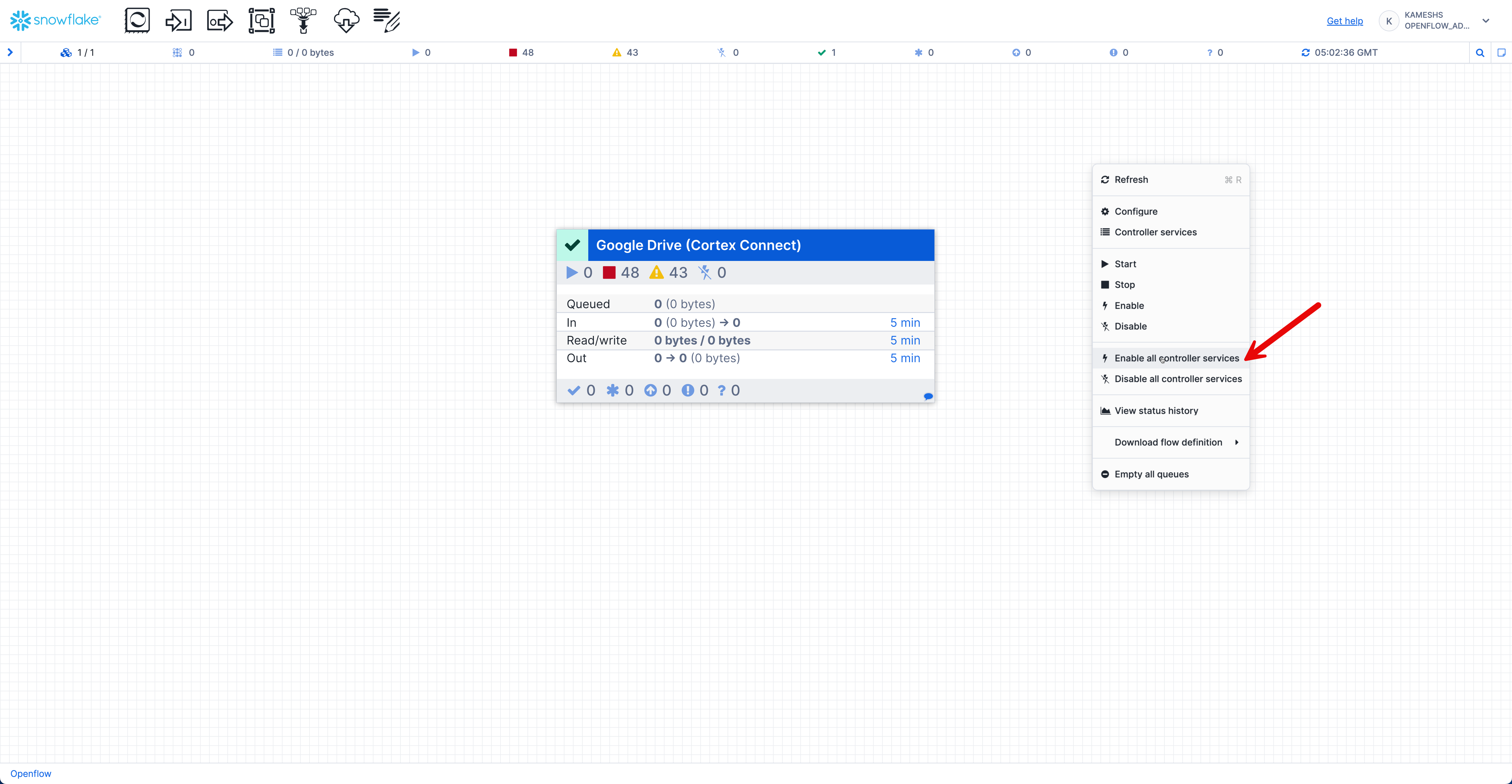
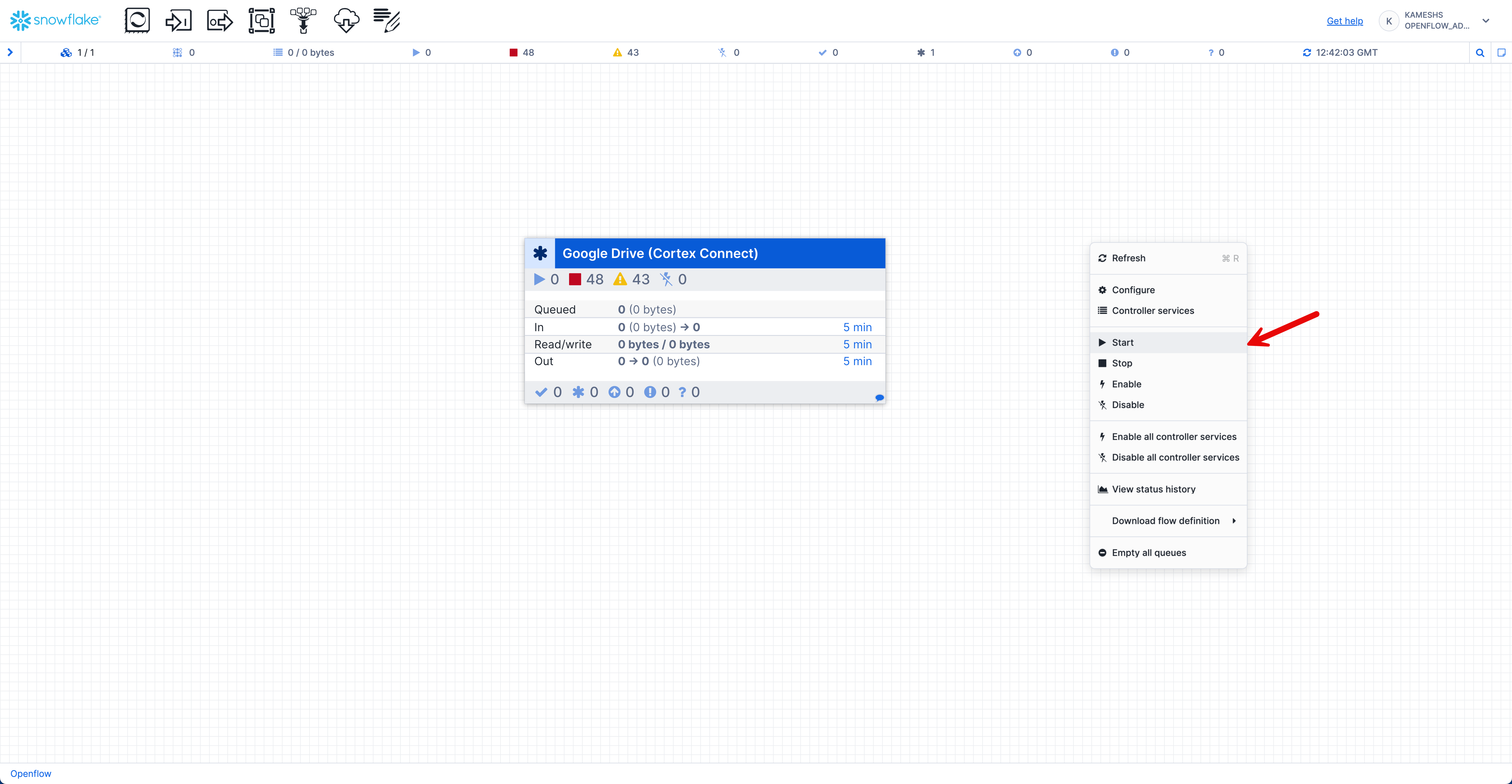
After configuring all parameters, you need to enable and start the pipeline by right-clicking on the canvas:
-
Enable Controller Services: Right-click on the canvas and select Enable all controller services
-
Start the Connector: Right-click on the canvas and select Start to begin the connector and all processors
Once started, you should see the connector running with active processors:
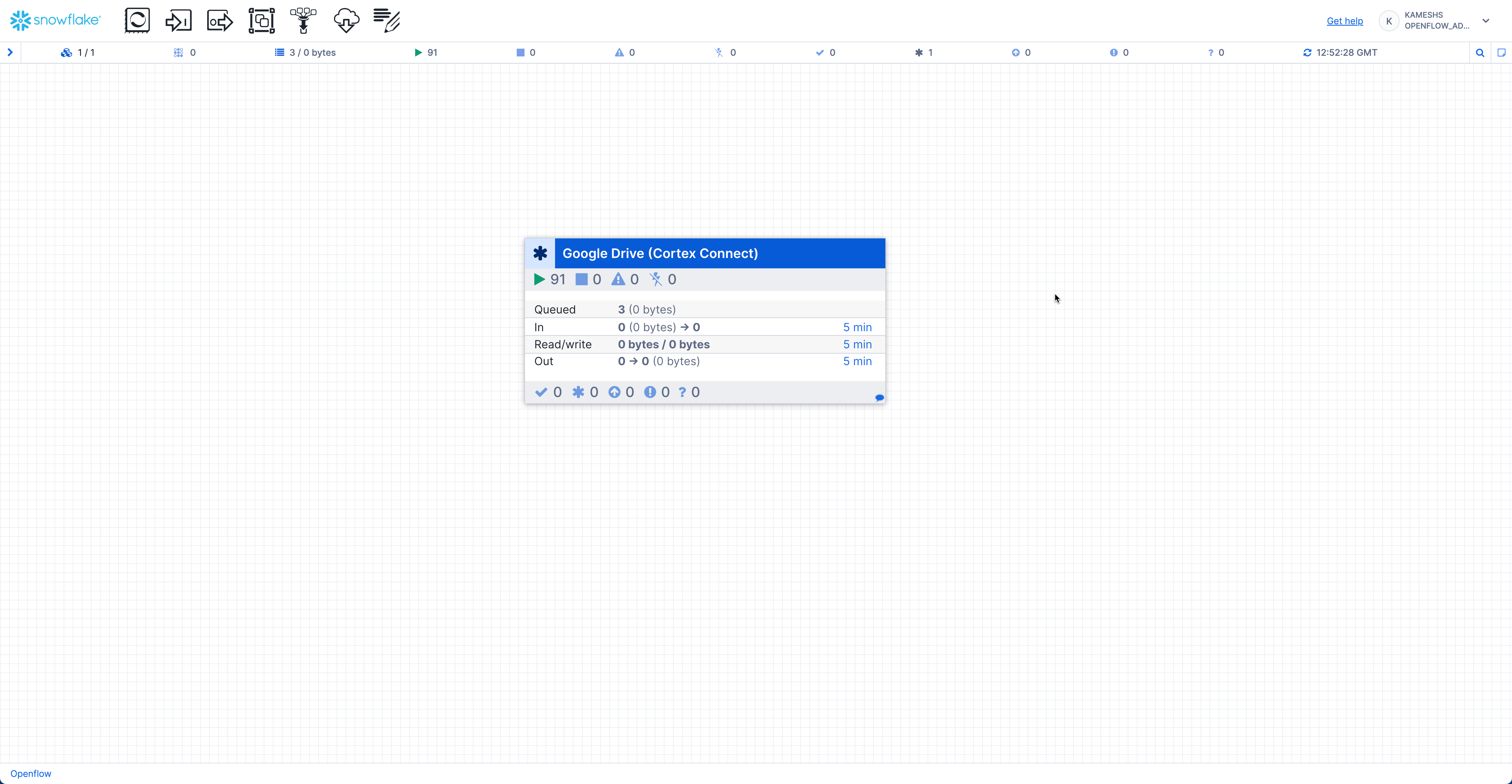
What Happens Next
The pipeline will automatically:
- Connect to Google Drive - Authenticates using your service account credentials
- Scan for documents - Recursively searches the specified folder for supported file formats
- Extract content - Processes PDF, DOCX, PPTX, JPG files using OCR and text extraction
- Store in Snowflake - Creates tables and stages for documents, metadata, and permissions
- Create Cortex Search - Automatically sets up the search service with Arctic embeddings
Prepare Sample Documents
Before running the pipeline, you need to prepare the Festival Operations sample documents in your Google Drive.
Verify Document Collection
The repository includes 15 business documents across multiple formats in the sample-data/google-drive-docs/ directory:
sample-data/google-drive-docs/
├── Analysis/
│   └── Post-Event-Analysis-Summer-2024.pptx
├── Compliance/
│   └── Health-Safety-Policy.pdf
├── Executive Meetings/
│   └── Board-Meeting-Minutes-Q4-2024.docx
├── Financial Reports/
│   └── Q3-2024-Financial-Analysis.pdf
├── Operations/
│   ├── Venue-Setup-Operations-Manual-0.jpg
│   ├── Venue-Setup-Operations-Manual-1.jpg
│   ├── Venue-Setup-Operations-Manual-2.jpg
│   └── Venue-Setup-Operations-Manual-3.jpg
├── Projects/
│   └── Sound-System-Modernization-Project-Charter.docx
├── Strategic Planning/
│   ├── 2025-Festival-Expansion-Strategy-0.jpg
│   ├── 2025-Festival-Expansion-Strategy-1.jpg
│   ├── 2025-Festival-Expansion-Strategy-2.jpg
│   ├── 2025-Festival-Expansion-Strategy-3.jpg
│   └── 2025-Festival-Expansion-Strategy-4.jpg
├── Training/
│   └── Customer-Service-Training-Guide.pptx
└── Vendors/
    └── Audio-Equipment-Service-Agreement.pdf
Document Formats: PDF, DOCX, PPTX, JPG - demonstrating true multi-format document intelligence
NOTE: The
.mdfiles in the repository are source templates. The demo uses the converted formats shown above.
Google Drive Setup
Complete the document preparation in your Google Drive:
-
Create Folder Structure: Inside the "Festival Operations" folder you created earlier, create these subfolders matching the
sample-data/google-drive-docs/structure:- Strategic Planning/
- Operations/
- Compliance/
- Training/
- Analysis/
- Executive Meetings/
- Financial Reports/
- Projects/
- Vendors/
-
Upload Documents: Drag and drop files from your local
sample-data/google-drive-docs/directory into the corresponding folders
TIP: Maintain the same folder structure in Google Drive as in
sample-data/google-drive-docs/to organize documents by category. The connector's Recursive mode will scan all subfolders automatically.
Verify Document Upload
After uploading, verify your Google Drive "Festival Operations" folder contains all 15 documents across multiple formats:
| Folder | Document | Format |
|---|---|---|
| Strategic Planning | 2025-Festival-Expansion-Strategy (5 images) | JPG |
| Operations | Venue-Setup-Operations-Manual (4 images) | JPG |
| Projects | Sound-System-Modernization-Project-Charter | DOCX |
| Financial Reports | Q3-2024-Financial-Analysis | |
| Compliance | Health-Safety-Policy | |
| Vendors | Audio-Equipment-Service-Agreement | |
| Analysis | Post-Event-Analysis-Summer-2024 | PPTX |
| Training | Customer-Service-Training-Guide | PPTX |
Format Summary:
- 9 JPG files - Image-based documents (scanned expansion strategy and operations manual)
- 3 PDF files - Financial analysis, policies, and vendor agreements
- 1 DOCX file - Meeting minutes or project charter
- 2 PPTX files - Analysis presentations and training materials
- Total: 15 documents demonstrating multi-format document intelligence
Monitor Pipeline Execution
Once the Google Drive Connector starts, you can monitor the pipeline execution directly from the canvas. The processor group displays real-time statistics:
- Queued - Documents waiting to be processed (shows count and byte size)
- In - Documents currently being received from Google Drive
- Read/Write - Documents being read from or written to Snowflake stages and tables
- Out - Documents successfully processed and moved to the next stage
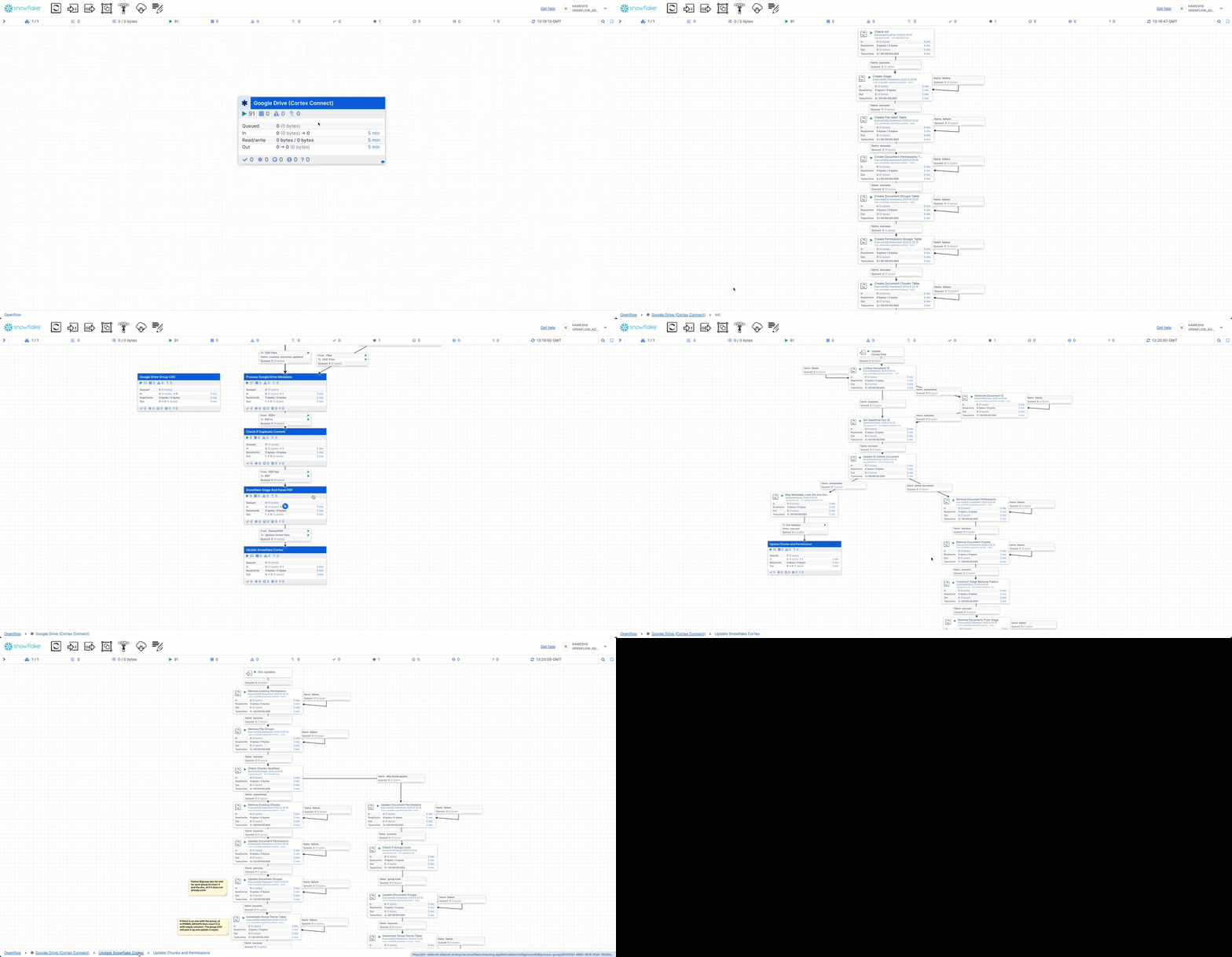
The animation demonstrates:
- Hover over the processor group to see a detailed statistics tooltip with real-time metrics
- Click on the "Google Drive (Cortex Connect)" processor group to drill down into the pipeline components
- View individual processors including:
- Google Drive source connector pulling documents
- Document transformation processors
- Snowflake destination processors writing to tables
- Controller services managing the flow
- Navigate back to the canvas to see the overall pipeline health
- Monitor byte throughput for each stage (In, Read/Write, Out) shown in the statistics panel
NOTE: Pipeline statistics automatically reset every 5 minutes, providing a rolling view of recent activity.
Data Pipeline Results
Verify Document Ingestion
Check that documents have been successfully ingested using the verification queries:
-- Switch to the correct role and database
USE ROLE FESTIVAL_DEMO_ROLE;
USE WAREHOUSE FESTIVAL_DEMO_S;
USE DATABASE OPENFLOW_FESTIVAL_DEMO;
USE SCHEMA FESTIVAL_OPS;

-- Show all tables created by Openflow connector
SHOW TABLES;

-- Show all stages created by Openflow connector
SHOW STAGES;
Check Auto-Created Tables
The Openflow connector automatically creates several tables for document management:
-- Describe the auto-created tables
DESC TABLE docs_chunks;      -- Document content chunks
DESC TABLE docs_groups;      -- Document groupings
DESC TABLE docs_perms;       -- Document permissions
DESC TABLE doc_group_perms;  -- Group permissions
DESC TABLE file_hashes;      -- File tracking and metadata
DESC TABLE perms_groups;     -- Permission groups

-- View file tracking information
SELECT * FROM file_hashes;
Explore Document Content
Query the document chunks to see ingested content:
-- View document chunks
SELECT * FROM docs_chunks LIMIT 10;

-- Get distinct document IDs and filenames
SELECT DISTINCT
    METADATA:id::string as id,
    METADATA:fullName::string as filename
FROM docs_chunks;

-- Check specific document categories
SELECT COUNT(DOC_ID)
FROM file_hashes
WHERE LOWER(DOC_ID) LIKE '%strategy%';
Comprehensive Document Verification
Verify all documents are ingested across demo categories:
-- Comprehensive document verification by demo category
SELECT
    COUNT(*) as total_docs,

    -- Strategic Planning Documents (Expected: 7)
    COUNT(CASE WHEN
        LOWER(DOC_ID) LIKE '%strategy%' OR
        LOWER(DOC_ID) LIKE '%board%meeting%' OR
        LOWER(DOC_ID) LIKE '%meeting%minutes%' OR
        LOWER(DOC_ID) LIKE '%financial%analysis%' OR
        LOWER(DOC_ID) LIKE '%q3%2024%financial%'
    THEN 1 END) as strategic_docs,

    -- Operations Excellence Documents (Expected: 5)
    COUNT(CASE WHEN
        (LOWER(DOC_ID) LIKE '%operation%manual%' OR LOWER(DOC_ID) LIKE '%venue%setup%') OR
        (LOWER(DOC_ID) LIKE '%sound%system%' AND LOWER(DOC_ID) LIKE '%project%') OR
        (LOWER(DOC_ID) LIKE '%post%event%analysis%')
    THEN 1 END) as operations_docs,

    -- Compliance & Risk Documents (Expected: 3)
    COUNT(CASE WHEN
        (LOWER(DOC_ID) LIKE '%health%safety%' OR LOWER(DOC_ID) LIKE '%safety%policy%') OR
        (LOWER(DOC_ID) LIKE '%service%agreement%' OR LOWER(DOC_ID) LIKE '%audio%equipment%') OR
        (LOWER(DOC_ID) LIKE '%post%event%analysis%')
    THEN 1 END) as compliance_docs,

    -- Knowledge Management Documents (Expected: 1)
    COUNT(CASE WHEN
        LOWER(DOC_ID) LIKE '%training%guide%' OR
        LOWER(DOC_ID) LIKE '%customer%service%training%'
    THEN 1 END) as training_docs,

    -- Document format breakdown
    COUNT(CASE WHEN LOWER(DOC_ID) LIKE '%.jpg' THEN 1 END) as jpg_files,
    COUNT(CASE WHEN LOWER(DOC_ID) LIKE '%.pdf' THEN 1 END) as pdf_files,
    COUNT(CASE WHEN LOWER(DOC_ID) LIKE '%.docx' THEN 1 END) as docx_files,
    COUNT(CASE WHEN LOWER(DOC_ID) LIKE '%.pptx' THEN 1 END) as pptx_files

FROM file_hashes;
Expected Results:
| Metric | Count |
|---|---|
| Total Documents | 15 |
| Strategic Planning Documents | 7 |
| Operations Excellence Documents | 5 |
| Compliance & Risk Documents | 3 |
| Training Documents | 1 |
| JPG Files | 9 |
| PDF Files | 3 |
| DOCX Files | 1 |
| PPTX Files | 2 |
Check Document Stage
Verify the documents stage created by the connector:
-- List files in the documents stage
LS @documents;
TIP: All verification queries are available in
sql/checks.sqlin the repository for easy execution.
Expected Document Collection
The pipeline should have ingested the Festival Operations business document collection:
Document Categories:
- Strategic Planning: 2025 expansion strategies, board meeting minutes, Q3 2024 financial analysis
- Operations Excellence: Sound system modernization project ($2.8M), venue setup procedures, post-event analysis
- Compliance & Risk: Health and safety policies, vendor service agreements
- Knowledge Management: Customer service training materials, staff development programs
Document Formats:
- PDF: 3 documents (policies, financial reports, contracts)
- DOCX: 1 document (meeting minutes or project charter)
- PPTX: 2 documents (training presentations, analysis reports)
- JPG: 9 documents (strategic overviews, operational guides - exported from presentations)
Total: 15 business documents demonstrating multi-format document intelligence
NOTE: All document counts and content are based on the Festival Operations demo dataset from
sample-data/google-drive-docs/.
Cortex Search
Automatic Cortex Search Service Creation
Great news! The Cortex Search service is automatically created by the Openflow Google Drive connector. No manual SQL required!
How It Works

Automatic Features:
- ✅ Arctic Embeddings: Automatically configured with
snowflake-arctic-embed-m-v1.5 - ✅ Document Indexing: All processed documents automatically indexed
- ✅ Semantic Search: Ready for natural language queries immediately
- ✅ Metadata Integration: Document properties, authors, and collaboration data included
Verify Automatic Service Creation
-- Check for the auto-created service
SHOW CORTEX SEARCH SERVICES;

-- The service will be named: CORTEX_SEARCH_SERVICE (default name)
DESC CORTEX SEARCH SERVICE CORTEX_SEARCH_SERVICE;
Test Semantic Search
Test the automatically created search service with Festival Operations queries:
-- Search for strategic planning documents
SELECT PARSE_JSON(
  SNOWFLAKE.CORTEX.SEARCH_PREVIEW(
      'CORTEX_SEARCH_SERVICE',
      '{"query": "2025 expansion plans target markets strategic planning", "limit": 5}'
  )
)['results'] as strategic_documents;

-- Search for technology modernization projects
SELECT PARSE_JSON(
  SNOWFLAKE.CORTEX.SEARCH_PREVIEW(
      'CORTEX_SEARCH_SERVICE',
      '{"query": "technology modernization sound system upgrade budget 2.8M", "limit": 5}'
  )
)['results'] as technology_projects;

-- Search for health and safety policies
SELECT PARSE_JSON(
  SNOWFLAKE.CORTEX.SEARCH_PREVIEW(
      'CORTEX_SEARCH_SERVICE',
      '{"query": "health safety policies emergency protocols compliance", "limit": 5}'
  )
)['results'] as safety_policies;
Additional Search Capabilities
The auto-created service includes both content and metadata search capabilities. You can search across:
- Document content: Full text search with semantic understanding
- Metadata: File names, authors, creation dates, document types
- Multi-format support: PDF, DOCX, PPTX, JPG documents
Sample Questions by Category
Based on the Festival Operations dataset, here are sample questions organized by business function:
Strategic Planning & Executive Intelligence
"What are our 2025 expansion plans and target markets?"
"Show me all financial analysis and revenue projections"
"What decisions were made in the latest board meeting?"
"Find all budget allocations and investment strategies"
Operations Excellence & Technology
"Find all technology modernization projects and their budgets"
"What is our $2.8M sound system upgrade timeline?"
"Show me all equipment management protocols"
"What post-event analysis recommendations exist?"
Compliance & Risk Management
"What health and safety policies are currently in effect?"
"Show me all vendor contracts and service agreements"
"Find emergency response procedures"
"What regulatory compliance requirements exist?"
Knowledge Management & Training
"Find all training materials and staff development programs"
"What customer service standards are documented?"
"Show me onboarding procedures for new staff"
"What training frameworks are currently in use?"
Advanced Cross-Category Queries
"What are our 2025 expansion plans across all document formats - show me visual charts, meeting decisions, and financial projections"
"Find all technology modernization projects with their business cases, budgets, and visual diagrams"
"What health and safety policies are in effect across all formats - show me formal policies, vendor agreements, and visual guides"
TIP: These sample questions are designed specifically for the Festival Operations dataset. Use them as templates and adapt the language to match your organization's terminology and business context.
Snowflake Intelligence
Snowflake Intelligence enables you to create AI agents that can query and analyze your unstructured data using natural language. This section shows how to connect Snowflake Intelligence to the Cortex Search service created by your Openflow pipeline.
IMPORTANT: All queries from Snowflake Intelligence use the user's credentials. Role-based access control and data-masking policies automatically apply to all agent interactions.
Prerequisites
Before setting up Snowflake Intelligence, ensure you have:
- ✅ Completed Openflow pipeline setup with documents ingested
- ✅ Appropriate Snowflake privileges (
CREATE AGENTprivilege) - ✅ Default role and warehouse set in your Snowflake user profile
Initial Setup
Create the required database and schema structure:
-- Use ACCOUNTADMIN role for setup
USE ROLE ACCOUNTADMIN;

-- Create database for Snowflake Intelligence
CREATE DATABASE IF NOT EXISTS snowflake_intelligence;
GRANT USAGE ON DATABASE snowflake_intelligence TO ROLE PUBLIC;

-- Create agents schema
CREATE SCHEMA IF NOT EXISTS snowflake_intelligence.agents;
GRANT USAGE ON SCHEMA snowflake_intelligence.agents TO ROLE PUBLIC;

-- Grant agent creation privileges to your role
GRANT CREATE AGENT ON SCHEMA snowflake_intelligence.agents TO ROLE FESTIVAL_DEMO_ROLE;
Create the Agent
IMPORTANT: Before creating the agent, ensure you are using the
FESTIVAL_DEMO_ROLErole in Snowsight. This ensures the agent is owned by the correct role and has proper access to resources. You can switch roles using the role selector in the top-right corner of Snowsight.
Access Agent Creation Interface
- Sign in to Snowsight
- Switch to
FESTIVAL_DEMO_ROLEusing the role selector in the top-right corner - Navigate directly to Agents: Create Snowflake Intelligence Agent
- Select "Create agent"
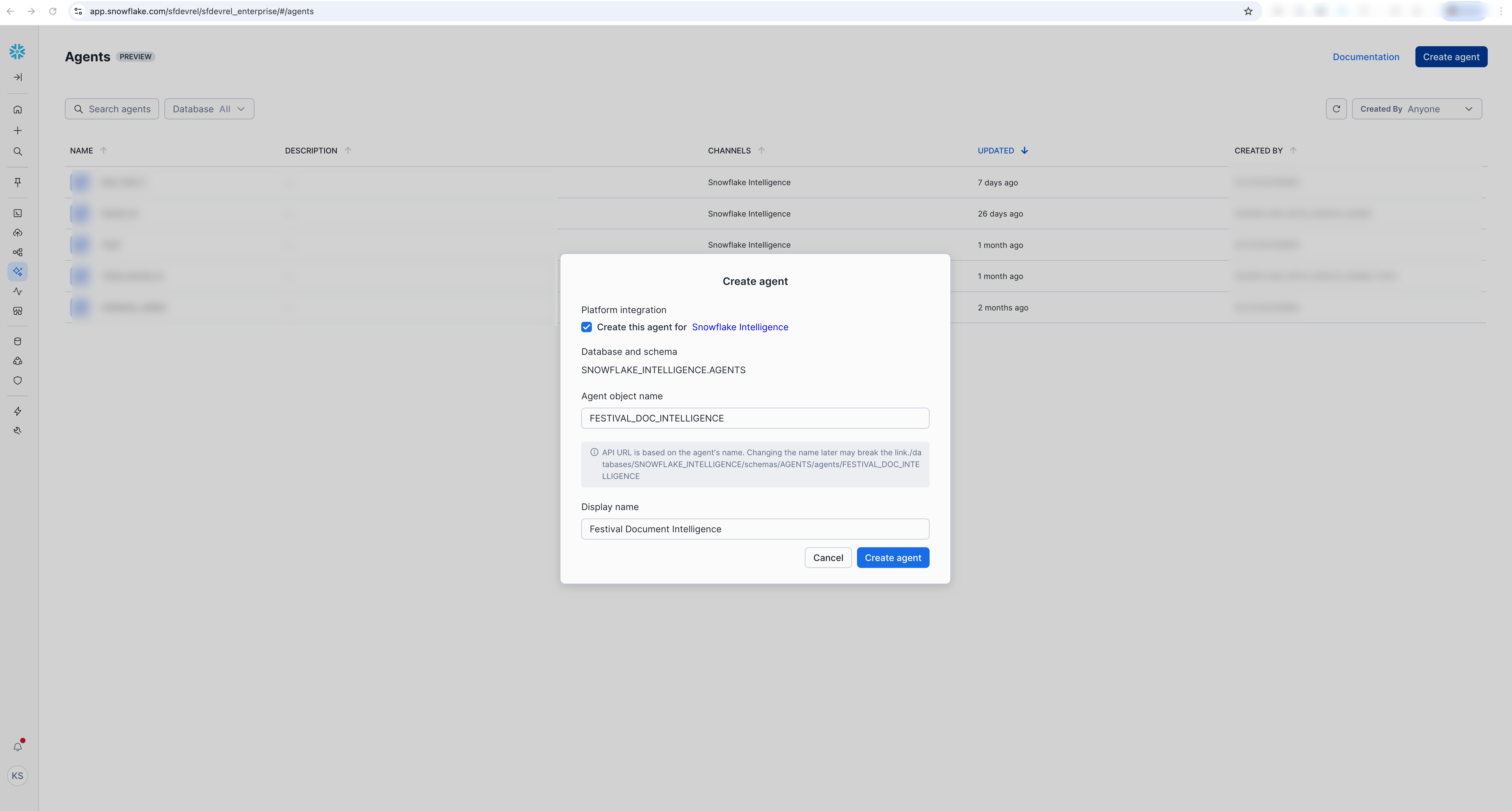
Platform Integration:
- ☑️ Select "Create this agent for Snowflake Intelligence"
Agent Details:
- Agent object name:
FESTIVAL_DOC_INTELLIGENCE - Display name:
Festival Document Intelligence
Configure Agent Basics
After creating the agent, you need to configure its details:
-
Click on the agent name (
FESTIVAL_DOC_INTELLIGENCE) in the agent list to open it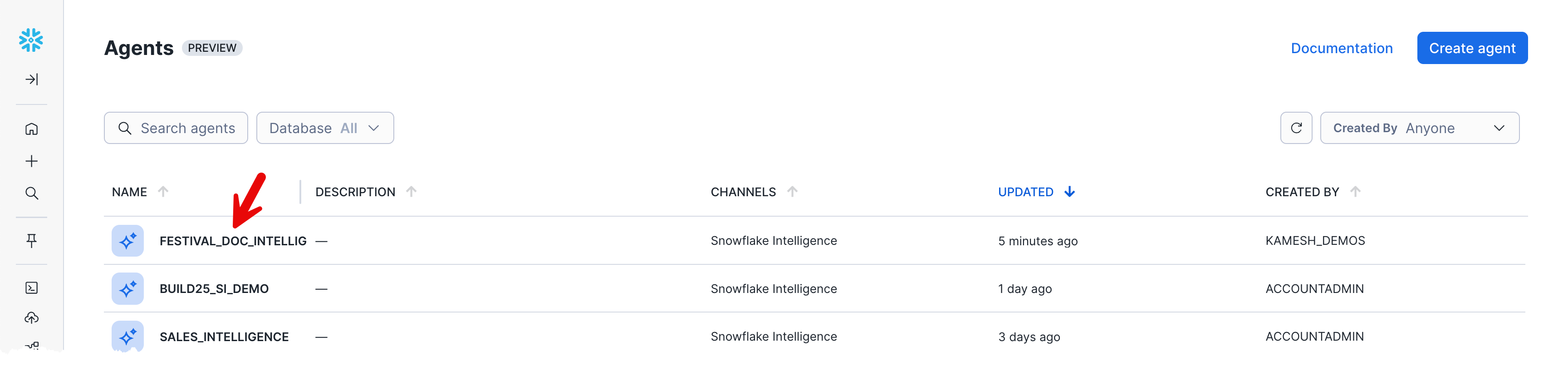
-
Click "Edit" button to start editing the agent configuration and details
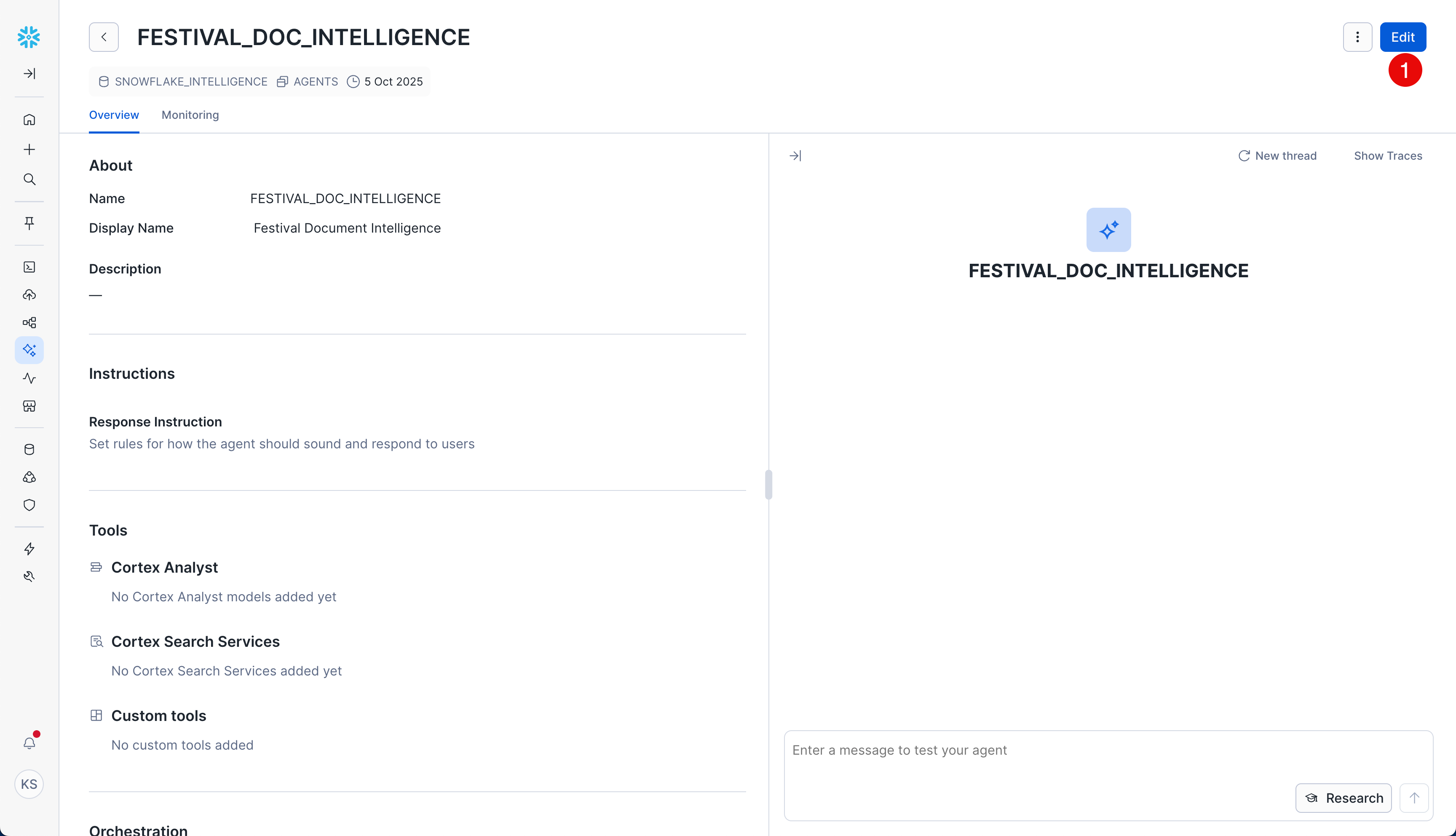
IMPORTANT: As you configure each section below (About, Tools, Orchestration, Access), remember to click "SAVE" after completing all configurations to ensure your changes are preserved.
Now configure the agent basics in the "About" section:
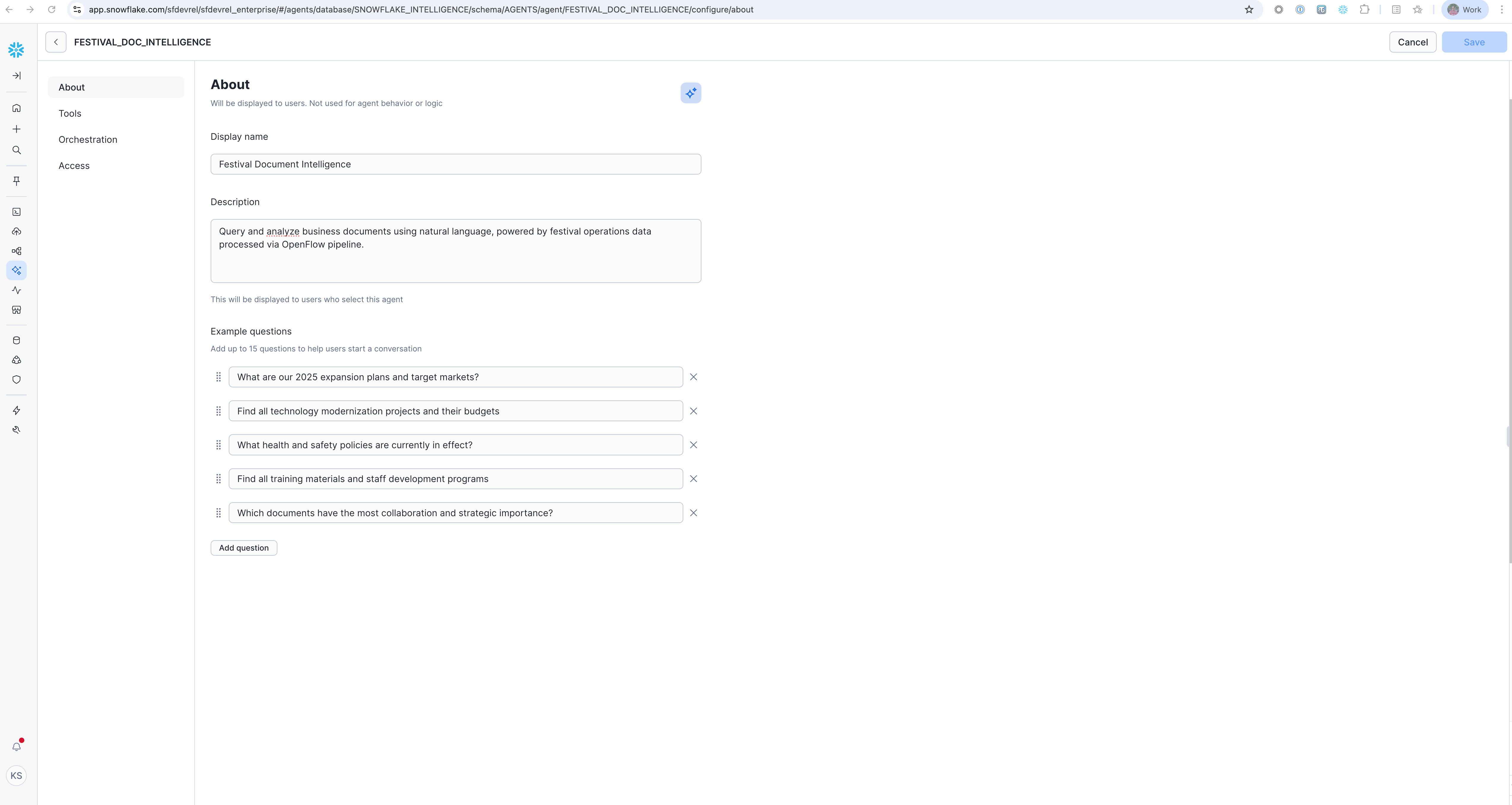
- Description:
Query and analyze business documents using natural language, powered by festival operations data processed via Openflow pipeline.
Example Questions (Add these to help users get started):
"What are our 2025 expansion plans and target markets?"
"Find all technology modernization projects and their budgets"
"What health and safety policies are currently in effect?"
"Find all training materials and staff development programs"
"Which documents have the most collaboration and strategic importance?"
Configure Agent Tools
Add Cortex Search Service
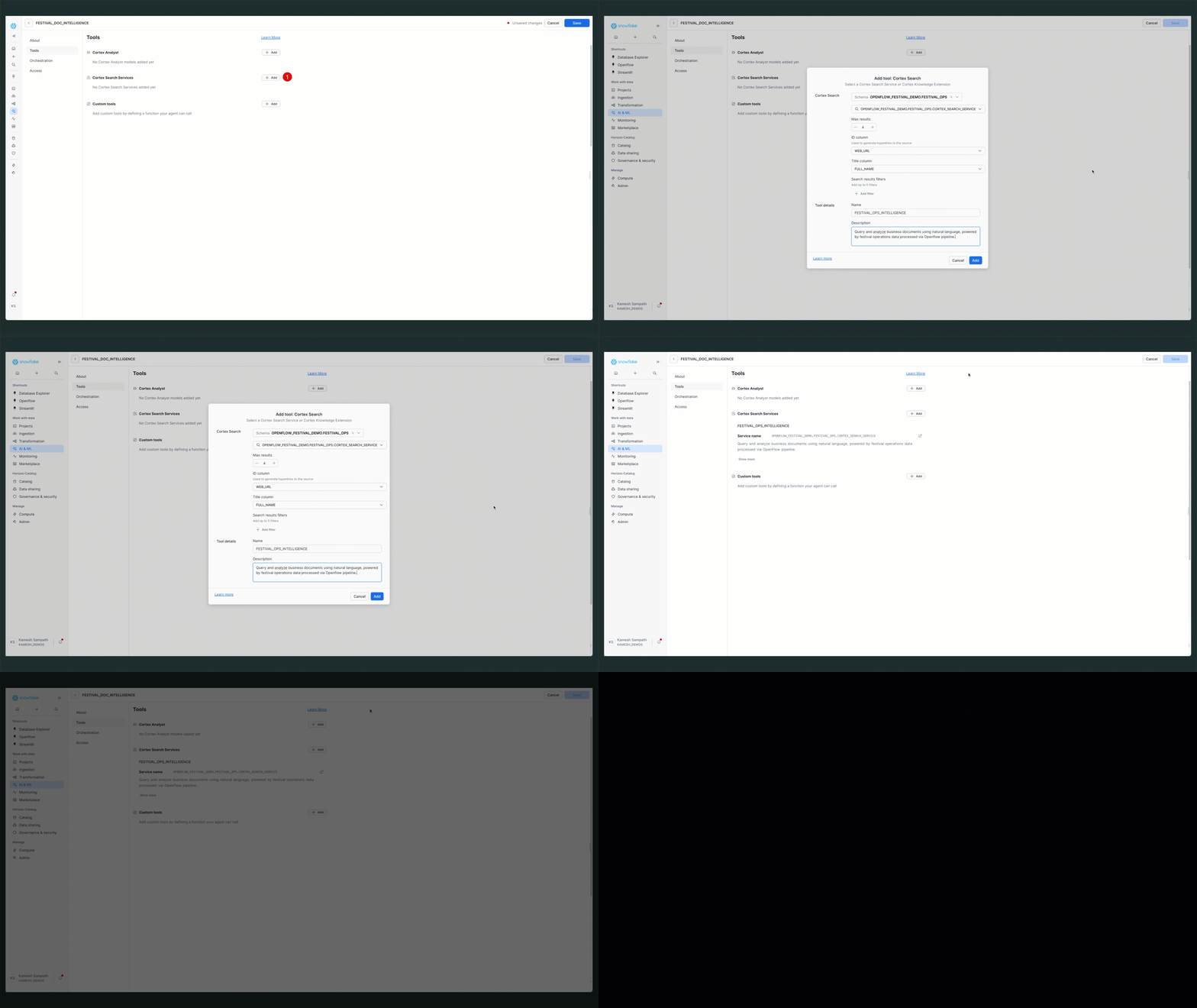
- Navigate to "Tools" tab
- Find "Cortex Search Services" section
- Click "+ Add" button
Configure the Search Service:
- Name:
FESTIVAL_OPS_INTELLIGENCE - Search Service:
OPENFLOW_FESTIVAL_DEMO.FESTIVAL_OPS.CORTEX_SEARCH_SERVICE - Description:
Query and analyze business documents using natural language, powered by festival operations data processed via Openflow pipeline.
TIP: The search service name follows the pattern
DATABASE_NAME.SCHEMA_NAME.SERVICE_NAME. In this case:OPENFLOW_FESTIVAL_DEMO.FESTIVAL_OPS.CORTEX_SEARCH_SERVICE
Configure Orchestration
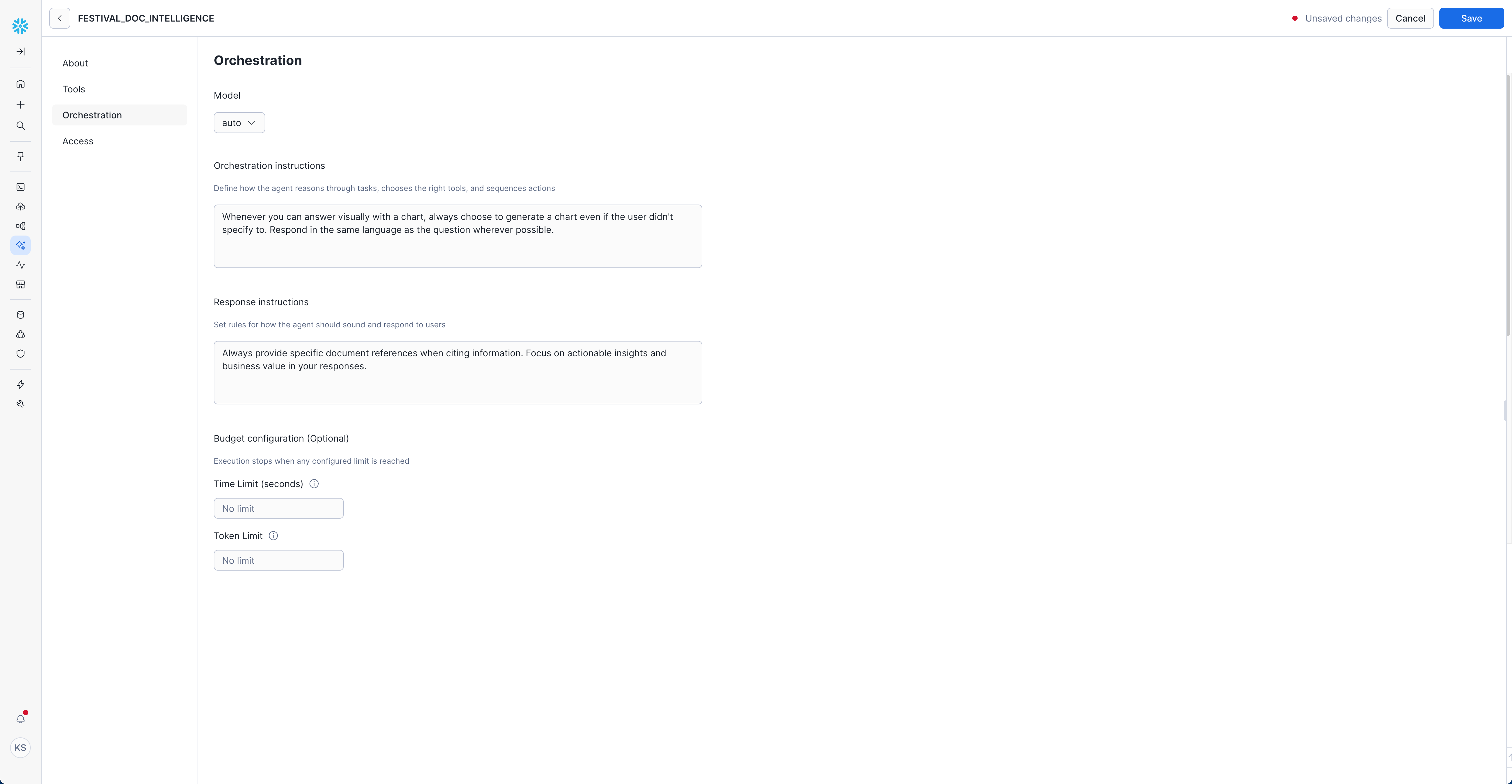
- Navigate to "Orchestration" tab
- Set Model:
auto(recommended - lets Snowflake choose the optimal model)
Orchestration Instructions:
Whenever you can answer visually with a chart, always choose to generate a chart even if the user didn't specify to. Respond in the same language as the question wherever possible.
Response Instructions: (Optional)
Always provide specific document references when citing information.
Focus on actionable insights and business value in your responses.
TIP: Use
auto(default) to let Snowflake automatically select the best available model for your region and query type. Supported models include Claude 4.0, Claude 3.7, Claude 3.5, and GPT 4.1.
Set Access Controls
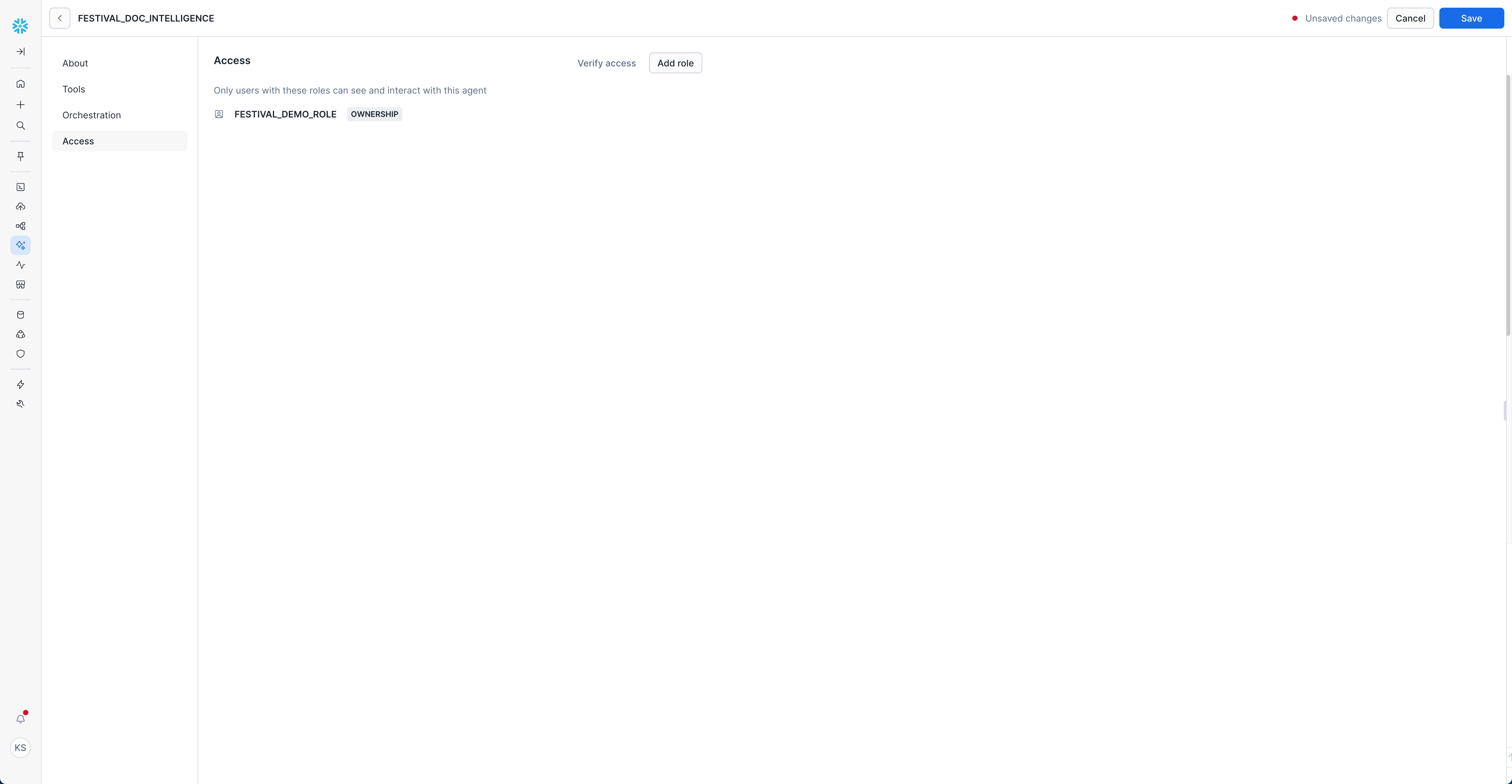
- Navigate to "Access" tab
- Click "Add role"
- Select appropriate roles for your organization
Example Role Configuration:
- Role:
FESTIVAL_DEMO_ROLE - Permission:
OWNERSHIP
NOTE: All queries use the user's credentials. Ensure users have appropriate access to the Cortex Search service, source database/schema, and underlying data.
Test Your Agent
Getting Started with Queries
-
Access Snowflake Intelligence: Open Snowflake Intelligence
-
Select your agent
FESTIVAL_DOC_INTELLIGENCEfrom the dropdown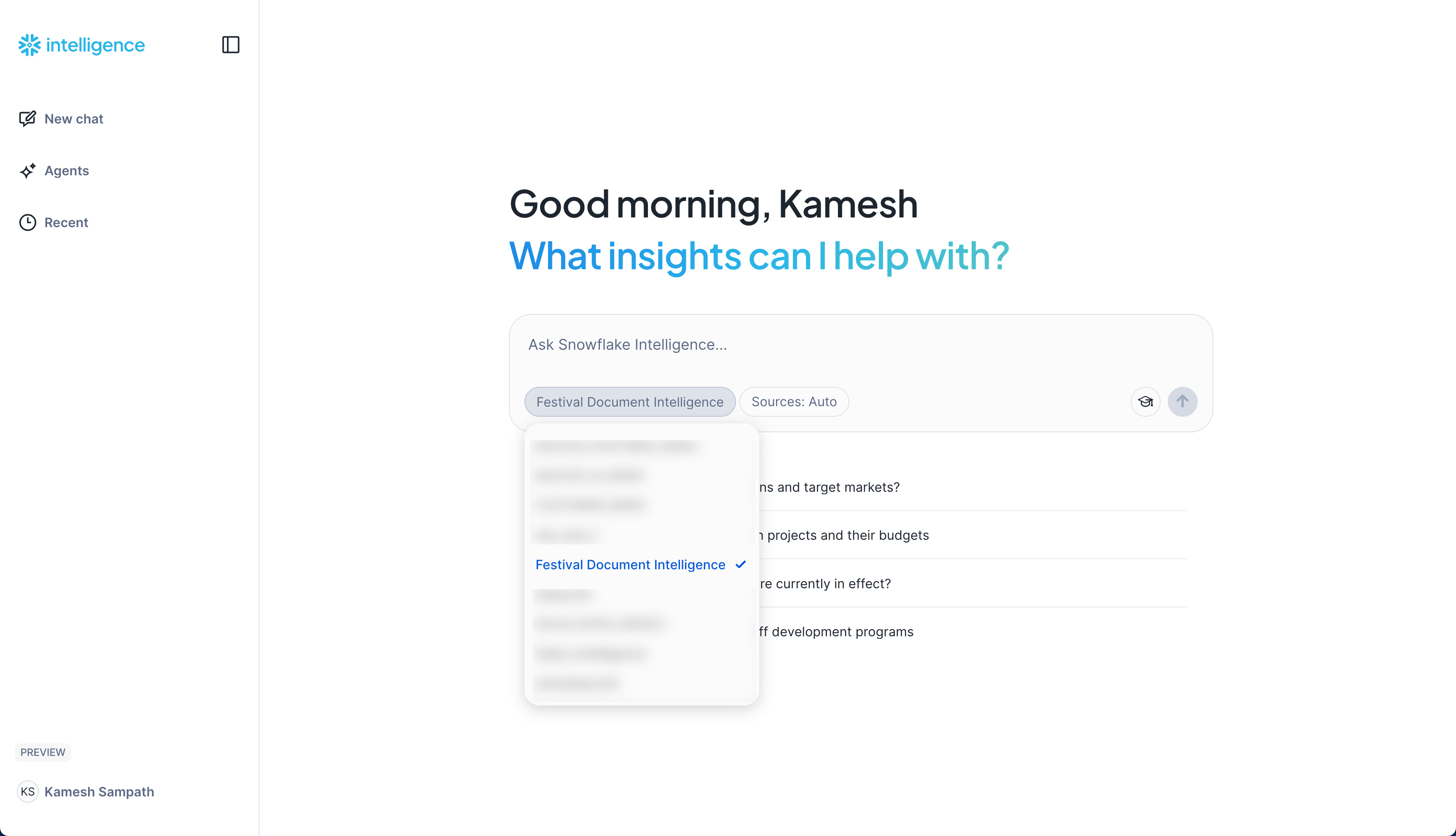
-
Choose the Cortex Search service as your data source
Start with the Example Questions you configured - these are specifically tailored to your festival operations data.
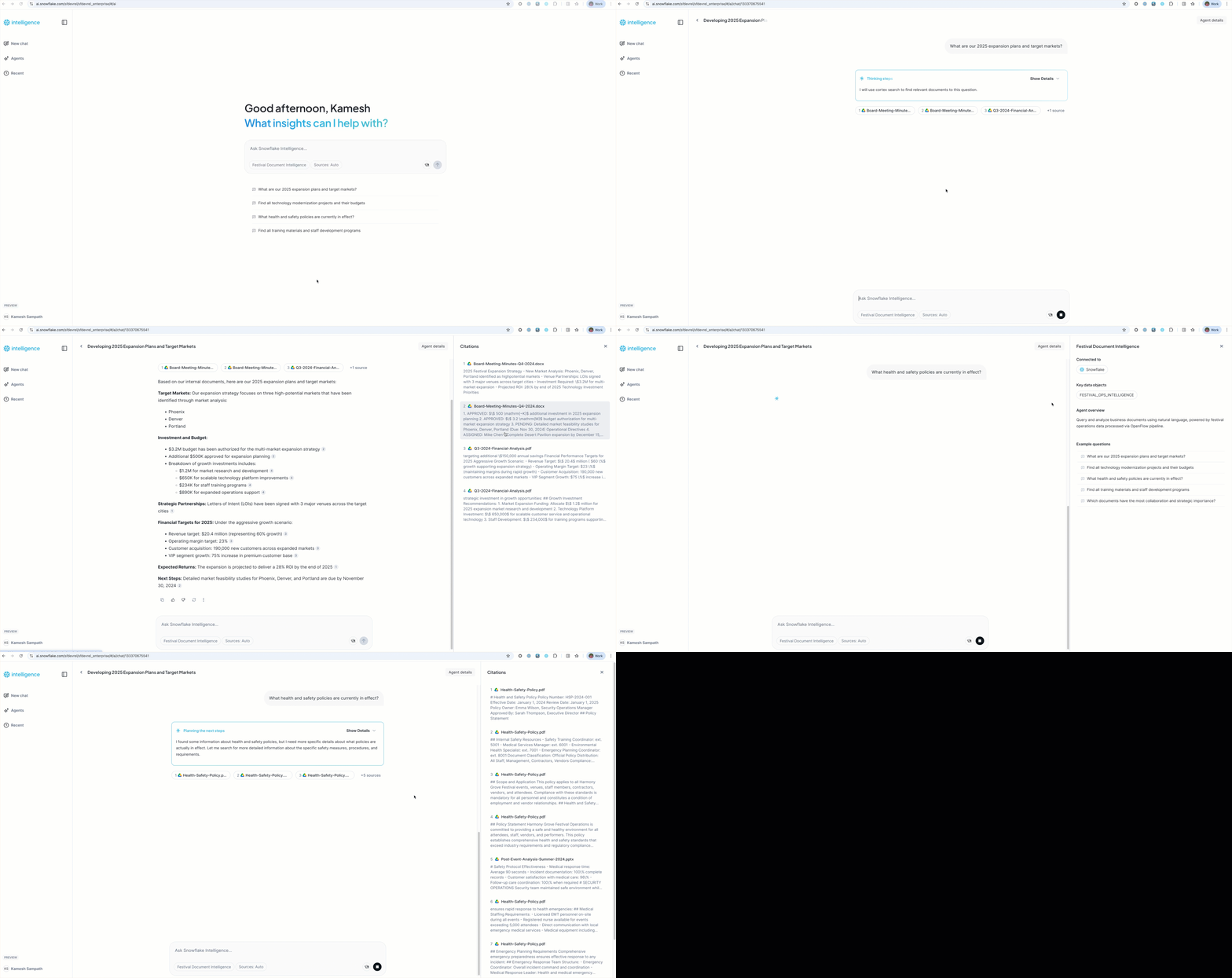
Sample Questions by Category
Strategic Planning:
"What are our 2025 expansion plans and target markets?"
"What strategic initiatives are mentioned in board meeting minutes?"
Operations Excellence:
"Find all technology modernization projects and their budgets"
"What are the key takeaways from the post-event analysis?"
Compliance & Risk:
"What health and safety policies are currently in effect?"
"What are the terms and conditions in our vendor service agreements?"
Knowledge Management:
"Find all training materials and staff development programs"
"What customer service training resources are available?"
Advanced Use Cases
Multi-Document Analysis
Use the agent for complex analysis across multiple documents:
"Compare our Q3 2024 financial performance with the strategic goals outlined in our 2025 expansion plan. What gaps exist and what actions are recommended?"
This type of query demonstrates the agent's ability to:
- Search across different document types
- Perform comparative analysis
- Identify discrepancies and gaps
- Provide strategic recommendations
Trend Analysis
Identify patterns and trends across time-based documents:
"What trends do you see in customer complaints and incident reports over the past year? What preventive measures have been implemented?"
Knowledge Discovery
Find hidden insights and connections:
"What vendor performance issues are mentioned across different documents, and how do they relate to our operational challenges?"
Executive Briefing
Generate comprehensive briefings:
"Prepare an executive summary of key issues and decisions from our Q4 2024 board meeting, including action items and their current status based on other documents."
Compliance Monitoring
Automated compliance checking:
"Review all our safety policies and incident reports to identify any compliance gaps or policy updates needed."
Create Custom Views with AI Summarization
Create enhanced views using AI_COMPLETE for intelligent document summaries. These views can power custom Cortex Search services tailored to specific use cases.
Create AI-Enhanced Document View
-- View with AI-generated document summaries
-- Uses AI_COMPLETE to generate concise, intelligent summaries
CREATE OR REPLACE VIEW document_summaries AS
SELECT
    DOC_ID,
    METADATA:fullName::string as full_name,
    METADATA:webUrl::string as web_url,
    METADATA:lastModifiedDateTime::timestamp as last_modified_date_time,
    chunk as original_chunk,
    -- AI-powered summary generation
    SNOWFLAKE.CORTEX.AI_COMPLETE(
        'mistral-large2',
        CONCAT(
            'Summarize this document content in 2-3 sentences, focusing on key information: ',
            chunk
        )
    ) as ai_summary,
    user_emails,
    user_ids
FROM docs_chunks;
NOTE: AI_COMPLETE uses Mistral Large 2 to generate intelligent summaries. You can also use
mistral-large,llama3.1-70b, or other supported models.
Create Custom Cortex Search Service
Once you have the custom view, create a dedicated Cortex Search service:
-- Create a custom Cortex Search service using the AI-enhanced view
CREATE OR REPLACE CORTEX SEARCH SERVICE festival_ai_summaries_search
ON ai_summary
ATTRIBUTES full_name, web_url, last_modified_date_time, user_emails
WAREHOUSE = FESTIVAL_DEMO_S
TARGET_LAG = '1 day'
AS (
    SELECT
        DOC_ID,
        ai_summary,
        full_name,
        web_url,
        last_modified_date_time,
        user_emails
    FROM document_summaries
);

-- Verify the new service
SHOW CORTEX SEARCH SERVICES;
DESC CORTEX SEARCH SERVICE festival_ai_summaries_search;
Test the AI-Enhanced Search Service
Query the custom search service for more focused, summarized results:
-- Search using AI-generated summaries
SELECT PARSE_JSON(
  SNOWFLAKE.CORTEX.SEARCH_PREVIEW(
      'festival_ai_summaries_search',
      '{"query": "strategic planning expansion markets", "limit": 5}'
  )
)['results'] as summarized_strategic_docs;

-- Compare with original search service
SELECT PARSE_JSON(
  SNOWFLAKE.CORTEX.SEARCH_PREVIEW(
      'CORTEX_SEARCH_SERVICE',
      '{"query": "strategic planning expansion markets", "limit": 5}'
  )
)['results'] as original_strategic_docs;
Benefits of AI-Enhanced Views:
- Intelligent Summarization: AI understands context and extracts key information
- Flexible Querying: Create multiple specialized views for different use cases
- Better Search Results: Summaries provide cleaner, more focused search hits
- Agent-Friendly: Snowflake Intelligence agents can leverage summarized content more efficiently
CUSTOMIZATION TIP: Create multiple specialized views for different departments (e.g.,
executive_summaries,compliance_summaries,operations_summaries) and corresponding Cortex Search services for targeted intelligence.
Building Custom Documents with Taskfile
The repository includes a Taskfile.yml that automates document format conversion, allowing you to create additional documents for testing.
Prerequisites
# macOS
brew install go-task pandoc

# Ubuntu/Debian
sudo snap install task --classic
sudo apt-get install pandoc

# Windows (via Chocolatey)
choco install go-task pandoc
Available Document Conversion Tasks
Convert to PDF (Formal documents):
task convert-to-pdf
Converts markdown files to PDF format for policies, financial reports, and vendor agreements.
Convert to PPTX (Presentations):
task convert-to-pptx
Creates PowerPoint presentations from markdown for training materials and analysis reports.
Convert to DOCX (Word documents):
task convert-to-docx
Generates Word documents from markdown for meeting minutes and project charters.
Convert to JPG (Images):
task convert-to-jpg
Exports presentations to image format for strategic planning documents and operational guides.
Convert All Formats:
task convert-all-docs
Runs all conversion tasks to generate documents in all supported formats (PDF, DOCX, PPTX, JPG).
Creating Custom Documents
- Add your markdown file to the appropriate category in
sample-data/google-drive-docs/ - Edit the Taskfile.yml to include your new document in the conversion tasks
- Run the conversion using the appropriate task
- Upload to Google Drive and let Openflow process the new documents
TIP: The Taskfile demonstrates how to create multi-format document collections for comprehensive testing of Openflow's document intelligence capabilities.
Cleanup
When you're finished with the demo, follow these steps to clean up resources.
Stop the Google Drive Connector
- Navigate to your Openflow runtime canvas
- Right-click on the Google Drive (Cortex Connect) processor group
- Select Stop to halt document ingestion
- Wait for the connector to fully stop (status indicator turns red)
TIP: Stopping the connector preserves your configuration while preventing further document processing and associated compute costs.
Drop the Snowflake Intelligence Agent (Optional)
If you created an agent and no longer need it:
-- Switch to the Snowflake Intelligence database
USE DATABASE snowflake_intelligence;
USE SCHEMA agents;

-- Drop the agent
DROP AGENT IF EXISTS FESTIVAL_DOC_INTELLIGENCE;
Drop the Demo Database (Optional)
To completely remove all data and resources:
-- Switch to ACCOUNTADMIN role
USE ROLE ACCOUNTADMIN;

-- Drop the entire demo database (includes all tables, stages, and search services)
DROP DATABASE IF EXISTS OPENFLOW_FESTIVAL_DEMO;

-- Drop the demo warehouse
DROP WAREHOUSE IF EXISTS FESTIVAL_DEMO_S;

-- Drop the demo role
DROP ROLE IF EXISTS FESTIVAL_DEMO_ROLE;
WARNING: Dropping the database will permanently delete all ingested documents, Cortex Search services, and pipeline configurations. Only perform this if you no longer need the demo.
Conclusion And Resources
Congratulations! You've successfully built an end-to-end unstructured data pipeline using Openflow and Snowflake Intelligence. You can now:
- Automatically ingest documents from Google Drive
- Search across business documents using natural language
- Get intelligent insights from your document collection
- Build AI-powered assistants for business intelligence
What You Accomplished
- Data Ingestion: Set up automated document ingestion from Google Drive using Openflow
- Content Processing: Processed multiple document formats including PDF, DOCX, PPTX, and images
- Semantic Search: Created Cortex Search services for intelligent document discovery
- AI Agents: Built Snowflake Intelligence agents for natural language document analysis
- Business Intelligence: Enabled strategic insights from unstructured business content
Key Benefits Realized
- Unified Knowledge Base: All business documents searchable from a single interface
- Natural Language Access: No need for complex queries or technical knowledge
- Automated Processing: New documents automatically available for search and analysis
- Strategic Insights: AI-powered analysis reveals patterns and opportunities
- Compliance Support: Easy access to policies, procedures, and regulatory documents
Next Steps
- Expand Document Sources: Add connectors for SharePoint, Slack, or other business systems
- Enhance Search: Create specialized search services for different document categories
- Advanced Analytics: Build dashboards and reports based on document insights
- Integration: Connect with existing business intelligence and workflow tools
- Governance: Implement document retention policies and access controls
Related Resources
Quickstarts:
- Getting Started with Openflow Snowflake Deployments - Complete infrastructure setup guide
- Source Code and Sample Data
Documentation:
Community and Support
We would love your feedback on this QuickStart Guide! Please submit your feedback using the GitHub issues link at the top of this guide.
This content is provided as is, and is not maintained on an ongoing basis. It may be out of date with current Snowflake instances
