How to Easily Load XML with SQL (Part 1)

With this two-part blog, we review how to load XML data into Snowflake and query with ANSI-standard SQL. Doing so will enable you to have full relational database capabilities for XML, despite it being a document store, non-relational, data format.
And if you're asking yourself: "XML, is it still being used?" Rest assured, the answer is a resounding, "Yes!" Even though JSON has overtaken XML as the preferred light-weight, easy-to-understand data exchange file format of choice, XML remains very well entrenched in corporate IT. For example, XML has many use cases from desktop office applications to SOA-based enterprise applications to a variety of APIs and industry-level data-exchange protocol standards. In regard to industry standards specifically, there's HL7 for the healthcare industry, there's FpML for financial services, and OTA for travel. All indications are XML will continue to thrive and evolve.
Given the prevalence of XML, you'll want a data warehouse that makes it easy to query XML to ask questions of the data and to produce insights.
Other approaches require you to first transform XML before loading into a SQL database. This can add complexity or delays since you must use a separate tool to transform the XML data. Otherwise, you'll have to custom-write the transformation scripts yourself. With Snowflake, you can ingest XML direct into the solution. No pre-transformation required. Thanks to Snowflake's patented VARIANT data type, XML data can be stored as its own columnar database table or inserted into an existing table in Snowflake.
The following steps describe how.
Gathering Sample XML Data
First, let's gather XML data. For our sample, we use publicly available US Treasury auction data. The data can be found here. This website provides a record of all Treasury auction announcements for T-bills, notes, bonds, etc., over the past decade (from 2008 to 2017) formatted as XML data. In total, the site contains about 25,000 XML files. We've used five as examples for this post.
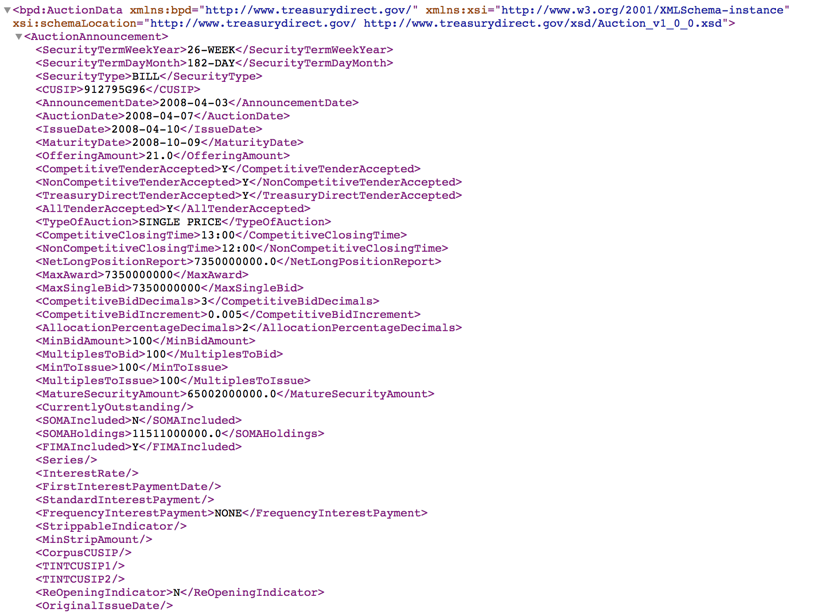
Figure 1 provides a read-out of one of the XML-based, Treasury auction data files:
Loading XML Data into Snowflake
Next, we are going to load the data into Snowflake. Snowflake provides an intuitive UI, which makes it easy to load and prep the data to run queries for analysis. The steps are summarized as follows:
- Create a new table with an XML column using Snowflake's patented VARIANT data type.
- Create a new column-oriented file format for XML ("columnarizing" the XML), to be used with the new table.
- Load the XML sample data into the XML column of the new table.
The actual sequence of steps is as follows.
Create a New Table
- Create a table with XML column with VARIANT data type.
- From the Snowflake UI, select the database into which the XML data will be loaded (e.g., 'TUTORIAL_DB' for our example here). [To learn how to create a new database, click here].
- From the database tool bar, click on Tables -> Create
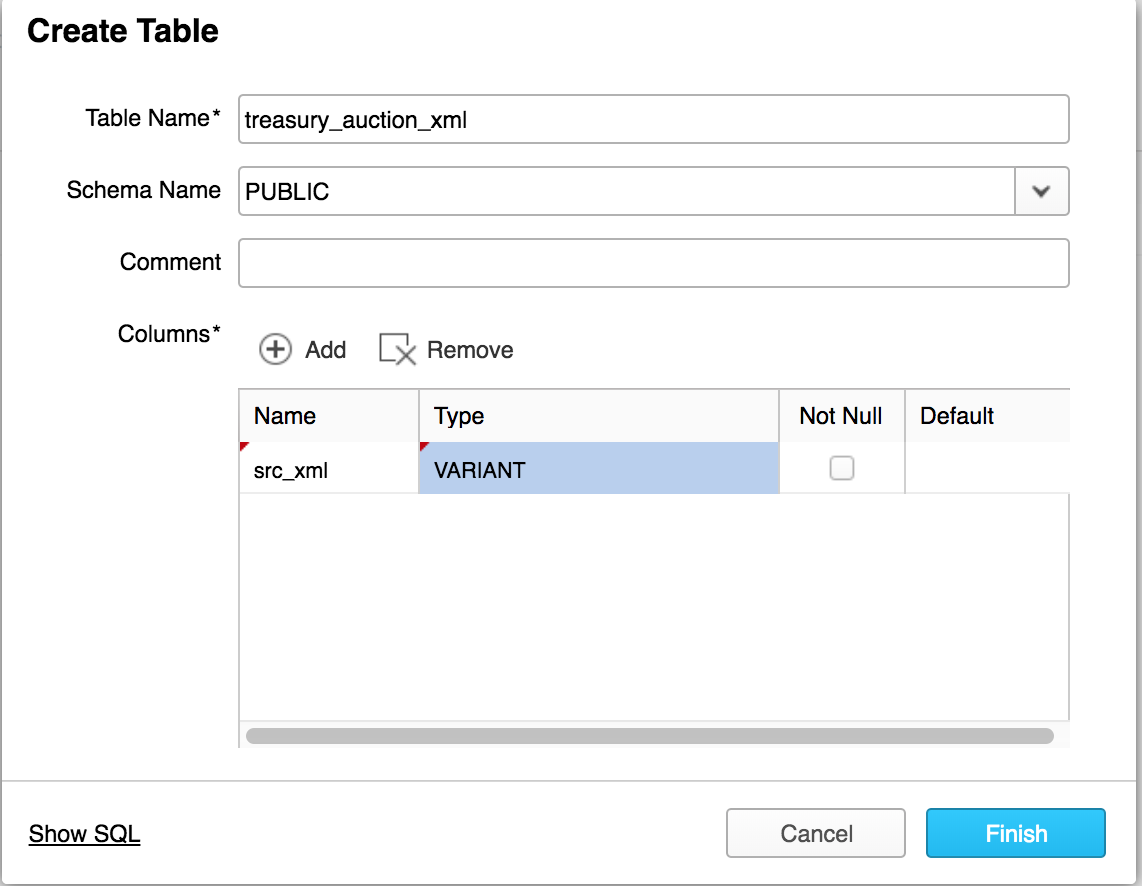
- Enter the table name as 'treasury_auction_xml'. The default schema name is 'Public'. Specify the schema (column and data type as shown):
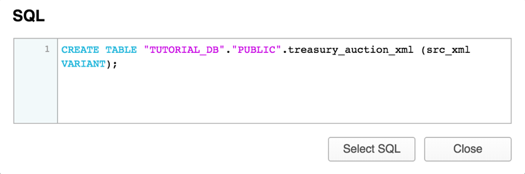
If you prefer to work with SQL statements for a script or a workbook, you can click on the 'Show SQL' link in the Create Table dialog box to display the equivalent SQL statements that can be cut and pasted into your script. Snowflake provides this option for most selection boxes. Doing so for this example will reveal:
Create a New File Format for XML
As part of the data loading process, columnarize the XML via a new file format:
- Select the database 'TUTORIAL_DB' and click on the table 'treasury_auction_xml'.
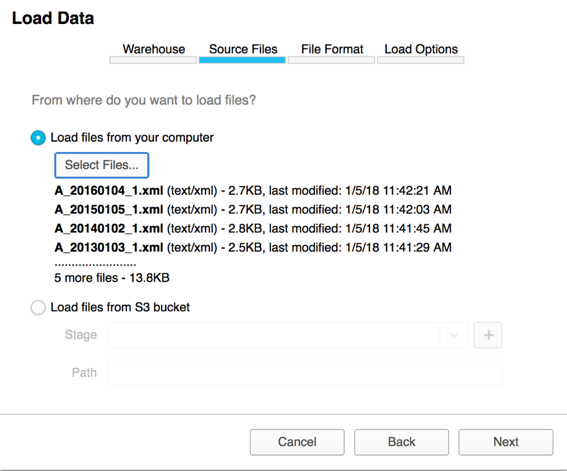
- Click on Load Table. A series of pop-up windows will be displayed to guide the user through the data loading process. Select the warehouse you designate for this exercise. Next, specify the location of the XML files to be loaded. The dialog box for our example is shown below:
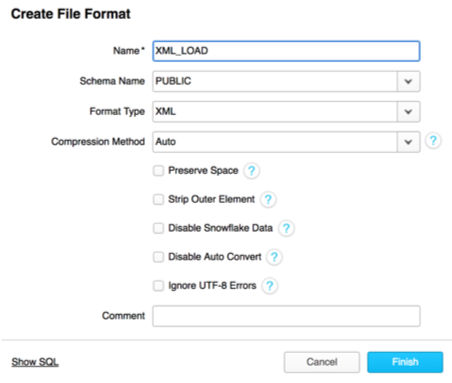
- Next, in the file format step, click on + and a pop-up window is displayed. Specify the various options as shown below and click on Finish:
Complete the Loading Process
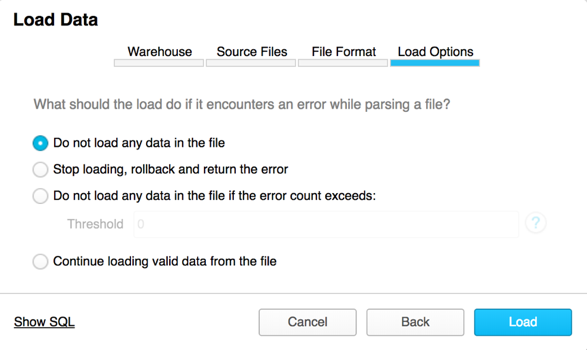
Select Load Options. This is the last step to complete the loading of XML data into the new table with an XML column. A few different error handling options are presented as shown. Select the choice that is appropriate for your requirement.
- For this example, we choose to skip an XML file if an error is detected in parsing. Click on Load to finish.
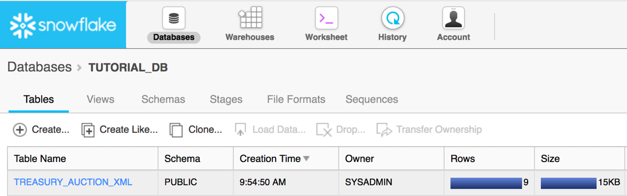
- Load result is displayed in the example below, showing that a number of XML files were successfully loaded into the new table 'treasury_auction_xml'.
Querying the XML data
With the XML data loaded, you can easily query the data in a fully relational manner, expressing queries with robust ANSI SQL. For example, for a quick glance of all of the XML documents loaded into the table, execute this query:
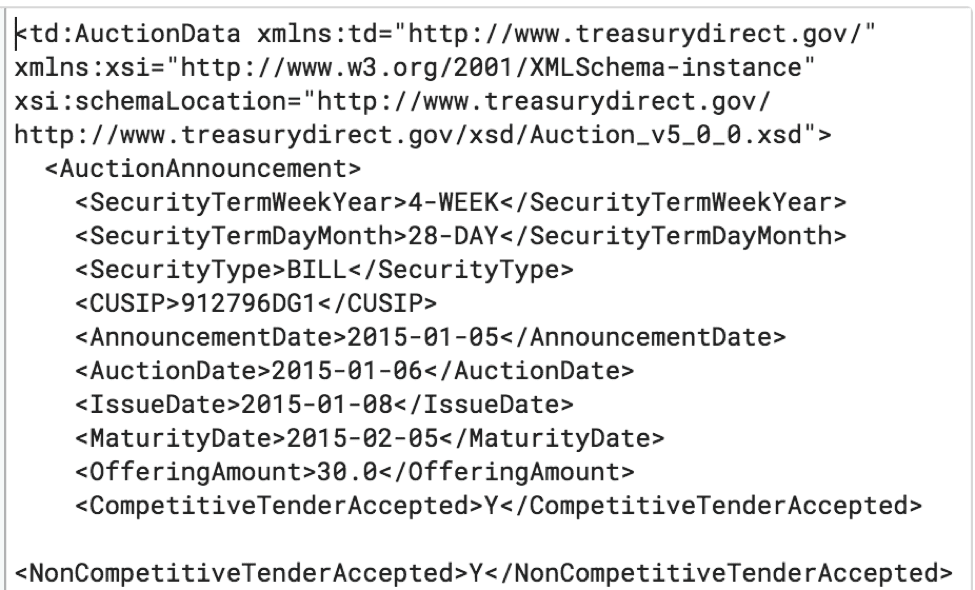
SELECT src_xml FROM treasure_auction_xml;This query will return all of the XML documents in the XML column. The following figure shows a portion of the output:
This is just a quick example of how you can easily query XML with Snowflake with standard SQL. In addition, you have an assortment of XML functions to query XML elements in the XML files. This includes a powerful FLATTEN table-value function, which is an un-nesting function that will allow you to access the inherent hierarchical structures within an XML file. In part 2 of this post, we examine a few sample queries to easily analyze the data using the various XML functions and the semi-structured data querying feature called LATERAL FLATTEN.
Additional Links
Authors